2D Inverse Heat Lab 2 : Oil Quenching of Disk
Problem Summary:
This lab will demonstrate how to use the Inverse Heat Transfer Wizard to determine heat transfer coefficients of a disk quench process. Experimentally measured temperature data is needed. Heat transfer coefficients can be functions of temperature or time. Multiple Zones of heat-transfer coefficients are assigned to the disk.
2.1. Starting a new problem
2.2. Set Geometry type and mode
2.3. Setting Process Conditions
2.4. Defining Material
2.5. Defining Workpiece Object
2.6. Import geometry
2.7. Generate mesh
2.8. Assigning Material
2.9. Generating Structured Mesh
2.10. Temperature Measurement Points
2.11. Defining Time Zones
2.12. HT Zone Partitioning
2.13. Defining Heat Transfer Zones
2.14. Defining Step controls
2.15. Optimization control
2.16. Database Generation
2.17. Optimization
2.18. Optimization results
Starting a new problem
Start a new Inverse Heat Transfer Wizard problem with problem ID DISK_INVHEAT. You can do so by clicking the  button and choose “2D Inverse Heat ”, enter Problem name as **DISK_INVHEAT ** and choose “English ” for “Unit System” (see Fig. 2DINVL2.1.). You can select the directory under Location filed and then click on
  to open Inverse Heat wizard.
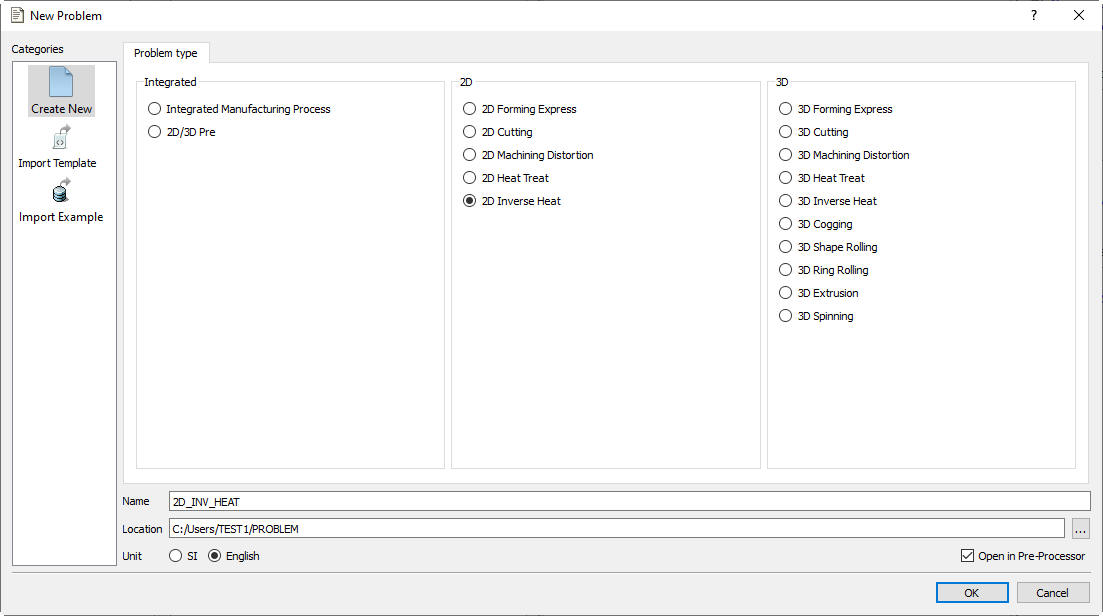
Problem Setup window
Set Geometry type and mode
As the 2D Inverse Heat wizard opens, you should see a window as shown in Fig. 2DINVL2.2. Set “GeometryType ” as “Axisymmetric ”. If user is interested in calculating transformations or atom content due to diffusion then user can turn on respective check boxes under “Mode” tab. In this lab we will not turn on any check box as we will be calculating only heat transfer co-efficients. Click on  .
.
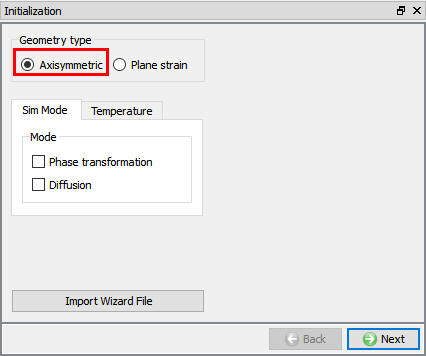
Initialization Window
Setting Process Conditions
In this page user can set the environment conditions. If the process involves Quenching and heat transfer then respective check boxes can be turned on to define the environment conditions. Our process involves only quenching and environment temperature is constant, hence turn**on** “Quench ” check box and define environment temperature as 68 °F (see Fig. 2DINVL2.3.). Click on .
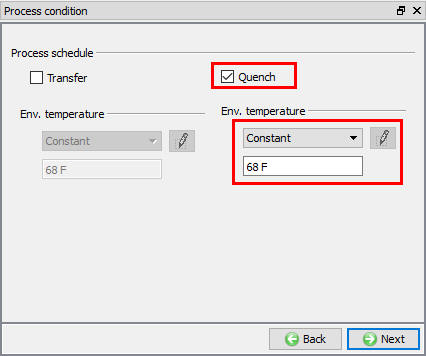
Setting up Process conditions
Defining Material
In page “Material list ”, choose  and in the material library, choose “Super alloy “ category and load “INCONEL-718- 11[1700-2050F (925-1120C)] ” as shown in Fig. 2DINVL2.4. (Note that the temperature ranges are only for the plastic data). Click on until “Workpiece” page.
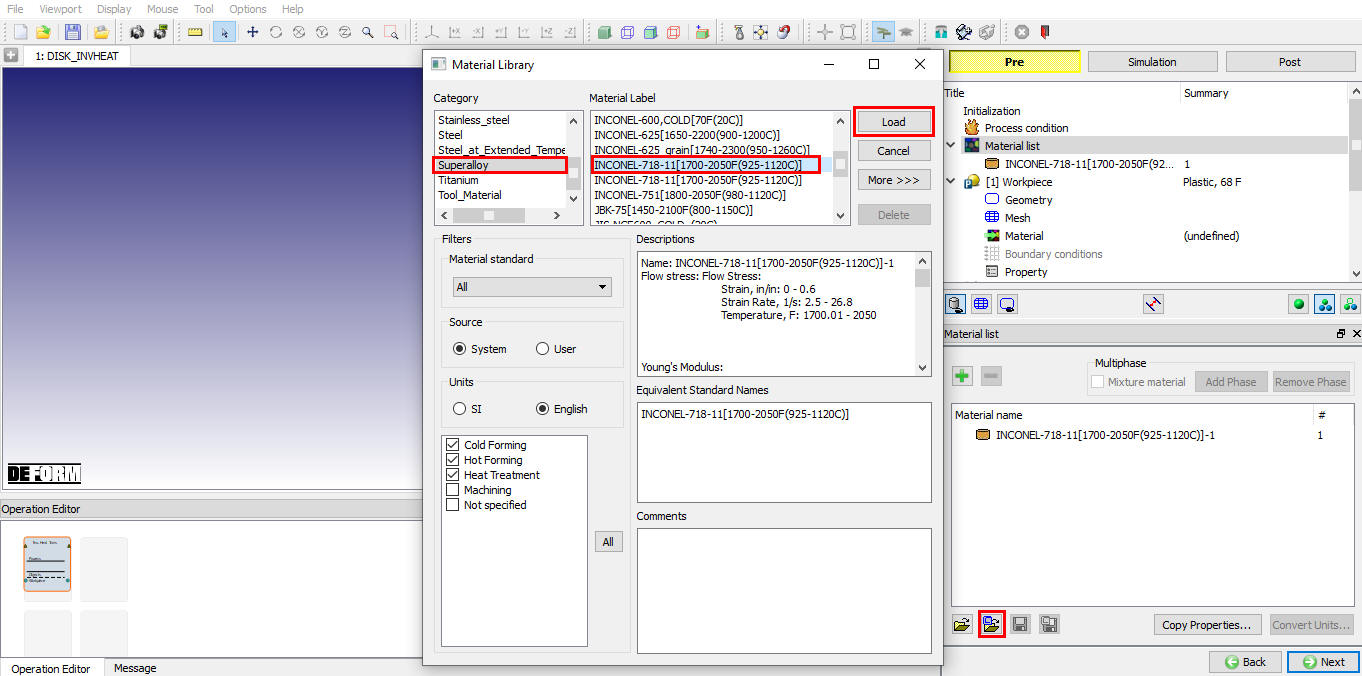
Loading Material data from library
Defining Workpiece Object
In workpiece page define “Object Temp.” as2000°F as shown in Fig. 2DINVL2.5. Make sure the object type is plastic and Primary Die check box is checked. Click on to geometry page.
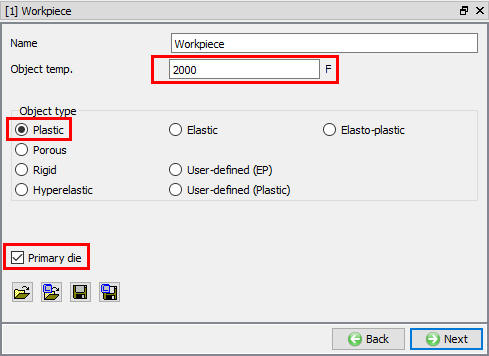
Workpiece Object Definition
Import geometry
In Geometry page, click on “Load Geometry from File”  icon and import geometry file “INVHEAT_DISK.GEO ” from ‘2D/LABS’ directory as shown in Fig. 2DINVL2.6. Turn on “Show geometry inside mark” check box and click on
  label to check and correct the geometry, see Fig. 2DINVL2.6.
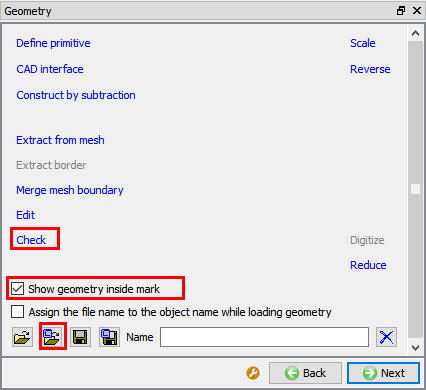
Geometry window
Click on  and then click
  button to geometry correction pop-up and then click on button to come out of Geometry Correction page, see Fig. 2DINVL2.7. Click on .
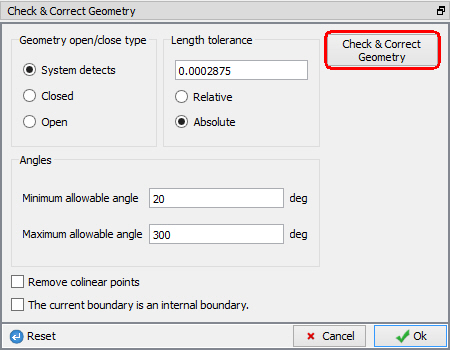
Check and Correct Geometry window
Generate mesh
While user is in “Mesh” page, expert mode can be used to access the advanced mesh options. Click on  icon in tool bar to change to expert mode and then enter 800 as T**a rget number of elements** in “General ” tab for unstructured mesh, see Fig. 2DINVL2.8. Click on
  button, Click on to Material page to assign material.
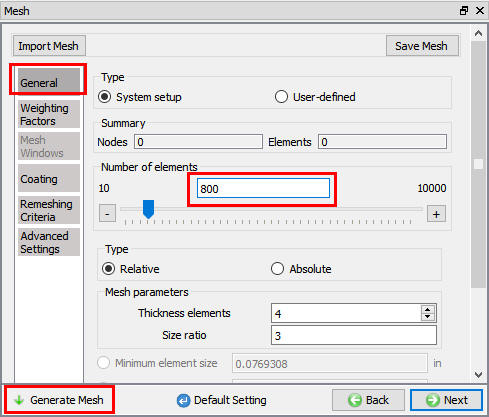
Defining unstructured mesh
Assigning Material
Select material “INCONEL-718- 11[1700-2050F (925-1120C)] ” from the material list to assign to workpiece as shown in Fig. 2DINVL2.9.
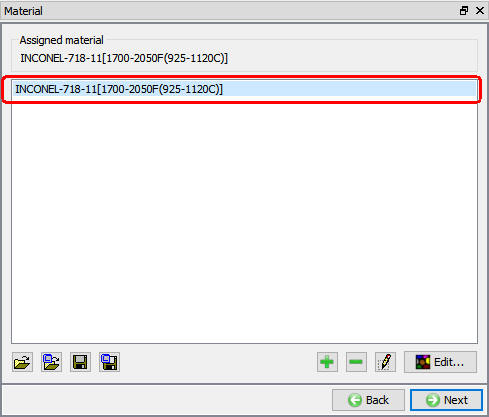
Assigning Material
Generating Structured Mesh
The structured surface mesh helps provide better thermal solution accuracy with less computing time. Hence click  from Material page. We will use 2 layers of structured surface mesh using coating mesh with thickness of 818Microns and 1116microns for layer 1 and 2 respectively with “INCONEL-718- 11[1700-2050F (925-1120C)]” material and click on button as shown in Fig. 2DINVL2.10. Do not use “Generate Coating” button. Click
  button for the pop-up “Do you want generate coating mesh?”. After generating mesh Zoom into the top left corner of the object and check generated mesh for structured layers. Meshed object looks as shown in Fig. 2DINVL2.11. Click on until “Temperature Measurement Points” page as default assigned BCC are fine for this lab.
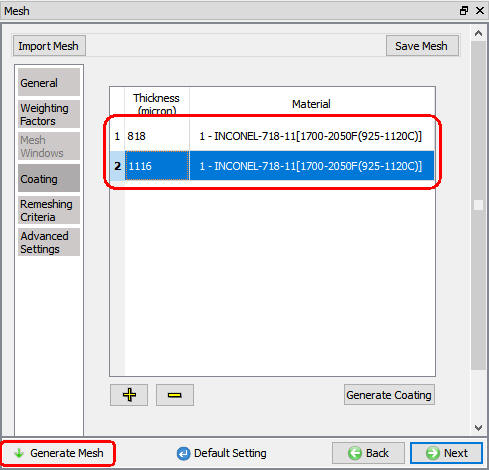
Structured mesh generation using Coating mesh
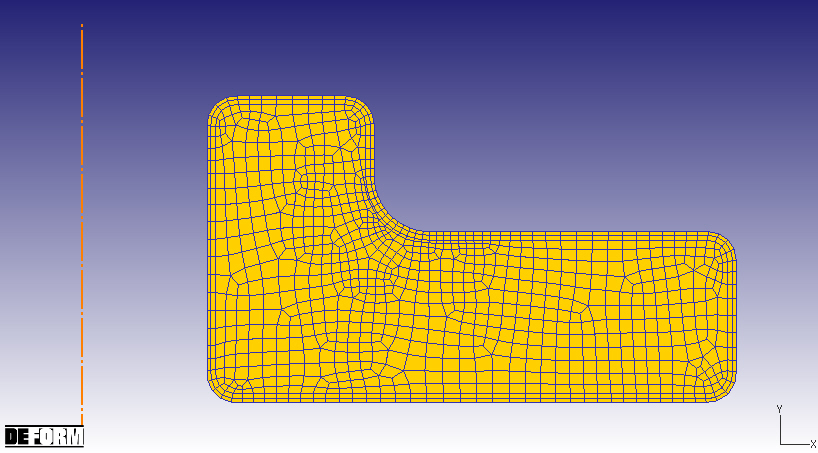
Meshed Workpiece After Generating Structured Mesh
Temperature Measurement Points
In “Temperature Measurement Points” page, click the button  (as indicated in Fig. 2DINVL2.12.) and load the file “InvHeat_Disk_Meas_Pnts.DAT ” from /2D/LABS. You should see points in the graphical window as shown below in Fig. 2DINVL2.12. We can notice that 13 temperature measurement points are loaded onto the workpiece from the file.
Thermal history data for each point can be defined by clicking on the  button in the last column of the table. Click on and load “InvHeat_Disk_Thermal_History_P1” file for point 1 using “Load” button from the /2D/Labs folder and click button (see Fig. 2DINVL2.13.)), similarly load for points 2 to 13 from respective files “InvHeat_Disk_Thermal_History_P2” to “InvHeat_Disk_Thermal_History_P13” available in /2D/LABS folder. “Define” button in the last column of the table will change into
  after you had defined the Thermal History Data for the point. We can use
  button (see Fig. 2DINVL2.13.) to verify the data defined for all points. Fig. 2DINVL2.14. shows the temperature defined for all points. Click on .
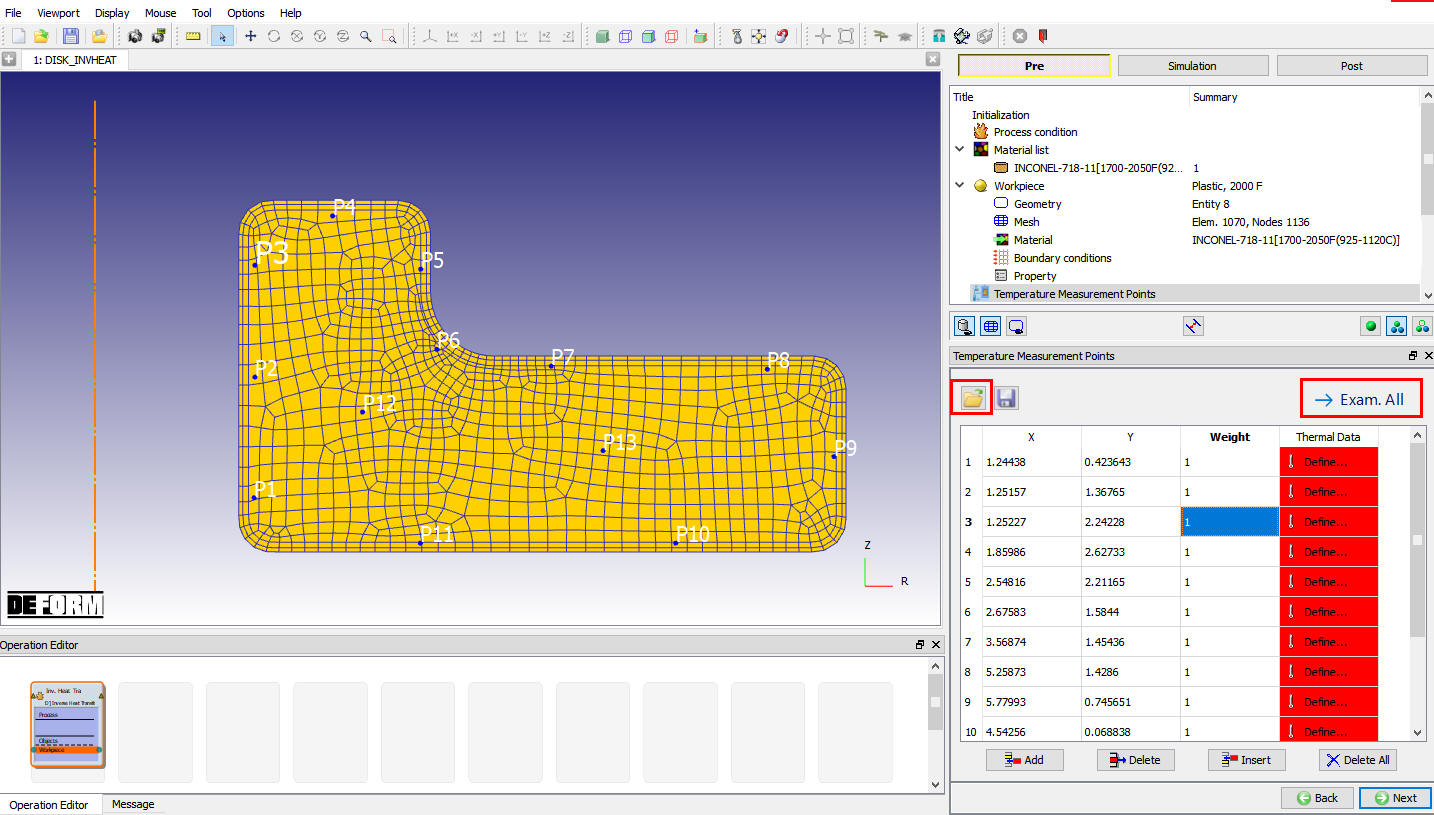
Temperature measurement Points
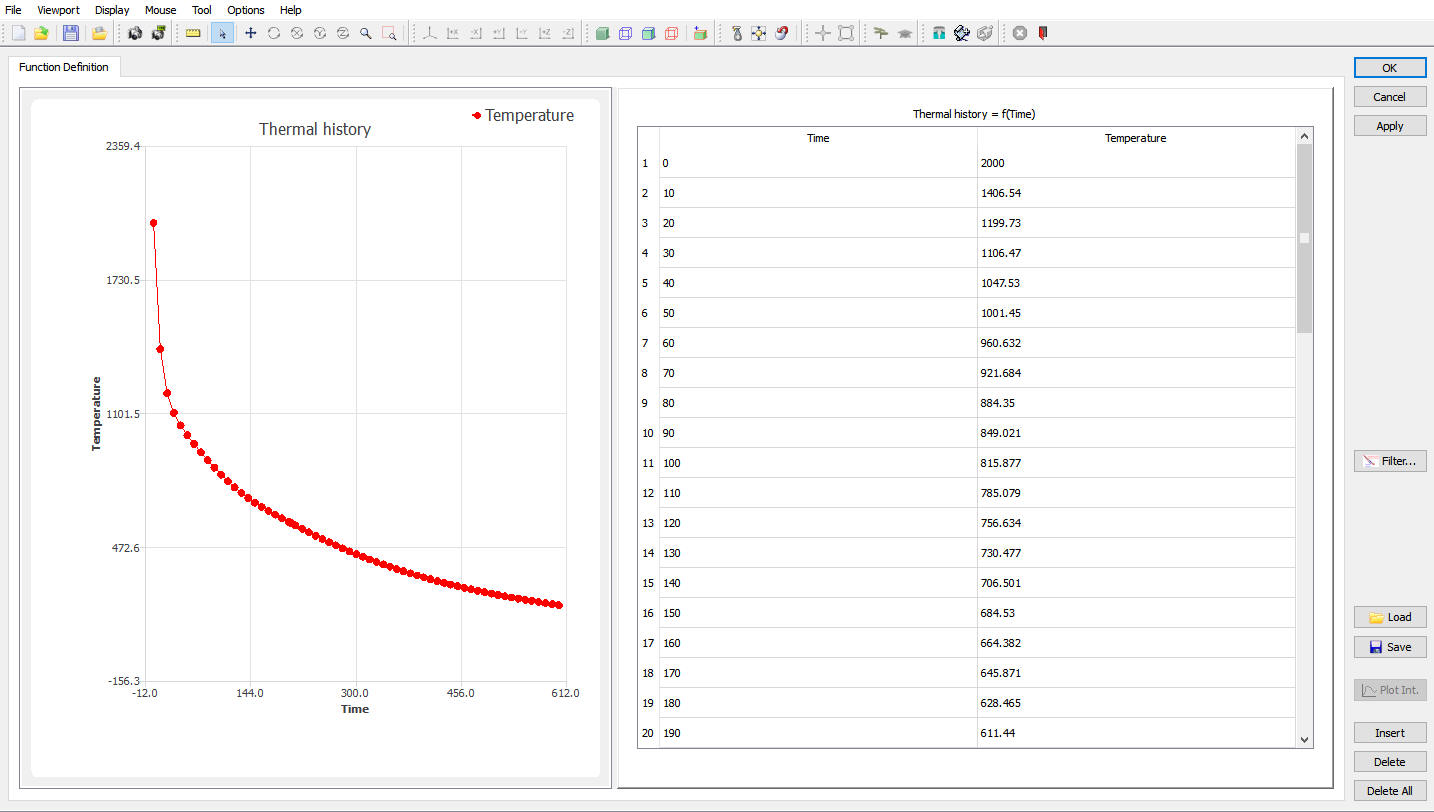
Thermal History Data window for Point 1
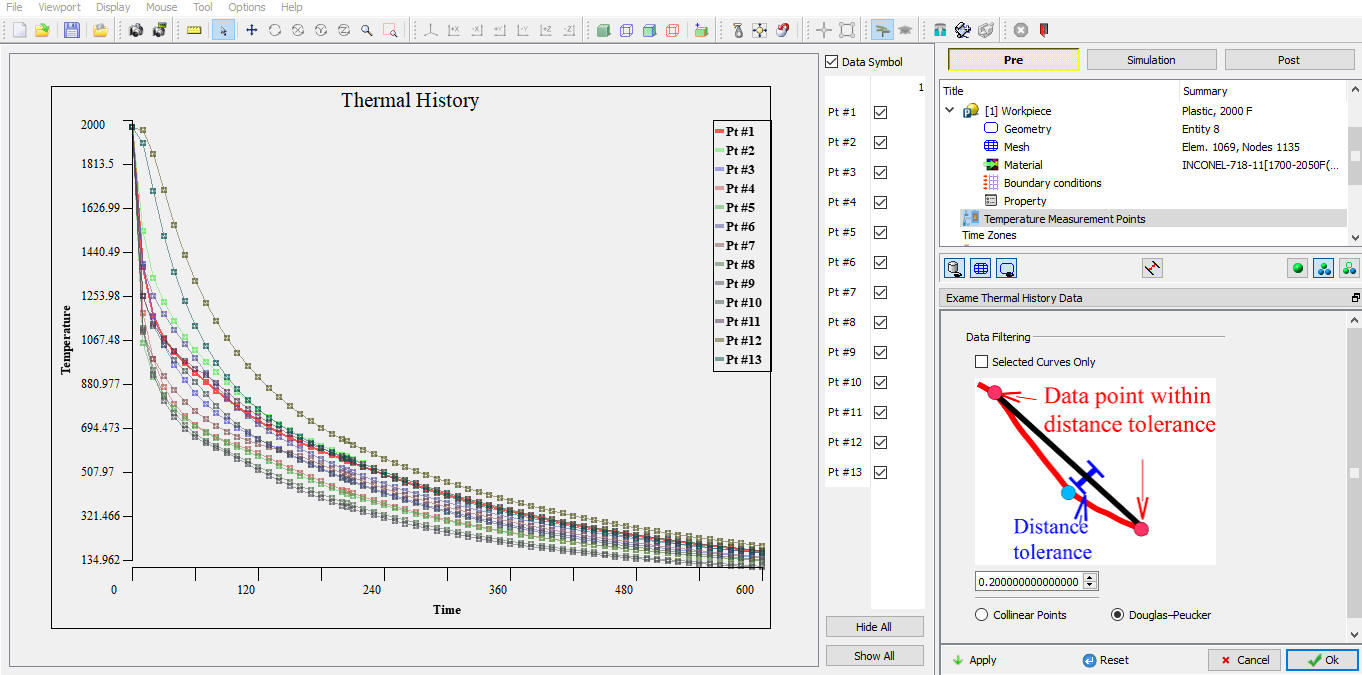
Thermal History Data defined for all 13 points
Defining Time Zones
In time zones page user can define time zones for Quenching and Transfer. Since in this lab we had opted to simulate only “Quench”, only “Quench” time zone definition is available. We would like to simulate the process for 600 sec as the last point of temperature measurement is available from thermal history is at 600 sec. So enter Starttime as 0sec and Endtime as 600 sec. Thermal History graph of all the points within the specified time can be seen in display area, see Fig. 2DINVL2.15. Click on .
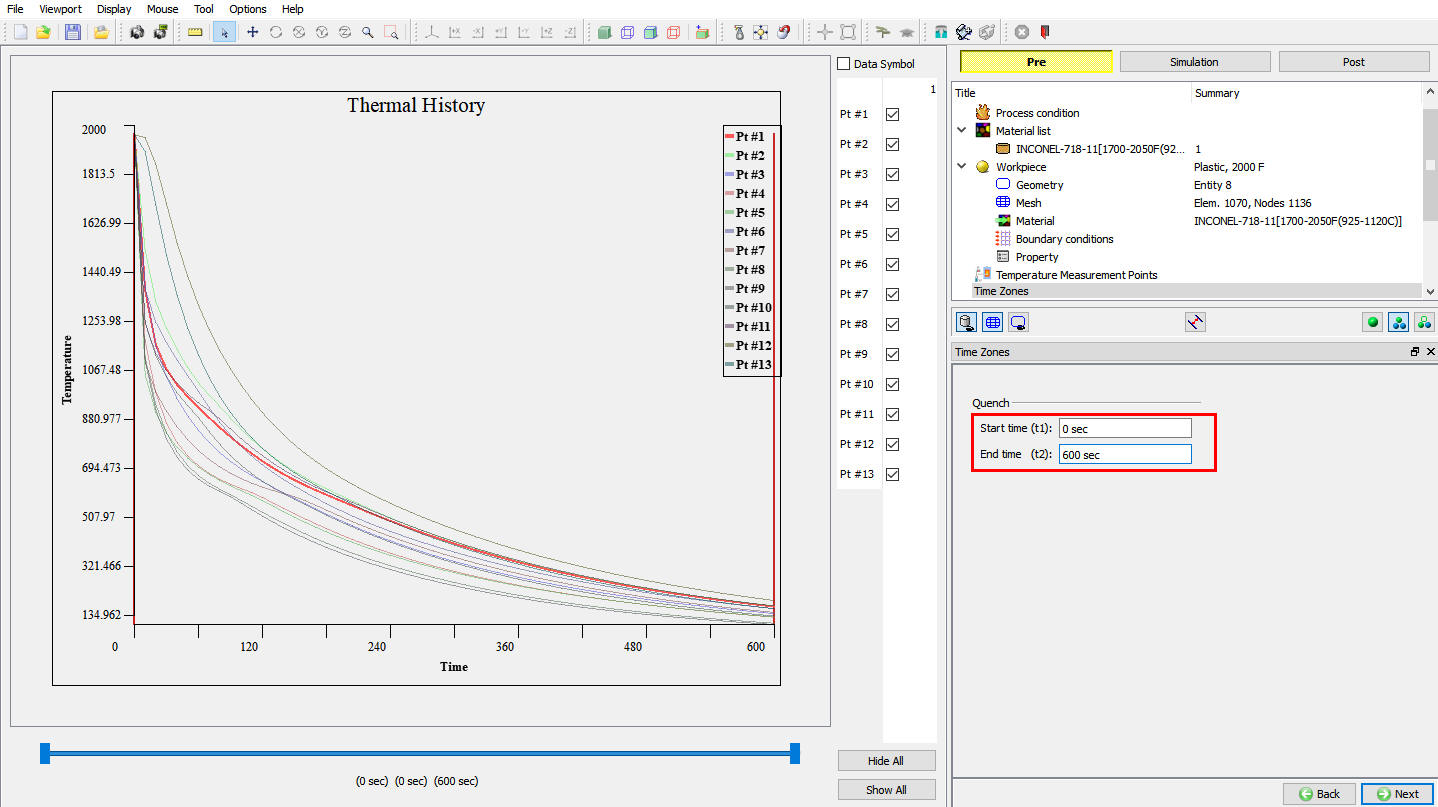
Quench Time Definition in Time Zone Page
HT Zone Partitioning
In page “HT Zone Partioning” we can see that system has automatically generated zones based upon temperature points defined, Turn on “Display Zone” check box to verify the zones created. For this lab we will create five zones manually. Inner Radius as Zone1, bottom edge as Zone2, Outer radius and top surface until end point of step fillet as Zone 3, step fillet as Zone4 and Top surface from the inner radius up to start of step fillet as Zone5.
We will delete the already defined zones using “Delete All” button. By default entire outer surface edges will be considered as one zone. After deleting points, we will pick the start point of inner radius as first point, end point of inner radius as second point, bottom edge corner point as third point, end point of step fillet as fourth point and start point of step fillet as fifth point as shown in Fig. 2DINVL2.16. Click on “Generate Zone” to generate zones. Zones are created between the pair of points selected, see Fig. 2DINVL2.16. Click on .
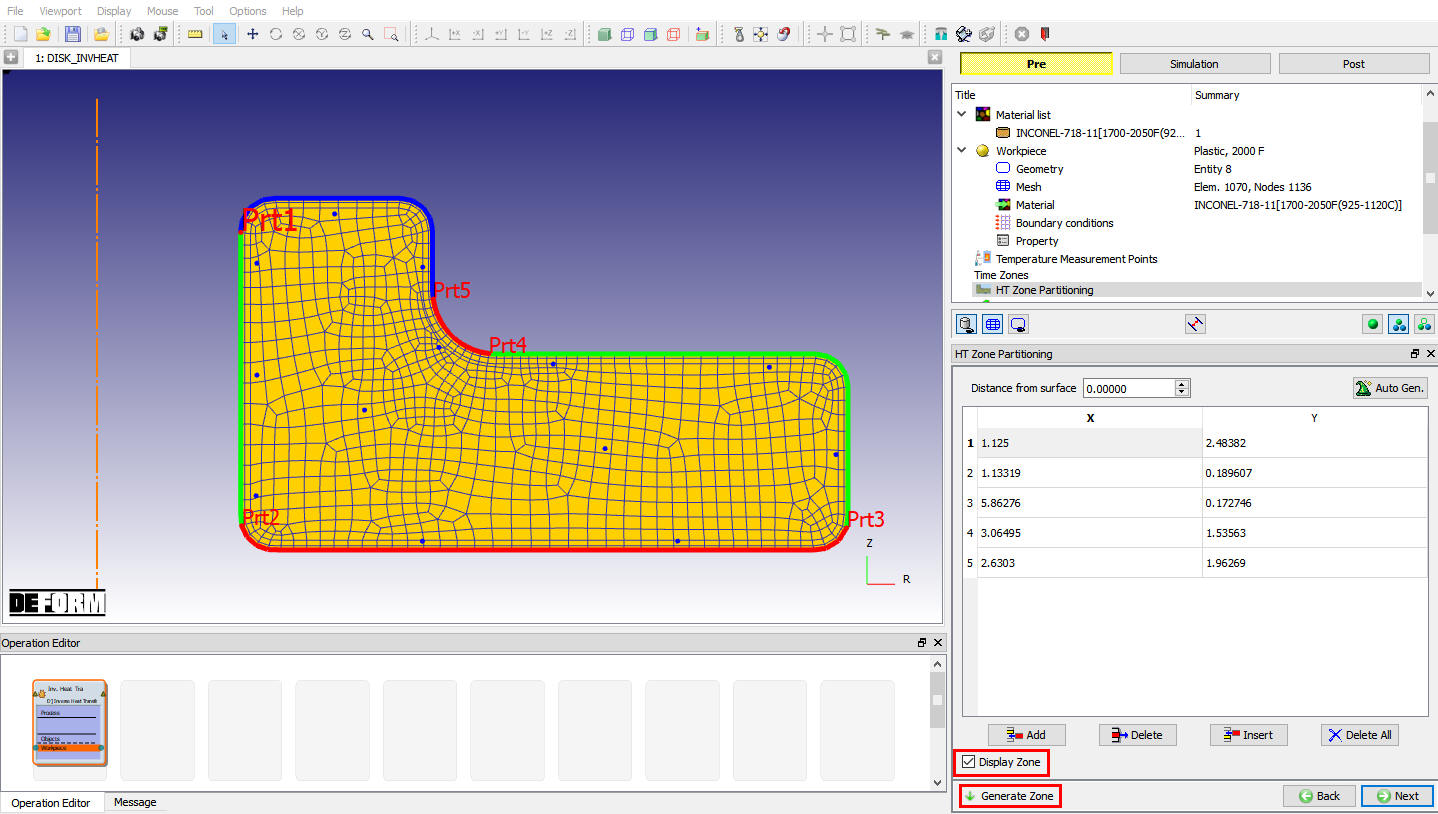
HT Zone Partitioning Window
Defining Heat Transfer Zones
In “Heat Transfer Zones” page, we can see that 5 zones are created. Selected zone in the table will display respective zone on the object, see Fig. 2DINVL2.17.
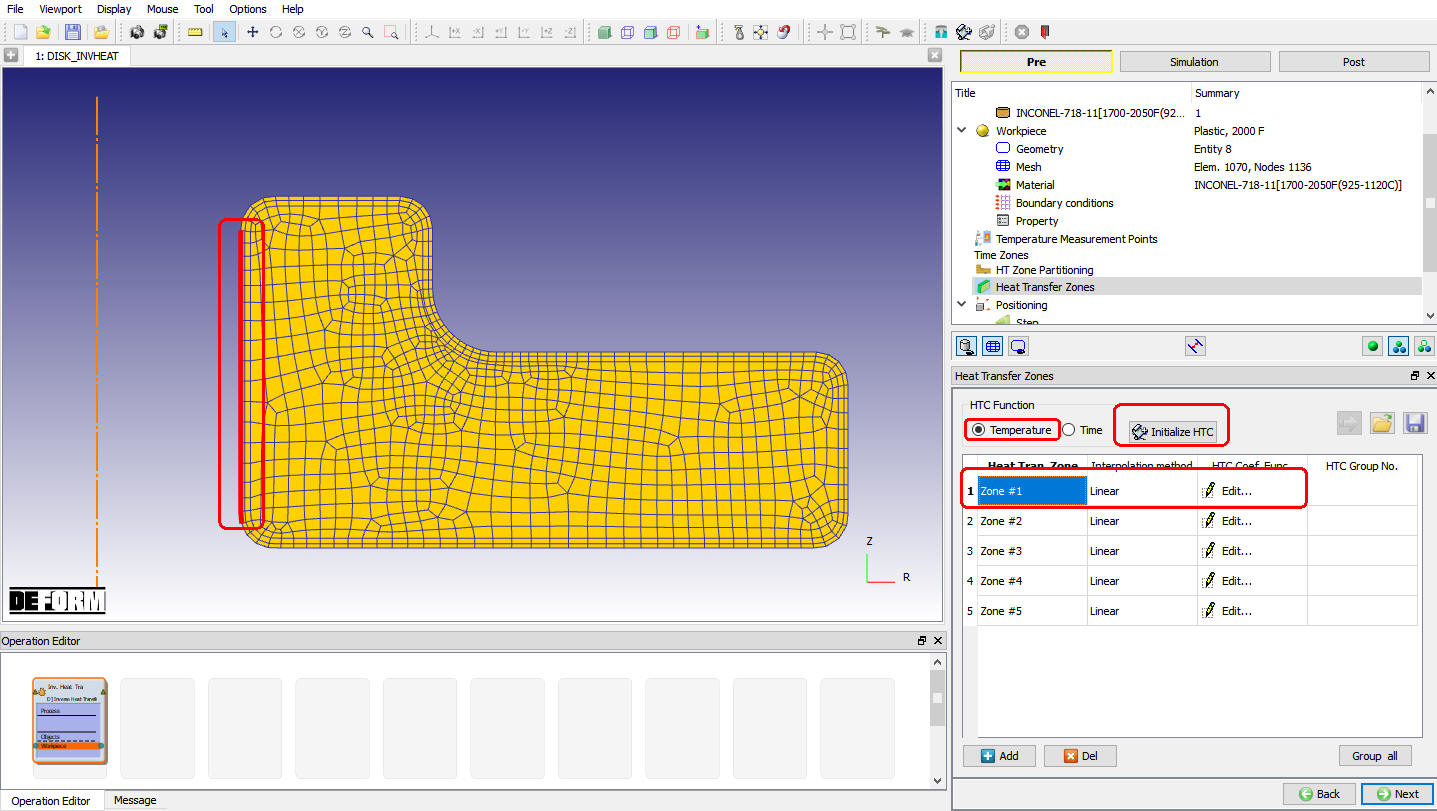
Displaying Zone1
Click on  button to define control points and limits, make sure HTC function is based on temperature. By default system will add some control points, we will delete them for this lab and use eight points. Click on
  button and then enter eight values 70, 600, 900, 1200, 1400, 1600, 1800, and 2000 , see Fig. 2DINVL2.18. Make sure interpolation method is Linear. We will use 1e-3 for the initialguess , and use 7e-5 and 5e-3 for lower and upperbounds. Click on
  button and click on to close Initializing Window.
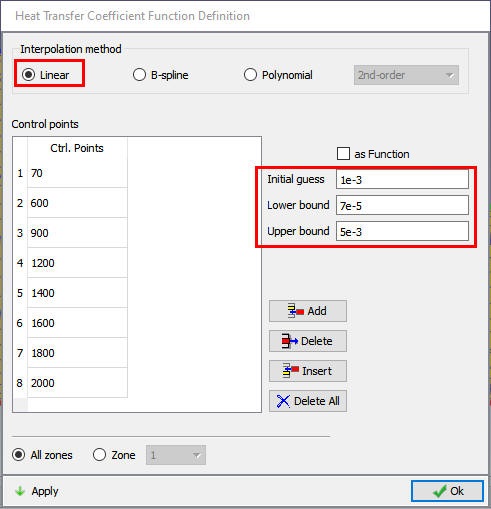
Deleting Unwanted Zone #3
Control points and limits settings can be set for each zone separately using  button next Zone in “Heat Transfer Zones” page, see Fig. 2DINVL2.17. Click on until “Step” page.
Defining Step controls
In “Step” page, change “Temperaturechange per step ” to5.0 and leave other values to defaults as shown in Fig. 2DINVL2.19. Click on .
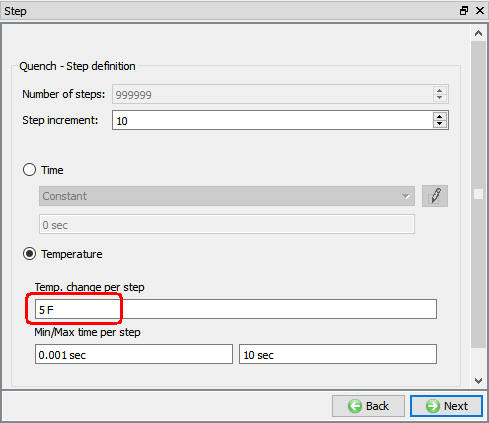
Defining Step controls
Optimization control
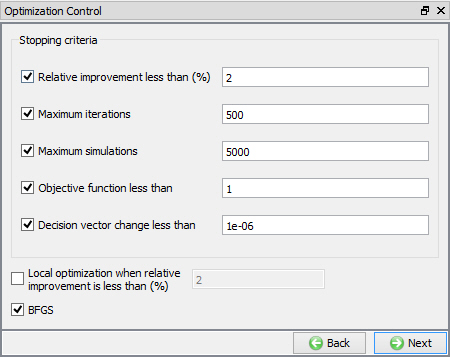
In “Optimization Control” page as shown in Fig. 2DINVL2.20., all default settings are fine and make sure that BFGS is checkedon , click on .
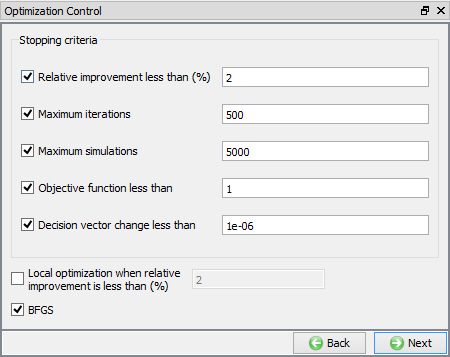
Optimization control Window
Database Generation
In DB Generation page, click on  to verify the set up for errors and warnings, you should see a message “Data Valid!” if there are no errors. Click on
  to generate Database.
Optimization
After Database is generated switch to  tab above the object tree and click on
  to start the optimization, see Fig. 2DINVL2.21. You can see a message “MULTIPLE OPERATION COMPLETED.” at the end of Simulation Log file after optimization is completed.
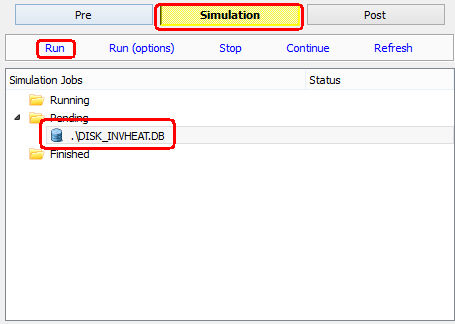
Running Optimization
Optimization results
To view optimization results click on  tab. In Tools” page under “Tools” you can see two icons (see Fig. 2DINVL2.22.),

 To view Optimized HTC values.
 To view simulated temperature values at Temperature Measurement Points.
Post Tools to view Optimization Results
Click on to view optimized HTC values for each zone, a Heat Transfer Zone window will open as shown in Fig. 2DINVL2.23. Select each zone and click on  to view optimized HTC values, see Fig. 2DINVL2.24. for Zone #1 optimized HTC values.
 can be used to view objective value history, see Fig. 2DINVL2.25.
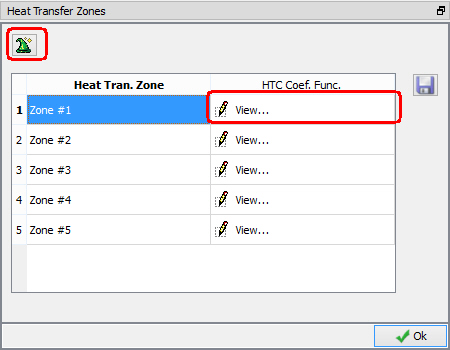
Heat Transfer Zones Window in Post Tab
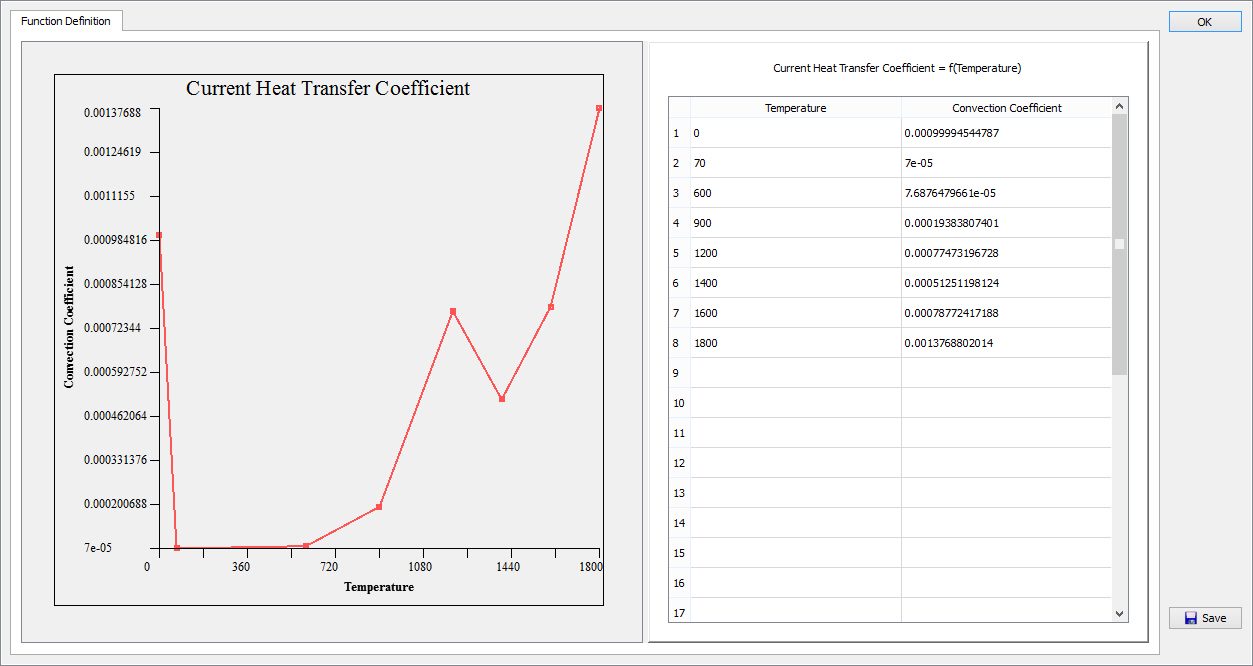
Optimized HTC values for Zone #1
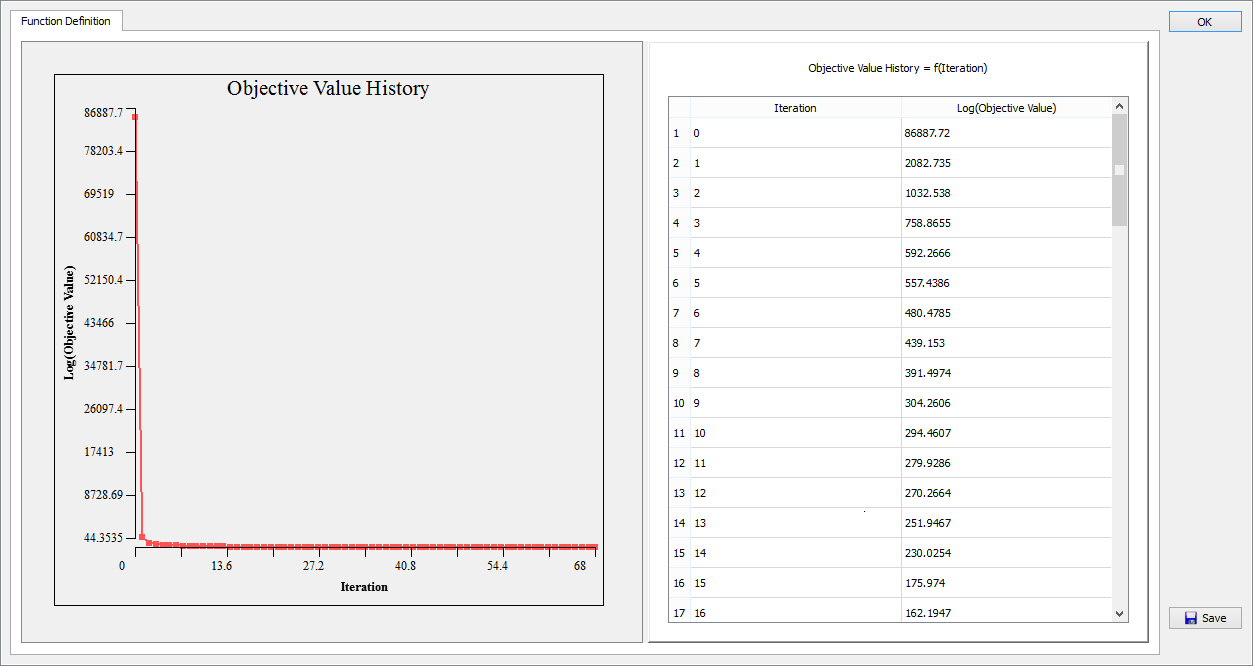
Objective Value History
The local objective optimization result can be viewed using , it gives the comparison between the experimental temperature and the simulated temperature values when the optimized heat transfer coefficient values are used. These values can be saved if necessary using  button (see Fig. 2DINVL2.26.). User can select a point (See Fig. 2DINVL2.28.) and click on to plot the comparison between the experimental temperature and the simulated temperature values, Fig. 2DINVL2.27. shows the comparison between the experimental temperature and the simulated temperature values for Point 1.
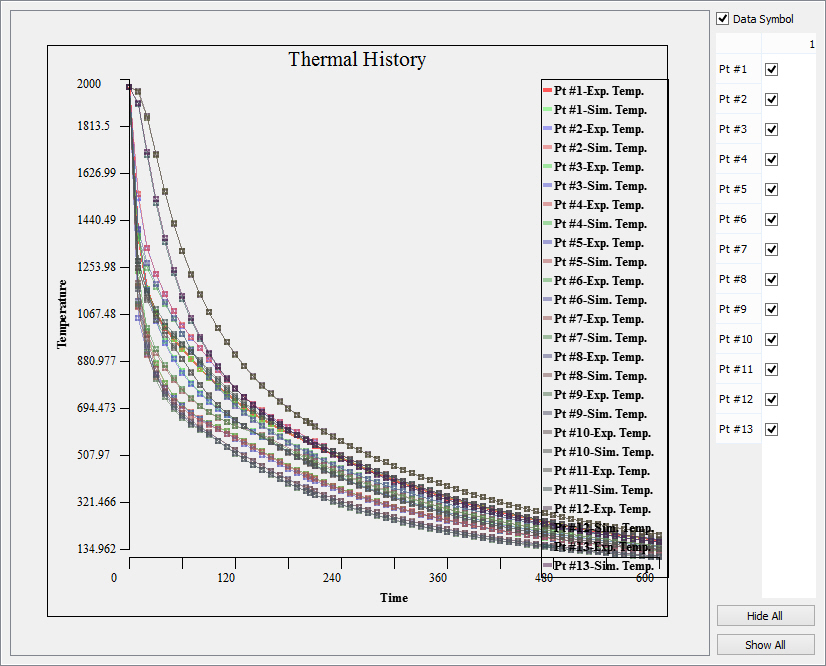
  (see Fig. 2DINVL2.26.) can be used to plot comparison between the experimental temperature and the simulated temperature values for all points, see Fig. 2DINVL2.28.
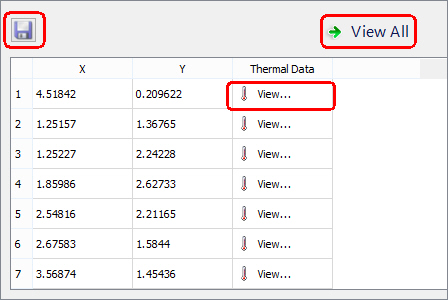
Temperature Measurement Points in Post
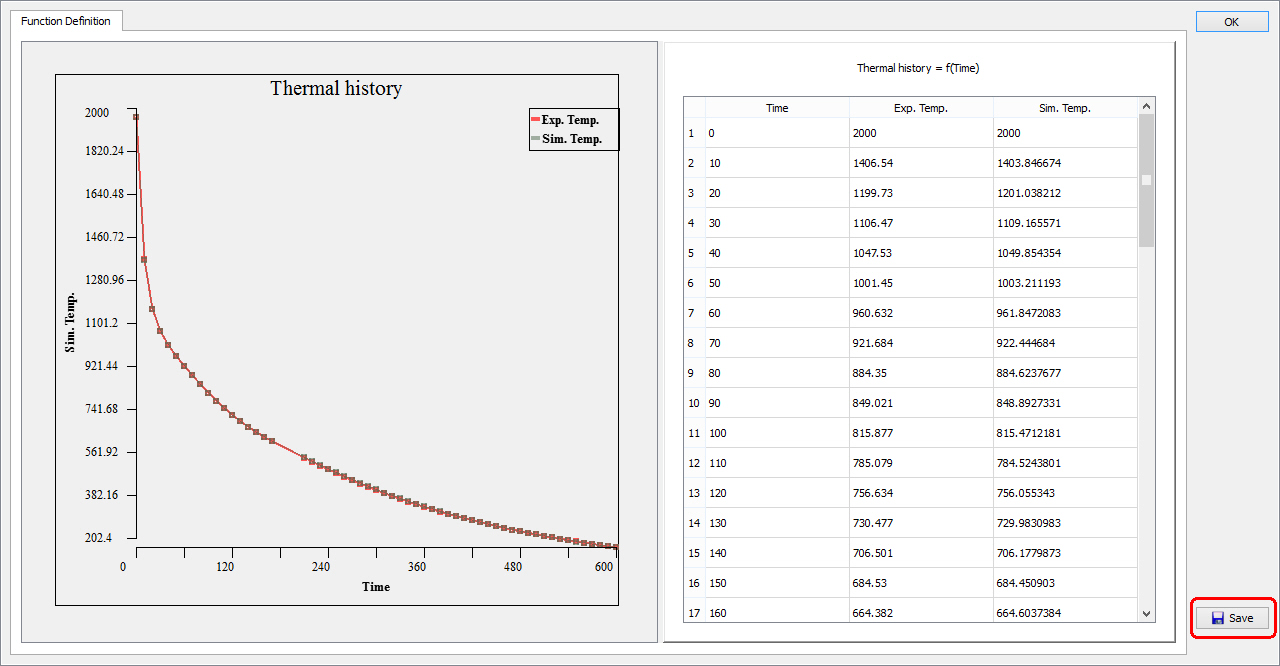
Local Objective Optimization Result for Point 1
Local Objective Optimization Result for all Points