Lab 03 Spike Isothermal
3.1. Creating a New Problem
3.2. Adding Forming operation - Spike
3.3. Spike Isothermal- Block
3.4. Close MO Wizard
In this lab we will setup 2 operations in interactive mode.
Operation1 : Spike -Simple Deformation operation.
Operation2 : Block - Changing Top die.
Creating a New Problem
On a Windows machine , go to the  button select DEFORM-v1x.xxx (.xxx indicates version number E.g. v14.0.2) and select DEFORM GUI Main vxx.xx from the menu. The DEFORM GUI Main window will appear. as shown below Fig. L3.1.).
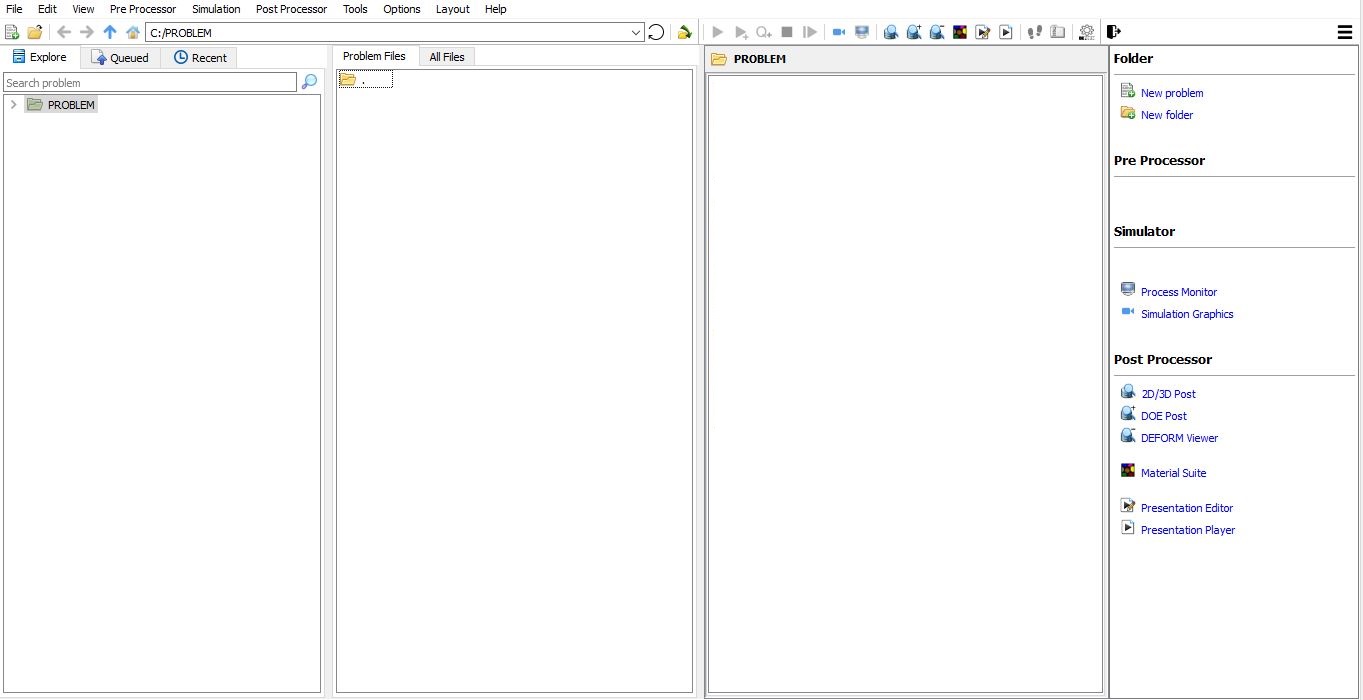
DEFORM GUI main window
Create a new problem either by selecting File New Problem or by clicking the New Problem
  icon. The Problem Setup window will appear as shown in Fig. L3.2. Select “ Integrated Manufacturing Process “ radio button and unit system as “English “ using radio button. Define Problem Name as “Spike_Isothermal “ and make sure the “Show option dialog ” check box is turned on (if we do not turn on the “Show option dialog” check box, then we will not get the New Project dialog). Then click on
  button to open a new problem using the Deform Integrated Manufacturing Process.
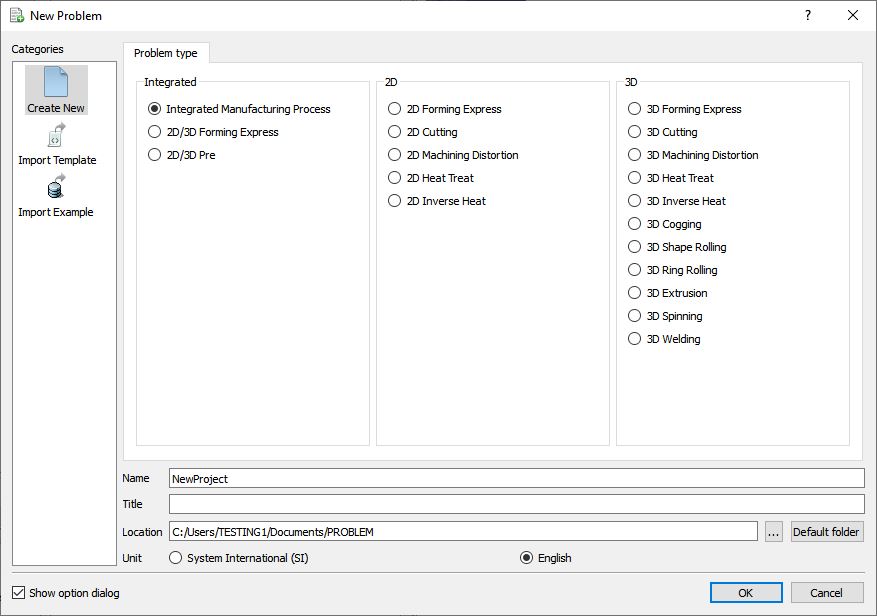
Problem type selection window
Multiple operation wizard will open with the New Project dialog (See Fig. L3.3.), at this point user will be prompted to specify a project name (system will create a separate folder with this project name) and title for this session. In this session we use ‘Spike_Isothermal ’ as the project name.
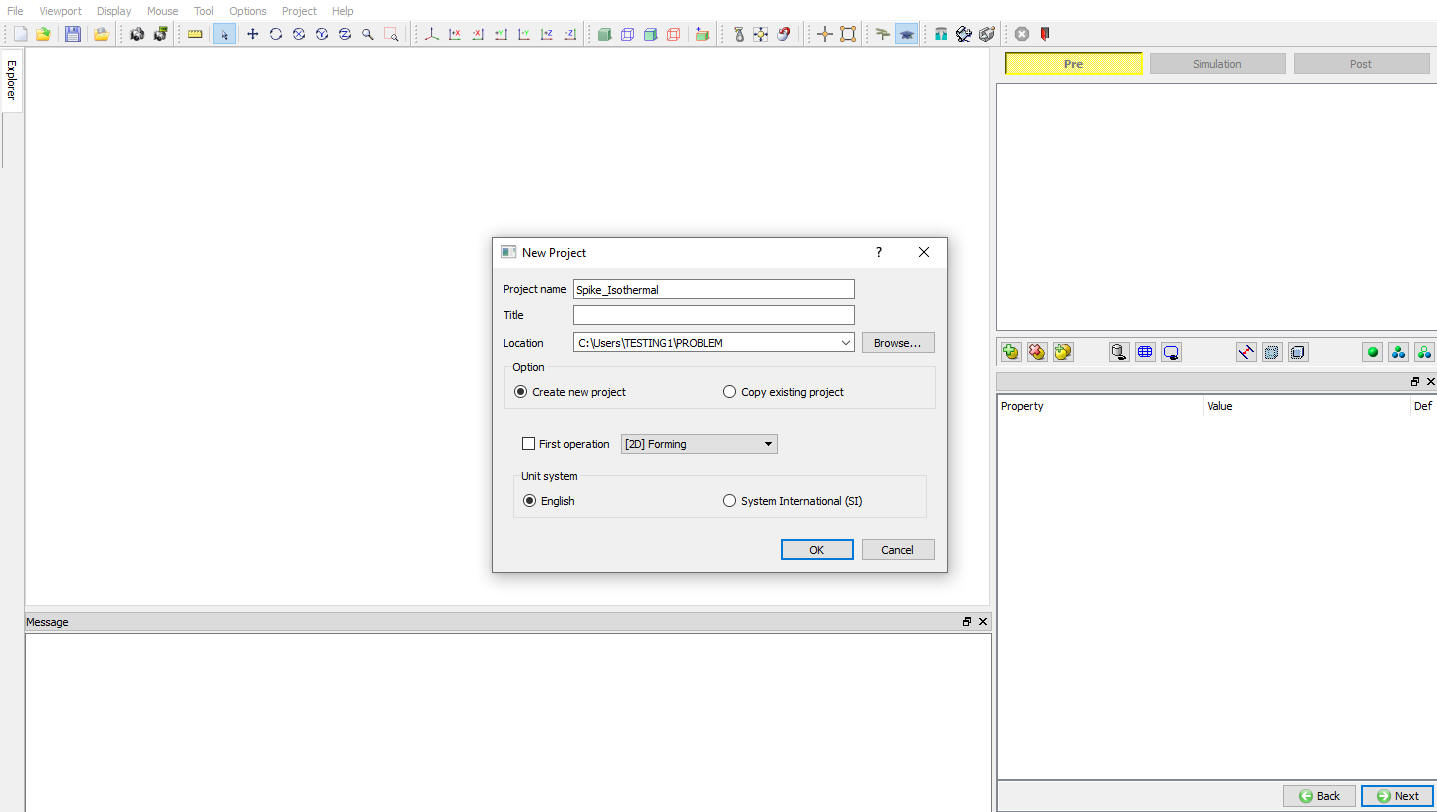
MO wizard New project
User can also change the Unit system (File menu selected unit system will be selected by default) and add operation by selecting from First operation pull down list and checkbox (See Fig. L3.4.). Using copy Existing project option we can import previous saved projects as new project. Click on to continue to open the operation.
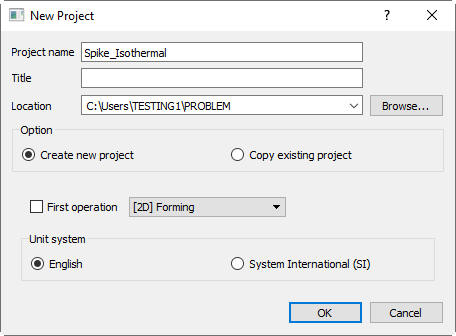
Assigning problem name
Adding Forming operation - Spike
Multiple Operation wizard will opens with new project called Spike_Isothermal to setup the problem. Add 2D Forming operation from Operations list in Explorer. Operation can be add by clicking on  button next to 2D Forming operation (See Fig. L3.5.) or user can also add the operation by dragging and dropping the operation into Operation Editor region.

Added 2D Forming operation into Operation Editor
Geometry Type
In this lab we will be using Axisymmetric geometries, So select 2D Axisymmetric radio button from geometry type page as shown in Fig. L3.6., then click  .
.

Axisymmetric Geometry type selection
Simulation Controls
In this lab we will be showing how to setup simple Isothermal problem. So, in Simulation controls uncheck the Heat transfer mode check box (see Fig. L3.7.). Then Click .
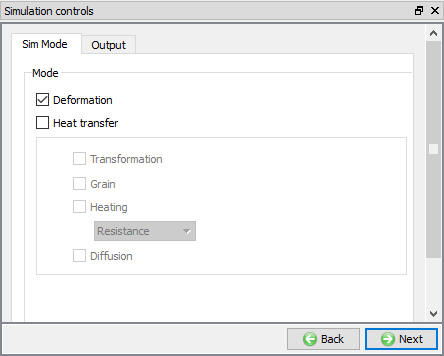
Simulation control window
Assigning Material for Workpiece
In material list window load the material ‘AISI-1035, COLD ‘ from DEFORM Material library, Steel category using  (Load material data from library) option. This can be done as shown in below by clicking
  button as shown in Fig. L3.8.
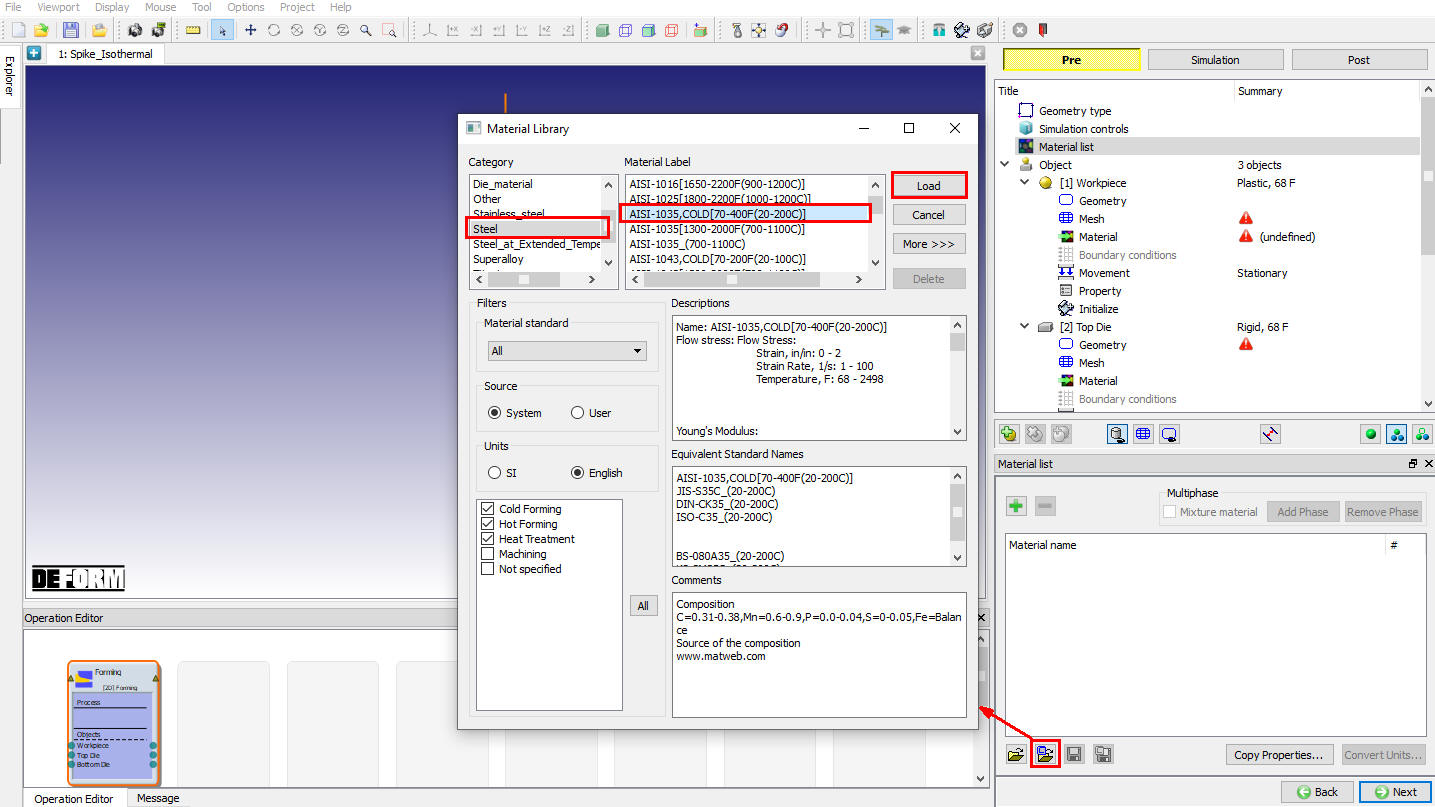
Material Library Window
Material can also be assigned from Material List in Explorer, by clicking button next to AISI-1035,COLD[70-400F(20-200C)] or user can also add drag and drop the material into Material list region (See Fig. L3.9.). Click until Object page.
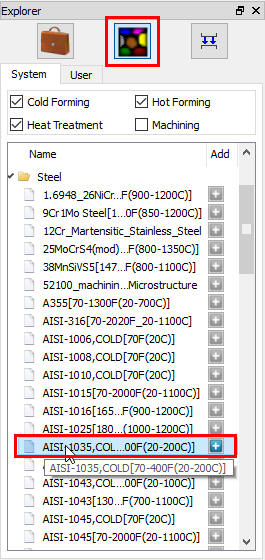
Explorer material list
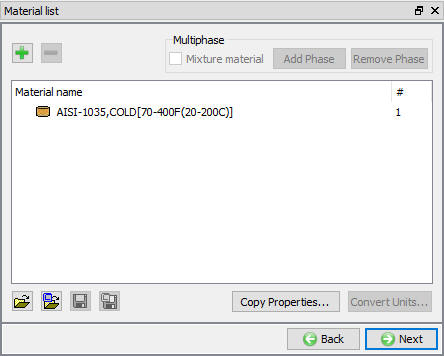
Material list page
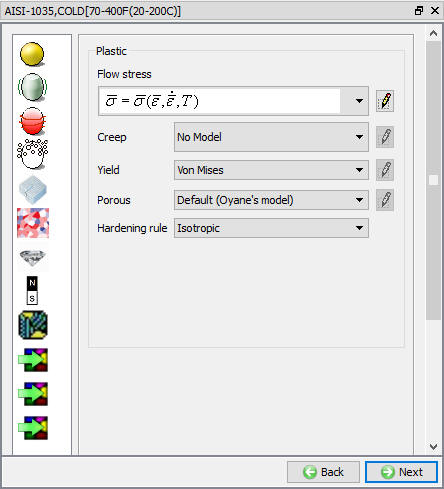
Material properties page
Adding Objects
For this operation we required three objects, if there aren’t already three objects, add the three objects by clicking the  button. The three objects will be named as Workpiece, Top Die and Bottom Die.(See Fig. L3.12.), then click .
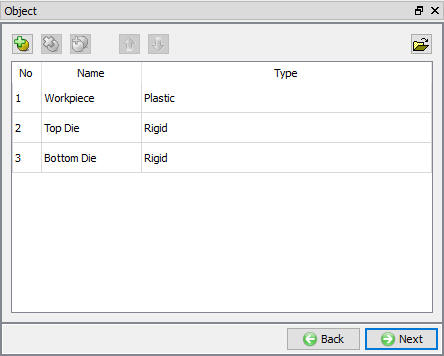
Adding Object Window
Workpiece
In Workpiece window, change the Object Name to Billet and select Object type as Plastic as shown in Fig. L3.13., Click .
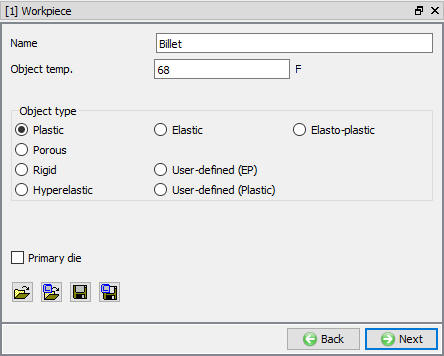
Billet object Window
Loading Billet Geometry
In Geometry window, load Spike_Billet.IGS geometry file from library using (Load geometry from library) option or can also be imported using  (Load geometry from a file) option as shown in Fig. L3.14. The geometry for billet is located in DEFORM installation folder \2D\LABS directory.
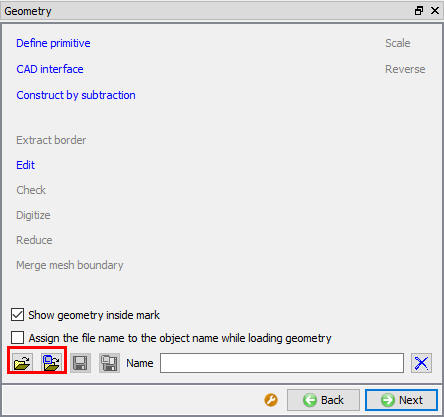
Billet Geometry window
The  option is to check the orientation of the geometry when we import the geometry from a file. By default the Show geometry inside mark check box will be checked; if not turn on the check box.
The points defining the imported geometry can be viewed/edited by clicking the  button. When .IGS files are loaded, the data gets imported into DEFORM in Line-Arc format, which defines the geometry in terms of lines and arcs. To view the XYR format of this geometry, user should click on XYR button as shown in Fig. L3.15.
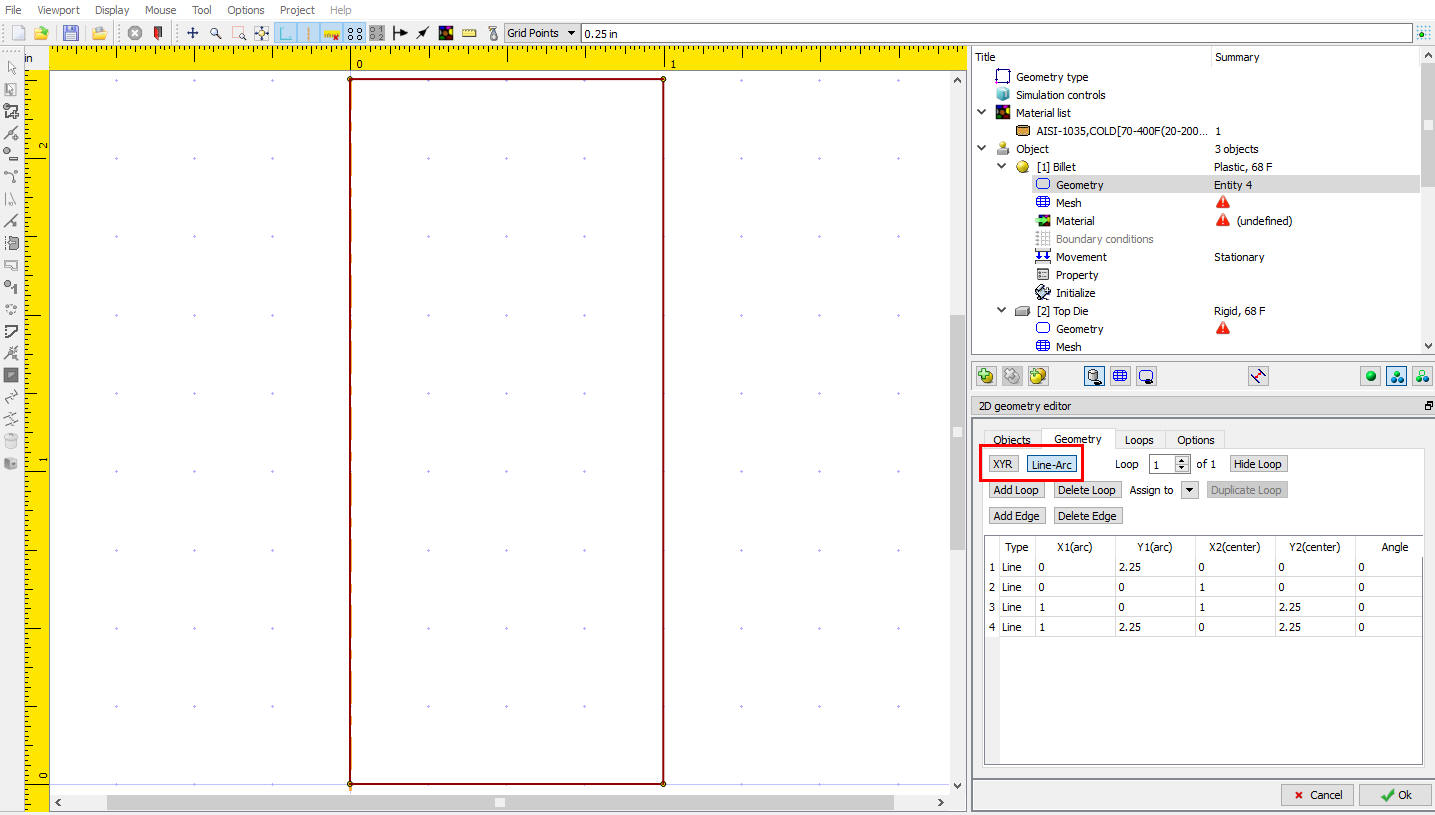
Geometry Data
Whenever geometry is imported, it should be checked for its orientation and correctness. Click the  button and then click
  button to check and correct the geometry. This not only fixes any problems with the geometry but also corrects the orientation of the geometry, if needed. See Fig. L3.16. where is used to correct the orientation, the geometry has changed the orientation from clockwise to counter-clockwise.
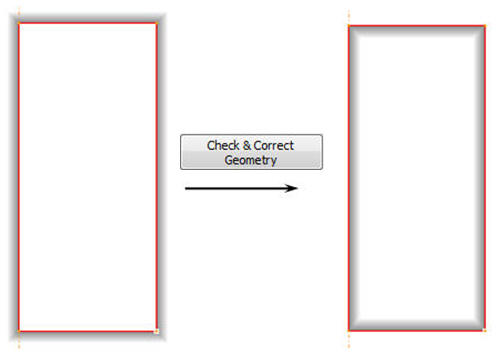
Check and correct geometry
Generating mesh for Billet
We would like to put an initial mesh on the billet with more elements near the top right corner, where the largest deformation will initially be. You can do this with either mesh windows or user-defined mesh values. For this lab, we will use user-defined values to put the initial mesh on the billet.
If you are in Guided mode, Switch to Expert mode by clicking on  (Switch to expert mode) icon located in the tool bar at the top of window. Expert mode will provide more options for detailed settings., select
  in mesh page. We want the upper right corner of the billet to have a mesh that is four times finer than the mesh at the other three corners. To accomplish this, we are going to assign a mesh size of 1 to the upper right corner and a mesh size of 4 to the other corners.
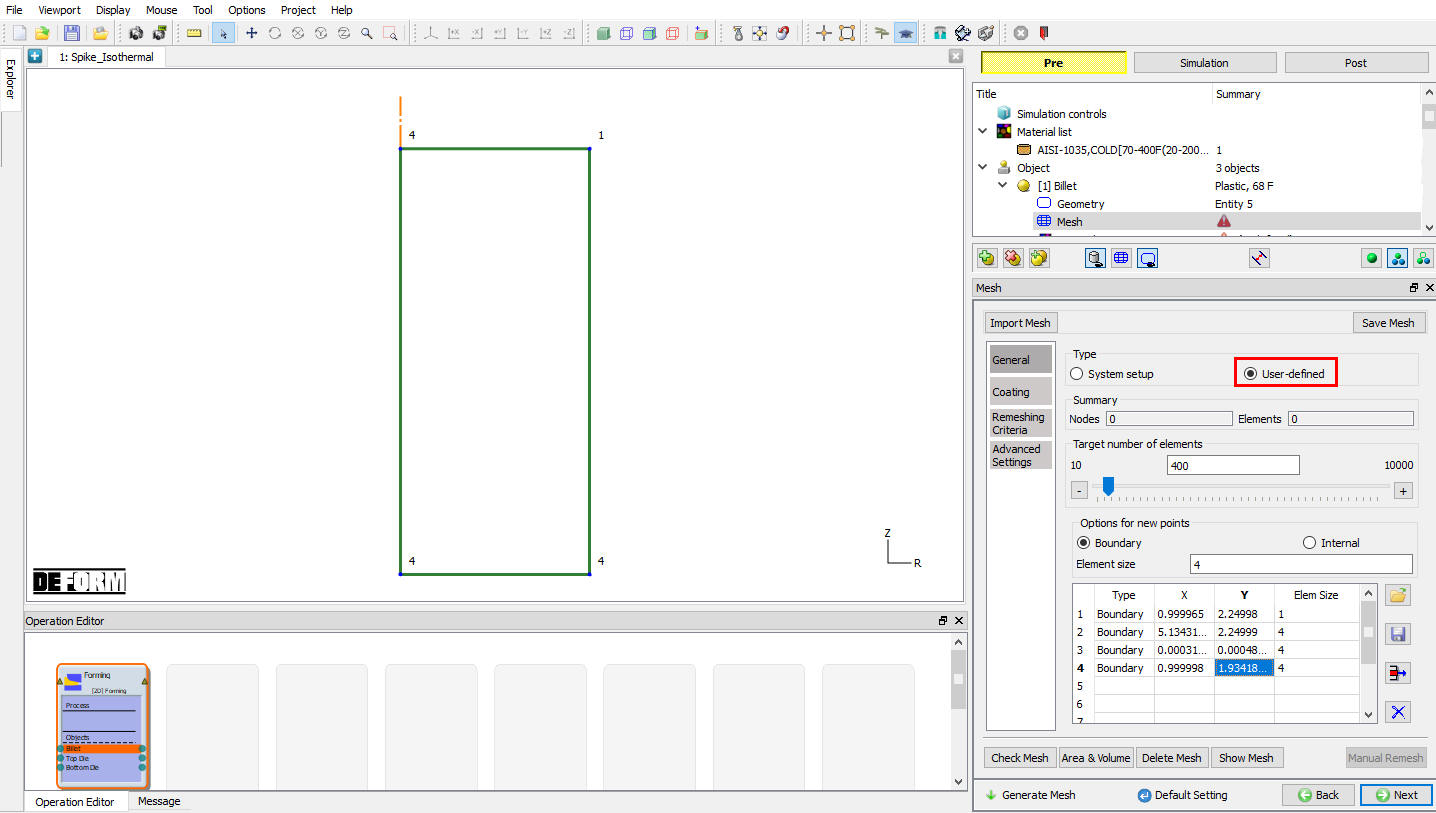
Selecting points for user defined mesh
Set the Element Size to 1 and click the upper right corner of the Billet and then set the Element Size to 4 and click the other three corners (See Fig. L3.17.). Set the Number of Elements to 400 and click on  button, around 412 mesh elements is generated for the billet as shown in Fig. L3.18. Click .

Billet Mesh window
As we are using user-defined mesh to define the initial mesh, the Weighting Factors are not considered. The user-defined values, however, can only be used to define the initial mesh. If a remesh is necessary during the simulation, the Weighting Factors are used to define the new mesh.
We want to set one more meshing related parameter. There are several criteria that will trigger a remesh of the billet during a simulation. One of them is called the Interference Depth, which is the distance a tool is allowed to penetrate into the workpiece.
A good value to use for the interference depth is approximately a third of the smallest element size of the deforming object. Zoom in on the upper right corner of the Billet using the  icon and then use
  to measure a small element edge length. The value for the Interference Depth will be somewhere around 0.013 (0.038 / 3) and this should be set in the Remeshing Criteria tab (See Fig. L3.19.).
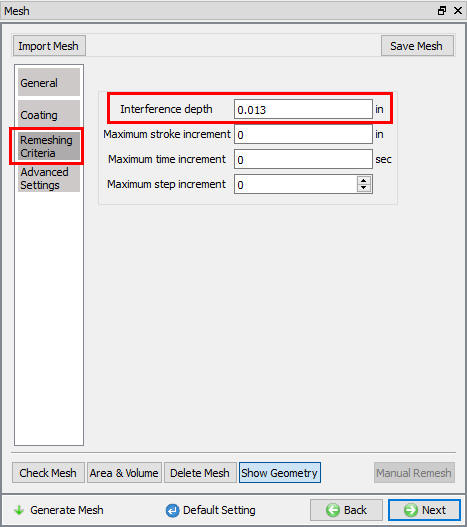
Remeshing criteria window
Assign Workpiece material
To assign material for workpiece select the material AISI-1035,COLD[70-400F(20-200C)] from material window. This can be done as shown in below Fig. L3.20. Click .

Material selection window
Workpiece BCC
In BCC page, check the default assigned Deformation BCC for Left side of the workpiece in X-Direction, default BCC are assigned automatically due to selection of problem type as axisymmetric (See Fig. L3.21.). Then click until Top die page.
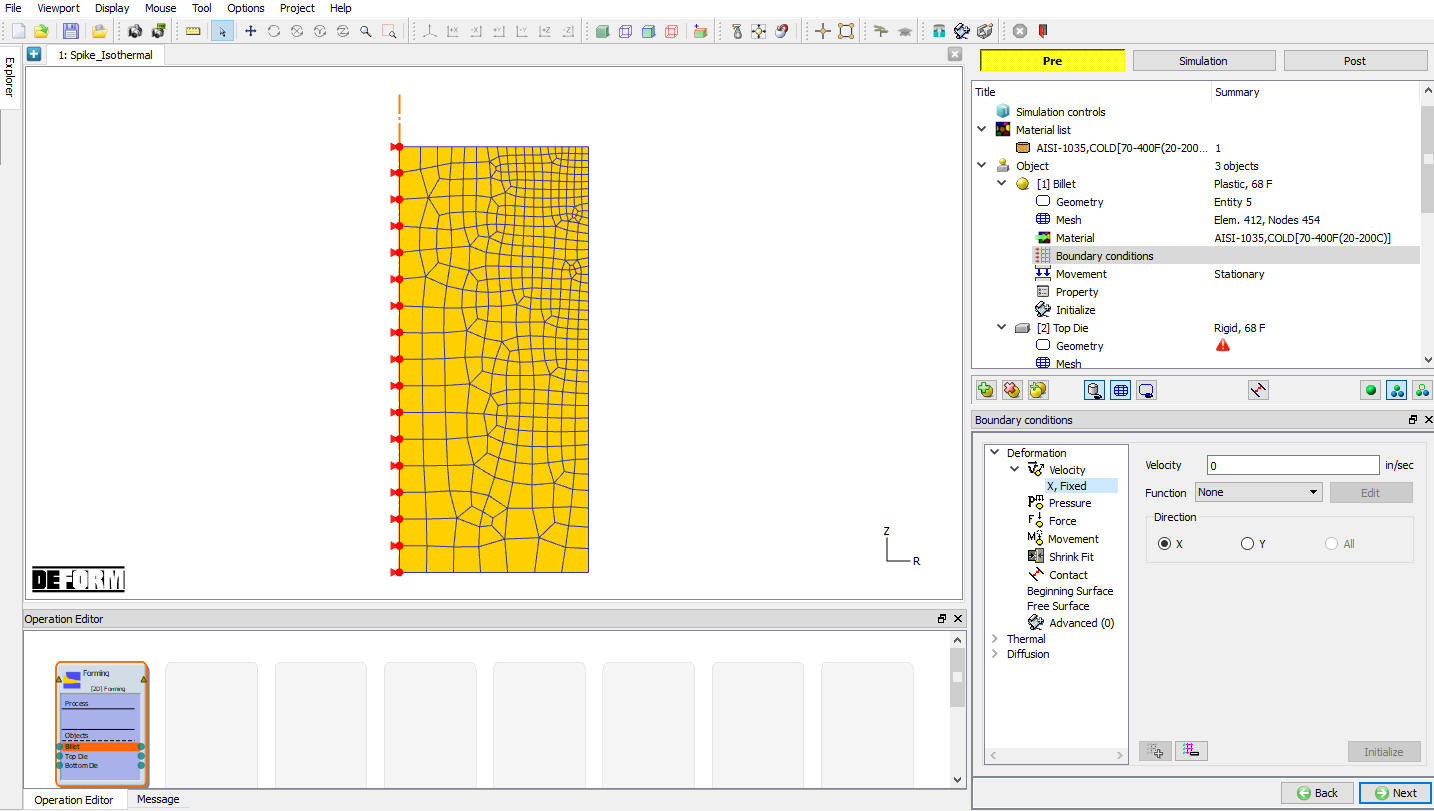
Billet BCC window
Top Die
In Top die page ( see Fig. L3.22.) select Object type as Rigid and Turn on Primary die check box as Top die will have movement definition assigned to it, click .

Top die page
Loading Top die Geometry
In Geometry window, load Spike_TopDie.IGS geometry file from library using (Load geometry from library) option or can also be imported using (Load geometry from a file) option as shown in Fig. L3.23. The geometry is located in DEFORM installation folder \2D\Labs directory. Check the geometry using option to make sure the geometry is OK. Then click until Top die movement page.
Top Die Geometry page
Assign Movement to Top Die
Define a speed of 2 in/sec in -Y direction for this lab (See Fig. L3.24.). Then click until Bottom Die page.
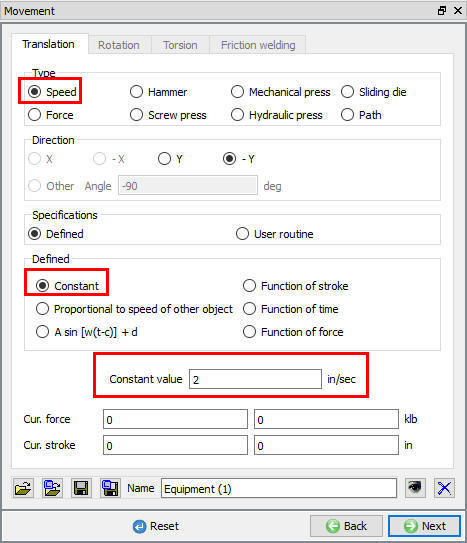
Top die Movement page
Bottom Die
In Bottom die page select Object type as Rigid and click (See Fig. L3.25.).
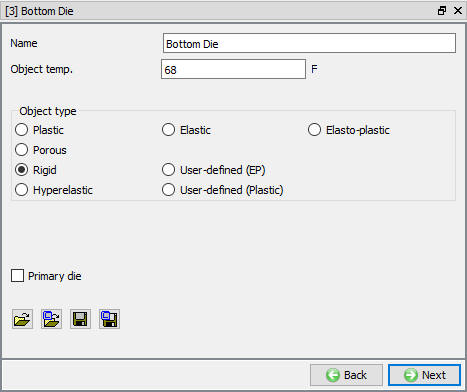
Bottom Die page
Loading Bottom Die Geometry
In Geometry window, load Spike_BottomDie.IGS geometry file from library using (Load geometry from library) option or can also be imported using (Load geometry from a file) option. The geometry is located in DEFORM installation folder \2D\Labs directory. Check the geometry using option to make sure the geometry is OK. Then click until Positioning page.
Positioning
The object can be positioned in Positioning page, two options are available in Positioning page to position objects, Automatic Position and Position Objects option.
Automatic position  : In Automatic positioning, the objects will be positioned automatically with respect to the Positioning direction and the Primary die movement direction. This option can only be used where the operation has only 3 objects: Workpiece, Top die and Bottom die.
Position objects  : The Positioning methods available are:
 |
Objects can be dragged in a certain direction using the mouse. |
|---|---|
 |
Objects can be moved a defined distance by either specifying a distance vector or by specifying the starting and ending points of the move. |
 |
In Interference positioning, the object being positioned will be moved so that it very slightly overlaps a reference object. |
 |
Objects can be rotated in a defined angle about a defined center point. |
 |
Objects can be flipped about the X, Y or any other defined axis. |
Offset Positioning:
**Let’s move the Bottom Die using offset positioning. Select and change the Positioning object to the Bottom Die. Distance components can be entered either by using the keyboard or by selecting the distance with the mouse. We want to position the die so that it moves up and to the right of the Billet. With Distance vector selected, click the Start and End points shown below with the mouse. The corresponding distance will be entered into the Distance vector fields. Click to move the Bottom Die (See Fig. L3.26.).

Offset Positioning
To move the Bottom Die back to its original location, change the Distance vector values from positive to negative and then click again.
Interference Positioning:
**Select and change the Positioning object to the Top Die. We want to position the Top Die so that it just barely overlaps the top of the Billet. Since the Top Die has to move downward to contact the top of the Billet, change the Approach Direction to -Y. The default Interference works well in most cases, so click. In the Display window, you will notice that Top Die will move down slightly so that it is now touching the Billet (See Fig. L3.27.).
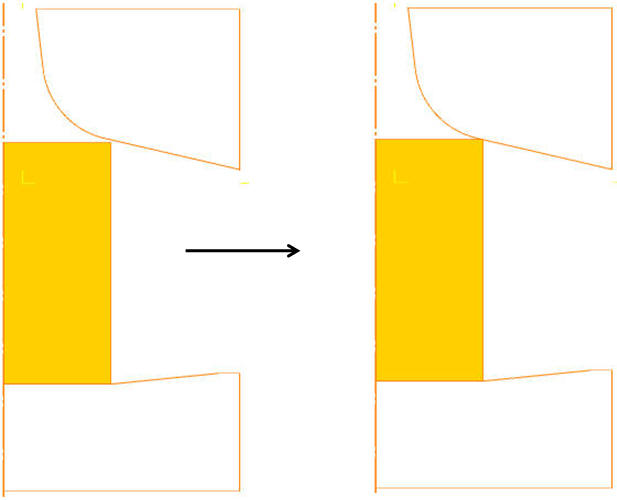
Interference Positioning
Rotational Positioning:
Select and change the Positioning object to the Billet. We want to rotate the Billet 45 degrees clockwise about its lower right corner. Select User Defined radio button, click the lower right corner of the Billet with the mouse. The Center field in the Object positioning window will update to the coordinates that were just picked. Change the Angle to -45 (clockwise) and click . The Billet will rotate 45 degrees about the picked location. Change the Angle to 45 and to rotate the Billet back to its original location (See Fig. L3.28.).
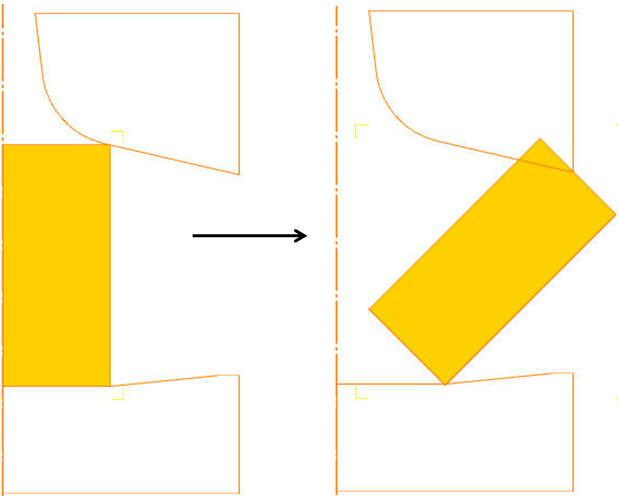
Rotational Positioning
In this operation setup we will use Automatic position option to position the objects. In Object positioning page select positioning direction as Z (Y) - direction and click on button, it will position the objects as shown in Fig. L3.29. Then click until Contact page.
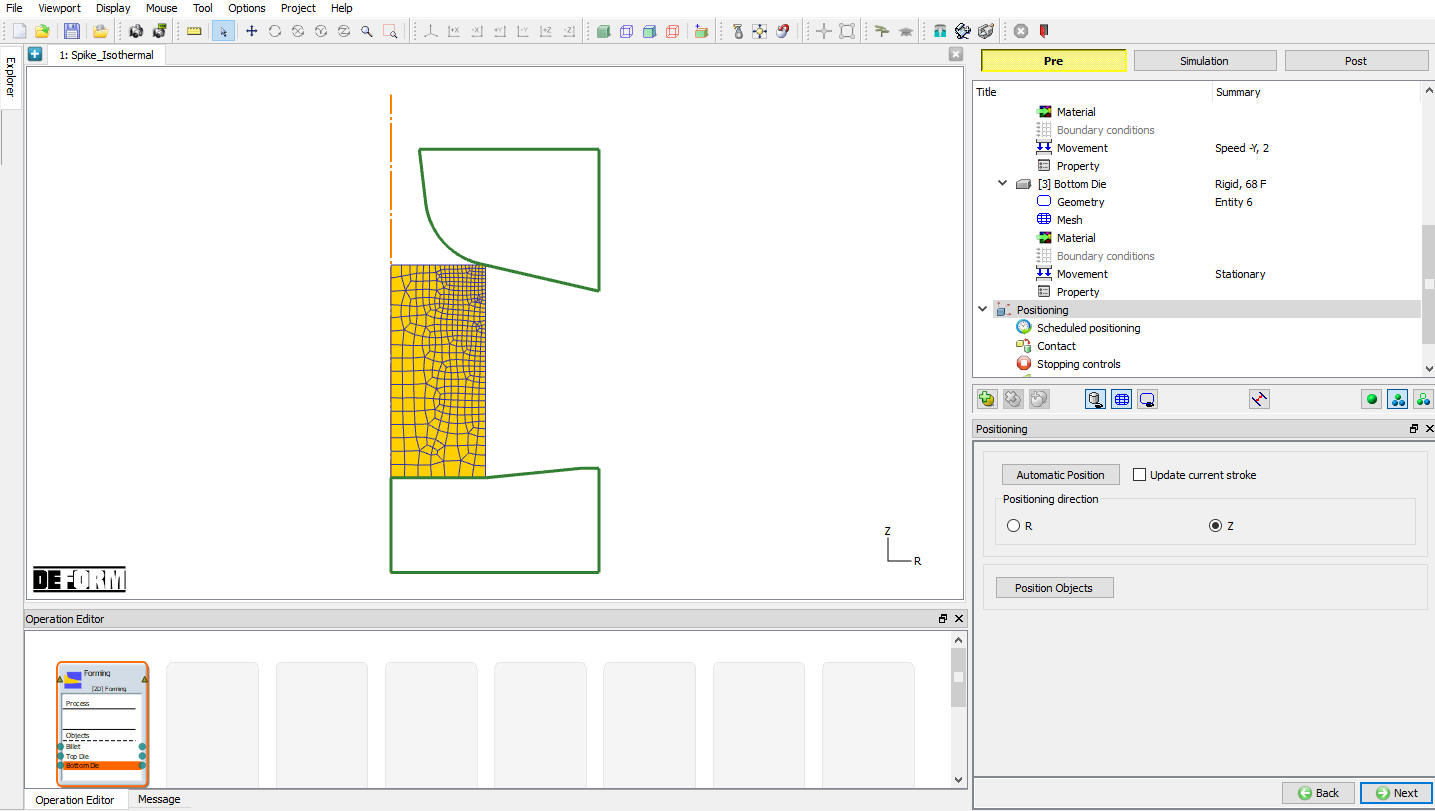
Positioned the object using Automatic position option
Contact Generation
Select user type contact and click on  button. It will add the relationship between the Billet, Top Die and Bottom Die as shown in Fig. L3.30. As the Dies are Rigid and Billet is plastic, Top and Bottom Dies are considered as Master and Billet as Slave. In order to predict the fold during deformation, self contact will be assigned for Billet.
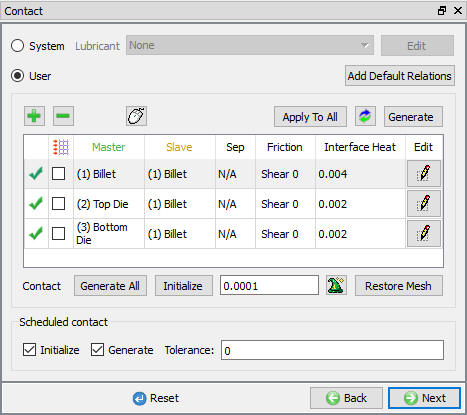
Contact Generation page
Highlight the Top Die – Billet relationship and click the  button to modify the contact conditions. In the friction section of the screen ( Fig. L3.31.), there is a pull-down menu that allows the user to choose the appropriate friction conditions of common forming processes.
Since this simulation takes place at room temperature and the dies are steel, use the pull down menu and select Cold forming (steel dies) from the list. A friction value of 0.12 will automatically be selected.
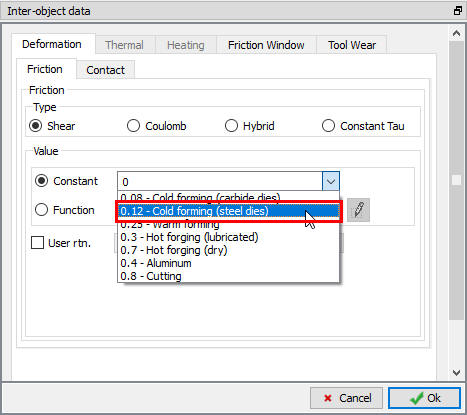
Inter-Object data definition window
Click  to go back to Inter-Object window, Since the friction conditions are the same for all the object pairs, the
  button can be used to copy the interface properties from the first relationship to all of the others. After this is done, all relationships will have a friction of 0.12 defined. Use
  icon to determine a suitable contact tolerance (a value of about 0.00126” will be calculated) , then click
  button to generate contact. If you rotate the objects around in graphics window, you will see that contact was generated between the two objects. Switch to Message tab or Observe status bar to know about the contacts generated. Click until Step controls window.
Step
Change the Operation name as “ Spike “ as shown in Fig. L3.32.
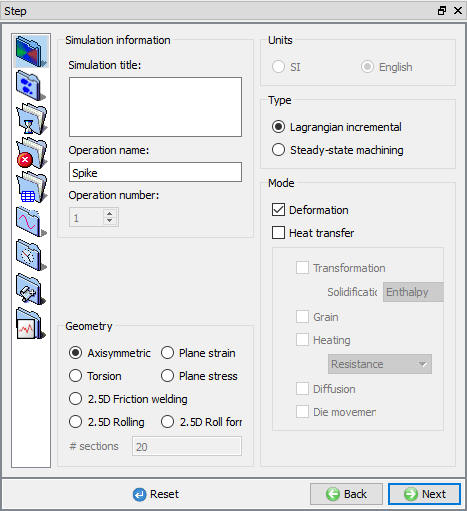
Step Main tab in expert mode
Select the simulations steps tab ( ), set the Number of Simulation Steps to 100 and Step Increment to Save to 5. Set the Top Die as Primary Die if not selected automatically. (See Fig. L3.33.)
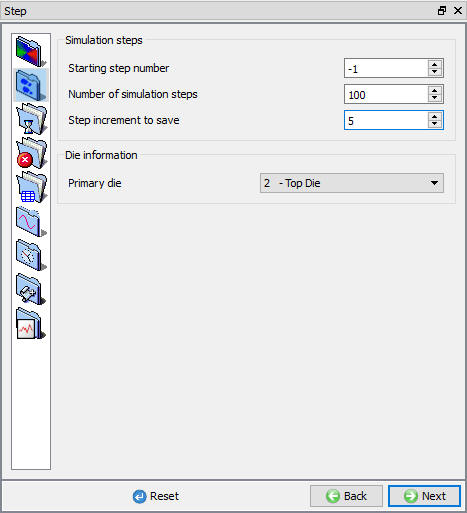
Simulation controls Simulation Steps tab in expert mode
To determine an appropriate step size, select the icon and measure the edge length of a few of the smaller elements in the Billet. An average length of a short edge is around 0.035”. Use a Constant Die Displacement per step of 0.015 in/step, which is 1/3 of this small edge length in step increment tab ( ) for step size as die displacement (See Fig. L3.34.) and leave other settings to default.
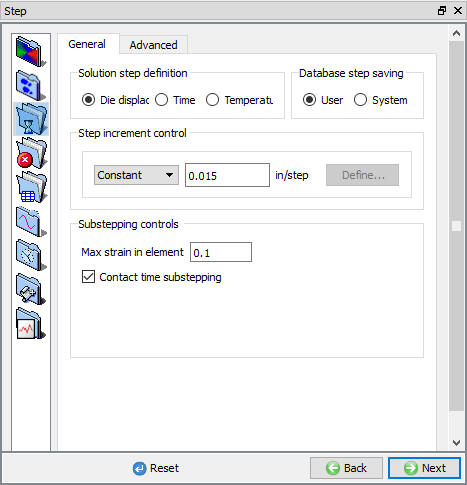
Simulation controls Step increment tab in expert mode
Click and save a keyword file for the problem by selecting the File menu Export option.
Generating Database
Once the problem has been completely set up, the last step is to generate a database file. The FEM engine (the part of DEFORM® that calculates the solution) uses a database file to store the finite element solutions for the problem. When you generate a database in the DEFORM MO Pre-processor, all of the information defined in the Pre-processor (such as the material properties, movement controls, object geometries, etc.) is transferred to the database file. From v12.0.2, In Generate DB file, we can observe the Operation Simulation setup summary as shown in Fig. L3.35.
In Generate DB page. Click the  button to have the program check to see if anything was missed in the problem setup. During the checking process, messages in the red color signify data that needs to be fixed before a simulation can be run (such as when you forget to define any material data).
Click on  button to generate the database. When the program is done writing the database, once the database has been generated, switch to the Simulation mode by clicking on
  button above the operation tree.
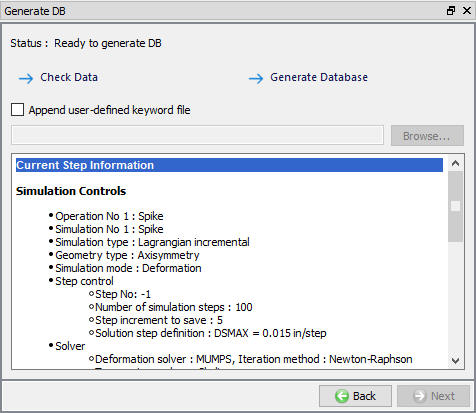
Generate DB page
Starting the Simulation
Click on the  action label under the simulation tab (See Fig. L3.36.), Run Options dialog will open as shown in Fig. L3.37. Use the default Continue Run option to select “Continue from the last step ” option and then select the Simulation mode as Interactive and click on
  button to run the simulation.

Simulation Options
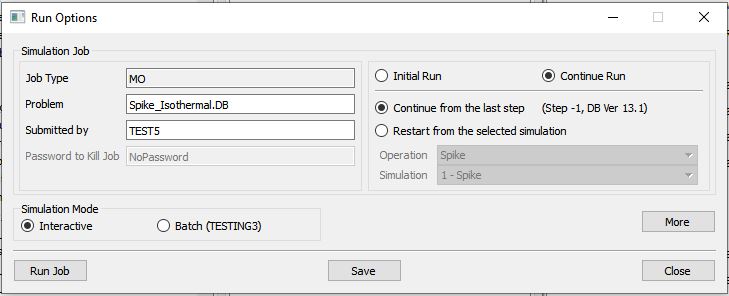
Run Simulation window
The progress of the simulation can be monitored as it is running by looking at the Simulation Message tab and Simulation Graphics from the Graphics display region in Simulation mode. As long as the option is checked in Simulation Message tab, which is the default setting, the Message file will refresh automatically.
The Message file provides information about which simulation step the simulation is currently on and also gives information dealing with how well the simulation is running.
When the simulation is finished without any issues, the following message will be added to the end of the Message file:”NORMAL STOP: Simulation is completed and stopped at the user specified time step”. (See Fig. L3.38.)
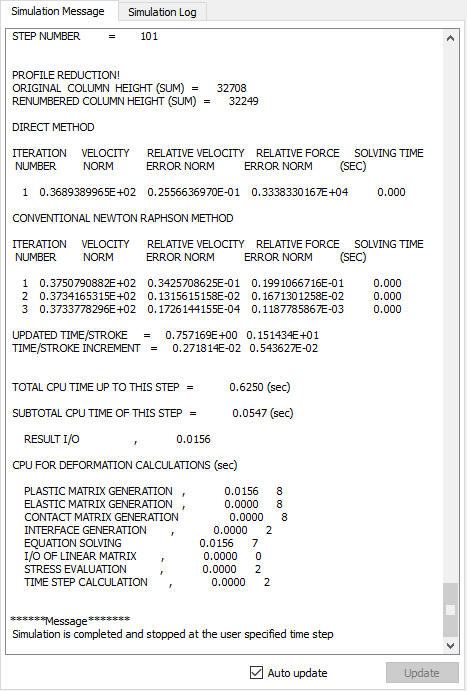
Simulation Message tab
Post-Processing the Results
After simulation has been completed, switch to tab to view results, MO post processor will open. (See Fig. L3.39.)
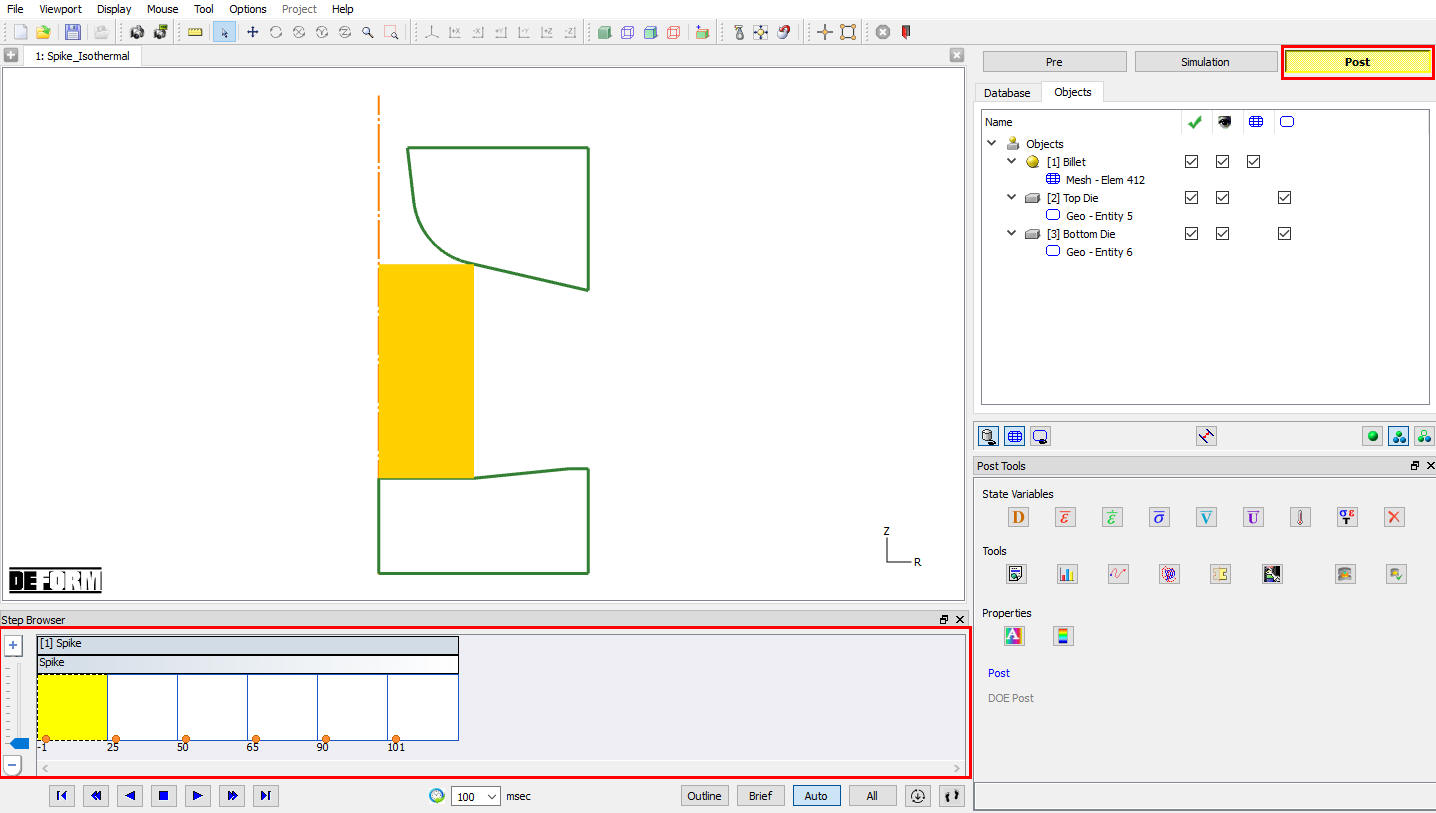
MO Post Processor window
Step Tools and Step Selection
To select the step to be viewed, there is a step browser page as shown in Fig. L3.40. Click on the  button in the step browser, when we click on the all button, all the saved steps will be displayed in the step browser. The
  icon can be used to bring up the Step List window (See Fig. L3.40.), which allows the user to define more detailed settings for steps display.
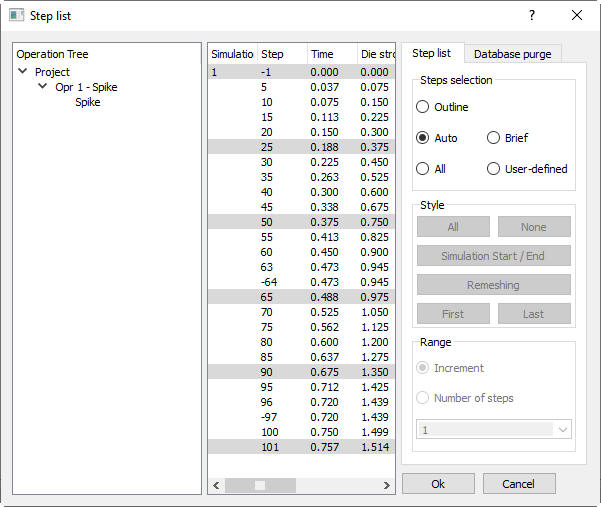
Step List window
Some of the most commonly used state variables can be viewed in post tools page. (See Fig. L3.41.)
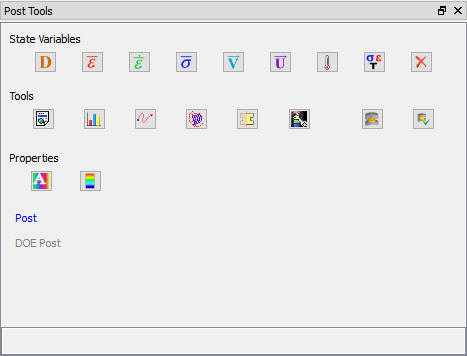
Post Tools Page
State Variable
Select Strain-Effective from post tools to look at the amount of deformation the workpiece has undergone. Click the  icon to bring up the State Variable window, select Strain-Effective state variable, select Solid shading by clicking on Solid display button and select
  as the Scaling option. This option will use the Local Min and Max effective strain as the extremes on the color bar. Scaling ,Shading and other contour plot setting can also be changed from RMB options on Colorbar. Play through the steps of the simulation to observe the accumulation of strain. (See Fig. L3.42.)
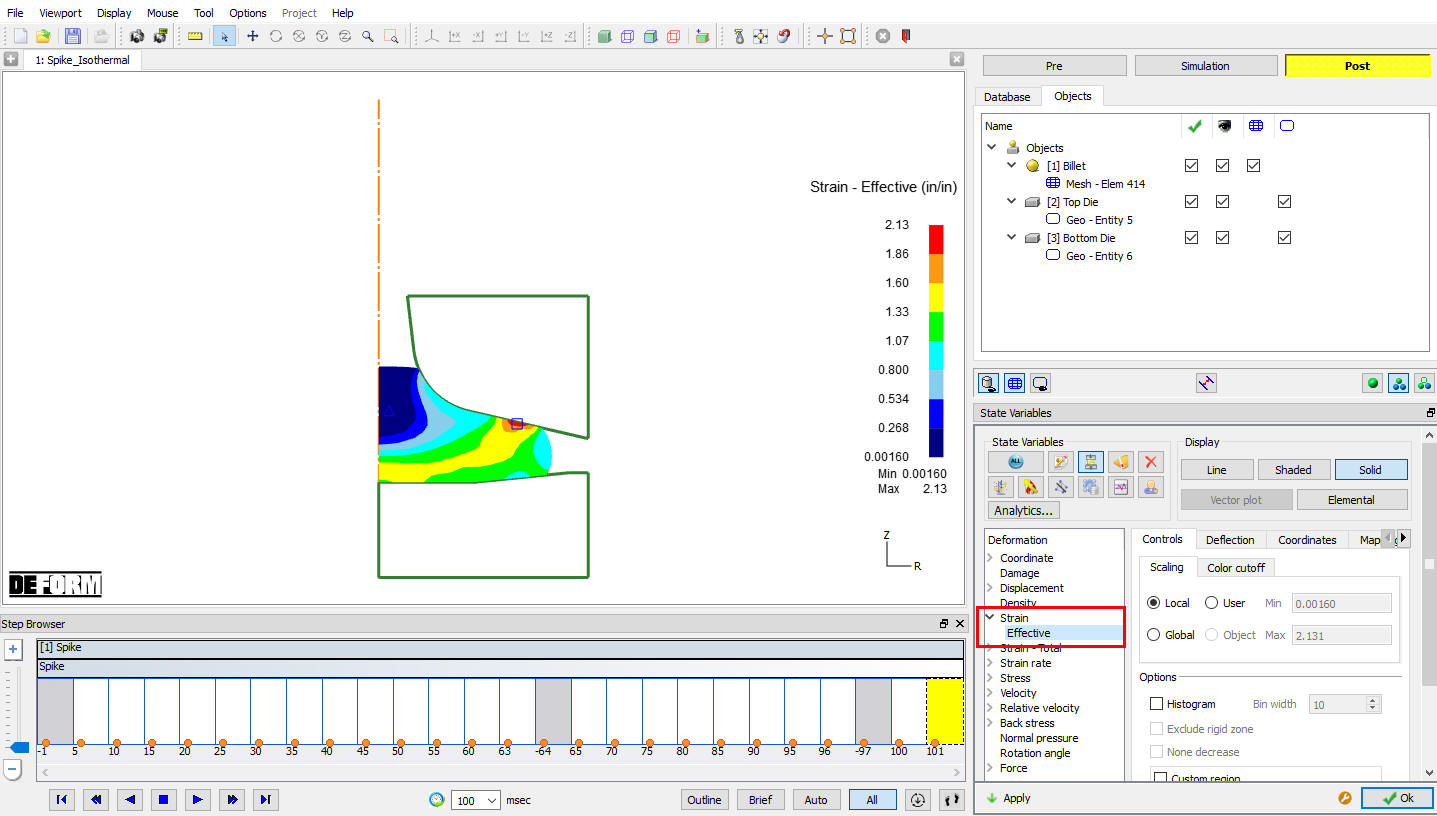
Strain-Effective Plot
The icon can be used to access all of the state variables.
The user can change a variable plot from a Solid contour to a Line contour by selecting the Display type. Several other options are also available such as Shaded contours and Elemental contours.
Vector Plots:
**For variables that have an associated direction, such as velocity, a vector plot can also be shown. Within the State Variable menu, select ‘Total Vel** ’ velocity as the variable to plot, and click on Vector Plot button. Click . A vector plot of the velocity of the nodes will be displayed for the billet (See Fig. L3.43.)
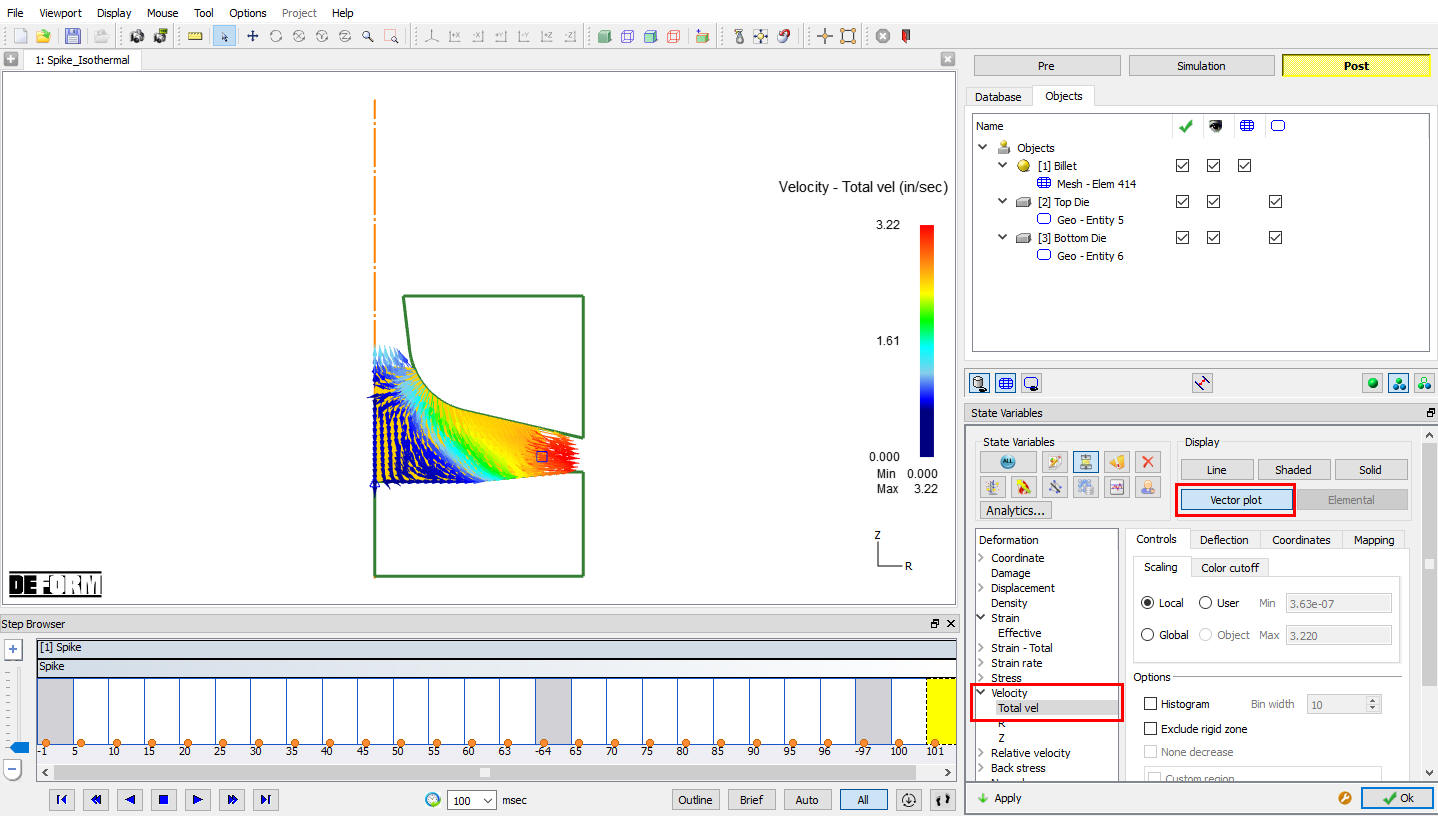
Velocity Vector plot
Load - Stroke Graph
The amount of load required to deform an object is an important result that can be obtained from a simulation.
Click the  icon, the Load Stroke Graph window will open. Select the Top Die in Plot object list, in X-Axis pull down menu select Stroke and in Y-Axis pull down menu select Y Load. Click on options tab and check Step tracer check box, then click on
  . The Load Stroke graph will display on the right side of the display window (See Fig. L3.44.). When a different step is selected, the balloon in the Load-Stroke curve will highlight that step and the corresponding load for that step will be shown in the graph. Also, a point on the graph can be picked with the mouse and the displayed step will automatically change to the one corresponding to that point on the graph.
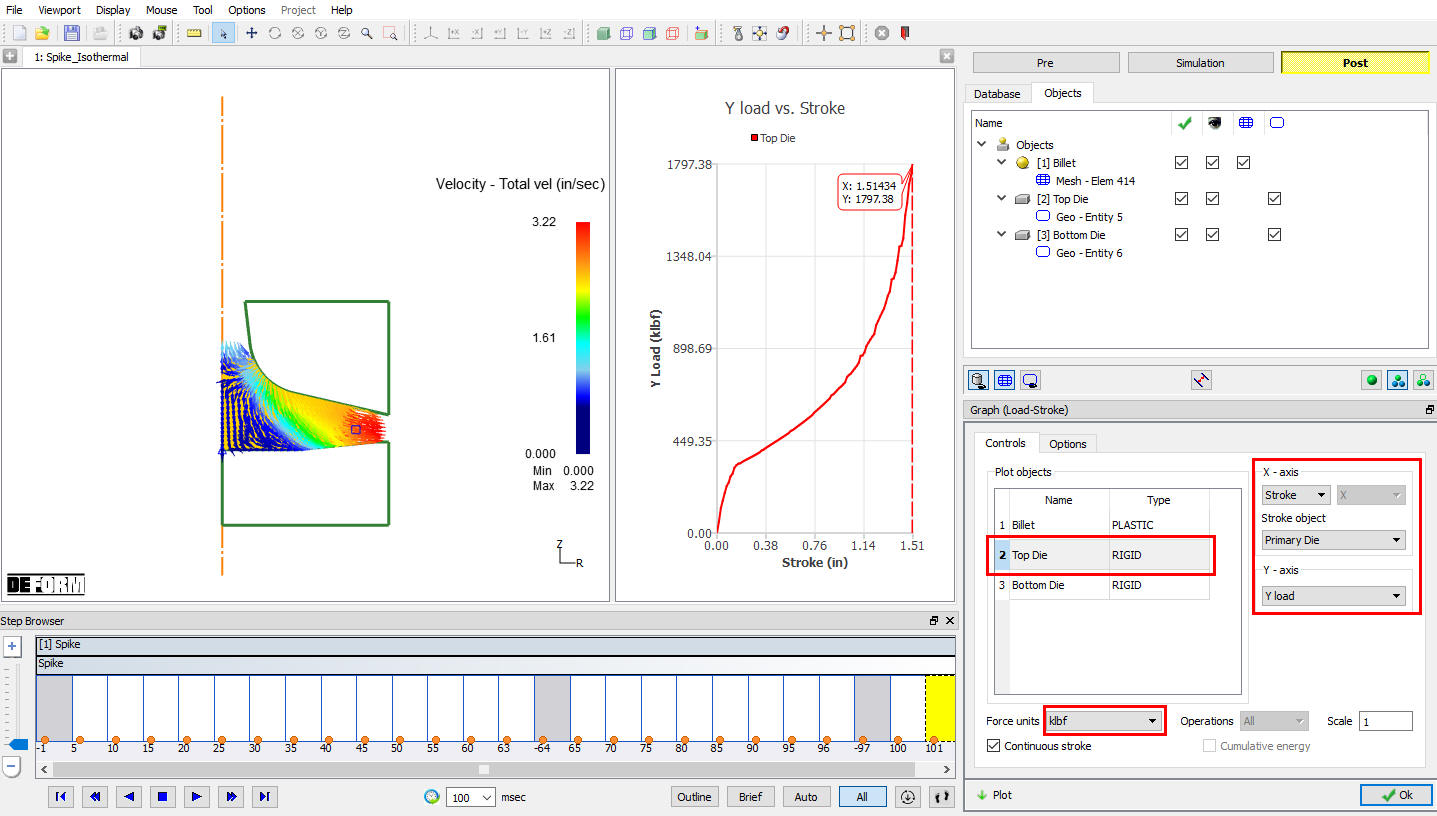
Load-Stroke Plot
After completion of Post processing, switch to  button to add “Block” operation.
Spike Isothermal- Block
In this operation we will be changing only Top die to check how the fold is developing and we will setup this operation in batch mode.
Adding Operation
Add 2D forming operation from the Explorer Operation list. Then click on second forming operation to open second forming operation. When we click on second operation we will get Setup type popup, in popup click on No-Batch mode button as shown in Fig. L3.45. Click until Objects page.
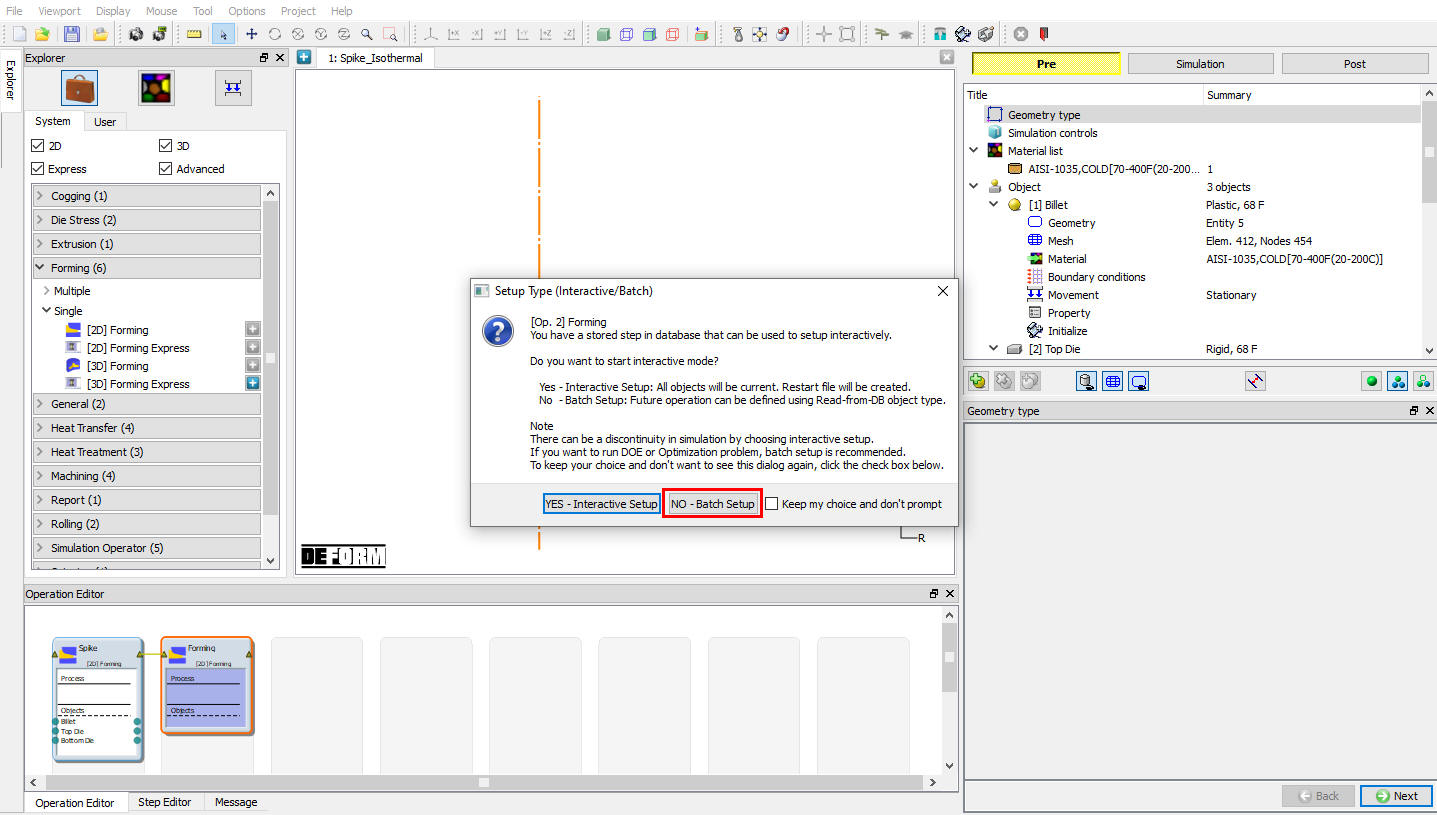
Setup type popup to setup second operation
Adding Objects
In Object window, by default previous operation three objects will be added in object list and object data will be transferred, if there aren’t already three objects, add the three objects by clicking the button, then click .
Workpiece
In Workpiece page select Read from DB as an object type, all the data like temperature, mesh and BCC of the Object will be carried over from previous operation (See Fig. L3.46.). The object color changes to Red color and in operation editor we are seeing link is created between the operation for the objects. Click .
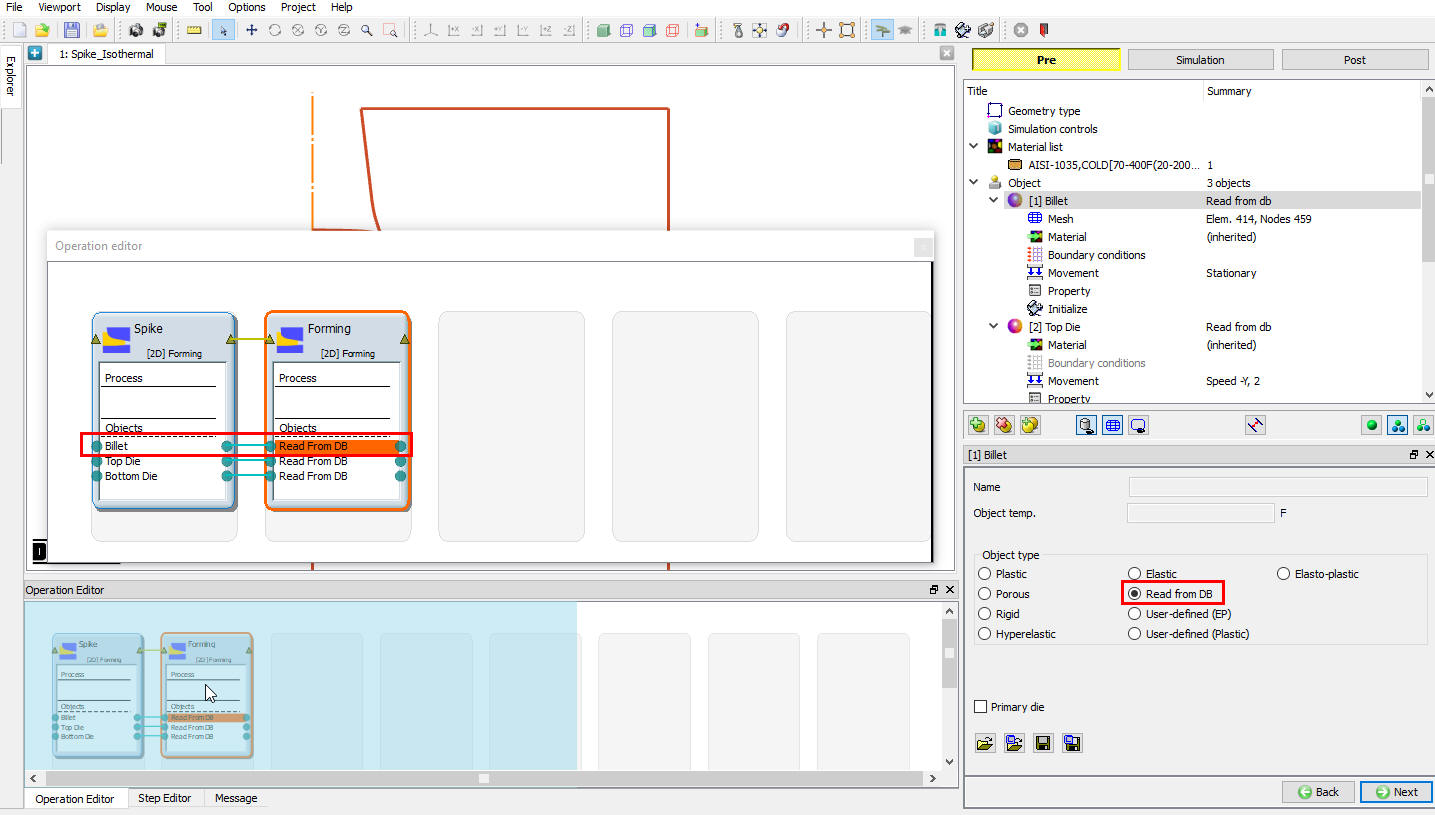
Workpiece window
Assigning Workpiece Mesh
It is suspected that a fold will develop during this operation, so if you turn on self contact, the fold will be preserved and you can observe how it develops in the Post- Processor.
In Workpiece mesh page check Define mesh settings check box to modify the existing mesh, when we turn on the Define mesh setting check box all the mesh settings options will get activated. Change the Number of Elements as 500 , then click on Advanced settings tab and change the Distance tolerance to 0.001. (See Fig. L3.47.)
Since we expect a small fold to develop, we want to make sure that the mesh in the vicinity of the fold will adequately capture the defect. The larger number of elements will be used in the first remeshing operation, increasing the total number of elements automatically from 400 to 500. Also, the “Distance tolerance” setting will help the mesh better to determine the fold in the geometry.

Workpiece mesh window
Then click until Top Die page.
Top Die
In Top die window select Object type as Rigid and Primary Die check box, click .
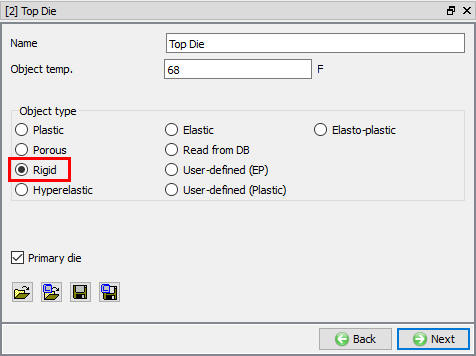
Top Die page
Create new top die geometry
In Top die geometry page, click on button. Click the  to remove existing geometry and add the following points in XYR format as shown in Fig. L3.49.
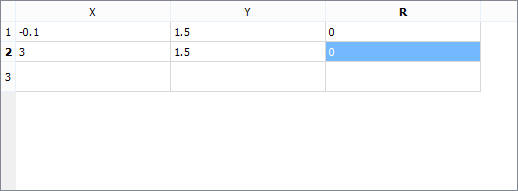
Top Die Geometry data
Then click button to close Edit window, click until movement page.
Assign Movement to Top Die
Define a speed of 2 in/sec in -Y direction and set current stroke value to (0,0). Then click until Bottom Die page.
Bottom Die
In Bottom Die window select object type as Read from DB, then click until Scheduled Positioning window.
Scheduled Positioning the Top Die
In scheduled positioning page, Click on  button and select radio button. Change the Positioning Object to the Top Die and the Reference to the Billet. Change the Approach Direction to -Y and then click . (See Fig. L3.50.) Click to Contact page.
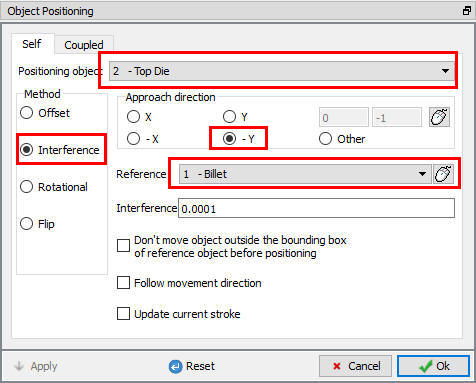
Scheduled Positioning window
Contact Page
Select user type contact and click on button. It will add the relationship between the Billet, Top Die and Bottom Die as shown in Fig. L3.51. As the Dies are Rigid and Billet is plastic, Top and Bottom Dies are considered as Master and Billet as Slave. In order to predict the fold during deformation, self contact will be assigned for Billet.
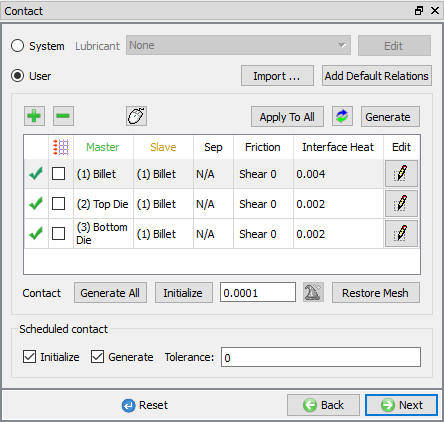
Contact Generation page
Highlight the Top Die – Billet relationship and click the button to modify the contact conditions. In the friction section of the screen (See Fig. L3.52.), there is a pull-down menu that allows the user to choose the appropriate friction conditions of common forming processes.
Since this simulation takes place at room temperature, and the dies are steel, use the pull down menu and select Cold forming (steel dies) from the list. A friction value of 0.12 will automatically be selected.
Inter-Object data definition window
Click to go back to Inter-Object window, Since the friction conditions are the same for all the object pairs, the button can be used to copy the interface properties from the first relationship to all of the others. After this is done, all relationships will have a friction of 0.12 defined. Click until Step page.
Step
Change the Operation Name to “Block “, uncheck the Heat transfer mode check box, Set the Number of Simulation Steps to 100 and the Step Increment to Save to 5. Select the Primary Die to Top Die, and under Steps increment, set With Constant Die Displacement to 0.01 “. Under Stop - Process Parameters tab, define Primary die displacement value as (0 , 0.5) inch as shown in Fig. L3.53. This will stop the simulation after the top die has moved 0.5” in the -Y direction. Then click .
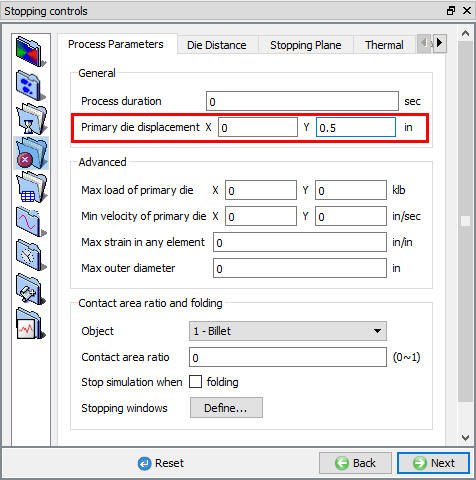
Step Controls Stop tab in expert mode
Generate Database
Save a keyword file for the problem by selecting the File menu Export option.
In Generate DB page. Click the button to have the program check to see if anything was missed in the problem setup.
Click on the button to generate the database. When the program is done writing the database, switch to tab to run simulation.
Starting the Simulation
Start the simulation by clicking the action label, use the default Continue Run option to select “Continue from the last step ” option and then select the Simulation mode as Interactive and click on button to run the simulation. When the simulation is finished we can observe that the following message is added to the end of the Message file:
” PROGRAM STOPPED!
THE STROKE -0.5000000 HAS EXCEEDED THE SPECIFIED LIMIT 0.5000000”
Post processing the results
After simulation complete, Switch to  button MO post processor will open (See Fig. L3.54.).
Play through the steps to see whether a fold develops. To see this better, you may need to zoom in on the interface between the top die and the workpiece.
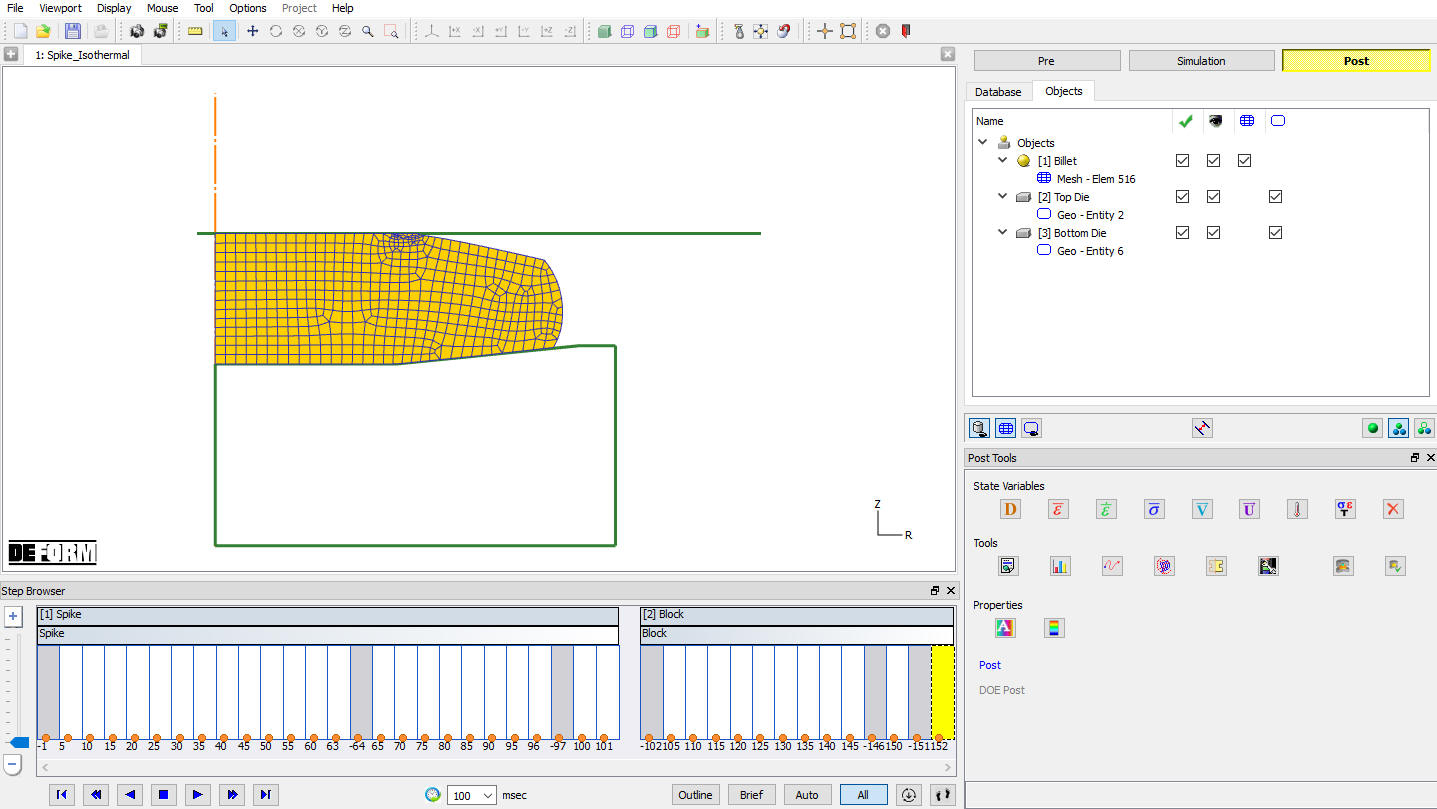
MO Postprocessor window
Flownet
Now go back to second operation first step, click on  . In Flownet window select Offset type flownet (See Fig. L3.55.), then click .
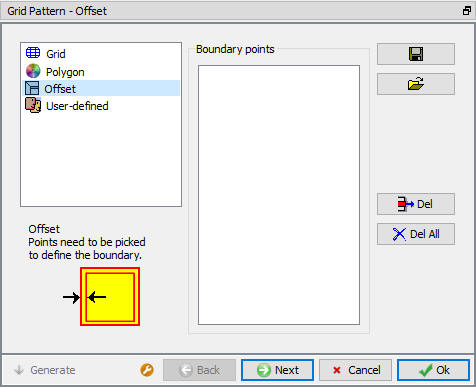
Flownet window
Use 0.01 in as Offset distance value, then click  . The Preview will show the offset border of the billet (See Fig. L3.56.), then click .

Offset window
In Advanced option page, we can save the Starting Flownet pattern, End Flownet pattern and results. Click on  button to generate the Flownet (See Fig. L3.57.). Then play the animation by clicking Play button and observe the billet boundary. We can observe that a fold is occurred on the billet closer to the Top die outer edge as shown in Fig. L3.58.
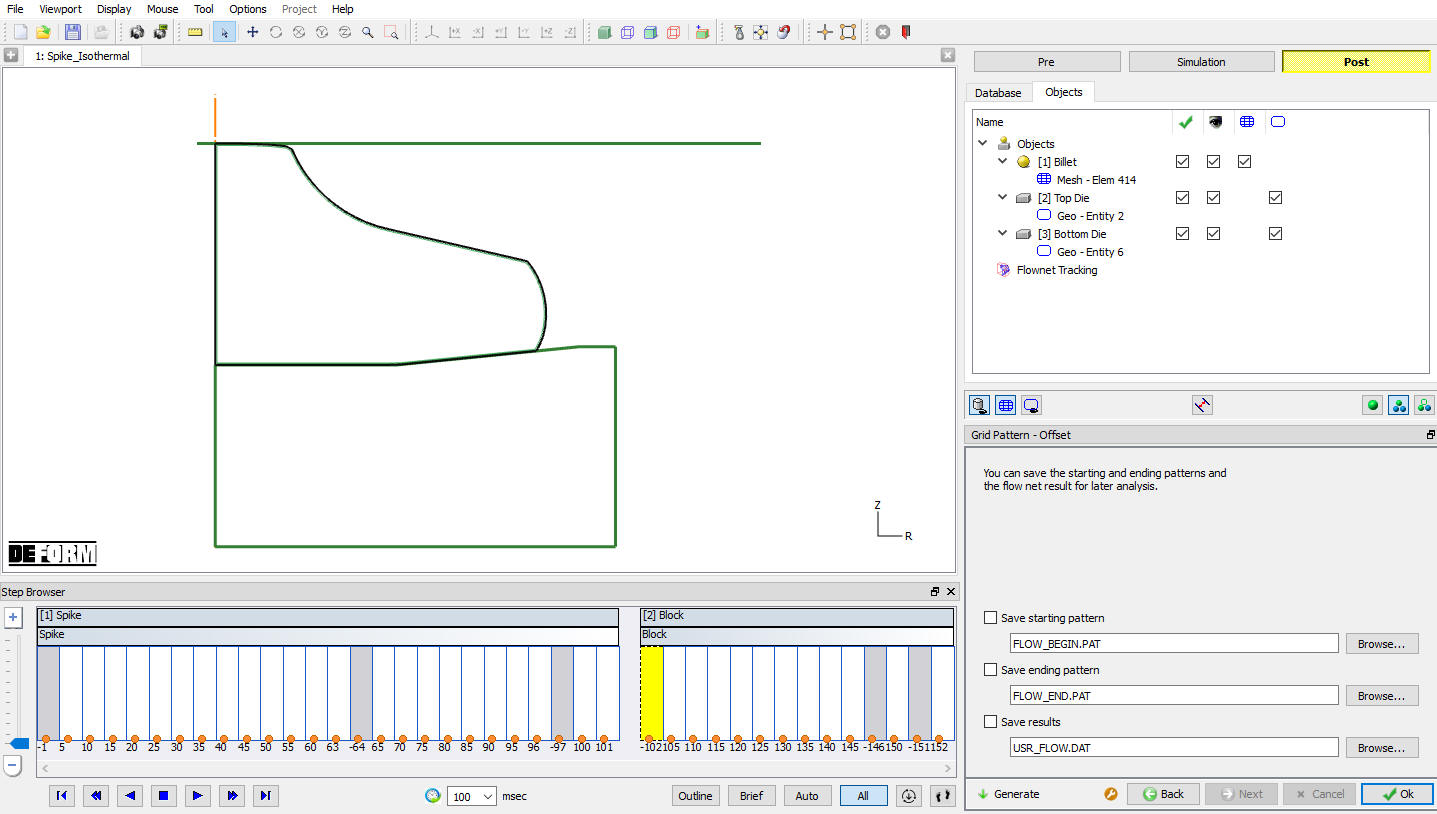
Flownet Generation window
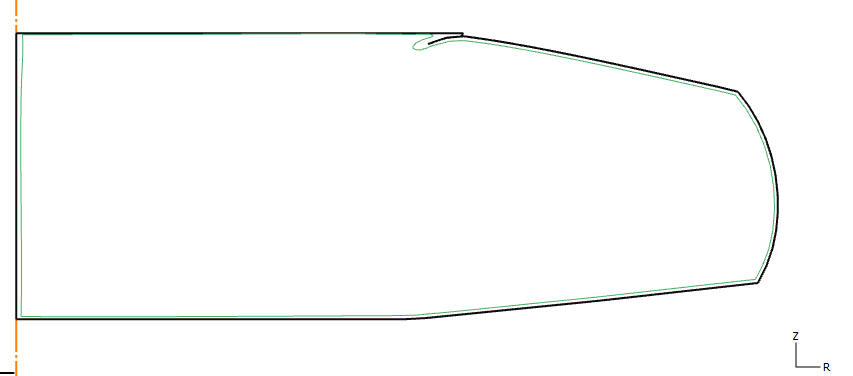
Last step Billet display
Load Stroke-Graph
Go to second operation first step from Step browser and click the icon, the Load Stroke Graph window will open. Select the Top Die in Plot object list, from X-Axis pull down menu select Stroke and Y-Axis pull down menu select Y Load. Click on options tab and check Step tracer check box, then click on . Load-Stroke graph for Block operation is plotted as shown in Fig. L3.59.
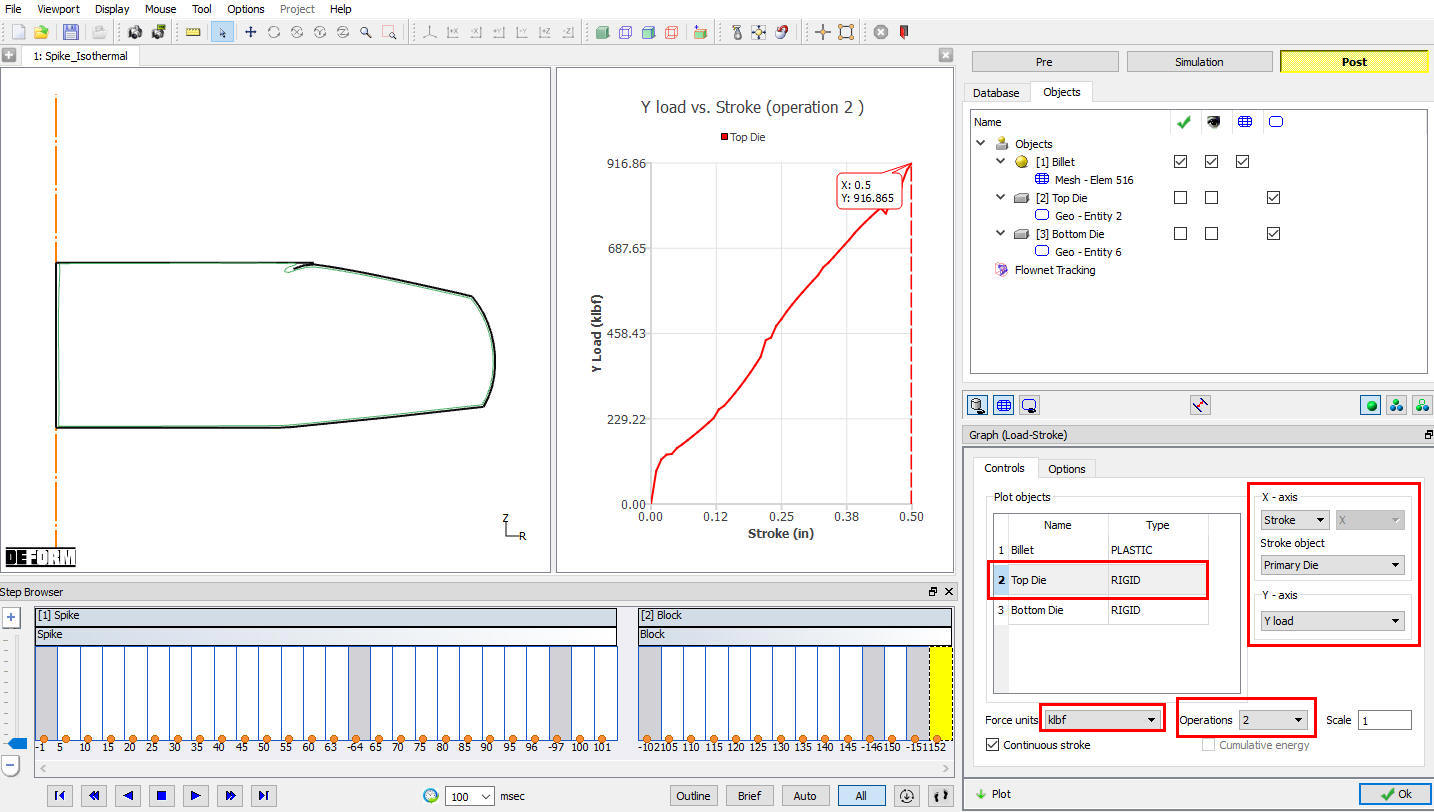
Load-Stroke Graph plot
Plot Load Stroke Graph for both the operation by selecting All in Operation pull down list and click on , Load-Stroke graph will be plot for both the operation as shown in Fig. L3.60.
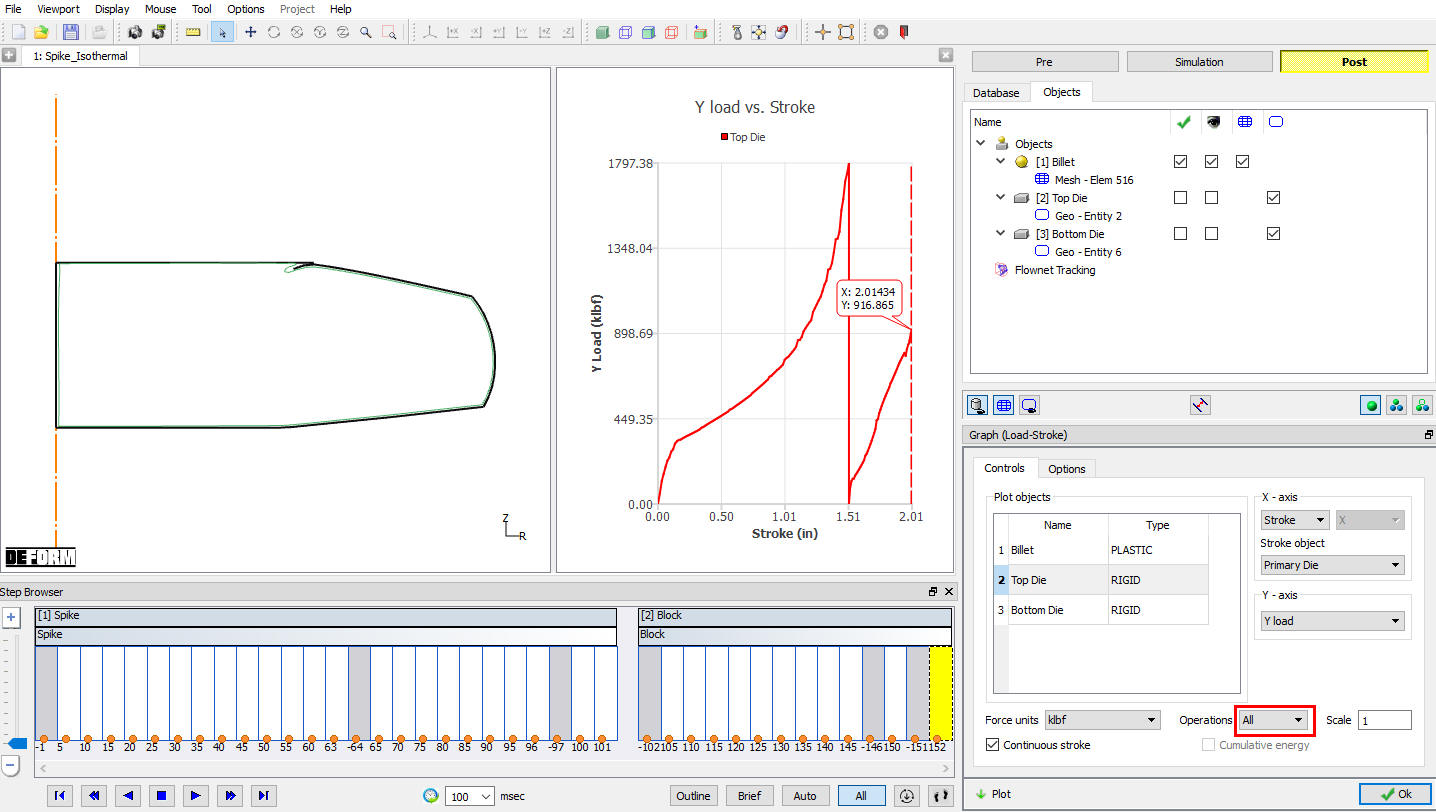
Load-Stroke Graph plot for all Operation
Close MO Wizard
After completion of Post processing, Save the Project and close the MO wizard by clicking  Close button or selecting Quit option under File menu.
Related Topics:
12.1. 2D Geometry Data Defining
12.2. 2D Geometry Data Editing
15. Movement Controls Settings
20. Inter-Object Data Definition