2D Thermal Cycling Lab
1.1. Creating New problem
1.2. Adding 2D Forming Operation
1.3. Import the gear2.DB Database
1.4. Select Geometry type and Simulation Modes
1.5. Deleting workpiece object
1.6. Defining Top die object data
1.6.1. Generating mesh for Top die
1.6.2. Assign Top die material
1.6.3. Assign Top die BCC
1.7. Defining Bottom die object data
1.8. Assign Step controls
1.9. Data checking and database generation
1.10. Passing all objects to all operation
1.11. Setting up Forming operation
1.11.1. Select Simulation Modes
1.11.2. Adding Workpiece object in object list
1.11.3. Loading workpiece object data
1.11.4. Define scheduled positioning data
1.11.5. Define Inter -Object relation
1.11.6. Assign Stopping controls
1.11.7. Assigning Step controls page
1.12. Setting up Air Before Spray operation
1.12.1. Select Simulation Modes
1.12.2. Step controls page
1.13. Setting up Spray operation
1.13.1. Select Simulation Modes
1.13.2. Step controls page
1.14. Setting up Air cool after Spray operation
1.14.1. Select Simulation Modes
1.14.2. Step controls page
1.15. Adding Cycle operation
1.16. Run and monitor a simulation
1.17. Review Results
1.17.1. Point tracking
This lab will introduce the concept of cycling where we repeatedly run simulation with a new workpiece through an existing set of tools to study temperature evolution over time.
Rather than reading the workpiece from the database and introducing new tools, we will read the tools from the database, and introduce a new workpiece. We will start the cycle with a “dummy” operation in which the tools are introduced, and then begin the cycle where each time we loop back to the beginning, the tools are read from the last operation.
We will model a typical tool thermal cycle, which includes
-
Forming
-
Rest in air
-
Spray tool with lubricant/ coolant
-
Rest in air again
Creating New problem
On a Windows machine, go to the  button select DEFORM-v1x.xxx (.xxx indicates version number E.g. v14.0.2) and select DEFORM GUI Main v1x.x from the menu. The DEFORM GUI Main window will appear.
Create a new problem either by selecting File New Problem or by clicking the New Problem
  icon. The Problem Setup window will appear as shown in Fig. L1.1. Select “ Integrated Manufacturing Process “ radio button and unit system as “English “ radio button in unit field. Define Problem Name as “ **2D_Thermal_Cycling** **” and make sure the “Show option dialog** ” check box is turned on (if we do not turn on the “Show option dialog” check box, then we will not get the New Project dialog). Then click on
  button to open a new problem using the Deform Integrated Manufacturing Process.
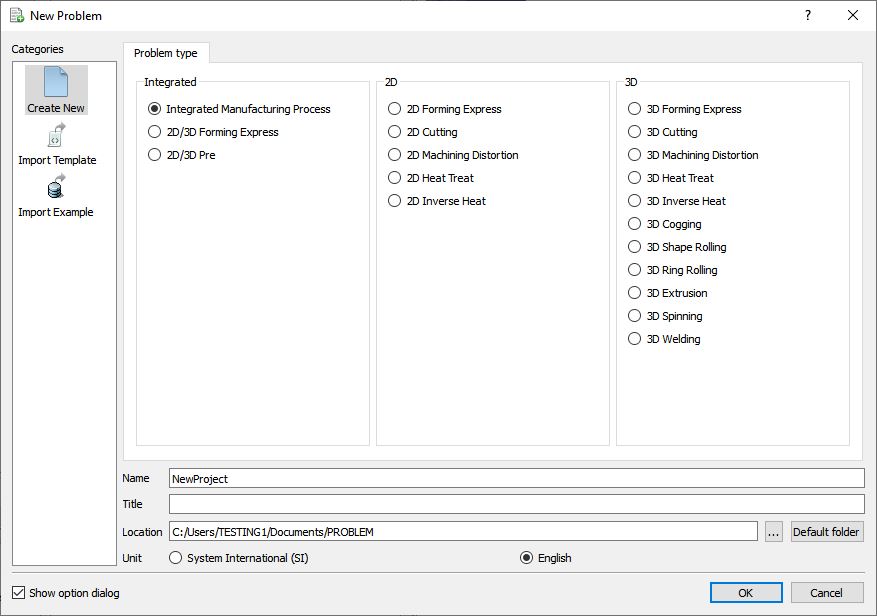
New Problem Setup Window
Multiple operation wizard will open with the New Project dialog, retain the project name as 2D_Thermal_Cycling and confirm that First operation check box is unchecked as we will add operation later and use the default (home) directory as shown in Fig. L1.2. Click to add project.
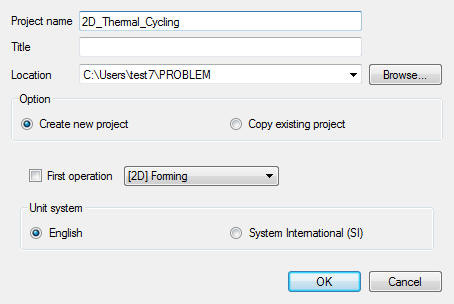
New MO Project window
Adding 2D Forming Operation
Multiple Operation wizard will open a new project. Add five 2D Forming operations from the Explorer Operations list. Operation can also be add by clicking on 2D Forming operation  button (See Fig. L1.3.) or user can also add by drag and drop into the Operation Editor.
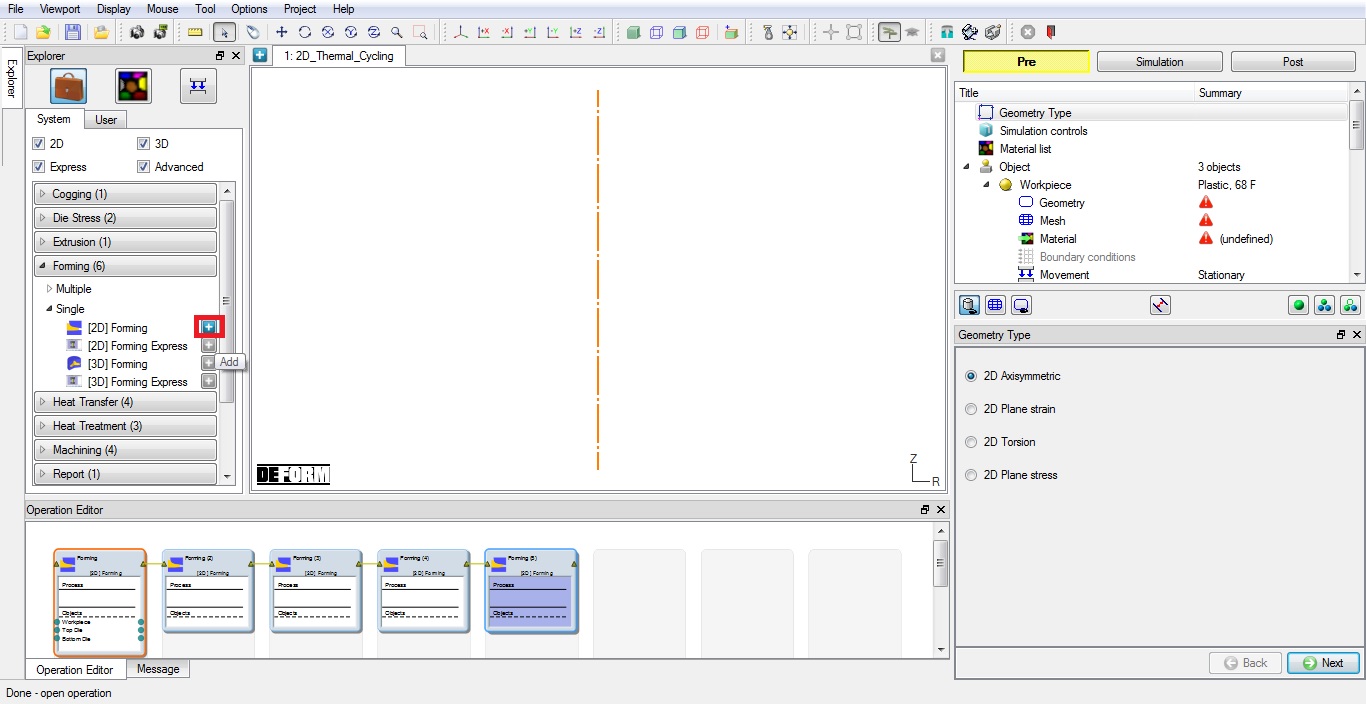
Adding 2D Forming operation from operation explorer
Change the first operation default operation title to “Start “ from Forming by selecting the title in the operation editor as shown in Fig. L1.4. and press Enter keyboard button.
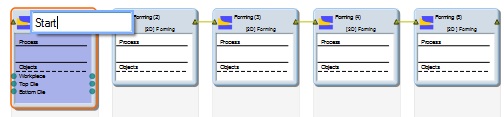
Renaming operation name to Start
Import the gear2.DB Database
In this operation we will import objects data from gear2.DB. Click on Import  button under Filemenu and load gear2.DB file from DEFORM installation folder \Tutorials directory.
Select-106 step in Step selection list and click button (See Fig. L1.5.).
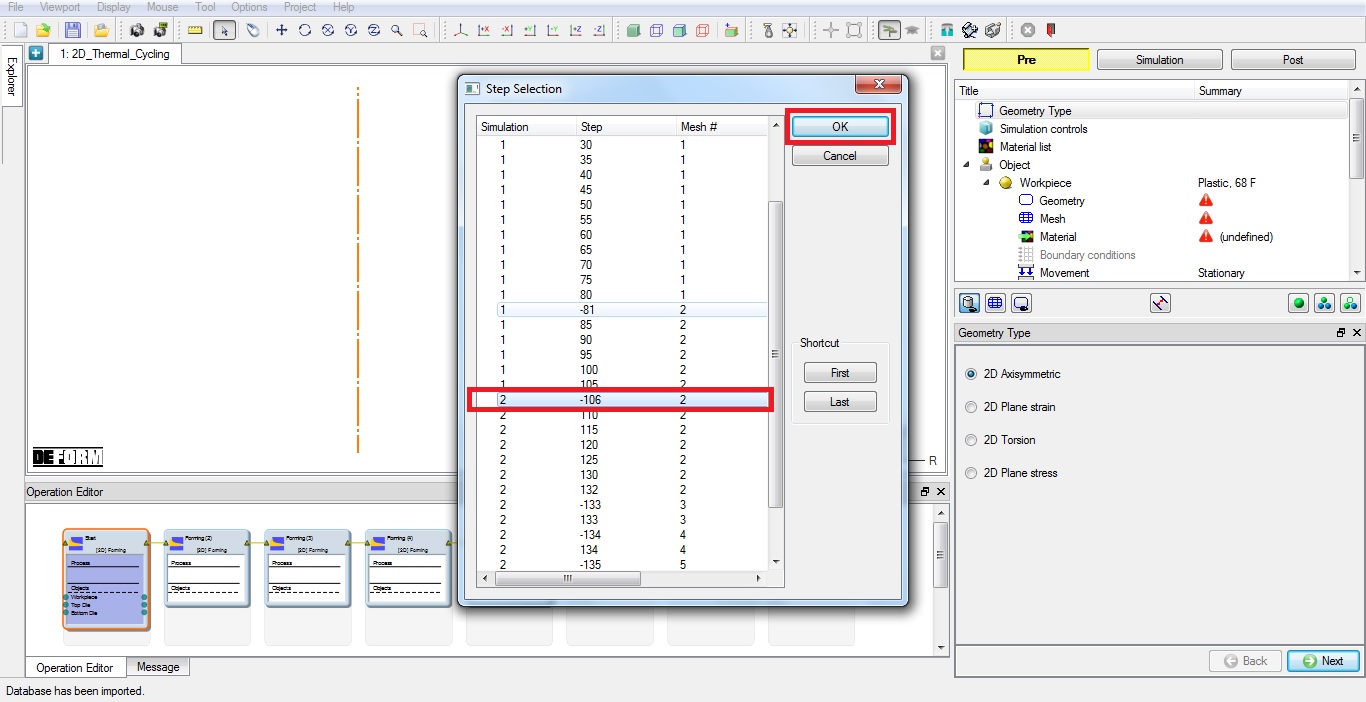
Selecting step to load objects data from database
Select Geometry type and Simulation Modes
Confirm the geometry type selected isAxi-symmetric in Geometry type page, then click  .
.
In this operation we will setup dummy operation, so in Simulation controls page, uncheck the Deformation mode and check the Heattransfer operation (if not checked by default), then click until Objects page.
Deleting workpiece object
We will delete workpiece object from this operation and we will load this object in next operation. So, delete the Workpiece object from the list using  button. Click to Top die page.
Defining Top die object data
Change the object temperature to 300 °F. Click until Mesh page.
Generating mesh for Top die
We will generate mesh with mesh window. So, Click on  icon to switch to expert mode. Define Target number of elements as 1000 , Under WeightingFactors tab change the Meshwindow value to 1. Now select Mesh window tab and add two mesh windows.
Define Window1 to coverbottomregion as shown in Fig. L1.6. with elementsize0.3
Define Window2 to cover the entiretopdie with relative elementsize1.0 as shown in Fig. L1.6. Then click the  button to generate the mesh for Top die. After generating mesh switch to Guided mode by clicking on
  mode icon. Click to Material page.
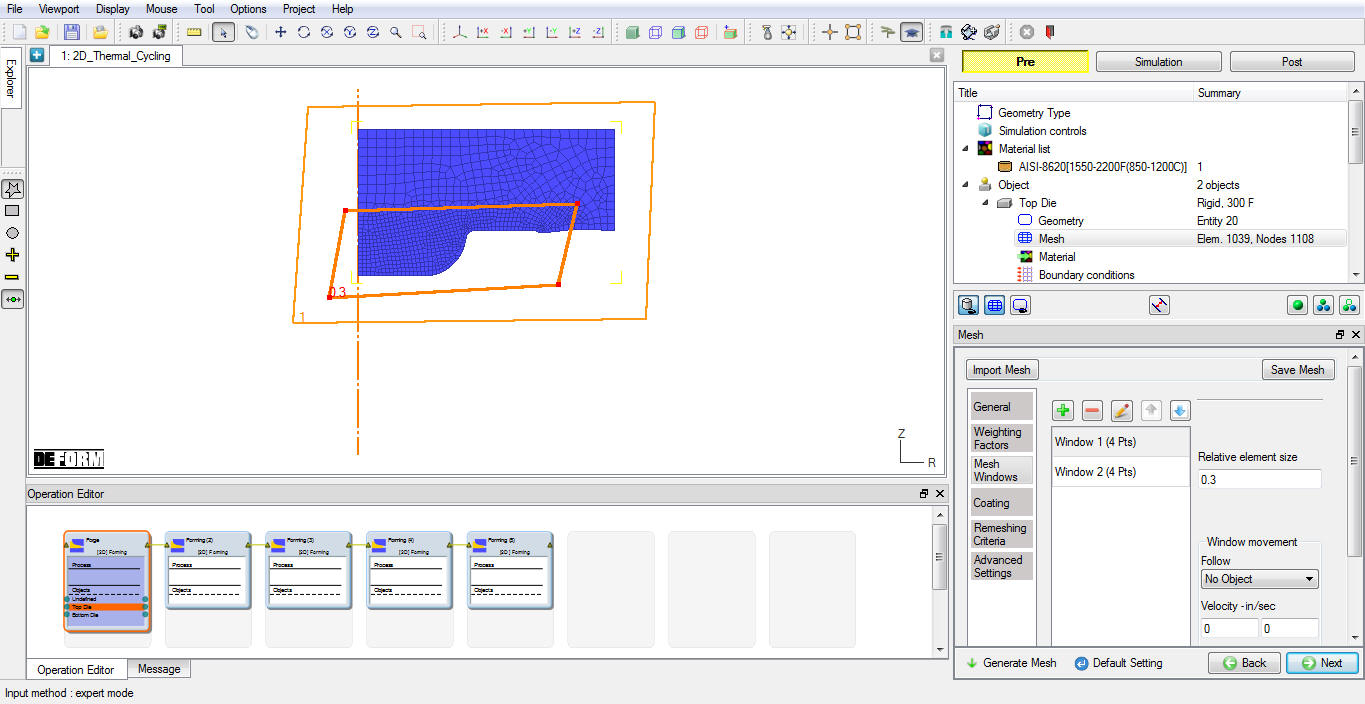
Top die mesh window
Assign Top die material
Click the  (Load material from library) button, select the Die_Material category, then select AISI-H-13 and click the
  button. Click button.
Assign Top die BCC
By default, Heat Exchange BCC is assigned for whole outer surface except symmetry plane. In this lab we will define the Heat Exchange BCC only for bottom surface. Delete the default assigned heat exchange BCC and assign Heat Exchange BCC only for bottom surface as shown in Fig. L1.7. Click button until Bottom die page.
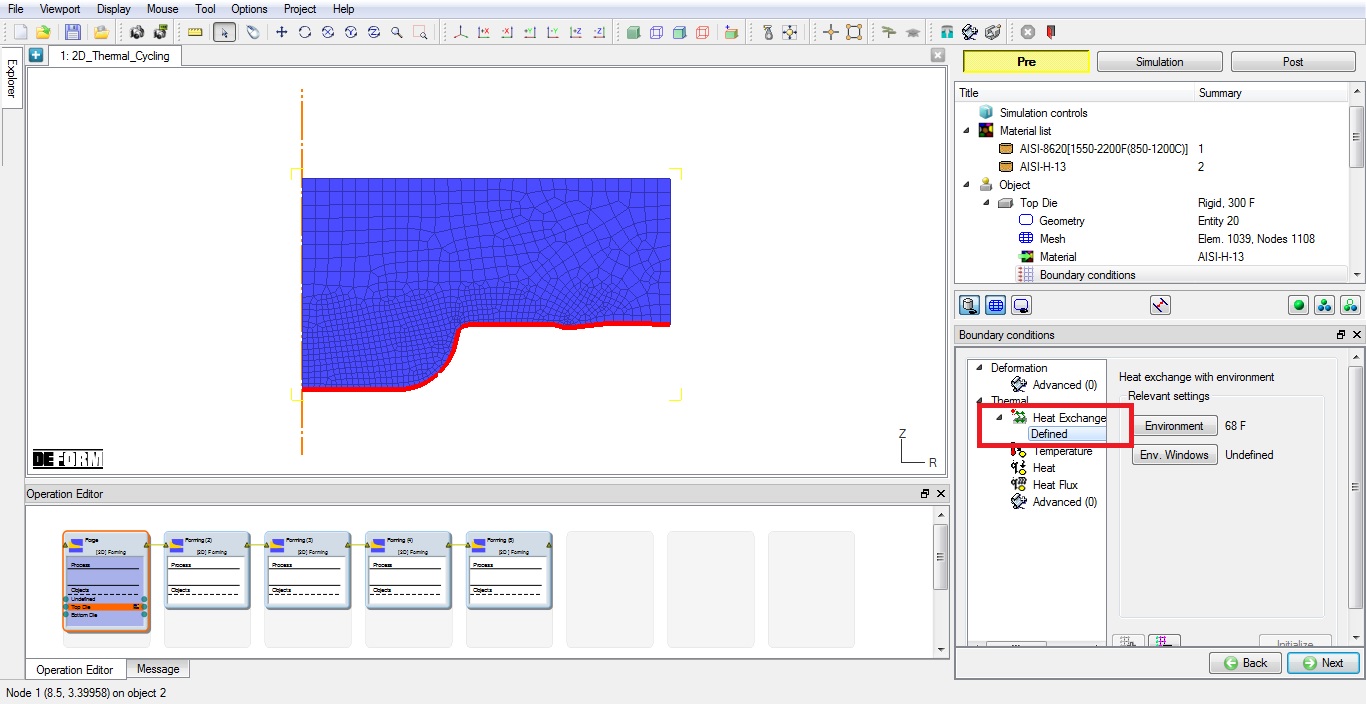
Heat Exchange with Environment BCC assigned for Top die
Defining Bottom die object data
Change the object temperature to300 °F. Click until step page.
Assign Step controls
This operation will run only for 1 step, so define Number of steps as 1 , Step increment as 1 and define constanttime as 1 sec/step as shown in Fig. L1.8. Click to generate DB.
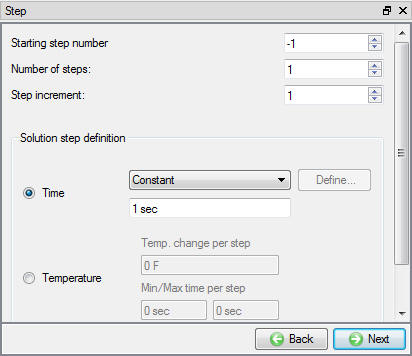
Step controls window
Data checking and database generation
Click on the  button, the data checking system will confirm that defined data is appropriate for running a simulation.
Red marks indicate missing or incorrect data that will prevent a simulation from running. It is necessary to correct those errors before the database can be generated.
Yellow marks indicate data which may be suspect and should be reviewed. These should be investigated carefully, as they might result in system instability or erroneous (incorrect) results.
Review the data checking information. If there are no yellow or red marks, click the  button.
Passing all objects to all operation
In Operation editor, right click on first operation Top die and select “ Pass object to all operations “ (see Fig. L1.9.), similarly pass bottom die data to all operations, then Click  .
.
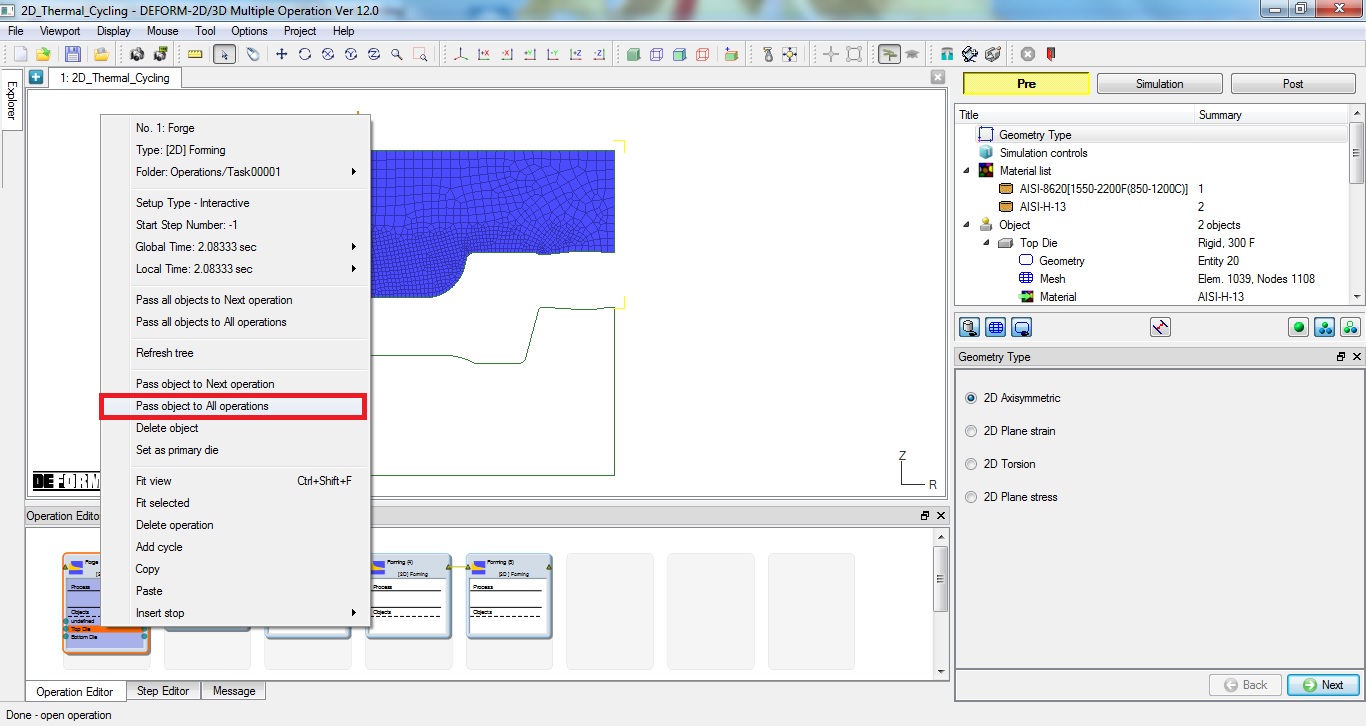
Passing all objects to all operations
Setting up Forming operation
In second operation, change the default operation title to “Forming “ from Forming (2) by selecting the title in the operation editor and press Enter keyboard button. Click .
Select Simulation Modes
Confirm the geometry type selected is Axi-symmetric in Geometry type page, then click .
In this operation we will setup forming operation, so in Simulation controls page, check the Deformation mode and Heat transfer operation (if not checked by default), then click until Objects page.
Adding Workpiece object in object list
We will Add workpiece object to this operation using  (insert object) button. Click to Object 1 page.
Loading workpiece object data
Click on Import object from a file  button and load gear2.DB file from DEFORM installation folder \Tutorials directory. Select -106 step in Step selection list and click button, then select Workpiece object in Object selection page and click button to load Workpiece object data (See Fig. L1.10.). Click until Scheduled positioning.
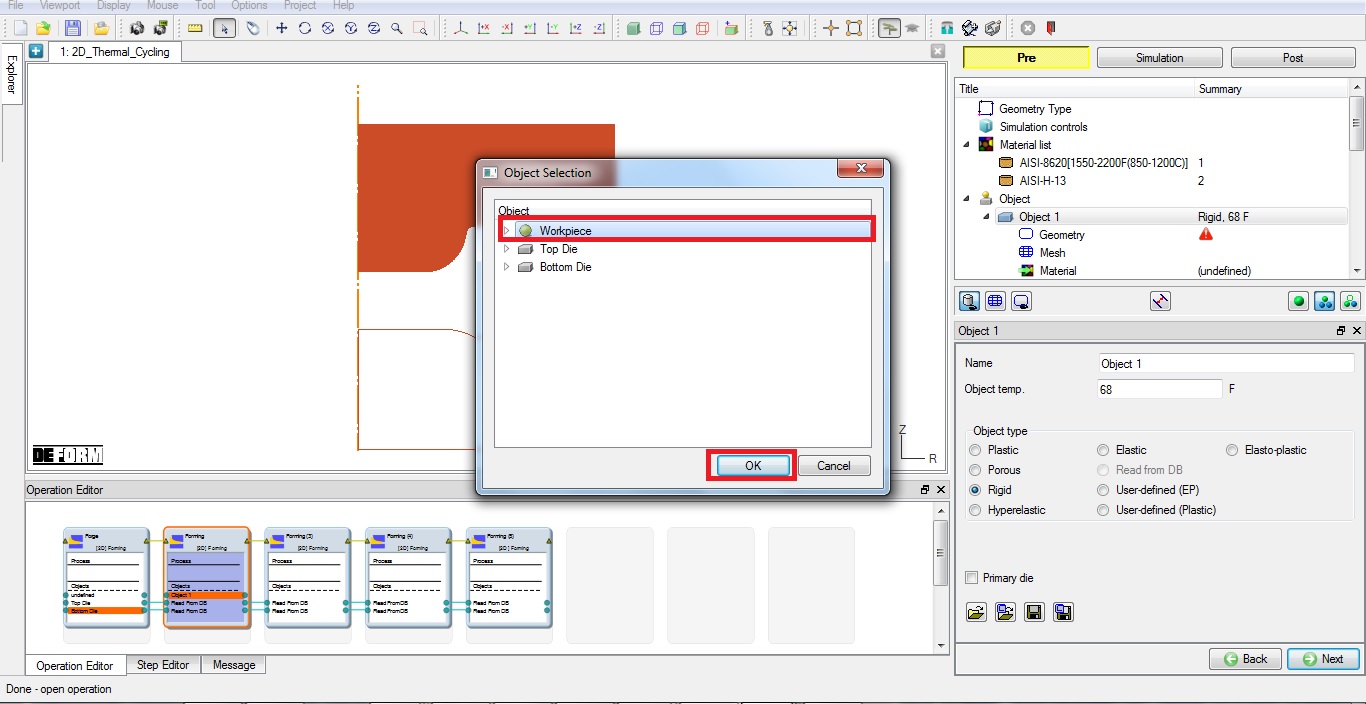
Object selection window
Define scheduled positioning data
Add two steps:
-
Top die interference positioning with Workpiece in -Y direction and
-
Bottom die interference positioning with Workpiece in +Y direction. then click to Contact page.
Define Inter -Object relation
Assign the default inter-object relationships using  button. The workpiece should be slave to both the Top die and Bottom Die. Click on the
  button for one of the relationships. Select Coulomb type friction radio button, define 0.3 friction value and in thermal tab define Heat Transfer Coefficient as 0.004. Click
  to exit the menu. Click
  to apply the friction value and Heat Transfer Coefficient value to the two other relationships. Click to Stopping controls page.
Assign Stopping controls
Check Distance between objects check box and select Top die and Bottom die as Object 1 and Object 2 (reference points were imported with the dies), define value as 0.2 and select Y direction. Click to Step controls page.
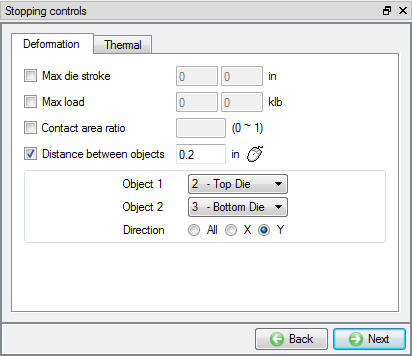
Stopping controls window
Assigning Step controls page
Define Number of steps as 100 , Step increment as 10, define constantdiedisplacement as 0.01 in/step and select Primary die as “Top Die” as shown in Fig. L1.12. Click until Next operation page.
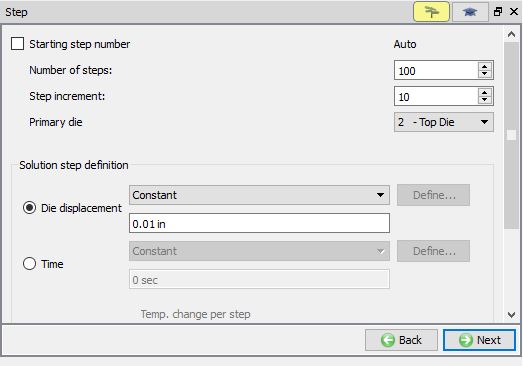
Step controls window
Setting up Air Before Spray operation
In third operation, change the default operation title to “Air Before Spray “ by selecting the title in the operation editor and press Enter keyboard button. Click .
Select Simulation Modes
Confirm the geometry type selected is Axi-symmetric in Geometry type page, then click .
In this operation we will setup heat transfer operation so, in Simulation controls page, uncheck the Deformation mode and check Heattransfer operation (if not checked by default), then click until Step controls page.
Step controls page
Click on icon to switch to expert mode, Under Stopping criteria  Process parameters tab define process duration as 1. Then switch to Guided mode by clicking on icon. Now define Timeconstant value as 0.05 and retain other default value. Click until Next operation page.
Setting up Spray operation
In fourth operation, change the default operation title to “Spray “ by selecting the title in the operation editor and press Enter keyboard button. Click .
Select Simulation Modes
Confirm the geometry type selected isAxi-symmetric in Geometry type page, then click .
In this operation we will setup heat transfer operation so, in Simulation controls page, uncheck the Deformation mode and checkHeattransfer operation (if not checked by default), then click until Step controls page.
Step controls page
Click on mode icon to switch to expert mode, Under Stoppingcriteria Process parameters tab define processduration as 3 sec. Under Processconditions Heat Transfer tab define Convectioncoefficient value as 1e-3 Btu/sec/in^2/F. Then switch to Guided mode by clicking on mode icon. Now define Time constant value as 0.05 and retain other default value. Click until Next operation page.
Setting up Air cool after Spray operation
In fifth operation, change the default operation title to “Air After Spray “ by selecting the title in the operation editor and press Enter keyboard button. Click .
Select Simulation Modes
Confirm the geometry type selected is Axi-symmetric in Geometry type page, then click
In this operation we will setup heat transfer operation, so in Simulation controls page, uncheck the Deformation mode and check Heattransfer operation (if not checked by default),. then click until Step controls page.
Step controls page
Click on icon to switch to expert mode, Under Stoppingcriteria Processparameters tab define process duration as 1sec. Under ProcessconditionsHeatTransfer tab change the Convectioncoefficient value is 7.7e-6 Btu/sec/in^2/F if it is not default. Then switch to Guided mode by clicking on icon. Now define Time constant value as 0.05 and retain other default value.
Adding Cycle operation
In operation editor, use the mouse to drag a window around operations 2-5. Right click and select “Add Cycle “ In the dialog on the right, define 5 cycles (See Fig. L1.12).
Note: placing a window around the tiles can be tricky. Drag them to the right to create a space between operation 1 and 2, then define the window around tiles 2-5. If you grab one you didn’t intend, you can right click on the line to delete the cycle and try again.
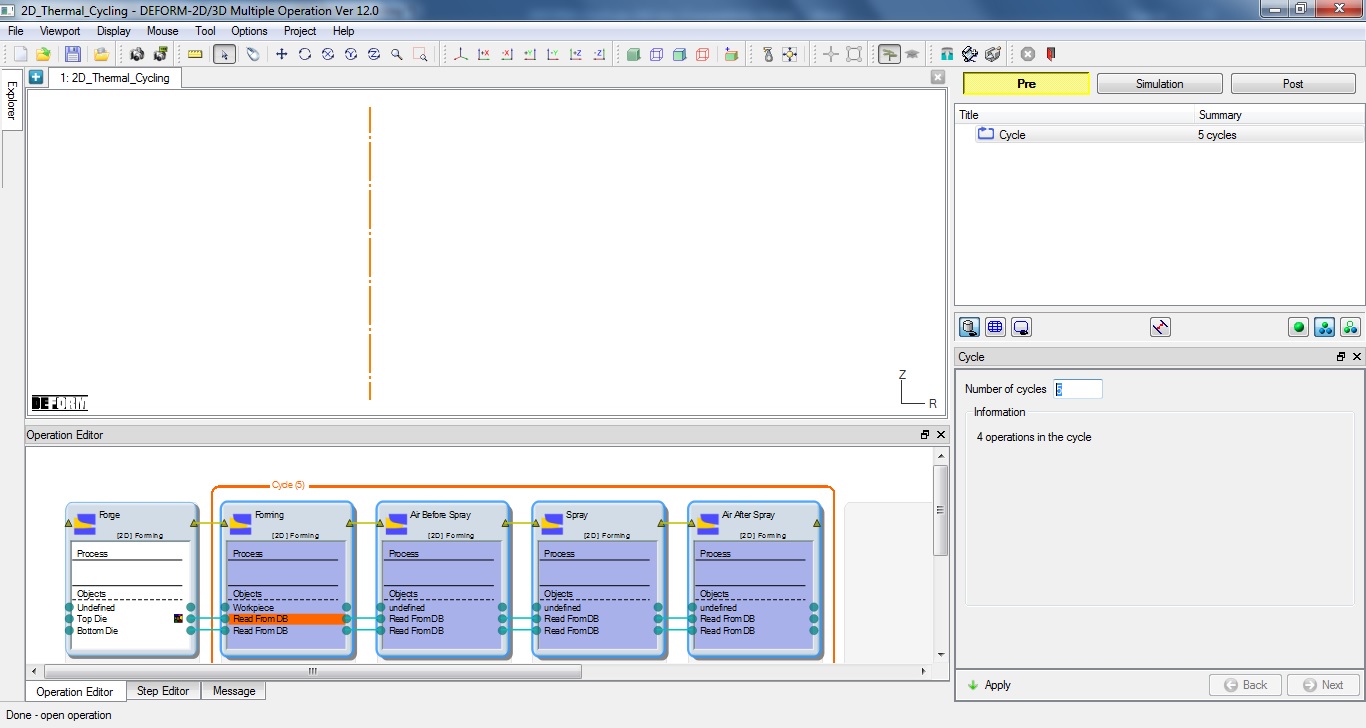
Adding cycle operation
Click on the MO  Mode button (above the operation tree) to start the simulation.
Run and monitor a simulation
Click on the  action label to open the Run Options dialog. Use the default ContinueRun option to select “Continuefrom the last step ” option and then select the Simulation mode as Interactive radio button ** and click on
  button to run the simulation.
Watching the simulation graphics provides an initial idea of what to expect when opening the postprocessor (See Fig. L1.14.). Also monitor simulation from Simulation and log messages. The message file and log file will indicate that the simulation has been completed on the last line, confirming that click on  Mode button to review results.
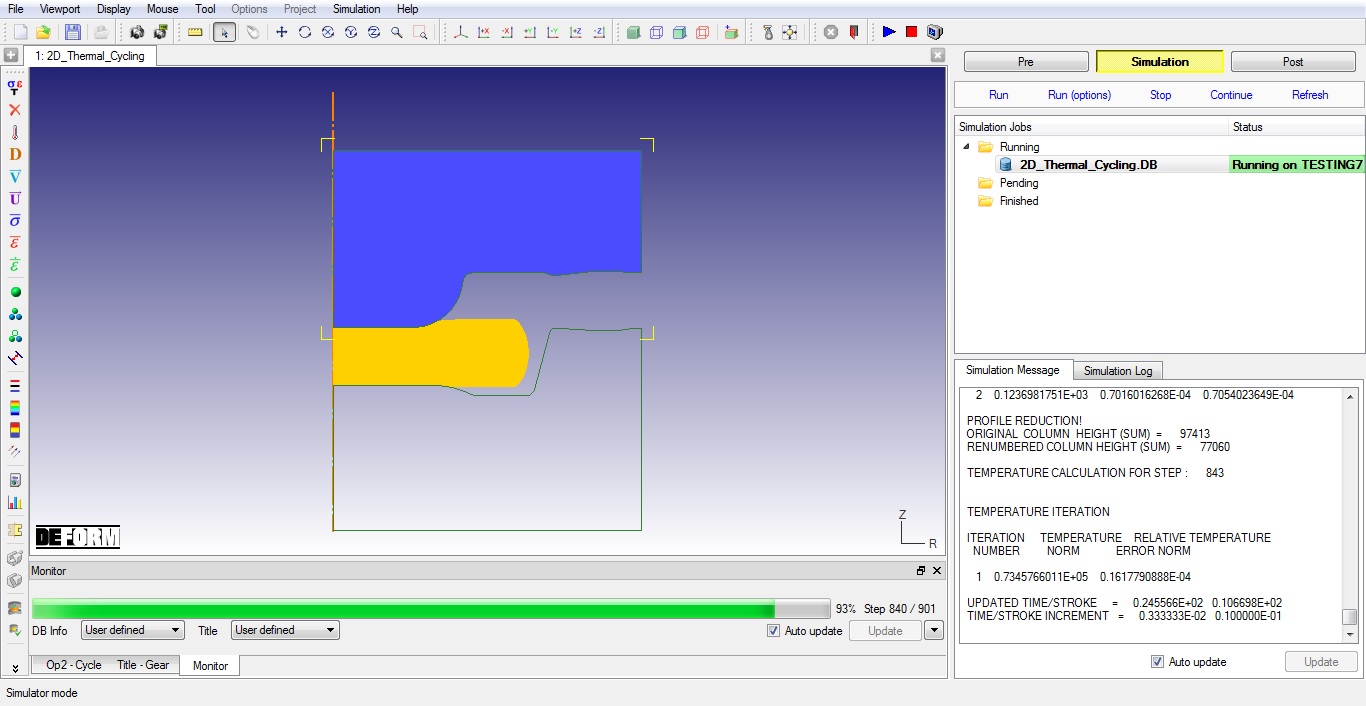
Running the simulation from MO simulation mode
Review Results
Play through the Steps and see the Temperature distribution in Top die by plotting the Temperature State variables.
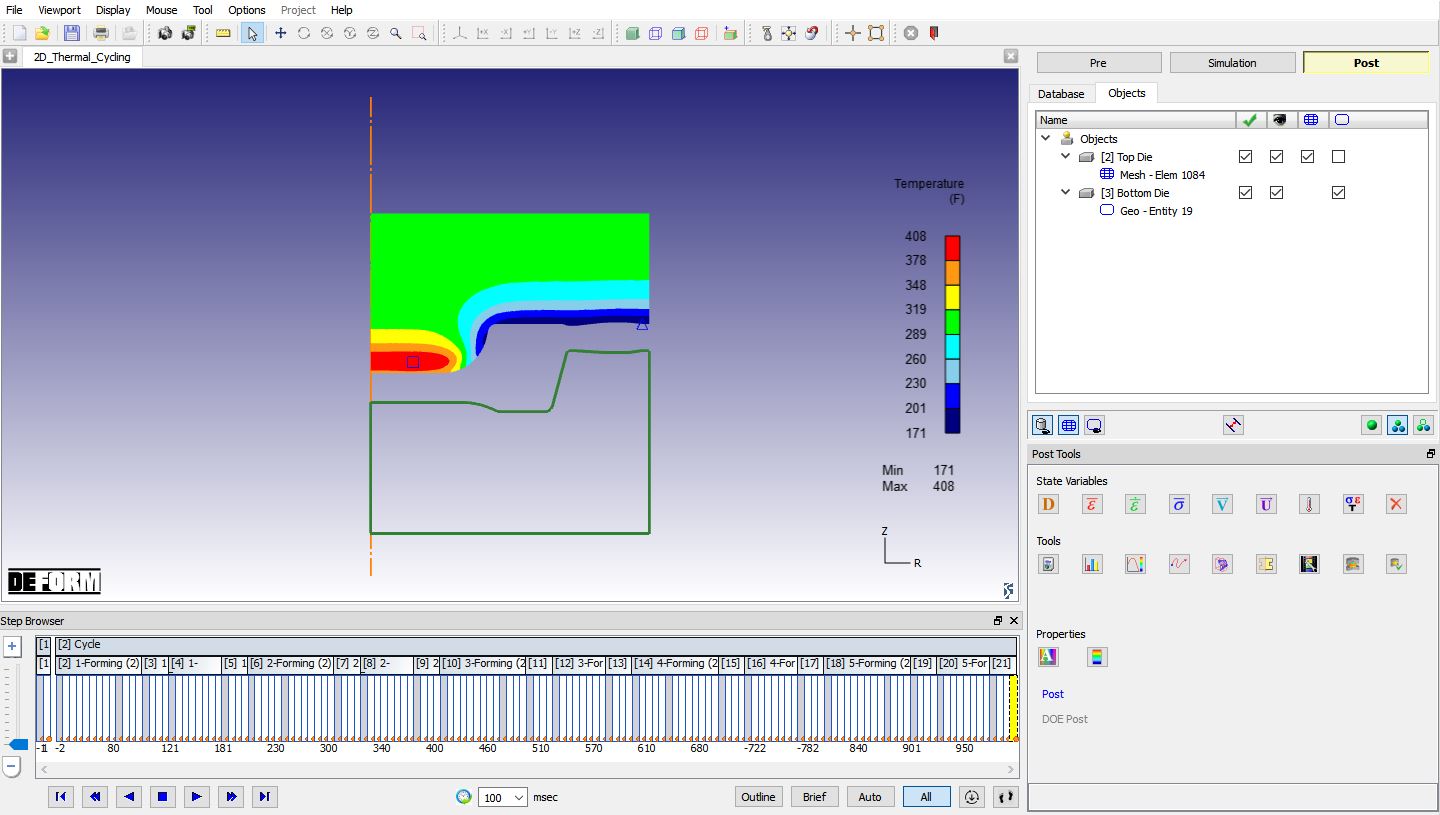
Top die temperature distribution at last step.
Point tracking
Select Top die and click on Single object mode (  ) button, click
  on Point tracking option and select points as shown in Fig. L1.16. near the bottom surface of the Top die, click on
  button. Observe the Point tracking graph with Temperature state variable.
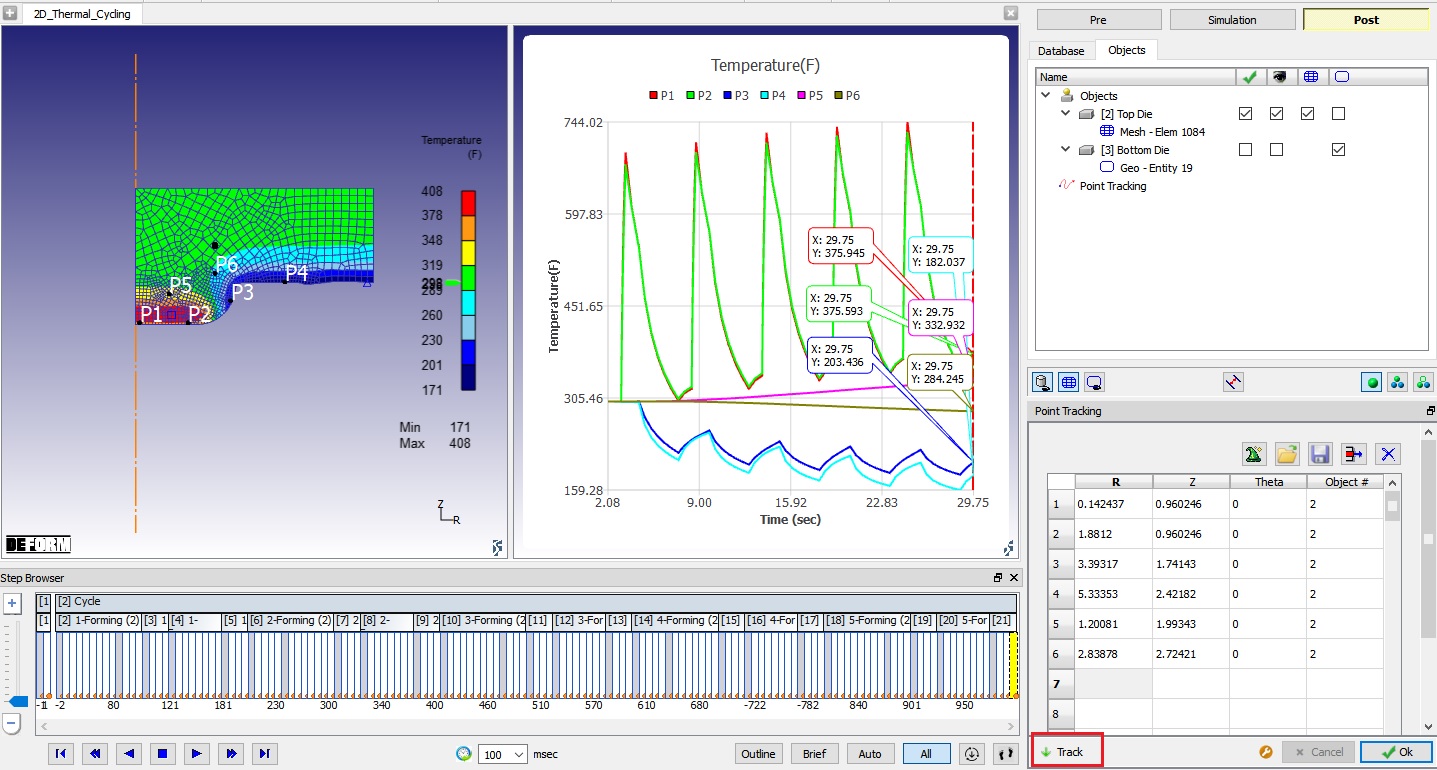
Point tracking graph with Temperature state variable