2D Cold Forming Lab
In this lab we will setup simple Bolt forming operation in MO 2D forming express operation. In this Forming operation we have 3 stages:
-
Extrude operation
-
Cone blow operation
-
Hex Head operation
After completion of Forming operation, we are doing Die stress to investigate stresses in the Top die.
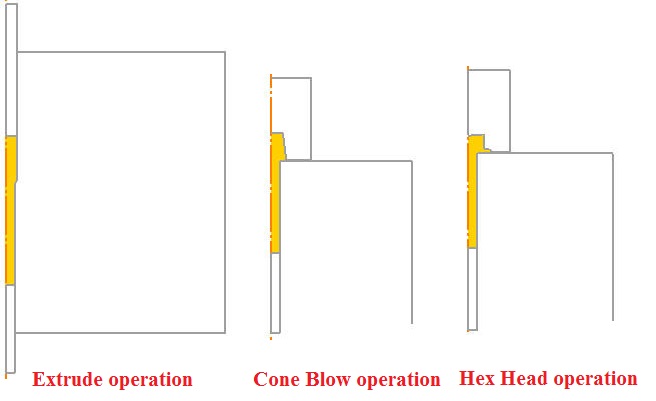
Operation 1 : Extrude operation
Operation 2: Cone blow operation
Operation 3: Hex Head operation
Operation 4: Die stress Operation
Extrude operation
Creating a New problem
On a Windows machine , go to the  button select DEFORM-v1x.xxx (.xxx indicates version number E.g. v14.0.2) and select DEFORM GUI Main vxx.xx from the menu. The DEFORM GUI Main window will appear, as shown in Fig. 2DCFL1.1.
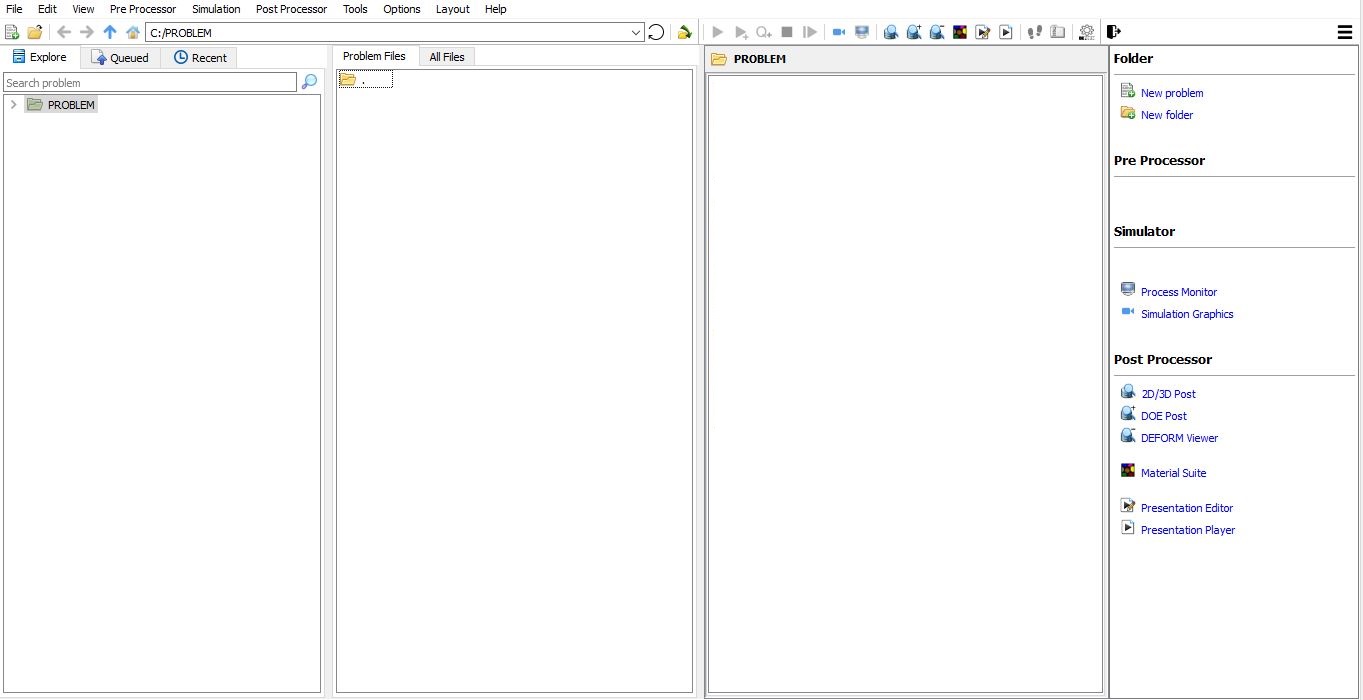
QT4 GUI Main window
Create a new problem either by selecting File  New Problem or by clicking the New Problem
  icon. The Problem Setup window will appear as shown in Fig. 2DCFL1.2. Select “Integrated Manufacturing Process “ radio button and unit system as “English “ radio button in unit field. Define Problem Name as “ **Bolt** “ and make sure the “Show option dialog” check box is turned on (if we do not turn on the “Show option dialog ” check box, then we will not get the New Project dialog in MO UI). Then click on
  button to open a new Problem using the Deform Integrated Manufacturing Process.
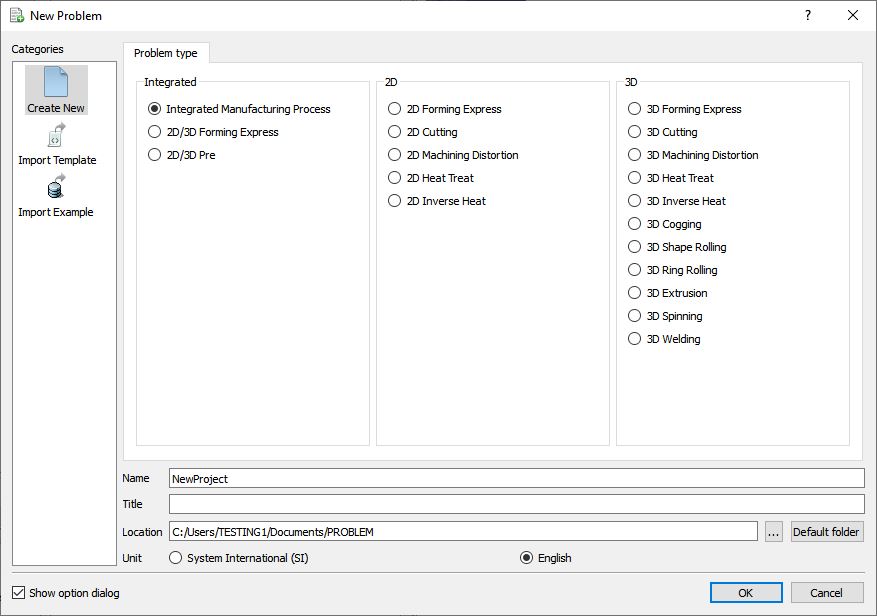
New Problem page
Multiple operation wizard will open with the New Project dialog, at this point user will be prompted to specify a project name (system will create a separate folder with this project name) and title for this session. In this session we will use “Bolt “ as the project name. Click on to continue to open the operation.
Add operations
In this lab, we are showing how to setup all 3 operations in batch mode. Add three 2D Forming express operations from Operation list in Explorer. Operation can be add by clicking on  button next to 2D Forming express operation or user can also add the operation by dragging and dropping the operation into Operation Editor region.
Change operation name:
Change the Operation name to “Extrude “ by double click on Forming field in Operation editor as shown in Fig. 2DCFL1.3.
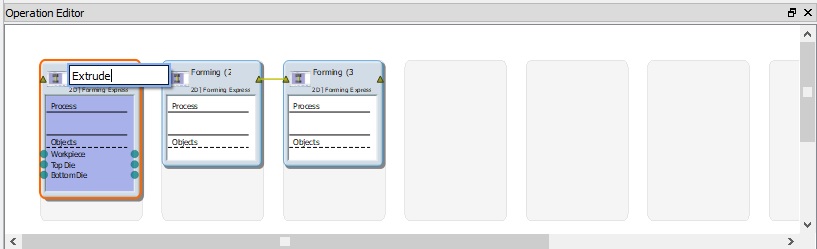
Editing Operation name
Define Process settings
In Process page, select Process type as Cold Forming , select Geometrytype as 2D Axisymmetric.
The shape complexity and simulation accuracy slider bars influence the mesh settings and number of time steps used in the simulation. This, in turn, influences the run time and level of detail available in the simulation.
For this simulation, we will use the default Moderate complexity and Moderate accuracy, set the slider bars as shown below Fig. 2DCFL1.4. Click on  button.
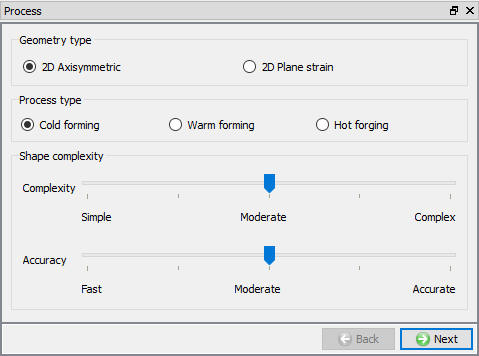
Process page
Adding Objects
In this operation we should have 1 workpiece + 3 dies as shown in Fig. 2DCFL1.5., click on button.
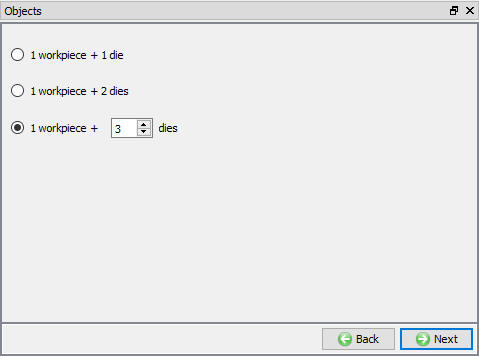
Number of Objects selection page
Workpiece Definition
Use default Workpiece object name and Default object temperature, click on button.
Note: there is an “Import Object” button on the “Object” page. This is for importing complete object data from another DEFORM file, which is not what we want to do at this time.
Create geometry
On the Geometry page, click on  . Define a Cylinder that has a radius of 0.135” and a height of1.29” as shown in Fig. 2DCFL1.6 . Click on
  button. The geometry of a cutoff with radius 0.135” should be displayed on the screen.
Click on  and then in the pop up window click on
  to see if the geometry is OK. A message appears in the status window displaying that the geometry is legal. Click to Check and Correct Geometry popup window and Click on to go to the Mesh page.
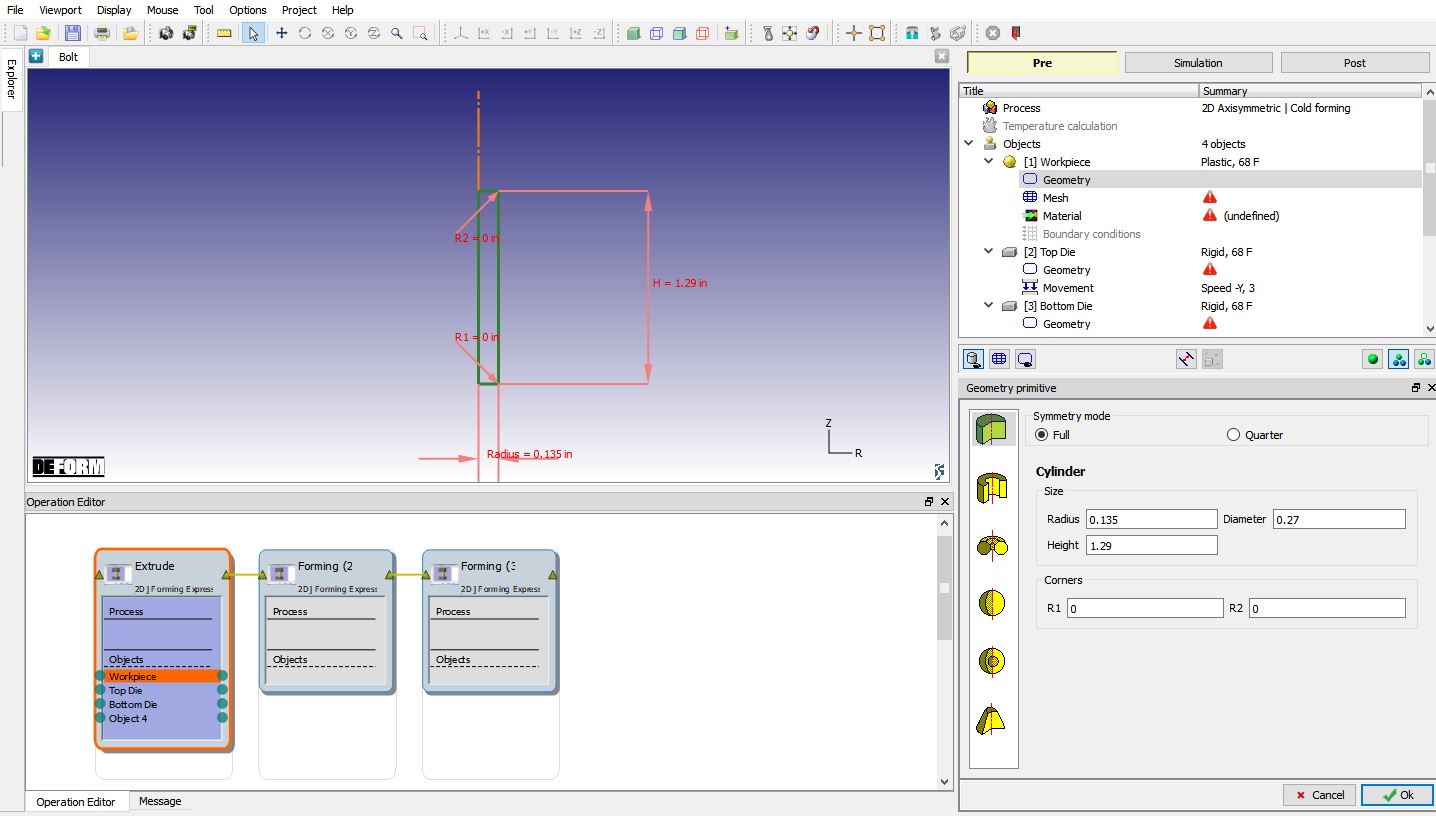
Defining the Geometry
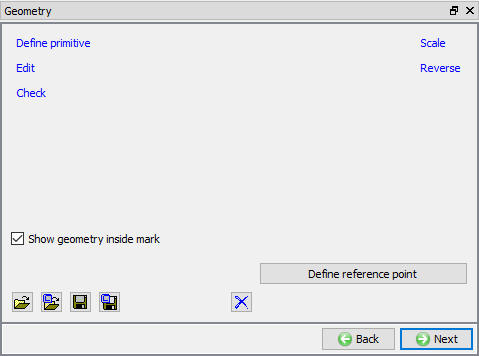
Geometry page
Workpiece Mesh
The settings that we set in the Objects Shape Complexity determined the number of elements and the number of time steps that were to be used in the simulation.
For this lab to run quickly, go ahead and change the number of elements to 1000 by selecting user defined radio button and click  . A mesh with approximately 1000 elements should be displayed on the Workpiece in the Display window.

Mesh page
Workpiece Material
In Material window, load the material AISI-1010,COLD[70F(20C) from DEFORM Material library, from Steel category using  (Load material data from library) option. This can be done as shown in Fig. 2DCFL1.9. by clicking
  button. Material can also be load from Materials list in Explorer. Then click on until Top Die page.
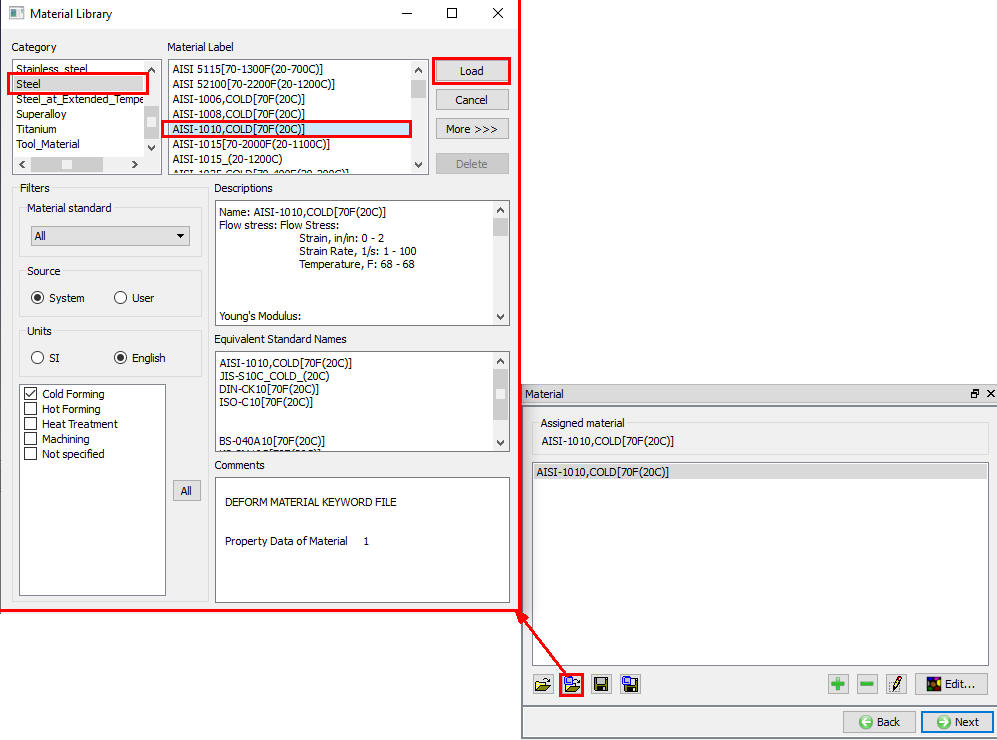
Material Library window
Top Die Definition
In Top Die page, change the name of the top die to Punch , Click on button.
Import Punch geometry:
Import bolt-punch1.IGS file using Load Geometry from Library button as shown in Fig. 2DCFL1.10., then check the geometry using option. Click on button.

Importing Punch geometry
Assign Movement for Punch
Under the movement options select S**p eed option. Be sure movement is in the **–Y direction, Enter a speed of 10 in/sec as shown in Fig. 2DCFL1.11. Click on button..
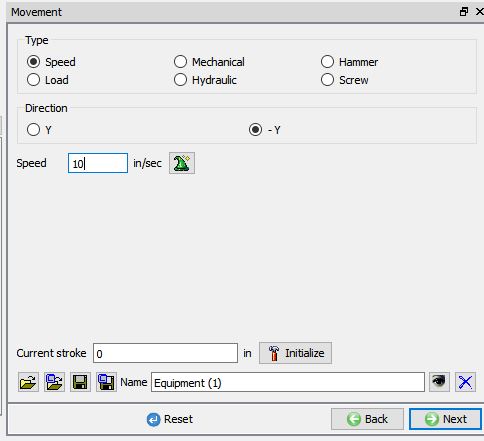
Punch movement page
Bottom Die Definition
In Bottom Die page, change the name of the Bottom die to Die , Click on button.
Import Die Geometry
Click on Load Geometry from Library button, import bolt-die1.IGS file. Then check the geometry using option. Click on button.
Ejector
In object 4 page, change the name of the object 4 to Ejector. Click on button.
Import Ejector Geometry
Click on Load Geometry from Library button, import bolt-ejector1.IGS file. Then check the geometry using option. Click on button.
Objects Positioning
Click on  button object positioning page will open, Select Interference positioning and make the Positioning object the Workpiece and the Reference the Die. An approach direction of–Y should be used. Click on
  . The workpiece got positioned downward until it came into contact with the die. Zoom in on the lower right corner of the workpiece you will see that the Interference value of 0.0001 was a little too large for these geometries, and too much overlap resulted between the objects. Add five more zeros to the Interference to make it 0.000000001 and then click on . You should see that the workpiece is now positioned in the die with the correct amount of overlap. Position the Punch to contact the Workpiece. Again, use an approach direction of –Y. Click on to close Positioning object and click on button.
Define contact conditions
In the Contact section of the tree, by default the System defined default friction coefficient of 0.08 will be assigned, which corresponds to cold forming using carbide dies. By selecting User defined radio button user can also define other friction values if needed by using pull-down menu (see Fig. 2DCFL1.12.). DEFORM automatically determine an appropriate contact tolerance for this model. Click on  . You should see contact displayed between the Workpiece and the other objects it is touching. In this lab we will use default “System-Defined “ type, click on button.
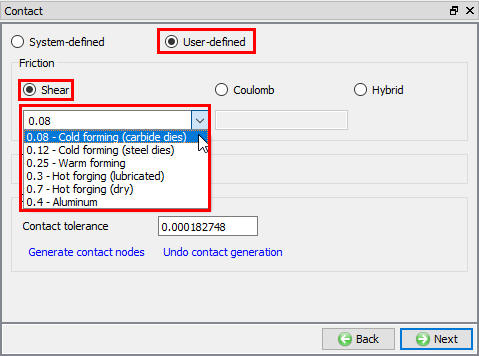
Contact relation definition window
Assign primary die stroke
The primary die stroke is an estimate of the distance the punch will travel during forming.
For this problem, we will extrude a distance of 0.80 ”, so enter this amount in the Total primary die travel field and check the Exact amount check box as shown in Fig. 2DCFL1.13.)
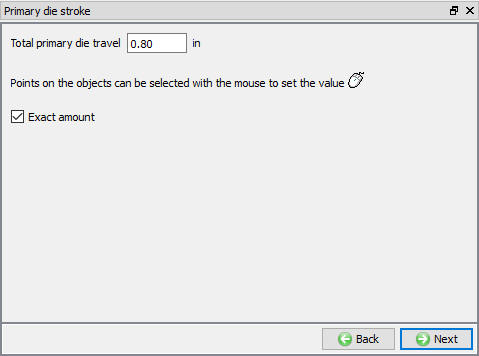
Primary die travel definition window
Assign stop controls
We want to stop the simulation when the punch has moved 0.80”. Click Stopping Controls in the tree and check the Maxdie stroke option. Enter the value 0.80 ” in the field as shown in Fig. 2DCFL1.14. Click on button.
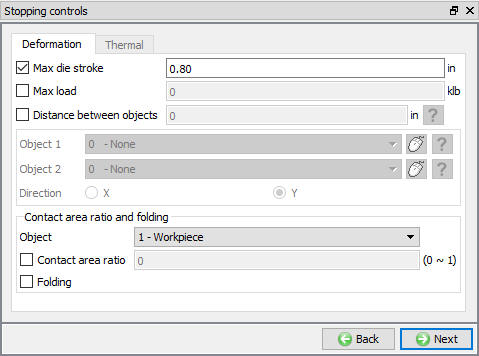
Stopping controls window
Review simulation controls
The number of simulation steps and the step increment are established by the Object Shape Complexity slider bar settings. If you want to change the default values, you can do by selecting user type radio button and define step definition. We will accept the default values for this lab. Click on button.
Generate Database
In Generate DB page. Click the  button to have the program check to see if anything was missed in the problem setup. During the checking process:
Messages in the red color signify data that needs to be fixed before a simulation can be run (such as when you forget to define any material data).
Click on button to generate the database. When the program is done writing the database, click on
  button to go to Next operation.
Cone blow Operation
In this operation, we are importing new tools by changing Dies geometry.
Change operation name:
Change the Operation name to “Cone Blow “ of Operation 2 in Operation editor as shown in Fig. 2DCFL1.15.
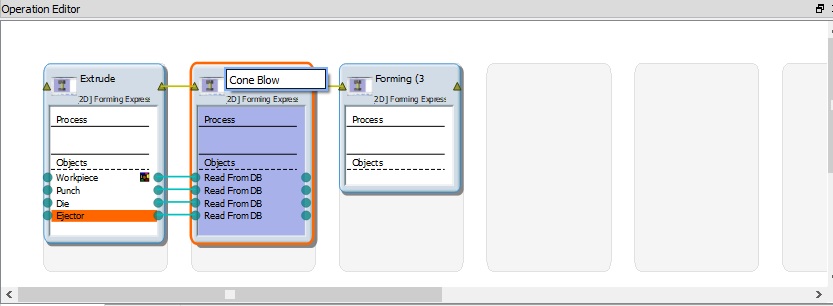
Changing operation name in Operation Editor
Define Process settings for Cone blow operation
Leave the Complexity as Simple and change the Accuracy to Fast as shown in Fig. 2DCFL1.16. Click on button.
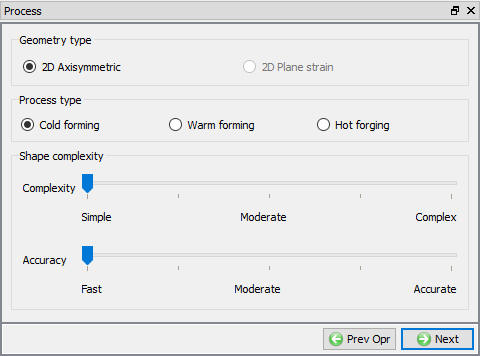
Process page
Adding objects
This operation doesn’t need any new object, so we won’t change the setting of 1 workpiece + 3 dies, click on until Top die page.
Punch Definition
In Object page, select Define object type radio button as shown in Fig. 2DCFL1.17., click on button.
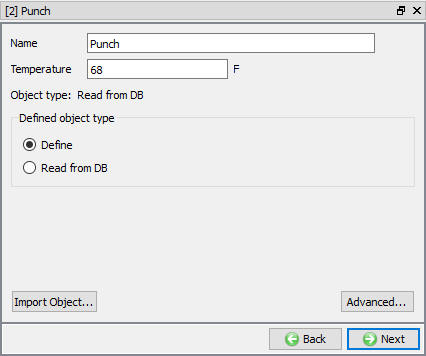
Punch definition page
Import Punch geometry
Click on Load Geometry from Library button, import bolt-punch2.IGS file. Then check the geometry using option. Click on button.
Define Punch movement
Use the previous operation top die movement data, click on button.
Die Definition
In Object page, select Define object type radio button, click on button.
Import Die geometry
Click on Load Geometry from Library button, Importbolt-die2.IGS file. Then check the geometry using option. Click on button until Scheduled positioning page.
Scheduled positioning
Using Interference positioning method we are positioning the Workpiece to the Die (-Y approach direction) and then the Punch to the Workpiece. In Scheduled positioning page, Click on  button and select
  radio button. Change the PositioningObject to the Workpiece and the Reference to the Die. Change the Approach Direction to-Y and then click on . Similarly add interference scheduled positioning for Punch and Workpiece(-Y Approach direction) as shown in Fig. 2DCFL1.18. Then click on until Primary die stroke page.
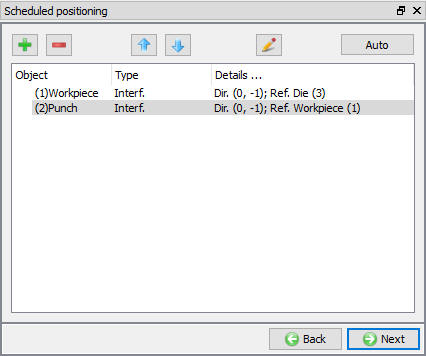
Scheduled positioning window
Primary die stroke
We need to set the approximate value the punch will move during this operation. The dies are around 0.2” apart at the end of this operation, so define the value as 0.2 ” as shown in Fig. 2DCFL1.19. Click on button.
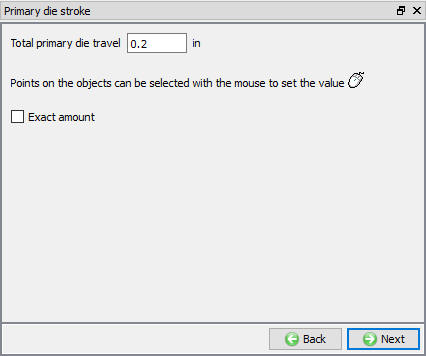
Primary die stroke
Set stopping criteria
We want to form the part until the punch and die are within 0.008” of one another. In the Stopping Controls screen, place a check mark next to Distance between objects to activate this option. With the mouse, click a point on the bottom of the punch and then click a point on the top of the Die. An arrow between these two points should get displayed on the screen. Set the value for this distance to 0.008 ” in the Y direction as shown in Fig. 2DCFL1.20. Click on button.
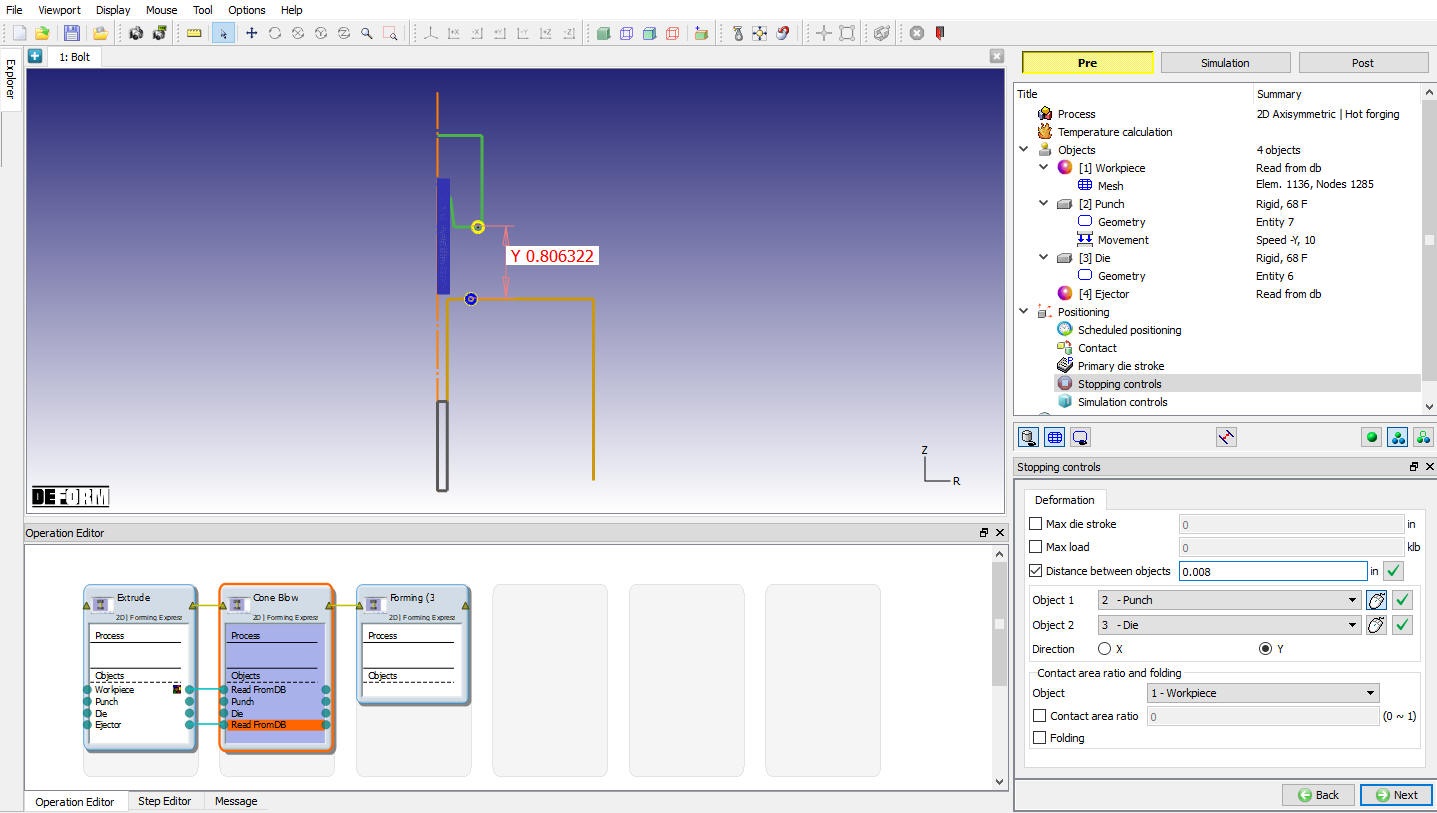
Stopping controls page
Review simulation controls
The number of simulation steps and the step increment are established by the Object Shape Complexity slider bar settings. If you want to change the default values, you can do by selecting user type radio button and define step definition. We will accept the default values for this lab, click on button.
Generate Database
See the Status in Generate DB page, if we see Input error, check the data missing and complete it, for this lab sequence expect “DB generation is not required for this operation. It will occur at run time.” message. Click on button to go to Next operation.
Hex head operation
Change operation name
Change the Operation name to “Hex Head “ of Operation 3 in Operation editor.
Process Settings Definition
Change the Complexity to the tick mark between “Simple ” and “Moderate ” and increase the Accuracy to “Moderate ” as shown in Fig. 2DCFL1.21. Click on next until Top die page.
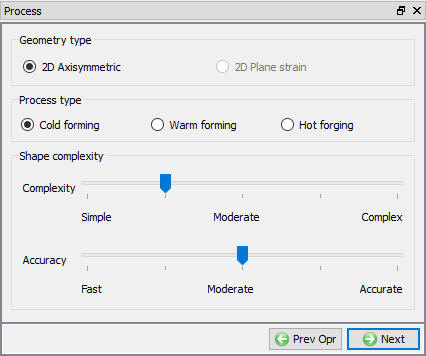
Process page
Punch Definition
In Object page, Select Define object type radio button as shown in Fig. 2DCFL1.22., click on button.

Top Die general definition window
Import Punch geometry
Click on Load Geometry from Library button, import bolt-punch3.IGS file. Then check the geometry using option. Click on button.
Define Punch movement
Use the previous operation top die movement data, click on until Scheduled positioning page.
Scheduled positioning
Click on button and select radio button. Change the Positioning Object to the Punch and the Reference to the Workpiece and -Y approach direction as shown in Fig. 2DCFL1.23., then click on . Click on until Primary die stroke page.
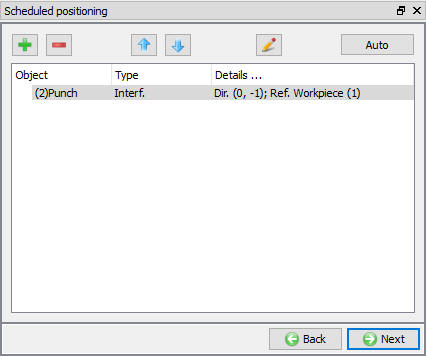
Scheduled Positioning window
Primary die travel Definition
In Primary die travel page, define primary die travel value as 0.143” as shown in Fig. 2DCFL1.24. Click on button.
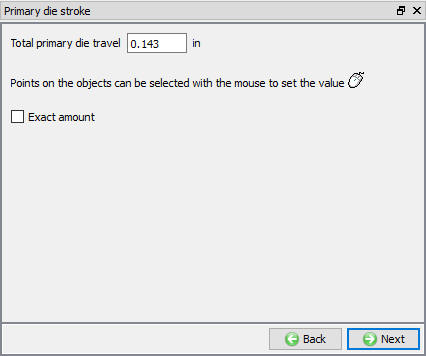
Primary die travel window
Set stopping criteria
We want to stop the simulation when the punch and die are within 0.010” of one another. In the Stopping Controls screen, check the Distance between objects check box option and then click points on the bottom of the punch and on the top of the die. Set the value for this distance to 0.010 ” in the Y direction as shown in Fig. 2DCFL1.25.
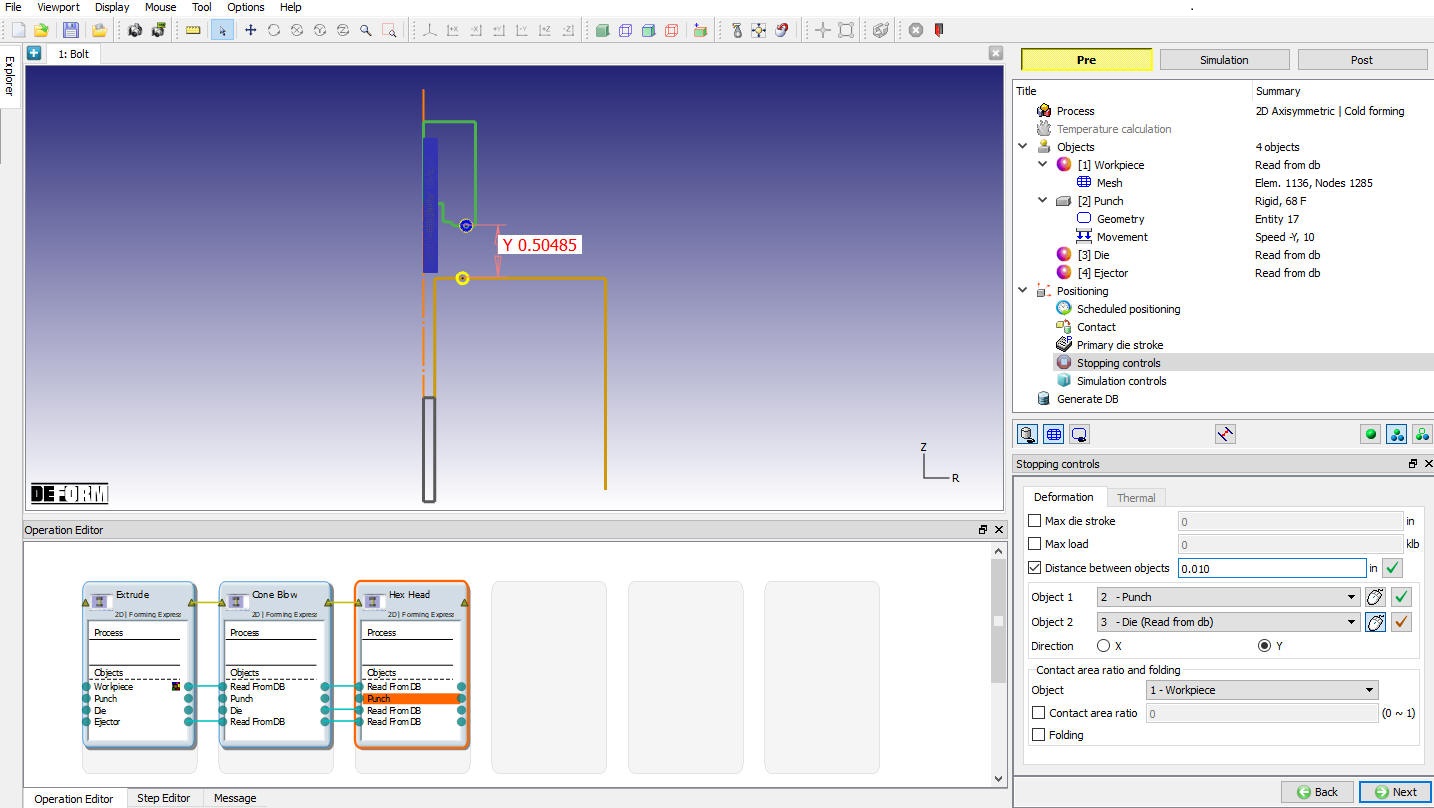
Stopping Controls window
Review simulation controls
The number of simulation steps and the step increment are established by the Object Shape Complexity slider bar settings. We will accept the default values for this lab. Click on button.
Generate Database
See the Status in Generate DB page, if we see Input error, check the data missing and complete it, for this lab sequence expect “DB generation is not required for this operation. It will occur at run time.” message. Save the project and click on  mode to run the simulation.
Running simulation
Click on  label under the simulation tab (see Fig. 2DCFL1.26.), as we click on the Run option, Run Simulation dialog will open as shown in see Fig. 2DCFL1.27., Use the default Continue Run option to select “Continue from the last step ” (from step -1) option and then select the Simulation mode as Interactive and click on
  button to run the simulation. As we click on button simulation starts.

Simulation Options
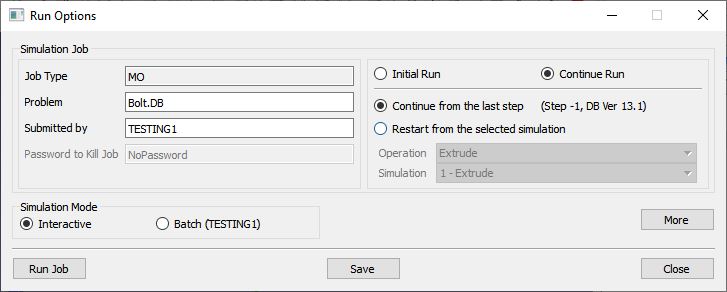
Run Simulation window
The progress of the simulation can be monitored as it is running by looking at the Simulation Message tab and Simulation Graphics from the Graphics display region in Simulation mode. As long as the  option is checked in Simulation Message tab, which is the default setting, the Message file will refresh automatically.
The Message file provides information about which simulation step the simulation is currently on and also gives information dealing with how well the simulation is running.
When the simulation is finished without any issues, check the messages in LOG file, when all operation completes we will see messages in LOG file:”MULTIPLE OPERATION COMPLETED “. (See Fig. 2DCFL1.28.)
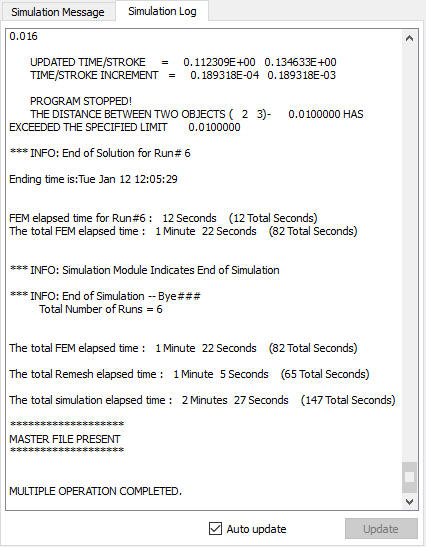
Log file messages
Post process the results
After the simulation is completed, Switch to  tab.
tab.
Did the head completely fill? Look at contact to better visualize any unfill.
Is the load in this operation greater than the load required in the previous operations?
Plot the load - stroke graph for each operation to compare the load in each operation.
State variables
From the State variables list, click the Effective strain icon to plot the amount of strain that went into the workpiece. To change the plot settings, you can click on the  Set up icon. In this screen, you can display different kinds of contours (line, shaded or solid) as well as change the variable range that is shown on the contour bar (See Fig. 2DCFL1.29.). Using the Settings option, the range of the contour bar can be user-defined. Feel free to experiment with the display of the different state variables and plot options.
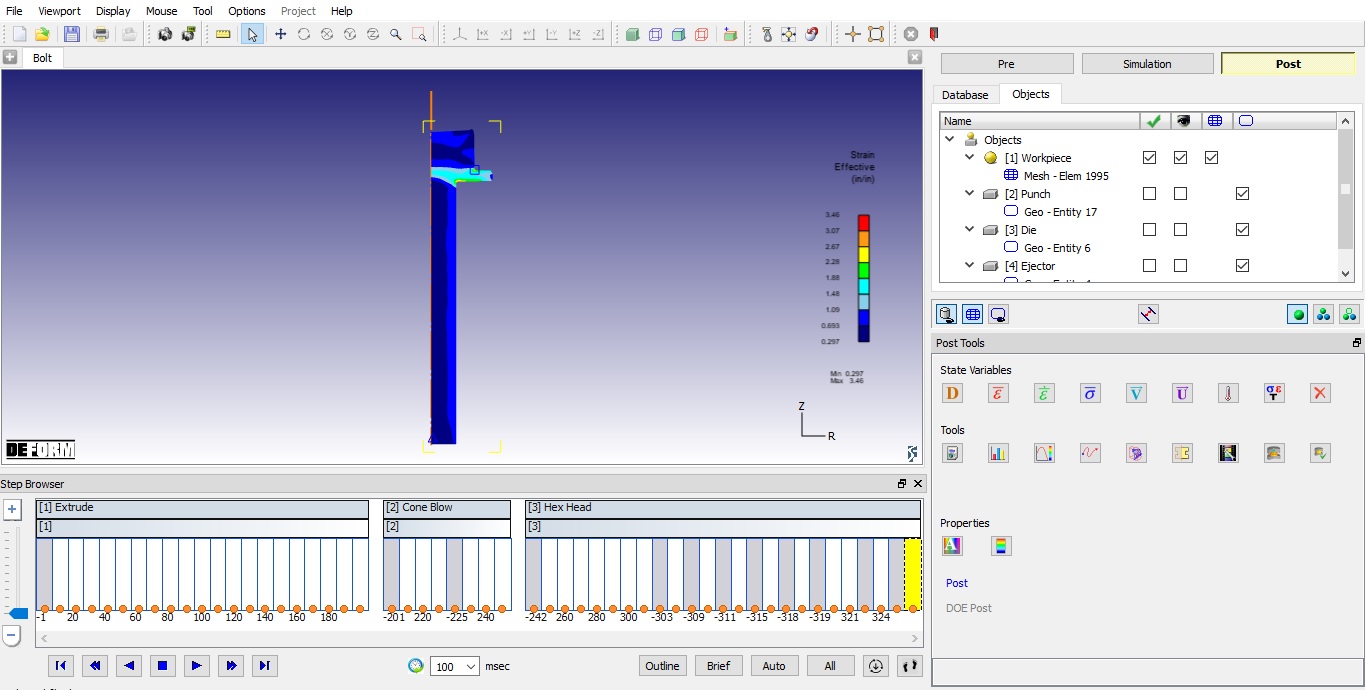
Strain Effective state variable plot
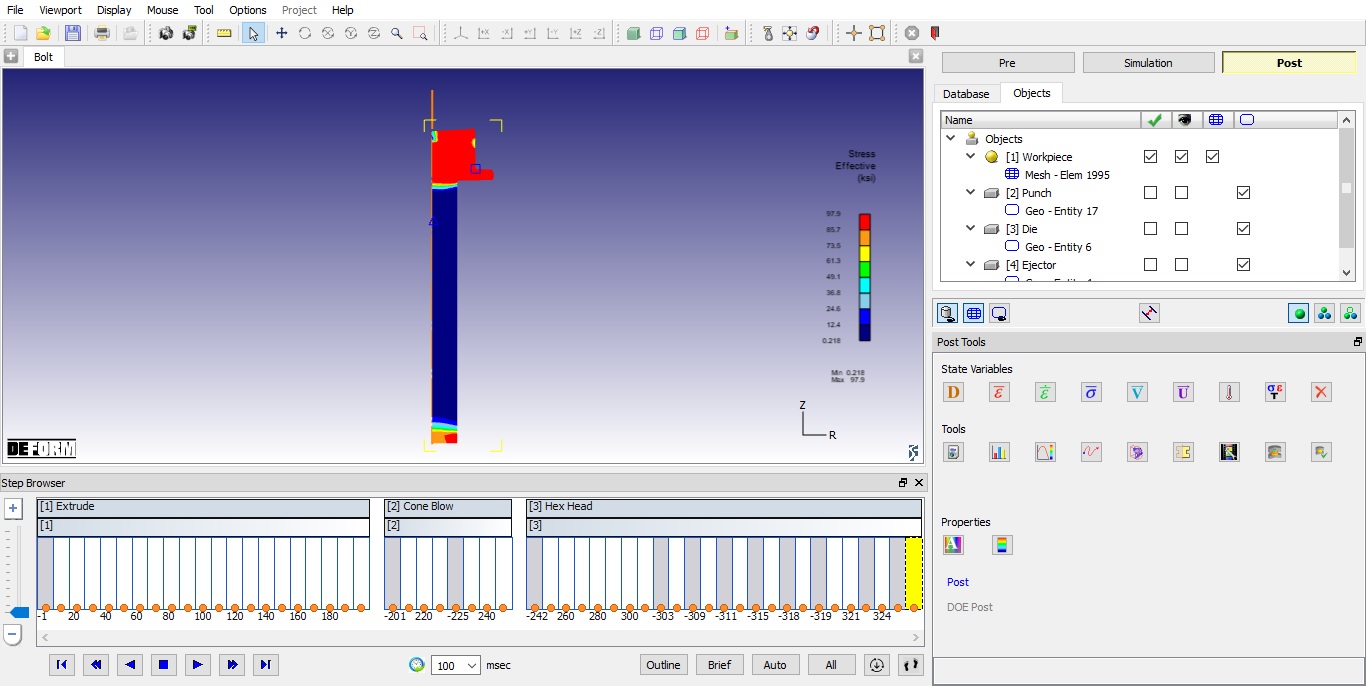
Stress Effective state variable plot
Die Stress Operation
Add Die stress operation
After completion of Post processing, switch to  mode.
mode.
Add Die stress 2D operation from Explorer operation list, open added Die stress operation by double click on operation in operation list.
Select objects
We are currently interested only in the stress analysis of the punch in the hex head operation. So, delete Die (object3) and Ejector (object4) from the list by clicking delete button  . Click on button. (see Fig. 2DCFL1.31.)
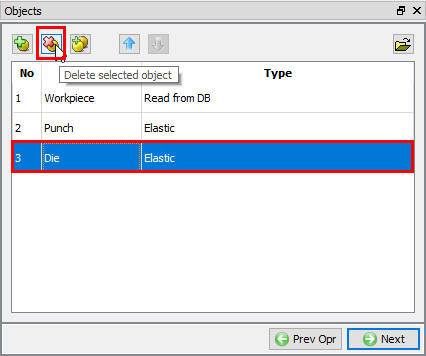
Die stress objects window
By default workpiece object type will be Read from DB, this object will be there up to DB generation, while generating DB it will be removed. Click on button.
Top Die Definition
By default Die (Elastic) radio button will be selected use the object type as Die, then click on to Mesh page.
Top die mesh page
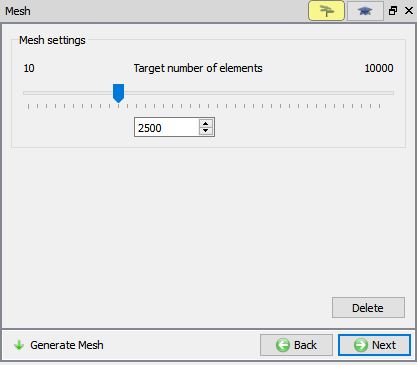
Define number of elements as 2500 as shown in Fig. 2DCFL1.32. and Generate mesh, then click on until Material page.
Mesh window
Assign material for Top die
Import a die material from the material library. Click the (Load material from library) button and select the Die_material category, then AISI-H-13 and click on button. Choose AISI-H-13 from the list. Click on to Boundary condition page.
Assign Boundary condition for Top Die
Next we need to apply boundary conditions to the punch so that it does not fly off into space when the forming loads are applied to it.
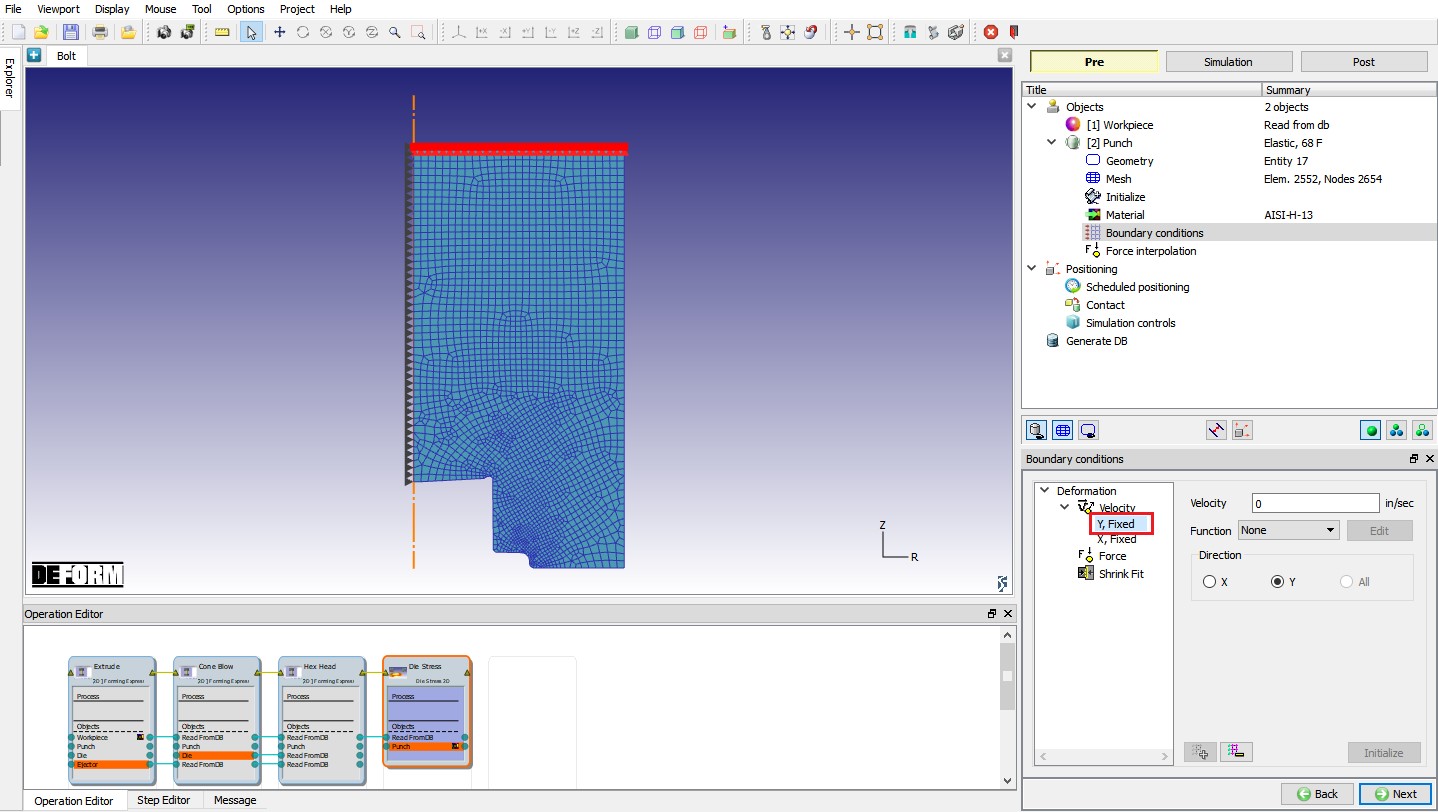
By default for an axisymmetric product all nodes in x direction at centerline are fixed if not make sure that the direction of the boundary condition is set to X and then click the By edge  button in the pop up window. Using this setting, we can add BCC to all nodes/elements on an edge. Pick a point on the centerline of the punch, and you should see that all of the centerline nodes are fixed along X direction.
Now set the boundary condition direction to Y, select a point on the top surface of the punch to fix all those nodes along Y direction (see Fig. 2DCFL1.33.). Then click to Force interpolation page.
Assigned Velocity Boundary condition
Force interpolation
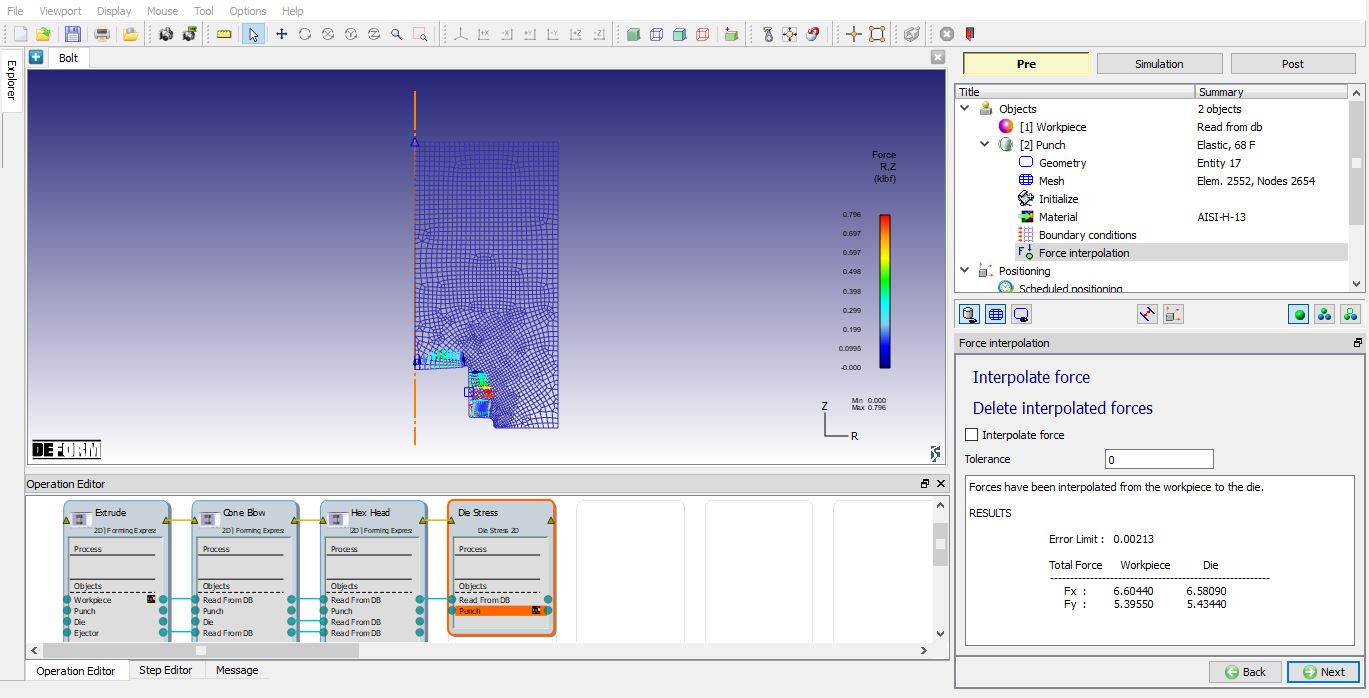
Once the mesh is generated, the forming loads from the workpiece need to be interpolated onto the punch. Click on  . Once the forces are interpolated, in below window message will be display of comparing the forces from the workpiece to the new forces on the punch as shown in Fig. 2DCFL1.34. These forces should be relatively close to one another (typically within about 5%). Click on until Generate DB.
Force interpolation window
Generate DB
Check the data and generate the DB. After generating DB switch to mode to run the simulation.
Running simulation
Click on label under the simulation tab, as we click on the Run option, Run Simulation dialog will open. Use the default Continue Run option to select “Continue from the last step ” option and then select the Simulation mode as Interactive and click on button to run the simulation. As we click on button simulation starts.
After simulation complete, switch to tab.
Post processor
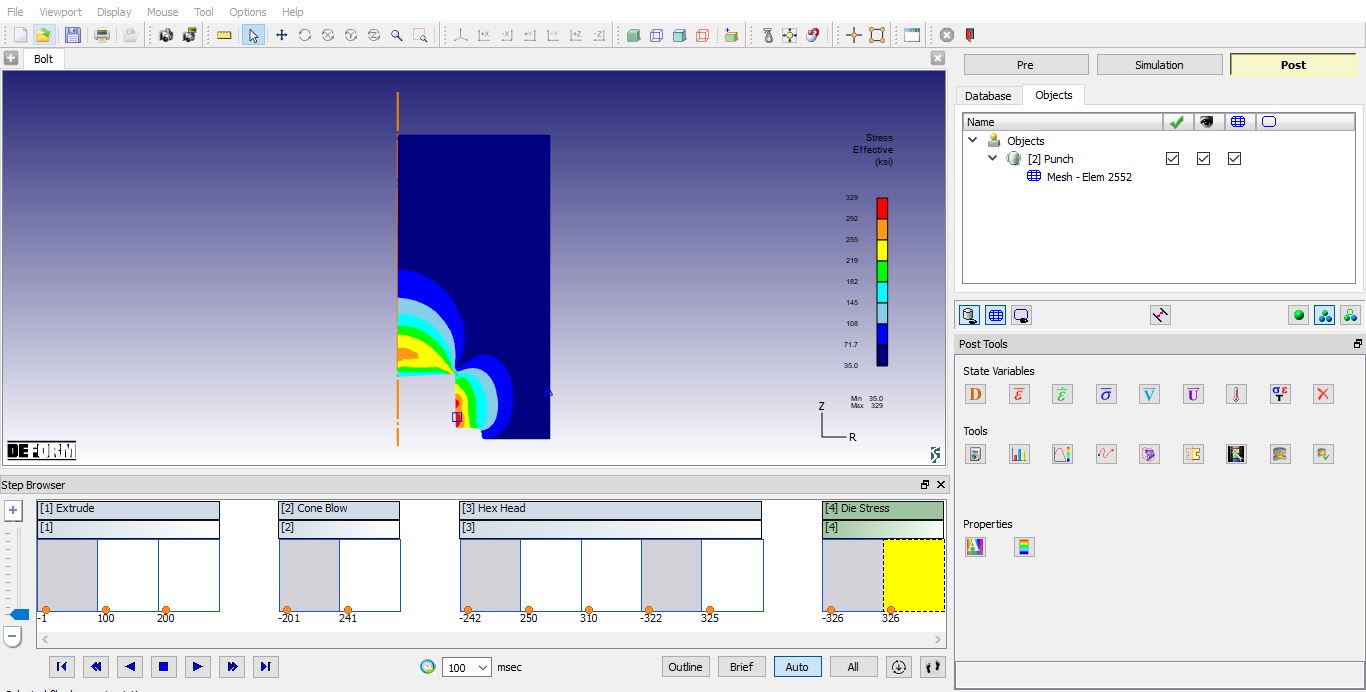
The main variables to look at for a die stress simulation are the Effective stress and the Maximum principal stress.
The effective stress is used to see whether any location in the die underwent plastic deformation. If any area of the die has an effective stress close to or exceeding the yield stress of the die material, that region is at risk of plastically deforming. (See Fig. 2DCFL1.35)
The maximum principal stress is used to see which regions of the die are in a state of compression and which are in a state of tension. Maximum principal stress is extremely important in determining whether a die will experience any cracking due to fatigue. To display the maximum principal stress, click the state variable button and then select Stress – Max Principal from the list. (See Fig. 2DCFL1.36.)
Stress-Effective plot
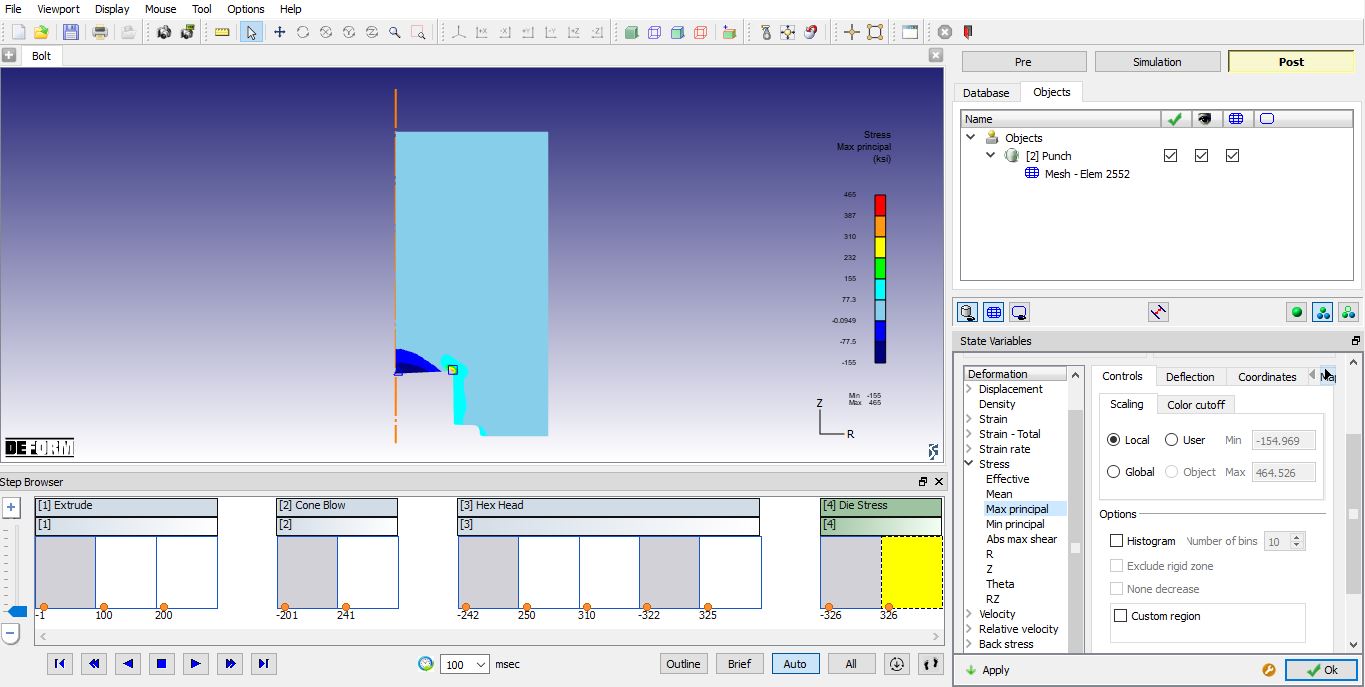
Max. Principal stress plot