3D Nitrocarburizing Lab1
Nitrocarburizing is a variation of the case hardening process. It is a thermochemical diffusion process where nitrogen, carbon, and to a very small degree, oxygen atoms diffuse into the surface of the steel part, forming a compound layer at the surface, and a diffusion layer. Nitrocarburizing is a shallow case variation of the nitriding process. This process is done mainly to provide an anti-wear resistance on the surface layer and to improve fatigue resistance.
This lab will demonstrate how to use MO template to prepare a Nitrocarburizing simulation.
1.1. Creating a New Problem
1.2. Adding Operation
1.3. Convert 2D Mesh to 3D
1.3.1. Geometry type
1.3.2. Configuration
1.3.3. Workpiece
1.3.4. Mesh
1.3.5. Material
1.3.6. Convert
1.3.7. Generate DB
1.4. Setting up 3D Nitrocarburizing Operation
1.4.1. Simulation Controls
1.4.2. Material List
1.4.3. Workpiece
1.4.4. Initialize Volume Fraction
1.4.5. Boundary Conditions
1.4.6. Stopping Controls
1.4.7. Step Controls
1.4.8. Generate Database
1.5. Running Simulation
1.6. Post Processing
Creating a New Problem
On a Windows machine, go to the  button select DEFORM-v1x.xxx (.xxx indicates version number E.g. v14.0.2) and select DEFORM GUI Main v1x.x from the menu. The DEFORM GUI Main window will appear as shown in Fig. 3DNCL1.1.
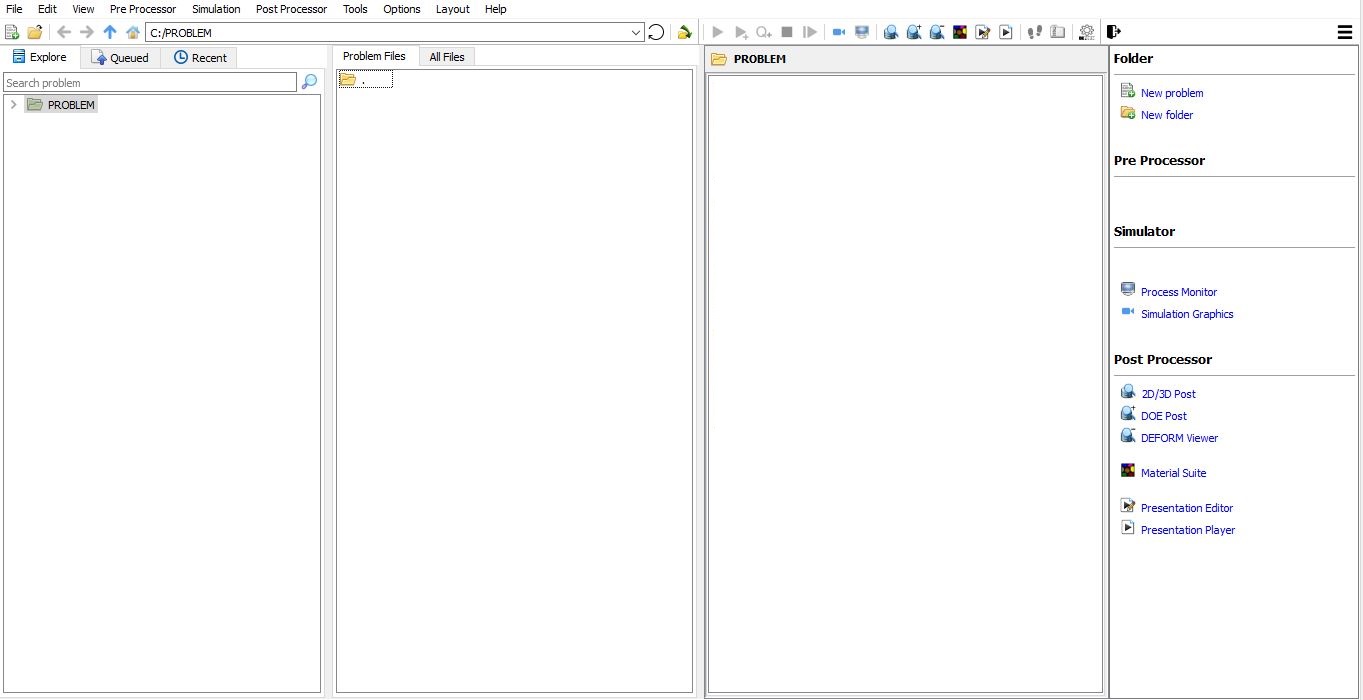
DEFORM GUI Main window
Create a new problem either by selecting File New Problem or by clicking the New Problem
  icon. The Problem Setup window will appear as shown in Fig. 3DNCL1.2. Select “Integrated Manufacturing Process “ radio button and unit system as “SI “ radio button in unit field. Define Problem Name as “ 3D_Nitrocarburizng_Lab1 “ and make sure the “Show option dialog” check box is turned on (if we do not turn on the “Show option dialog ” check box, then we will not get the New Project dialog in MO UI). Then click on
  button to open a new Problem using the Deform Integrated Manufacturing Process.
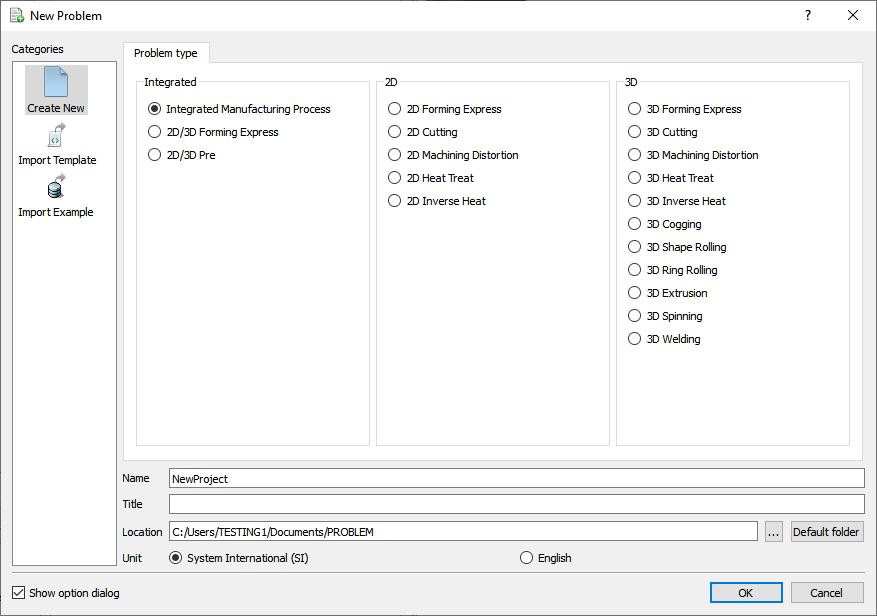
New Problem page
Multiple operation wizard will open with the New Project dialog, at this point user will be prompted to specify a project name (system will create a separate folder with this project name) and title for this session. In this session we will use “3D_Nitrocarburizng_Lab1 “ as the project name. Click on to continue to open the operation.
Adding Operation
Add a ‘2D to 3D Converter’ and a 3D Forming operations from operation explorer list, in this lab 3D object is generated by extruding the 2D mesh prepared previously in the 2D Nitrocarburizing Lab. (See Fig. 3DNCL1.3.).
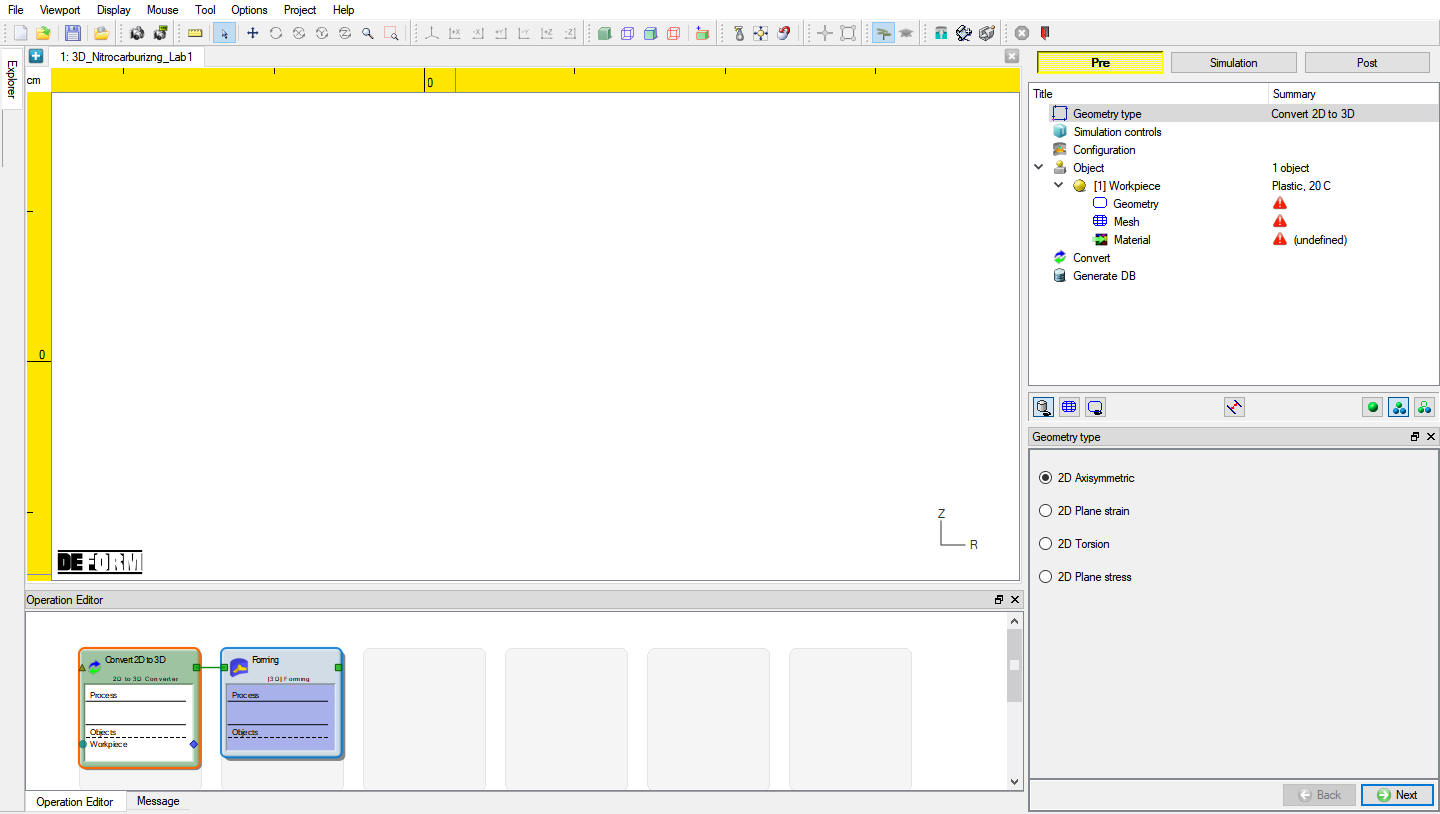
Added forming operation into operation editor
Convert 2D Mesh to 3D
Click on the first operation ‘2D to 3D Converter’, to generate the 3D meshed object for the Nitrocarburizing simulation’.
Geometry type
Turn on ‘2D Plane strain ’ radio button in geometry type page, see Fig. 3DNCL1.4. Then click  twice to navigate to ‘Configuration ’ page.
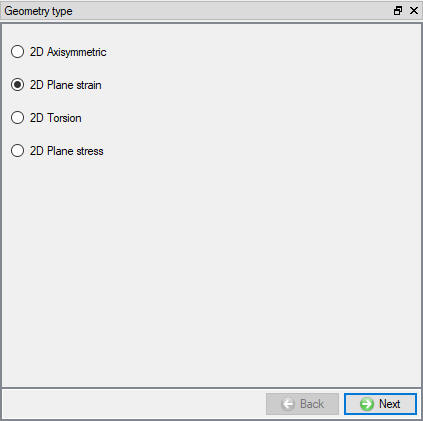
Plain Strain Geometry type selection
Configuration
Type 1 for the ‘Length ‘**( Fig. 3DNCL1.5.). Then click , leave the default one object, click to navigate to ‘Workpiece’ page.
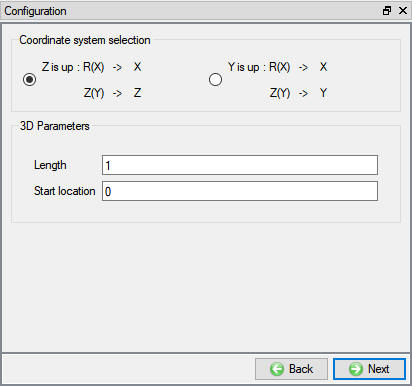
Configuration for Extrude Type Object
Workpiece
Click on  , browse to the file ‘3D/LABS/Nitriding/2D_XC38_specimen.key ’, (import the 2D mesh generated in the 2D Nitrocarburizing Lab 1) and import it. Type in ‘XC specimen ‘ as object name, set the temperature to 570 °C and change ‘Object type’ to ‘Plastic ’ (see Fig. 3DNCL1.6.).
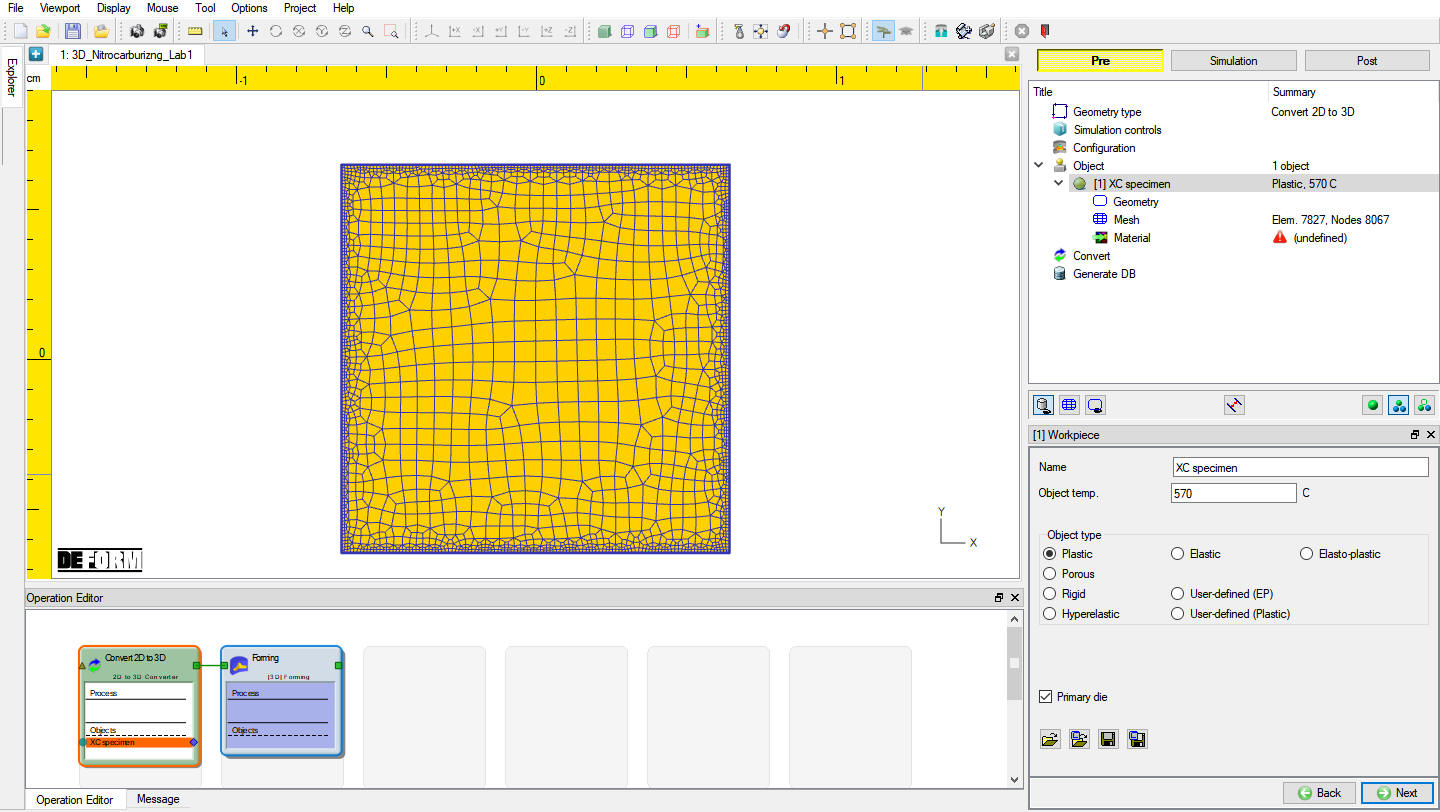
Preview of the imported 2D Workpiece
Click twice to navigate to ‘Mesh’ page, the ‘Geometry’ is not required for this lab hence it has been skipped.
Mesh
Click “Hexahedron “ and uncheck “Remesh “ check box to keep the same 2D mesh as the cross-section. Type 5 into ‘# of Mesh Layers’, this will bring the total number of elements to 39135. Now click .
Material
Click on , locate ‘XC38_Steel_SI.key ’, to import ‘Iron ’ ( Fig. 3DNCL1.7.) mixture material. Click to go to ‘Convert’ page.
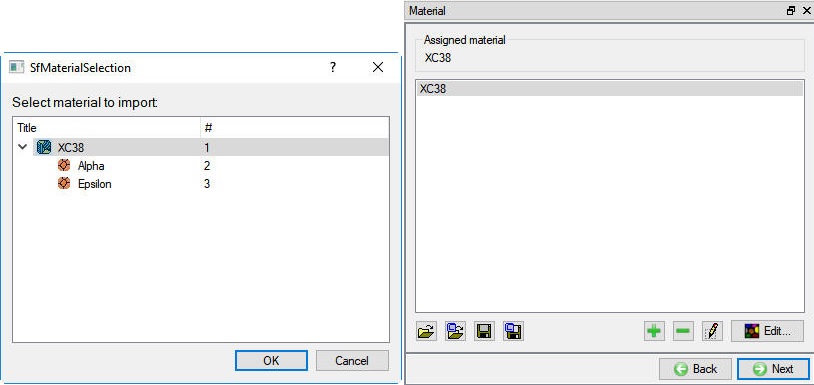
Material (Import) Selection & Material Assignment Window
Convert
Click on  to generate the 3D mesh, the mouse icon on the screen turns to busy, also a bar will show up at the right bottom indicating the converting progress.
In the end, mouse icon goes back to normal, ‘Conversion succeed …’ messages can be seen on the bottom of the window too, which indicates the mesh has been generated, the results are also displayed on the central graphic area, see Fig. 3DNCL1.8.
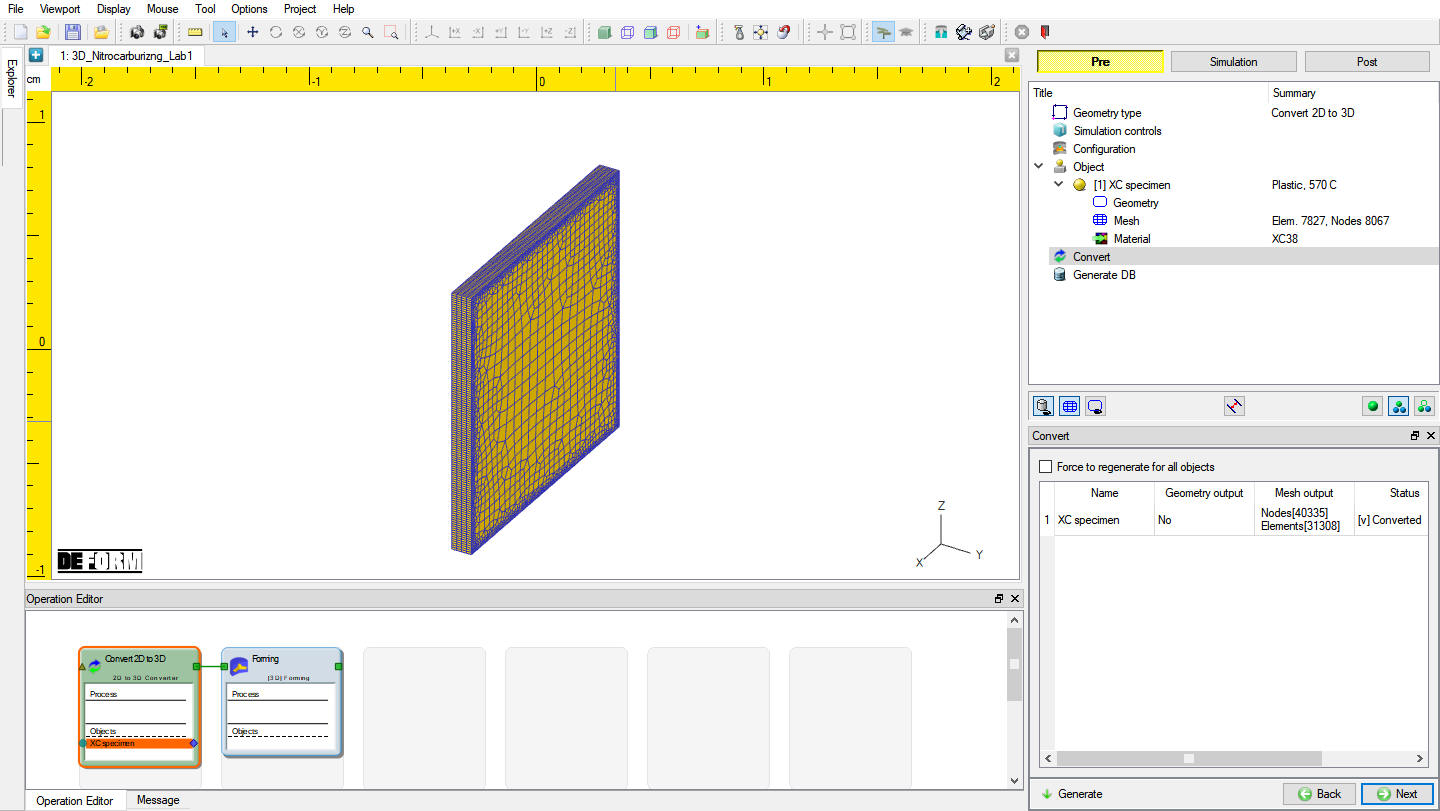
Preview of Generated 3D Object
Generate DB
Click on  to generate the DB which contains the 3D mesh. Now the 3D object is ready and can be passed to the next Nitrocarburizing simulation, ‘Convert 2D to 3D’ operation has been completed.
Setting up 3D Nitrocarburizing Operation
Now click on the second operation ‘Forming’, a window will pop up (Fig. 3DNCL1.9.), click on ‘YES.’ Select ‘Interactive Setup’ to continue.
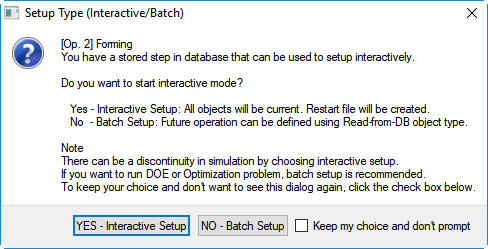
Setup Type Pop-up
Type the name tag of the second forming operation, change it to ‘Nitrocarburizing ’.
Simulation Controls
In this lab, we will be demonstrating how to setup Nitrocarburizing controls. switch to  as we need to use few advanced settings in simulation controls, make sure ‘Diffusion ’ and ‘Transformation ’ under models ‘Heat**transfer** ’ are checked (See Fig. 3DNCL1.10.). Then click on
  ‘Processconditions ’ page.
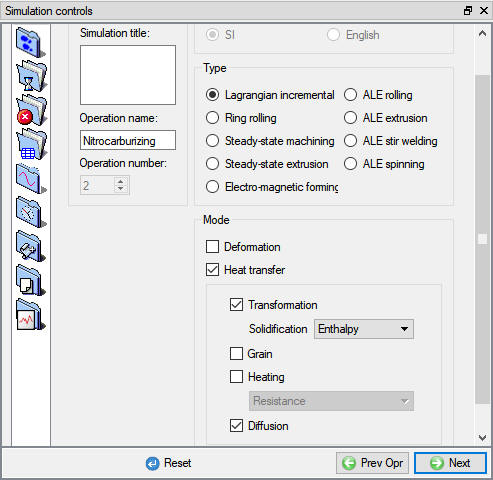
Simulation Controls window
Nitrocarburizing is a variation of the nitriding process. It is a thermochemical diffusion process where nitrogen and carbon diffuse into the surface of the steel part, forming a compound layer at the surface, and a diffusion layer. To setup diffusion of both nitrogen and carbon, click on  then ‘Diffusion ’ tab. By default, ‘Carbon’ is the only atom showing here. Now click on
  to add another atom. For convenience, rename the first atom’s name to ‘Nitrogen ’, and the second to ‘Carbon , See Fig. 3DNCL1.11. Then click . Click in popup.
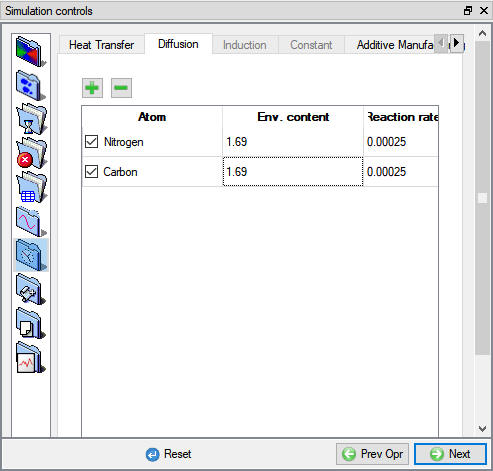
Process Conditions – Diffusion of Multiple Atoms
Material List
XC38 has been added to the lab in the previous operation and assigned to object already. In this lab, a monolayer  will form on XC38 substrate. in the material page it can be observed that ‘Multiphase** **Mixturematerial ’ is checked for Iron and it has two child phases: Alpha , and Epsilon , see Fig. 3DNCL1.12.
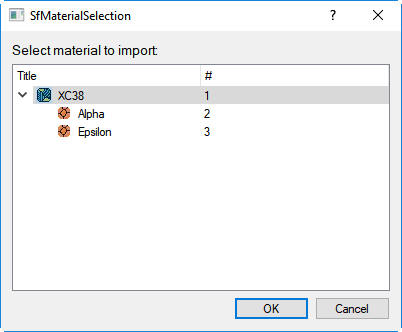
Material list window
The nitrogen contents (solubility limits) at the material interface are listed in table1.
| Position | N Content (Wt. %) | C Content (Wt. %) |
|---|---|---|
| Surface | 8 | 1 |
 / /  |
5.6 | - |
| / |
0.1 | - |
Nitrogen & Carbon contents
Click , comes to the first defined XC38’s material page. In this Nitrocarburizing lab, properties like phase transformation and diffusion coefficient are required. Beware that, the diffusion coefficients of nitrogen and carbon are different.
Transformation
To check the phase transformation relationships for XC38, click  . In ‘Transformation’ page, there is defined relationship already, i.e., Alpha Epsilon. Under ‘Kinetics ’ tab, ‘Diffusion (Solubility curve)’ is selected for this transformation (See Fig. 3DNCL1.13.).
The nitrided layer growth of follow a parabolic law, select the following model for the layer (Alpha Epsilon)

0.000132087 is set for the ‘Parabolic growth constant’ K. Defined Nitrogen content ‘Start’ at of 0.4, and ‘End’ up with 5.6, (See Fig. 3DNCL1.13.). Beware that the transformation relationship is defined for nitrogen, which is presented under the atom list  and was selected by default.
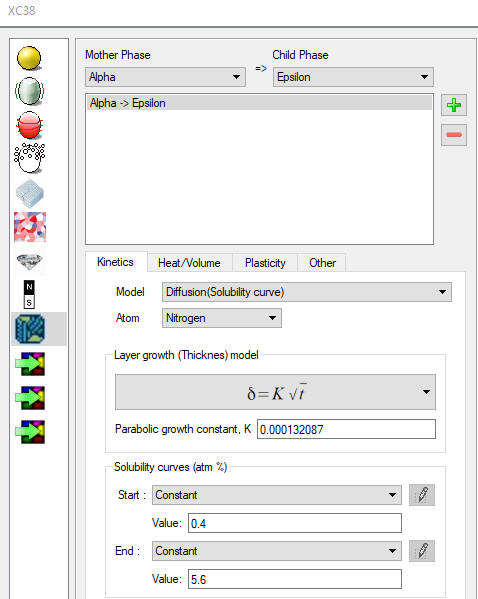
‘Material Editor’ - transformation definition
Diffusion Coefficient
The diffusion coefficients of Nitrogen in  and
and  phases are listed in Table 2, click the icon on the material page to define these settings .
| Nitrocarburizing Temperature [°C] | 570 | |
|---|---|---|
| Diffusion Coefficient of Nitrogen [10-8mm2/s] | Epsilon () |
3.4 |
| Alpha () |
983.3 |
Diffusion coefficient of Nitrogen
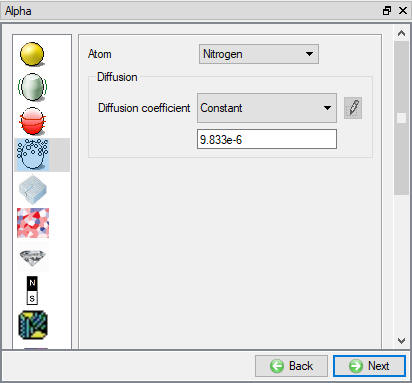
Diffusion Coefficient of Nitrogen - Alpha
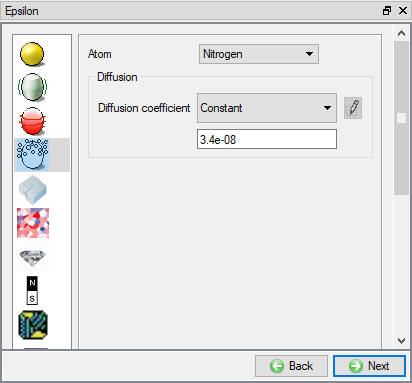
Diffusion Coefficient of Nitrogen - Epsilon
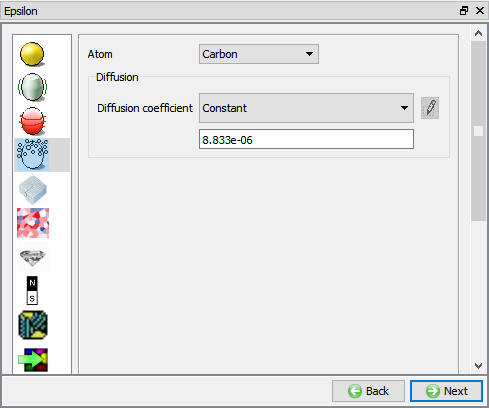
The diffusion coefficients of Carbon in and phases are listed in Table 3, click the icon on the material page to define them for the corresponding materials. Beware to choose the carbon from the atom list  , see Fig. 3DNCL1.16. and Fig. 3DNCL1.17.
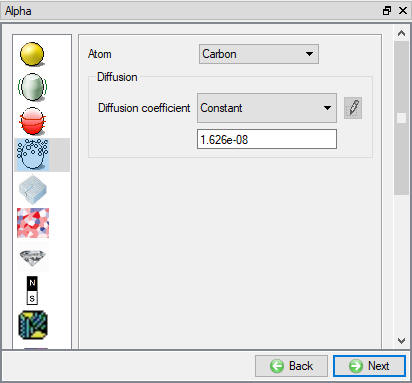
Diffusion Coefficient of Carbon - Alpha
Diffusion Coefficient of Carbon - Epsilon
| Nitrocarburizing Temperature [°C] | 570 | |
|---|---|---|
| Diffusion Coefficient of Nitrogen [10-8mm2/s] | Epsilon () |
883.3 |
| Alpha () |
1.626 |
Diffusion coefficient of carbon
Thermal Properties
Thermal properties are not necessary because the object’s temperature is constant and same as the environment temperature in this lab. But they are still required for DB generation. For XC38, 30 has been defined for Thermal conductivity, 5.5 as Heat capacity, 0.7 as Emissivity and 7.85e-09 as Density, see Fig. 3DNCL1.18. Same values are also defined for all the child materials.
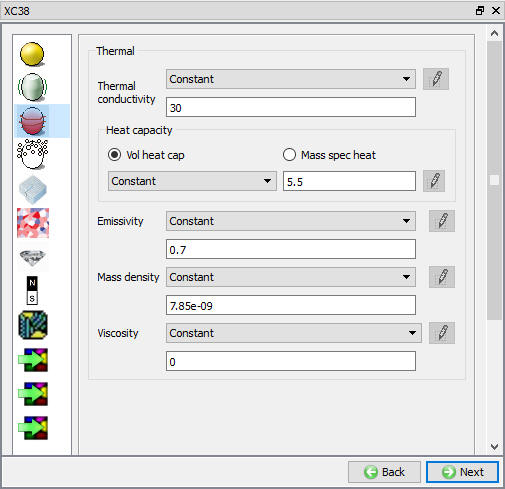
Thermal Properties Page
Workpiece
Object ‘XCspecimen ’ has been imported from the previous 2D to 3D Converter operation. Observe from the ‘Navigator’ window object information like mesh, material are listed. Click until Material page.
Initialize Volume Fraction
At this moment, click on  to access the element dialog to initialize the volume fraction. On the item list window click ‘Microstructure’‘Phase’. Then choose ‘Alpha’ and click on
  to ‘Initialize Element Data’. Type in 1 , then click on
  , then close the window. Click until BCC page.
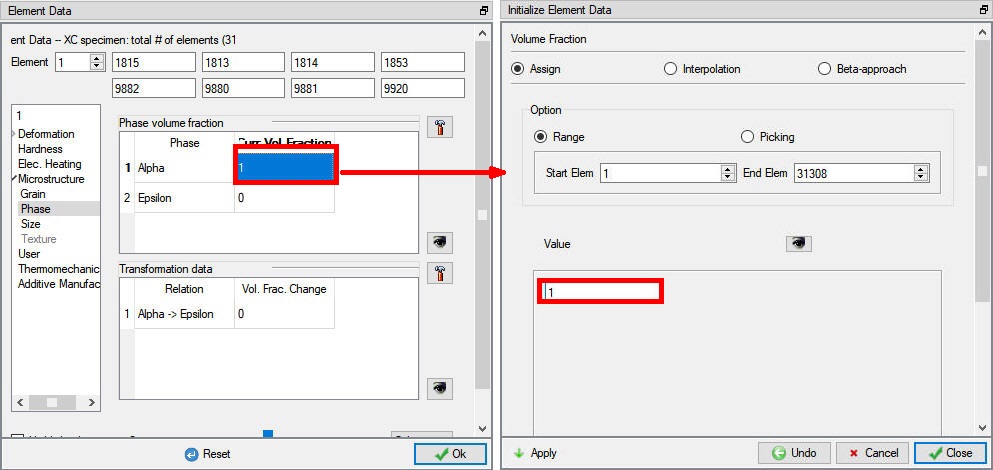
Element Dialog – Initialization of Phase Volume
Boundary Conditions
Heat Exchange with Environment
Click on Heat Exchange with Environment BCC then click on “Environment “ to change the ‘Environment**temperature** ’ to 570 °C, which is same as the object temperature (See Fig. 3DNCL1.20.).
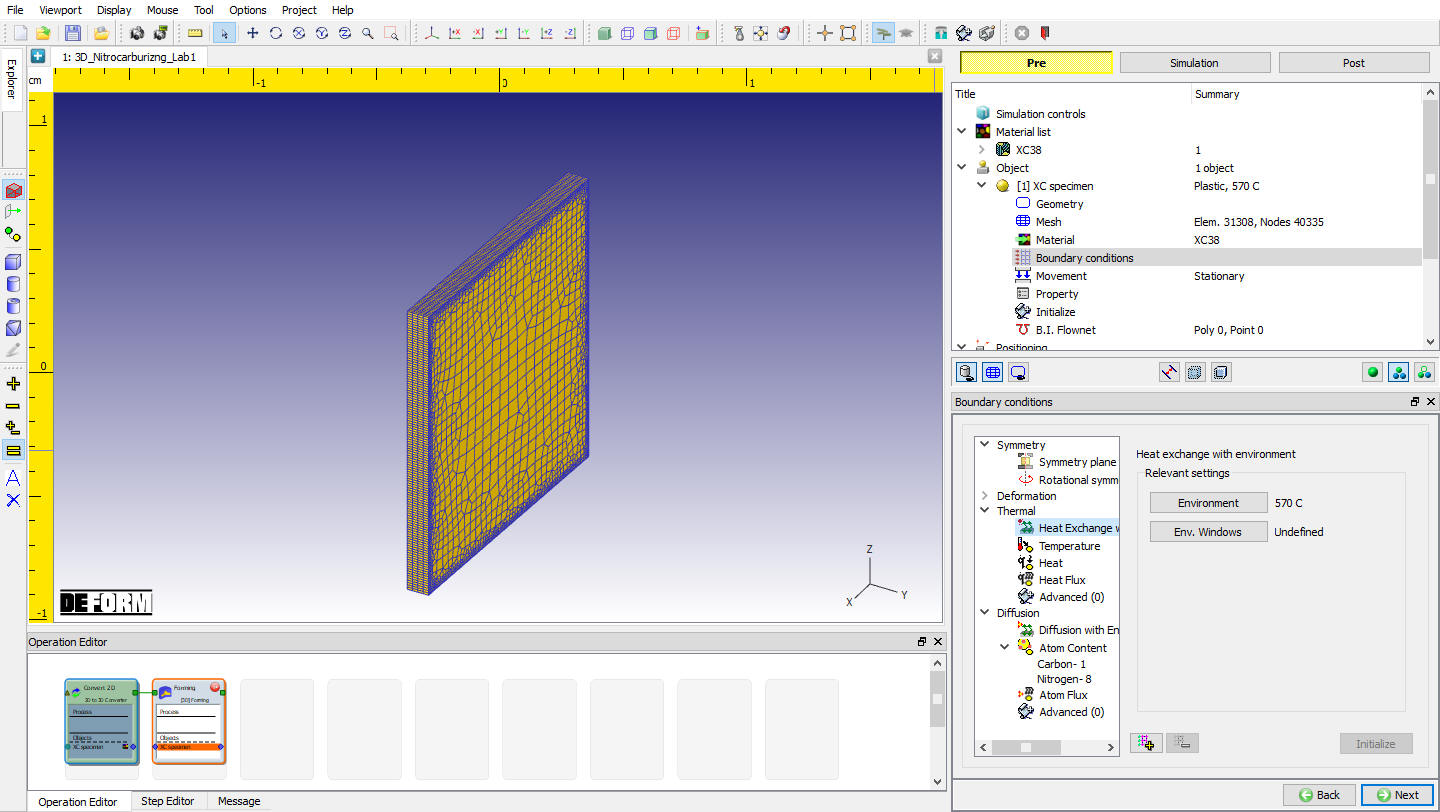
Heat Exchange with Environment Definition
Diffusion BCC
Constant Nitrogen contents on the workpiece are assumed in this Nitrocarburizing simulation, to do so make sure Nitrogen is selected from the atom list and click on “Atom Content “. Then type in 8 for the ‘Atom Pct.’. Use the mouse, pick the surfaces except +Y and -Y surface as they represent symmetry (See Fig. 3DNCL1.21.), then click on  to finish the assignment.
Also, constant Carbon contents on the workpiece are assumed. click on “Atom Content “, choose ‘Carbon ’ from the ‘Atom ’ list , Then type in 1 for the ‘Atom Pct.’. Select the surfaces as selected for Nitrogen, then click on to finish the assignment. Click until Stopping controls page.
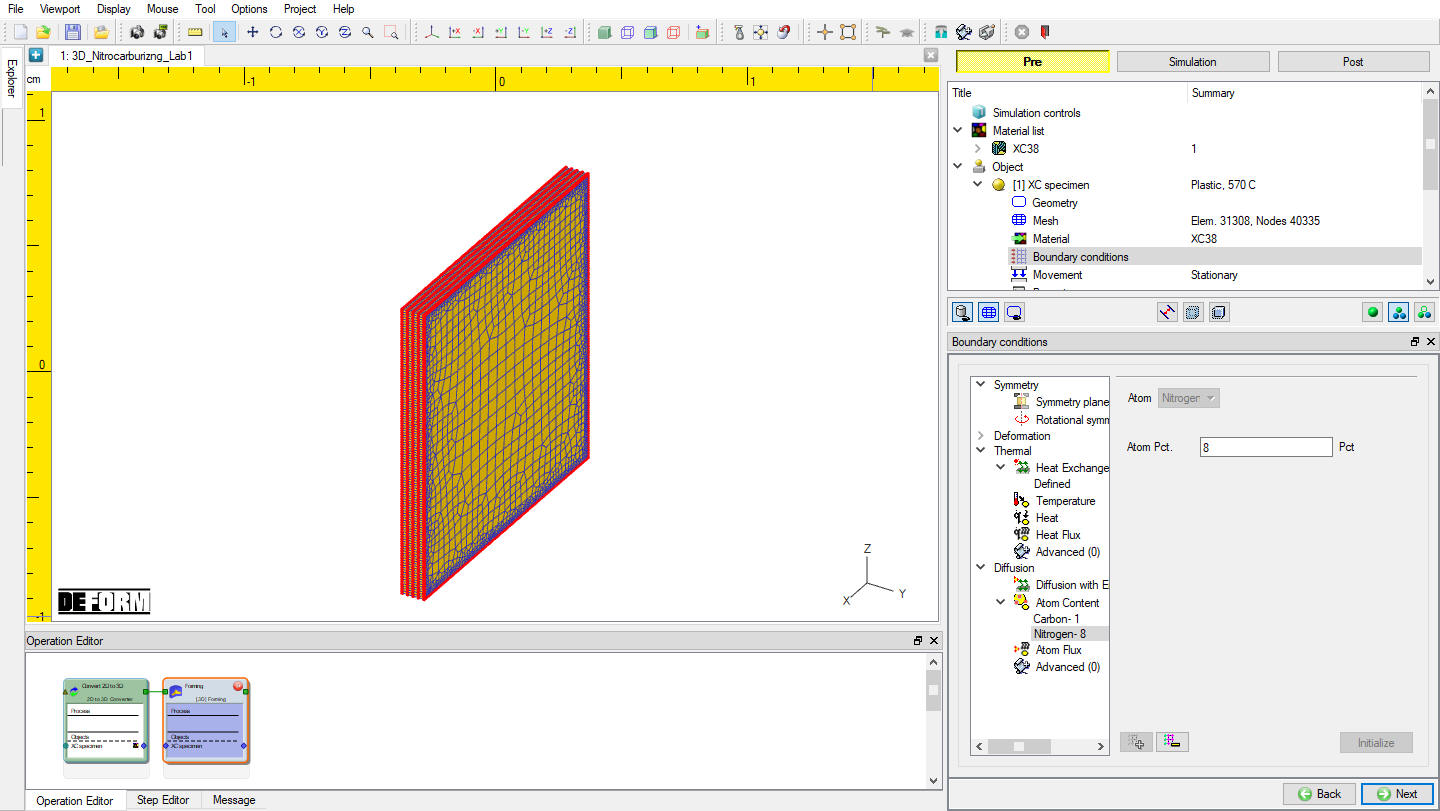
Constant Nitrogen Surface Content
Stopping Controls
Click on the tree in the ‘Navigator’ window and select ‘Stopping controls ‘ item, go to define the process duration. Make sure the system is in ‘Expert’ mode, if not, click on will switch the system to the expert mode. Then type in 108000 in the ‘Process**duration** ’ field, see Fig. 3DNCL1.22. Then click on to ‘Step controls’ page.
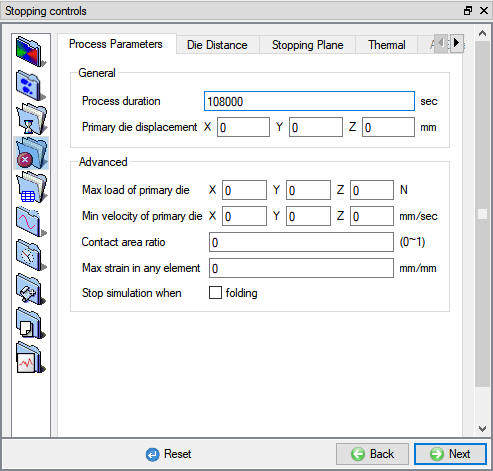
Stopping Controls (Expert Mode)
Step Controls
Switch back to the ‘Guided’ mode by clicking on  , Since process duration has been defined, type 999999 into ‘Numberof steps’ field. Set 5 as ‘Stepincrement ’ and 20 sec as the time per step (see Fig. 3DNCL1.23.). Then click on to ‘Generate DB’ page.
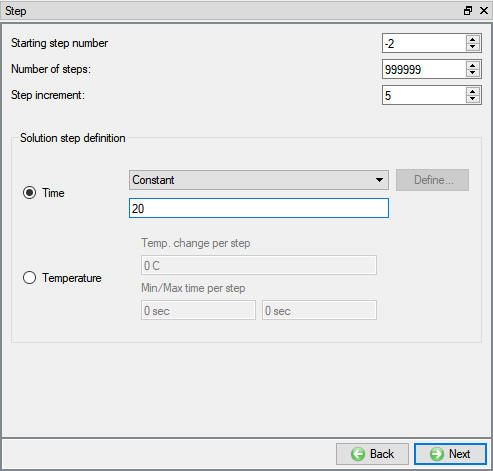
Step Controls (Guide Mode)
Generate Database
In ‘Generate DB’ page, click  to see if anything was missed in the setup and then click on the button to generate the database. Observe the message in Message tab informing database generation status.
Running Simulation
Once the database has been generated, switch to the Simulation mode by clicking on  button above the operation tree. Click on the
  action label to open the Run Options dialog as shown in Fig. 3DNCL1.24. Use the default Continue Run option to select “Continue from the last step ” (from step -1) option and then select the Simulation mode as Interactive and click on
  button to run the simulation.
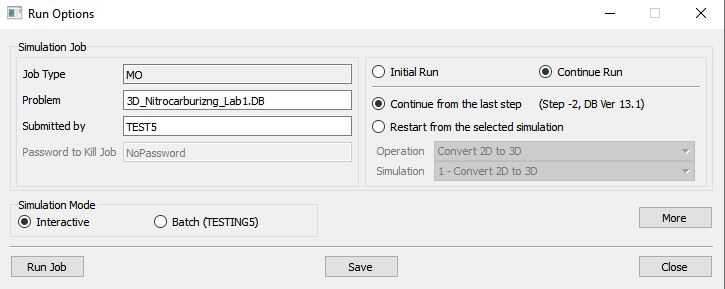
Run Simulation Window
Monitor the progress of the simulation by looking at the Simulation Message and Simulation Log tab, making sure that the  option is checked. User can view the Nitrocarburizing process as the simulation proceeds to the specified Step definition from Simulation graphics.
Post Processing
After the simulation is finished, open the DB in Next Gen post - processor.
Nitrogen Profiles
‘State variables between two points’ function is a great tool to exam nitrogen concentration profile (vs. depth below the surface).
Click on  , Under Diffusion Dominant atom, select “ Nitrogen “ State variable and click on to plot and click on
  .
.
Go to last step, then click on State variables between two points  to generate nitrogen profile. Define Start and End points and click on generate
  . Right click on State variable between two points graph and select “Set Graph Properties “, then select ‘Range’ page, set ‘Y Axis’ to ‘User-defined’, then define Min as 0.0 and Max as 8.0. values and click on
  button (see Fig. 3DNCL1.25.). Click to close Property editor popup.
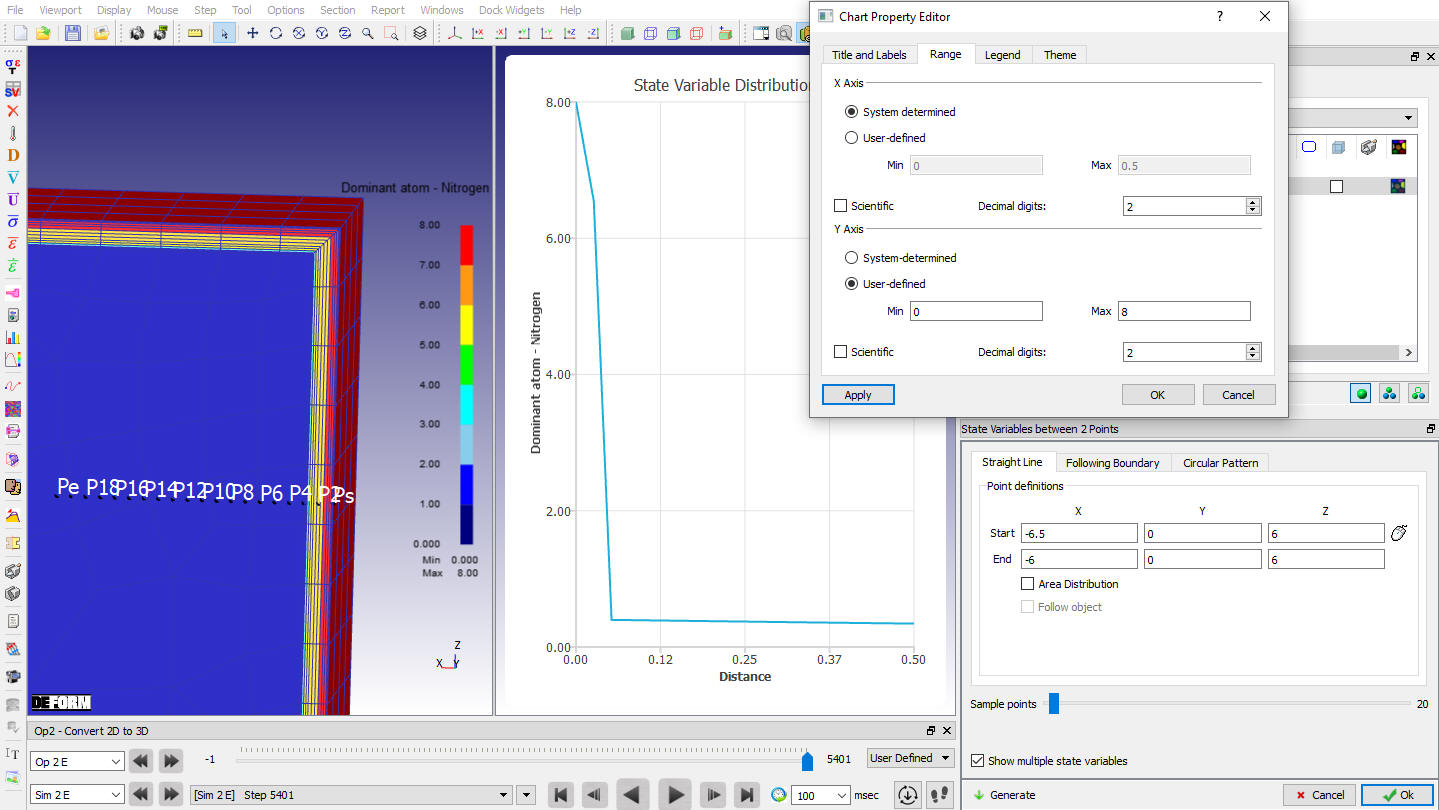
SV between 2 Points: Atom-Nitrogen
Carbon Profiles
Click on , Under Diffusion Dominant atom, select “ Carbon “ State variable and click on to plot and click on (See Fig. 3DNCL1.26.).
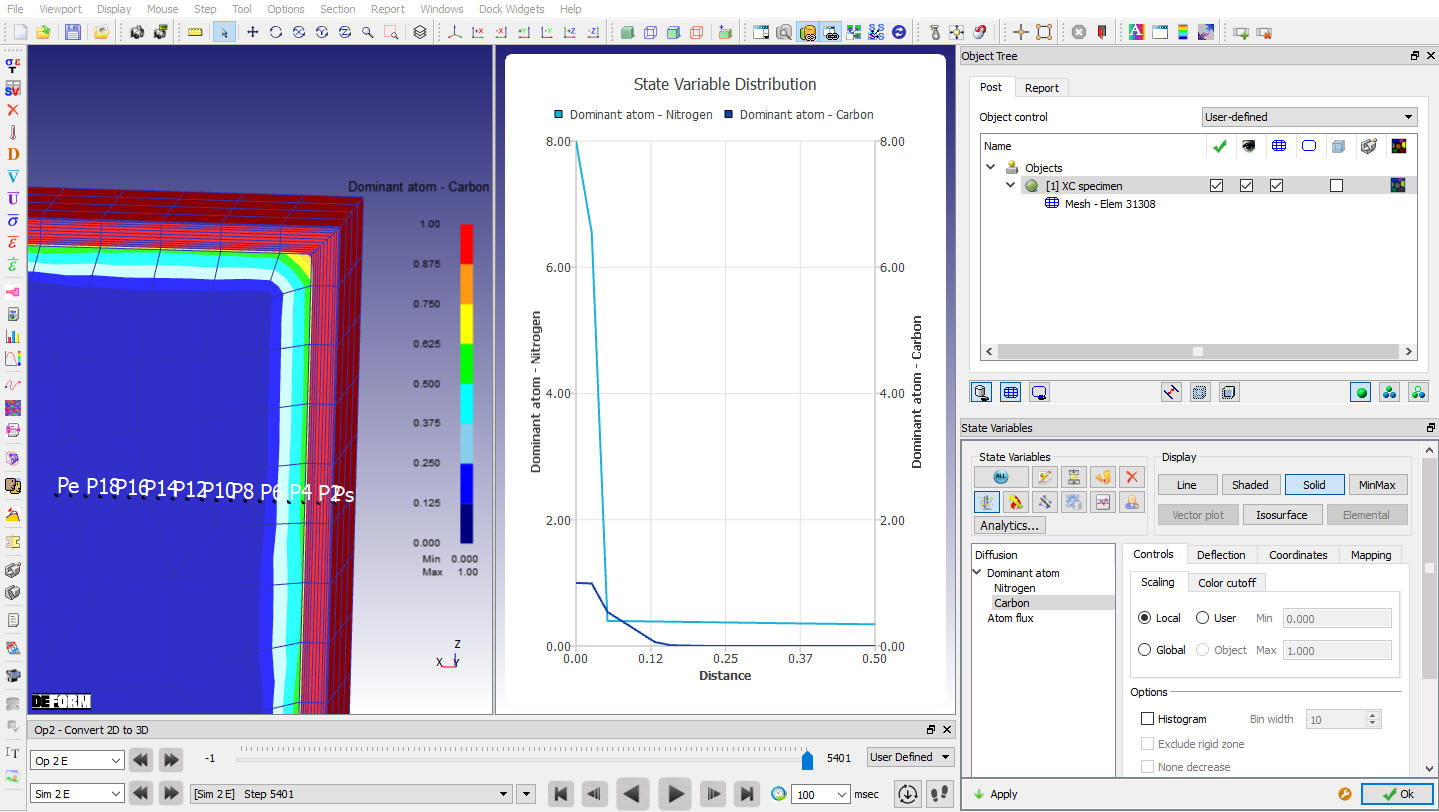
SV between 2 Points: Atom-Carbon