2D Gear-Mech Press Lab
In this lab, we will setup simple Gear blank operation using Mechanical press type movement controls in 2D Forming Express wizard.
1. Operation 1
1.1 Creating a New problem
1.2 Process
1.3. Temperature Calculation
1.4. Object Page
1.5. Workpiece
1.6. Top Die
1.7. Bottom Die
1.8. Positioning
1.9. Stopping Controls
1.10. Primary Die Stroke
1.11. Simulation Controls
1.12. Generate DB
1.13. Running Simulation
1.14. Post process the results
2. Operation 2
2.1. Problem Setup
2.2. Top Die
2.3. Bottom Die
2.4. Positioning
2.5. Primary Die Stroke
2.6 Simulation Controls
2.7. Generate DB
2.8. Running Simulation
2.9. Post process the results
Operation 1
Creating a New problem
On a Windows machine , go to the  button select DEFORM-v1x.xxx (.xxx indicates version number E.g. v14.0.2) and select DEFORM GUI Main vxx.xx from the menu. The DEFORM GUI Main window will appear. Create a new problem either by selecting File
  New Problem or by clicking the New Problem
  icon. The Problem Setup window will appear. Select “2D Forming Express “ radio button and unit system as “English “ radio button in unit field as shown in Fig. 2DGML1.1. Define Problem Name as “**Gear-MechPress** “ and click on
  button to open a new Problem using the Integrated Manufacturing Process.
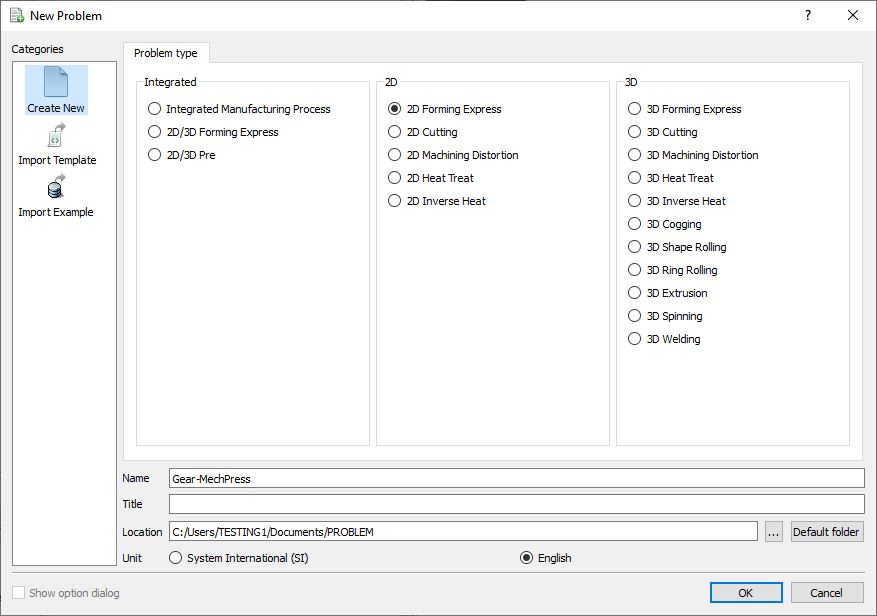
Problem type selection window
Confirm that a 2D Forming Express operation tile is present in the operation editor. Rename the first operation to “Upset ” by double clicking on the operation tile in the operation editor (See Fig. 2DGML1.2.).
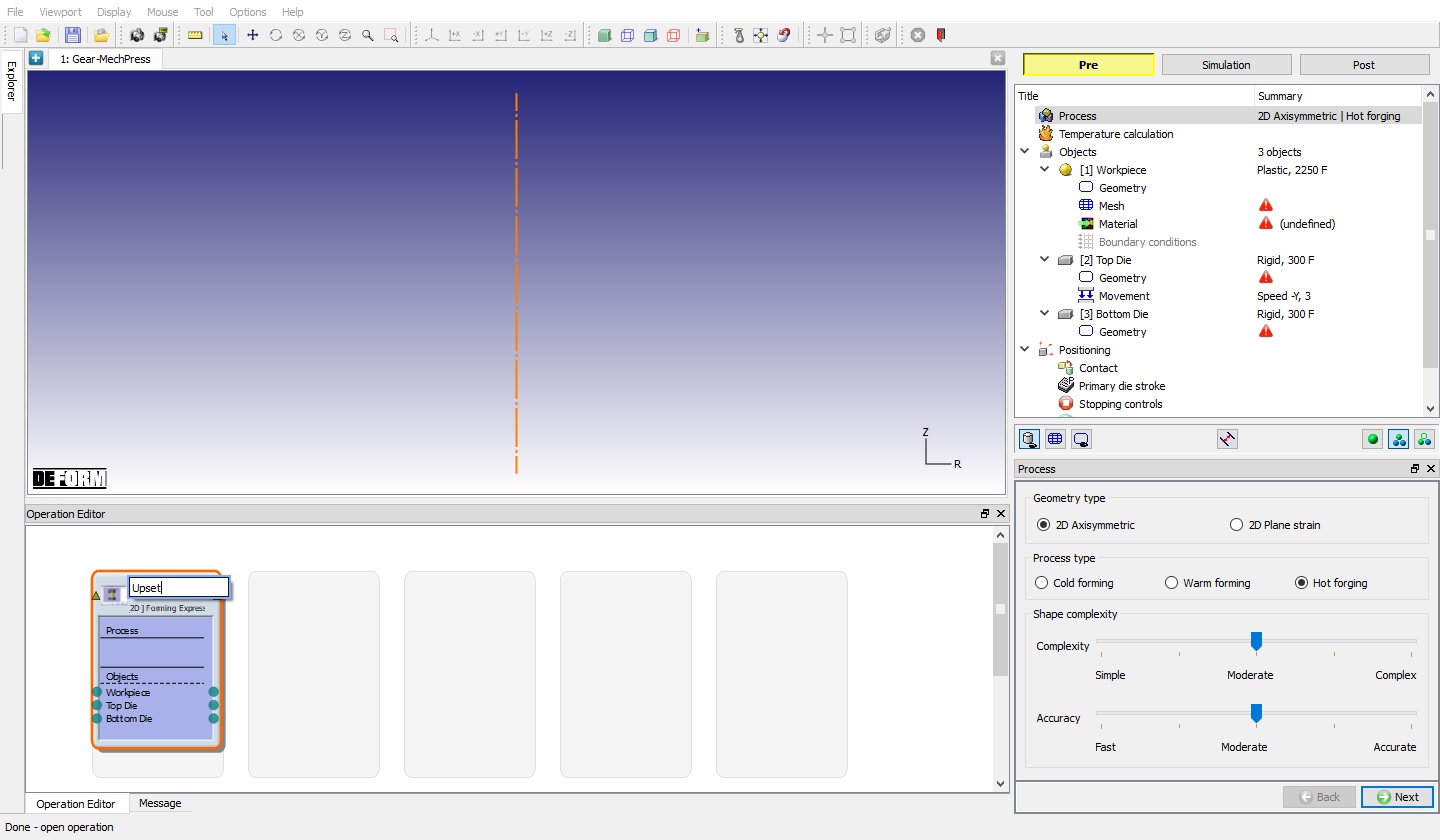
Renaming Operation name in Operation Editor
Process
In the Process page choose 2D Axisymmetric , Hot forging , and set both slider bars one notch below moderate to speed up the simulation time (See Fig. 2DGML1.3.). Click on  to the temperature calculation page.
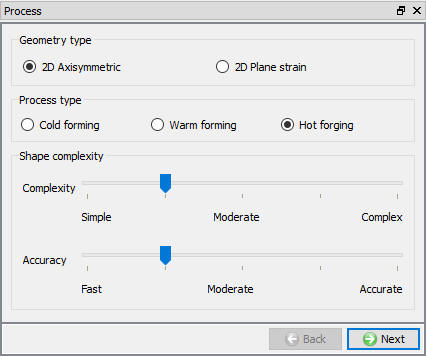
Process Page
Temperature Calculation
In the Temperature calculation page, select constant temperature (Isothermal). Selecting constant temperature means we are neglecting changes in workpiece temperature during forming. Click on to Object page.
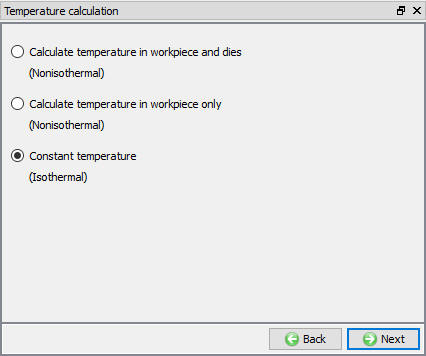
Temperature Calculation page
Object Page
In the objects page select 1 workpiece + 2 dies and click on to the workpiece page.
Workpiece
We will use an object temperature of 2200°F for our workpiece. Click on to move to the geometry page of the workpiece.
Workpiece Geometry
In the geometry page, we will use primitives geometries available to define workpiece geometry. Select Cylindrical primitive and define the dimensions of Cylinder as 2.5in Radius , 8.267in height , with0.1in corner radius (R1 and R2) (See Fig. 2DGML1.5.) and click on  to Close. Click on to proceed the mesh page.
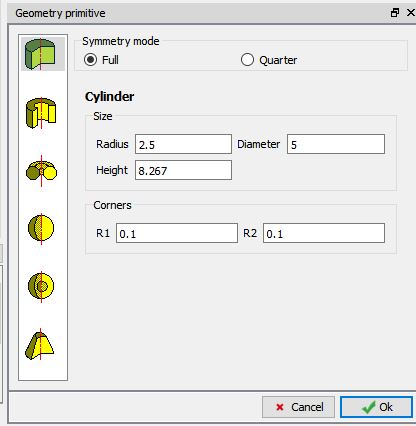
Defining the Geometry
Workpiece Mesh
Confirm that system is selected in Mesh page. You should see a value of 1000 in the number of elements field. Click on  and click on to the material page of the workpiece.
Workpiece Material
Click the  (Load material from library) button as shown in Fig. 2DGML1.6. Select only “Hot Forming” check box if all category check box selected, select the Steel_at_Extended_Temperatures category, then AISI-8620[1550-2200F(850 -1200C)] and click the
  button. The material will be added to the material list and selected. Click on until Top Die Geometry page.
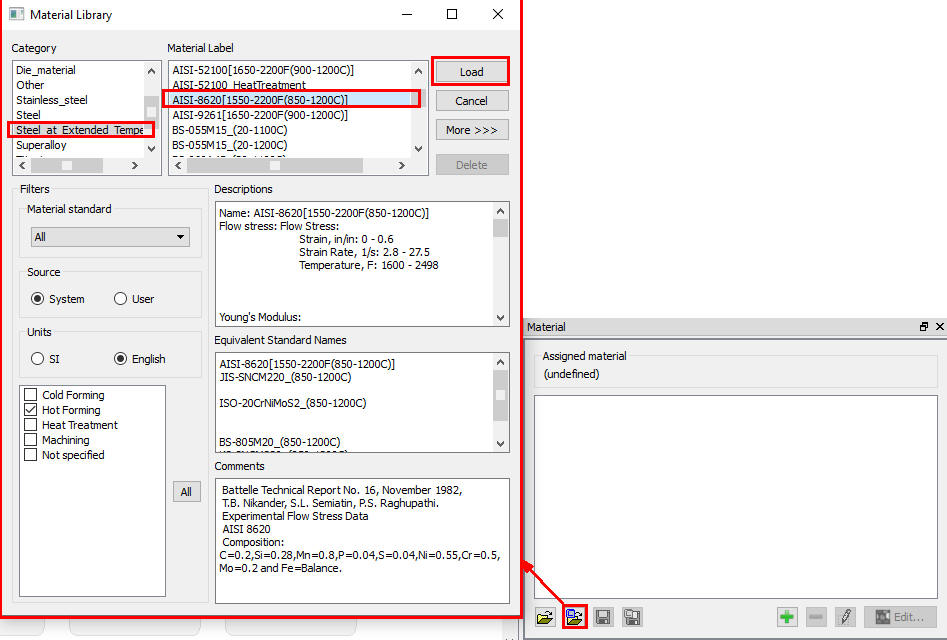
Workpiece material selection from Material Library
Top Die
Top Die Geometry
Click on button and import “flat top die.igs ” from the 2D\ LABS folder located in the installation directory and be sure to reverse the geometry after importing. Click on
Top Die Movement page
Here we will define our top die as a mechanical press. Select the mechanical press radio button and observe the options that are available.
Keep the default movement direction of –Y. Stiffness and connecting rod length are optional inputs for defining the mechanical press. For the first operation we will use a total stroke of 40 inches and 1 stroke/sec. Select “Distance between dies “ and confirm the current stroke = -(total stroke) (See Fig. 2DGML1.7. ). Click on until bottom die geometry page.
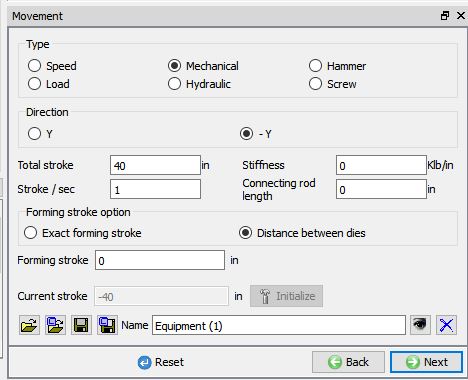
Top Die movement data
Bottom Die
Bottom Die Geometry
In the bottom die geometry page select define primitive to create the bottom die using cylinder primitive. Define a radius of 8 inches and a height of 4 inches and click on when finished (See Fig. 2DGML1.8.).
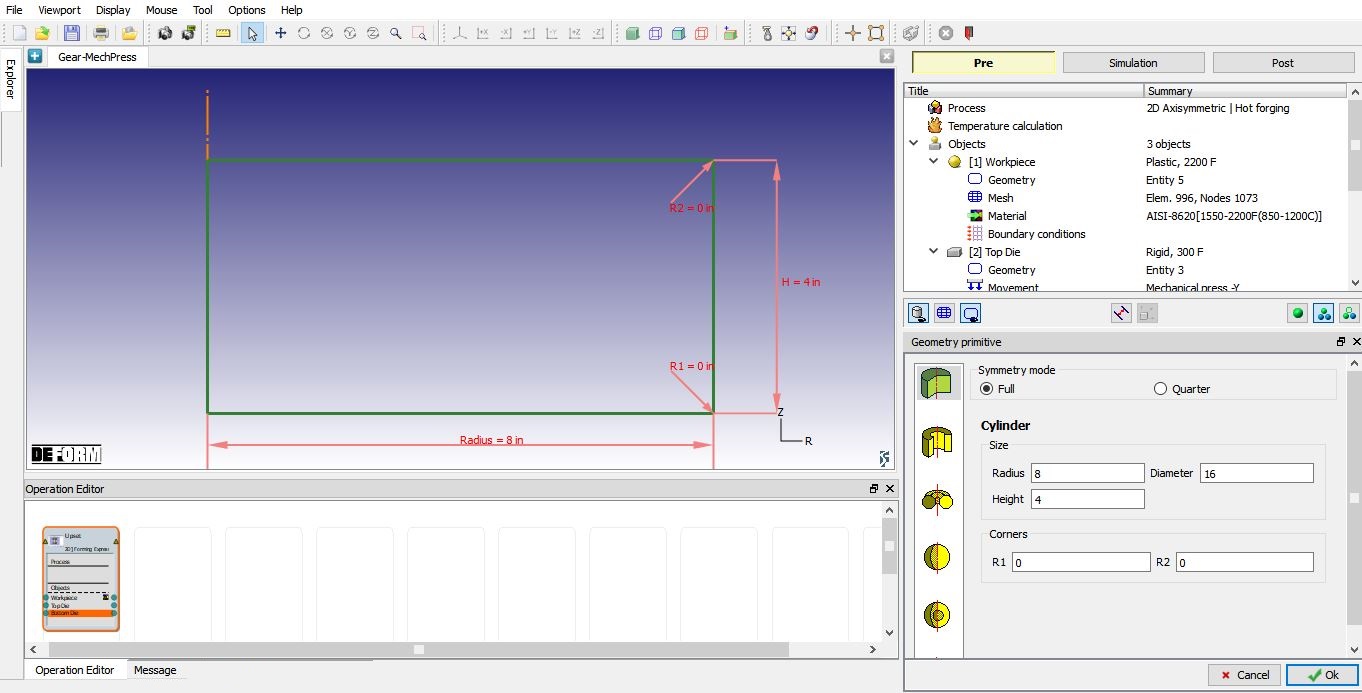
Bottom Die geometry
Observe the position of the three objects (See Fig. 2DGML1.9.). The top and bottom die are currently positioned inside of the workpiece which will result in excessive remeshing and unrealistic results. Click on to Positioning page.
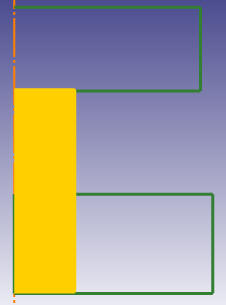
Objects Position after creating
Positioning
In the positioning page, click the  button. You should see the top and bottom die position above and below the workpiece. Automatic positioning performs two actions:
-
Interference position bottom die to workpiece while coupled with top die without updating stroke
-
Interference position top die to workpiece while updating stroke.
After the dies have been positioned, keep the default contact settings and skip to the stopping controls page.
Stopping Controls
For the distance between dies method we need to specify a distance between objects stopping criteria. Select the points on Top die and Bottom die similar to the points as shown in Fig. 2DGML1.10.
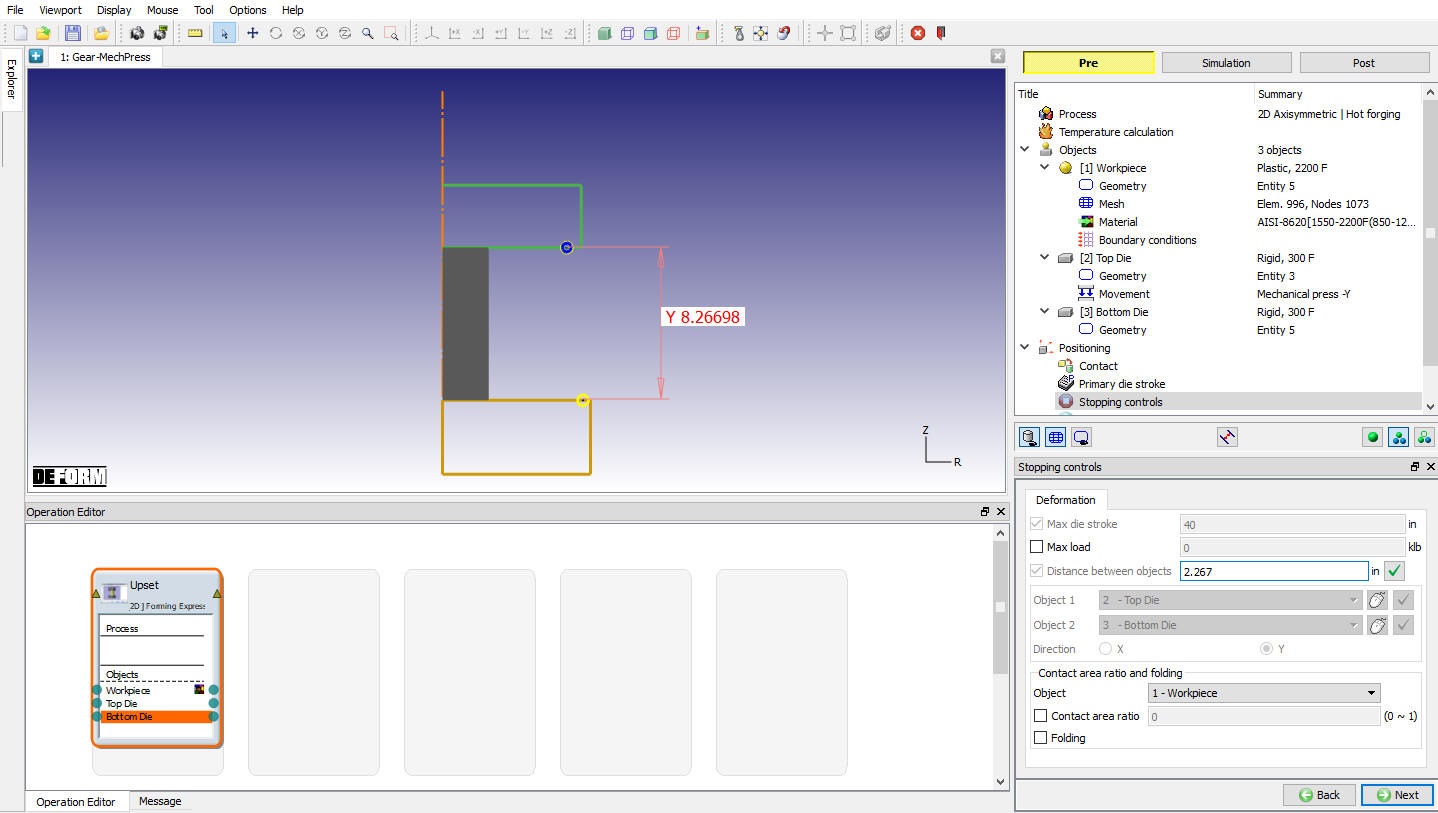
Distance between objects Stopping controls
For the first operation, we want the top die to travel 6 inches to create the correct shape. Input a die distance value of 2.267inches for distance between objects as shown in Fig. 2DGML1.10.). Click on  to primary die stroke page.
Primary Die Stroke
Notice the total primary die travel is set to roughly 6 inches. The distance between dies method automatically calculates total primary die travel for the user. When the exact amount checkbox is checked the value shown in the total primary die travel field is used as the forming stroke(See Fig. 2DGML1.11.). In operation 2 we will cover situations where exact amount is unchecked. Click on until Simulation controls page.
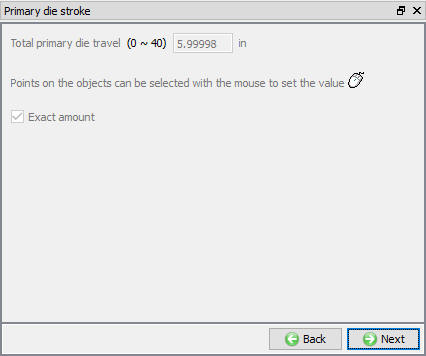
Primary die stroke
Simulation Controls
We will be using the default system options and proceed to the generate DB page (See Fig. 2DGML1.12.).
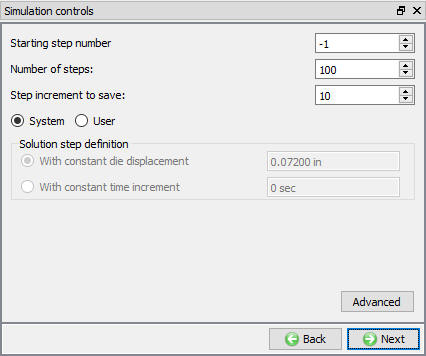
Simulation Controls page
Generate DB
In Generate DB page, click the  button to have the program check to see if anything was missed in the problem setup. During the checking process:
Messages in the red color signify data that needs to be fixed before a simulation can be run (such as when you forget to define any material data).
Click on  button to generate the database. When the program is done writing the database, Save the project and click on
  mode to run the simulation.
Running Simulation - Operation 1
Click on the  action label to open the Run Options dialog. Use the default Continue Run option to select “Continue from the last step ” option and then select the Simulation mode as Interactive and click on
  button to run the simulation.
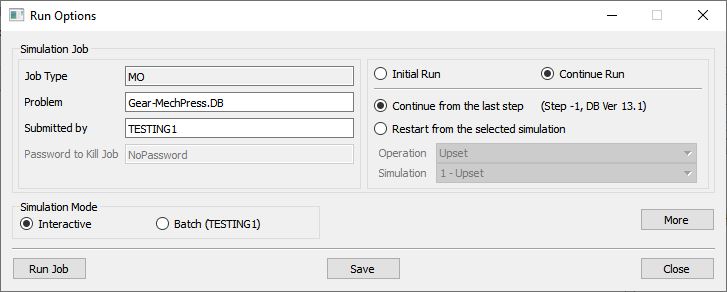
Run Simulation window
The progress of the simulation can be monitored as it is running by looking at the Simulation Message tab and Simulation Graphics from the Graphics display region in Simulation mode. As long as the  option is checked in Simulation Message tab, which is the default setting, the Message file will refresh automatically.
Post process the results - Operation 1
After the simulation is completed, switch to  tab to view the result.
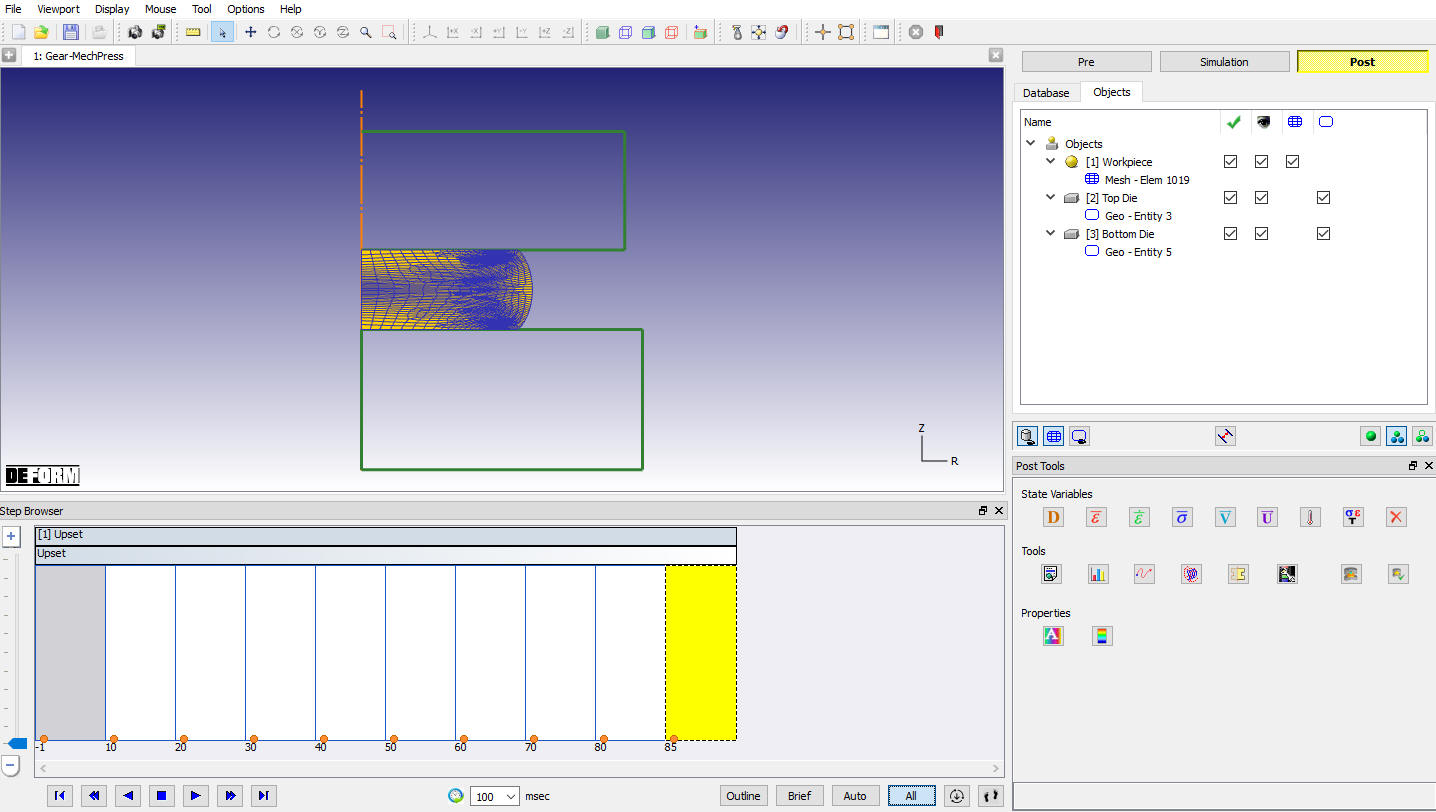
MO Post processor
Some important state variables can be selected directly from ‘Post Tools’ window and the rest can be accessed through State Variable dialog by clicking on  icon.
icon.
Click on  Graph (Load-Stroke) and plot Time (sec) vs Load (klb) and also plot Time (sec) Vs Speed (in/sec) for top die.
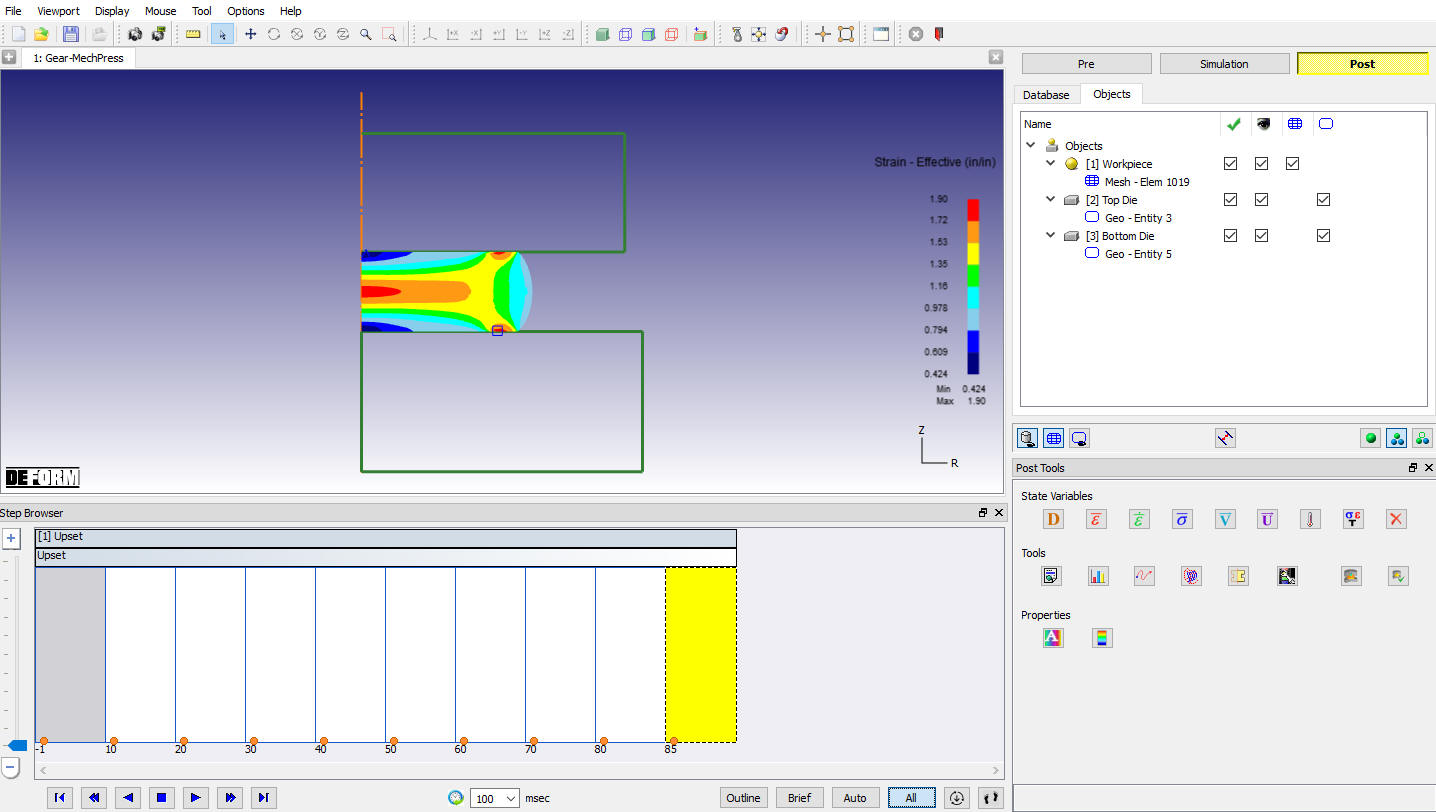
Strain Effective state variable plot for workpiece at 1st operation last step
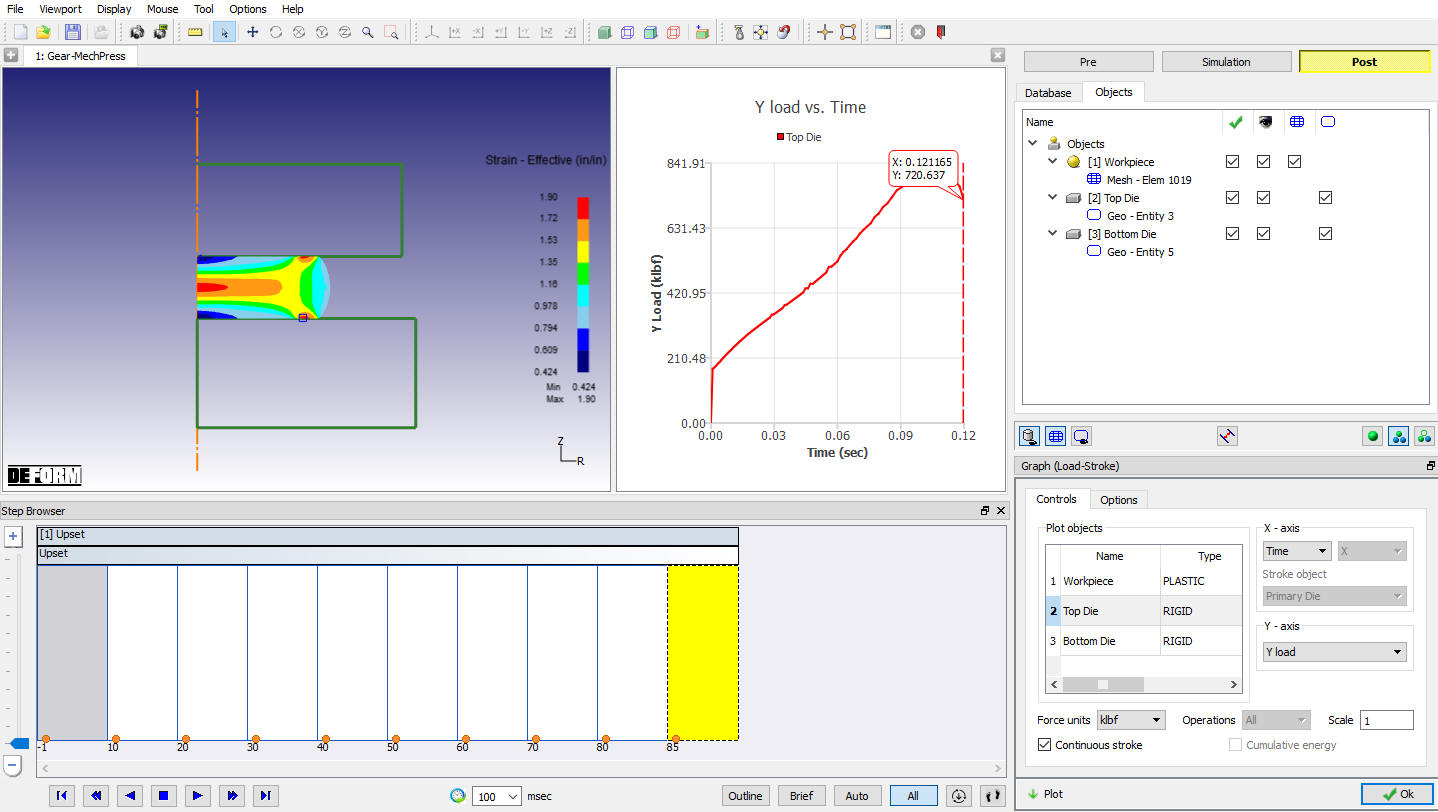
Y-Load v/s Time Graph of Top die in 1st operation
Operation 2
Problem Setup
Add a new 2D Forming Express operation and select “NO- batch setup ” as your method of defining the operation.
Top Die
By default, all objects will be passed to the second operation as read from DB objects. Skip to the top die page in the tree. All settings from the previous operation will be passed to operation 2 so there is no need to revisit the earlier pages. For the mechanical press, it is best to never use a read from DB top die. Select “Define “ as the object type for the top die (see Fig. 2DGML1.17.). Click on to go to the geometry page for the top die.
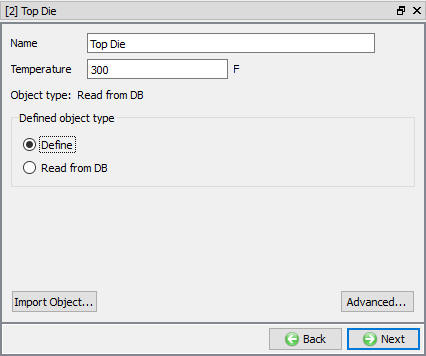
Top Die page
Top Die Geometry
Import the geometry gear top die.IGS from the 2D\ LABS folder located in the installation directory. Check the geometry, and verify the shading / point numbering is correct.
Top Die Movement
Go to the top die movement page and select exact forming stroke. The previous press settings for total stroke and cycles per second are the same (See Fig. 2DGML1.18.). Click on .
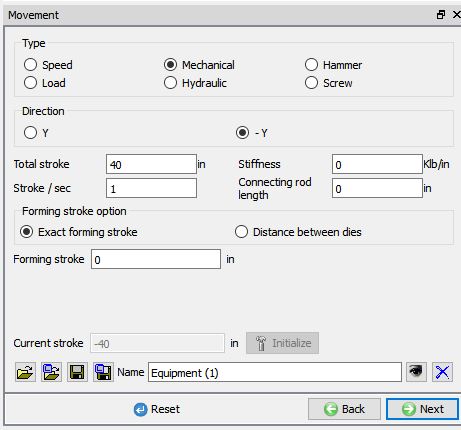
Top die movement page
Bottom Die
Select Define as the object type. Click on to the geometry page.
Bottom Die Geometry
Import gear bottom die.IGS from the 2D\LABS folder located in the installation directory. Check the geometry, and verify the shading / point numbering is correct. Click on until the positioning page.
Positioning
For operation 2 we will use the bottom dead center position action check box to calculate our forming stroke. In order to use this action checkbox, the top and bottom die must be positioned at bottom dead center.
Before positioning, take note of the forming stroke value in the top die movement page. In the positioning page interference position the top die down to the bottom die in the –Y direction.
Then offset position the top die by 0.2 inches in the Y direction. The dies are now at bottom dead center position. Switch to the top die movement page and notice the forming stroke and current stroke that are updated based on the positioning which was applied. For the mechanical press in Forming Express, forming stroke is always updated when the top die is positioned.
Primary Die Stroke
Click on until the primary die stroke page. Take note that there is no positioning scheduled and the distance between objects stopping criteria is disabled in Stopping Controls Page, because exact forming stroke was selected in the top die movement page.
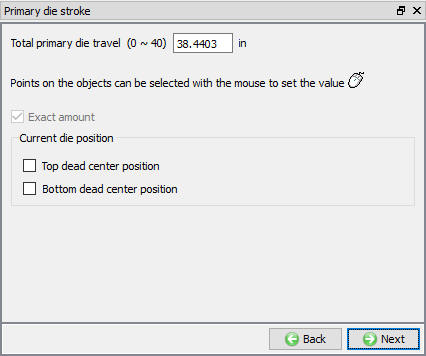
Primary Die stroke page
As mentioned previously, when exact amount is checked total primary die travel = forming stroke. The forming stroke was recently updated with positioning which explains the negative value seen for total primary die travel. Red text indicates that the value entered for total primary die stroke is outside of the legal range (See Fig. 2DGML1.19.).
It is up to the user to fix illegal total primary die travel value. Check the bottom dead center position check box and observe that the exact amount box is no longer checked as a result.
When exact amount is unchecked total primary die travel is not equal to forming stroke and is only used to calculate the step size for the simulation. The user is required to input an approximate value for how far the top die is expected to travel.
In this case the top die needs to travel approximately 2 inches to reach bottom dead center (See Fig. 2DGML1.20.).
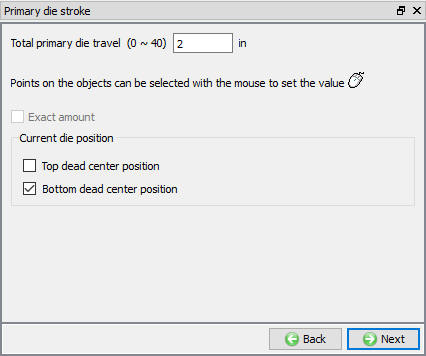
Bottom dead center position checked in Primary die stroke page
The bottom dead center position check box will automatically add scheduled positioning and adjust the forming stroke to zero. Jump to scheduled positioning and the top die movement page to view these changes. The forming stroke value will be updated after scheduled positioning has been executed at DB generation. Click on until Simulation controls.
Simulation Controls
We will be using the default system options (See Fig. 2DGML1.21.) and proceed to the generate DB page.
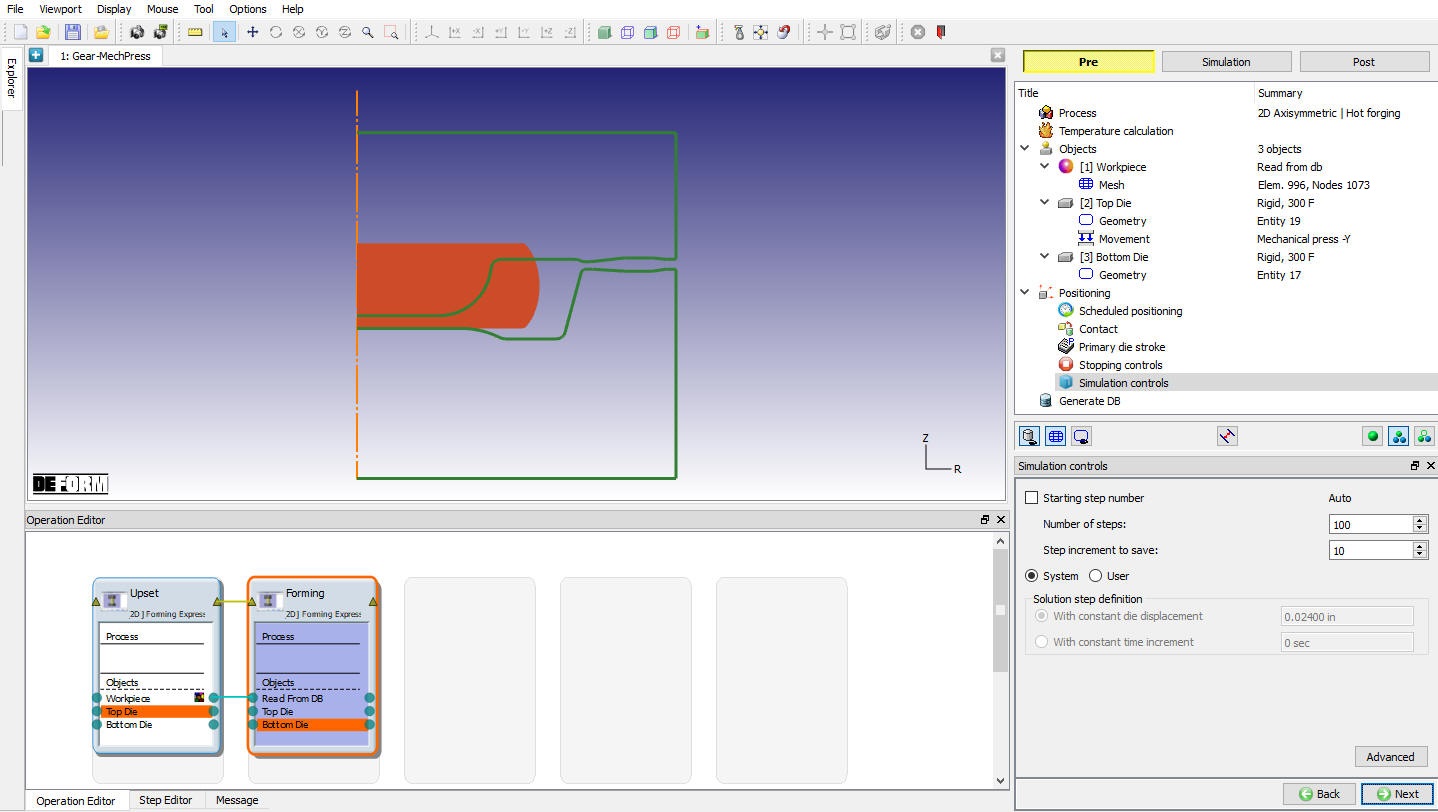
Simulation Controls page
Generate DB
In Generate DB page. Click the button and click on button to generate the database. When the program is done writing the database, save the project and click on mode to run the simulation.
Running Simulation - Operation 2
Click on the action label to open the Run Options dialog. Use the default Continue Run option to select “Continue from the last step ” (from step -1) option and then select the Simulation mode as Interactive and click on button to run the simulation.
Post process the results - Operation 2
After the simulation is completed, Switch to tab to view the result.
Some important state variables can be selected directly from ‘Post Tools’ window and the rest can be accessed through State Variable dialog by clicking on icon.
Click on Graph (Load-Stroke) and plot Time (sec) vs Load (klb) and also plot Time (sec) Vs Speed (in/sec) for top die for Operation 2.
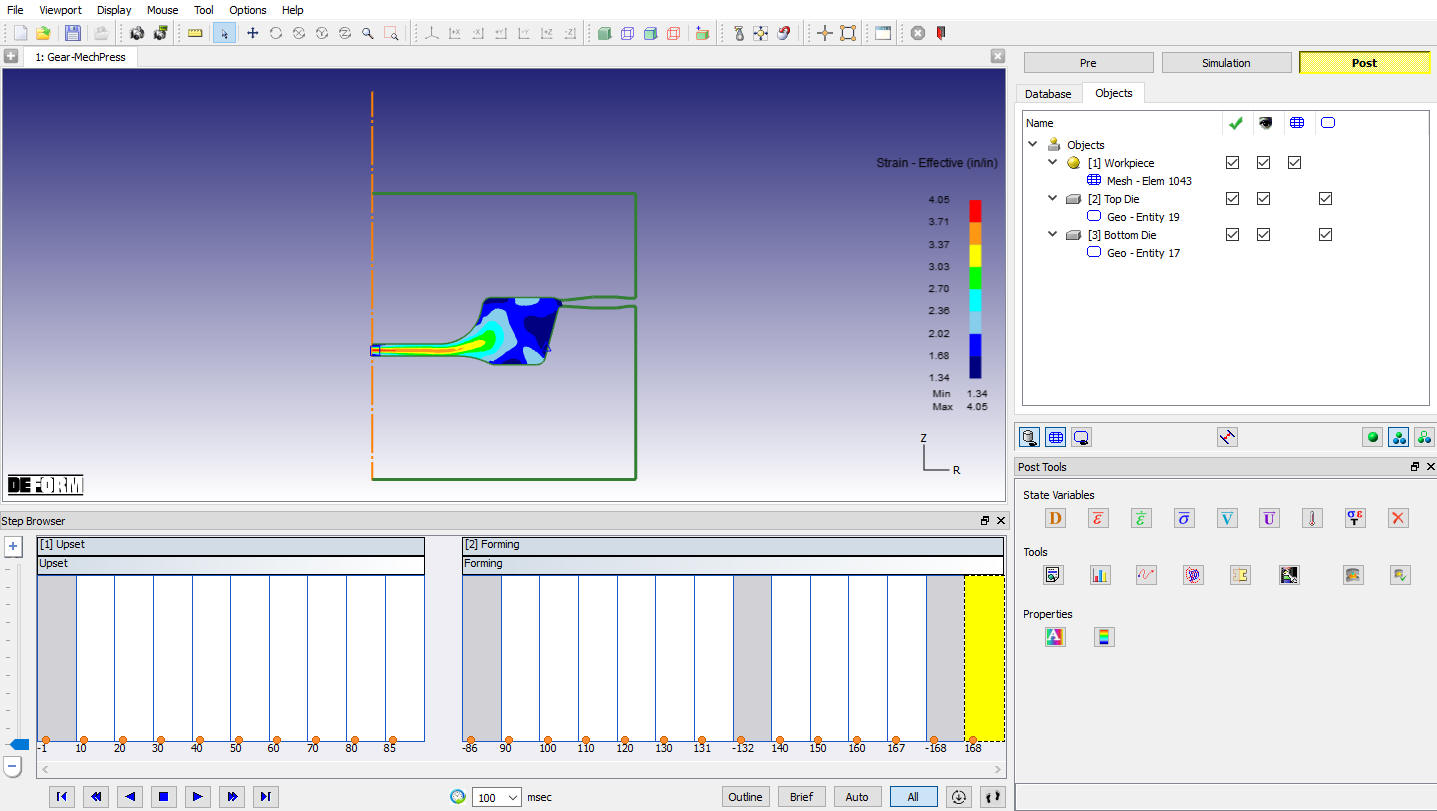
Strain Effective state variable plot for workpiece at 2nd operation last step
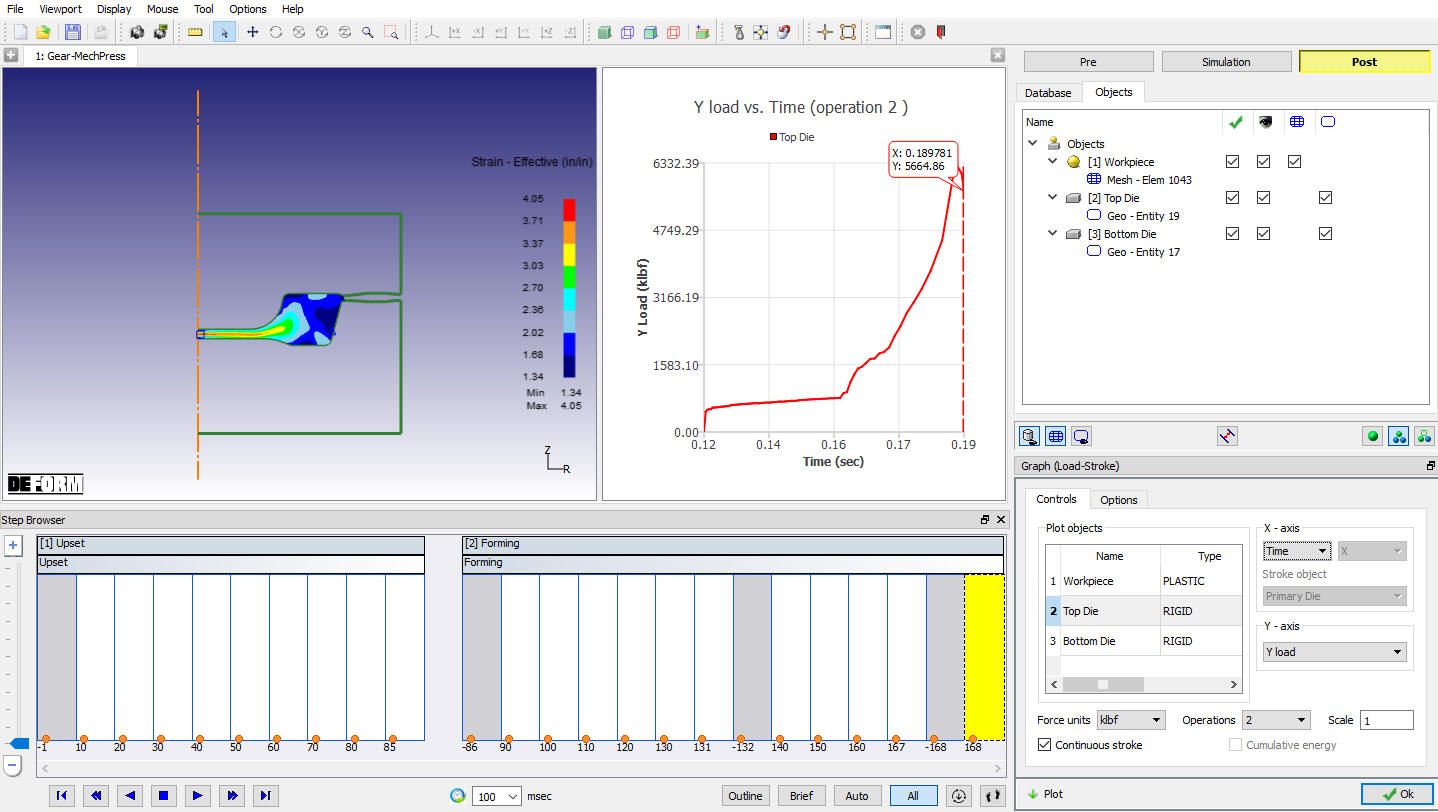
Y-Load v/s Time Graph of Top die in 2nd Operation