45.1. Boolovský operátor
45.1.1. Definícia 2D boolovského operátora
45.1.1.1. Pridať 2D booleovskú operáciu
45.1.1.2. Odovzdávanie objektov na ďalšie operácie prostredníctvom booleovského operátora
45.1.1.3. Pridávanie objektov
45.1.1.4. Definícia booleovského objektu
45.1.1.5. Definícia objektu Cutter
45.1.1.6. Definovanie geometrie rezača
45.1.1.7. Polohovací rezač
45.1.1.8. Náhľad booleovského typu
45.1.1.9. Vytvorenie databázy
45.1.1.10. Pokračovať v ďalšej operácii
45.1.1.11. Následné spracovanie výsledkov 2D booleovských operácií
45.1.2. Definovanie 3D booleovského operátora
45.1.2.1. Pridávanie objektov
45.1.2.2. Definovanie booleovského objektu
45.1.2.3. Definícia objektu Cutter
45.1.2.4. Definovanie geometrie rezačky
45.1.2.5. Polohovací rezač
45.1.2.6. Náhľad booleovského typu
45.1.2.7. Vytvorenie databázy
45.1.2.8. Následné spracovanie výsledkov 3D booleovských operácií
45.1.2.9. Pokračovanie v ďalších operáciách
Definícia 2D booleovského operátora
Boolovská operácia sa zvyčajne pridáva ako nasledujúca operácia v rámci viacerých operácií s cieľom odstrániť z objektu nepotrebný materiál pomocou boolovskej operácie. 2D booleovská operácia je v tejto príručke vysvetlená na príklade extruzie, pričom celková extruzia je rozdelená do 3 fáz a po 1. a 2. fáze sa mimo oblasti záujmu extrudovaného materiálu vykoná booleovská operácia s cieľom skrátiť výpočtový čas simulácie.
Predtým, ako pridáte boolovskú operáciu, najprv otvorte integrovaný výrobný proces v jednotkách SI ( ), pridajte operáciu 2D tvárnenia () a importujte príklad 2D extrudovania v jednotkách SI EXTR1_SI.KEY v režime s návodom, ako je znázornené na obr. 45.1.1. vyberte z operačného stromu vetvu „Krok“ a nastavte počet krokov na 300 kliknite na
  a vygenerujte databázu.

Príklad importu a nastavenia 2D extrudovania
Pridať 2D boolovskú operáciu
Po vytvorení databázy nastavení 2D operácií pridajte 2D booleovský operátor zo skupiny simulačných operátorov v MO Explorer, ako je znázornené na obr. 45.1.2.
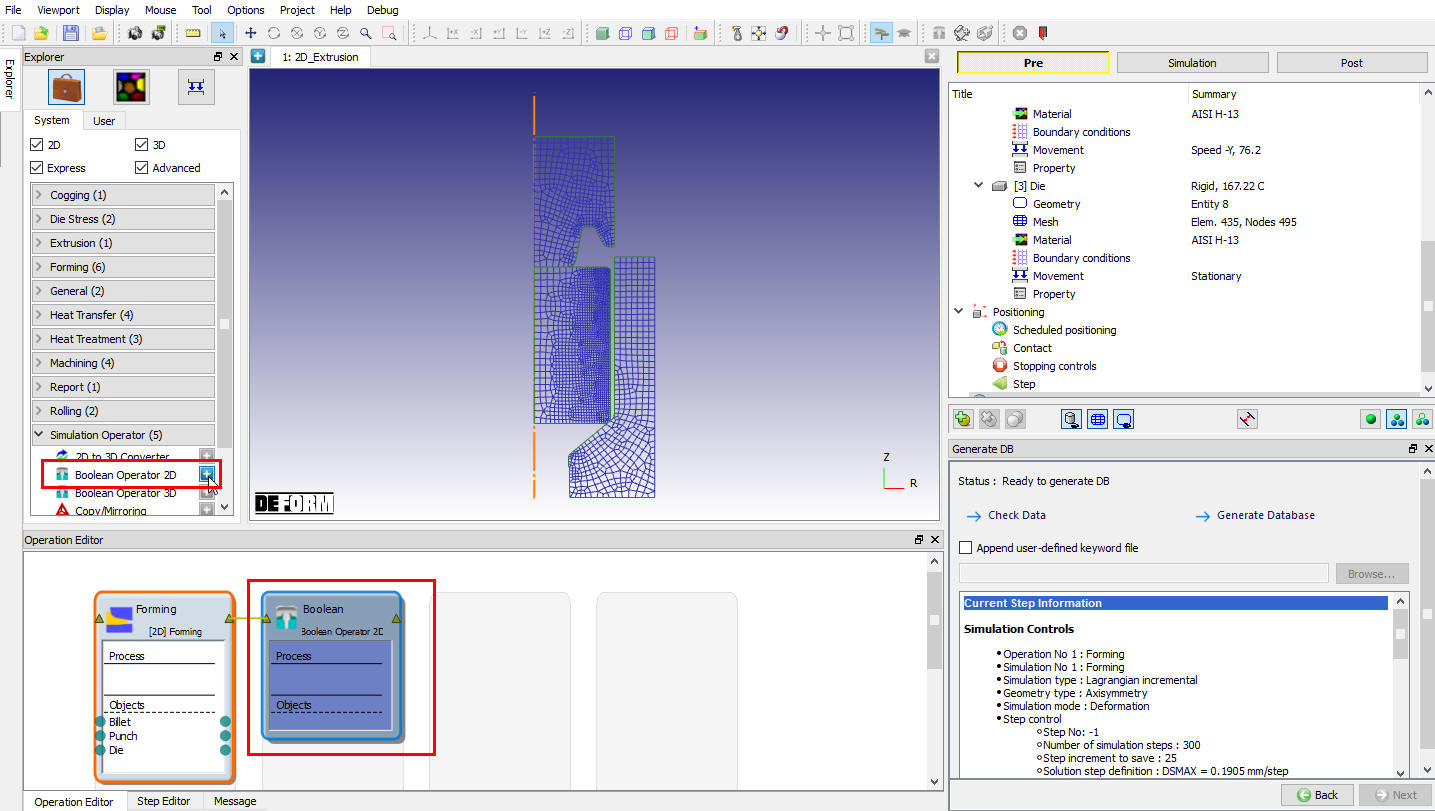
Pridať 2D booleovskú operáciu
Pridajte ďalšiu 2D tvarovaciu operáciu po 2D booleovskej operácii, ako je znázornené na obr. 45.1.3., aby ste mohli pokračovať v ďalšom vytláčaní s nižšou výpočtovou náročnosťou simulácie.

Pridať operáciu tvarovania po booleovskej operácii
Odovzdávanie objektov na ďalšie operácie prostredníctvom boolovského operátora
Prvý objekt obrobku prvej operácie odovzdajte všetkým operáciám, ako je znázornené na obr. 45.1.4.; podobne odovzdajte aj ostatné objekty všetkým operáciám. Ak používateľ pokračuje v operáciách po booleovskej operácii s predchádzajúcimi objektmi, ktoré nie sú prvým objektom, potom sa tieto objekty musia odovzdať do booleovskej operácie pred pridaním objektov do tejto operácie.
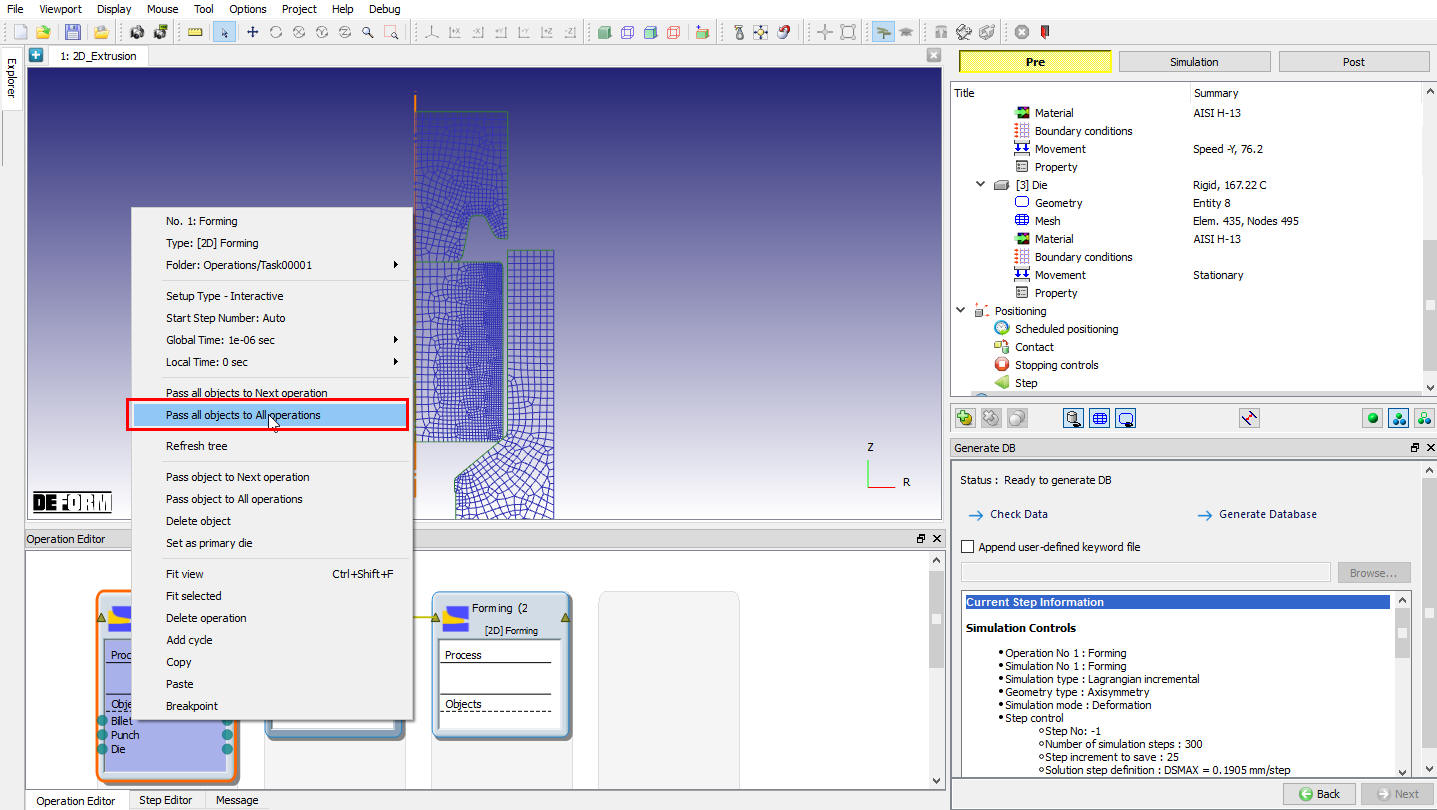
Odovzdanie objektu obrobku všetkým operáciám
Po prechode všetkých objektov v editore operácií môže používateľ vidieť prepojenie vytvorené medzi všetkými tromi objektmi v rámci operácií, ako je znázornené na obr. 45.1.5. Vyberte booleovskú operáciu v editore operácií, čím sa otvorí okno booleovskej operácie, ako je znázornené na obr. 45.1.5.

Otvorená boolovská operácia
Pridať objekty
Systém automaticky vyberie obrobok alebo prvý objekt ako booleovský objekt, ako je znázornené na obr. 45.1.5. V prípade frézy je možné pridať nový objekt výberom možnosti Pridať nový objekt (pozri obr. 45.1.5.) a kliknutím na v okne objektov, ako je znázornené na obr. 45.1.6. Ako objekt frézy je možné vybrať aj akýkoľvek objekt z predchádzajúcej operácie.

Do stromu operácií bol pridaný nový objekt pre objekt „Cutter“
Definícia objektu typu Boolean
V okne „Objekt“ (pozri obr. 45.1.6) nie je potrebné meniť žiadne nastavenia; obsahuje podrobnosti o type objektu. V prípade booleovského objektu budú k dispozícii iba okná s okrajovými podmienkami deformácie (BCC) a okná na inicializáciu stavových premenných; používateľ môže zmeniť BCC v pláne pred booleovským výpočtom zaškrtnutím políčka „Redefine BCC“ (pozri obr. 45.1.7.). Ďalšie podrobnosti o rôznych definíciách BCC a ich definovaní nájdete v 14. Boundary Conditions.

Okno s definíciou rozvrhu BCC pre booleovský objekt
Podobne je možné inicializovať stavové premenné pred booleovskými premennými zaškrtnutím príslušných políčok, ako je znázornené na obr. 45.1.8. Ďalšie informácie o inicializácii stavových premenných nájdete v 17. Object Data Initialize.

Okno na inicializáciu premenných stavu rozvrhu pre objekt typu Boolean
V tomto príklade nie je potrebné meniť ani vyberať žiadnu voľbu pre objekt typu Boolean (obrobok), preto vyberte objekt typu Cutter, aby ste mohli pokračovať v nastavení.
Definícia objektu Cutter
Objektu rezačky je možné priradiť názov a importovať ho z databázy predchádzajúceho projektu DEFORM alebo zo súborov kľúčových slov pomocou možností „Importovať objekt zo súboru“ ( ) a „Načítať objekt z knižnice“ (
 ), ako je znázornené na obr. 45.1.9.

Okno objektu „Cutter“
Definovanie geometrie rezača
Jednoduchú geometriu rezacieho nástroja je možné vytvoriť z geometrických primitív alebo pomocou možností 2D geometrického editora, ako je znázornené na obr. 45.1.10. Dokonca aj 2D geometrie je možné importovať z formátov GEO, IGS a DXF. V závislosti od typu geometrie predchádzajúcej operácie budú v booleovskej operácii k dispozícii príslušné geometrické primitíva. Keďže objekt rezača nevyžaduje sieť, možnosť „Extrahovať ohraničenie zo siete“ sa neaktivuje.
Ďalšie informácie o dostupnej možnosti geometrie nájdete v popise volieb 12.1. 2D Geometry Data Defining a 12.2. 2D Geometry Data Editing. V tomto príklade vytvoríme 2D geometriu pomocou voľby  , ako je znázornené na obr. 45.1.11.
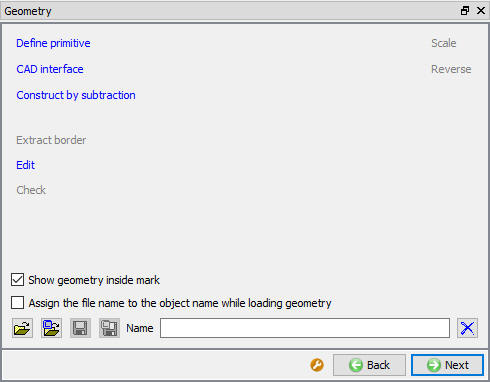
Okno na definovanie geometrie frézy

Vytvorenie geometrie rezača pomocou možnosti „Edit“
Polohovací rezač
Rezací nástroj je možné umiestniť na presné miesto pomocou možností polohovania, ktoré sú dostupné cez tlačidlo  , ako je znázornené na obr. 45.1.12.

Okno na umiestňovanie objektov
Náhľad booleovského typu
Okno „Preview Boolean“ je určené pre budúci vývoj, keď táto operácia bude podporovať nastavenie interaktívneho režimu na vizualizáciu toho, ako vyzerá objekt po booleovskom spracovaní. Toto tlačidlo bude deaktivované pre typ objektu „Read from DB“. Keďže táto operácia v súčasnosti podporuje iba dávkový režim, booleovským objektom sa stane iba objekt typu „Čítanie z databázy“, a preto bude v tomto režime náhľad booleovského objektu deaktivovaný (pozri obr. 45.1.13.).

Náhľad okna s boolovskými hodnotami
Vytvorenie databázy
Používateľ musí vytvoriť databázu v prípade, že sa simuluje predchádzajúca operácia; ak nie, databáza sa vytvorí automaticky počas behu programu po dokončení predchádzajúcej operácie. (Pozri obr. 45.1.14.)
Vytvoriť databázu: Kliknutím na toto tlačidlo  sa vygeneruje databáza potrebná na inštaláciu.
Pridať súbor .key: Akékoľvek informácie, ktoré nie sú definované v sprievodcovi, ale aj tak sa vzťahujú na proces, je možné načítať ako súbor .key. Táto možnosť je užitočná aj v prípadoch, keď je potrebné zmeniť len niekoľko hodnôt – tieto hodnoty je možné definovať v súbore .key, následne stačí zmeniť len tento súbor a simuláciu je možné odoslať znovu.
Používateľ môže sledovať polohu reznáho nástroja umiestneného v smere extruzného procesu tak, aby sa po prvej extruznej operácii vyrezala určitá časť extrudovaného obrobku, ktorá nie je predmetom záujmu, zo špičky.

Okno na vytvorenie databázy
Pokračovať v ďalšej operácii
Po boolovskom operácii je možné pridať ďalšie operácie a pokračovať v nastavení. V tomto príklade je možné nastaviť ďalšiu operáciu vytláčania tak, že otvoríte tretiu operáciu, pridáte predvolené vzťahy medzi objektmi, nastavíte celkový počet krokov na 100 a definujete prírastok kroku, t. j. prírastok zdvihu 0,1905 mm (pozri obr. 45.1.15.).

Po booleovskom operátore pokračujte ďalšou operáciou
Po tomto nastavení môže používateľ pridať operáciu „Cyklus“, aby sa opakoval podobný cyklus booleovského spracovania nezaujímavých oblastí a pokračovania v extrudovaní s cieľom skrátiť výpočtový čas. Na pridanie cyklu vyberte booleovskú operáciu a druhú formovaciu operáciu a pomocou možnosti pravého tlačidla myši vyberte „Pridať cykly“, ako je znázornené na obr. 45.1.16. Zvoľte počet cyklov 2, aby sa booleovská operácia opakovala dvakrát po prvej a druhej operácii extrudovania.

Cyklovanie booleovskej hodnoty a formovacia operácia
Následné spracovanie výsledkov 2D booleovských operácií
Po dokončení simulácie a spustení následného spracovania prejdite do režimu MO post výberom tlačidla  , ako je znázornené na obr. 45.1.17.

Tok materiálu v predchádzajúcej booleovskej operácii – posledný krok
Vyberte posledný krok operácie pred booleovskou operáciou a potom vyberte krok booleovskej operácie z prehliadača krokov, ako je znázornené na obr. 45.1.17 a obr. 45.1.18.

Objekt obrobku po booleovskom operácii
Definícia 3D booleovského operátora
V tejto príručke je vysvetlená 3D booleovská operácia na príklade kovania v uzavretej matrici v tvare písmena T, ktoré už bolo simulované; teraz musíme odstrániť prebytočný materiál.
Pridávame 3D boolovský operátor z prehliadača, ako je znázornené na obr. 45.1.19, a postupujeme podľa nižšie uvedených pokynov.

Pridať 3D booleovskú operáciu po simulácii predchádzajúcej operácie
Pridať objekty
Po výbere booleovskej operácie v editore operácií sa otvorí okno booleovskej operácie, pričom systém automaticky vyberie obrobok alebo prvý objekt predchádzajúcej operácie ako booleovský objekt a ponúkne možnosť „Pridať nový objekt“ pre frézu, ako je znázornené na obr. 45.1.20.

Pridávanie objektov do booleovských objektov
Kliknutím na v okne objektov sa tieto objekty pridajú do stromu operácií, ako je znázornené na obr. 45.1.21. Ako objekt rezača je možné vybrať aj akýkoľvek objekt z predchádzajúcej operácie, ktorý bol odovzdaný do boolovskej operácie.

Do stromu operácií bol pridaný nový objekt pre objekt „Cutter“
Definovanie booleovského objektu
V okne „Objekt“ (pozri obr. 45.1.21.) nie je potrebné meniť žiadne nastavenia; obsahuje podrobnosti o type objektu. Pre booleovský objekt budú k dispozícii iba okná s okrajovými podmienkami (BCC) typu Symetria a Deformácia a okná na inicializáciu stavových premenných. Používateľ môže zmeniť pokročilé okrajové podmienky (Advanced BCC) v pláne pred booleovským výpočtom zaškrtnutím políčka „Redefine BCC“ (pozri obr. 45.1.22.). Ďalšie podrobnosti o rôznych definíciách okrajových podmienok a ich definovaní nájdete v 14. Boundary Conditions.

Okno s definíciou BCC pre booleovský objekt
Podobne je možné inicializovať stavové premenné pred booleovskými premennými zaškrtnutím príslušných políčok, ako je znázornené na obr. 45.1.23. Ďalšie informácie o inicializácii stavových premenných nájdete v 17. Object Data Initialize.

Okno „Schedule Initialize“ pre objekt typu boolean
V tomto príklade nie je potrebné meniť ani vyberať žiadnu voľbu pre objekt typu Boolean (obrobok), preto vyberte objekt typu Cutter, aby ste mohli pokračovať v nastavení.
Definícia objektu Cutter
Objektu rezačky je možné priradiť názov a importovať ho z databázy predchádzajúceho projektu DEFORM alebo zo súborov kľúčových slov pomocou možností „Importovať objekt zo súboru“ () a „Načítať objekt z knižnice“ (), ako je znázornené na obr. 45.1.24.

Okno objektu „Cutter“
Definovanie geometrie rezačky
Jednoduchú geometriu rezačky je možné vytvoriť pomocou geometrických primitív alebo prostredníctvom možností 3D geometrického editora, ako je znázornené na obr. 45.1.25. Dokonca aj 3D geometrie je možné importovať z formátov GEO, STL, PDA, NAS a UNV. Ďalšie informácie o dostupných možnostiach geometrie nájdete v 12.3. 3D Geometry Data Defining . V tomto príklade importujeme 3D geometriu pre objekt noža.

Okno na definovanie geometrie frézy
Polohovací rezač
Rezačku je možné umiestniť na presnú polohu pomocou možností polohovania, ku ktorým sa dostanete pomocou tlačidla , ako je znázornené na obr. 45.1.26.

Okno na nastavenie polohy rezacieho nástroja
Náhľad Boolean
V prípade 3D objektov máme k dispozícii dva typy booleovských metód: metódu založenú na geometrii (nová metóda) a metódu založenú na sieti telesa (stará metóda).** V prípade 3D objektov bude tlačidlo náhľadu booleovskej operácie aktívne; po kliknutí na  sa zobrazí náhľad booleovského obrobku, ako je znázornené na obr. 45.1.27 a obr. 45.1.28.
- Na základe geometrie (nová metóda): Ak pri vykonávaní booleovských operácií použijeme možnosť „Na základe geometrie“, program najprv vykoná booleovskú operáciu a následne vykoná lokálne prečlenenie siete podľa zadaných vstupných údajov. Týmto spôsobom sa vytvorí hladká sieť, ako je znázornené na obr. 45.1.27.

Metóda založená na geometrii – náhľad boolovských operácií
- Na základe pevnej siete (starý spôsob): Ak pri booleovskej operácii použijeme možnosť „Na základe pevnej siete“, program najprv vykoná booleovskú operáciu a následne vygeneruje iba pevnú sieť; pozri obr. 45.1.28.

Metóda pevnej siete – náhľad boolovských operácií
Ďalšie informácie týkajúce sa booleovskej možnosti nájdete v 18.1. Boolean.
Vytvoriť databázu
Používateľ musí vytvoriť databázu v prípade, že sa simuluje predchádzajúca operácia (pozri obr. 45.1.29.); v opačnom prípade sa databáza vytvorí automaticky počas behu programu po dokončení predchádzajúcej operácie. V tomto príklade je v dôsledku simulácie predchádzajúcej operácie aktivované tlačidlo , preto kliknite na tlačidlo , aby sa vytvorila databáza.

Okno na vytvorenie databázy v prípade simulácie predchádzajúcej operácie
Vytvoriť databázu: Kliknutím na tlačidlo sa vygeneruje databáza potrebná na inštaláciu.
Pridať súbor .key: Akékoľvek informácie, ktoré nie sú definované v sprievodcovi, ale stále sa vzťahujú na daný proces, je možné načítať ako súbor .key. Táto možnosť je užitočná aj v prípadoch, keď je potrebné zmeniť len niekoľko hodnôt – tieto hodnoty je možné definovať v súbore .key, následne stačí zmeniť len tento súbor a simuláciu je možné odoslať znova.
Následné spracovanie výsledkov 3D booleovských operácií
Používateľ musí simulovať databázu, aby vykonal booleovskú operáciu, a potom prejsť do režimu MO post stlačením tlačidla , ako je znázornené na obr. 45.1.30.

Tok materiálu v predchádzajúcej booleovskej operácii – posledný krok
Vyberte posledný krok operácie pred booleovskou operáciou a potom z prehliadača krokov vyberte krok s booleovskou operáciou, ako je znázornené na obr. 45.1.30 a obr. 45.1.31.

Objekt obrobku po booleovskej operácii
Pokračovanie v ďalších operáciách
Používateľ môže pokračovať v ďalších operáciách pridaním príslušnej operácie z predbežného režimu MO; získa tak objekt, na ktorom sa vykonala booleovská operácia, a ďalšie objekty, ktoré boli odovzdané z operácie predchádzajúcej booleovskej operácii (používateľ musí odovzdať objekt potrebný po booleovskej operácii do nastavení booleovskej operácie, ako je vysvetlené v časti 45.1.1 o 2D booleovskom operátore).2. Odovzdávanie objektov pre nasledujúce operácie cez booleovský operátor).
Súvisiace témy: