Tube Piercing Lab1
1.1. Creating a new problem
1.2. Process page
1.3. Simulation setup
1.4. Object page
1.5. Workpiece
1.5.1. Workpiece 2D Cross-section page
1.5.2. 3D Geometry page
1.5.3. Workpiece Mesh page
1.5.4. Material page
1.5.5. Workpiece boundary conditions
1.6. Mandrel page
1.6.1. Importing Mandrel 2D Geometry - Cross section
1.6.2. Generate Mandrel 3D Geometry
1.7. Roll 1 page
1.7.1. Importing roll 2D cross section page
1.7.2. Generate Mandrel 3D Geometry
1.7.3. Roll 1 Orientation page
1.8. Pusher page
1.8.1. Pusher 3D geometry page
1.8.2. Pusher movement page
1.9. Shoe 1 page
1.9.1. Shoe 1 3D geometry page
1.10. Controls page
1.11. Contact page
1.12. Stopping controls page
1.13. Simulation controls page
1.14. Generate Database
1.15. Running Simulation
1.16. Post processing
In this Lab we will be setting up simple tube piercing process with ALE model and Implicit solver.
Creating a new problem
On a Windows machine , go to the  button select DEFORM-v1x.xxx (.xxx indicates version number E.g. v14.0.2) and select DEFORM GUI Main vxx.xx from the menu. The DEFORM GUI Main window will appear.
Create a new problem either by selecting File  New Problem or by clicking the New Problem
  icon. The Problem Setup window will appear as shown in Fig. 3DTPL1.1. Select “Integrated Manufacturing Process “ radio button and units system as “SI “ using radio button in unit field. Define Problem Name as “TubePiercingLab1 “ and make sure the “Show option dialog” check box is turned on (if we do not turn on the “Show option dialog ” check box, then we will not get the New Project dialog in MO UI). Then click on
  button to open a new Problem using the Deform Integrated Manufacturing Process.
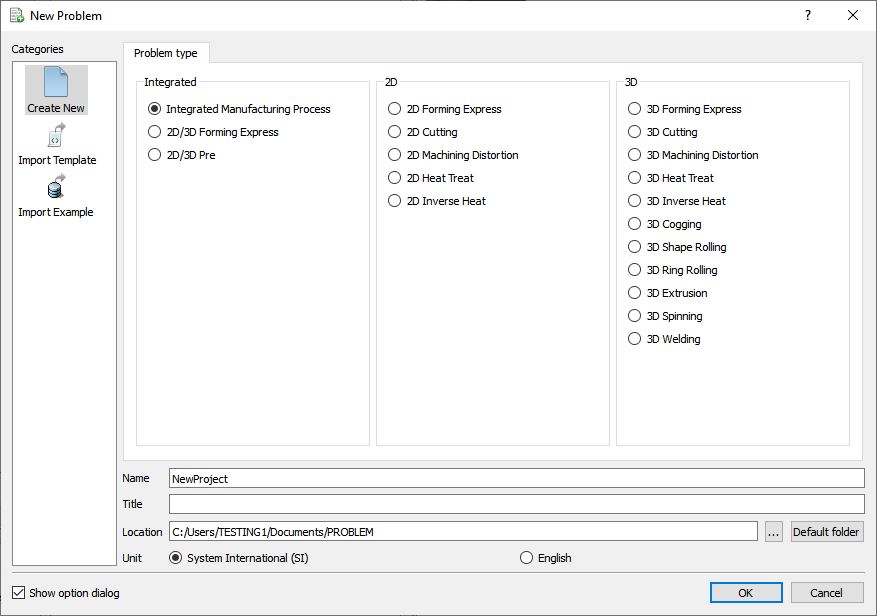
New Problem page
Multiple operation wizard will open with the New Project dialog, at this point user will be prompted to specify a project name (system will create a separate folder with this project name) and title for this session. In this session we will use ‘TubePiercingLab1 ’ as the project name. 3D Spinning operation can also be added in “New Project” dialog or from Explorer. To add 3D Spinning from “New Project” dialog, select 3D Spinning from the operations list and check “First operation “ check box. Click on to continue to open the operation.
If 3D Spinning operation is not added from “New Project” then the operation can be added from the Explorer Operations list. Add the operation by clicking on  button available next to 3D Spinning or user can also add by drag and drop into the Operation Editor (see Fig. 3DTPL1.2.). The tube piercing process is modelled with axis along Y axis hence if the current Screen upward direction is “Z” direction then a pop-up appears suggesting changing the Screen upward direction to “+Y”. In the lab we will use “+Y” axis as Screen upward direction hence click on “YES-Change” in “Change screen upward axis” popup. Now the process settings window will open by default as shown in Fig. 3DTPL1.3.
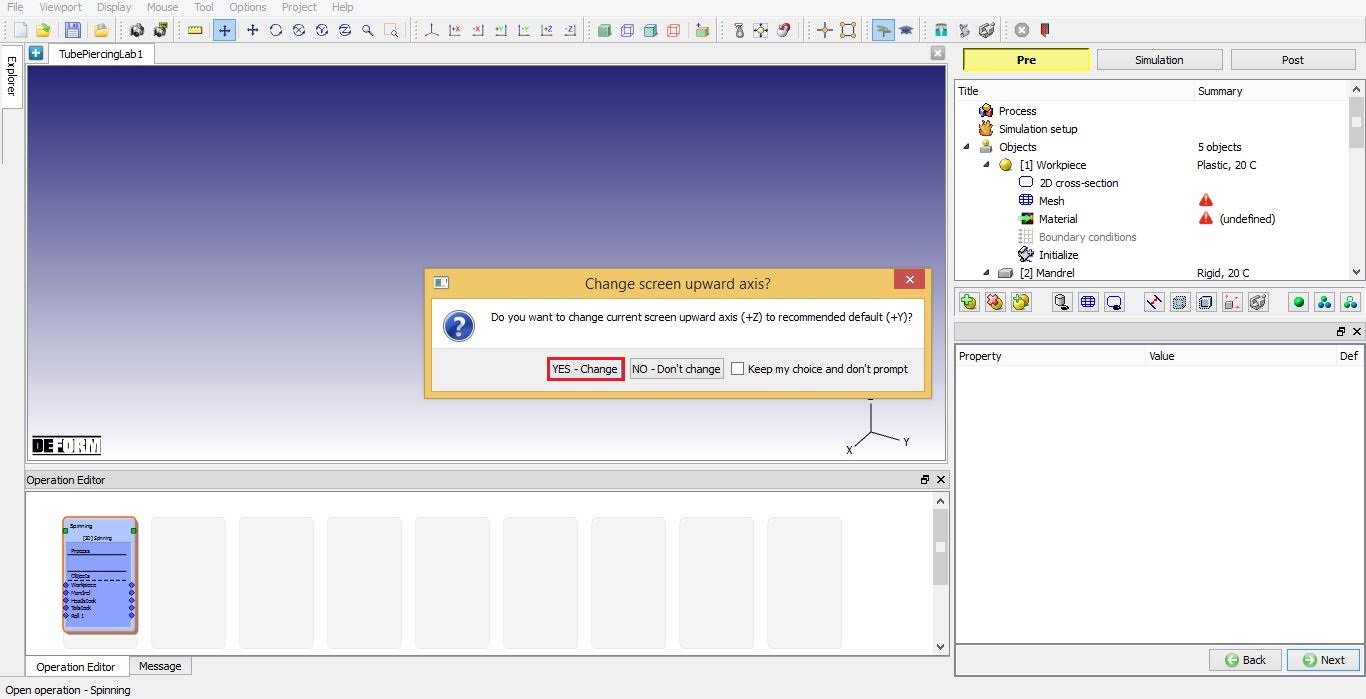
Screen upward direction popup
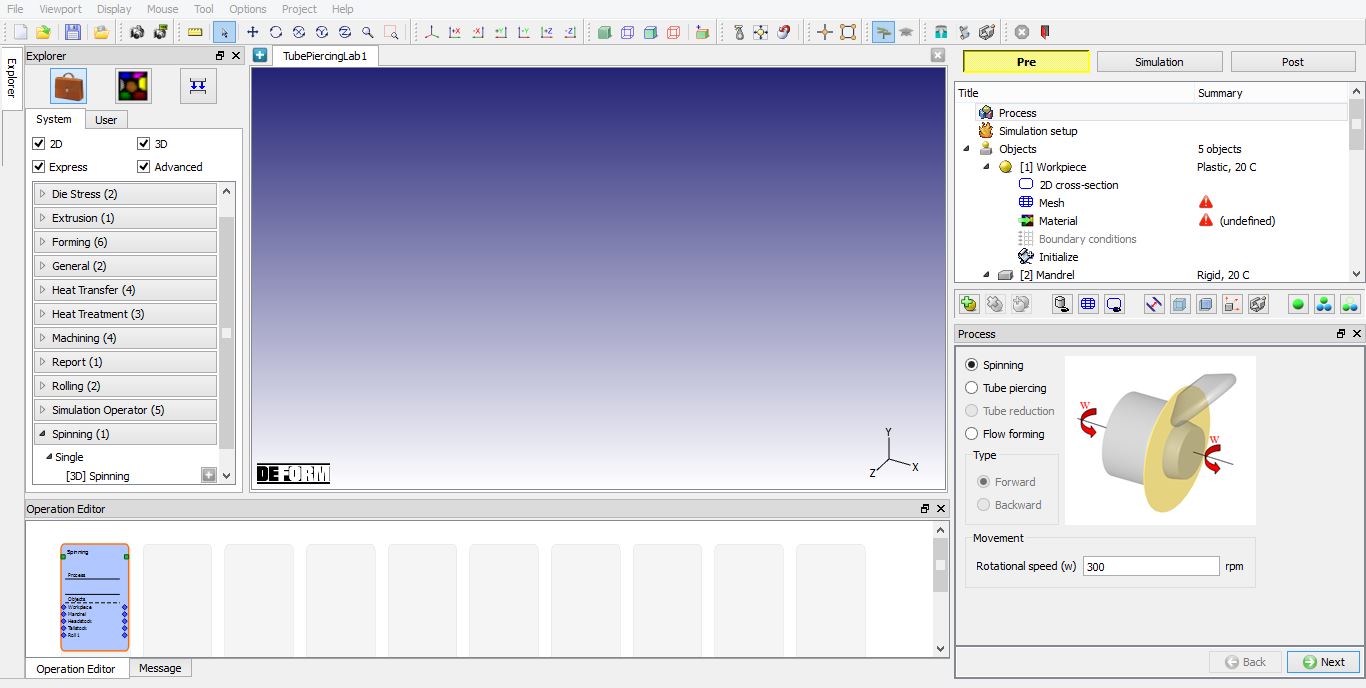
Opened 3D Spinning operation
Process page
In Process page select “Tube piercing “ and define Mandrel Rotational speed as -300rpm as shown in Fig. 3DTPL1.4. This speed is also applied to both tail stock and head stock if used. Click on  to Simulation setup page.
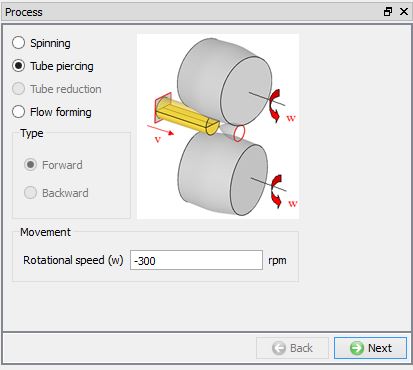
Process page
Simulation setup
In Simulation setup, by default solution method selected is “ALE “ and solver type is “Implicit “ which are only options currently available. Since, we are not interested in temperature profile we will select “Constant temperature (isothermal) “ type Thermal calculation and select symmetrytype for 3D model and set symmetric number as 2 which means half symmetry (See Fig. 3DTPL1.5.). Click on to Objects page.
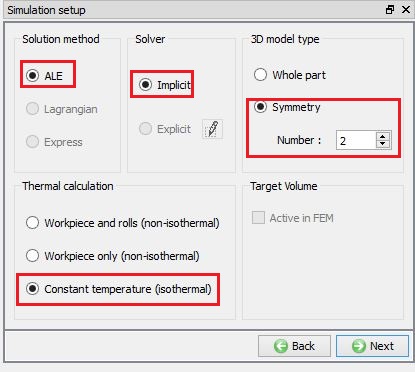
Simulation setup page
Object page
In this Tube piercing lab, we will use Workpiece, Mandrel, Pusher, one Roll and 2 support shoes. In Objects list, by default Workpiece and Mandrel check box will be checked and disabled as these objects are mandatory for this process. Select the Pusher check box as we will be using it. Select “1 Roll + 2 Support shoes ” option under Rolls and Discs since we will be using support shoes to guide workpiece movement, see Fig. 3DTPL1.6. Click on to Workpiece page.
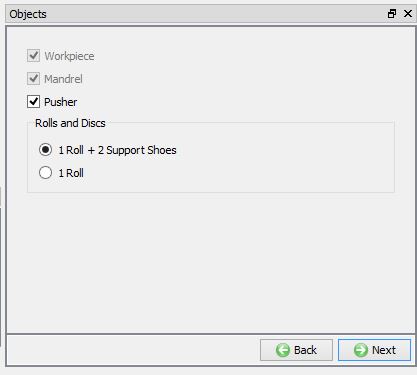
Objects page
Workpiece
In the Workpiece page, keep the object name as Workpiece , define objecttemperature as 1250°C and object type as Plastic as shown in Fig. 3DTPL1.7. Click on to 2D Geometry page.
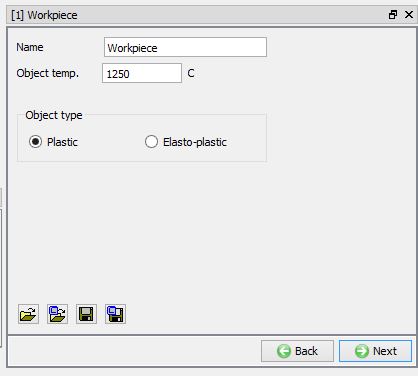
Workpiece page
Workpiece 2D Cross-section page
We will be using the specialized primitive geometry option as shown in Fig. 3DTPL1.8. to create workpiece geometry. Click on  button and define Radius(R) as 100 and Length(L) as 900 in geometry primitive page. Click
  button to create geometry and close the geometry primitive page (See Fig. 3DTPL1.8.). Click on to 3D Geometry page.
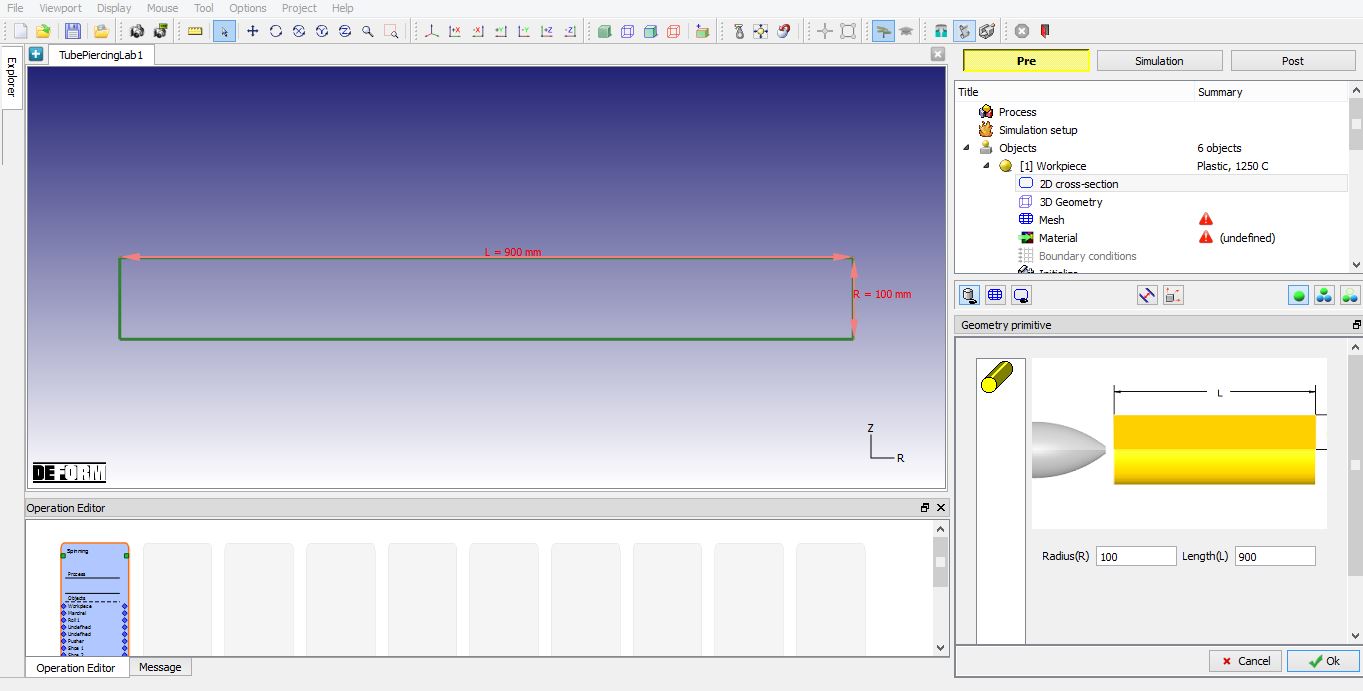
Workpiece geometry primitive page
3D Geometry page
In 3D Geometry page, define Numbers of revolved sectionsas100 and by default the revolve angle will be 180 as we had selected symmetry number as 2. Click on  button to generate 3D geometry.
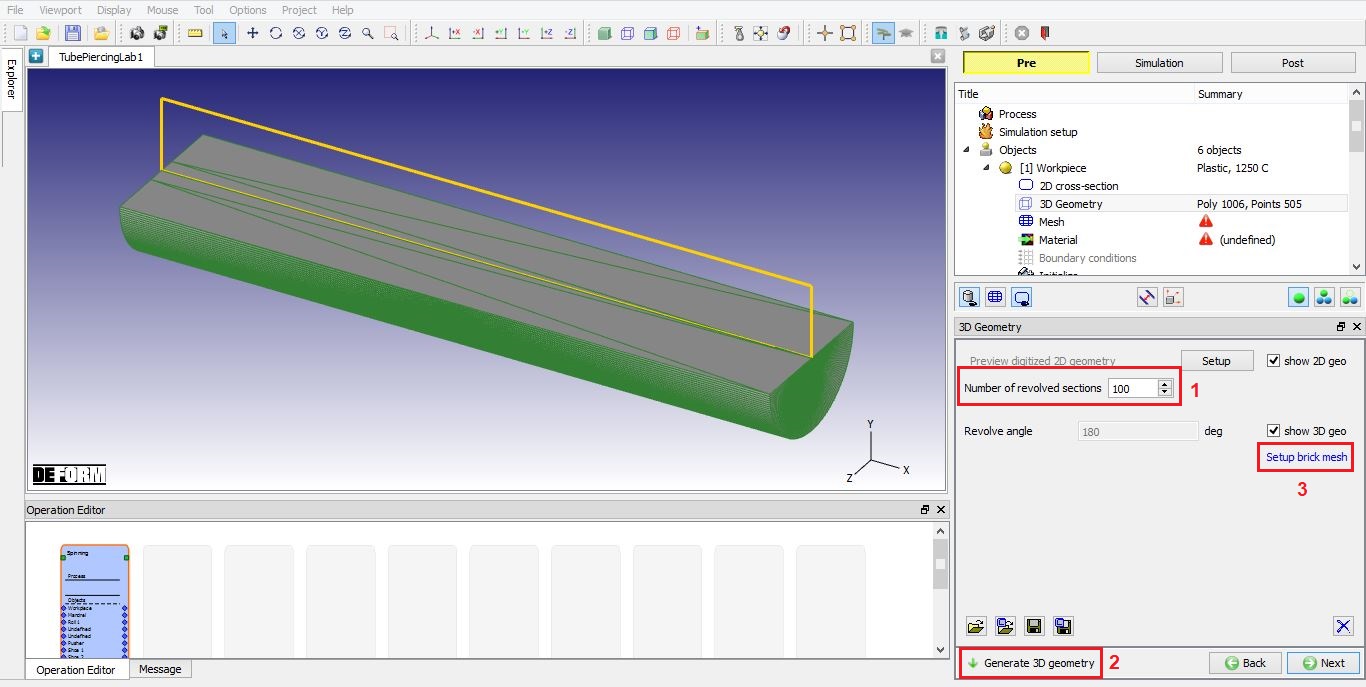
Generate 3D geometry
Tube piercing uses brick mesh hence we need to define brick mesh related settings at geometry level in 3D geometry page.  link is enabled after 3D geometry is generated. Click on this link to go to setup brick mesh page and select Revolve radio button. In revolve we need to select Partial Revolve radio button since the objects is symmetry object and then add Start Surface and End Surface as shown in the Fig. 3DTPL1.10. Click on Wizard button
  to calculate the revolve axis, reference axis, start angle and revolve angle based on selected surfaces. Click to accept the setting and then click on to Mesh page.
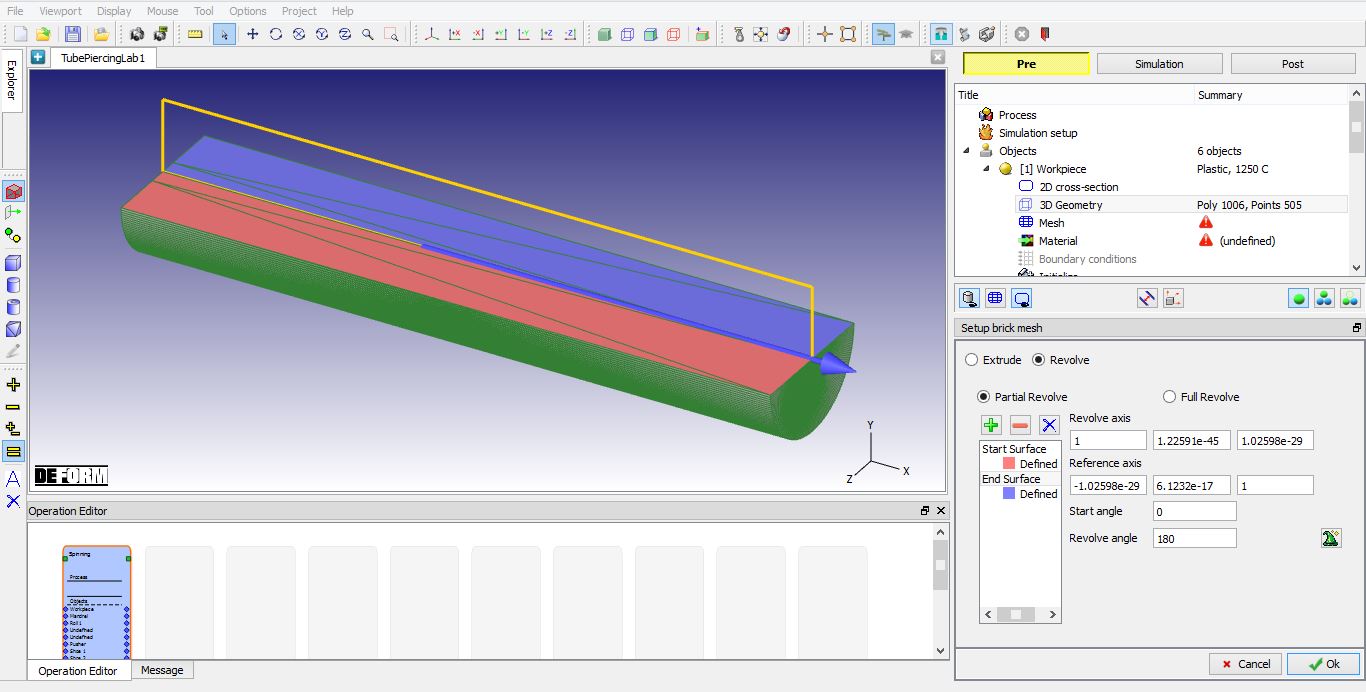
Setup brick mesh page
Workpiece Mesh page
“Brick mesh” is selected by default as mesh type, define Cross-section mesh T**arg et number of elements** as 300. Define 3D meshing parameters Number of revolved sections as 40. We will define finer mesh along the contact region with Angle 15° and Size ratio 4. Click on  button to generate 3D mesh. 3D mesh is generated with 14640 elements and 17958 nodes as shown in Fig. 3DTPL1.11. Click on to material page.
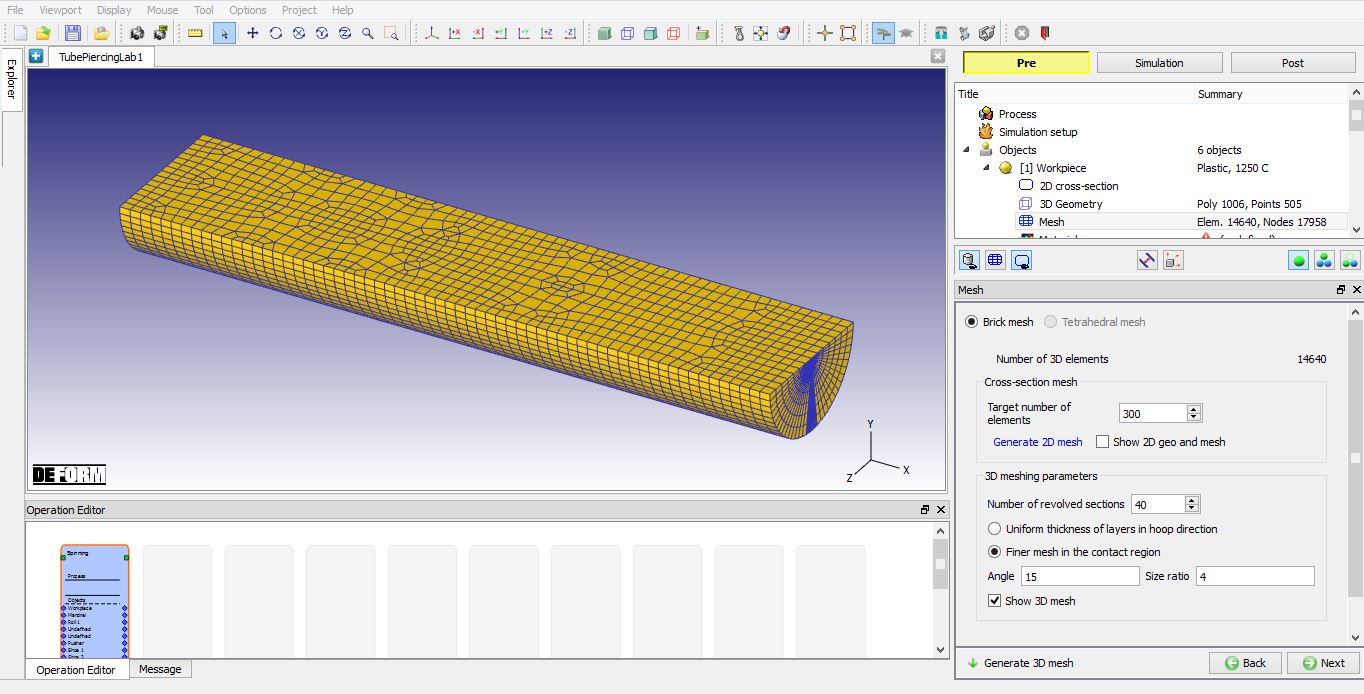
Workpiece mesh page
Material page
In Material page, click on  (import material data from library) icon and load the material AISI 52100[70-2200F(20-1200C)] from material library as shown in Fig. 3DTPL1.12.
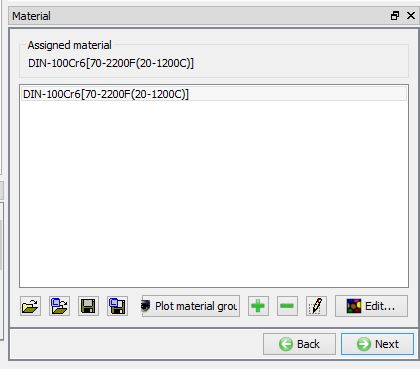
Assigning the workpiece material
Workpiece boundary conditions
In Boundary conditions page, verify default BCC generated for rotational symmetry during mesh generation. Check slave and master nodes, rotational axis and rotational angle, nothing need to be set in this page as all data is obtained by default based on previous settings from geometry and mesh hence click on until Mandrel page.
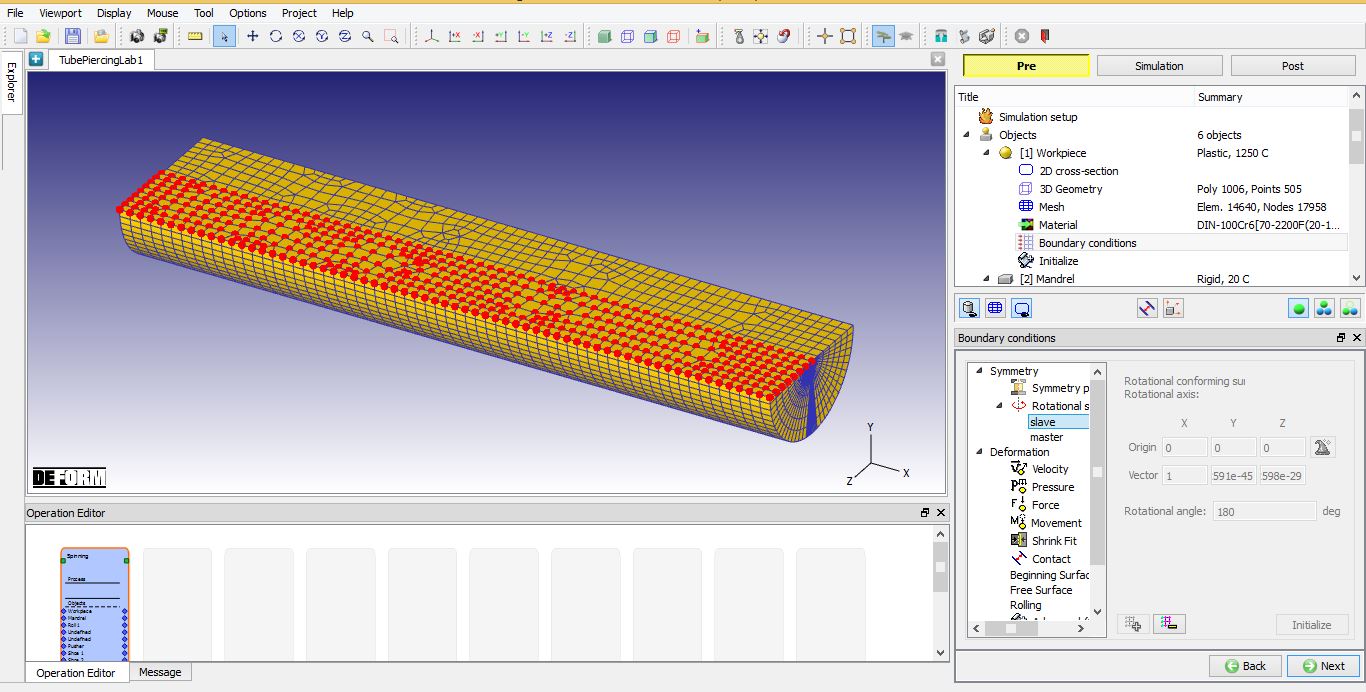
Workpiece boundary conditions page
Mandrel page
In the Mandrel General page, keep the default values for name as Mandrel and temperature as 20 °C. Click on to Geometry 2D cross-section page.
Importing Mandrel 2D Geometry - Cross section
Import 2D geometry “Mandrel_2D.geo ” from “3D/Labs/Spinning” folder. Click on  and then click on Check and correct geometry in the pop-up to verify the geometry. The geometry will be corrected for its orientation, click ok in the message pop-up window and then button to close the geometry verification window. Click on to 3D Geometry page.
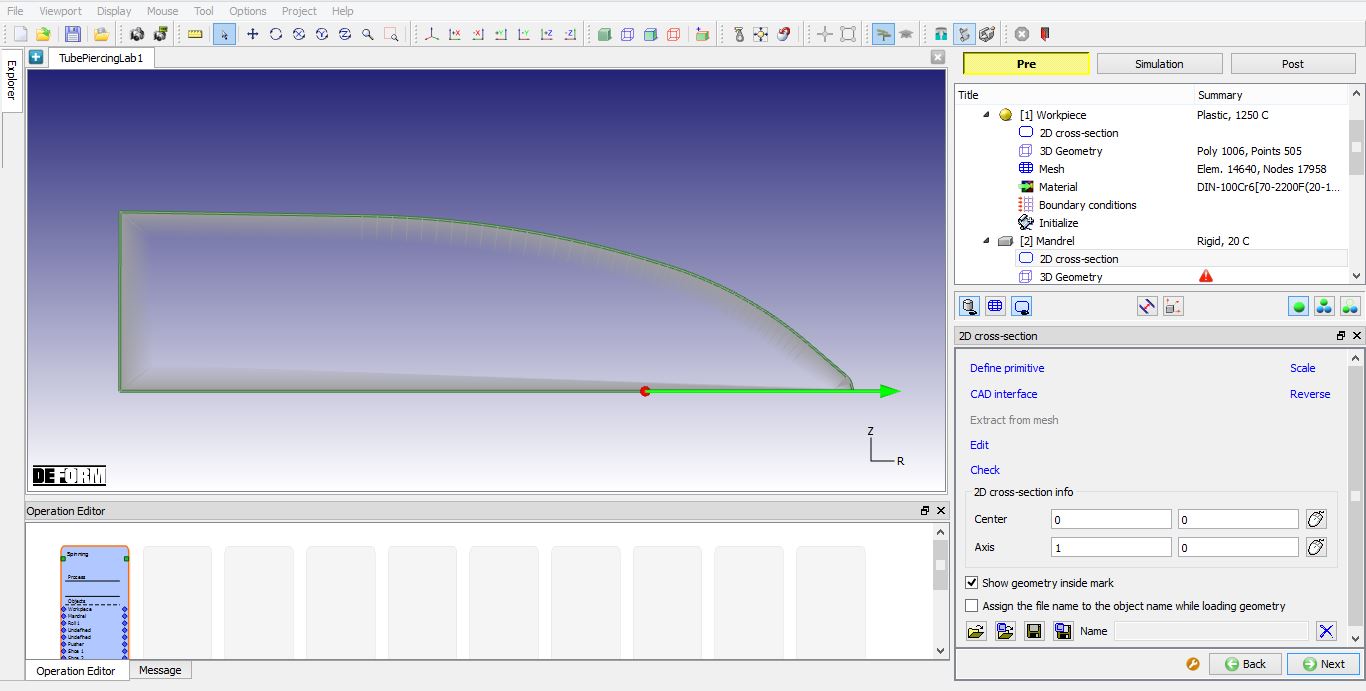
Importing mandrel 2D Cross section
Generate Mandrel 3D Geometry
Using default value of 100 as “Number of revolved sections “ generate 3D geometry by clicking on option (See Fig. 3DTPL1.15.). Click on to Roll 1 page.
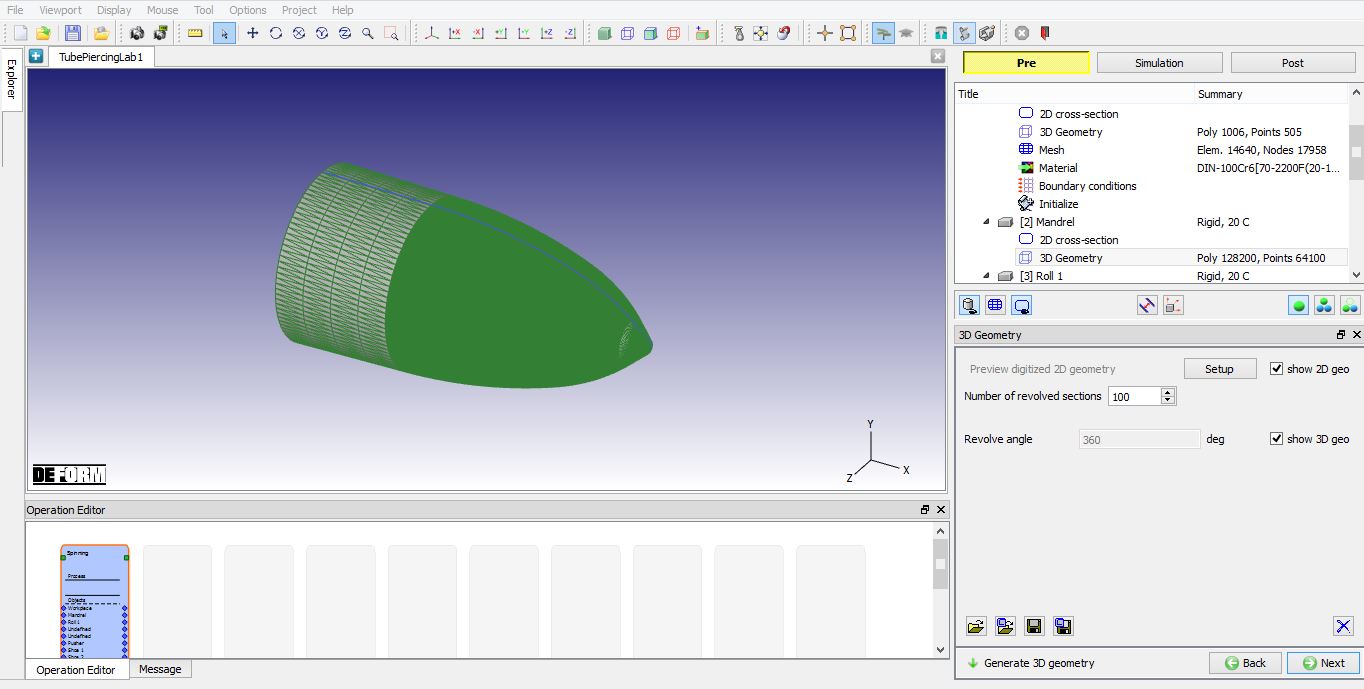
Mandrel 3D geometry page
Roll 1 page
In the Roll 1 General page, keep the default values for name as Roll1 and temperature as 20°C. Click on to Geometry 2D cross-section page.
Importing roll 2D cross section page
Import 2D geometry “Roll 1_2D.geo ” from the “3D/Labs/Spinning “ folder. Click on and then click on  in the pop-up to verify the geometry. The geometry will be corrected for its orientation, click ok in the message pop-up window and then button to close the geometry verification window. Click on to 3D Geometry page.
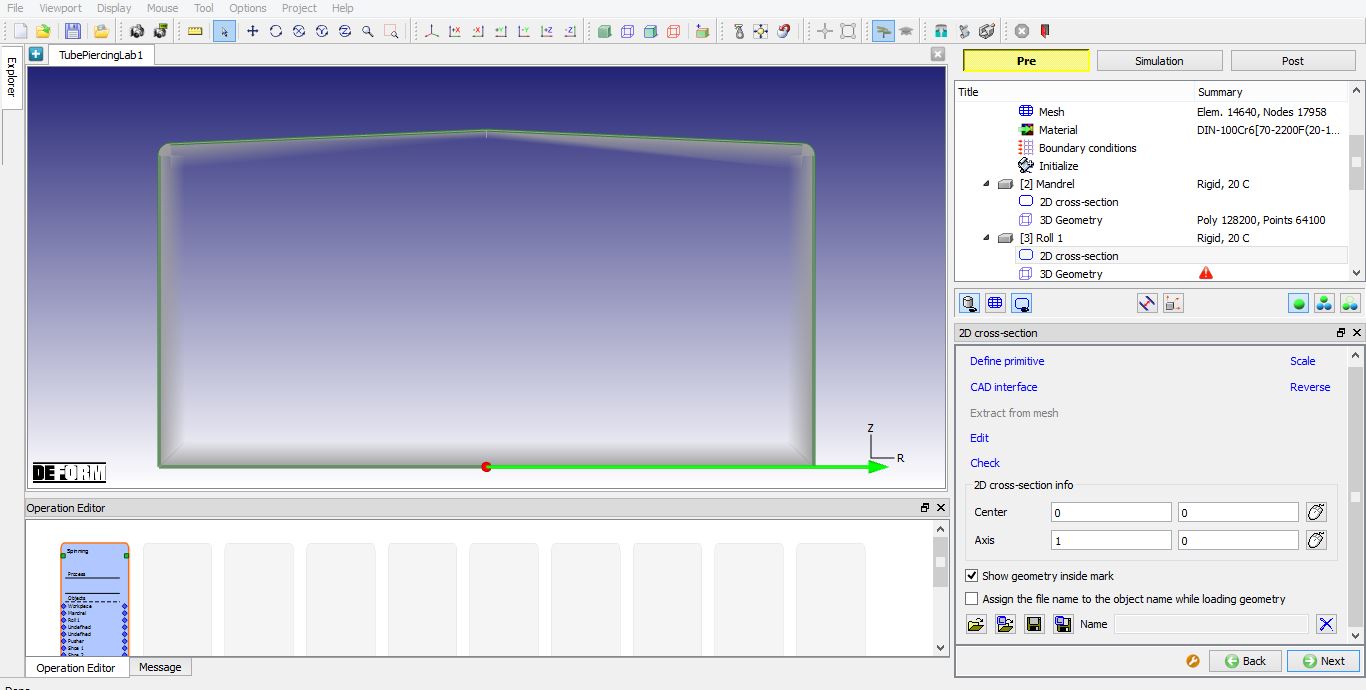
Importing roll 1 2D Cross section
Generate Mandrel 3D Geometry
Using default value of 100 as “Number of revolved sections “ generate 3D geometry by clicking on option (See Fig. 3DTPL1.17.). Click on to Roll 1 orientation page.
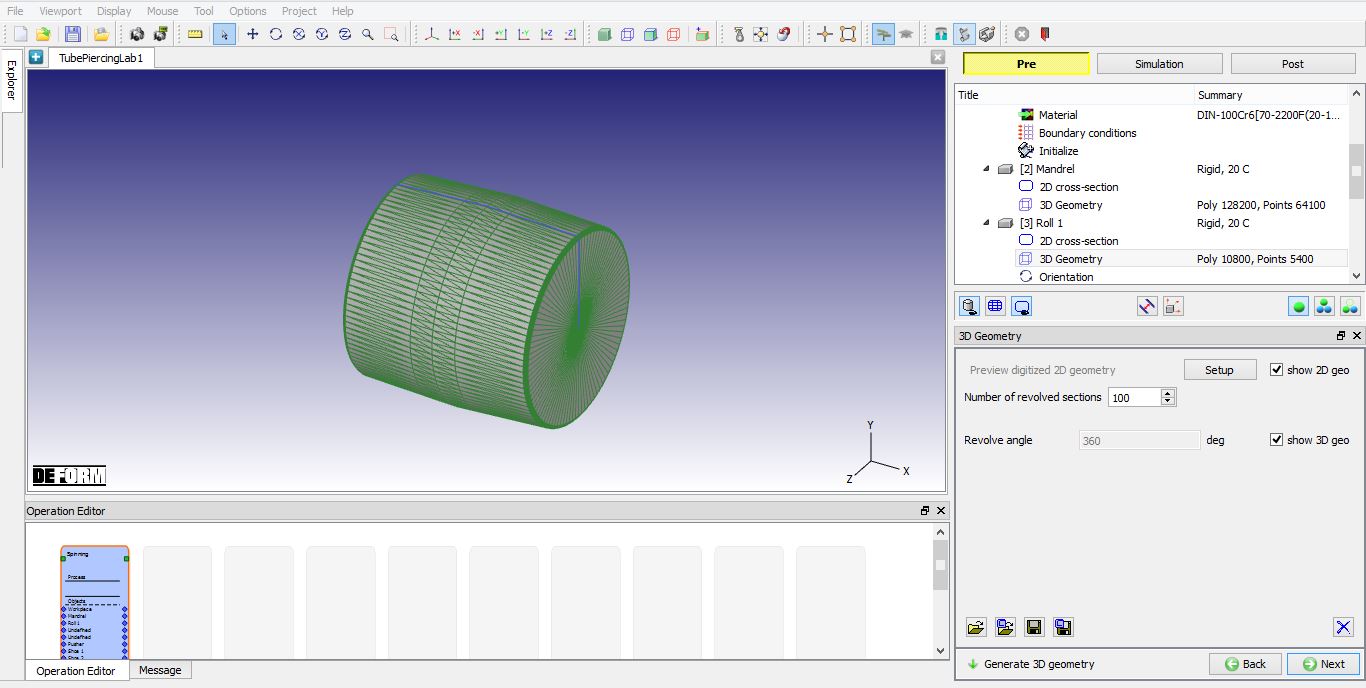
Roll 1 3D geometry page
Roll 1 Orientation page
In Orientation page, set Roller Axis Angle  to 6 deg and Roller Axis Angle
  to 0deg as shown in the Fig. 3DTPL1.18. The roller rotational axis and direction is shown in display area as shown in the Fig. 3DTPL1.19. Positioning based on these two angles will not be applied in this orientation page but will be applied during “Automatic Positioning” in “Positioning” page. Click on to pusher page.
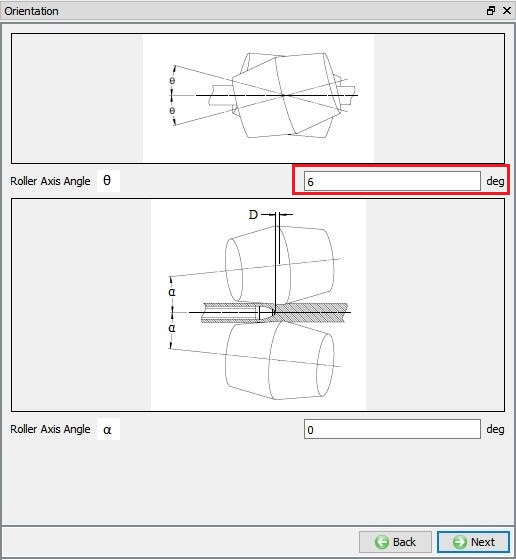
Roll 1 orientation page
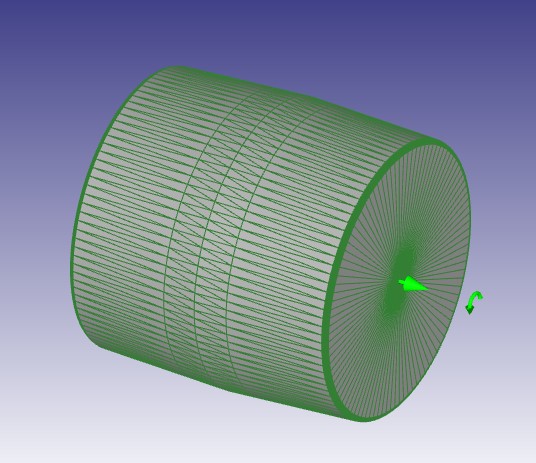
Roll 1 orientation axis
Pusher page
In the Pusher General page keep the default values for name as Pusher and temperature as 20 °C. Click on to 3D Geometry page.
Pusher 3D geometry page
When entering the pusher 3D Geometry page, the pusher is generated automatically based on the workpiece geometry. The Width is set as 240 mm which is calculated based on the existing workpiece size. If required, user can modify the width value and click on button. Click on to pusher movement page.
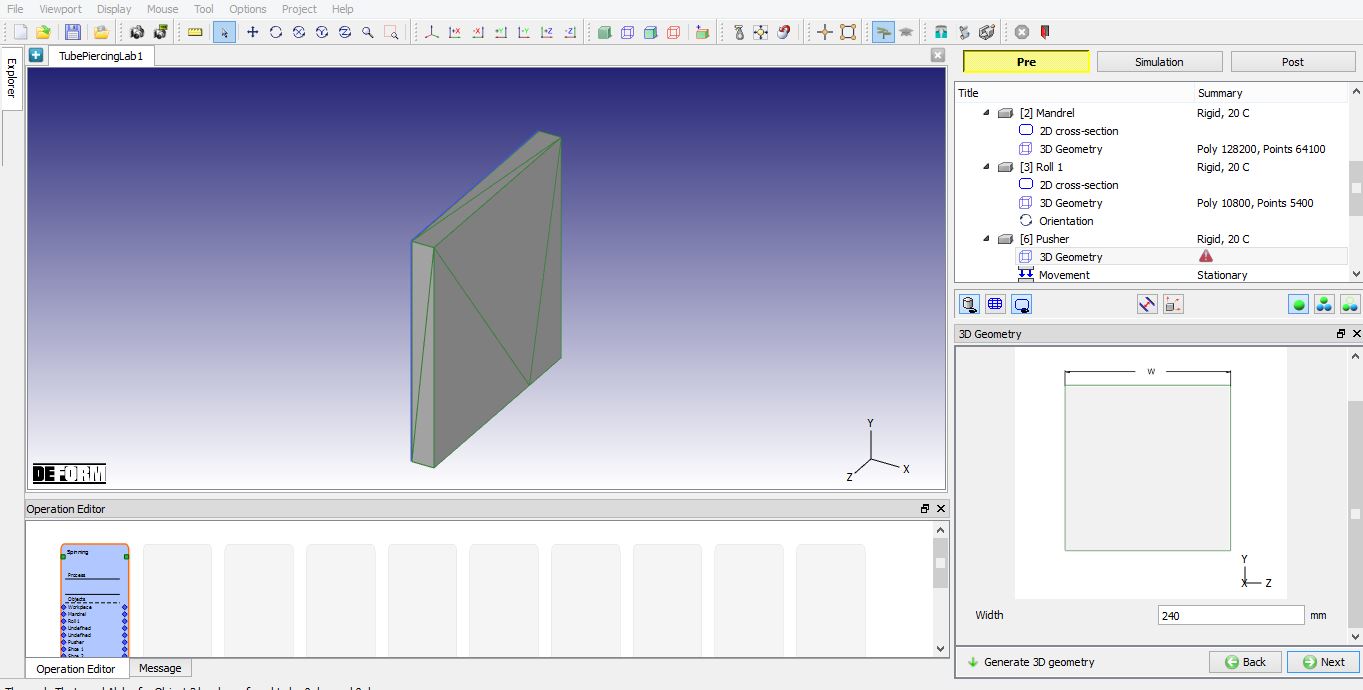
Pusher 3D geometry page
Pusher movement page
In this setup select movement type as Speed. Select Function of time from drop box to define the speed as function of time as shown in the Fig. 3DTPL1.21. Define the speed movement control as shown in the Fig. 3DTPL1.22. and click on  then click button. Click on to Shoe 1 page.
For constant speed, wizard button can be used to estimate the recommended speed for pusher. Speed is estimated based on roll rotational velocity and orientation angles. The value we get here can be used as a reference, however, in the tube piercing process we usually set the speed as function of time so that the pusher is stopped after the bar(workpiece) is fully engaged with plug(mandrel) and before it hits into roll.
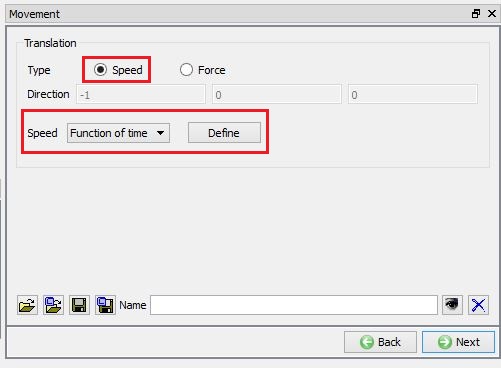
Pusher movement page
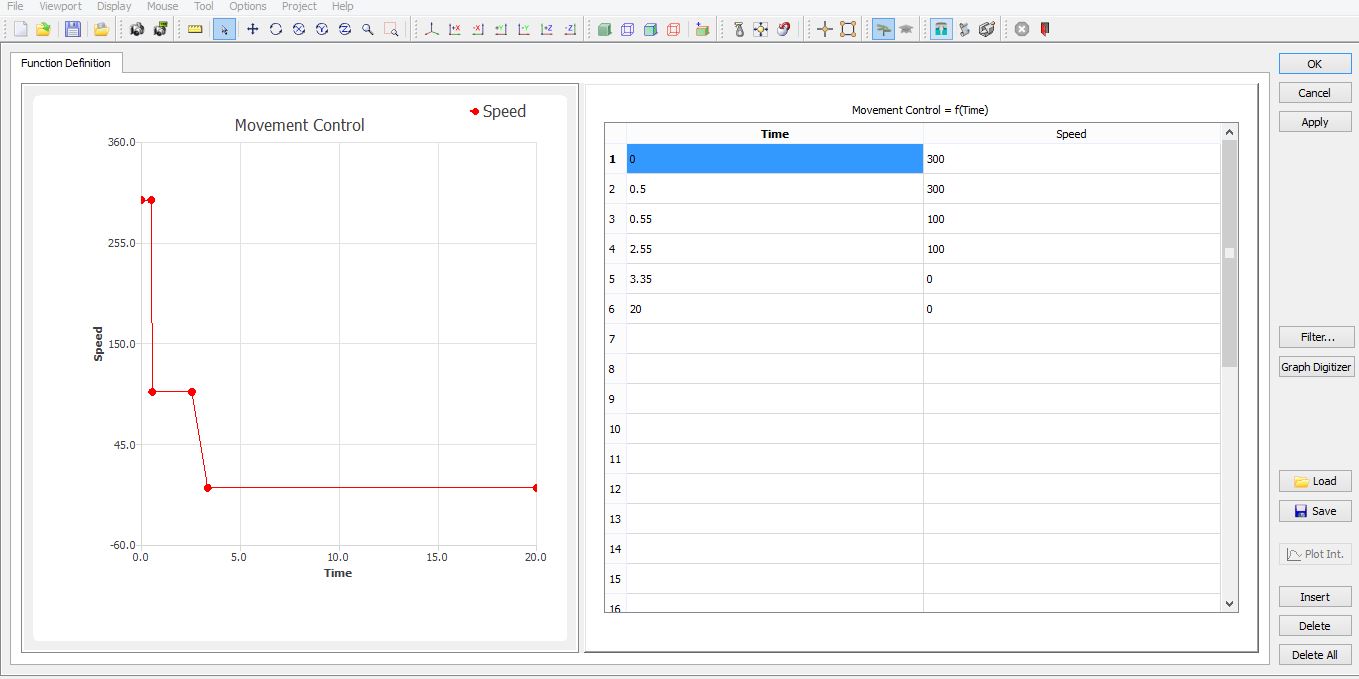
Function of time definition
Shoe 1 page
In the Shoe 1 general page, keep the default values for name as Shoe 1 and temperature as 20°C. Only one shoe object is shown in the object tree, in Tube Piercing process the left and right shoes are considered to be having same geometry. Click on to 3D Geometry page.
Shoe 1 3D geometry page
In 3D geometry page we have specialized 2D cross-section primitive to define shoe geometry from which 3D geometry is generated by extruding. Define Radius as 102mm , Height as 120mm , Width as 50mm , Extrusion length as 500 and Distance to origin as 101.9 and then click on button (See Fig. 3DTPL1.23.). Both left and right shoes are generated after clicking on the button. Click on to controls page.
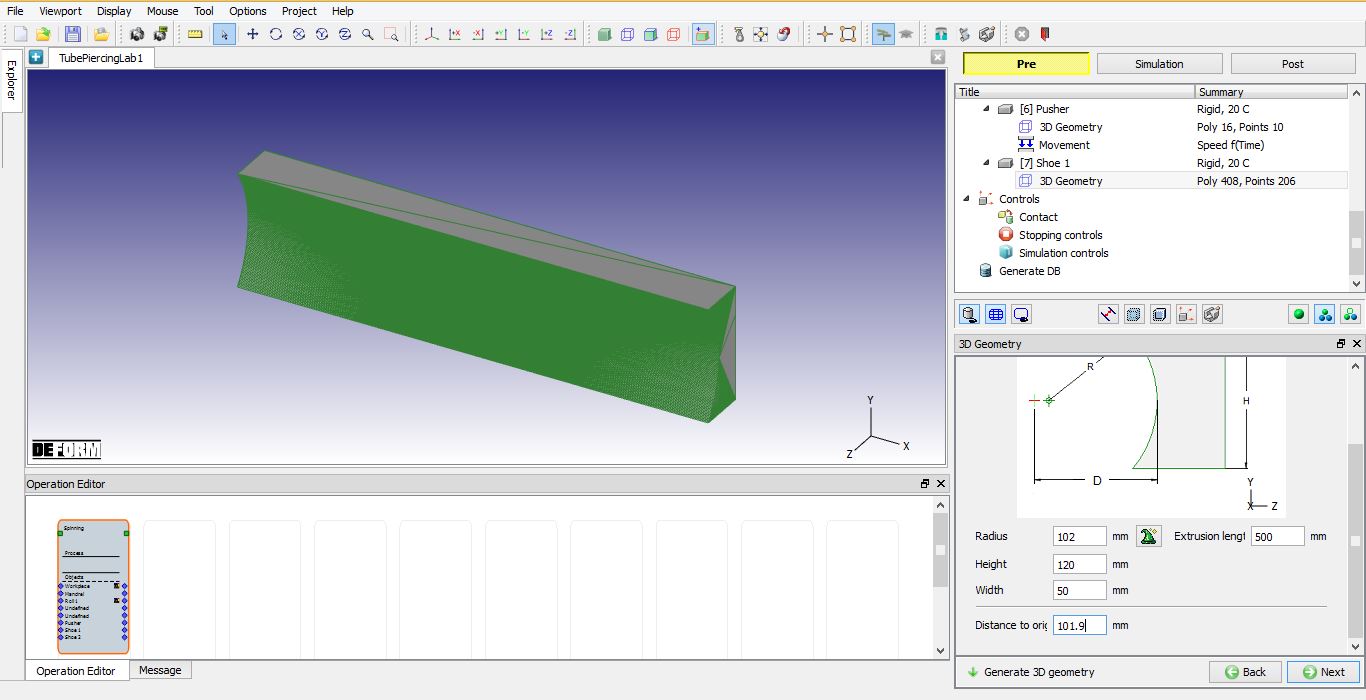
Shoe 1 3D geometry page
Controls page
In Controls page, click on Automatic Positioning link as shown in the Fig. 3DTPL1.24. In Auto positioning page, define H to 90 mm and D to 60 mm and click on  button as shown in the Fig. 3DTPL1.25. Following actions are executed during automatic positioning,
-
Roll
-
Rotational positioning based on two orientation angles
-
Offset positioning uses parameter H along the y direction
-
Mandrel
-
Offset positioning uses parameter D along the x direction
-
Workpiece
-
Interference positioning with roll
-
Pusher
-
Interference positioning with workpiece
Click to close the auto positioning page and Click on to contact page.
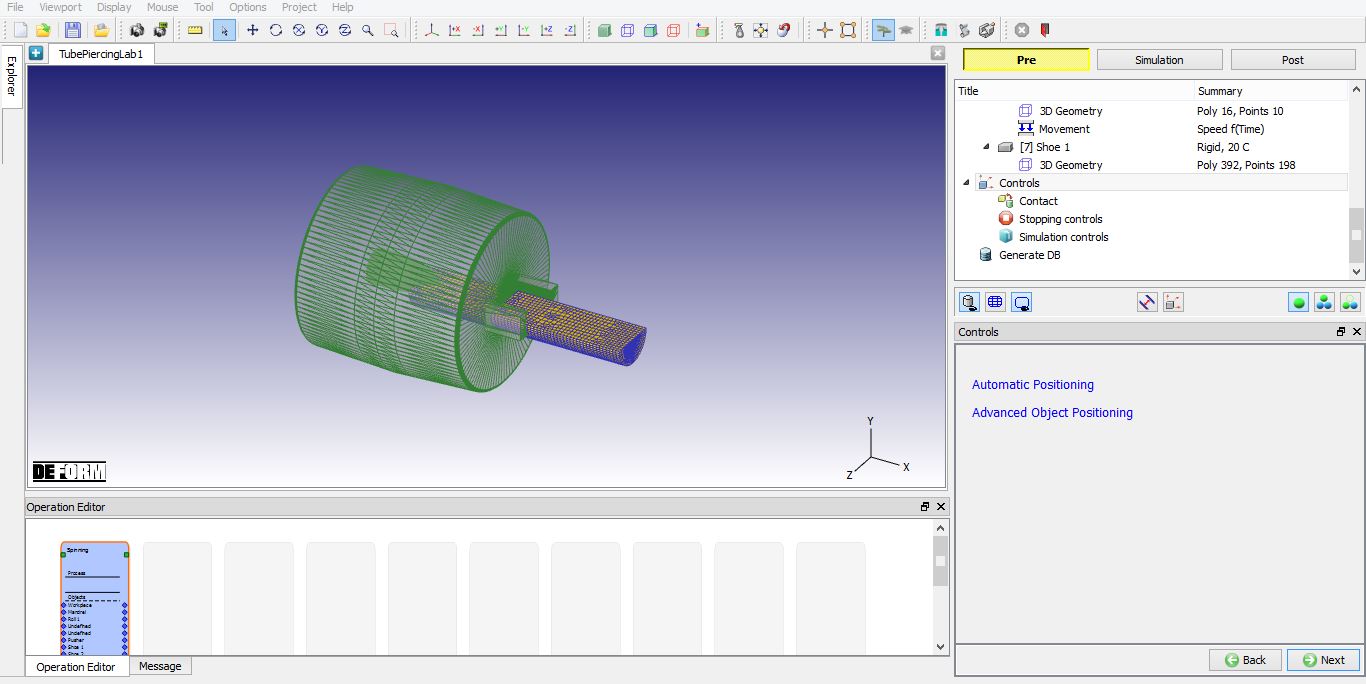
Controls page
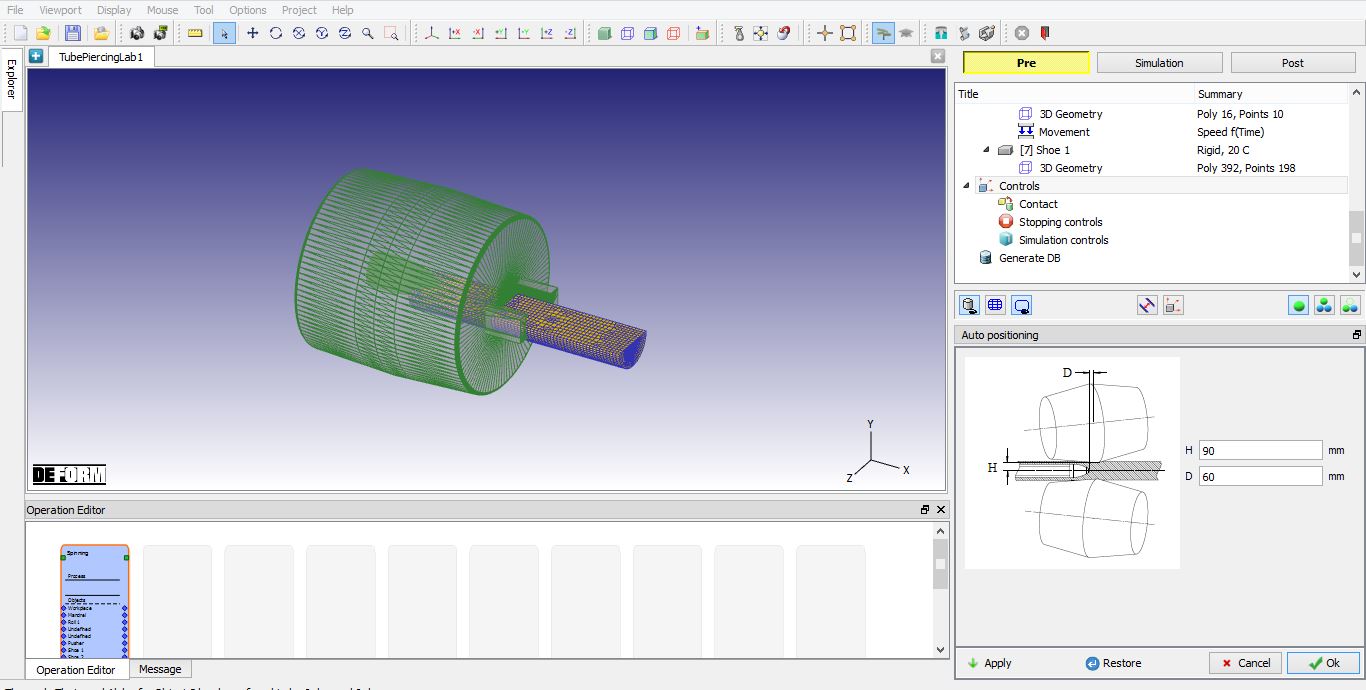
Auto positioning page
Contact page
In Contact page, select “User “ type and then click on  button, we will observe default relations being added in table. Now define Shear friction value for each relation as shown in the Fig. 3DTPL1.26. Click on button to calculate default contact tolerance value and generate contact by clicking on
  button. Click to Stopping controls page.
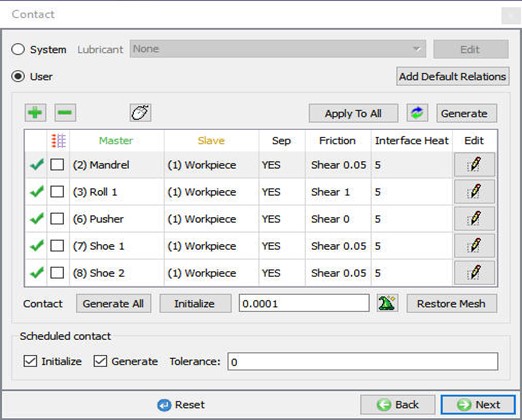
Contact page
Stopping controls page
Define ProcessDuration as 2.7 sec as shown in Fig. 3DTPL1.27. Click to Simulation controls page.
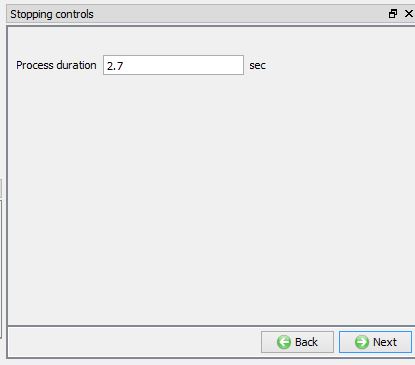
Stopping controls page
Simulation controls page
Enter Number of steps as 20000 , Stepincrementtosaveas100 and Time per step as 0.0005 sec in Simulation controls page as shown in Fig. 3DTPL1.28. Click to Generate DB page.
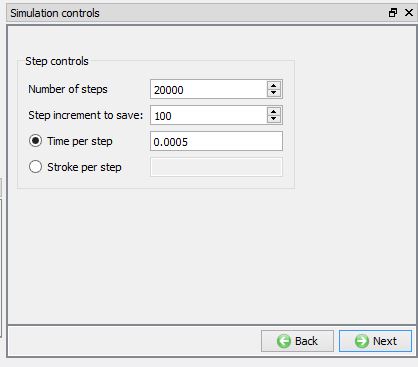
Simulation controls page
Generate Database
In Generate DB page, click on the  button to generate the database. Observe the messages in Message tab informing database generation status or if they are any errors.
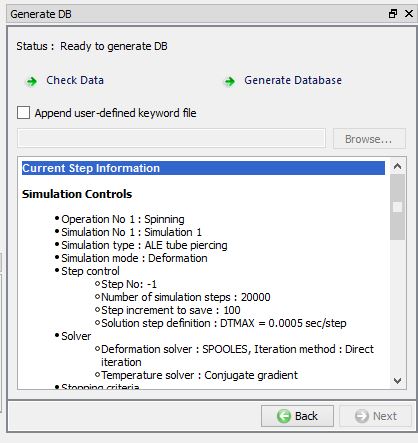
Generate DB Page
Running Simulation
Once the database has been generated, switch to the Simulation mode by selecting the  button above the object tree. Click on the
  action label to open the Run Options dialog as shown in Fig. 3DTPL1.30. Use the default Continue Run option to select “Continue from the last step ” option and then select the Simulation mode as Interactive and click on
  button to run the simulation.
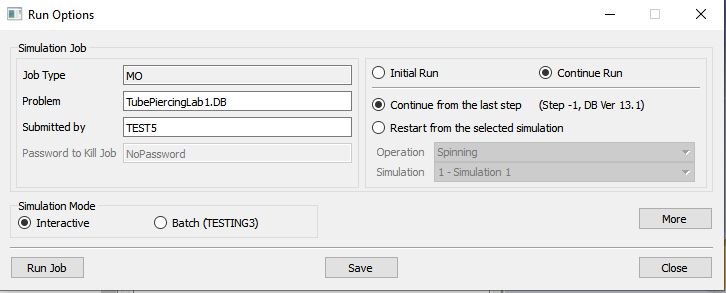
Run Simulation Window
Monitor the progress of the simulation by looking at the Simulation Message and Simulation Log tab, make sure that the  option is checked. User can view the Tube piercing process as the simulation proceeds to the specified stopping criteria from Simulation graphics.
Post processing
When the simulation is completed, review the results by switching to Post mode using the  button above the Simulation tool bar.
Play through the steps of the simulation and look how the Workpiece part is formed during Tube piercing process.
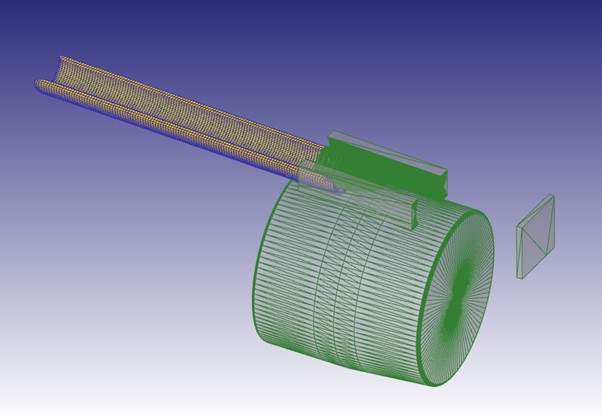
Tube piercing post processor output