2D HT Lab2 . Modeling of Carburization of a Gear Tooth
2.1. Opening Project file
2.2. Adding operation
2.3. Setting Simulation Controls
2.4. Setting Boundary Conditions
2.5. Generating a Database
2.6. Running a Simulation
2.7. Post-Processing the Results
Opening Project File
The DEFORM GUI MAIN window should already be open. With the Gear_Blank.moproj file highlighted in the file list, click on  as shown in Fig. 2DHTML2.1. Integrated Manufacturing Proc. will open.
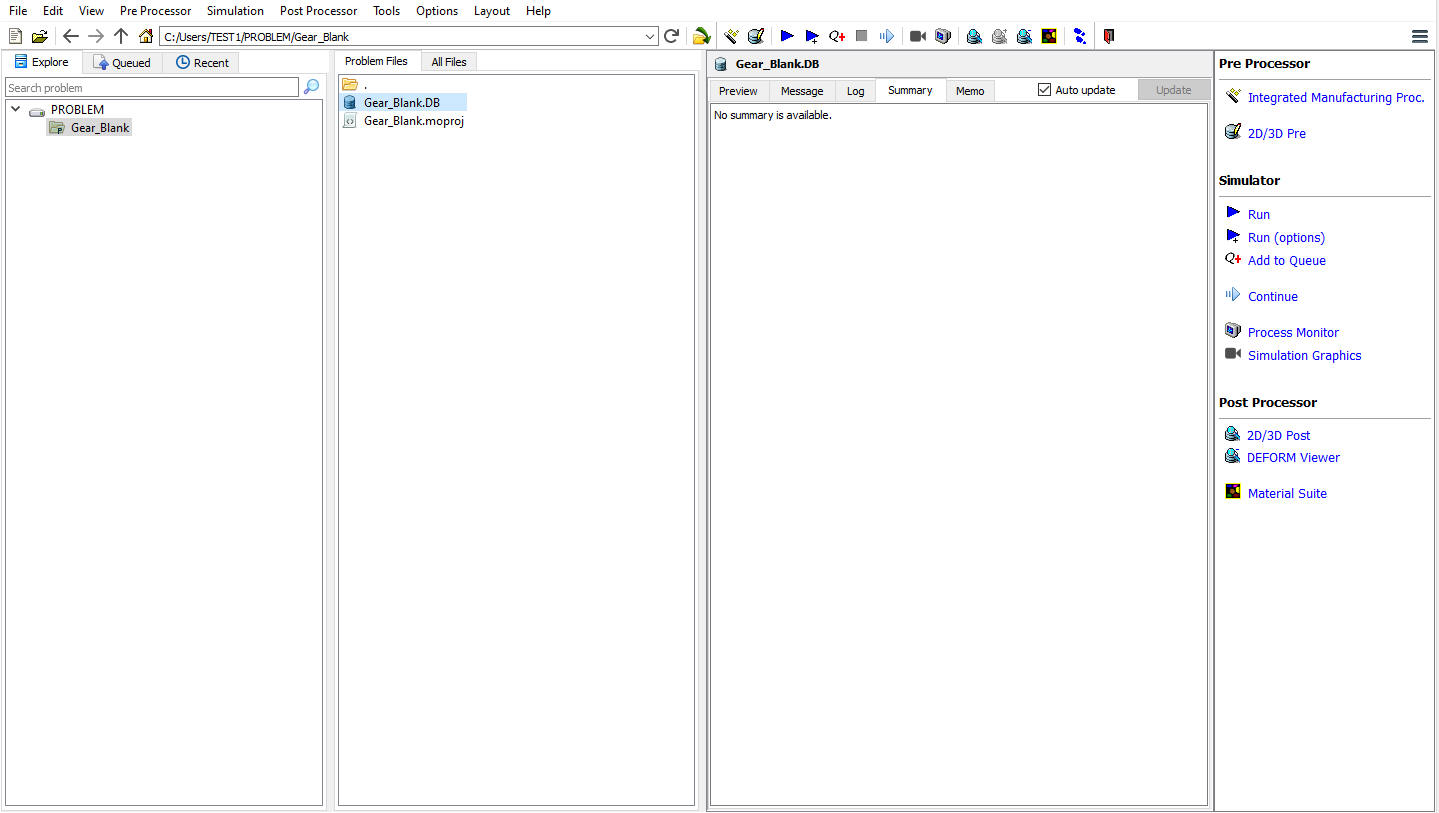
DEFORM GUI Main Window
Adding operation
Add 2D Forming operation from Operations list in Explorer. Operation can be added by clicking on  button next to 2DForming operation (see Fig. 2DHTML2.2.) or user can also add the operation by dragging and dropping the operation into Operation Editor region.
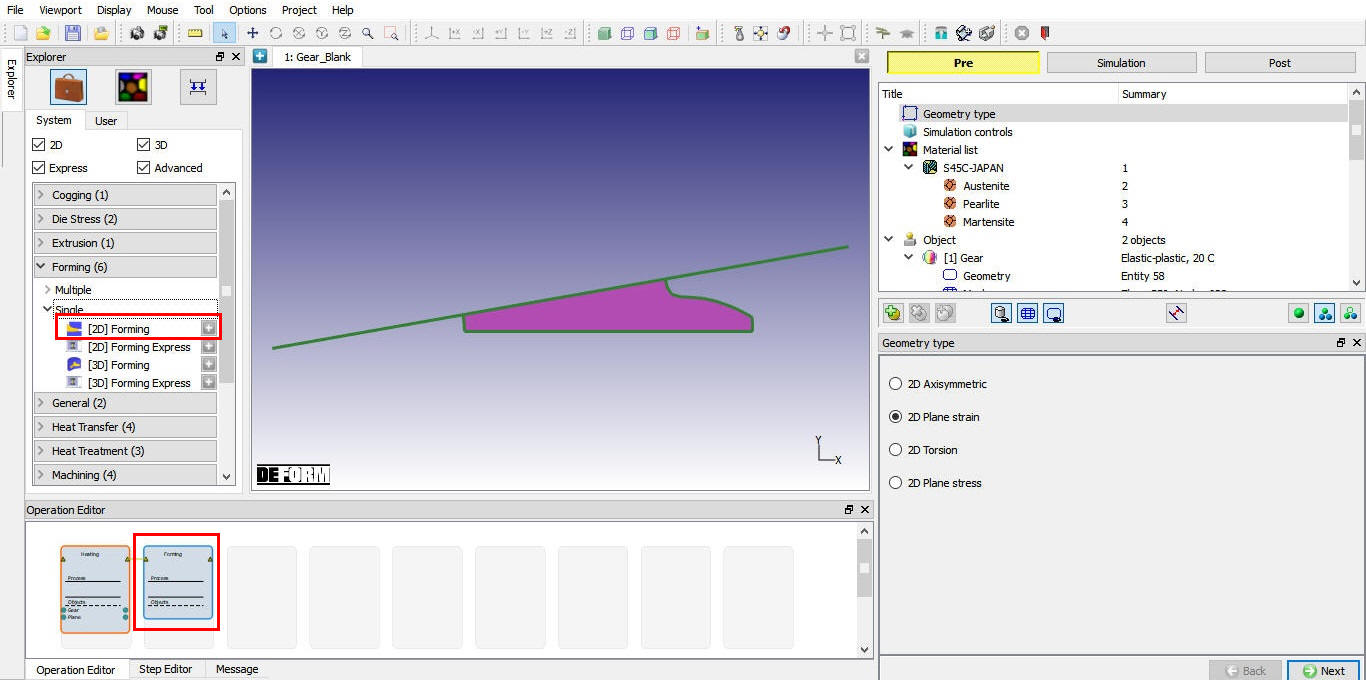
Adding 2D Forming operation into Operation Editor
Select 2nd operation from Operation editor, Setup type popup will appear, click on  button. (See Fig. 2DHTML2.3.) Click on
  .
.
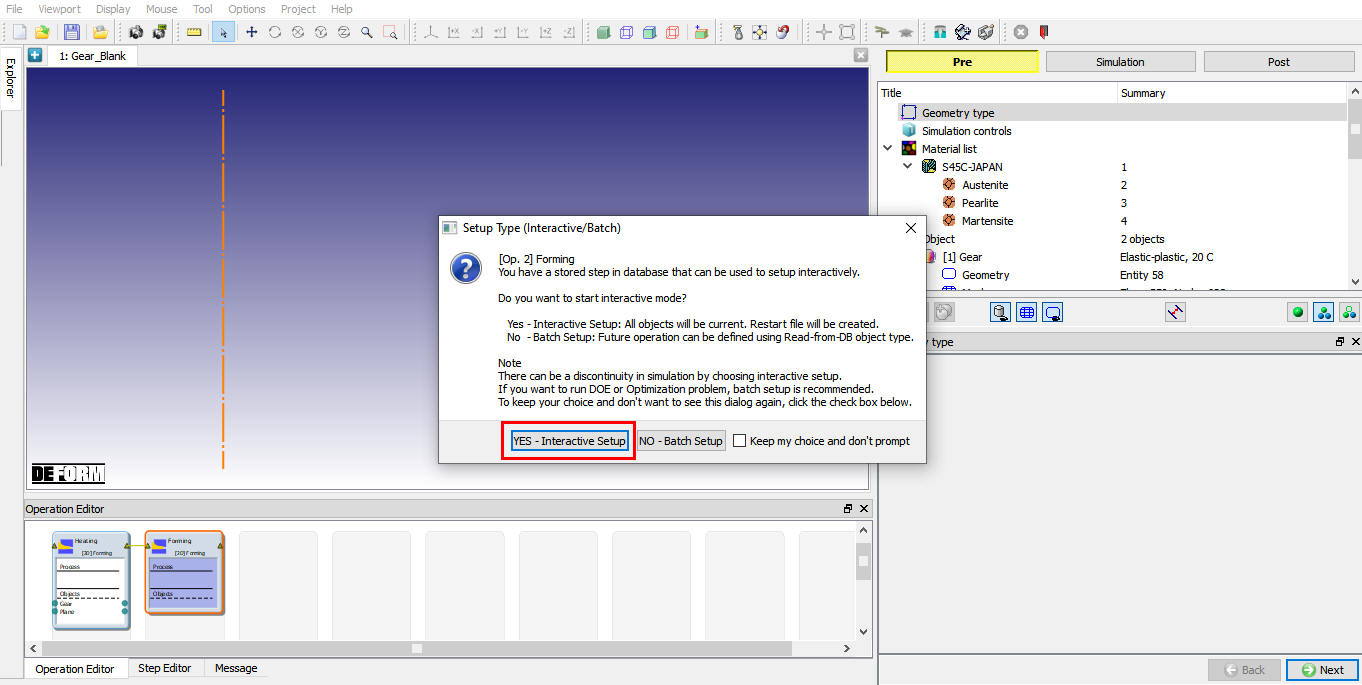
Setup type popup window
Setting Simulation Controls
Select Main tab, Change the OperationName to Carburization. Turn on Diffusionmodule and turnoff the Deformation module. (See Fig. 2DHTML2.4.)
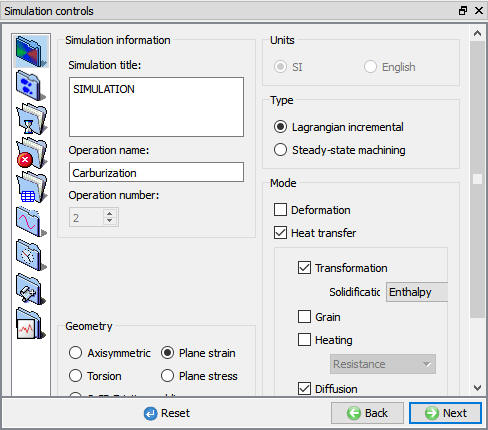
Simulation Controls Main tab in expert mode
Select StepIncrement tab, Set ConstantTimeIncrement to 10 sec.(See Fig. 2DHTML2.5.)
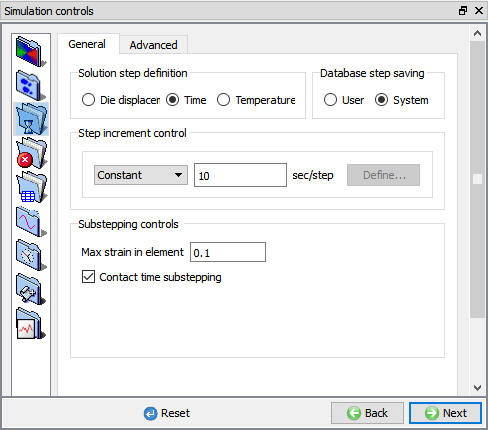
Simulation controls Step increment tab in expert mode
Select StoppingControls tab, and set ProcessDuration to 6000 seconds. (See Fig. 2DHTML2.6.)
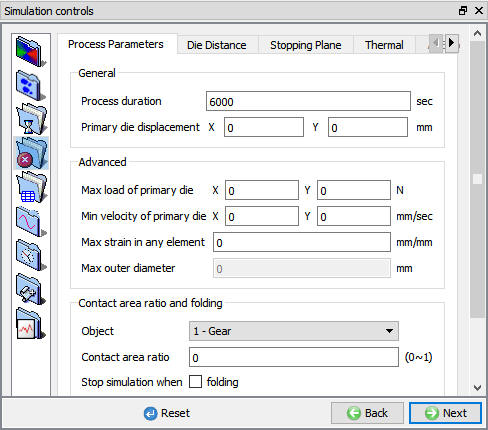
Stopping control tab in Expert mode
Under ProcessConditions /Diffusion , set the value of the reaction rate coefficient to 0.0001 mm/s and the environmental atomcontent should be set to 1.69 as shown in Fig. 2DHTML2.7. Click on until Workpiece Boundary conditions page.
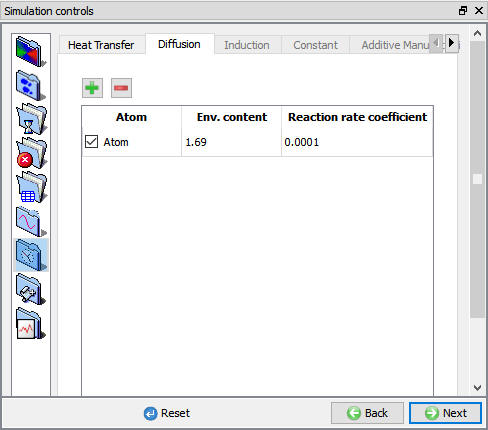
Process Conditions tab in Expert mode
Setting Boundary Conditions
At this point the user needs to define the boundary over which the carbon-bearing atmosphere is exposed to the workpiece. In this, the entire surface, both the outer surface and the bore surface, will be exposed to a carbon-bearing environment.
Click on Diffusion with the Environment. Select and assign boundary condition for both the bore of the gear and the outer surface of the gear as shown in Fig. 2DHTML2.8. Click on till Generate DB page
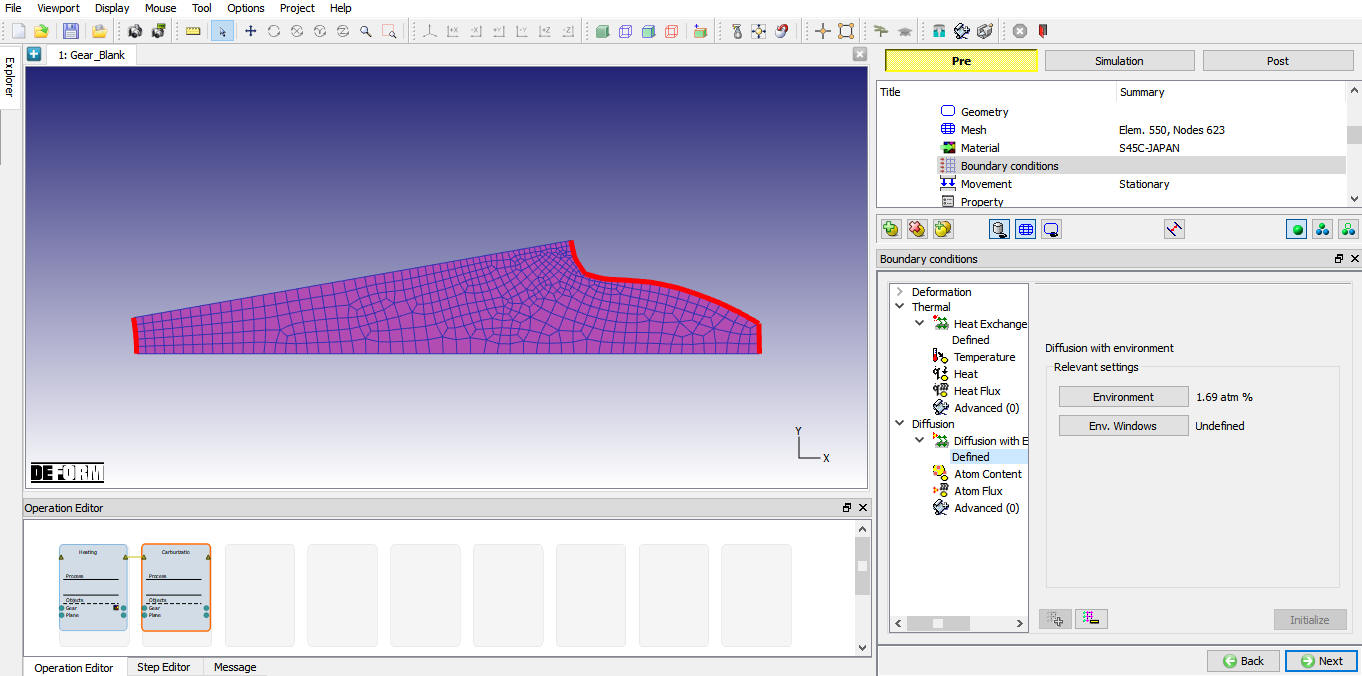
Gear tooth section with diffusion with environment boundary conditions
Generating a Database
In Generate DB page, click the  button to have the program check to see if anything was missed in the problem setup. During the checking process, messages in the red color signify data that needs to be fixed before a simulation can be run (such as when you forget to define any material data).If there are no errors shown, then the database can be generated.
Click on  button to generate the database (see Fig. 2DHTML2.9.). When the program is done writing the database, switch to
  tab to run simulation.
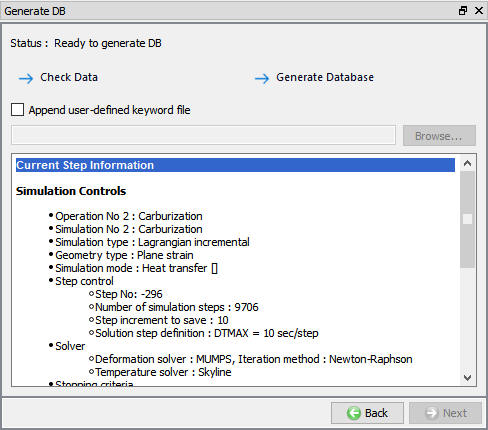
Generate DB window
Running a Simulation
Click on the  action label to open the Run Options dialog. Use the default Continue Run option to select “Continue from the last step ” option and then select the Simulation mode as Interactive and click on
  button to run the simulation.
When the simulation is finished without any issues, the following message will be added to the end of the Message file as shown in Fig. 2DHTML2.10.
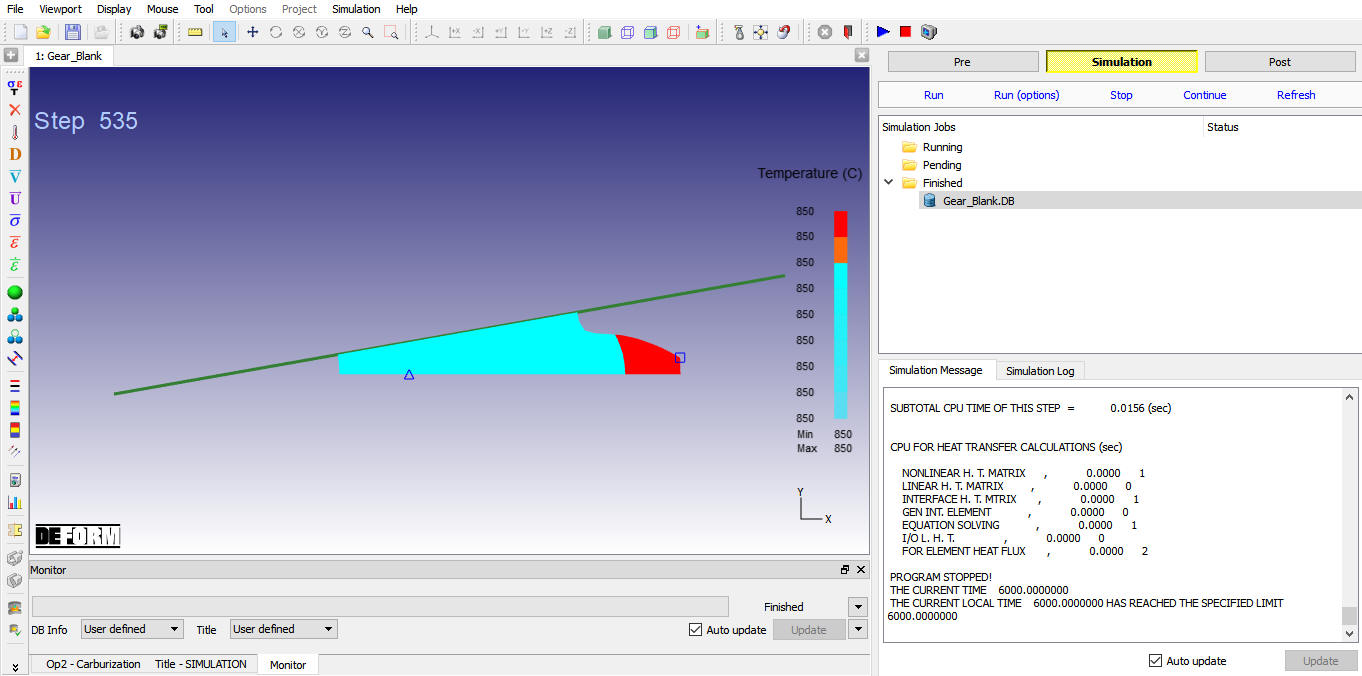
Simulation Message tab
Post-Processing the Results
After simulation has been completed, switch to  tab to view results, MO post processor will open.
The key state variable in this simulation is the Dominant Atom. Go to the last step of the database. Click the State Variables  button to open the state variable dialog. Select the variable Dominant Atom under Diffusion and plot the variable as a shaded contour. Click on
  (see Fig. 2DHTML2.11.). The user should see the variable having an initial uniform value of 0.14. The value increases at the free boundaries, which indicates that the carbon is absorbed and diffused into the gear tooth.
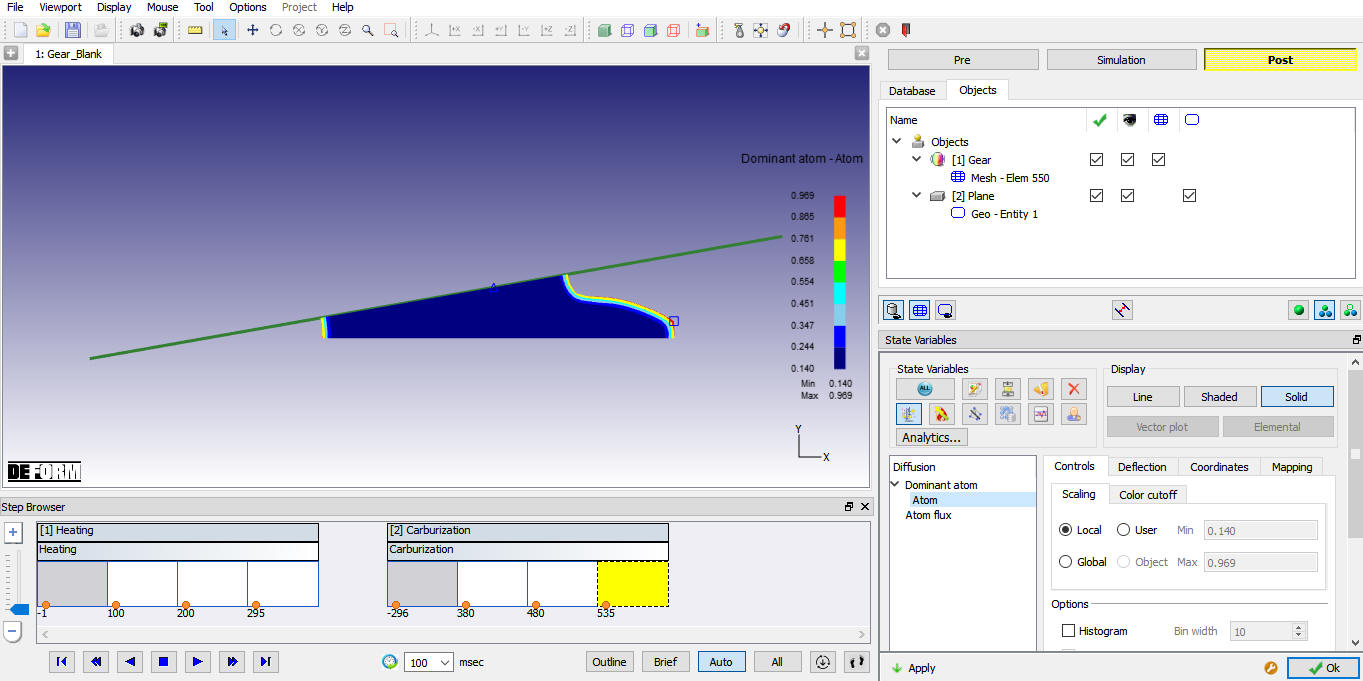
Diffusion Dominant atom plot
After completion of Post processing, Save the Project and close the MO wizard by clicking Quit  button or selecting Quit option under File menu. If User wants to continue the setup, can switch to pre mode directly and continue the setup by adding operation.
Related Topics: