39.1. 2D rezanie
39.1.1. Ako pridať 2D rezací úkon
39.1.2. Výber procesu
39.1.2.1. Typ simulácie
39.1.2.2. Rýchlosť rezania
39.1.2.3. Prenos tepla v prostredí
39.1.3. Zoznam materiálov
39.1.4. Nástroj
39.1.4.1. Vložiť geometriu
39.1.4.2. Povlakovanie nástrojov
39.1.4.3. Výber materiálu nástroja
39.1.4.4. Vytvorenie siete nástroja
39.1.4.5. Definícia nástroja BCC
39.1.5. Obrobok
39.1.5.1. Stránka „Geometria obrobku“
39.1.5.2. Výber materiálu obrobku
39.1.5.3. Sieť obrobku
39.1.5.4. Kryštálová mriežka obrobku (BCC)
39.1.5.5. Inicializácia
39.1.6. Kontrola
39.1.7. Opotrebenie nástrojov
39.1.8. Kontakt
39.1.9. Voľná hladina
39.1.10. Riadenie krokov
39.1.11. Vytvorenie databázy
Ako pridať 2D rezací úkon
Operáciu 2D rezania je možné nastaviť v prostredí Integrovaného výrobného procesu, do ktorého sa dostanete z hlavného okna grafického používateľského rozhrania (GUI). Novú úlohu vytvoríte buď výberom položky Súbor  Nová úloha, alebo kliknutím na ikonu
  . V časti Typ úlohy a Systém jednotiek vyberte prepínač „2D rezanie“. Kliknite na tlačidlo
  , ako je znázornené na obr. 39.1.1. Otvorí sa sprievodca integrovaným výrobným procesom a v editore operácií uvidíte, že bola pridaná operácia 2D rezania.
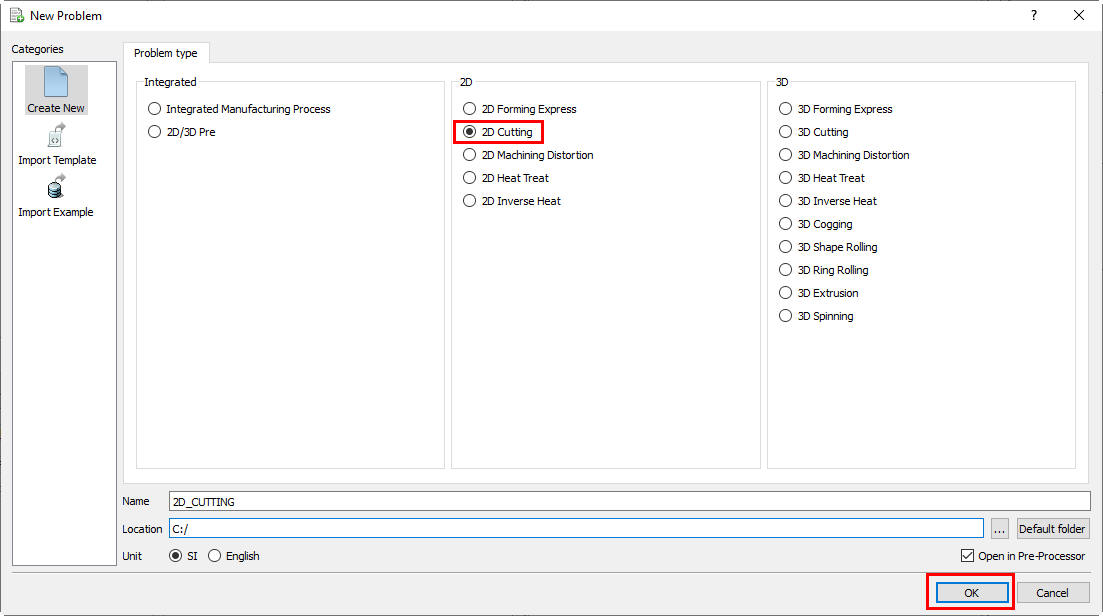
Pridanie 2D rezacej operácie z hlavného okna grafického rozhrania
Operáciu „2D rezanie“ môžeme pridať aj kliknutím na ikonu . Vyberte integrovaný výrobný proces a systém jednotiek. Otvorí sa okno „Integrovaný výrobný proces“ s vyskakovacím oknom „Nový projekt“. Vo vyskakovacom okne „Nový projekt“ môžeme pridať operáciu „2D rezanie“ zaškrtnutím políčka „Prvá operácia“ a výberom „2D rezanie“ ako prvej operácie z roletového zoznamu, ako je znázornené na obr. 39.1.2. Potom kliknite na v okne Nový projekt. Otvorí sa sprievodca Integrovaným výrobným procesom a v časti „Editor operácií“ môžete vidieť, že operácia „2D rezanie“ bola pridaná do editora operácií. Pomocou možnosti Kopírovať existujúci projekt môžete importovať predtým uložené projekty ako nový projekt.
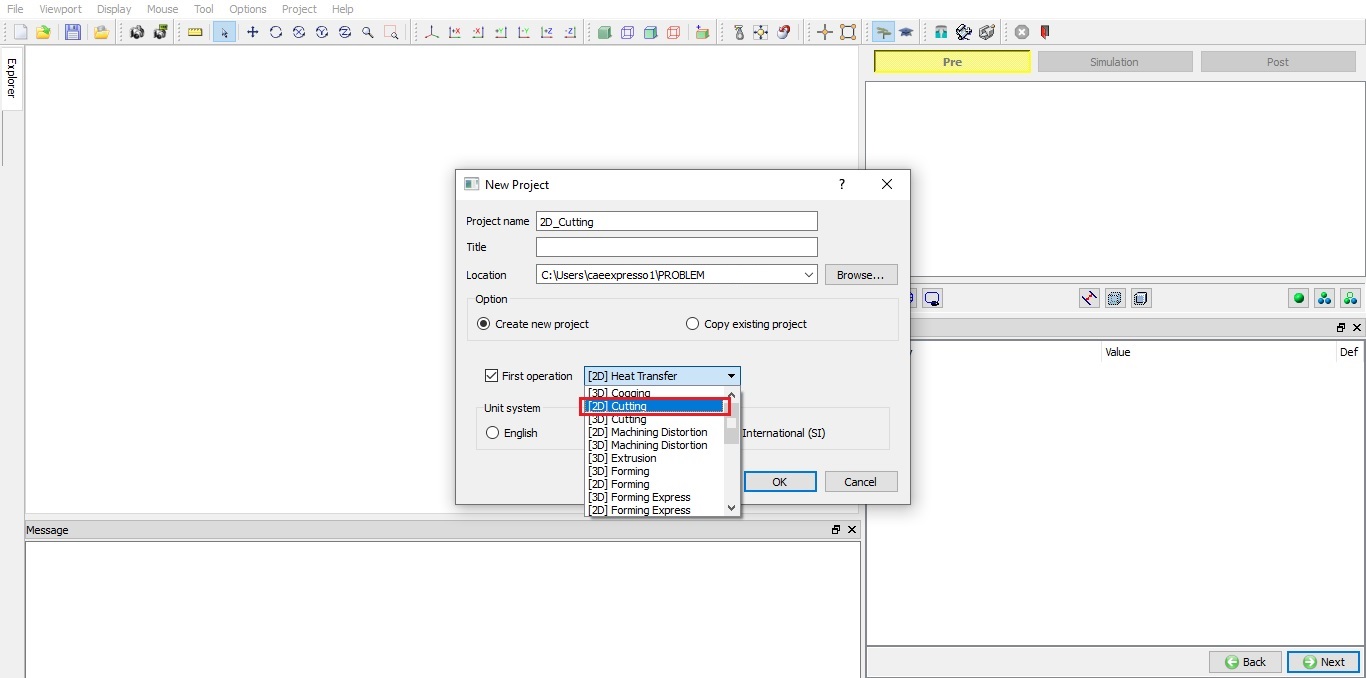
V okne „Nový projekt“ zadajte názov projektu a vyberte prvú operáciu
Operáciu „2D rezanie“ môžeme do „Editoru operácií“ pridať aj z karty prehliadača kliknutím na tlačidlo  vedľa položky 2D rezanie, ako je znázornené na obr. 39.1.3. alebo pretiahnutím operácie „2D rezanie“ do okna editora operácií; v oblasti úpravy nastavení vlastností sa otvorí stránka výberu procesu.
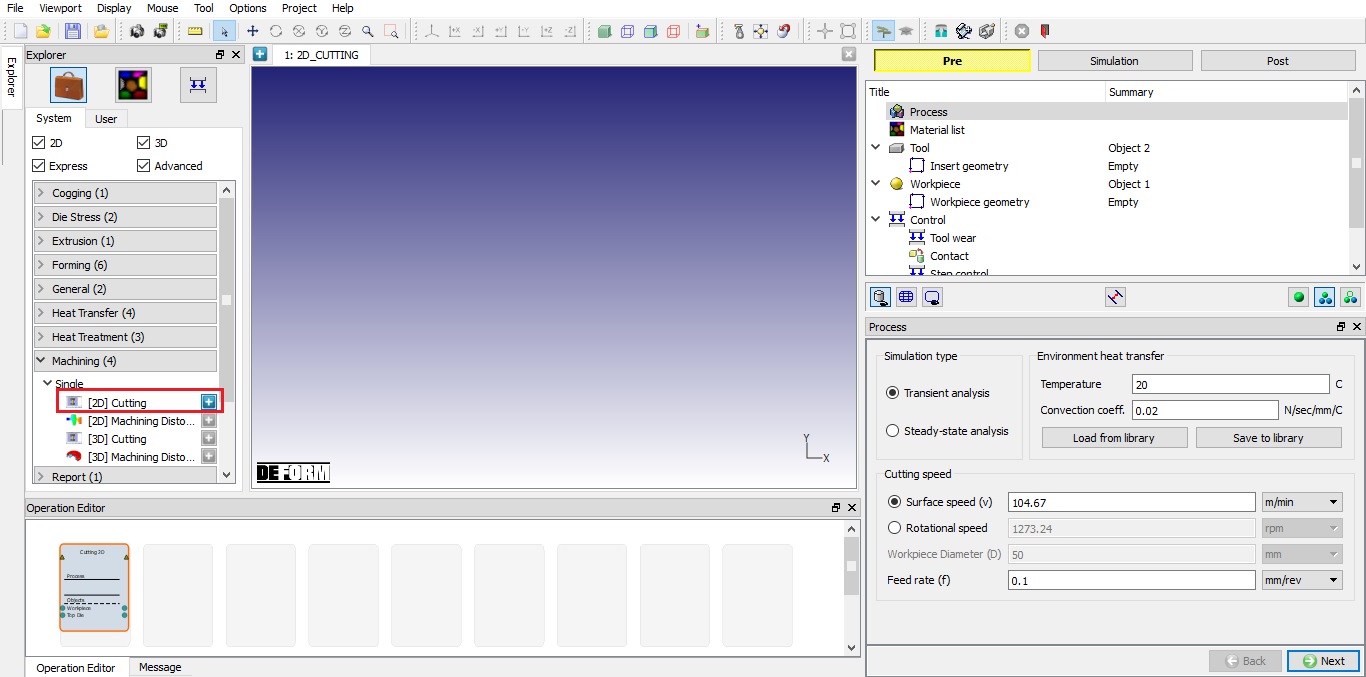
Pridanie operácie zo zoznamu operácií v Průzkumníku
Výber procesu
Na stránke procesu môže používateľ vybrať typ simulácie a nastaviť „Prenos tepla v prostredí“ a „Rýchlosť rezania“ (pozri obr. 39.1.5.). Nastavenie úlohy sa bude líšiť v závislosti od typu simulácie – či už ide o prechodný alebo ustálený stav.
Typ simulácie
Analýza prechodových javov: Pri analýze prechodových javov sa úloha modeluje v časovej oblasti a výstupné stavové premenné sa určujú na základe času priebehu procesu a parametrov simulácie nastavených používateľom. Simulácia sa ukončí, keď sa dosiahne čas priebehu procesu alebo keď sú splnené akékoľvek iné podmienky na ukončenie.
Analýza ustáleného stavu: Výstup z prechodovej analýzy alebo úlohy s nejakým počiatočným riešením možno použiť na modelovanie analýzy ustáleného stavu. Pomocou možnosti „ustálený stav“ môžeme analyzovať hodnoty stavových premenných po dosiahnutí ustáleného stavu. Simulácia sa zastaví po dosiahnutí ustáleného stavu.
Rýchlosť rezania
Povrchová rýchlosť (v): Ide o rýchlosť, ktorou sa povrch obrobku vzďaľuje od rezných nástrojov. Povrchovú rýchlosť možno vyjadriť v jednotkách SI ako mm/s alebo m/min a v anglických jednotkách ako in/s alebo ft/min. Táto hodnota sa pri obrobku označuje ako rýchlosť BCC.
Rýchlosť otáčania: Ide o rýchlosť, ktorou sa obrobok otáča okolo osi. Rýchlosť otáčania sa môže uvádzať v otáčkach za minútu (rpm) alebo v radiánoch za sekundu. Táto hodnota sa prevádza na povrchovú rýchlosť a priraďuje sa obrobku ako rýchlosť BCC. Pri použití rýchlosti otáčania je potrebné definovať priemer obrobku.
Priemer obrobku (D): Určuje priemer obrobku. Túto hodnotu je potrebné zadať pri definovaní otáčok. Môže sa uvádzať v mm alebo m v jednotkách SI a v or alebo ft v anglických jednotkách.
Rýchlosť posuvu (f): Je definovaná ako vzdialenosť, ktorú nástroj prejde po obrobku počas jednej otáčky obrobku. Poloha nástroja je určená rýchlosťou posuvu. Túto veličinu možno vyjadriť v jednotkách mm/ot alebo mm/s v sústave SI a v jednotkách in/ot alebo in/s v anglických jednotkách.
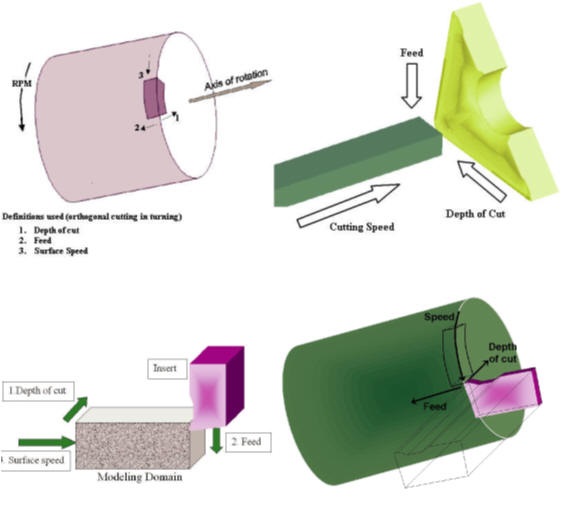
Vzťah medzi procesnými údajmi a oblasťou analýzy
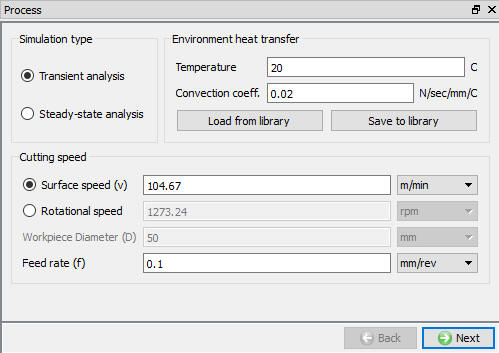
Stránka procesu
Prenos tepla v prostredí
**Uložiť do knižnice  : **Používateľ môže koeficient konvekcie uložiť do knižnice a neskôr ho použiť v iných simuláciách. Môžeme tiež vytvoriť novú kategóriu na uloženie koeficientu konvekcie, ako je znázornené na obr. 39.1.6.
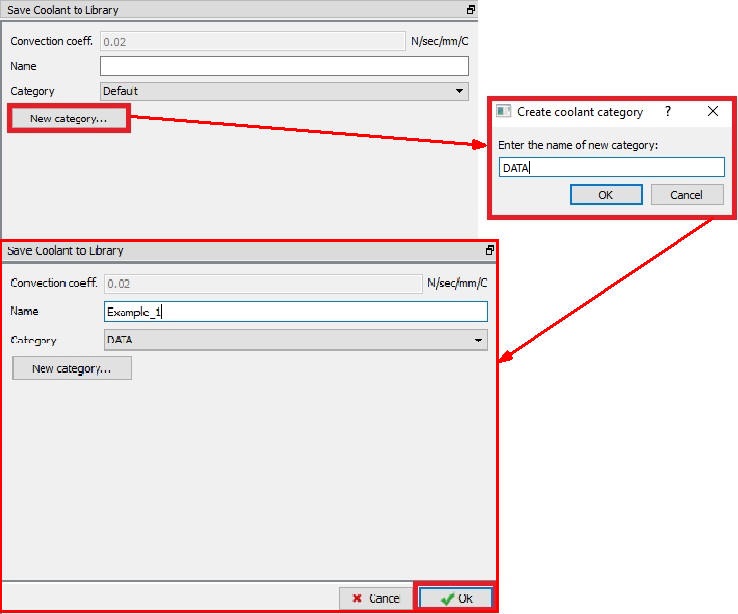
Uloženie koeficientu chladiva do knižnice
**Načítanie z knižnice  : **Používateľ môže načítať už uložený koeficient konvekcie z vybranej kategórie, ako je znázornené na obr. 39.1.7. Pomocou funkcie „Odstrániť kategóriu“ môže používateľ odstrániť príslušnú kategóriu a údaje o chladivách, ktoré sa v nej nachádzajú. Ak chce používateľ odstrániť iba údaje o chladivách, pomocou funkcie „Odstrániť chladivo“ je možné odstrániť koeficient konvekcie z akejkoľvek kategórie.
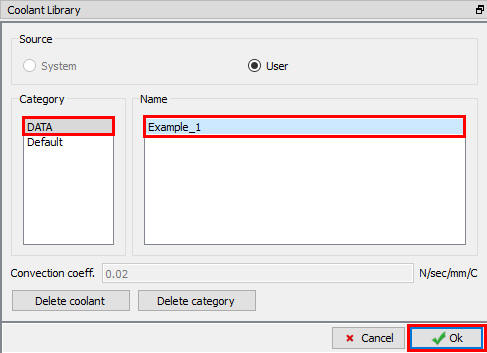
Načítanie koeficientu chladiva z knižnice
Zoznam materiálov
Na tejto stránke „Zoznam materiálov“ (pozri obr. 39.1.8.) môže používateľ načítať materiál z knižnice, pomocou kľúčového slova alebo zo súboru databázy pomocou volieb  a
a  . Materiály načítané na tejto stránke je možné priradiť k objektom na príslušnej stránke materiálov. Používateľ môže tiež pridať nový materiál pomocou tlačidla
  a definovať jeho vlastnosti. Pomocou tlačidla
  môže používateľ načítať materiál odstrániť.
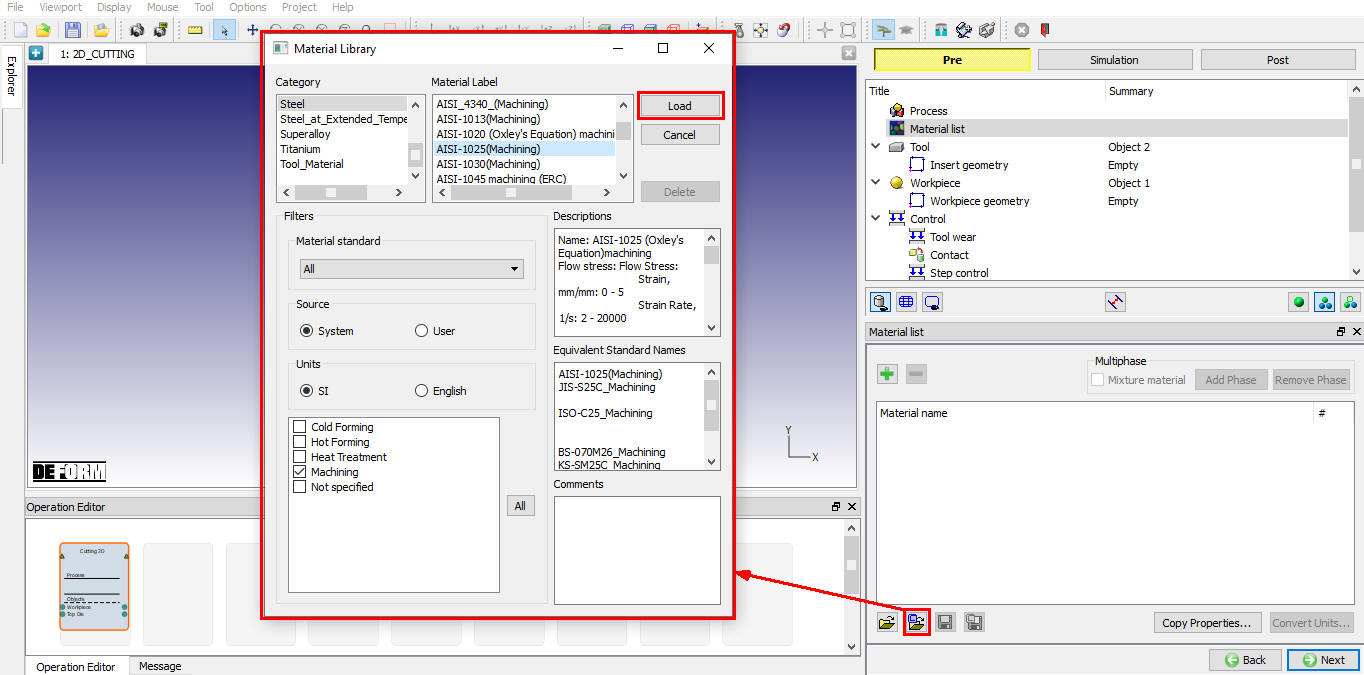
Priradenie materiálu z knižnice
Stránka s nástrojmi
Na tejto stránke „Nástroj“ môže používateľ nastaviť teplotu objektu nástroja. Objekt nástroja môžeme načítať pomocou tlačidla  (pozri obr. 39.1.9.). Ak chce používateľ vypočítať tepelné údaje pre objekt nástroja, zaškrtne políčko „Vypočítať teplotu nástroja“ a všimne si, že sa aktivujú možnosti vytvorenia siete pre nástroj, vďaka čomu je možné vytvoriť sieť nástroja na výpočet rozloženia teploty.
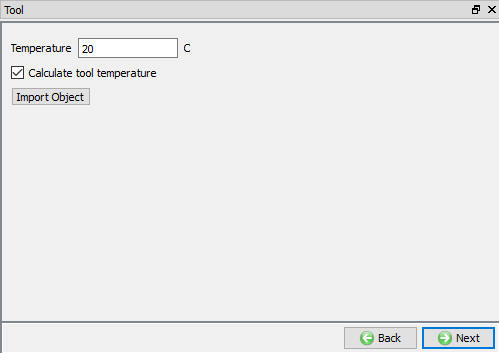
Stránka s nástrojmi
Vložiť geometriu
Na tejto stránke „Vložiť geometriu“ (pozri obr. 39.1.10.) môže používateľ definovať geometriu nástroja pomocou možnosti  alebo importovať geometriu pomocou možností a . Úpravy geometrie je možné vykonať pomocou možnosti
  .
.
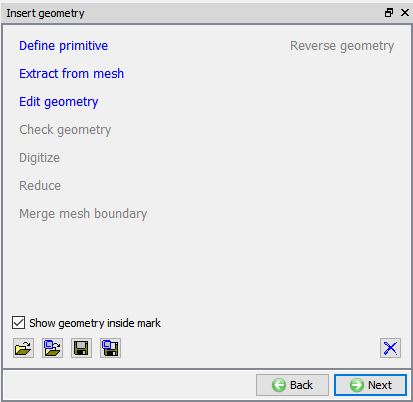
Stránka „Vložiť geometriu“
####
Definovanie geometrie nástroja pomocou možnosti „Definovať primitív“
Keď používateľ klikne na odkaz na stránke geometrie nástroja, otvorí sa okno „Vložiť primitív“, v ktorom sú zobrazené základné geometrie vložiek nástrojov, ako je znázornené na obr. 39.1.11. Používateľ si môže vybrať ľubovoľnú vložku a definovať parametre rezných nástrojov.
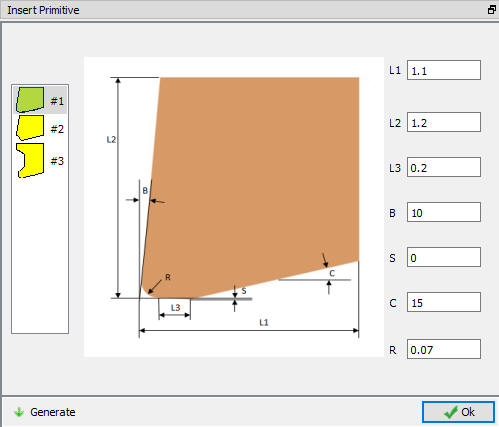
Vložiť stránku s primitívmi
Povlaky na nástroje
Používateľ môže na výmennú čepeľ naniesť povlak tak, že na stránke „Materiál povlaku“ definuje povlakovú vrstvu a jej hrúbku. Materiál vrstvy povlaku a jej hrúbku môže používateľ definovať kliknutím na tlačidlo  , ako je znázornené na obr. 39.1.12. Ak chce používateľ odstrániť akúkoľvek vrstvu, musí vybrať príslušnú vrstvu a kliknúť na tlačidlo
  .
.
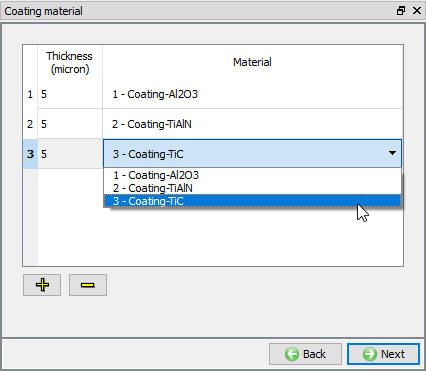
Stránka o povlakových materiáloch
Výber materiálu nástroja
Na stránke materiálov sa zobrazia všetky materiály pridané do zoznamu materiálov, ako je znázornené na obr. 39.1.13. Používateľ môže vybrať požadovaný materiál a priradiť ho k príslušnému objektu. Ak požadovaný materiál nie je v zozname k dispozícii, môže ho na stránke materiálov objektu načítať pomocou funkcie „Importovať údaje o materiáli“ zo súboru alebo pomocou možnosti „Načítať z knižnice“ . Ak materiál nie je k dispozícii v knižnici DEFORM, môže ho používateľ vytvoriť pomocou . Používateľ môže materiál zo zoznamu odstrániť pomocou alebo údaje o materiáli upraviť pomocou tlačidla  . Upravený alebo novo definovaný materiál je možné uložiť pomocou
  a
a  .
.
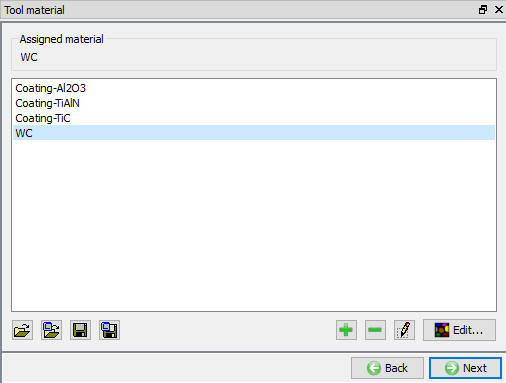
Priradenie materiálu nástroja
Generovanie siete nástrojov
Používateľ môže vygenerovať sieť pre nástroj tak, že na stránke „Generovanie siete nástroja“ zadá počet prvkov. Systém vytvorí predvolené okná siete na základe polohy nástroja a nastaví hodnotu veľkosti prvkov na základe rýchlosti posuvu. Predvolené okná siete sa použijú na vytvorenie jemnejšej siete, ako je znázornené na obr. 39.1.14 a obr. 39.1.15.
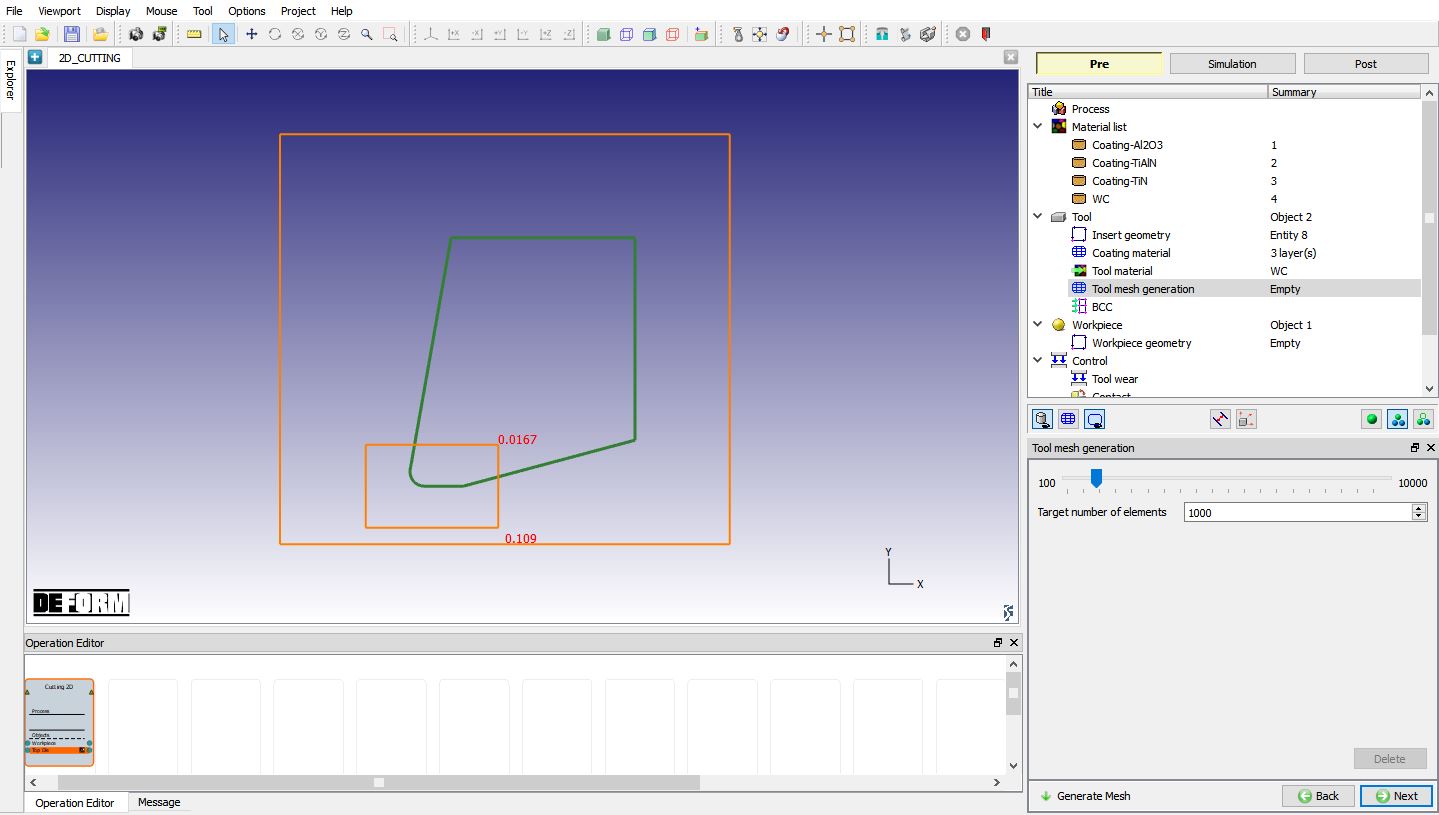
Pred vytvorením siete nástroja
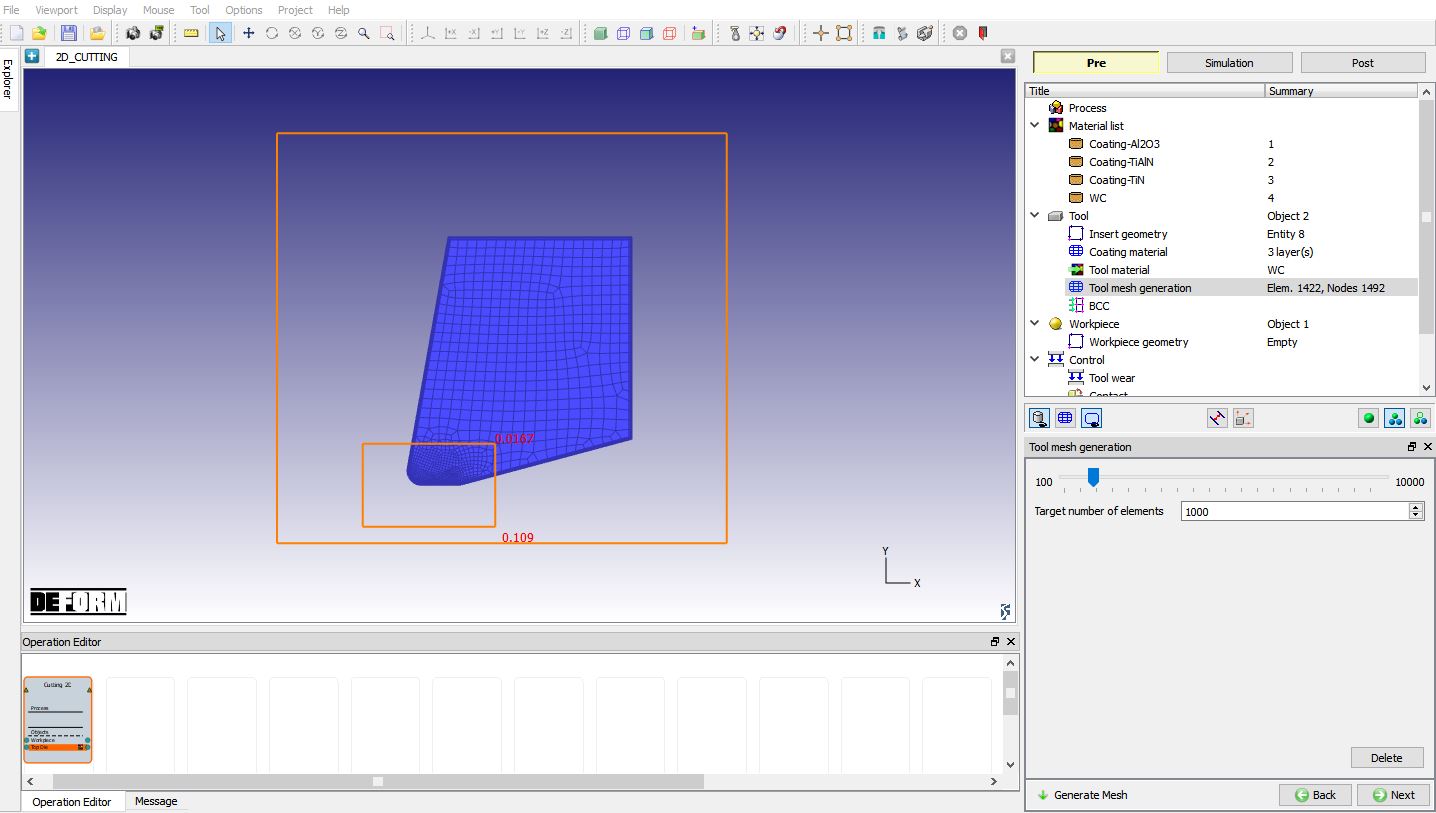
Po vytvorení siete nástroja
Definícia nástroja BCC
Na tejto stránke BCC môže používateľ definovať tepelné BCC, ako napríklad „Výmena tepla s okolím“ a „Teplota“. Program štandardne generuje „Výmenu tepla s okolím“ (ktorej časť pochádza z kontaktnej oblasti vložky), ako je znázornené na obr. 39.1.16, a pevný uzlový BCC typu „Teplota“ pre povrchy vzdialené od rezných hrán, ako je znázornené na obr. 39.1.17.
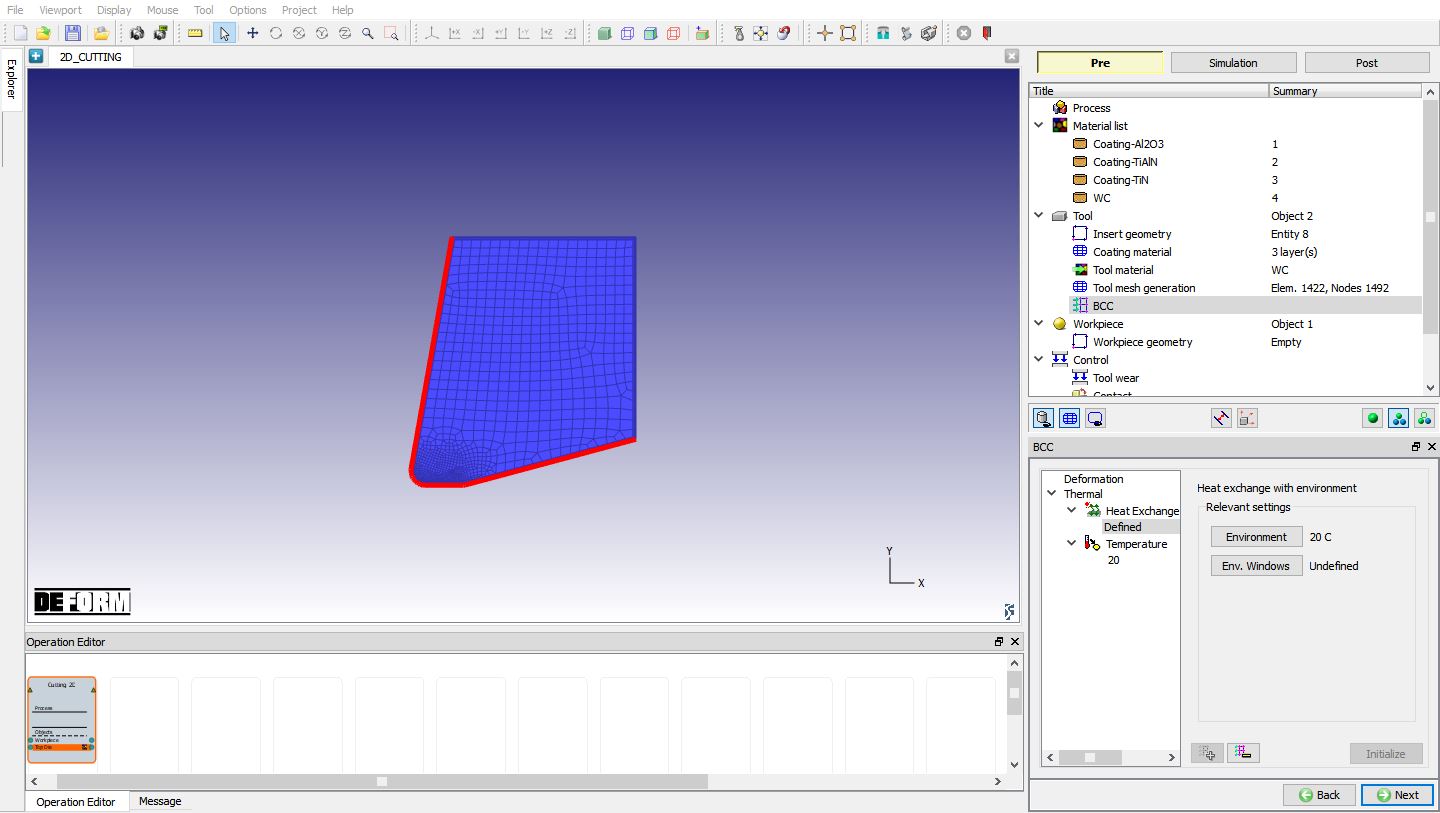
Výmena tepla s okolím (BCC) pre nástroj
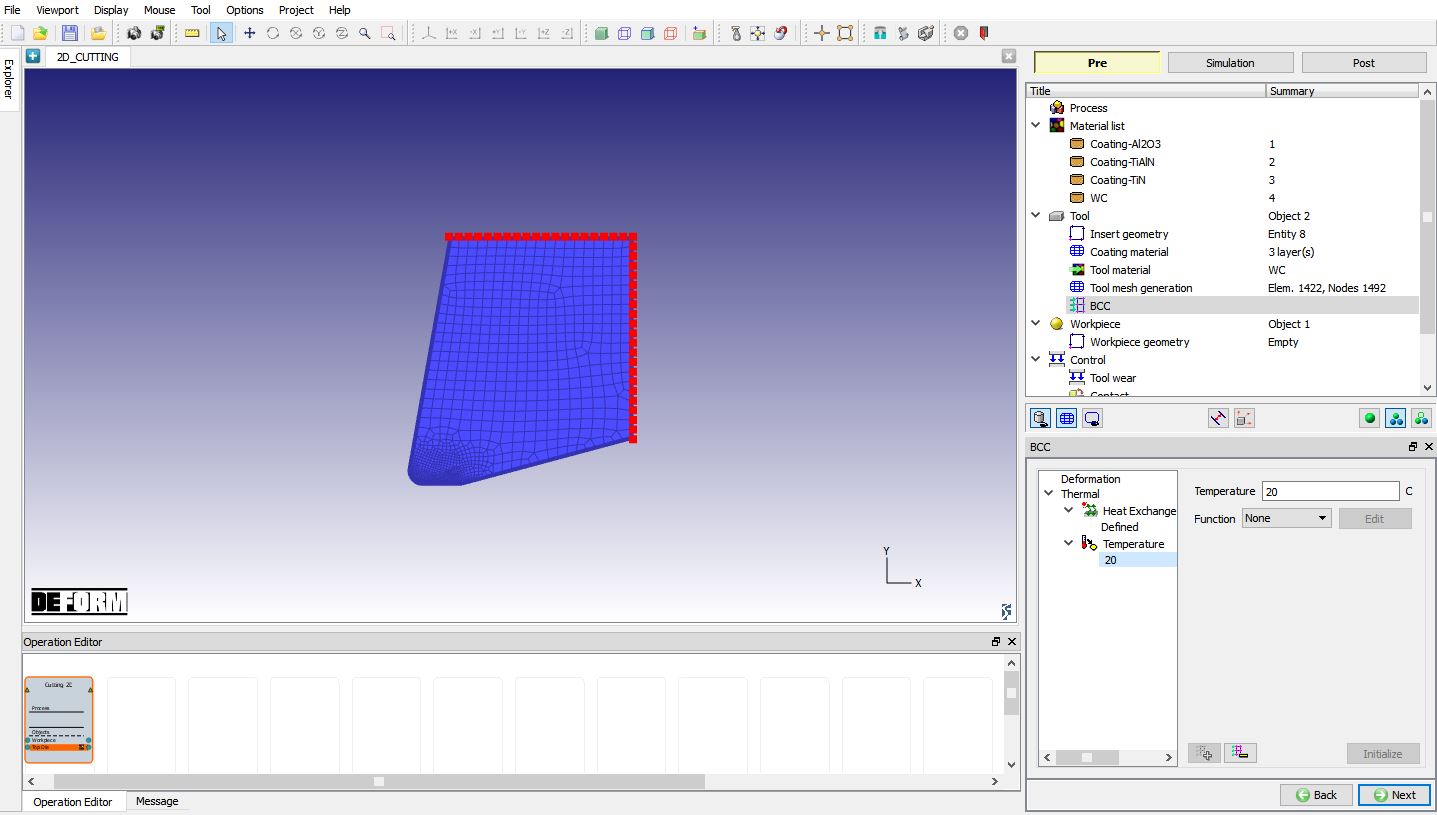
Teplotná charakteristika BCC pre nástroj
Obrobok
Na tejto stránke „Obrobok“ môže používateľ definovať typ objektu a nastaviť jeho počiatočnú teplotu. Predvolene je vybraný typ objektu „Plastický“ (pozri obr. 39.1.18.); ak má používateľ záujem zohľadniť vplyv elastických vlastností, môže použiť typ objektu „Elastoplastický“. Údaje o objekte môžeme tiež importovať pomocou tlačidla .
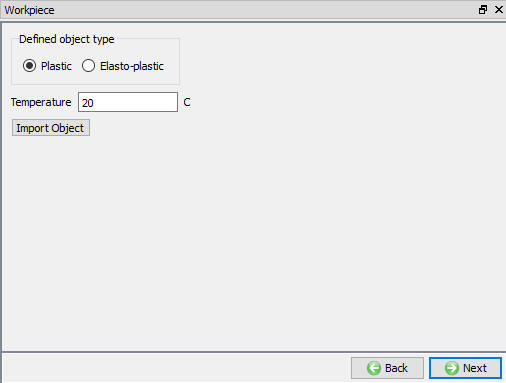
Stránka obrobku
Geometria obrobku
Na tejto stránke „Geometria obrobku“ (pozri obr. 39.1.19.) môže používateľ definovať geometriu obrobku pomocou možnosti alebo importovať geometriu pomocou možností „Importovať geometriu zo súboru“ alebo „Importovať geometriu z knižnice“ . Úpravy importovanej alebo vytvorenej geometrie je možné vykonať pomocou možnosti .
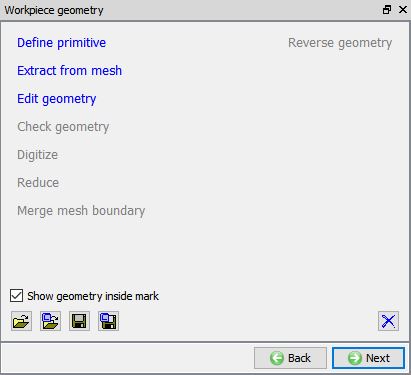
Stránka „Geometria obrobku“
####
Definovanie geometrie obrobku pomocou možnosti „Definovať primitív“
Keď používateľ klikne na odkaz , otvorí sa stránka „Geometrický základný tvar obrobku“, ako je znázornené na obr. 39.1.20 a obr. 39.1.21. Geometrický základný tvar obrobku sa zobrazí v závislosti od typu procesu vybraného na stránke „Proces“. Obr. 39.1.20. znázorňuje geometriu obrobku pre prechodovú analýzu, zatiaľ čo obr. 39.1.21. znázorňuje geometriu obrobku pre ustálenú analýzu.
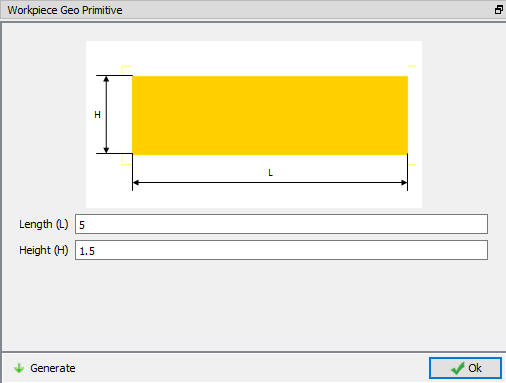
Stránka definície primitívov obrobku pre prechodovú analýzu
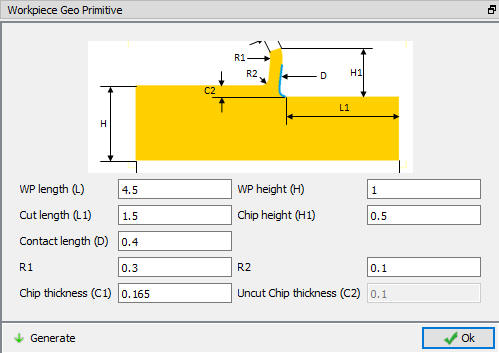
Stránka definície základných prvkov obrobku pre analýzu v ustálenom stave
Výber materiálu obrobku
Na tejto stránke „Materiál objektu“ sa materiály pridané do zoznamu materiálov zobrazujú tak, ako je znázornené na obr. 39.1.22. Používateľ môže vybrať požadovaný materiál a priradiť ho k príslušnému objektu. Ak požadovaný materiál nie je k dispozícii v zozname, môže ho na stránke „Materiál objektu“ načítať pomocou funkcie „Importovať údaje o materiáli“ zo súboru alebo pomocou možnosti „Načítať z knižnice“ . Ak materiál nie je k dispozícii v knižnici DEFORM, môže ho používateľ vytvoriť pomocou . Používateľ môže materiál zo zoznamu odstrániť pomocou alebo údaje o materiáli upraviť pomocou . Upravený alebo novo definovaný materiál je možné uložiť pomocou a .
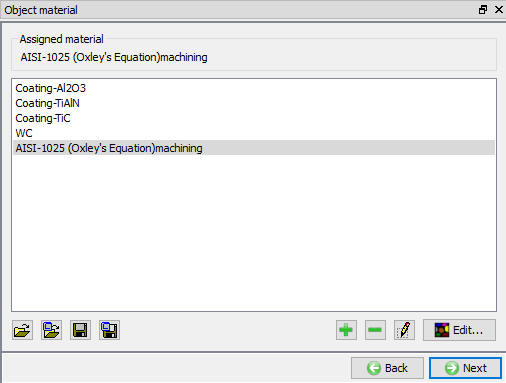
Stránka o materiáloch objektu
Sieť obrobku
Používateľ môže vytvoriť sieť definovaním počtu prvkov na základe hrúbky nerezaného špónu na stránke „Vytvorenie siete obrobku“. Okná hustoty siete sa automaticky generujú na základe polohy nástroja, ako je znázornené na obr. 39.1.23, a veľkosť prvkov pre okná siete sa nastavuje na základe posuvu a polohy nástroja. Od verzie V13 sú k dispozícii možnosti siete v režime Expert, ktoré v prípade potreby umožňujú upraviť nastavenia siete.
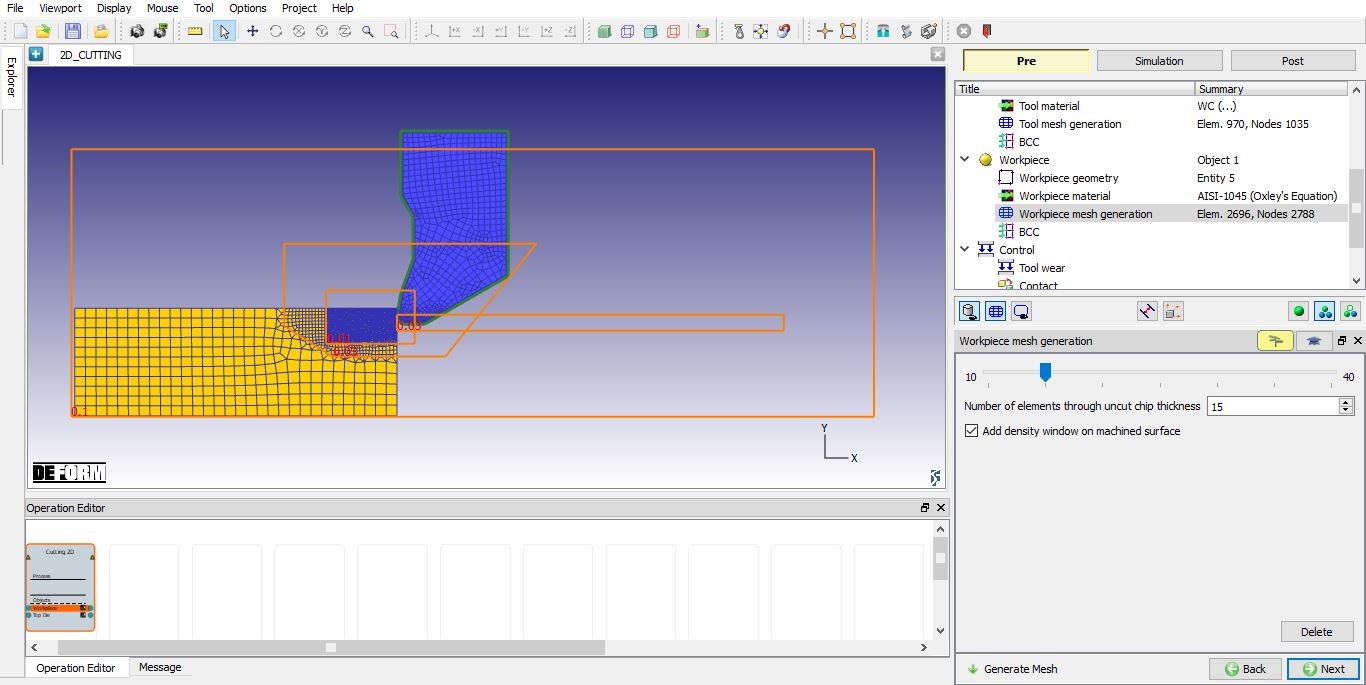
Vytvorenie siete obrobku (pre analýzu prechodných javov)
V prípade analýzy prechodných javov môže používateľ pridať okno s mriežkou na obrábaný povrch zaškrtnutím políčka „Pridať okno s hustotou na obrábaný povrch“. Ak používateľ zaškrtne toto políčko, na reznú hranu sa pridá okno siete, ktoré počas simulácie sleduje nástroj, aby sa vytvorila jemnejšia sieť pre obrábaný povrch, ako je znázornené na obr. 39.1.23.
V prípade analýzy ustáleného stavu môže používateľ pridať okno s mriežkou pre jemnejšiu mriežku na obrábanom povrchu tak, že zaškrtne políčko „Pridať okno s hustotou na výstupnom povrchu“, ako je znázornené na obr. 39.1.24.
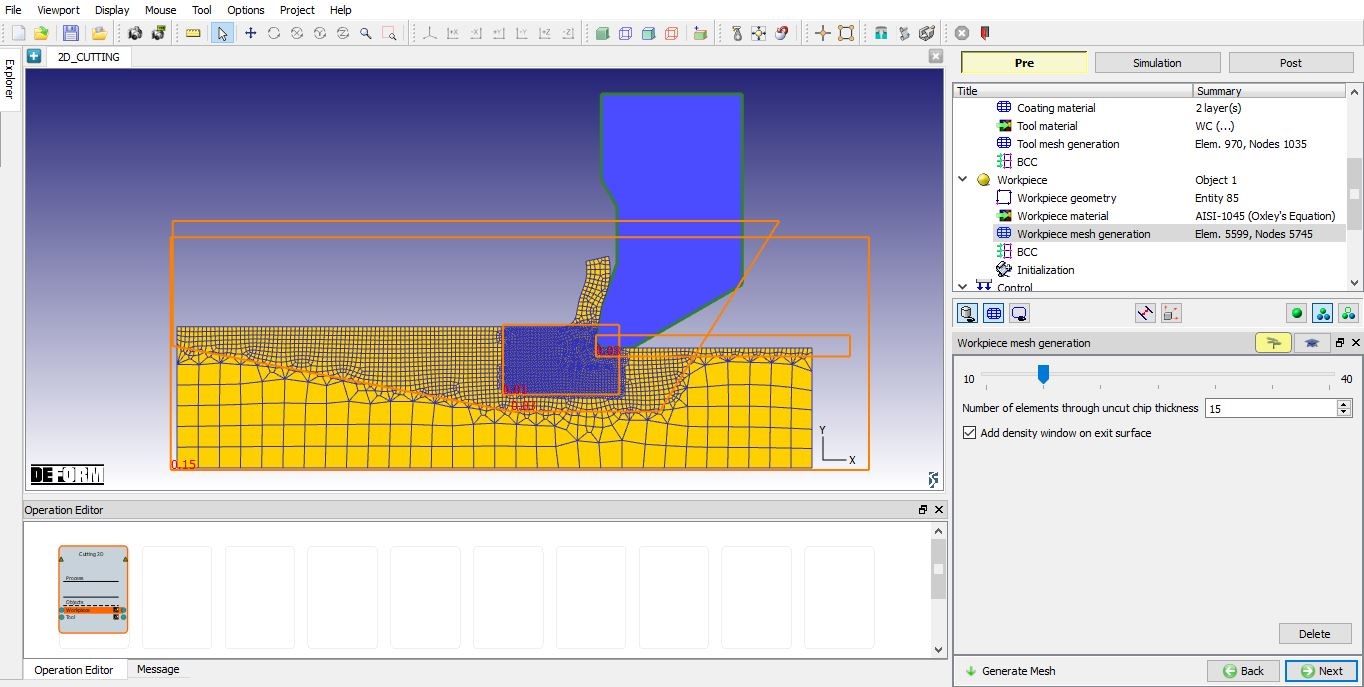
Vytvorenie siete obrobku (pre analýzu v ustálenom stave)
Obrobok BCC
Na stránke „Okrajové podmienky“ môže používateľ obrobku priradiť rýchlostné a tepelné okrajové podmienky. Okrajové podmienky určujú, ako hranica objektu interaguje s okolím a inými objektmi. Údaje o okrajových podmienkach (BCC) sa po vytvorení siete automaticky priradia ako predvolené nastavenie. Od verzie V13.0.1 sa namiesto okrajovej podmienky „Rýchlosť povrchu (Vx)“ (BCC) definuje okrajová podmienka „Pohyb“ (BCC) na hrane +X a spodnej hrane obrobku, ako je znázornené na obr. 39.1. 25. Teplotná výmena s BCC je priradená k hornému okraju a okraju -X (ľavá strana). Teplotné BCC je priradené k spodnému okraju a okraju +X (pravá strana).
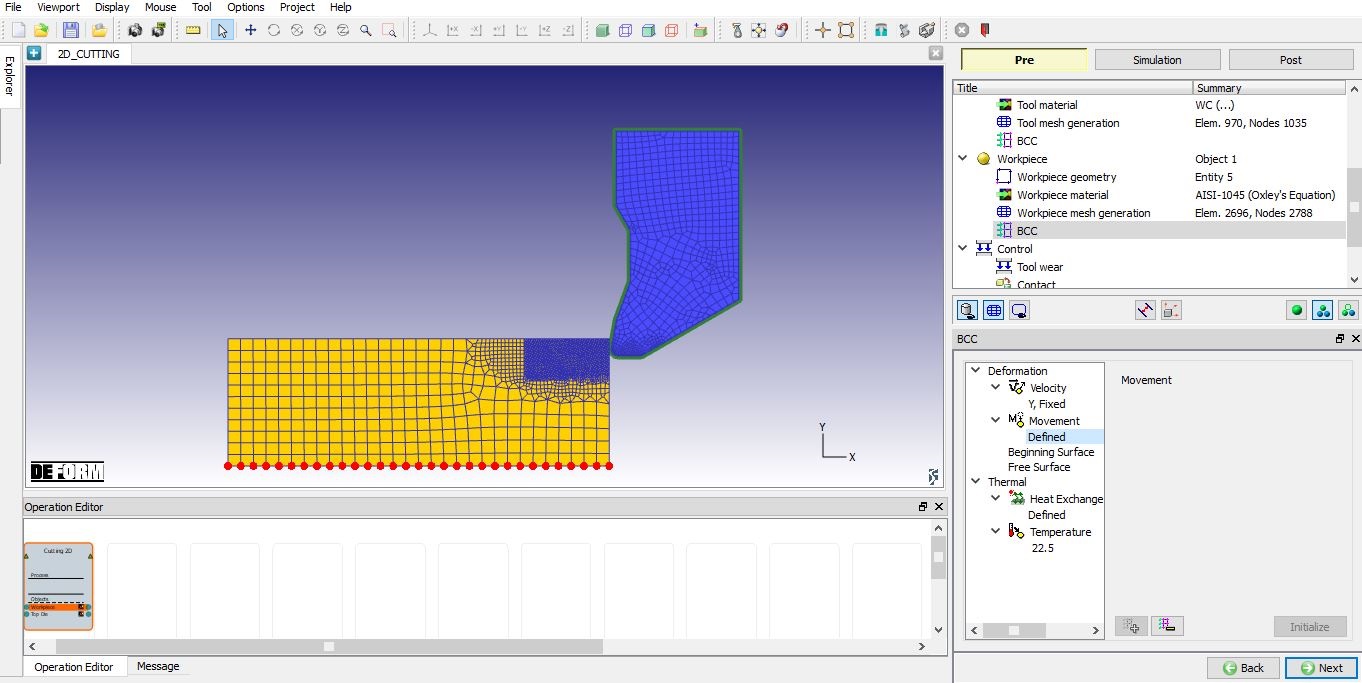
Predvolené údaje o BCC obrobku (pre prechodovú analýzu)
Pri analýze ustáleného stavu môžeme okrem BCC rýchlosti a tepelného BCC sledovať aj BCC voľnej hladiny. Po vytvorení siete sa na okraji -X automaticky priradí počiatočné BCC hladiny a na okraji +X obrobku sa automaticky priradí BCC voľnej hladiny; používateľ ho však môže aj manuálne definovať. Od verzie V13.0.1 sa namiesto BCC povrchovej rýchlosti (Vx) definuje BCC pohybu na hrane +X (pravá strana) a spodnej hrane obrobku, ako je znázornené na obr. 39.1.26. Počiatočná povrchová BCC je priradená k povrchu (-X hrana (ľavá strana) obrobku) vzdialenému od smeru rezu. BCC voľnej plochy je priradené k hornej hrane špony a k ploche, odkiaľ sa začína rezanie (hrana +X (pravá strana) obrobku), ako je znázornené na obr. 39.1.27. Výmena tepla s BCC je priradená k povrchu horného okraja s výnimkou horného okraja triesky. Teplota BCC je priradená k okraju +X (pravá strana) a spodnému okraju obrobku (pozri obr. 39.1.28.).
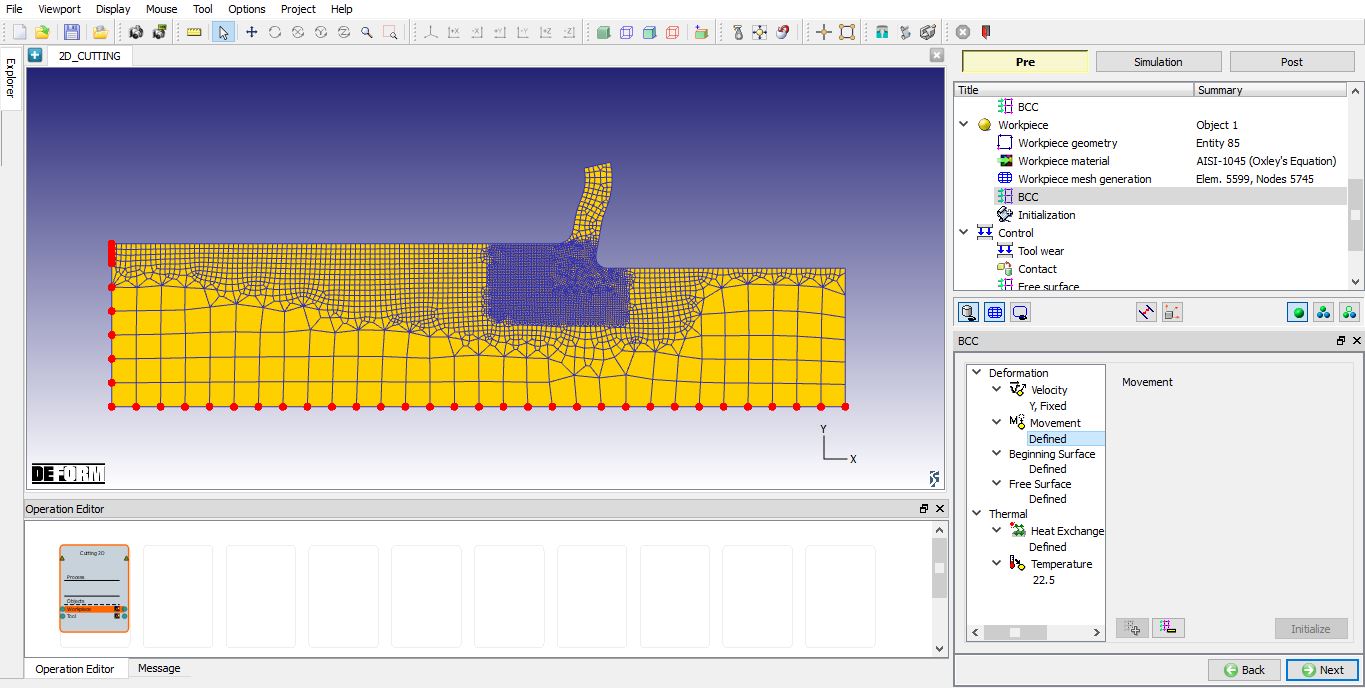
Predvolené údaje o pohybe obrobku v BCC (pre analýzu ustáleného stavu)
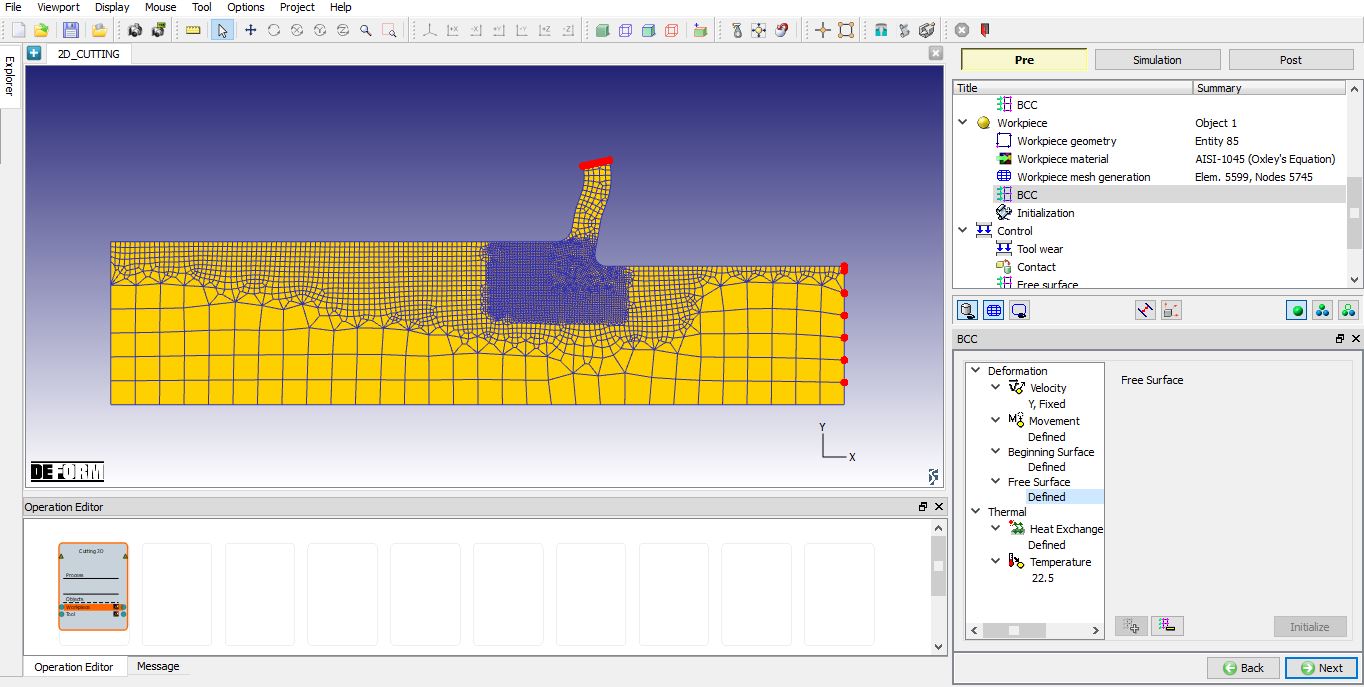
Voľná povrchová mriežka typu BCC priradená k obrobku (pre analýzu v ustálenom stave)
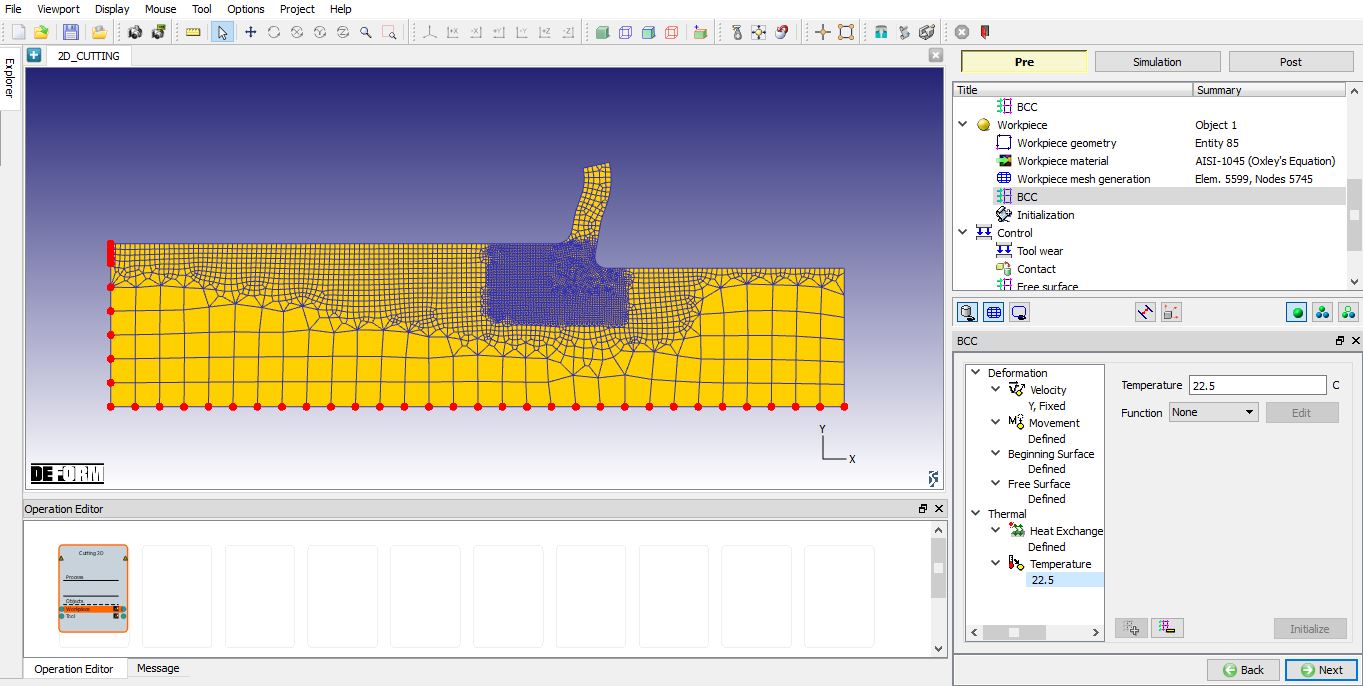
Teplota BCC priradená obrobku
Inicializačná stránka (len pre analýzu ustáleného stavu)
Na tejto inicializačnej stránke môže používateľ inicializovať hodnotu deformácie obrobku buď zadaním konštantnej hodnoty, alebo ako funkciu hĺbky (pozri obr. 39.1.29.). Hodnoty deformácie je možné inicializovať aj interpoláciou z inej databázy pomocou tlačidla „Prehľadávať“ v časti „Funkcia hĺbky“. Pomocou posuvníka môže používateľ zvoliť dĺžku, do ktorej sa môže inicializácia vykonať od vstupu; posuvník označuje polohy „Vstup“, „Vložka“ a „Výstup“.
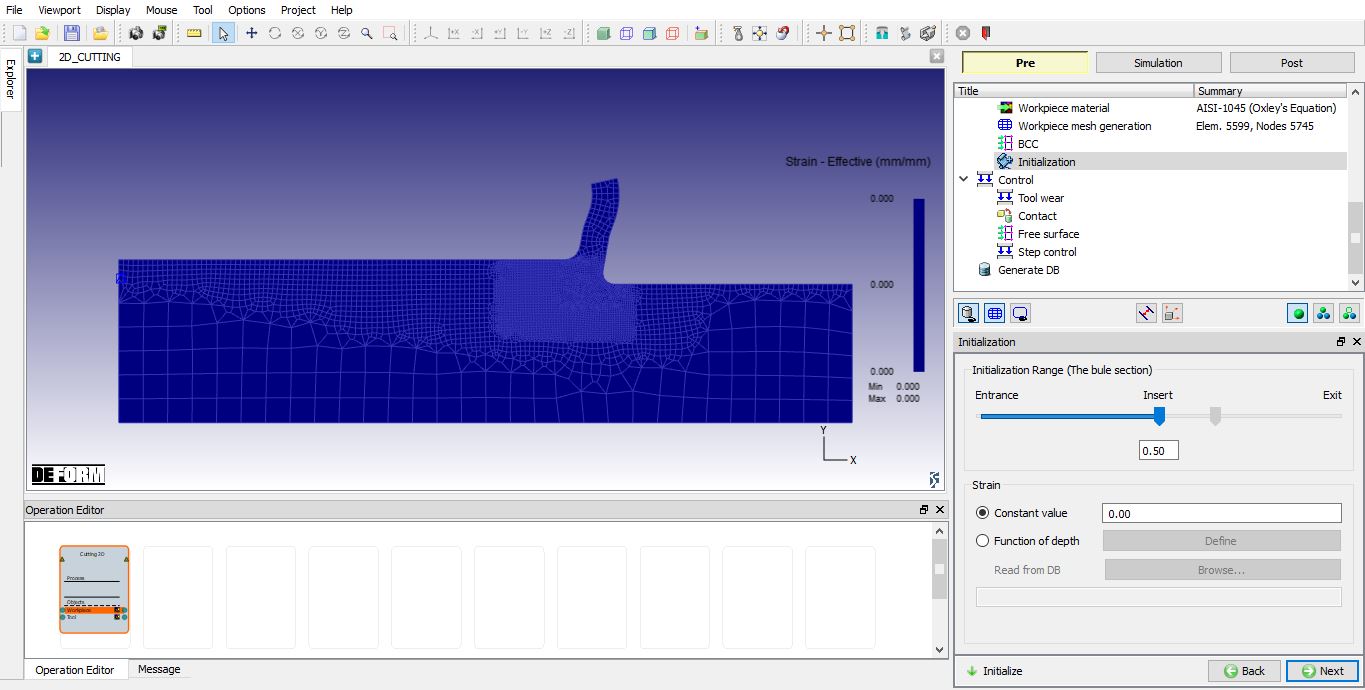
Úvodná stránka pre analýzu ustáleného stavu
Ovládanie
Funkciu  je možné použiť na polohovanie nástroja pomocou polohy s presahom na základe rýchlosti posuvu a polohy obrobku. Nástroj je možné tiež otočiť tak, že sa zadá uhol otáčania a zaškrtne políčko „Uhol otáčania“ pri použití funkcie „Automatické polohovanie“.
Používateľ môže umiestňovať objekty pomocou tlačidla  . K dispozícii sú rôzne možnosti umiestňovania objektov, ako je znázornené na obr. 39.1.30. Ďalšie informácie o týchto možnostiach nájdete v 19. Object Positioning..
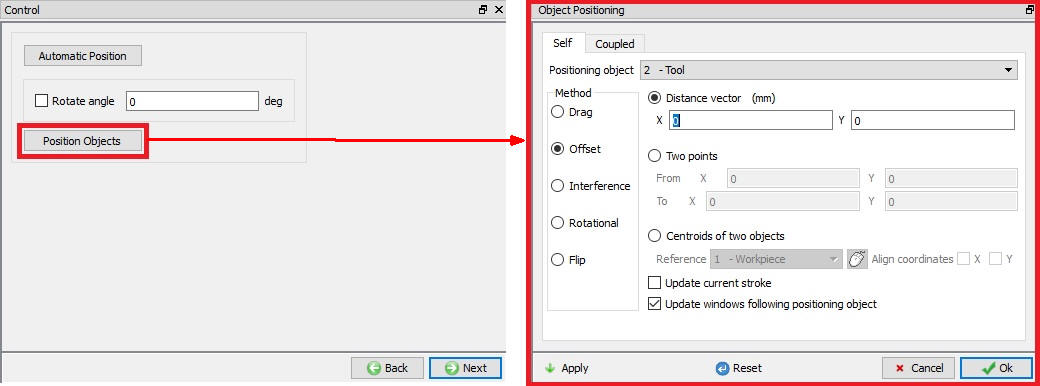
Možnosti umiestnenia objektu
Opotrebenie nástrojov
Používateľ môže aktivovať výpočet opotrebenia nástroja pomocou zaškrtávacieho políčka „Definovať model na výpočet opotrebenia nástroja“. Po zaškrtnutí tohto políčka môže používateľ vybrať model opotrebenia nástroja a definovať jeho parametre, ako je znázornené na obr. 39.1.31. Ďalšie informácie o týchto možnostiach nájdete v 20.4.Tool Wear..
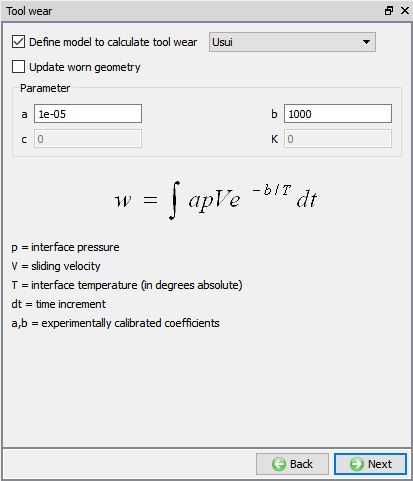
Stránka „Opotrebenie nástrojov“
Kontakt
V predvolenom nastavení bude zaškrtnuté políčko „užívateľ“ a pre operáciu 2D rezania budú tiež definované predvolené vzťahy, ako je znázornené na obr. 39.1.32. Užívateľ môže zmeniť hodnotu každého vzťahu tak, že ho vyberie a klikne na tlačidlo . Kliknutím na tlačidlo  môže používateľ vypočítať toleranciu kontaktu. Kliknutím na tlačidlo
  môže používateľ vygenerovať vzťah kontaktu. Zaškrtnutím políčka vedľa vzťahu kontaktu môže používateľ definovať priliehavý kontakt.
Ďalšie informácie nájdete v dokumente 20. Inter-Object Relations.
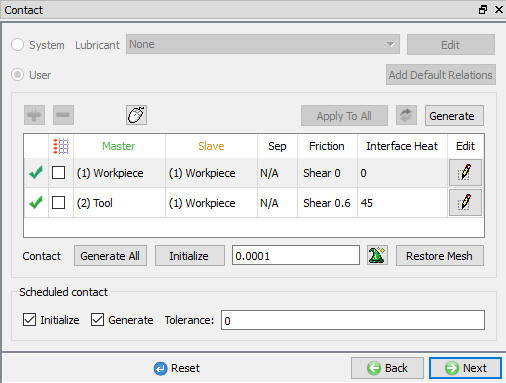
Stránka s kontaktnými údajmi
Voľná hladina (len pre analýzu v ustálenom stave)
Používateľ môže definovať voľnú plochu pozdĺž čipu tak, že vyberie uzly, ktoré majú byť odrezané od čipu, ako je znázornené na obr. 39.1.33.
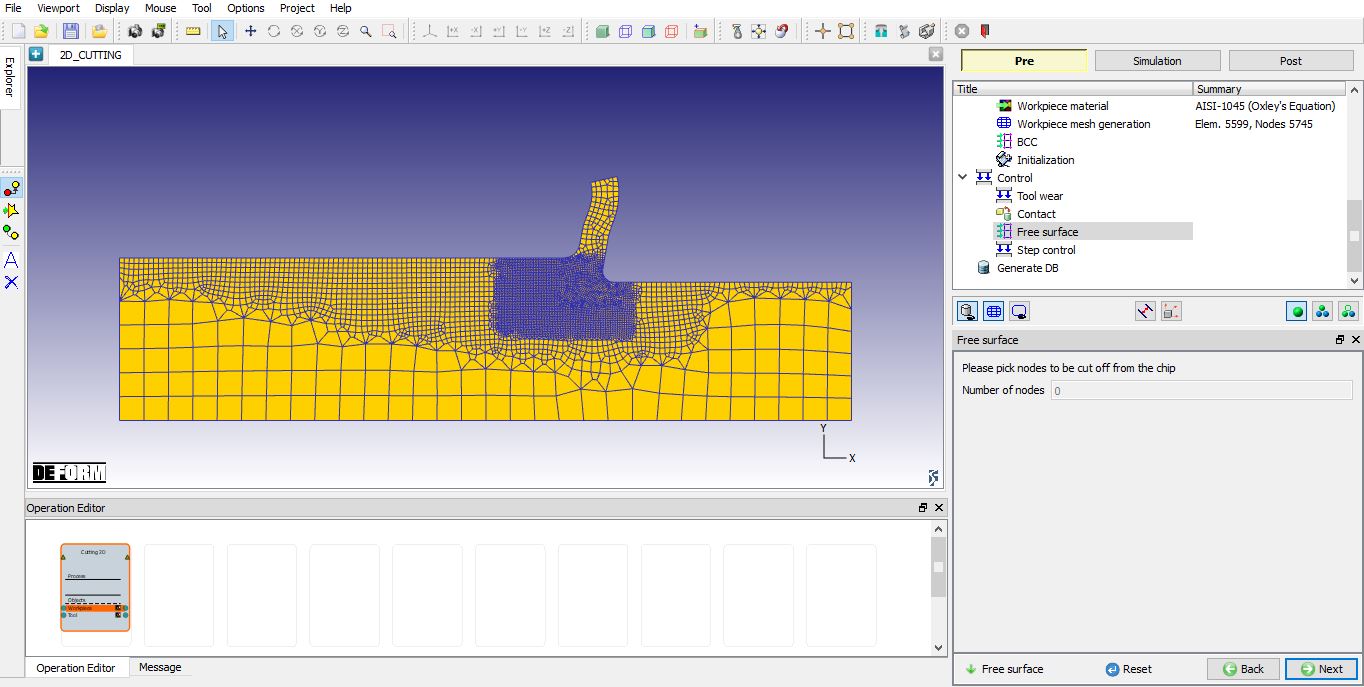
Stránka „Voľný povrch“ (pre analýzu v ustálenom stave)
Riadenie krokov
Používateľ môže definovať údaje pre ovládacie prvky krokov pomocou režimu „Guided“, ako je znázornené na obr. 39.1.34. V prípade prechodovej analýzy, ak chce používateľ využiť pokročilé ovládacie prvky simulácie, môže prejsť do režimu „Expert“, ako je znázornené na obr. 39.1.35. Ďalšie informácie a popis možností v nastaveniach simulácie nájdete v 9. Simulation Controls.
Počiatočné číslo kroku: Ak sa zapisuje do novej databázy, uvedené číslo kroku bude prvým krokom v tejto databáze. Ak sa údaje zapisujú do existujúcej databázy, údaje z predspracovateľa sa do tejto databázy pripojia v správnom číselnom poradí a všetky kroky nasledujúce po uvedenom kroku budú prepísané.
Počet krokov: Tu je možné zadať počet krokov, ktoré sa majú simulovať. Ak sa simulácia ukončí skôr na základe kritérií ukončenia, nasledujúci krok, ktorým začína ďalšia operácia, bude nadväzovať na predchádzajúcu operáciu.
Krok: Hodnota kroku, ktorá sa má uložiť do databázy, určuje počet krokov, ktoré systém uloží do databázy. Pri spustení simulácie sa musí vypočítať každý krok, ale nemusí sa nutne uložiť do databázy. Uložením väčšieho počtu krokov sa zachová viac informácií o procese, čo však bude vyžadovať viac úložného priestoru.
Kritériá na ukončenie:
-
Pre analýzu prechodných stavov: Musíme definovať dĺžku rezu, aby sa simulácia automaticky zastavila po dosiahnutí definovanej dĺžky rezu.
-
Pre analýzu ustáleného stavu: Simulácia ustáleného stavu sa môže automaticky zastaviť hneď po dosiahnutí ustáleného stavu na základe definovanej hodnoty konvergenčnej tolerancie teploty a deformácie.
Ovládanie krokového posunu: Čas na jeden krok alebo posun na jeden krok sa automaticky vypočíta na základe rýchlosti posuvu; tieto hodnoty je možné nastaviť podľa vlastného výberu.
Nastavenia konvergencie pre teplotu a deformáciu (len pri analýze ustáleného stavu): Pri analýze ustáleného stavu si môže používateľ vybrať buď metódu riešenia UL, alebo konvektívnu metódu na aktualizáciu hodnôt teploty a deformácie. Ak sa používateľ rozhodne pre metódu UL, môže pre príslušnú stavovú premennú definovať koeficient škálovania krokov. Používateľ môže nastaviť toleranciu konvergencie pre deformáciu a teplotu, aby dosiahol ustálený stav.
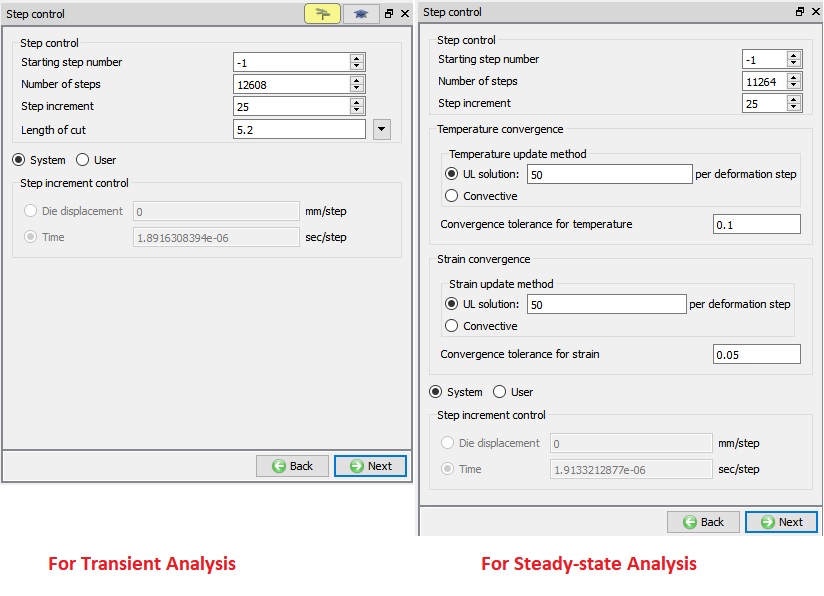
Stránka „Ovládacie prvky krokov“ v režime s návodom
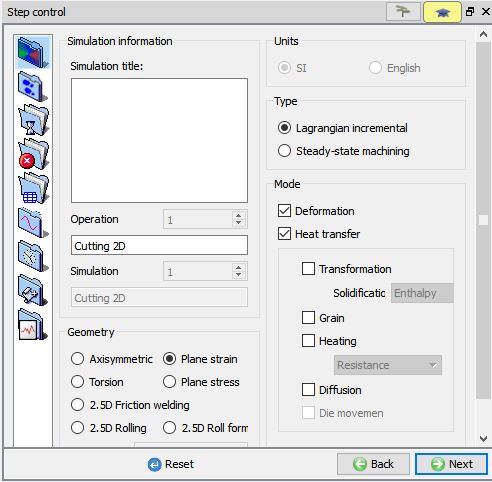
Stránka „Step Controls“ v režime Expert (len pre prechodovú analýzu)
Vytvorenie databázy
Kontrola údajov: Keď používateľ klikne na tlačidlo „Kontrola“ v  , systém skontroluje údaje definované na základe podmienok procesu, údajov o objektoch a nastavení simulácie. Ak sú údaje správne, je možné vygenerovať databázu. Ak sa pri kontrole údajov vyskytnú chyby alebo varovania, je potrebné ich opraviť pred vytvorením databázy. Chyby zabránia vytvoreniu databázy, zatiaľ čo varovania vytvorenie databázy neumožnia.
Vytvorenie databázy: Kliknutím na tlačidlo  sa vytvorí databáza potrebná na inštaláciu. (Pozri obr. 39.1.36.)
Pridať súbor .key: Akékoľvek informácie, ktoré nie sú definované v sprievodcovi, ale stále sa vzťahujú na daný proces, je možné načítať ako súbor .key. Táto možnosť je užitočná aj v prípadoch, keď je potrebné zmeniť len niekoľko hodnôt – tieto hodnoty je možné definovať v súbore .key, následne stačí zmeniť len tento súbor a simuláciu je možné odoslať znovu.
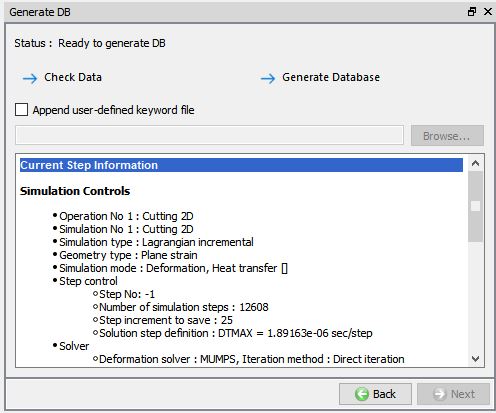
Vytvoriť stránku databázy