Ring Rolling Lab2
In this Lab we are setting up simple Ring Rolling operation with Axial rolls.
2.1. Creating a New Problem
2.2. Process Page
2.3. Simulation Setup
2.4. Object selection
2.4.1. Workpiece-Ring General Page
2.4.2. Driving Roll Object Page
2.4.3. Pressure Roll Object Page
2.4.4. Axial Roll #1 Object Page
2.4.5. Axial Roll #2 General Page
2.5. Contact Page
2.6. Stopping Controls
2.7. Step and Remeshing controls Page
2.8. Generate Database
2.9. Running Simulation
2.10. Post Processing
Creating a New Problem
On a Windows machine , go to the  button select DEFORM-v1x.xxx (.xxx indicates version number E.g. v14.0.2) and select DEFORM GUI Main vxx.xx from the menu. The DEFORM GUI Main window will appear.
Create a new problem either by selecting File **New Problem** or by clicking the New Problem
  icon. The Problem Setup window will appear as shown in Fig. RRL2.1. Select “ Integrated Manufacturing Process “ radio button and Unit system as “English “ using radio button. Define Problem Name as “RING_ROLL_LAB2 “ and make sure the “Show option dialog” check box is turned on (if we do not turn on the “Show option dialog ” check box, then we will not get the New Project dialog in MO UI). Then click on
  button to open a new Problem using the Deform Integrated Manufacturing Process.
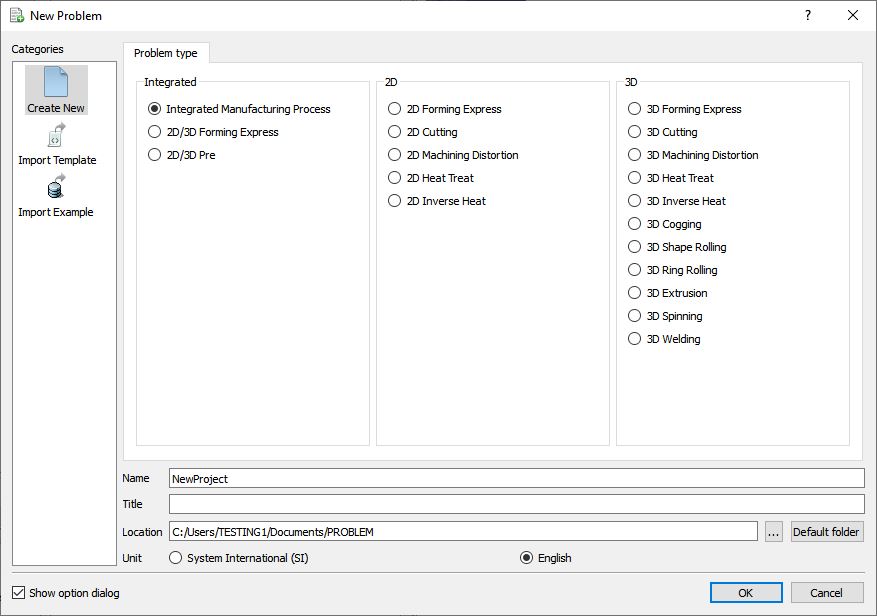
New Problem page
Multiple operation wizard will open with the New Project dialog, at this point user will be prompted to specify a project name (system will create a separate folder with this project name) and title for this session. In this session we will use ‘RING_ROLL_LAB2 ’ as the project name. 3D Ring Rolling operation can also be added in “New Project” dialog (see Fig. RRL2.2.), in this lab we will add Ring rolling operation from Explorer operation list, so do not check “First operation” check box and “ Ring Rolling” operation in “New Project” dialog. Click on to continue to open the operation.
Add 3D Ring Rolling operation from the Explorer Operations list. Add the operation by clicking on  button available next to 3D Ring Rolling or user can also add by drag and drop into the Operation editor (see Fig. RRL2.3.). When we add the Ring Rolling operation, process settings window will open by default.
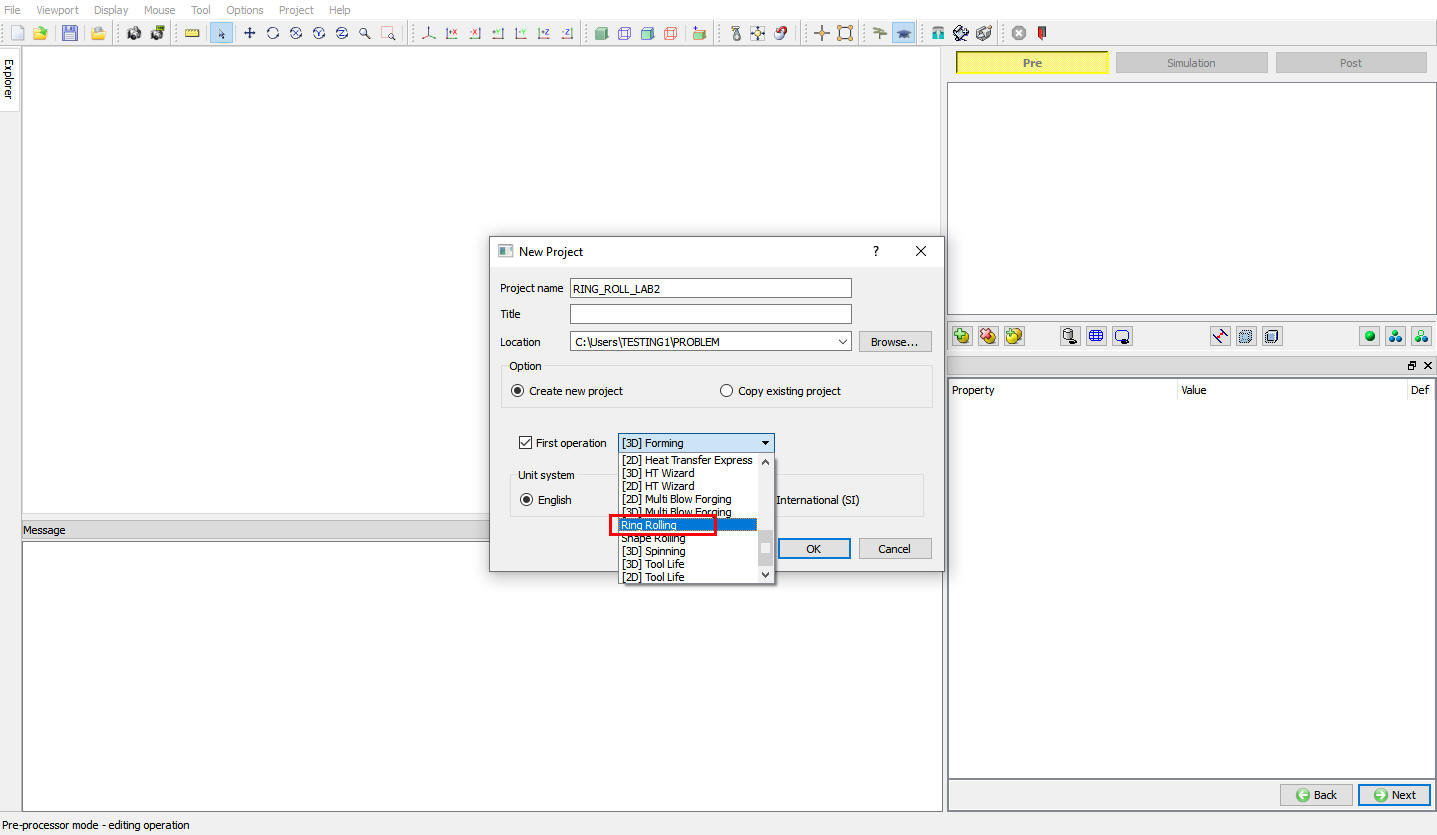
Adding Ring rolling operation from New Project
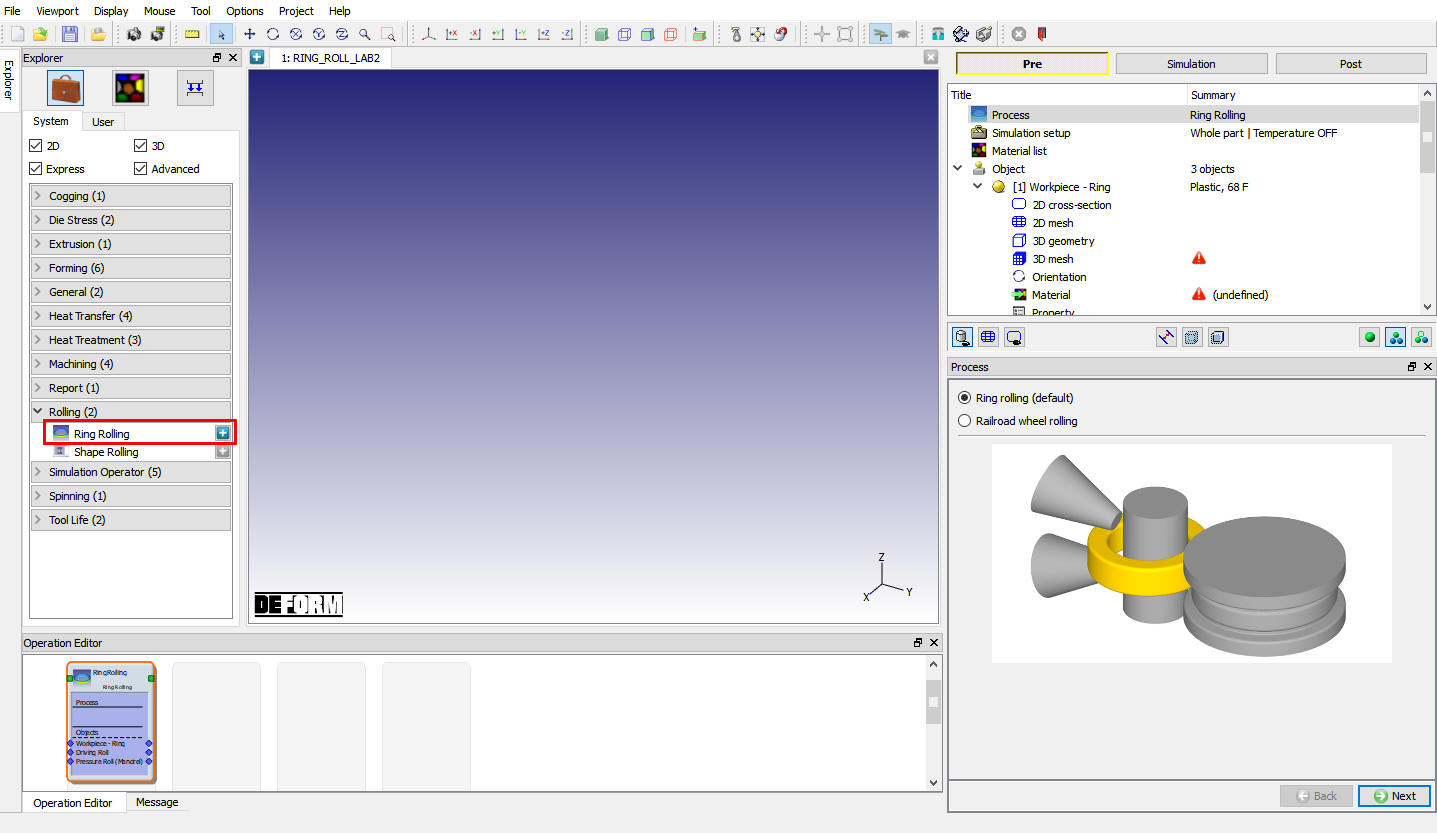
Adding Ring rolling operation from Explorer
Process Page
In Process page by default “Ring rolling (default) “ radio button will be selected (see Fig. RRL2.4.). Click on  to Simulation setup.
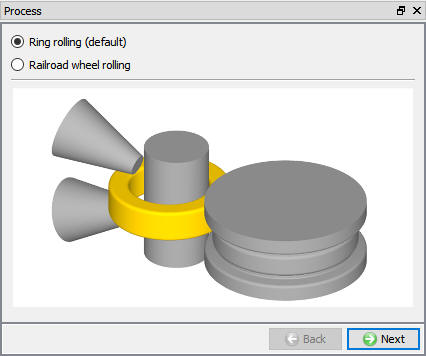
Process page
Simulation Setup
Select “Whole part “ 3D model type radio button. Since we are interested in temperature change in ring select Thermal calculations as type “ Workpiece only (non-isothermal) “ in Simulation setup page as shown in Fig. RRL2.5. Click on until Objects page.
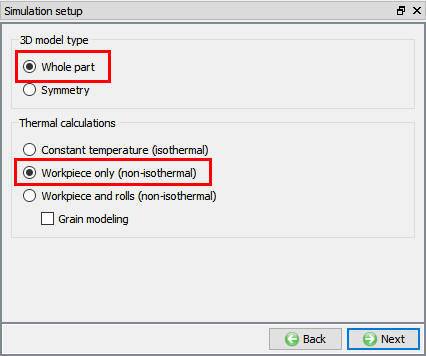
Simulation setup
Object selection
Ring rolling processes are generally assumed to have a main external drive roll, and an inner pressure roll or mandrel. These “radial” rolls reduce the wall thickness and expand the ring. Depending on the mill configuration, axial rolls may also be used to control the width or height of the ring. If axial rolls are to be used, check the “Axial Rolls” option.
For symmetric parts, use 1 axial roll. For full parts, use 2 axial rolls. By default, the axial rolls are assumed to be directly (180 degrees) opposite the radial rolls.
The FEM solver uses an automatic centering system, so guide rolls are not necessary, and not available currently.
In “Objects” page, select the Axial Roll # 1 and Axial Roll # 2 check box as shown in Fig. RRL2.6. Click on to Workpiece - Ring page.
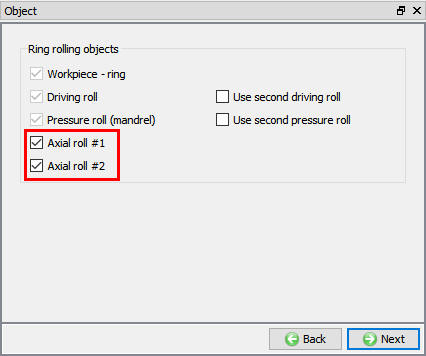
Objects Selection page
Workpiece-Ring General page
In Workpiece -Ring page define the Object temperature as 2100 F as shown in Fig. RRL2.7., Click on to 2D Cross-section page.
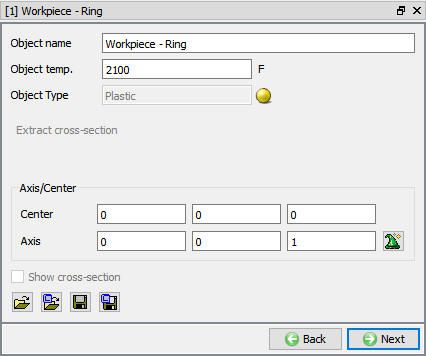
Workpiece - Ring Object page
Workpiece-Ring 2D cross-section page
In Workpiece 2D cross-section page, click on  and define the co-ordinates data as shown in Fig. RRL2.8. Click on
  to close the Edit Window and click on to 2D Mesh page.
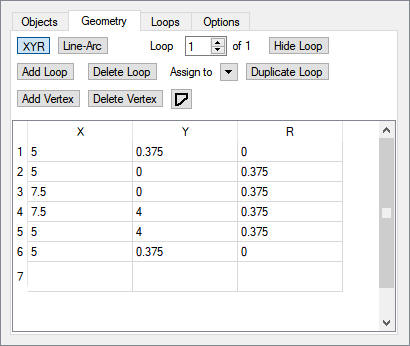
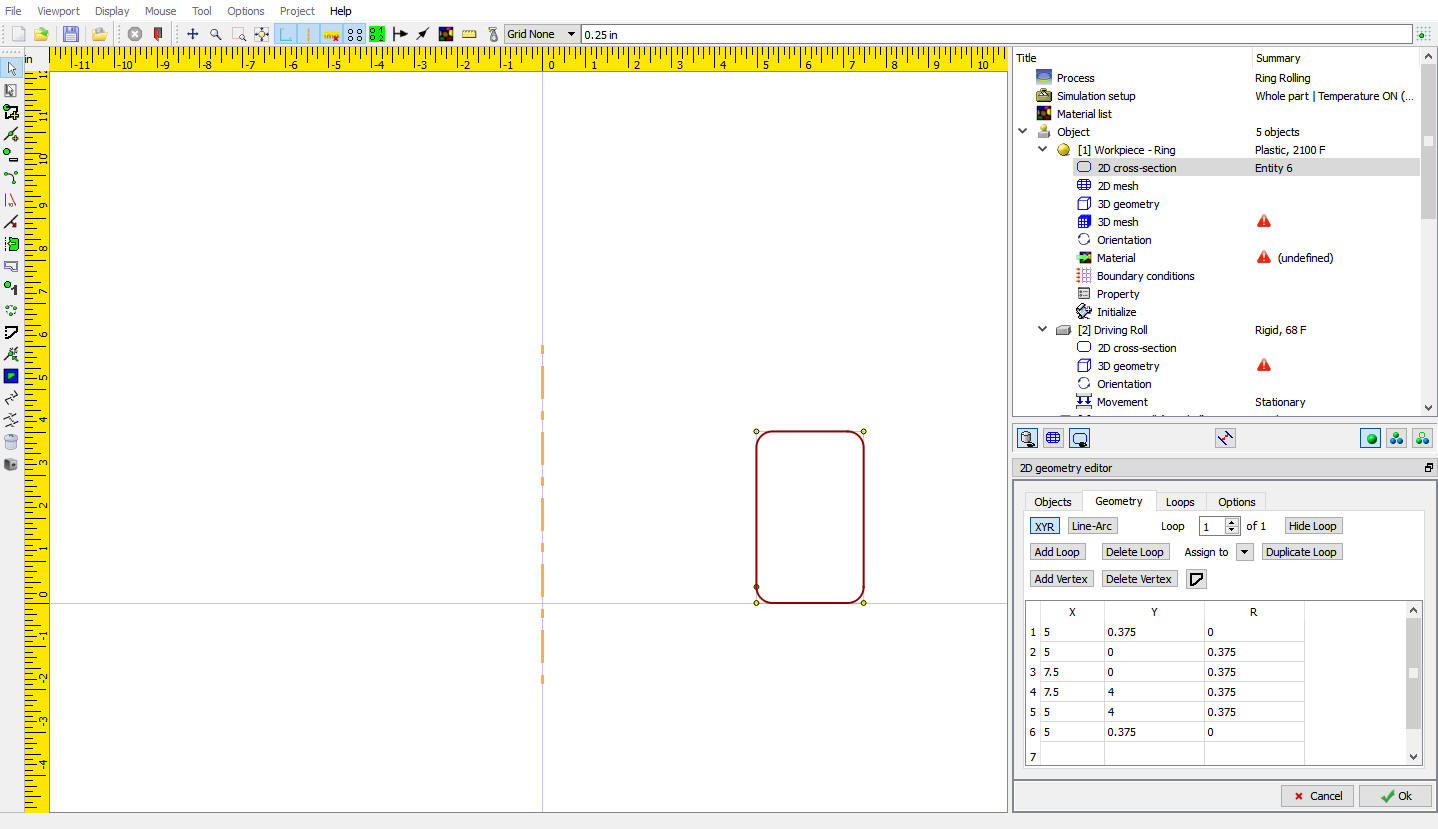
Workpiece edit geometry page
Workpiece-Ring 2D Mesh page
In 2D mesh settings, define Target number of Elements as 120 and click on  button and observe the generated mesh in display window (see Fig. RRL2.9.). Click on to 3D Geometry page.
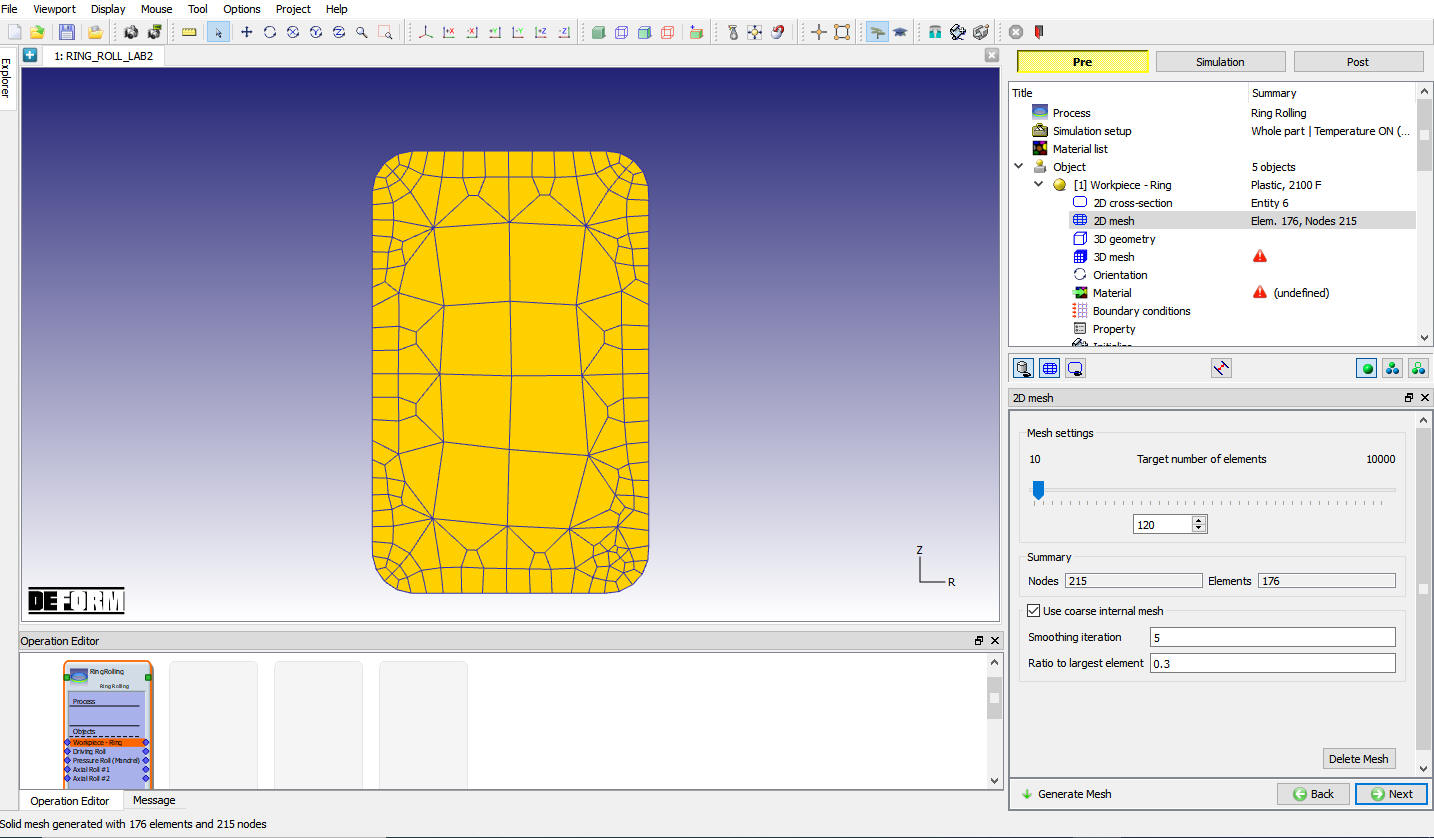
Workpiece 2D Mesh page
Workpiece-Ring 3D Geometry page
In 3D Geometry page, click on “Revolve from 2D “ option, Use the defaults values in Revolve from 2D page and Click on to close. Click on to 3D Mesh page.
Workpiece-Ring 3D Mesh page
In 3D Mesh page, with default value of 120 for “Number of Revolving sections “ generate 3D mesh by clicking on . Observe the generated 3D Mesh for workpiece as shown in Fig. RRL2.10. Click on until Material page.
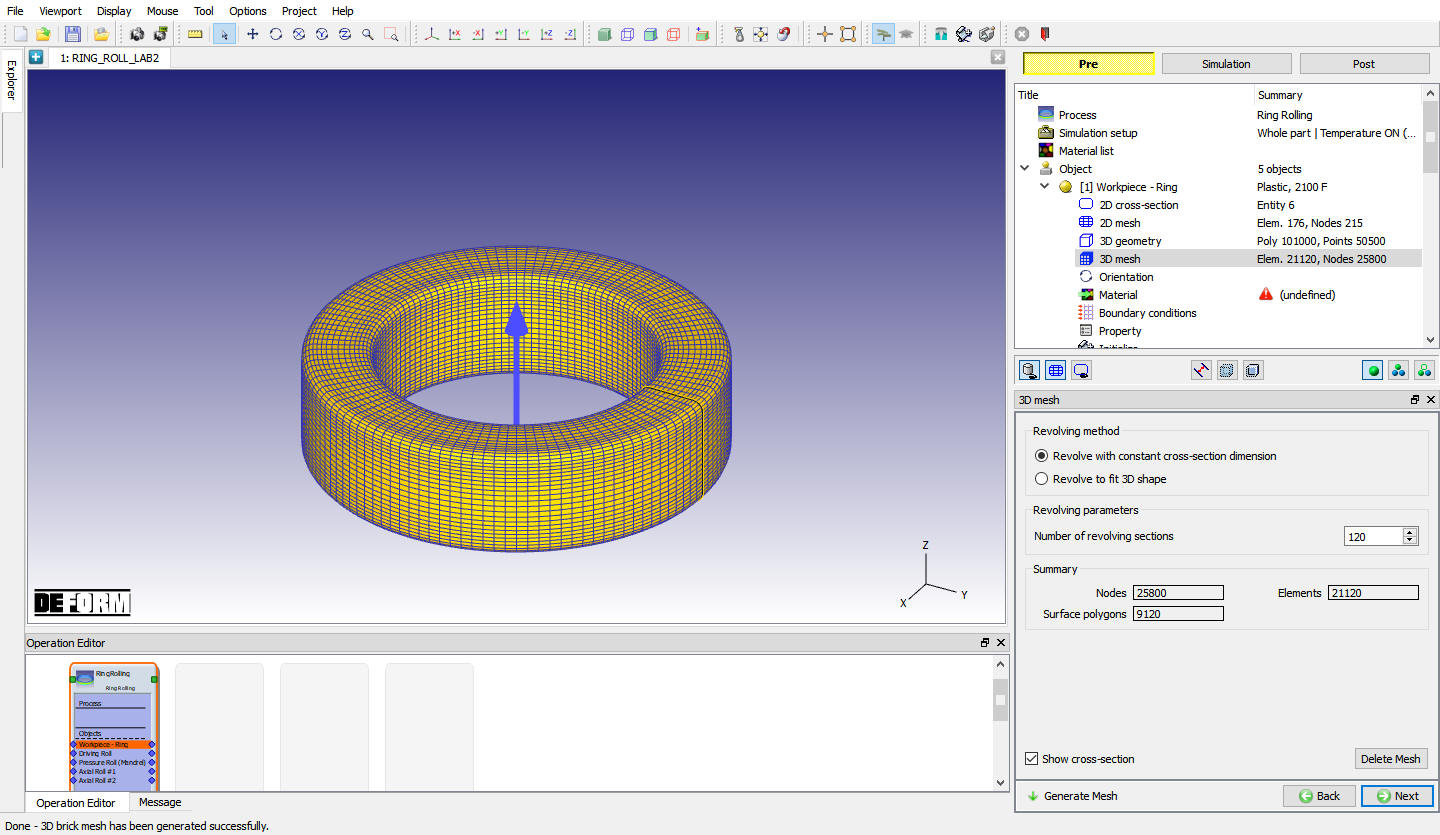
Workpiece-Ring 3D Mesh Page
Assign Workpiece-Ring Material
In Material page, click on  (Load material from library) icon and load the steel group material “AISI-8620[1550-2200F(850-1200C)] “ from material library window. Assign the “AISI-8620[1550-2200F(850-1200C)] “ material for Workpiece. Click on to Workpiece BCC page.
Assign BCC for Workpiece-Ring
Check the default BCC assigned for workpiece, Default Heat exchange BCC should be assigned for outer surface as shown in Fig. RRL2.11. Click on until Driving Roll Object page.
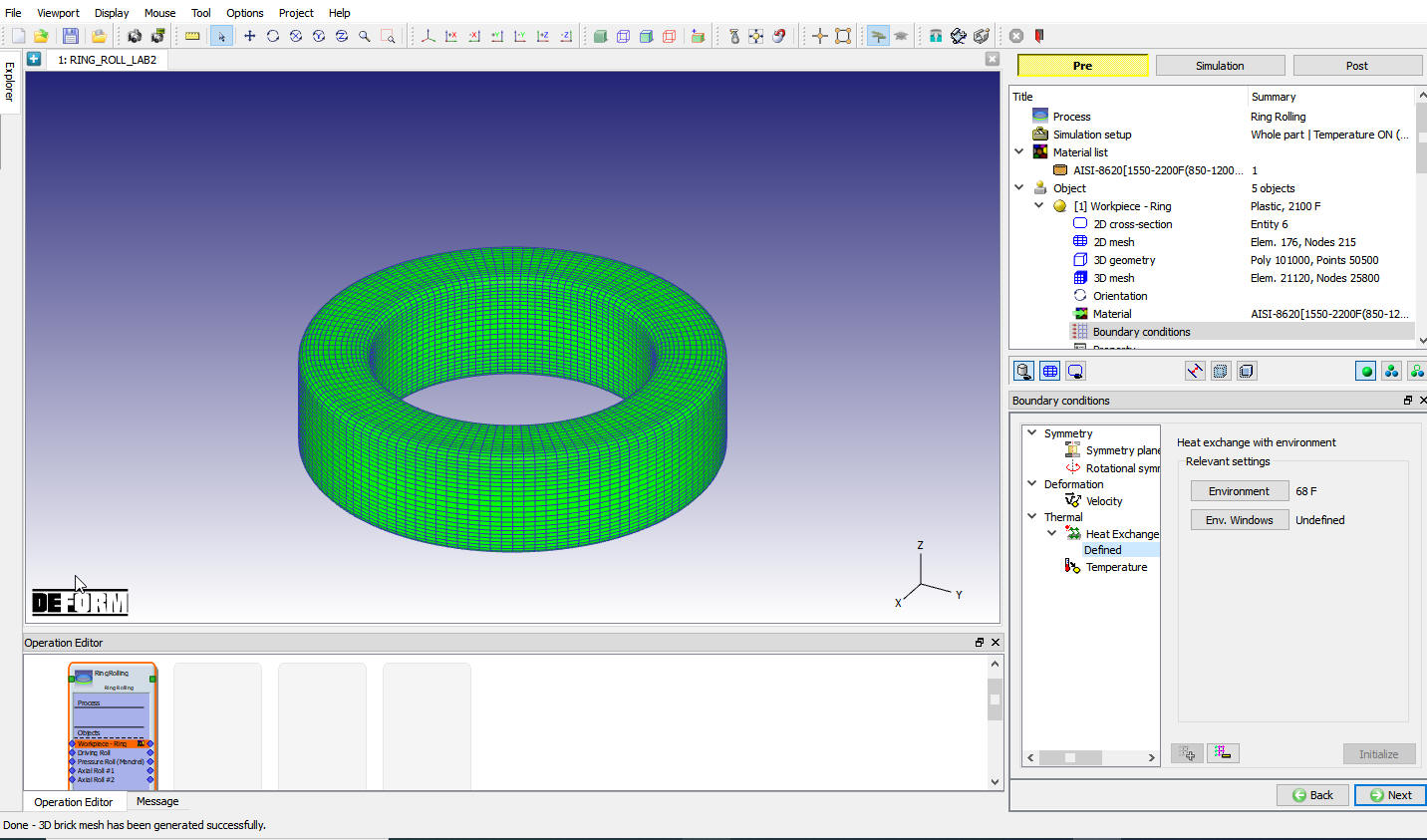
Workpiece Boundary condition page
Driving Roll Object page
Keep the name of” Driving Roll” unchanged and just click on to go to the 2D cross-section geometry page.
Driving roll 2D cross-section page
In Driving Roll 2D Geometry page, click on and define the co-ordinates data as shown in Fig. RRL2.12 or Import the Driving_Roll.GEO from 2D LABS folder and click on “Edit”. Click on to close the Edit Window and click on to 3D Geometry page.
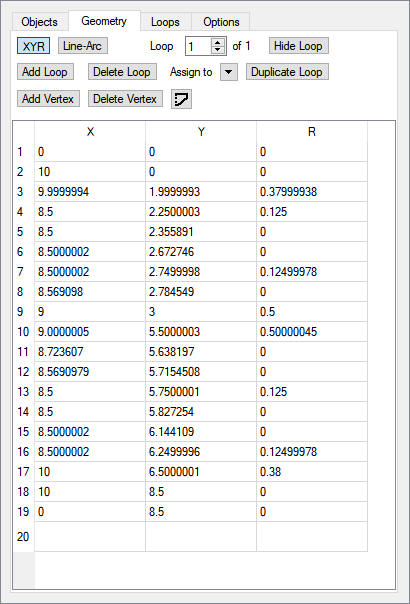
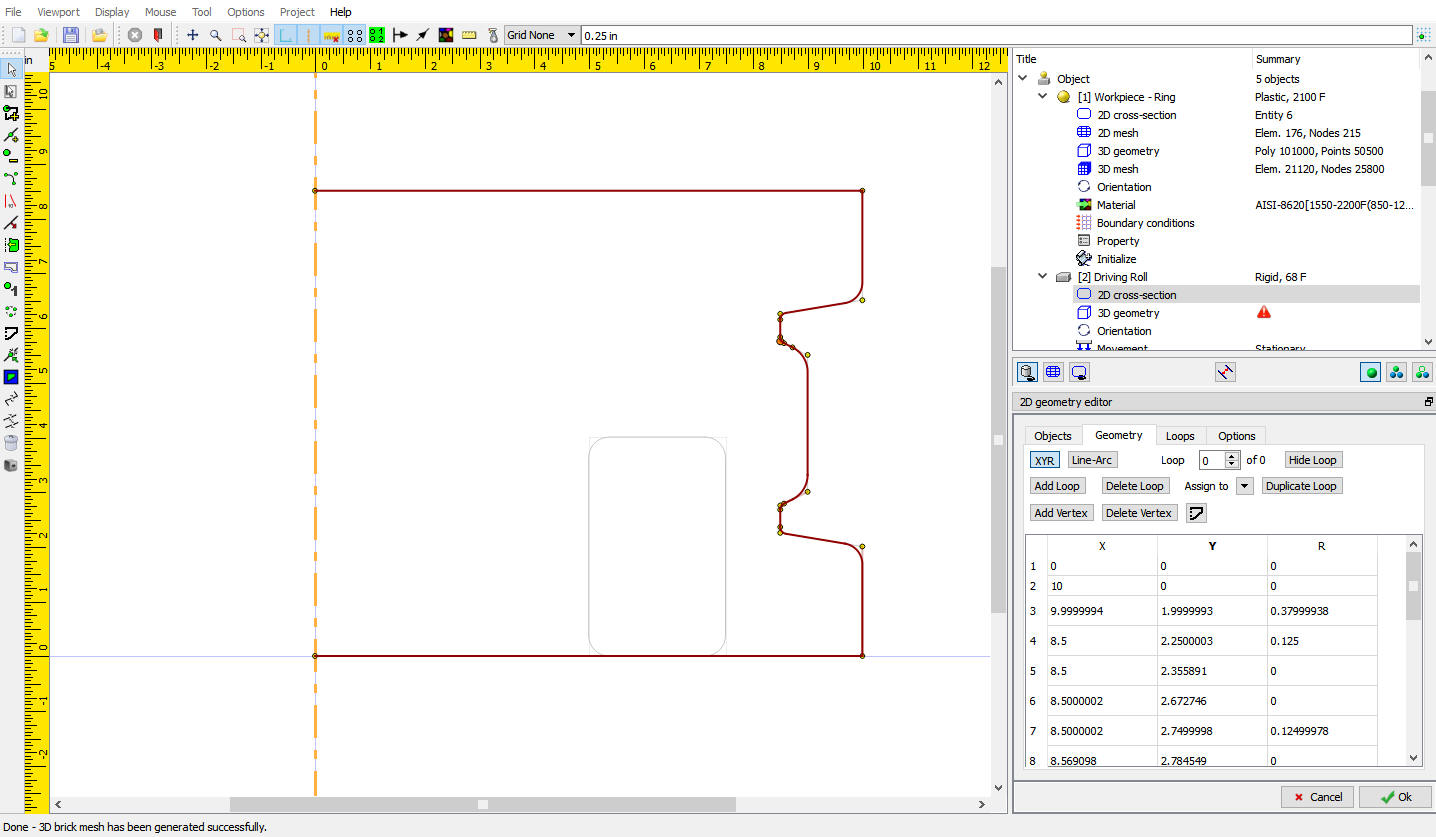
Driving Roll 2D Geometry page
Driving Roll 3D Geometry page
In 3D Geometry page, click on “Revolve from 2D “ option, Use the default value of 100 for “Number of layers in hoop direction “ in Revolve from 2D page and Click to close. Click on to Orientation page.
Driving Roll orientation
In Driving Roll orientation page, Select “Set relative distance between object center “ option and define “ Vertical distance (d)” as 2.25 in and “Current object center’s relative location “ in “-Z “ and click on  to move the Driving Roll by 2.25 in along the Z axis with respect to Ring object center (see Fig. RRL2.13.). Click on to Movement page.
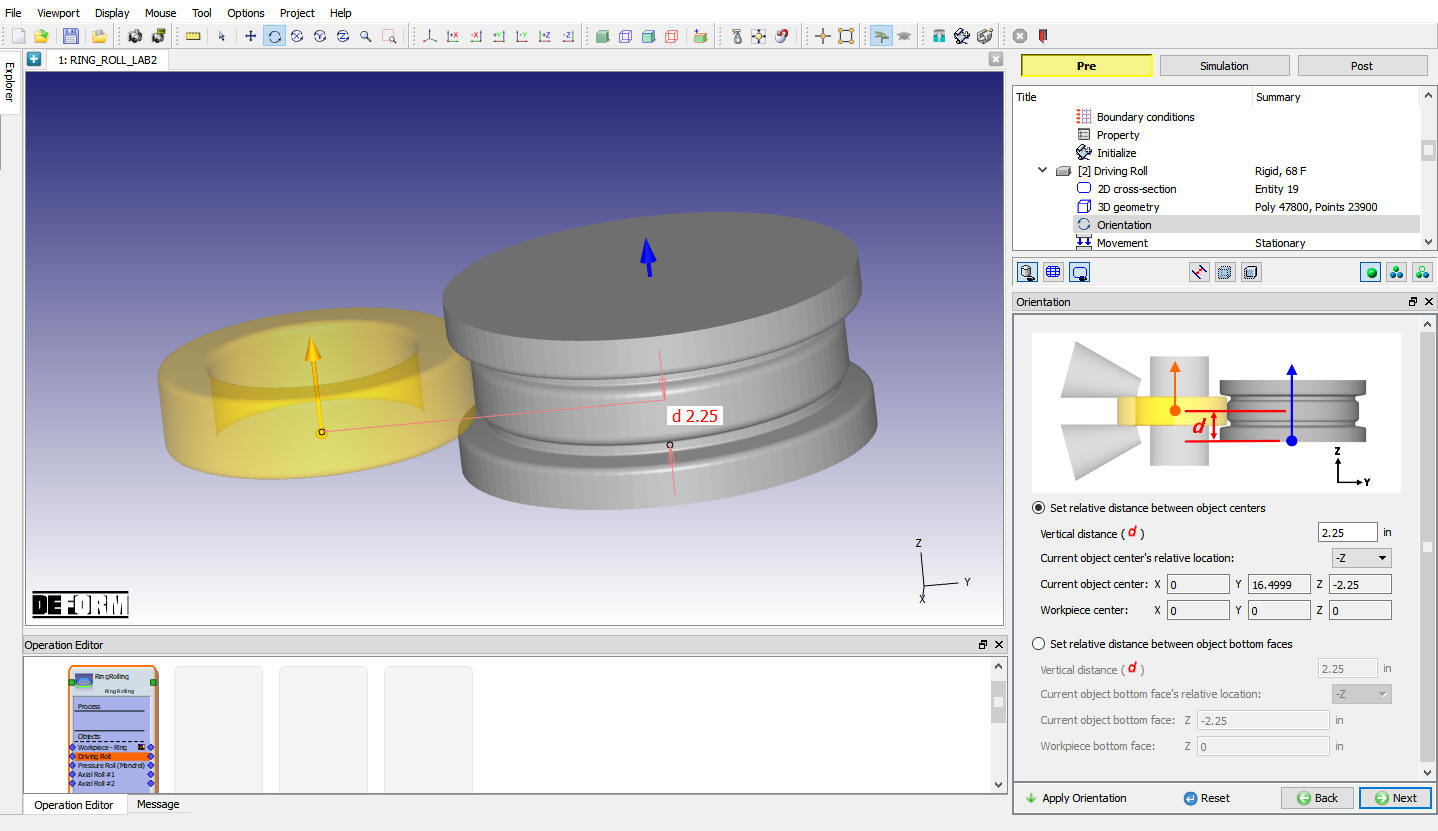
Driving Roll Orientation page
Driving roll movement
Select Angular velocity in rotation movement controls for the driving roll and define a constant value 6.28318rad/sec. Notice a green rotation arrow showing rotational direction in the display window (see Fig. RRL2.14.). Click on to Object page of Pressure roll.
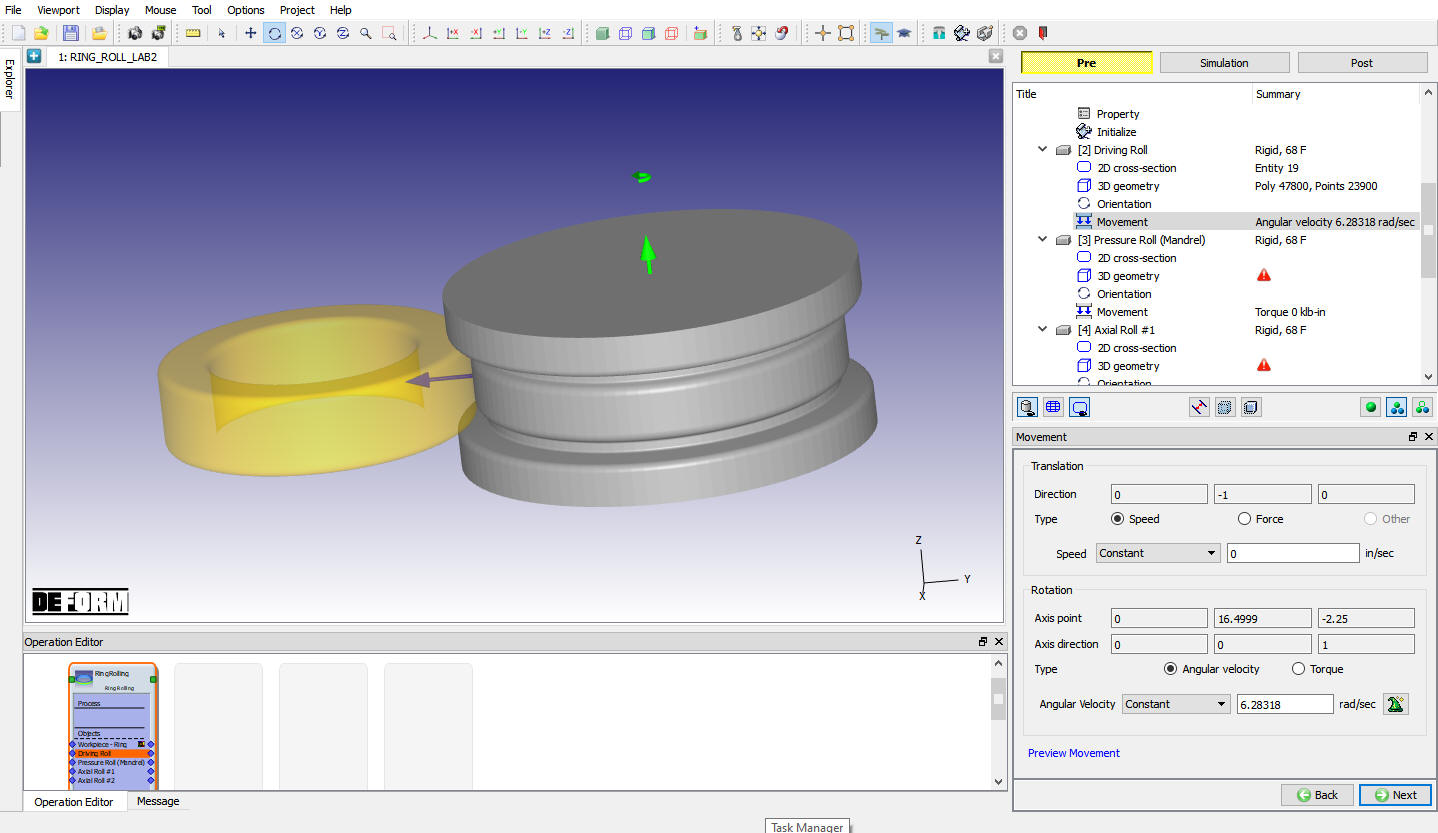
Driving Roll Movement page
Pressure Roll Object page
Keep the name of “Pressure Roll” unchanged and just click on to go to the 2D cross-section page.
Pressure Roll 2D cross-section page
In Pressure Roll 2D Geometry page, click on and define the co-ordinates data as shown in Fig. RRL2.15. Click on to close the Edit Window and click on to 3D Geometry page.
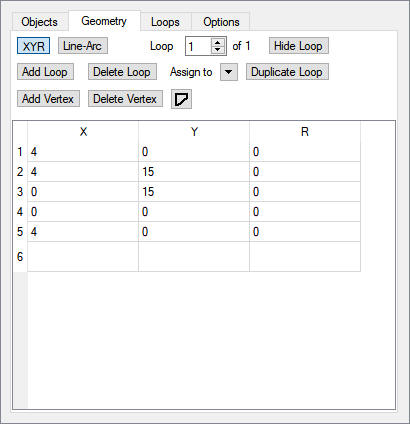
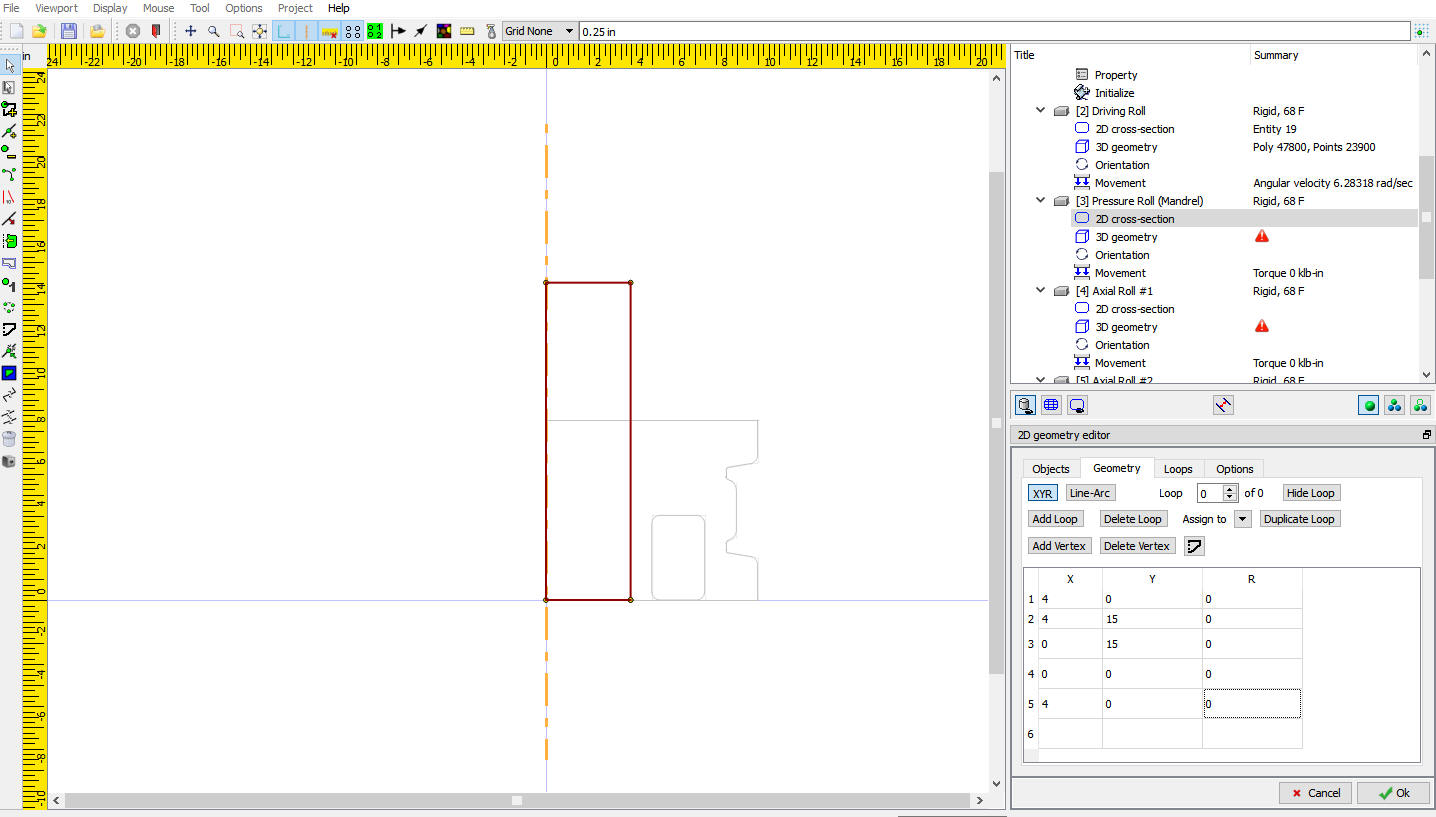
Pressure Roll Geometry page
Pressure Roll 3D Geometry page
In 3D Geometry page, click on “Revolve from 2D “ option, Use the default value of 100 for “Number of layers in hoop direction” in Revolve from 2D page and Click to close. Click on to Orientation page.
Pressure Roll orientation
Select “Set relative distance between object centers “ option and define “ Vertical distance (d)” as 5.5 and “Current object center’s relative location “ in “-Z “ and click on  to move the Pressure Roll down along Z axis by 5.5 in (see Fig. RRL2.13.) in Pressure Roll Orientation page. Click on to Movement page.
Pressure roll movement
Select “Function of time “ in speed and define the values as shown below table and Fig. RRL2.16. Click on until Axial Roll #1 page.
| Time | Speed |
|---|---|
| 0 | 0.05 |
| 5 | 0.05 |
| 20 | 0.025 |
| 60 | 0.005 |
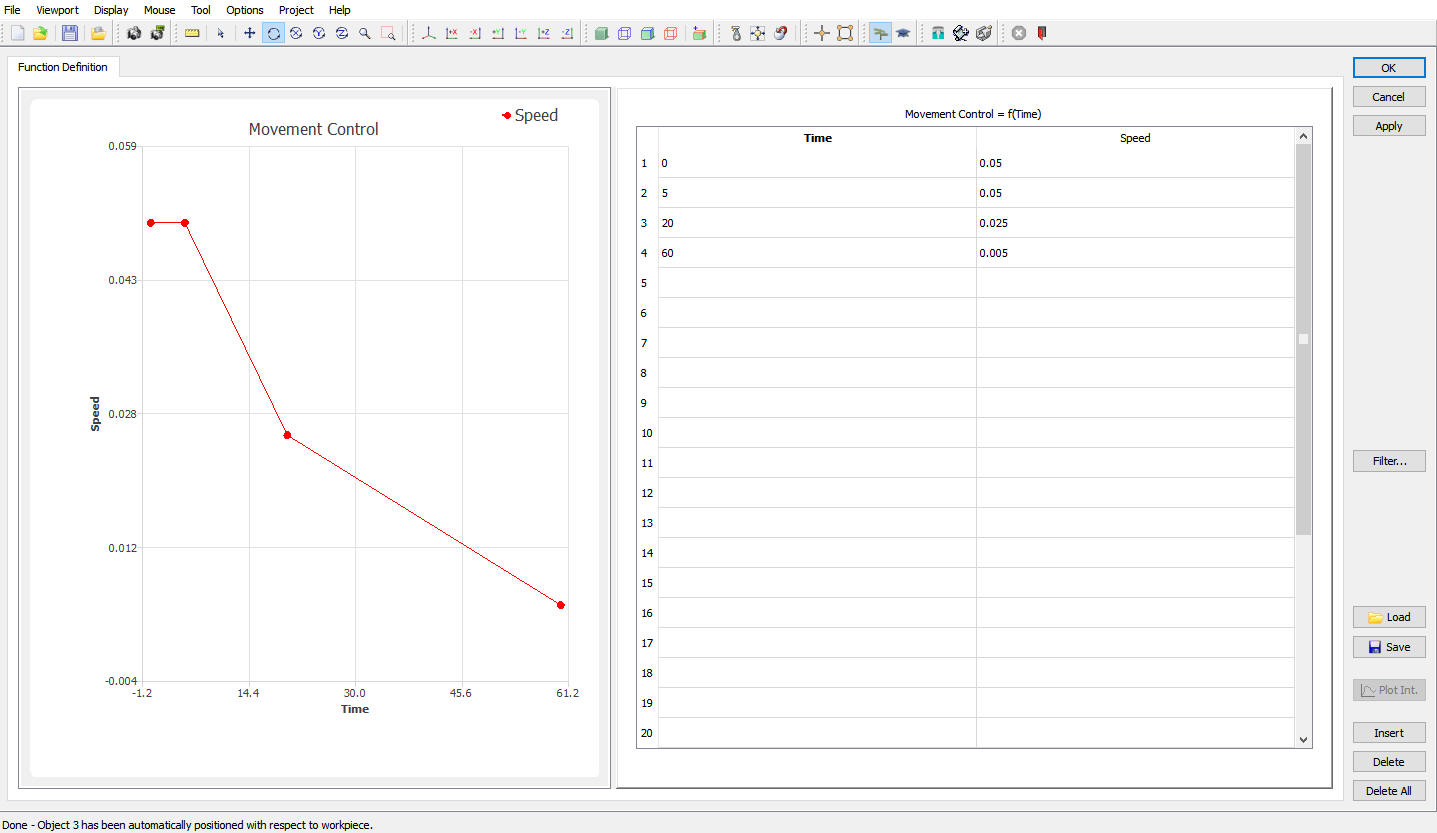
Pressure Roll Speed as Function of Time Movement
Axial Roll #1 Object page
Keep the name “Axial Roll # 1” unchanged and define Object temp as 300 F. Click on to go to the 2D cross-section page.
Axial Roll #1 2D cross-section page
In Axial Roll #1 2D Geometry page, click on “ and define the co-ordinates data as shown in Fig. RRL2.17. Click on to close the Edit Window and click on to 3D Geometry page.
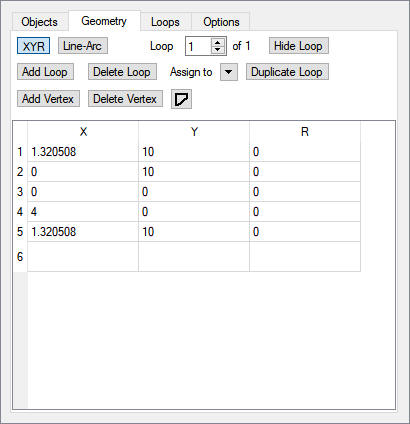
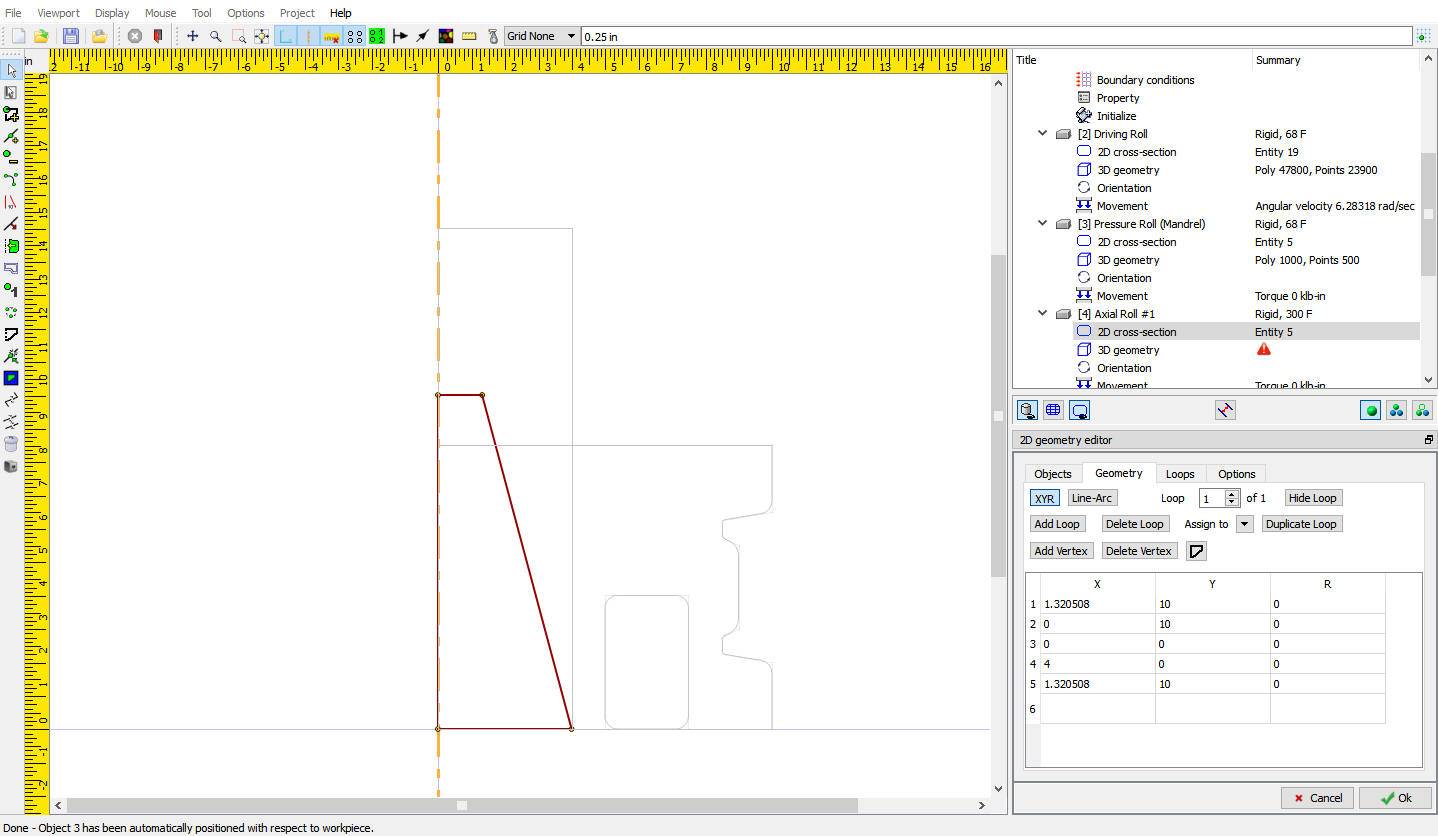
Axial Roll #1 Geometry page
Axial Roll #1 3D Geometry page
In 3D Geometry page, click on “Revolve from 2D “ option, Use the default value of 100 for “Number of layers in hoop direction” in Revolve from 2D page and Click to close. Click on to Orientation page.
Axial Roll #1 orientation
In Orientation page automatically Axial roll is positioned correctly on workpiece at 180 degree position angle, just click on with default values (see Fig. RRL2.18) in Axial Roll #1Orientation page. Orientation page can be used to position the Axial roll along the Ring circumference in hoops direction by specifying an angle in Rotation angle filed and along the ring width by specifying the Horizontal distance between the cone end and ring center as shown in Fig. RRL2.18. Click on to Movement page.
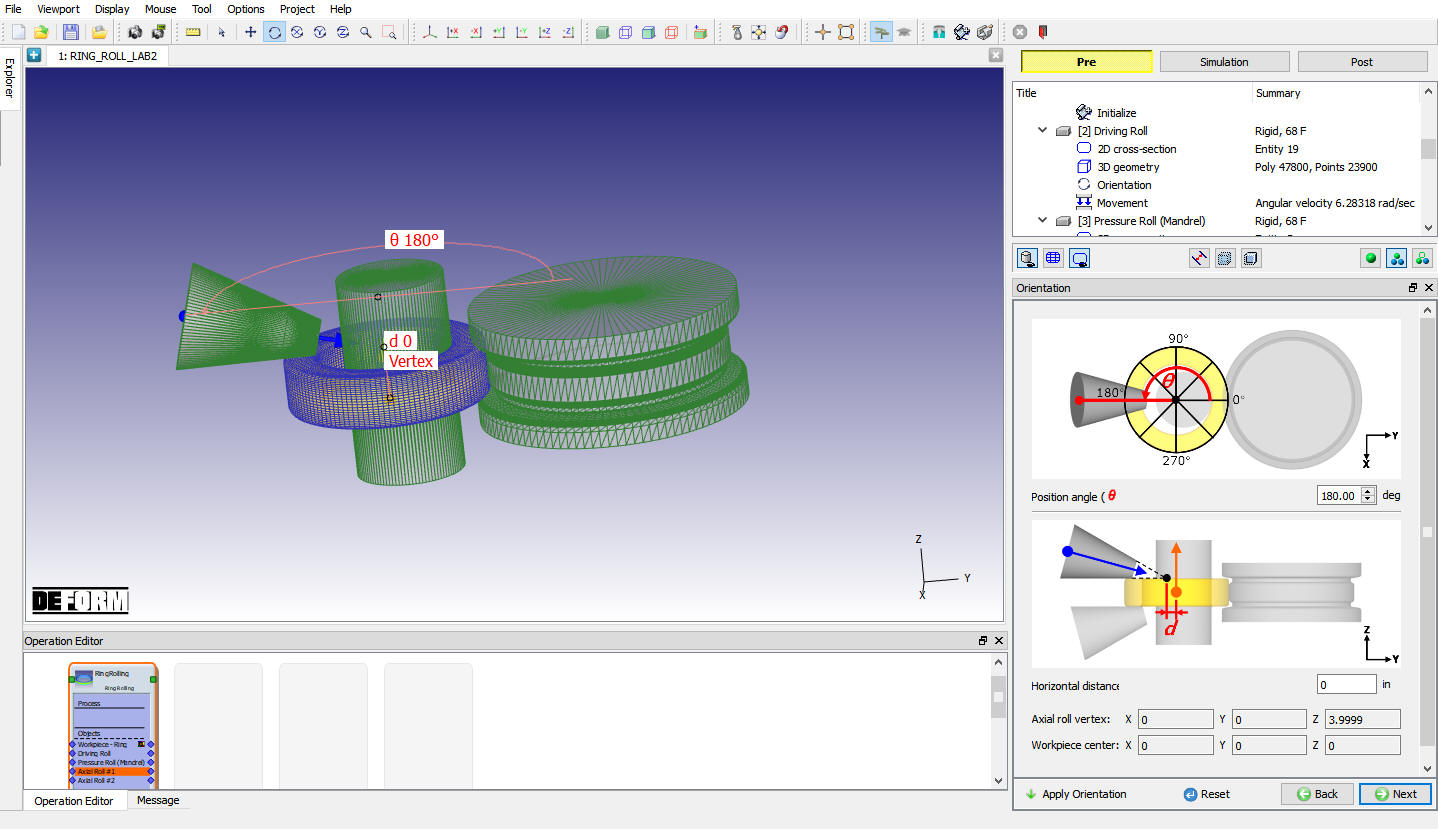
Axial Roll #1Orientation page
Axial Roll #1 Movement page
Define constantspeed of 0.016 in/sec for Axial Roll #1 (see Fig. RRL2.19.). If the axial rolls move along with the expansion of the ring then user can check “Automatic radial movement w.r.t. the expansion of workpiece” check box, then the axial rolls move along with the workpiece during simulation. If user check the “Adaptive rotational movement control” check box, then axial rolls rotate according to the rotation of ring without any slippage, click on until Axial Roll #2 page.
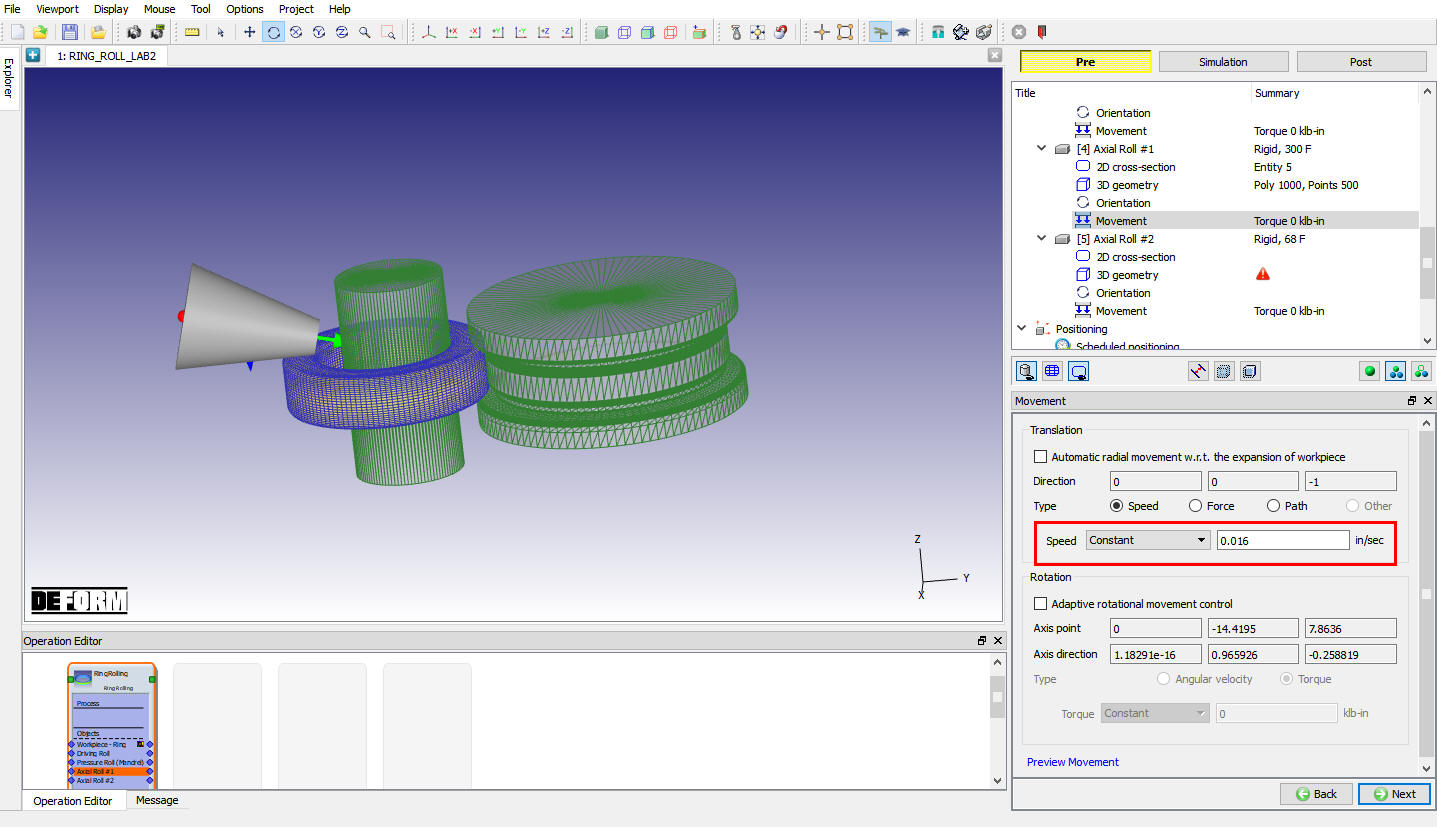
Axial Roll #1 Movement page
Axial Roll #2 General page
Keep the name “Axial Roll # 2” unchanged and define Object temp as 300 F. Click on “Copy Axial Roll #1 “ option, so all the data of Axial Roll #1 copied to Axial Roll # 2 object (see Fig. RRL2.20.). Click on until Orientation page.
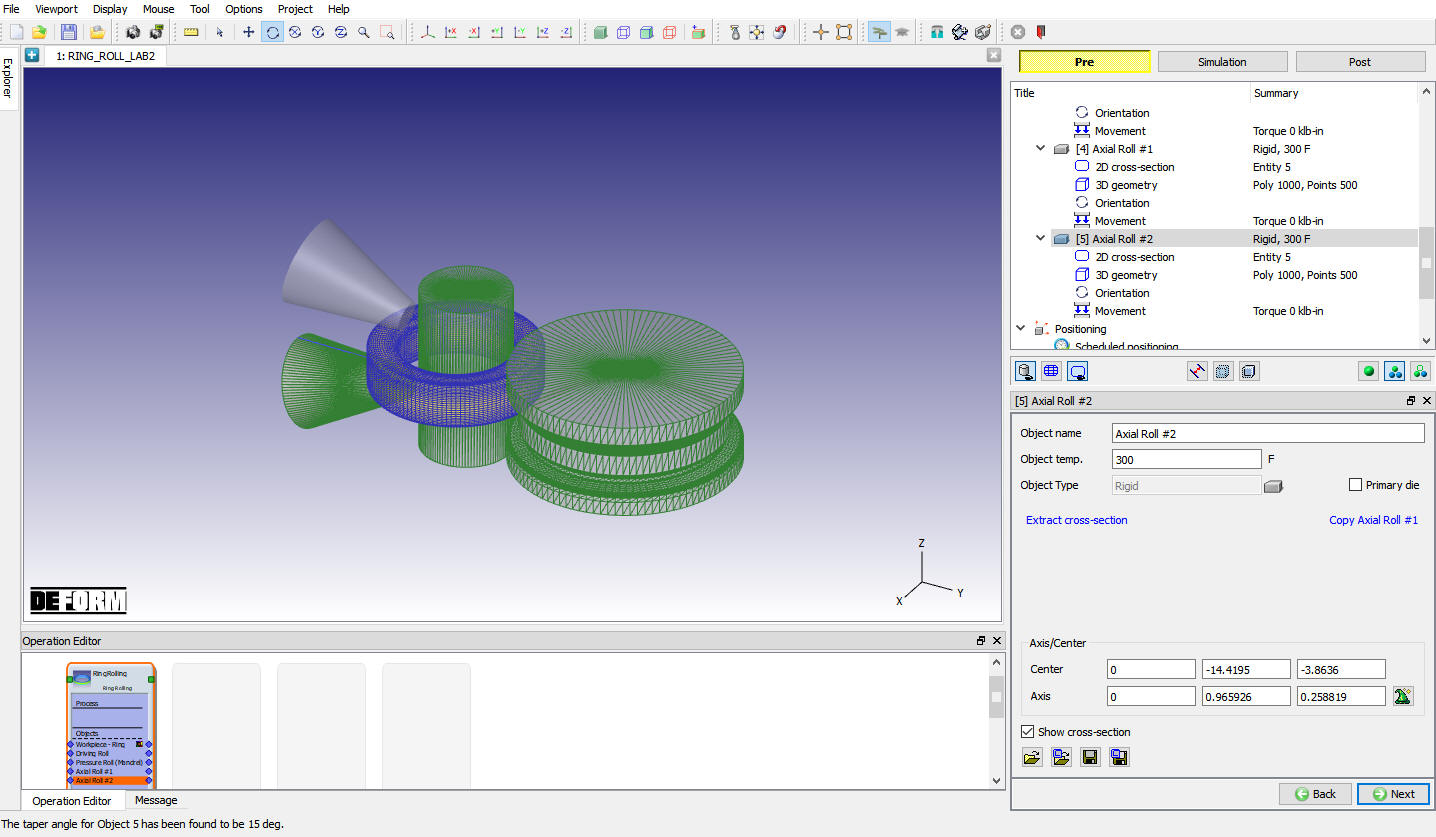
Axial Roll #2 General page
Axial Roll #2 orientation page
In Orientation page automatically Axial roll #2 is positioned correctly on workpiece and at 180 degree position angle, just click on with default values (see Fig. RRL2.21.) in Axial Roll #2 Orientation page. Click on to Movement page.
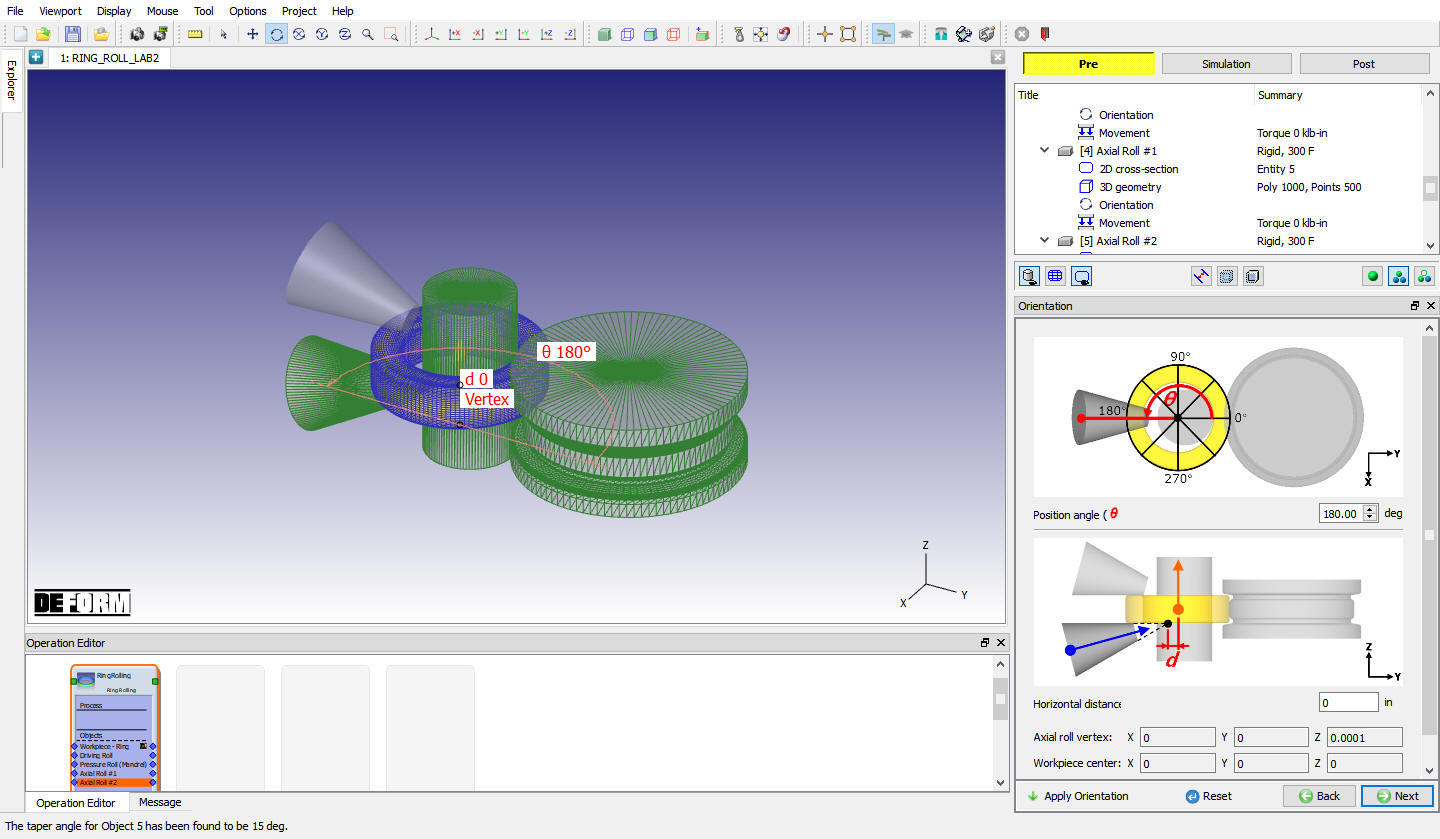
Axial Roll #2 Orientation page
Axial Roll #2 Movement page
Keep the copied movement from Axial Roll #1 object, click on until Contact page.
Contact page
In Contact page, Use the default shear friction value and click on  button to calculate default tolerance value, click on
  to generate contacts between Rolls and the workpiece as shown in Fig. RRL2.22. Click on to Stopping controls page.
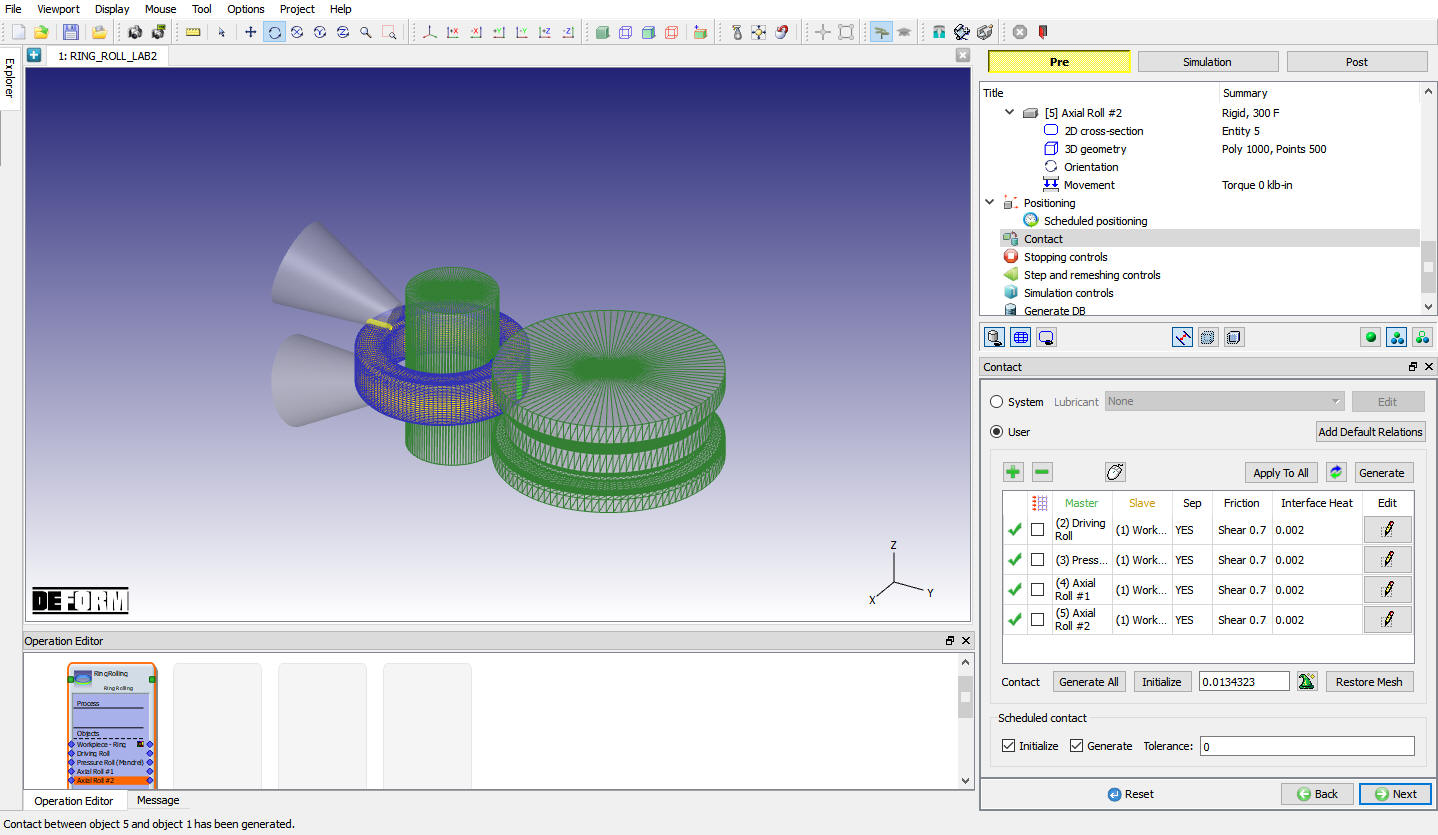
Contact page
Stopping Controls
Define “Max. outer diameter of workpiece “ as 24 in, Processduration as 60 sec and Select “Pressure roll (Mandrel) “ as Primarydie and define the Y displacement value as “15 “ as shown in Fig. RRL2.23. Click on to Step and Remeshing controls page.
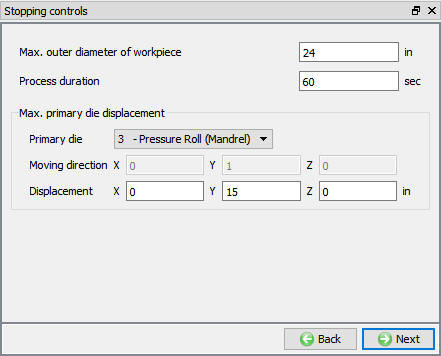
Stopping controls page
Step and Remeshing controls page
Enter Number of steps as 10000 , Rotation increment to save as 180 and Max allowed time step as 0.05. Keep default “Compute temperature as frequently as deformation “ Temperature Computation type and keep the default Remeshing control data as show in Fig. RRL2.24. User can set the temperature calculations frequency to same as deformation or after specific rotation angle by using the options under Temperature Computation tab. Click on until Generate DB.
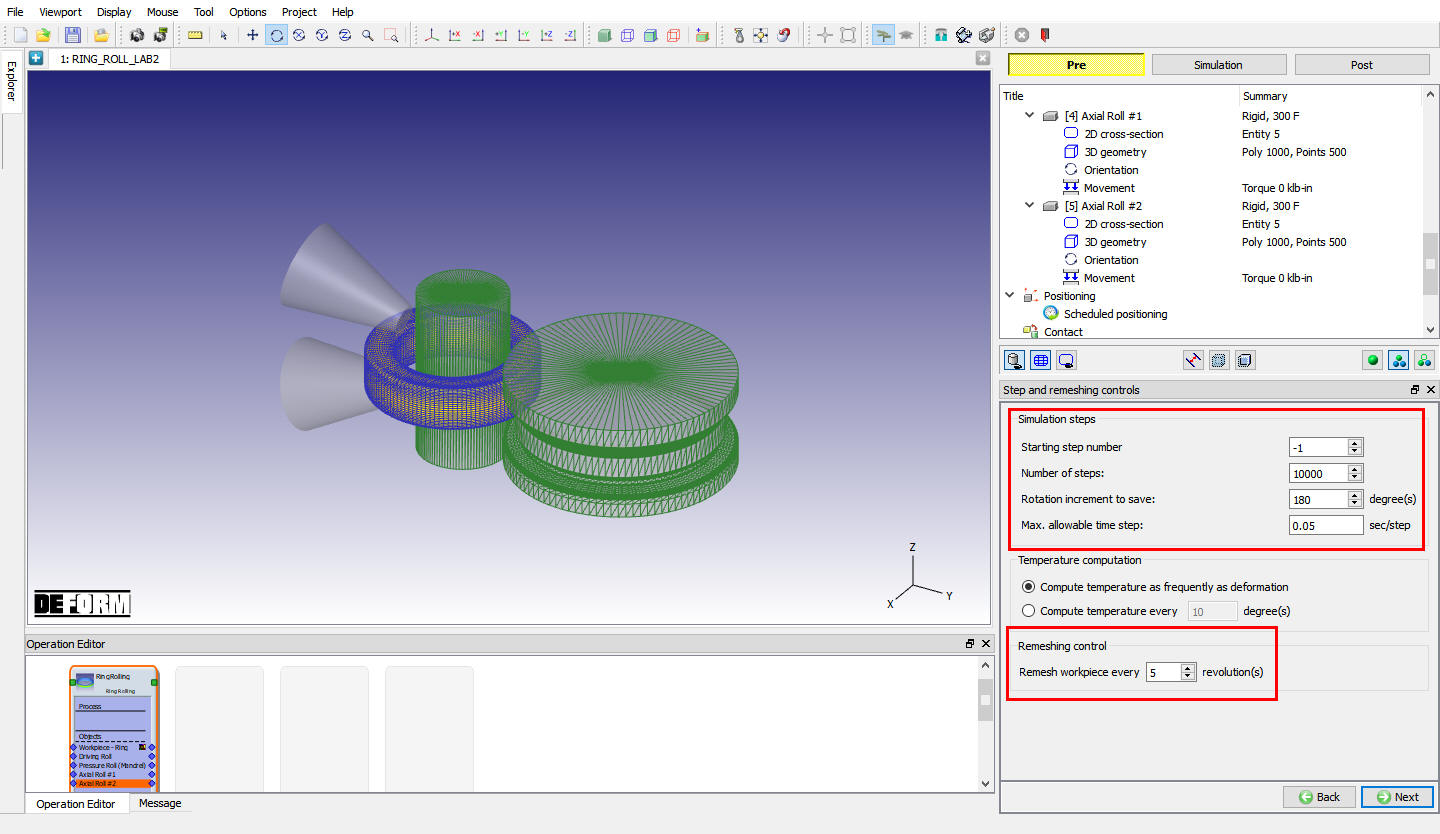
Step and Remeshing controls page
Generate Database
In Generate DB page, click on the  button to generate the database. Observe the message in Message tab informing database generation status.
Running Simulation
Once the database has been generated, switch to the Simulation mode by selecting the  button above the object tree. Click on the
  action label to open the Run Options dialog as shown in Fig. RRL2.25. Use the default Continue Run option to select “Continue from the last step ” (from step -1) option and then select the Simulation mode as Interactive and click on
  button to run the simulation.
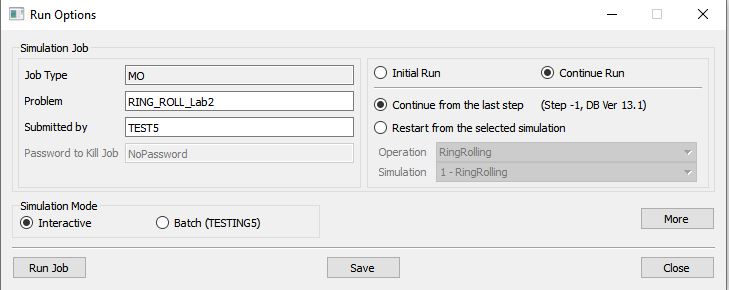
Run Simulation Window
Monitor the progress of the simulation by looking at the Simulation Message and Simulation Log tab, making sure that the  option is checked. User can view the Ring Rolling process as the simulation proceeds to the specified stopping criteria from Simulation graphics.
Post Processing
When the simulation is completed with ‘normal stop’, review the results by switching to Post mode using the  button above the Simulation tool bar.
Play through the steps of the simulation and look how the workpiece-Ring is formed.
Click on  Single object mode by selecting workpiece-Ring and plot Effective Strain and Effective Stress of the workpiece-Ring. When we play through steps, we can observe the increase in strain value ( Fig. RRL2.26.). The Effective strain and Stress value at the end of the simulation should look like as shown in Fig. RRL2.26.
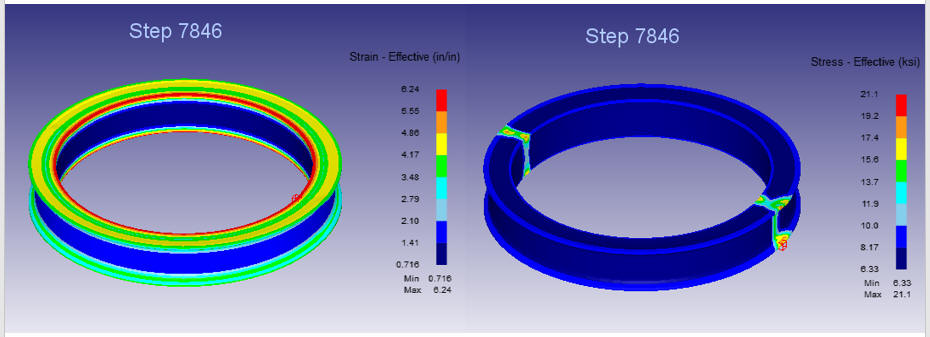
Showing the effective strain and effective stress
The below mentioned Fig. RRL2.27 shows the initial and final dimensions of the ring. The user can make out the difference in ring diameter at the end of the simulation.
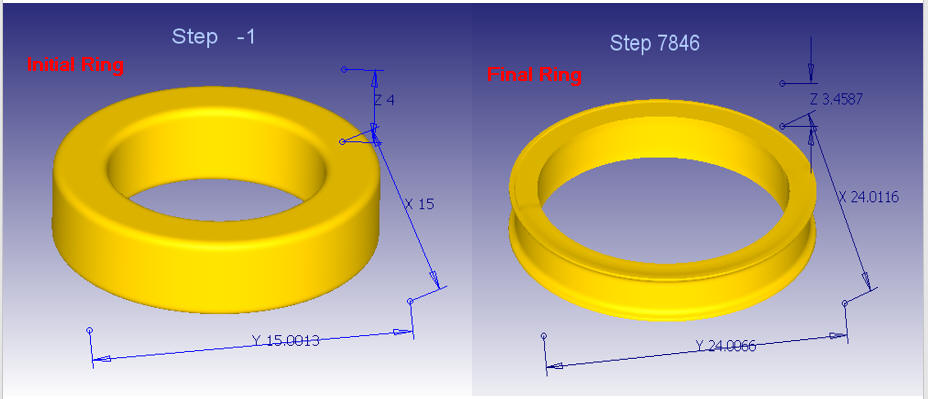
Showing Initial and Final Dimensions of the ring.
Final Cross section of the ring is as shown below in Fig. RRL2.28.
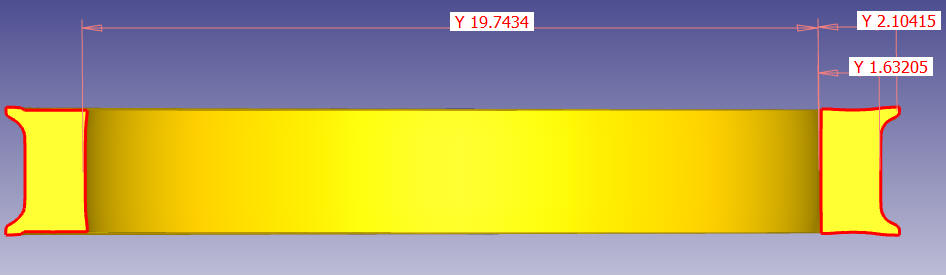
Showing the Cross Section Thickness at various curvature after the compete of simulation.