29.1. Nastavenie coggingu
29.1.1. Terminológia týkajúca sa coggingu
29.1.2. Metóda polohovania
29.1.3. Ako pridať operáciu „Cogging“
29.1.4. Okno procesu
29.1.5. Prevádzka v cykle s coggingom
29.1.6. Tabuľka prechodov
29.1.7. Zoznam materiálov
29.1.8. Okno objektu
29.1.9. Polotovar
-
Geometria
-
Sieťovina
-
Materiál
-
Okrajové podmienky
-
Nehnuteľnosť
29.1.10. Horná matrica
-
Geometria
-
Sieťovina
-
Materiál
-
Ovládanie pohybu
-
Vlastnosti
29.1.11. Manipulátory
-
Ľavý manipulátor 1
-
Geometria
-
Sieťovina
-
Materiál
29.1.12. Polohovanie
29.1.13. Plánované umiestnenie
29.1.14. Kontakt (vzťahy medzi objektmi)
29.1.15. Náhľad simulácie
29.1.16. Ovládacie prvky simulácie
29.1.17. Vytvorenie databázy
29.1.18. Spustenie simulácie
29.1.19. Následné spracovanie
Operácia coggingu vedie používateľa k jednoduchému nastaveniu procesu pomocou tabuľky priechodov (Passtable), nastavení opätovného ohrevu, základných prvkov a ovládacích prvkov pohybu. Tabuľka priechodov pomáha používateľovi nastaviť operáciu coggingu jedným krokom na základe zadaného pohybu a otáčania sochory; zohľadňuje tiež chladenie sochory medzi údermi a počas jej odpočinku na spodnej matrici. Tabuľka priechodov pomáha používateľovi ľahko nastaviť viacero priechodov kopírovaním nastavení z jedného priechodu do druhého. Operáciu je možné nastaviť buď s použitím dvoch, alebo štyroch foriem podľa požiadaviek používateľa.
Sprievodca procesom coggingu ponúka používateľovi možnosť adaptívneho opätovného ohrevu, vďaka čomu sa sochor opätovne zahreje, keď teplota klesne pod kritickú hodnotu, a proces tvárnenia pokračuje.
Terminológia týkajúca sa coggingu
Automatický výpočet záberov: Aktiváciou tejto možnosti systém automaticky vypočíta počet záberov, ktoré sa majú simulovať pre danú dĺžku sochoru a axiálny posuv na jeden záber.
Počet krokov: Pomocou tejto možnosti môže používateľ ručne nastaviť požadovaný počet krokov pre simuláciu zubového posunu.
Axiálny posuv na jeden záber: Ide o vzdialenosť, o ktorú sa sada matíc posunie v axiálnom smere pri jednom zábere (nominálny záber).
Napr.: - ak nastavíme axiálnu rýchlosť posuvu na 10 mm, sada matíc sa po každom zábere posunie o 10 mm po dĺžke polotovaru.
Hrúbka prierezu: Hrúbka prierezu je hrúbka, ktorú je potrebné zachovať na sochore v smere pohybu primárnej matrice. Slúži tiež na riadenie zastavenia a na počiatočné nastavenie polohy matríc. V závislosti od hrúbky prierezu a počtu krokov systém automaticky vypočíta posun na jeden krok.
Napr.: - ak je hrúbka obrobku 20 mm a hrúbku prierezu nastavíme na 19 mm, simulácia sa zastaví hneď po dosiahnutí hrúbky 19 mm na polotovare v smere primárnej matrice. Ak je zvolený akýkoľvek iný pohyb okrem rýchlosti, v závislosti od typu pohybu sa matrice nastavia tak, aby sa na konci deformácie dosiahla hrúbka 19 mm.
Smer pohybu: Určuje smer pohybu vŕtačky pozdĺž osi obrobku (+X alebo -X).
Otočenie po každom zarytí (°): Pomocou tejto možnosti môže používateľ nastaviť uhol, o ktorý sa má polotovar otočiť po každom zarytí.
Otočenie na jeden priechod (°): Pomocou tejto možnosti môže používateľ nastaviť uhol, o ktorý sa má polotovar otočiť pred každým priechodom.
Doba zdržania pred priechodom: Pomocou tejto funkcie môže používateľ nastaviť čas, počas ktorého obrobok zostáva na matrici pred začatím priechodu s ozubením.
Čas presunu pred prechodom: Pomocou tejto funkcie môže používateľ nastaviť časový interval medzi výstupom z pece a príchodom na stôl pre coggingový prechod pred začatím coggingového prechodu.
Metóda polohovania matice
-
0 - % (percento alebo zlomok dĺžky sochory v rozmedzí od 0 do 1): Počiatočná alebo koncová poloha sa určuje ako zlomok dĺžky sochory od príslušných koncov sochory, pričom sa zohľadňuje smer zubovania.
-
1 – ref (Referenčné body): Počiatočná alebo koncová poloha sa určuje výberom dvoch bodov na polotovare; v tabuľke sa zobrazujú iba súradnice x.
-
2 – dst (Absolútna vzdialenosť od koncov sochory): Počiatočná alebo koncová poloha sa určuje na základe vzdialenosti od príslušných koncov sochory, pričom sa zohľadňuje smer zubového posunu.
-
3 -ofst (Offset): Počiatočná poloha sa určuje ako relatívna vzdialenosť od predchádzajúcej polohy razidla.
Počiatočná poloha matrice: Stred matrice je referenčný bod, ktorý slúži ako počiatočná poloha pre každý priechod v smere jej pohybu. (Pozri obr. 29.1.1.)
Konečná poloha matrice: Táto voľba je aktívna len vtedy, ak je zaškrtnutá voľba „Automatický výpočet záberov“. Prechod sa ukončí skôr, ako stred matrice dosiahne zadanú konečnú polohu.
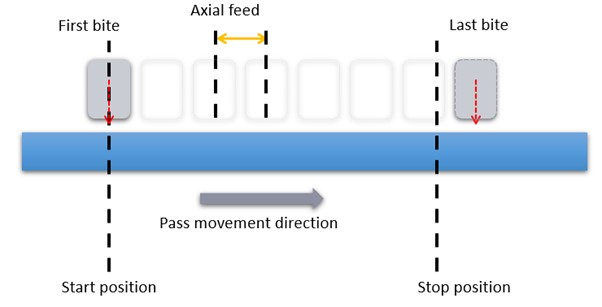
Počiatočná a koncová poloha.
**1.** 0 % (percento alebo zlomok dĺžky sochory v rozmedzí od 0 do 1) :
Počiatočná poloha matrice: Stred matrice je umiestnený v danej vzdialenosti (uvedenej ako zlomok aktuálnej dĺžky sochoru) od začiatku sochoru v smere pohybu pri prechode. (Pozri obr. 29.1.2.)
Poloha zastavenia matrice: Prechod sa ukončí, keď stred matrice dosiahne stanovenú vzdialenosť (vyjadrenú ako zlomok aktuálnej dĺžky sochoru) od konca sochoru v smere opačnom k smeru pohybu prechodu.
Predvolené hodnoty sú nuly, čo znamená, že stred matrice je umiestnený na začiatočnom konci polotovaru a zastaví sa, až keď dosiahne druhý koniec.
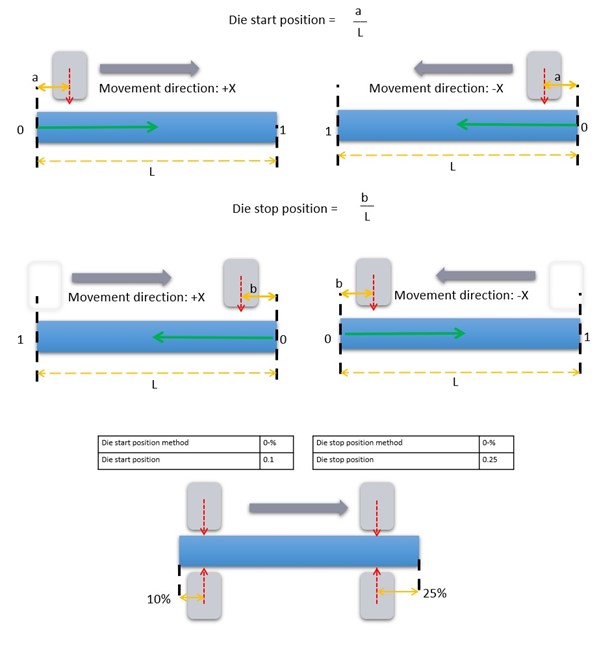
(0-%) Metóda polohovania matrice na základe percenta alebo zlomku dĺžky sochory
2.1 -ref (Referenčné body) : Ak je zvolená táto metóda, je povolené výberové označovanie a je možné označiť dva body na polotovare.
Po kliknutí na bunku „Počiatočná poloha kocky“ v prvom kroku by sa mal vybrať počiatočný bod. (Pozri obr. 29.1.3.)
Zastavovací bod by sa mal zvoliť po kliknutí na bunku „Poloha zastavenia matrice“ v prvom cykle.
Stred formy je umiestnený v počiatočnom bode a priechod končí, keď dosiahne koncový bod. Pre všetky priechody sa používajú tie isté dva referenčné body. Referenčné body sa sledujú na deformovanom obrobku.
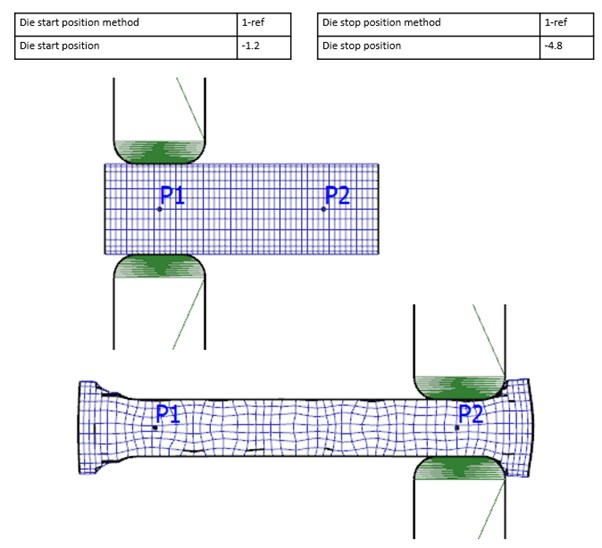
(1-ref) Metóda polohovania výsekových foriem pomocou referenčného bodu
3.2-dst (metóda absolútnej vzdialenosti) :
Počiatočná poloha matrice: Stred matrice je umiestnený v určitej vzdialenosti od začiatku polotovaru v smere pohybu pri prechode. (Pozri obr. 29.1.4.)
Poloha zastavenia matrice: Prechod sa ukončí, keď stred matrice dosiahne stanovenú vzdialenosť od konca polotovaru v smere opačnom k smeru pohybu prechodu.
Pre počiatočné a/alebo konečné polohy je možné použiť záporné hodnoty.
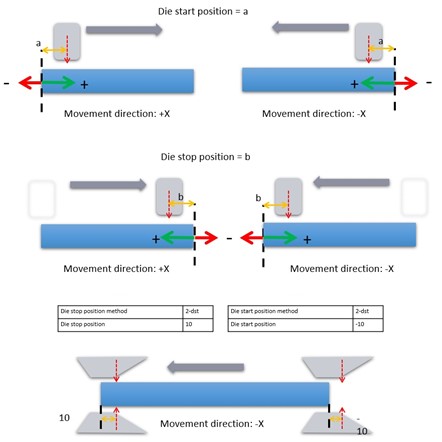
(2-dst) Metóda polohovania pomocou kocky na meranie absolútnej vzdialenosti
_****4.**3-ofst (metóda posunu)_ :
**Počiatočná poloha kocky: Kocka sa posunie o zadanú vzdialenosť od svojej poslednej polohy. Kladná hodnota posunie kocku v smere pohybu ťahu, zatiaľ čo záporná hodnota ju posunie v opačnom smere. (Pozri obr. 29.1.5.)
Poloha zastavenia: Neplatí; túto metódu nie je možné použiť na zastavenie, pretože to nemá zmysel.
Metódu posunu je možné použiť s nulovou hodnotou pre prvý priechod, ak chce používateľ vykonať iba ručné polohovanie. V určitých procesoch, ako je napríklad lisovanie s posunom, je potrebné polohovať lisovacie nástroje v určitej špecifickej konfigurácii vzhľadom na polotovar. V takýchto prípadoch je možné použiť metódu posunu s nulovou hodnotou pre prvý priechod. Systém nevykonáva žiadne ďalšie polohovanie matíc.
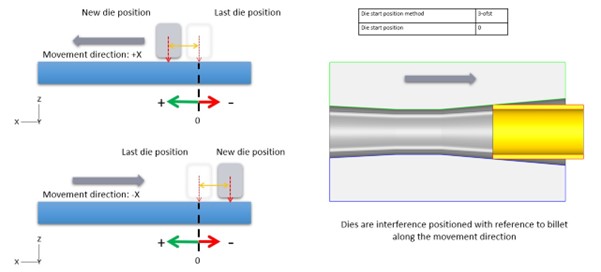
(3-ofst) Metóda polohovania matice s posunom
- Časti, ktoré môžete preskočiť
Počet krokov, ktoré sa majú preskočiť – táto voľba platí iba pre ovládanie pohybu založené na kľukovom mechanizme. Pomocou tejto voľby môže používateľ nastaviť počet krokov, ktoré sa majú preskočiť medzi jednotlivými krokmi v príslušnom cykle simulácie.
Na obr. 29.1.6. je znázornený proces zubovania s dvoma prechodmi, pričom v prvom prechode sme pri každom zube preskočili dva zuby a v druhom prechode sme žiadne zuby nepreskočili.
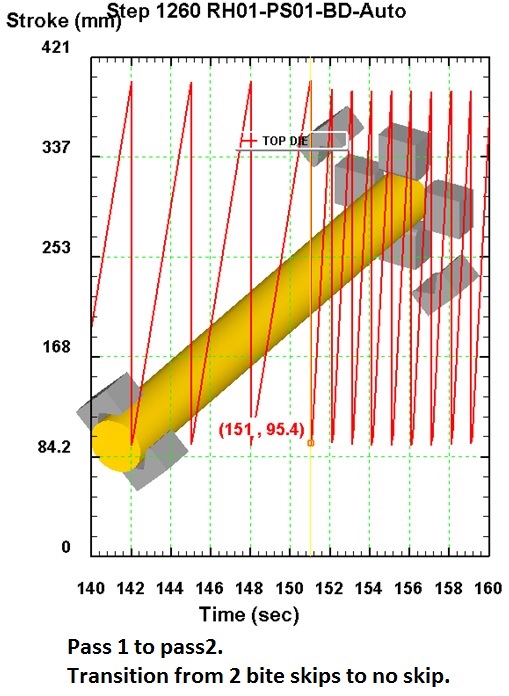
Preskočiť časť „Bite“
Ako pridať operáciu „Cogging“
Operáciu coggingu je možné spustiť z čarodejníka MO, ktorý sa otvára z hlavného grafického rozhrania. V čarodejníkovi MO je možné operáciu coggingu pridať na karte „Explorer“ kliknutím na tlačidlo  vedľa položky „3D Cogging“. Operáciu môže používateľ pridať aj pomocou funkcie drag and drop do editora operácií, ako je znázornené na obr. 29.1.7.
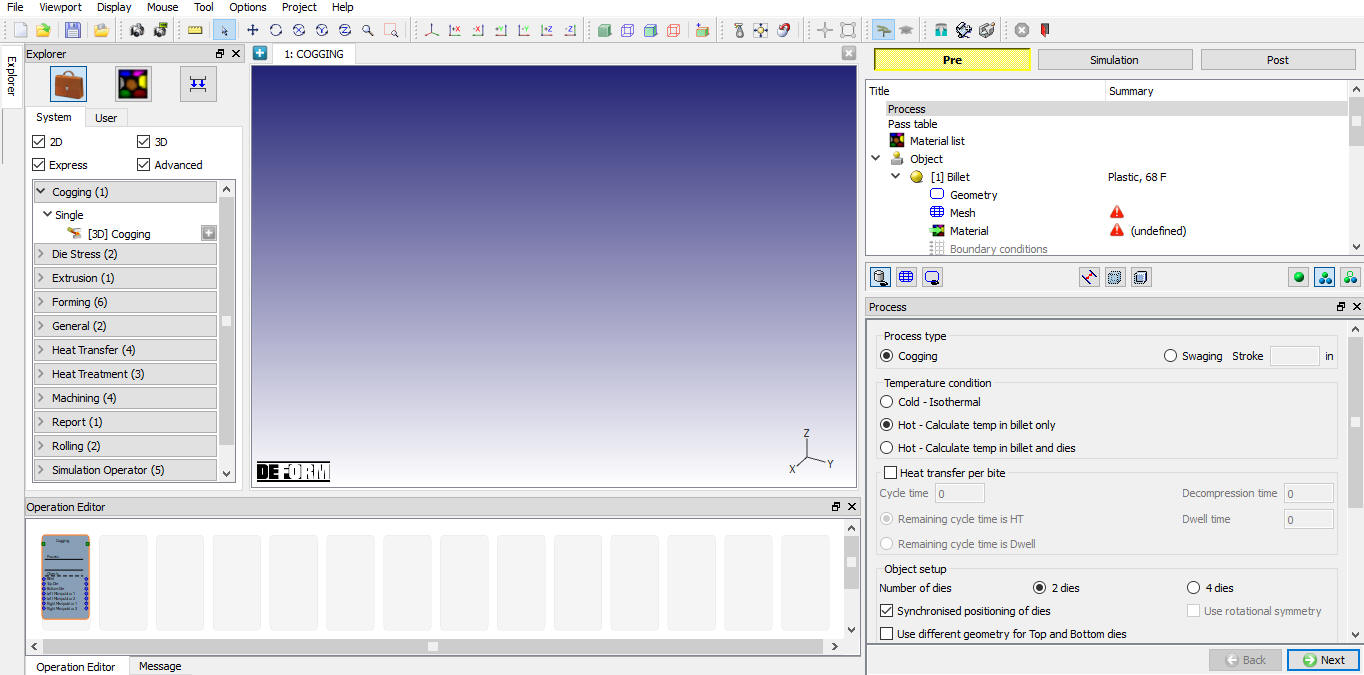
Do nástroja Operation Explorer bola pridaná operácia „Cogging“
Okno procesu
Na obr. 29.1.8. sú zobrazené možnosti nastavenia podmienok procesu; tieto možnosti sú vysvetlené nižšie.
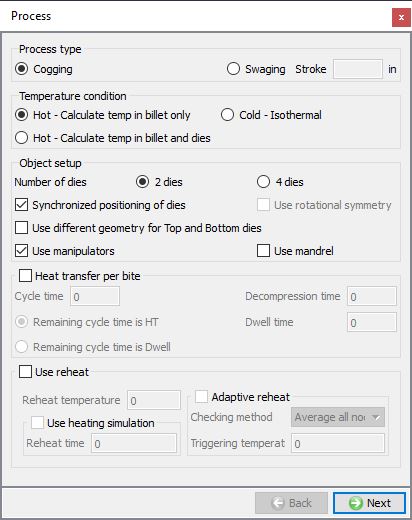
Okno procesu
Typ procesu
- Cogging: Ide o proces predĺženia sochoru zmenšením jeho priemeru.
Cieľom programu Cogging je modelovanie procesu spracovania sochory, ktorý pozostáva z viacerých rezov/prechodov/opätovných ohrevov v rámci jednej operácie s automatickými zastaveniami a opätovnými spusteniami medzi jednotlivými krokmi procesu.
Sprievodca Cogging Wizard slúži na generovanie hlavných súborov a súborov s kľúčovými slovami pre sochory, matrice a manipulátory, ktoré obsahujú potrebné informácie o procese, geometrii a materiáloch na spustenie typickej simulácie coggingu.
- Swagging: Modelovanie procesov rotačného kovania sa nazýva „swagging“.
Teplotné podmienky
- Studená izotermická deformácia: Pri tomto procese budeme môcť pozorovať iba deformáciu sochoru.
Poznámka: Ak zvolíme voľbu „Cold Isothermal“, možnosti týkajúce sa prenosu tepla sa zneaktívnia.
-
Horúci – výpočet teploty iba v sochore: V tomto procese môžeme vypočítať teplotu iba v sochore. Keďže sa na lisovacích formách a manipulátoroch nevykonávajú žiadne tepelné výpočty, pre ne sa nevytvára žiadna sieť. Budeme môcť vykonať operácie prenosu tepla aj deformácie.
-
Horúci proces – výpočet teploty v sochore a formách: V rámci tohto procesu vieme vypočítať teplotu v sochore, formách a manipulátoroch. Všetky objekty by mali byť rozdelené na sieť, keďže potrebujeme vykonať tepelné výpočty na sochore, formách a manipulátoroch. Budeme môcť vykonať výpočty prenosu tepla aj deformácie.
Prenos tepla na jedno sústo
Ide jednoducho o to, koľko tepla chceme preniesť na jedno sústo.
-
Doba cyklu: Doba cyklu je celkový čas, ktorý uplynie medzi dvoma po sebe idúcimi zábermi. Pri typickej operácii s coggingom sa rovná súčtu nasledujúcich zložiek: deformácia pri zábere + čas dekompresie pri zábere + doba zdržania pri zábere + teplo pri zábere.
-
Doba dekompresie: Ide o časový interval medzi ukončením deformácie a začiatkom fázy udržovania. Počas tohto času sú horné aj spodné matrice v kontakte so sochárom.
-
Doba zdržania: Ide o časový interval medzi ukončením dekompresie a začiatkom ďalšieho stlačenia. Počas tejto operácie bude s matricou v kontakte iba spodná matrica.
-
Zostávajúca dĺžka cyklu ako fáza prenosu tepla: V prípade, že sa dosiahne zdvih kovania skôr, ako uplynie celá dĺžka cyklu, zostávajúci čas cyklu sa považuje za fázu prenosu tepla, počas ktorej budú obe matrice v kontakte. (Pozri obr. 29.1.9.)
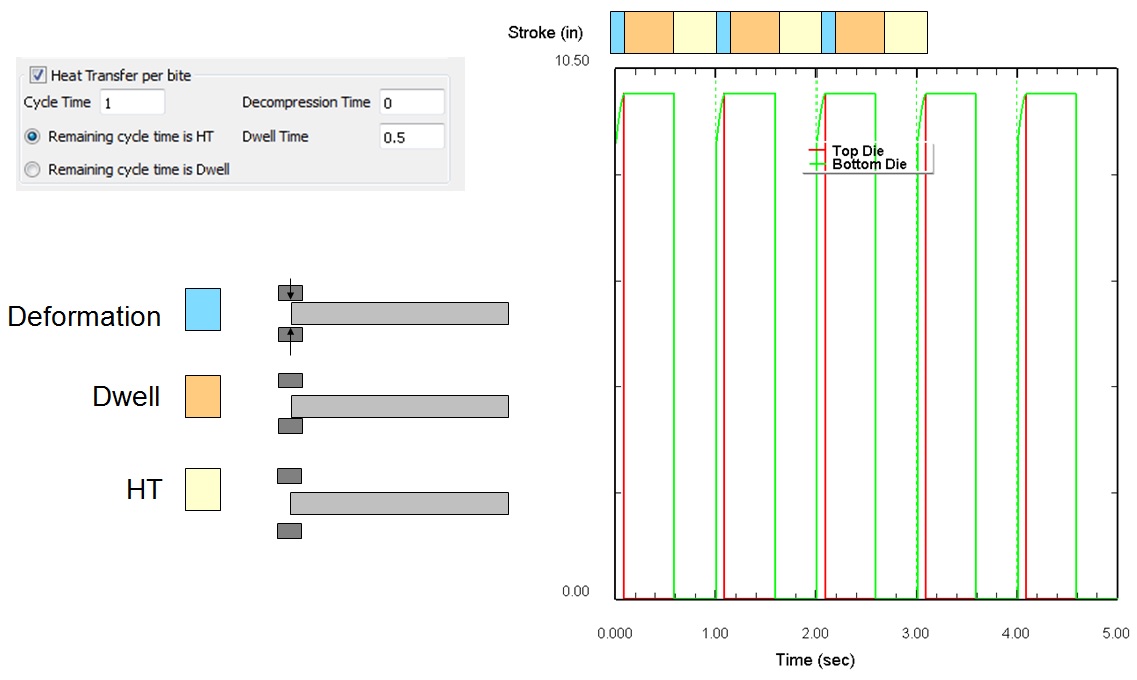
Zostávajúci čas cyklu ako HT
- Zostávajúca dĺžka cyklu ako doba odpočinku: V prípade, že sa zdvih kovania dosiahne skôr, ako uplynie celá dĺžka cyklu, zostávajúci čas cyklu sa považuje za dobu odpočinku, počas ktorej sa horná matrica vzdiali od polotovaru. (Pozri obr. 29.1.10.)
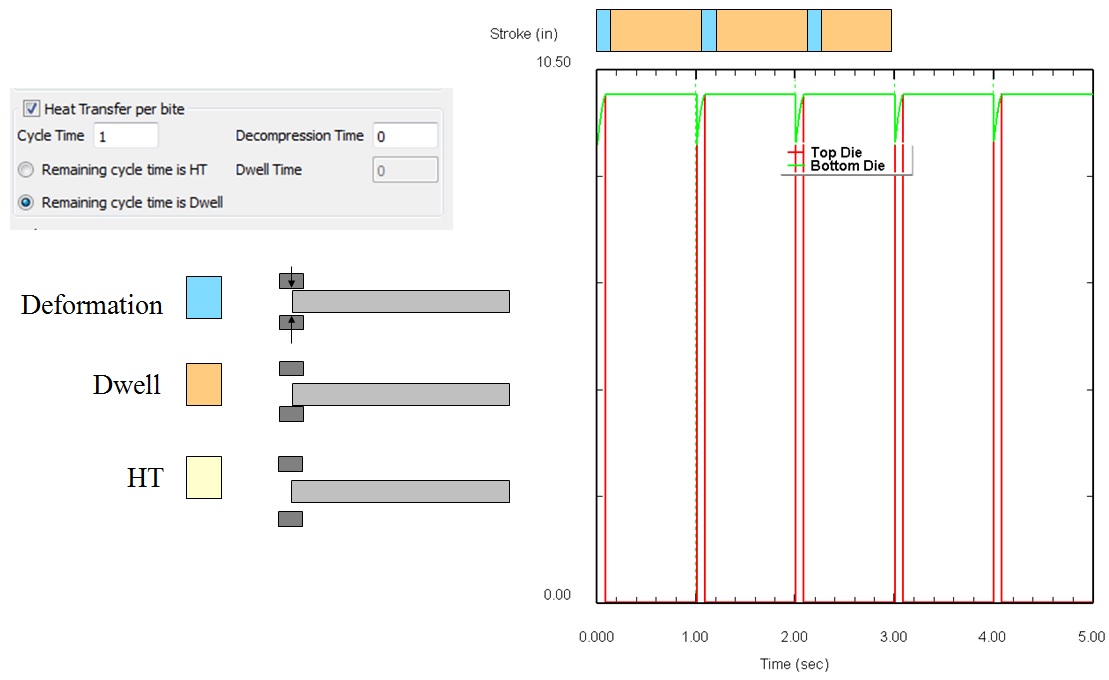
Zostávajúca doba cyklu ako doba zdržania
Nastavenie objektu
-
Počet matíc: Proces zubovania sa vykonáva buď pomocou 4 matíc, alebo 2 matíc, v závislosti od prierezu a rozsahu deformácie. Používateľ si môže vybrať buď 4 matice, alebo 2 matice podľa procesu, ktorý sa má simulovať.
-
Použiť odlišnú geometriu pre hornú a spodnú maticu: Ak sú v procese zubovania geometrie v sade matíc odlišné, zaškrtnutím tohto políčka budeme môcť definovať odlišné typy geometrií pre hornú a spodnú maticu.
-
Použitie manipulátorov: Ak sa používajú manipulátory, používateľ môže zaškrtnúť toto políčko, čím aktivuje definíciu manipulátora a jeho nastavenia.
-
Použiť Mandrel: Zaškrtnutím tohto políčka bude mať používateľ možnosť použiť Mandrel pri nastavení spracovania dutých obrobkov. Používa sa najmä pri nastavení na vyťahovanie.
-
Použiť rotačnú symetriu: Zaškrtnutím tohto políčka bude môcť používateľ definovať symetriu na obrobku, pozri obr. 29.1.8. Využitím symetrie je možné skrátiť čas simulácie.
Funkcia opätovného ohrevu
Zaškrtávacie políčko „Použiť opätovné zahrievanie“ je možné aktivovať na opätovné zahrievanie sochoru na konci priechodu. Sochor je možné opätovne zahrievať adaptívne na základe zadané „Spúšťacej teploty“ alebo ho možno naplánovať medzi priechodmi aktivovaním zaškrtávacieho políčka „Opätovné zahrievanie“ v tabuľke priechodov. Prehrievanie sochoru je možné simulovať počas obdobia „Doba prehrievania“ zaškrtnutím políčka „Použiť simuláciu prehrievania“ alebo ho možno inicializovať na „Teplotu prehrievania“ odškrtnutím políčka „Použiť simuláciu prehrievania“. (Pozri obr. 29.1.8.)
- Teplota opätovného zahriatia: Ide o teplotu, na ktorú sa musí sochársky blok opätovne zahriať, aby bolo možné začať proces tvarovania.
Použite simuláciu vykurovania
Ak je táto možnosť zvolená, pridá sa simulácia ohrevu, pričom teplota opätovného ohrevu sa nastaví ako teplota prostredia na dobu „Doba opätovného ohrevu“ pred zvoleným priechodom. Ak je zaškrtnutá možnosť „Použiť opätovný ohrev“ a nezatrhnutá možnosť „Použiť simuláciu ohrevu“, pred zvoleným priechodom sa na teplotu opätovného ohrevu inicializuje iba teplota uzla.
Použiť adaptívne kúrenie
Cogging je veľmi zdĺhavý proces, počas ktorého teplota sochoru v určitom momente klesne pod teplotu kovania. Zaškrtnutím tohto políčka „Adaptívne ohrev“ systém automaticky znovu zahreje sochor na zadanú teplotu kovania a pokračuje v procese coggingu. Adaptívne opätovné zahriatie prebieha iba medzi jednotlivými priechodmi. (Pozri obr. 29.1.8.)
-
Kritériá kontroly
-
Všetky uzly: Používateľ môže zvoliť túto možnosť, ak sa má proces opätovného ohrevu spustiť vtedy, keď teplota vo všetkých uzloch v sochore klesne pod stanovenú spúšťaciu teplotu.
-
Priemer všetkých uzlov: Po výbere tohto prepínača sa spustí proces opätovného ohrevu, keď priemerná teplota všetkých uzlov v sochore klesne pod nastavenú spúšťaciu teplotu.
-
Akýkoľvek uzole : Ak zvolíte toto začiarkavacie políčko, proces opätovného ohrevu sa spustí vtedy, keď teplota ktoréhokoľvek uzla klesne pod spúšťaciu teplotu.
-
Priemerná teplota povrchových uzlov: Ak zvolíte toto začiarkavacie políčko, proces opätovného ohrevu sa spustí vtedy, keď priemerná teplota povrchových uzlov klesne pod nastavenú spúšťaciu teplotu.
-
Spúšťacia teplota: Ide o teplotu, pri ktorej by sa malo spustiť opätovné ohrevovanie sochoru.
Tabuľka priechodov
Na konci bol pridaný nový riadok, v ktorom môže používateľ pomocou zaškrtávacieho políčka naplánovať opätovné zahrievanie pre jednotlivé priechody (pozri obr. 29.1.11.). Tento riadok sa skryje, ak nie sú vybrané žiadne možnosti opätovného zahrievania alebo ak je zvolené adaptívne zahrievanie.
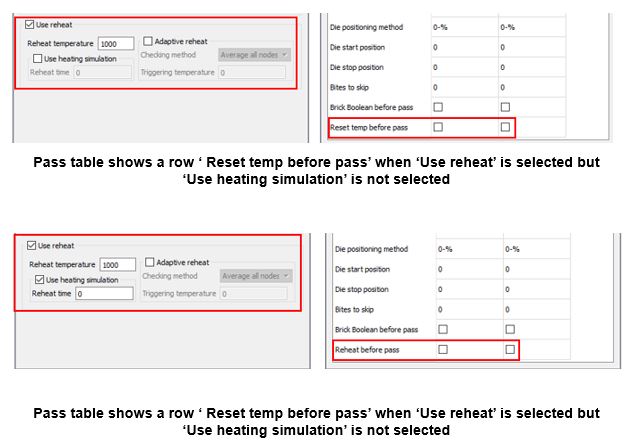
Odovzdajte nastavenia stola s voľbou „Použiť opätovné ohrievanie“
Prevádzka v cykle s cokingom
Proces zubovania pozostáva z viacerých operácií. Tu je vysvetlený typický postup operácií, ktoré sú súčasťou procesu zubovania. Na nižšie uvedenom obr. 29.1.12 sú znázornené operácie, ktoré sa vykonávajú na sochore pred začatím procesu zubovania.
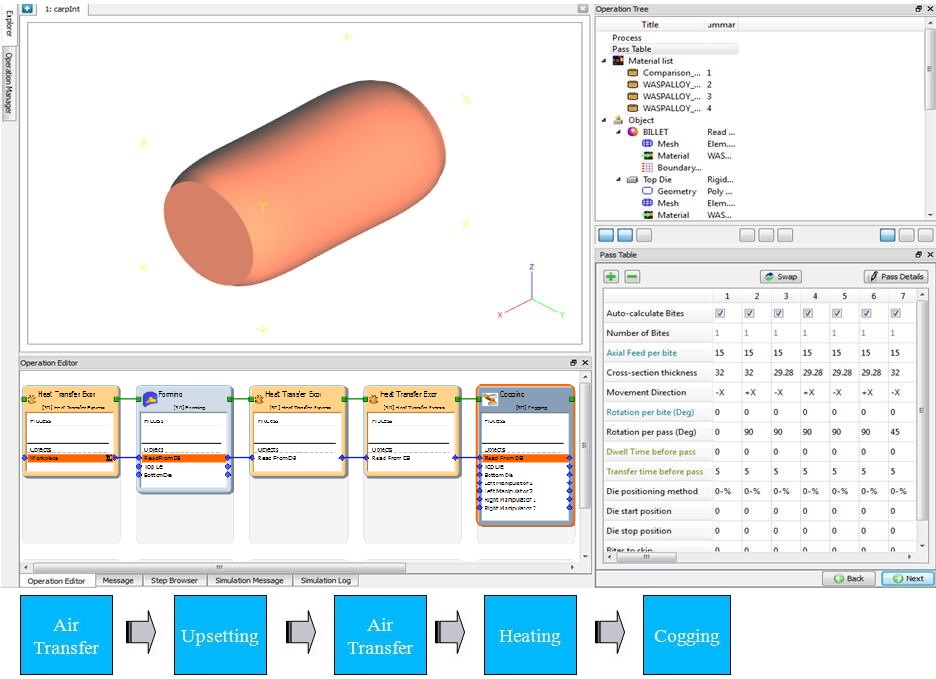
Nastavenie viacerých operácií
Nižšie sú uvedené operácie, ktoré tvoria typický cyklus coggingu a ktoré je možné v programe DEFORM nastaviť ako postup pomocou parametrov procesu v sprievodcovi coggingu a okna s tabuľkou cyklov. (Pozri obr. 29.1.13.)
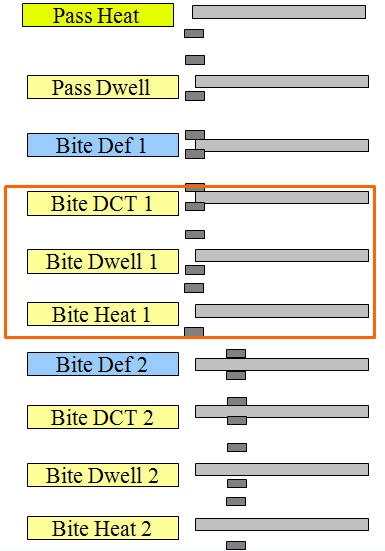
Operácie vykonávané pri typickom prelete
Na základe požiadaviek procesu môže používateľ riadiť vykonávané operácie a ich nastavenia. Na obr. 29.1.14 a obr. 29.1.15 je znázornený rozdiel v prevádzkovom cykle v prípade, keď sa čas dekompresie nepoužíva, a v prípade, keď sa používa.
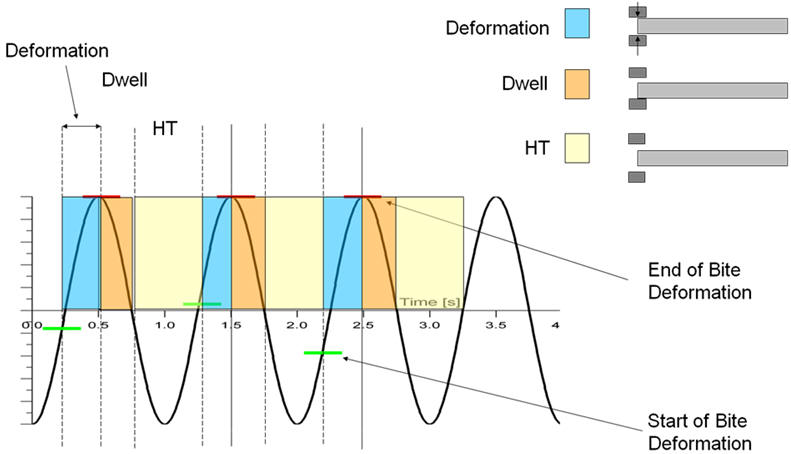
Prevádzkový cyklus bez dekompresného času
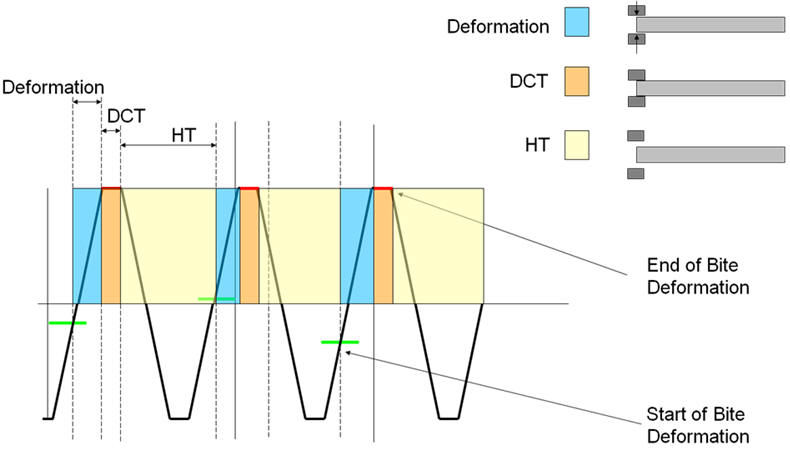
Pracovný cyklus s dobou dekompresie
Tabuľka priechodov
Na obr. 29.1.16 je zobrazená tabuľka priechodov. V tejto tabuľke definujeme informácie o celom priechode pre nastavenie coggingu. Rôzne možnosti dostupné v tabuľke priechodov sú vysvetlené v časti Terminológia coggingu. Informácie o priechode sa pri pridávaní nového priechodu skopírujú z predchádzajúceho priechodu a potrebné údaje je možné upraviť podľa požiadaviek procesu. Pozrite si časť 29.1.1. Terminológia coggingu.
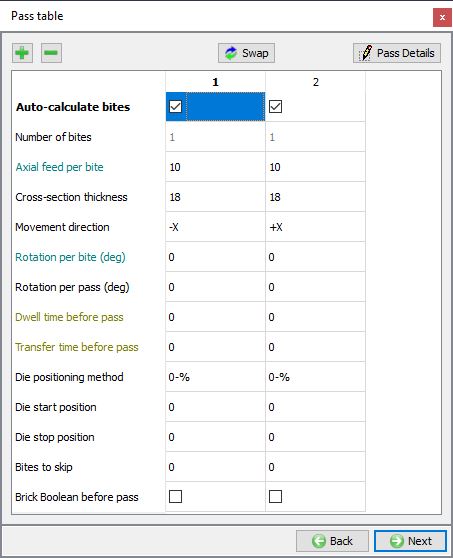
Okno s tabuľkou priechodov
Tlačidlo  : Toto tlačidlo slúži na zvýšenie hodnoty o jednotku.
Tlačidlo  : Toto tlačidlo slúži na vymazanie existujúceho prístupového kódu.
Nové priechody je teraz možné vkladať kdekoľvek do tabuľky priechodov, nielen na jej koniec. (pozri obr. 29.1.17.)
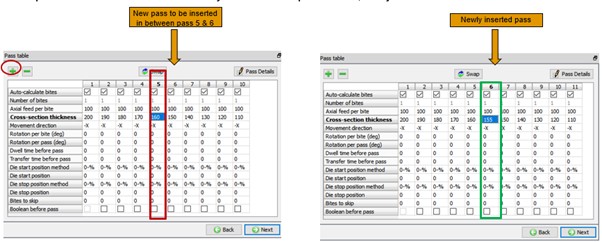
Pridanie nového priechodu medzi 5 a 6
 : Ak klikneme na tlačidlo „swap“, parametre priechodu sa na zobrazenie usporiadajú horizontálne (pozri obr. 29.1.18).
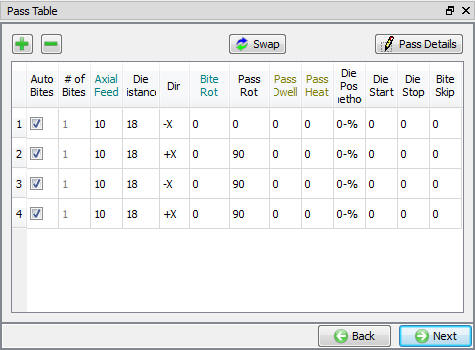
Zobrazenie informácií z tabuľky Pass v horizontálnom smere
 : Používateľ môže túto voľbu využiť na zadanie pokročilých informácií o preukazoch, ktoré sa vzťahujú na všetky preukazy, pozri obr. 29.1.19.
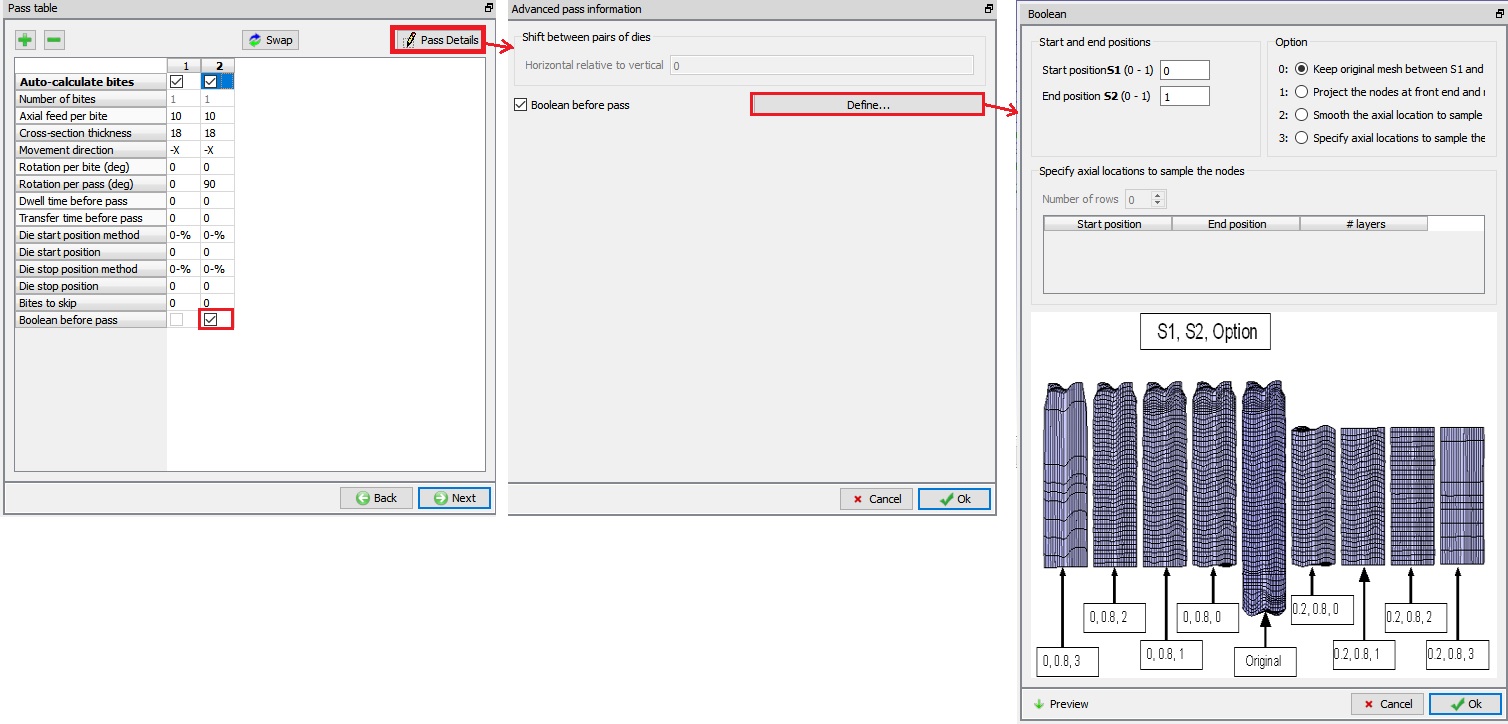
Okno „Pokročilé informácie o preukaze“
Prechod medzi dvojicami matíc:
Táto možnosť sa uplatňuje iba vtedy, ak sa na kovanie používajú 4 matrice a veľkosť deformácie, t. j. zdvih kovania, je odlišná pre horizontálnu sadu matríc a vertikálnu sadu matríc.
Ako je znázornené na obr. 29.1.20., posun Δ = (b – a)/2
Kde
Δ je posun medzi dvojicami matíc
a je minimálna brzdná vzdialenosť medzi hornou a spodnou maticou
b je minimálna brzdná vzdialenosť potrebná medzi ľavou a pravou maticou
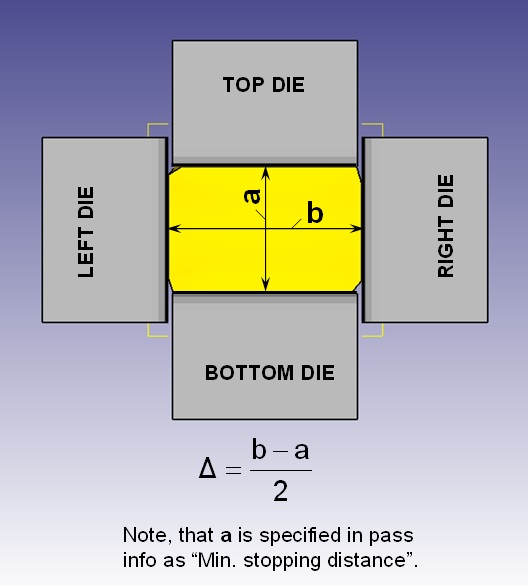
Na konci skusu prejsť medzi dvojicami foriem
Ak použijeme kladnú hodnotu posunu medzi pármi matíc (Δ), potom sa na začiatku každého záberu od obrobku o túto absolútnu hodnotu posunú iba bočné matice (ľavá a pravá matica).
Vzdialenosť medzi horizontálnymi ľavými a pravými maticami na konci záberu je teda väčšia – predstavuje dvojnásobok hodnoty Δ – ako vzdialenosť medzi vertikálnymi hornými a dolnými maticami. To znamená, že deformácia obrobku vo vertikálnom smere je dvojnásobkom hodnoty Δ v porovnaní s horizontálnym smerom.
Ak však použijeme zápornú hodnotu posunu medzi dvojicami matíc (Δ), horná a spodná matica sa o túto absolútnu hodnotu posunú ďalej od obrobku.
Booleovská operácia pred prechodom: Možnosť skrátiť polotovar medzi jednotlivými prechodmi, ak sa predĺži nad požadovanú dĺžku. (pozri obr. 29.1.21.) Ďalšie informácie týkajúce sa možnosti „Booleovská operácia pred prechodom“ v systéme Brick nájdete v príručke 43.1. Shape Rolling Manual: časť Boolean between passes
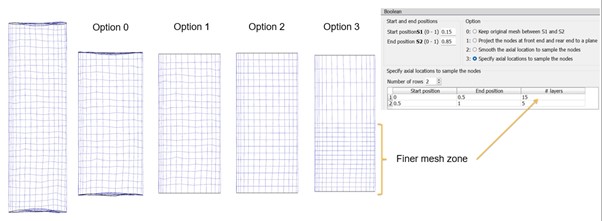
Booleovský blok „Brick“ so všetkými nastaveniami: počiatočná poloha 0,15 a konečná poloha 0,85
Od verzie v14 je možné pridať booleovskú operáciu medzi priechodmi aj v prípade obrobku s Tet-sieťou (pozri obr. 29.1.22.).

Booleovská voľba Tet s počiatočnou polohou 0,15 a koncovou polohou 0,85
Zoznam materiálov
Aby simulácia dosiahla vysokú úroveň presnosti, je dôležité poznať vlastnosti materiálu, ktoré sú potrebné na špecifikáciu materiálu použitého v programe DEFORM.
Pri nastavovaní simulácie je potrebné pre objekty špecifikovať vlastnosti materiálov. V operácii MO Cogging je možné načítať všetky materiály potrebné pre danú operáciu naraz a požadovaný materiál vybrať neskôr pri nastavovaní úlohy. Používateľ môže pridať materiál výberom možnosti  „načítať údaje o materiáli z knižnice“, ako je znázornené na obr. 29.1.23. Používateľ môže vybrať požadovaný materiál z kategórií a potom kliknúť na tlačidlo
  , ako je znázornené na obr. 29.1.24.
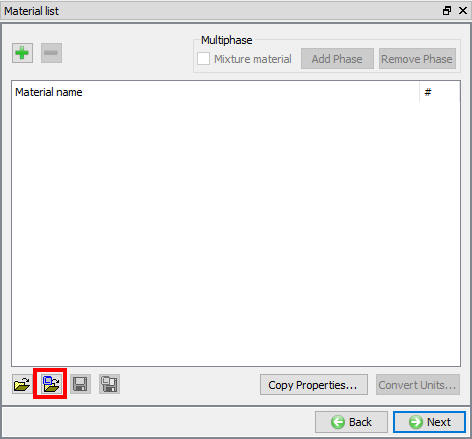
Okno so zoznamom materiálov
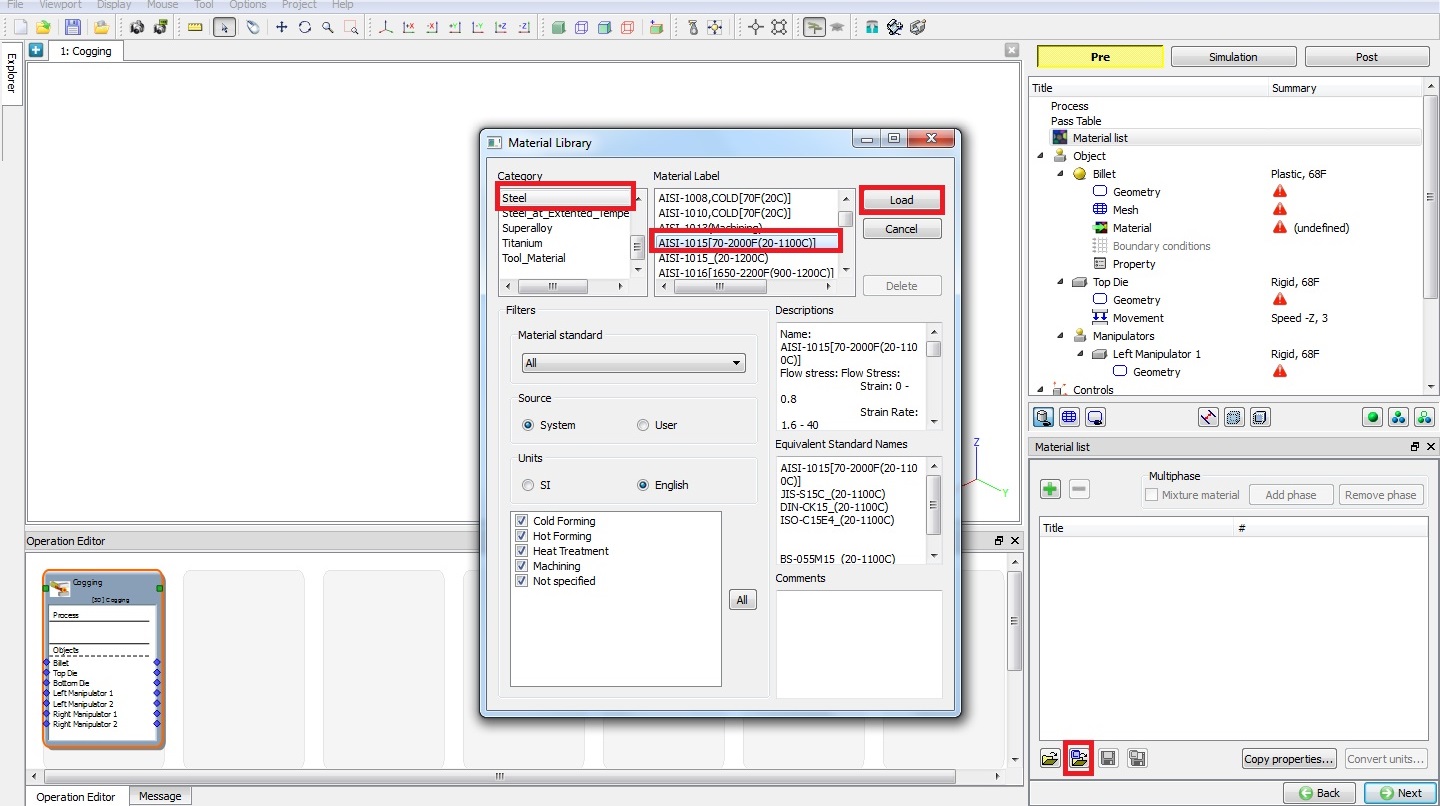
Importovať materiál z okna knižnice
(alebo)
Ďalším spôsobom pridania materiálu je kliknutie na ikonu materiálu na karte prehliadača, čím sa zobrazí zoznam materiálov z knižnice rozdelených do rôznych kategórií, ako je znázornené na obr. 29.1.25. Vyberte požadovaný materiál a potom kliknite na tlačidlo . Používateľ môže požadovaný materiál pridať aj pomocou funkcie „drag and drop“ (ťahanie a púšťanie) do okna materiálu.
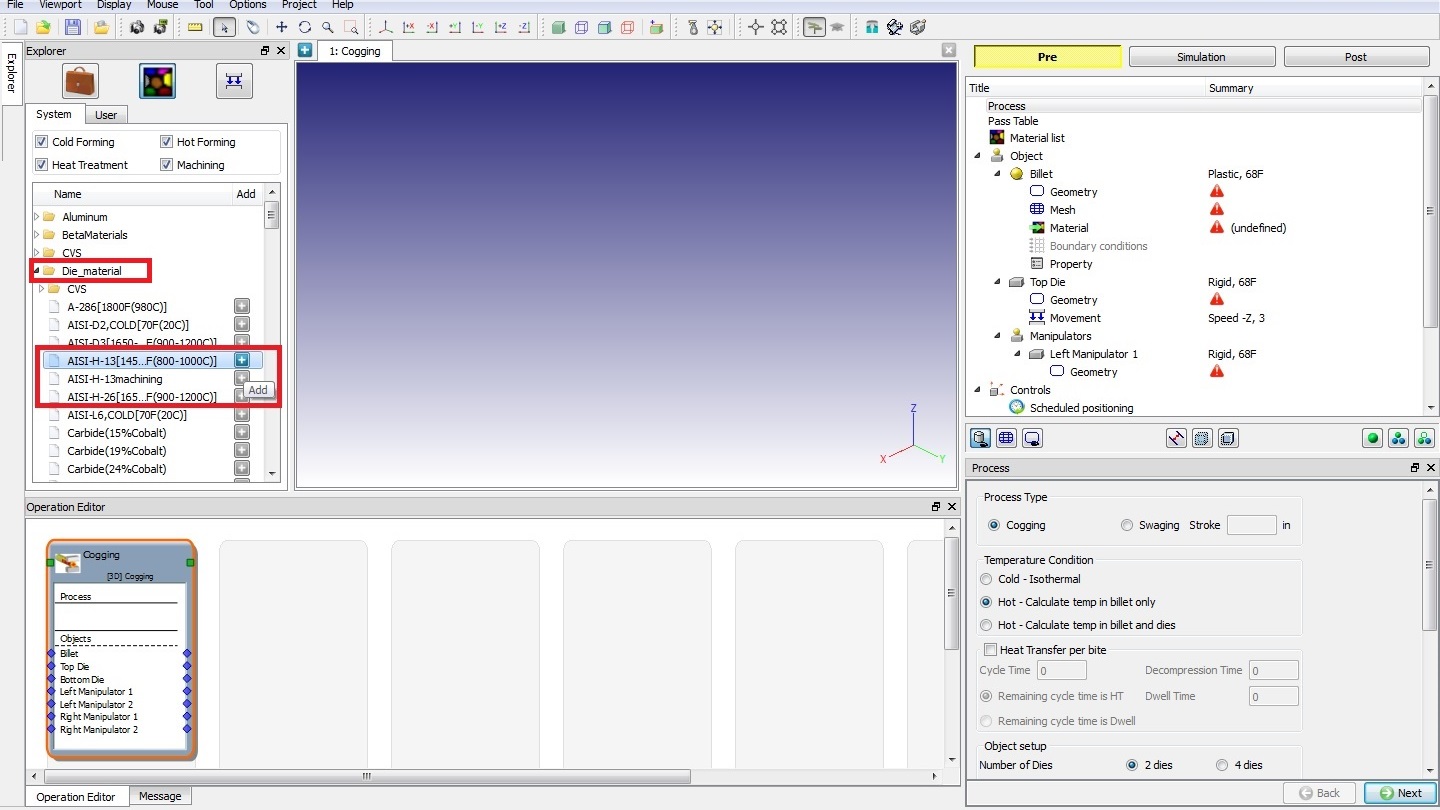
Pridávanie materiálu z karty „Explorer“
(alebo)
V okne so zoznamom materiálov je možné pridať nový materiál kliknutím na tlačidlo . Po pridaní materiálu kliknite na tlačidlo  a vyberte príslušnú kartu, kde zadáte potrebné údaje pre simuláciu, ako je znázornené na obr. 29.1.26.
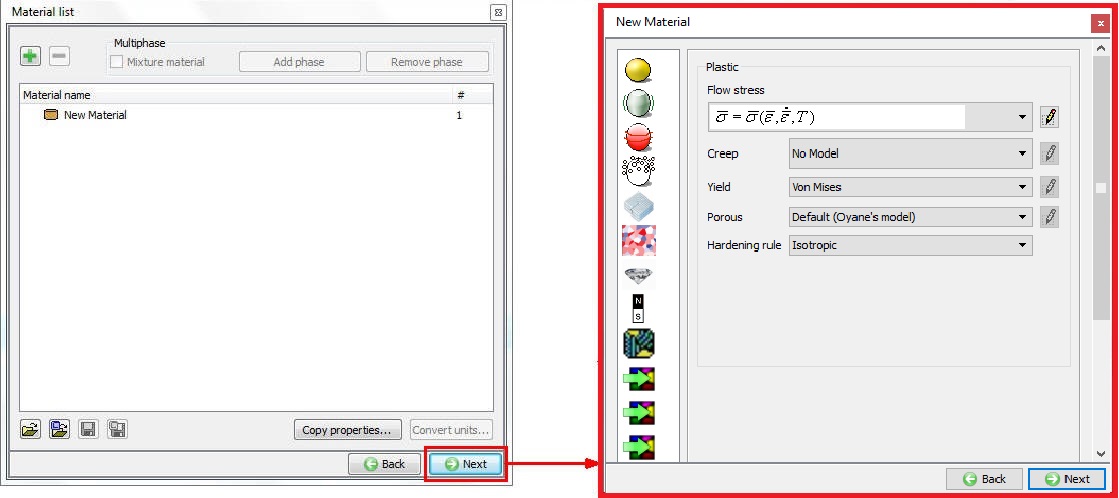
Pridať materiál z okna Zoznam materiálov
Import údajov o materiáloch zo súboru  : Importuje údaje o materiáloch zo súboru s príponou .Key alebo .DB.
Načítať údaje o materiáloch z knižnice : Importuje materiály z knižnice.
Uloženie údajov o materiáli do súboru : Uloží materiál do súboru.
Uloženie údajov o materiáli do knižnice**  : Pomocou tejto možnosti môže používateľ uložiť materiál do knižnice a v budúcnosti ho podľa potreby opäť načítať pre ďalšie simulácie.
Zloženie zmesi
Materiály typu „zmes“ (MSTMTR) sa používajú v prípade, že sa v simulácii má modelovať fázová premena. Premenlivý materiál sa modeluje ako „zmes“ fáz, z ktorých sa skladá. Napríklad uhlíková oceľ sa môže modelovať ako zmes austenitu, perlitov, bainitu a martenzitu. Ak je definovaný zmesový materiál, mali by sa definovať pravidlá premeny, ktoré riadia premenu jednej fázy na druhú. (Pozri obr. 29.1.27.)
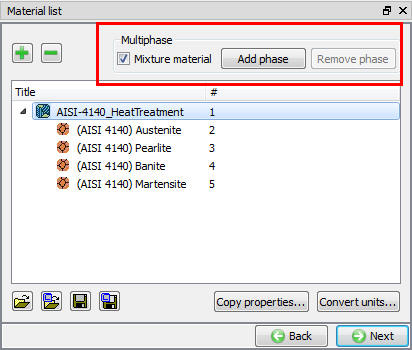
Pridanie zmesi materiálov
Vlastnosti kópie
Slúži na kopírovanie bežných vlastností materiálov, ako sú plastické, elastické, tepelné atď., z jedného materiálu do druhého pri vytváraní/definovaní údajov o materiáli, ako je znázornené na obr. 29.1.28. V tomto dialógovom okne je potrebné vybrať zdroj a cieľ kopírovania vlastností, ako aj samotné vlastnosti, ktoré sa majú skopírovať.
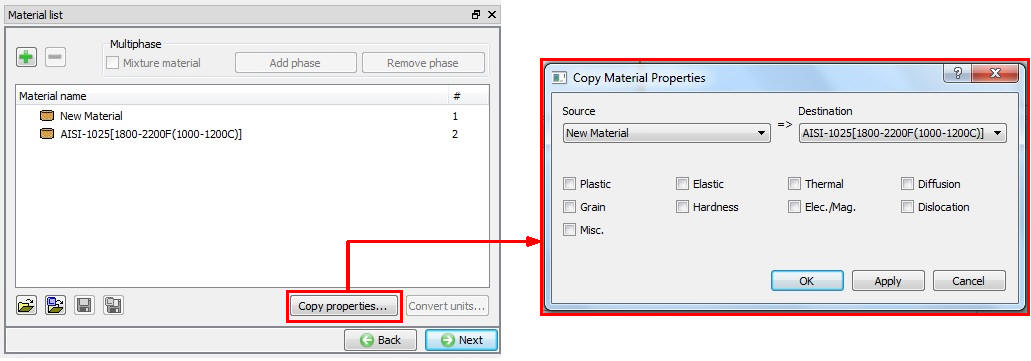
Okno „Kopírovať vlastnosti materiálu“
Previesť jednotky 
Slúži na prevod jednotkového systému aktuálne vybraného materiálu zo zoznamu materiálov zo systému SI na anglický systém alebo z anglického systému na SI; používateľ môže použiť aj akýkoľvek iný násobný koeficient, ako je znázornené na obr. 29.1.29. Kliknutím na toto tlačidlo sa zobrazia príslušné násobné koeficienty pre prevod z  a
a  ; následným kliknutím na tlačidlo „Previesť“ sa prevod vykoná a okno prevodu sa zatvorí. Túto prevodnú tabuľku je možné uložiť pomocou tlačidla „Uložiť“ a je možné ju tiež upraviť pomocou programu WordPad/Notepad a následne ju opäť načítať do súboru UNITCONV.DAT pomocou tlačidla „Načítať“.
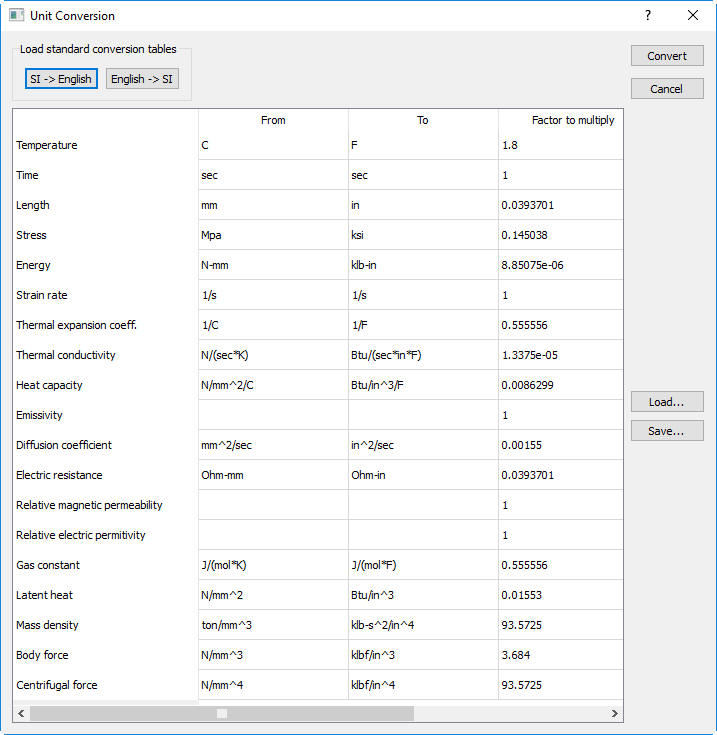
Okno pre prevod jednotiek
Okno objektu
Na obr. 29.1.30. sú zobrazené informácie v okne objektu.
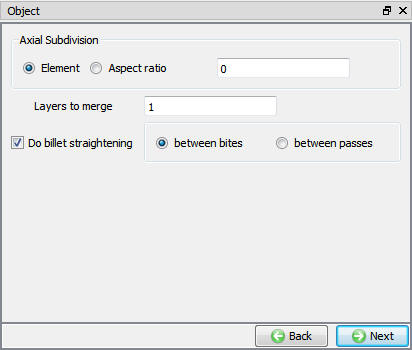
Okno objektu
Axiálne rozdelenie: Prvok: V tomto poli sa zadáva absolútna veľkosť prvku; ak sa veľkosť prvku zvýši nad zadanú hodnotu, dôjde k axiálnemu rozdeleniu s cieľom zachovať veľkosť prvku.
Pomer strán: Pomer strán: Ide o pomer medzi minimálnou dĺžkou hrany a maximálnou dĺžkou hrany prvku. Pri deformácii sa polotovar väčšinou rozťahuje v axiálnom smere (X), keďže sa zmenšuje prierez (Z alebo Y), preto je tento pomer zvyčajne dĺžka prvku v smere X k minimálnej dĺžke prvku v smere Y alebo Z.
Ak pomer strán prekročí stanovenú hodnotu, vykoná sa axiálne rozdelenie s cieľom zachovať tento pomer. (Pozri obr. 29.1.31.)
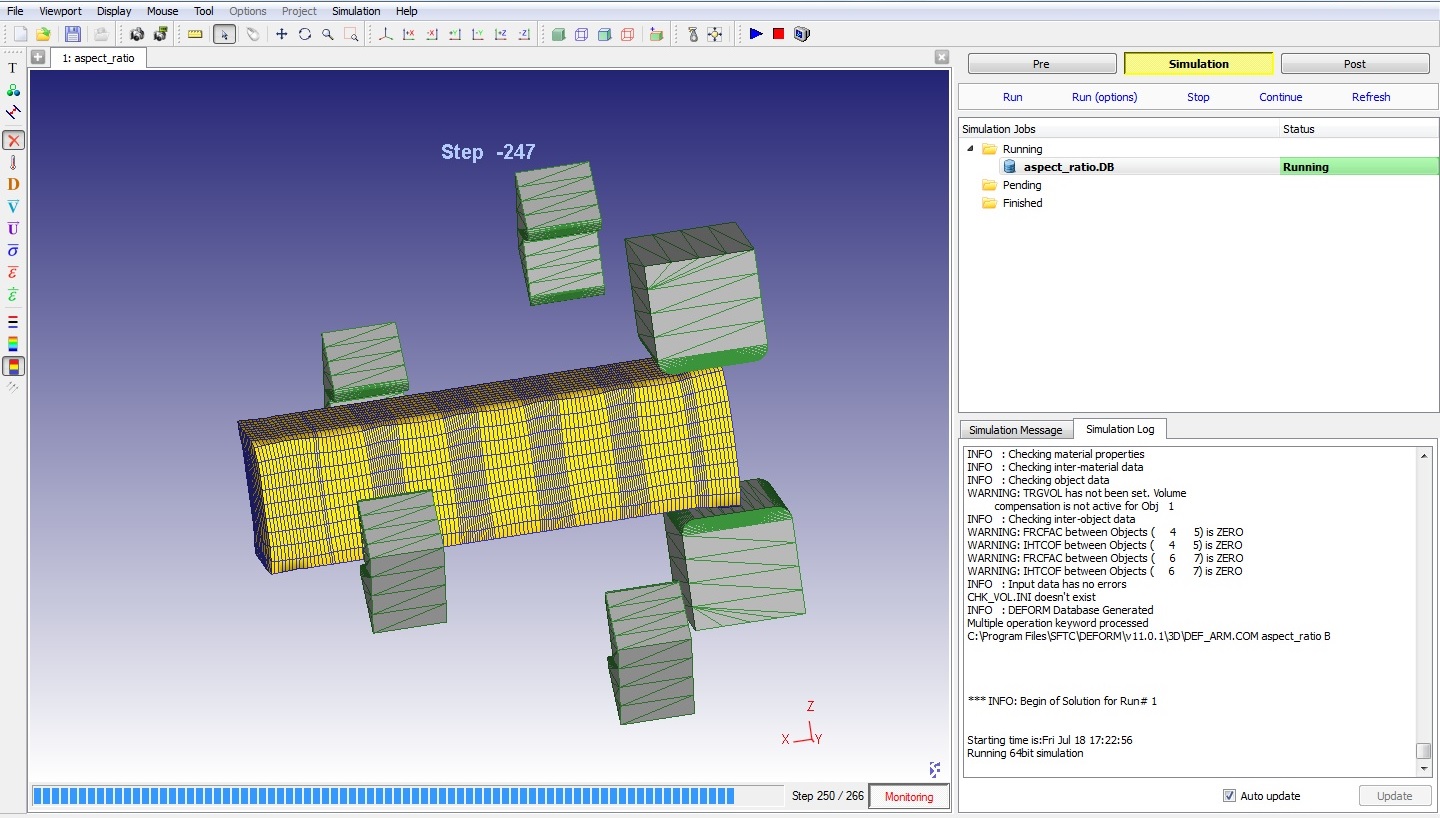
Axiálne rozdelená sieť obrobku počas prebiehajúcej simulácie
Vrstvy na zlúčenie: Cogging je proces spracovania ingotov, pri ktorom je dĺžka polotovaru veľká a zóna deformácie v danom okamihu je v porovnaní s dĺžkou polotovaru menšia. Na skrátenie času simulácie môže používateľ preto určiť vrstvy, ktoré je možné považovať za jednu celok, aby sa rovnaký výsledok premietol do celého špecifikovaného počtu vrstiev.
Rovnanie polotovarov
-
Medzi zubami: Počas procesu zubovania existuje riziko, že sa polotovar môže ohnúť; výberom tohto prepínača je možné polotovar medzi zubami narovnať.
-
Medzi priechodmi: Zaškrtnutím tohto políčka je možné tyč medzi priechodmi narovnať.
Polotovar
V tomto okne môže používateľ nastaviť požadovanú teplotu pre objekt a vybrať typ objektu, ako je znázornené na obr. 29.1.32. Pre sochársku hlinenú formu je štandardne vybraný typ objektu „Plast“. Používateľ môže tiež importovať objekt z iných databáz alebo súborov kľúčov pomocou tlačidla a vyhľadania príslušného súboru.
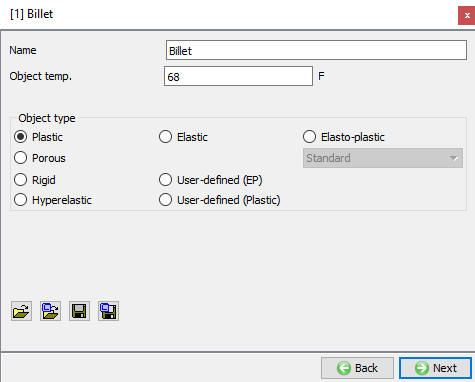
Nastavenie teploty sochory
Geometria
Okno „Geometria“ slúži na definovanie geometrie objektu, ako je znázornené na obr. 29.1.33. Ak nie je definovaná žiadna geometria, aktívne bude iba pole „Definovať primitívy“, ostatné možnosti budú sivé. Po vytvorení geometrie sa aktivujú všetky možnosti.
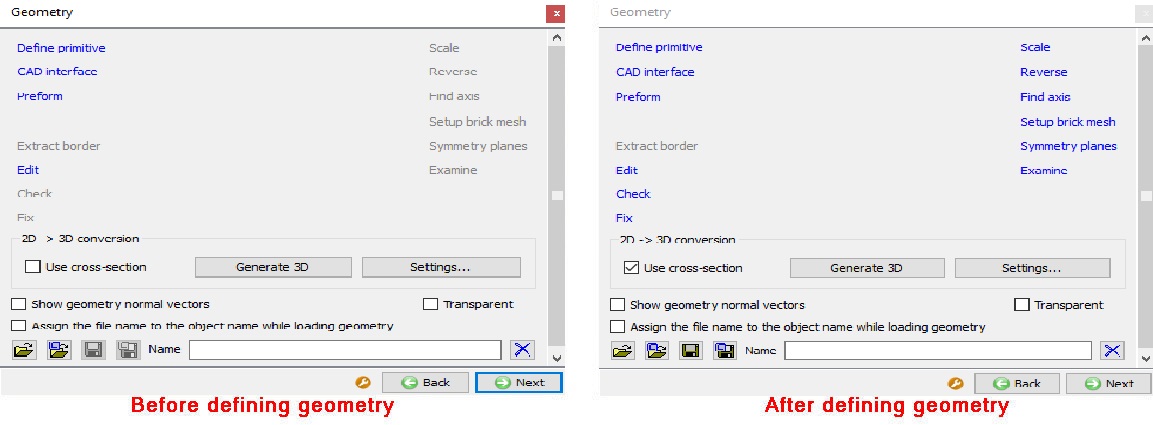
Okno Geometria
Definícia Primitive
Máme tri rôzne typy geometrických primitív pre polotovar: kruh, osemuholník a obdĺžnik, ako je znázornené na obr. 29.1.34.
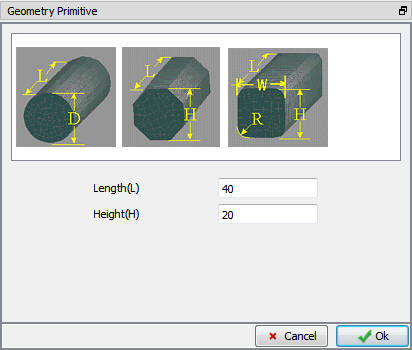
Okno geometrických primitív
Ďalšie informácie o možnostiach geometrie nájdete v 12.3. 3D Geometry Data Definition
Sieťovina
Cihlová sieťovina
Na nižšie uvedenom obr. 29.1.35 sú zobrazené možnosti generovania siete pre Brick Mesh v režime s návodom.
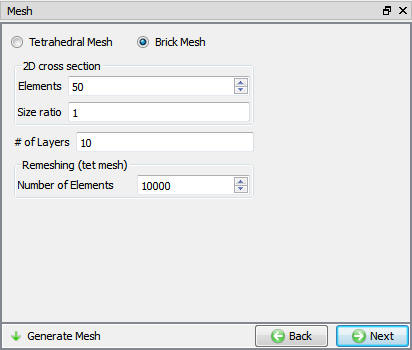
Možnosti mriežky tehál v režime s navádzaním
2D rez
-
Prvky: Počet sieťových prvkov predstavuje približný počet prvkov, ktoré budú vytvorené na 2D priečnom reze objektu.
-
Pomer veľkostí: Pomer veľkostí je pomer medzi maximálnou veľkosťou prvku a minimálnou veľkosťou prvku v 2D priečnom reze.
-
Počet vrstiev: Slúži na nastavenie hrúbky vrstiev siete v axiálnom smere. Používateľ môže pre generovanie siete definovať požadovaný počet vrstiev. S rastúcim počtom vrstiev bude sieť hustejšia a hrúbka prvku v axiálnom smere sa zmenší. Podobne, ak sa počet vrstiev zníži, hrúbka prvku v axiálnom smere sa zvýši a počet vrstiev sa zníži.
-
Prekreslenie siete (tetraedrická sieť): Ak dôjde k výraznej deformácii a sieť typu „brick“ sa nedá prekresliť, systém automaticky zvolí tetraedrickú sieť a vygeneruje ju na základe definovaných nastavení.
-
Počet prvkov: Počet prvkov siete predstavuje približný počet prvkov, ktoré sa na objekte vygenerujú. Pri tetraedrickom prepočítaní siete sa použije tento definovaný počet prvkov.
-
Vytvoriť sieť: Sieť je možné vytvoriť kliknutím na
 .
.
Tetraedrická sieť
Na nižšie uvedenom obr. 29.1.36 sú zobrazené možnosti generovania siete pre tetraedrickú sieť v režime s asistenciou.
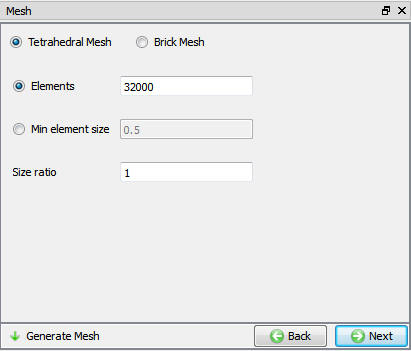
Možnosti siete Tet v režime s vedením
-
Prvky: Počet sieťových prvkov predstavuje približný počet prvkov, ktoré sa vygenerujú na objekte.
-
Minimálna veľkosť prvku: Ide o minimálnu veľkosť prvku; pri generovaní siete sa prvok vytvorí tak, aby spĺňal podmienku definovanej minimálnej veľkosti prvku. Veľkosť prvku neprekročí definovanú hodnotu.
-
Pomer veľkostí: Pomer veľkostí je pomer medzi maximálnou veľkosťou prvku a minimálnou veľkosťou prvku na danom objekte.
-
Vytvoriť sieť: Sieť je možné vytvoriť kliknutím na
.
Na nastavenie parametrov siete, ako sú veľkosť, tvar, hustota, typ prvkov atď., musí používateľ prejsť do expertného režimu  , kde sú k dispozícii pokročilejšie možnosti vytvárania siete. Na obr. 29.1.37 nižšie sú zobrazené možnosti vytvárania siete dostupné v expertnom režime.
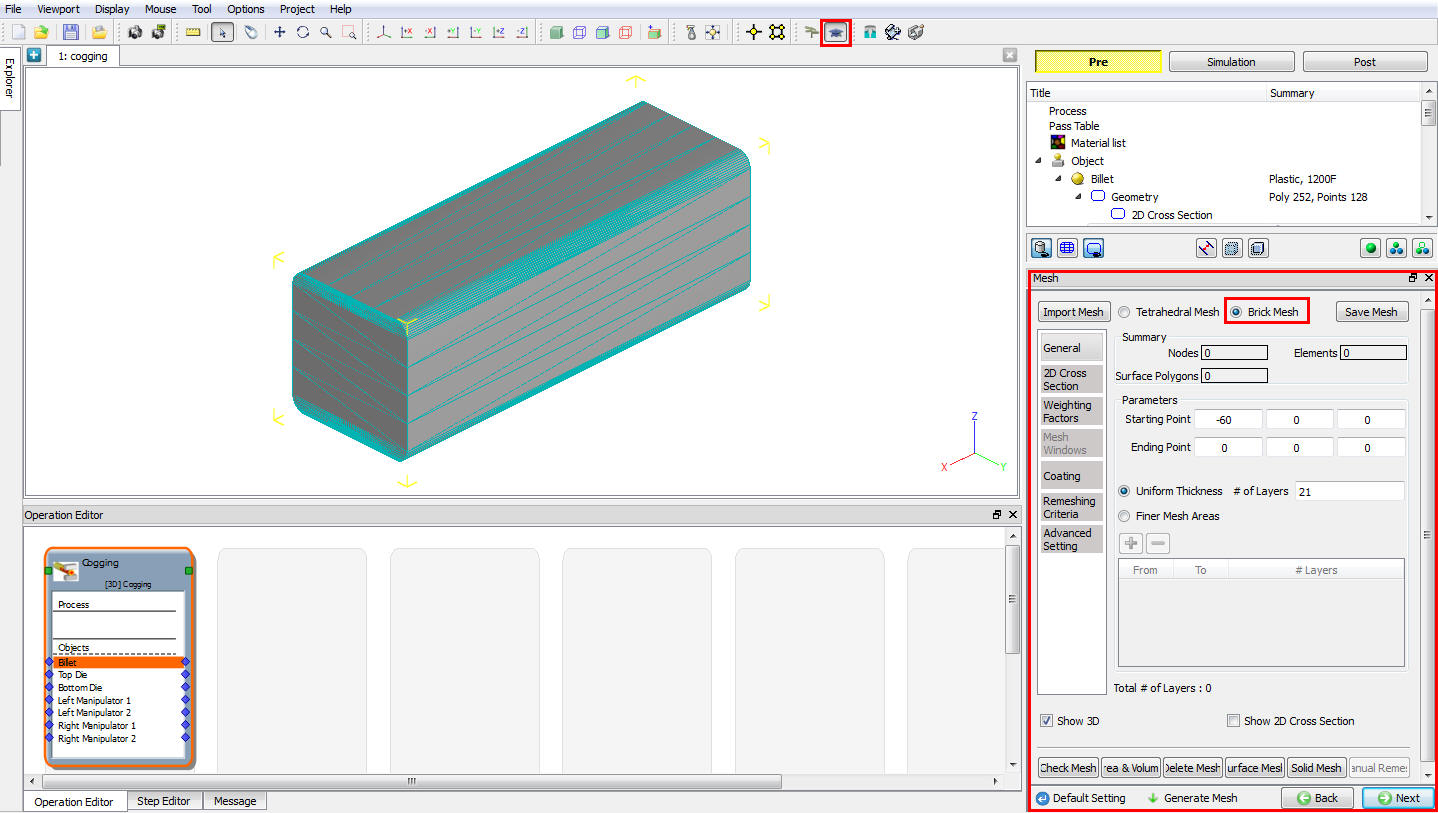
Okno na generovanie siete v režime pre pokročilých
Ďalšie informácie o možnostiach generovania sietí v expertnom režime nájdete v dokumentácii k 13.2. 3D Tet Mesh Generation a 13.3. 3D Brick Mesh Generation
Materiál
Na obr. 29.1.38. je zobrazené okno s materiálmi. Používateľ môže priradiť požadovaný materiál zo zoznamu alebo ho importovať zo súboru či knižnice. Používateľ môže tiež pridať nový materiál. Ďalšie informácie o tom, ako priradiť materiál, nájdete v kapitole 10. Material Data.
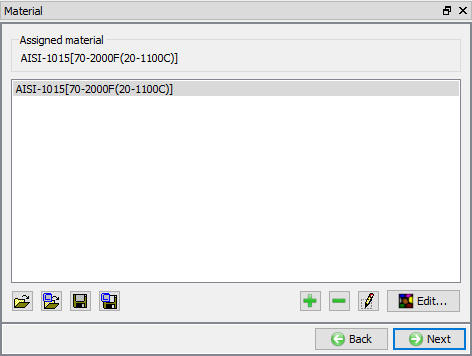
Okno s materiálmi
Po pridaní materiálu kliknite na tlačidlo  – otvorí sa okno s materiálom, ako je znázornené na obr. 29.1.39.
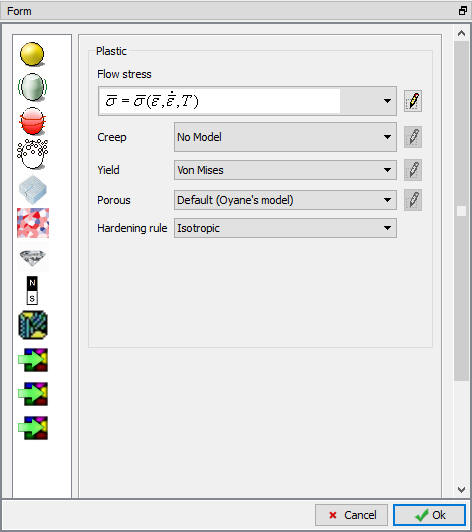
Okno na úpravu materiálu
Požadované vlastnosti závisia od fyzikálnych javov, ktoré sa simulujú v programe DEFORM. Vlastnosti materiálu, ktoré musí používateľ zadať, závisia od typov materiálov, ktoré používateľ v simulácii využíva. Ďalšie informácie nájdete v časti „Materiál“ v nastaveniach programu Forming 3D.
Okrajové podmienky
V okne „Okrajové podmienky“ môže používateľ objektu priradiť rôzne okrajové obmedzenia. Okrajové podmienky určujú, ako okraj objektu interaguje s ostatnými objektmi a s prostredím. Najčastejšie používanými okrajovými podmienkami v programe Cogging sú výmena tepla s prostredím pri simuláciách zahŕňajúcich prenos tepla a predpísaná rýchlosť na vynútenie symetrie. Obr. 29.1.40. znázorňuje rôzne okrajové podmienky (BCC), ktoré je možné priradiť k objektu.
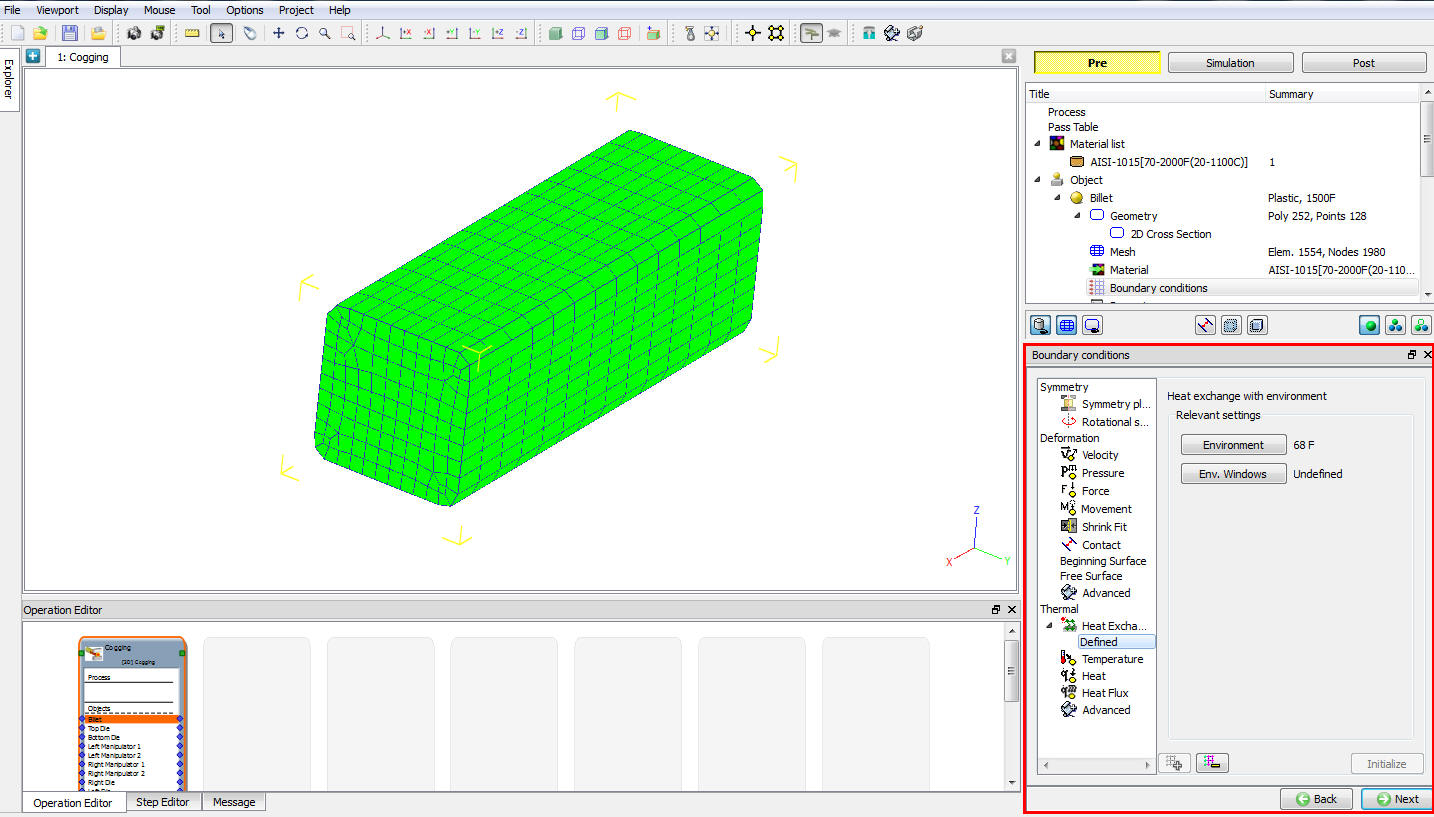
Okno „Okrajové podmienky“
BCC sa delia na deformčné, tepelné, difúzne a ohrievacie. Ďalšie informácie o týchto BCC nájdete v dokumente 14. Boundary Conditions..
Nehnuteľnosť
V okne „Vlastnosti objektu“ sa zadávajú rôzne parametre objektu, ktoré ovplyvňujú buď termomechanické správanie objektu, alebo správanie numerického riešenia. (Pozri obr. 29.1.41.) Ďalšie informácie o týchto možnostiach nájdete v 19. Object properties..
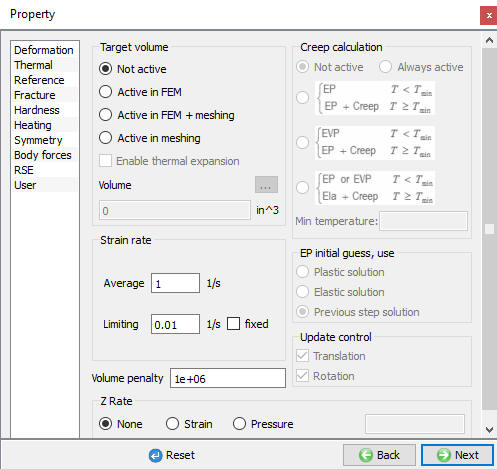
Okno vlastností objektu
Horná matrica
V tomto okne môže používateľ nastaviť požadovanú teplotu objektu a vybrať typ objektu, ako je znázornené na obr. 29.1.42. Pre „Top Die“ je štandardne vybraný typ objektu „Rigid“ a používateľ môže tiež importovať objekt z iných databáz alebo súborov kľúčov pomocou tlačidla a vyhľadania príslušného súboru.
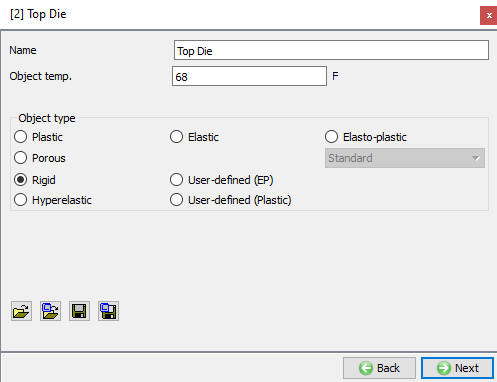
Okienko „Top Die“
Geometria
Okno „Geometria“ slúži na vytvorenie geometrie objektu, ako je znázornené na obr. 29.1.43. Ak ešte nebola vytvorená žiadna geometria, aktívne bude iba pole „Definovať primitívy“, ostatné možnosti budú sivé. Po vytvorení geometrie budú všetky možnosti aktívne.
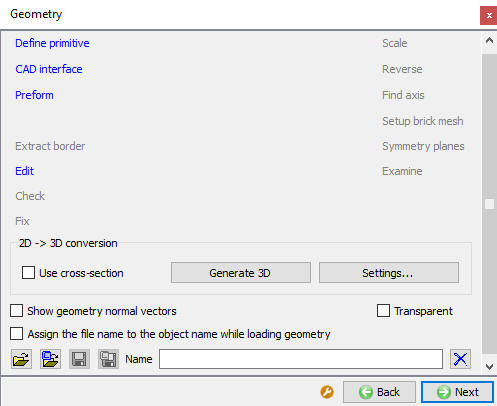
Okno Geometria
Definícia primitívu
Na obr. 29.1.44. je znázornený geometrický primitív „Die“.
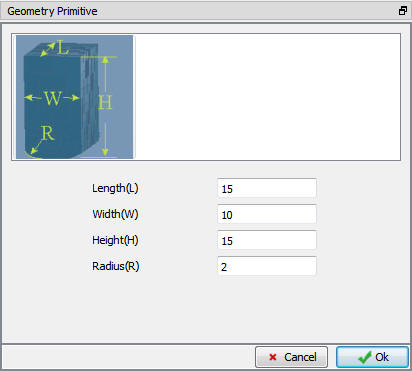
Okno „Top Die Geometry Primitive“
Ďalšie informácie o možnostiach geometrie nájdete v 12. 3. 3D Geometry Data Defining
Sieťovina
Možnosti vytvárania sietí pre lisovacie formy sú podobné ako v prípade polotovaru; ďalšie informácie o vytváraní sietí nájdete v 3.3. 3D Brick Mesh Generation
Materiál
Priradenie materiálu k lisovacím formám prebieha podobne ako v prípade sochorov. Používateľ môže priradiť požadovaný materiál zo zoznamu alebo ho importovať zo súboru či knižnice. Používateľ môže tiež pridať nový materiál. Ďalšie informácie o tom, ako priradiť materiál, nájdete v kapitole 10. Material Data.
Vlastnosti materiálov, ktoré musí používateľ špecifikovať, závisia od typov materiálov, ktoré používateľ využíva v simulácii. V tejto časti sú popísané údaje o materiáloch, ktoré je možné špecifikovať pre simuláciu DEFORM. Ďalšie informácie nájdete v časti „Materiál“ v nastaveniach programu Forming 3D.
Ovládanie pohybu
V závislosti od požiadaviek procesu a použitého zariadenia môže používateľ definovať nastavenia riadenia pohybu pre lisovacie formy. Na rýchle nastavenie coggingu sa použijú ovládacie prvky rýchlosti a mechanického pohybu lisu, ako je znázornené na obr. 29.1.45. Ak chce používateľ definovať iné ovládacie prvky pohybu ako tieto, môže použiť pokročilé rádio tlačidlo kliknutím na tlačidlo  ; k týmto možnostiam sa dá dostať aj prepnutím do režimu Expert, ako je znázornené na obr. 29.1.46. Ďalšie informácie o týchto ovládacích prvkoch pohybu nájdete v 10. Movement Controls Definition.
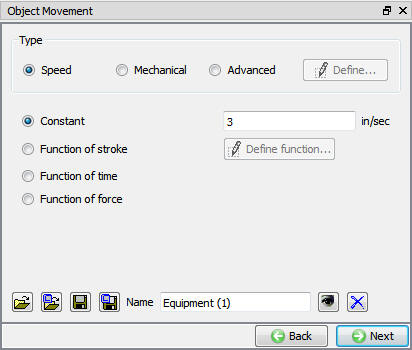
Okno s ovládacími prvkami pohybu v režime s navádzaním
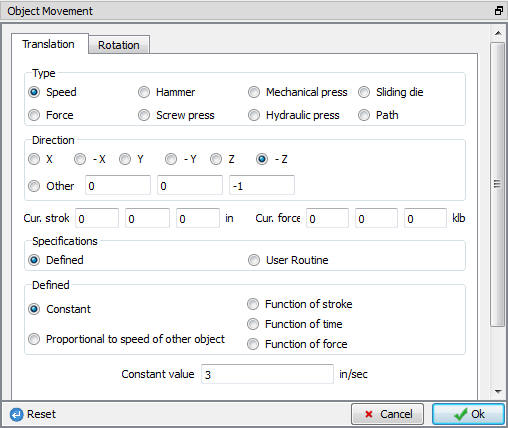
Okno s ovládacími prvkami pohybu v režime pre pokročilých
Vlastnosť objektu
Referenčné body:
Zaškrtnutím políčka „Definovať referenčný bod“ môže používateľ určiť referenčný bod pre hrúbku priečneho rezu. Ak nie je toto políčko zaškrtnuté, systém umiestni nad matrice virtuálny ohraničujúci obdĺžnik a použije ho na meranie hrúbky prierezu, ako je znázornené nižšie (pozri obr. 29.1.47 a obr. 29.1.48).
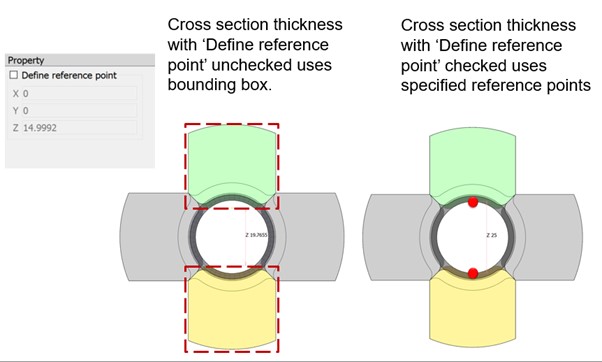
Nastavenie referenčného bodu (vpravo) a použitie predvoleného referenčného bodu systému (vľavo)
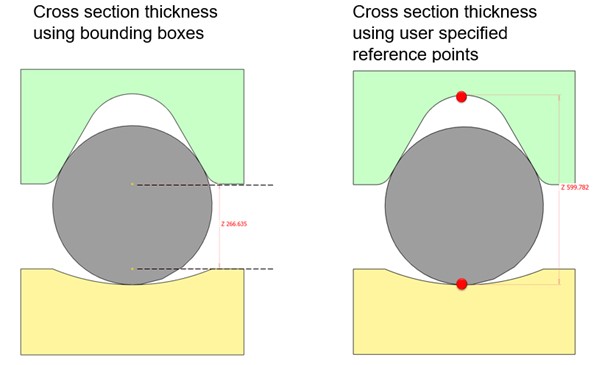
Určenie referenčného bodu pre asymetrické lisovacie formy
Manipulátory
Východisková poloha vzhľadom na konce sochoru: Manipulátory budú umiestnené v axiálnom smere vo vzdialenosti uvedenej v tomto dokumente od čelnej plochy sochoru.
Použiť hlavné manipulátory: Zaškrtnutím tohto políčka bude mať používateľ možnosť vybrať požadované (ľavé alebo pravé) manipulátory ako prioritné na pridržanie polotovaru počas simulácie.
Ak používateľ zvolí ľavý manipulátor ako hlavný manipulátor, vždy keď lis dosiahne nastavenú vzdialenosť odovzdania, polotovar bude držať iba ľavý manipulátor. Podobne, ak je ako hlavný manipulátor zvolený pravý manipulátor, vždy keď lis dosiahne nastavenú vzdialenosť odovzdania, polotovar bude držať iba pravý manipulátor.
Použitie manipulátorov s pružinovým predpätím: Manipulátory možno definovať ako manipulátory s pružinovým predpätím alebo ako tuhé. Manipulátory s pružinovým predpätím je možné definovať zaškrtnutím tohto políčka. Tu sa nastavujú parametre potrebné na riadenie manipulátorov s pružinovým predpätím (tuhosť pružiny, predpätie a maximálny povolený posun pružiny). (Pozri obr. 29.1.49.)
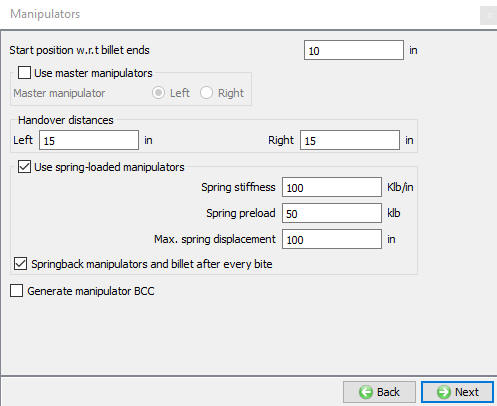
Okno „Manipulátory“
Ľavý manipulátor 1
V tomto okne môže používateľ nastaviť požadovanú teplotu objektu a vybrať typ objektu, ako je znázornené na obr. 29.1.50. Pre manipulátor je štandardne vybraný typ objektu „Rigid“ a používateľ môže tiež importovať objekt z iných databáz alebo súborov Keyfile pomocou tlačidla a vyhľadania príslušného súboru.
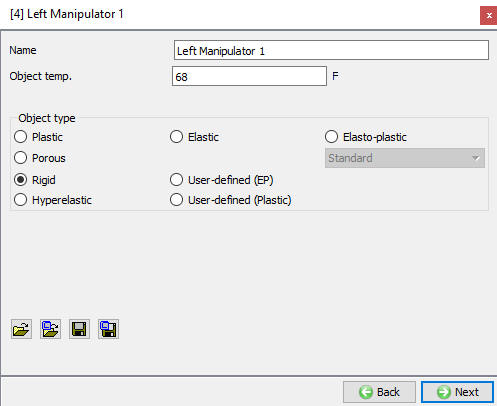
Vľavo: Okno Manipulátor 1
Geometria
Okno „Geometria“ slúži na vytvorenie geometrie objektu, ako je znázornené na obr. 29.1.51. Aktívne bude iba pole „Definovať primitívy“, ostatné možnosti budú sivé. Po vytvorení geometrie sa všetky možnosti aktivujú.
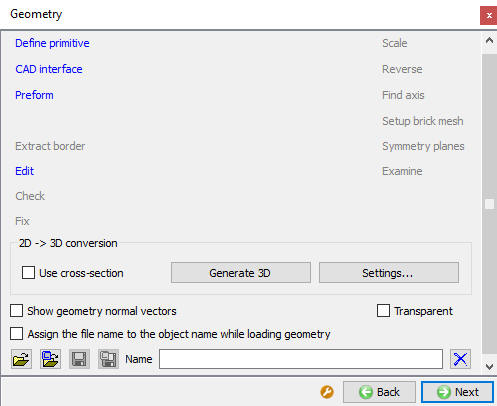
Okno Geometria
Definícia primitívu
Na obrázku 29.1.52 nižšie je znázornená geometrická primitívna súčasť „Manipulátor“, ktorá je k dispozícii v sprievodcovi Cogging.
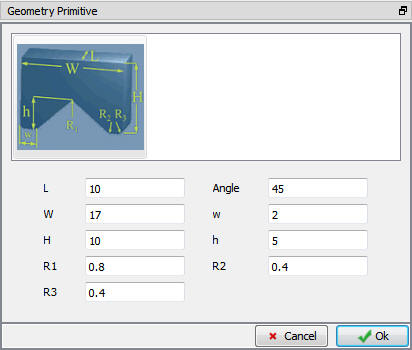
Okno s geometrickými primitívami manipulátora
Sieťovina
Možnosti vytvárania sietí pre lisovacie formy sú podobné ako v prípade polotovaru.
Materiál
Priradenie materiálu k formám prebieha podobne ako v prípade sochárskych blokov. Používateľ môže vybrať požadovaný materiál zo zoznamu alebo ho importovať zo súboru či knižnice. Používateľ môže tiež pridať nový materiál.
Polohovanie
Na obrázku 29.1.53 nižšie je zobrazené okno na nastavenie polohy.
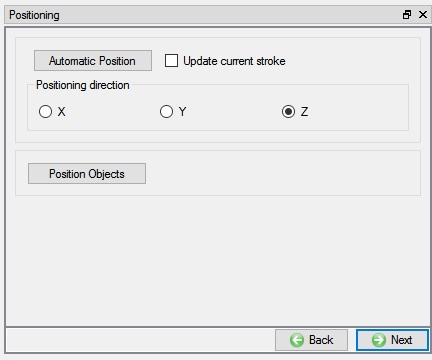
Okno ovládacích prvkov
Polohovanie foriem a manipulátorov je automaticky riadené systémom v sprievodcovi nastavenia a používateľ potrebuje tieto možnosti polohovania len zriedka, a to v prípadoch, keď sú formy importované z externého zdroja. Na polohovanie by stačilo nastaviť polohu hornej matrice, keďže šablóna automaticky zreplikuje túto polohu aj pre ostatné matrice. V novom nastavení je na polohovanie viditeľná len horná matrica a hoci sa ostatné matrice počas úpravy nastavenia polohujú ručne, ich polohy sa neukladajú – ukladá sa len poloha hornej matrice, ktorá sa premietne aj na ostatné matrice. Viac informácií o týchto možnostiach polohovania nájdete v nasledujúcich častiach.
- Automatické polohovanie

Kliknutím na toto tlačidlo systém automaticky umiestni objekty vzhľadom na smer pohybu hornej matrice; táto možnosť sa najlepšie hodí pre jednoduché nastavenie s tromi objektmi: obrobkom, hornou matricou a spodnou matricou.
- Umiestňovanie objektov

Kliknutím na toto tlačidlo môže používateľ umiestniť objekty do požadovaných smerov. K dispozícii sú rôzne typy možností umiestňovania, ako napríklad ťahanie, posun, kolízia, zrkadlenie a otáčanie, ako je znázornené na obr. 29.1.54. Ďalšie informácie o týchto možnostiach nájdete v 16.Object Positioning.
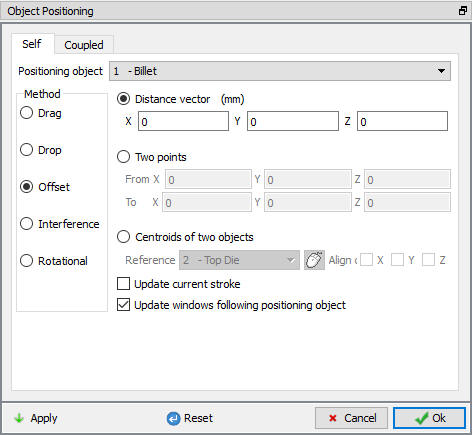
Okno na umiestňovanie objektov
Plánované polohovanie
Funkcia „Schedule positioning“ umožňuje používateľovi definovať umiestnenie objektov v nastavení MO pre nasledujúce operácie, pre ktoré sa nevytvára databáza (DB), tak, aby boli objekty umiestnené ešte pred vytvorením DB počas spustenia simulácie v dávkovom režime. Táto možnosť sa zriedka používa aj v procese coggingu.
Kontakt
Účelom vzťahov medzi objektmi je definovať, ako rôzne objekty v simulácii vzájomne interagujú. Tabuľka vzťahov zobrazuje aktuálne vzťahy medzi objektmi, ktoré boli definované, ako je znázornené na obr. 29.1.44. Všetky objekty, ktoré môžu prísť do kontaktu v priebehu simulácie, musia mať definovaný kontaktný vzťah. To zahŕňa aj objekt, ktorý má vzťah sám so sebou, ak dochádza k vlastnému kontaktu, ako je to v prípade prekrývania. Správne definovanie týchto vzťahov je veľmi dôležité, aby simulácia mohla presne modelovať proces tvárnenia.
Systém: Po výbere tohto prepínača systém priradí predvolené vzťahy medzi objektmi. V prípade potreby môže používateľ pridať mazivá výberom možnosti „Pridať nové“ z roletového menu a kliknutím na tlačidlo „Upraviť“, alebo môže na účely simulácie načítať požadované mazivá z knižnice.
V režime Cogging je štandardne zvolená možnosť User; ak si používateľ** želá definovať vlastné vzťahy, mal by zvoliť príslušné rádio tlačidlo. Používateľ môže pridať vzťahy kliknutím na tlačidlo Pridať, ako je znázornené na obr. 29.1.55.
Koeficienty trenia a prenosu tepla je možné nastaviť dokonca priamo z okna ovládacích prvkov simulácie,
Ďalšie informácie nájdete v dokumente Inter-Object Relations in Forming 3D setup.
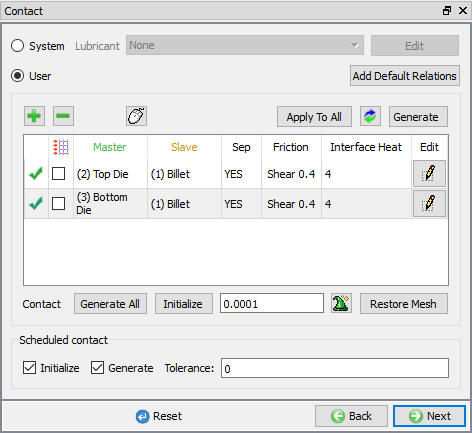
Okno definície medzi objektmi
Ukážka simulácie
Náhľad simulácie poskytuje prehľad operácií, ako sú deformácia, výdrž, opätovné zahriatie atď., ktoré sa majú vykonať na základe definície procesu a tabuľky priechodov, a to vo forme animácie. Ponúka tiež náhľad nastavenia pri každej operácii. V okne „Simulation preview“ (Náhľad simulácie) sa kliknutím na tlačidlo  spustí prehrávanie animácie (pozri obr. 29.1.56.).
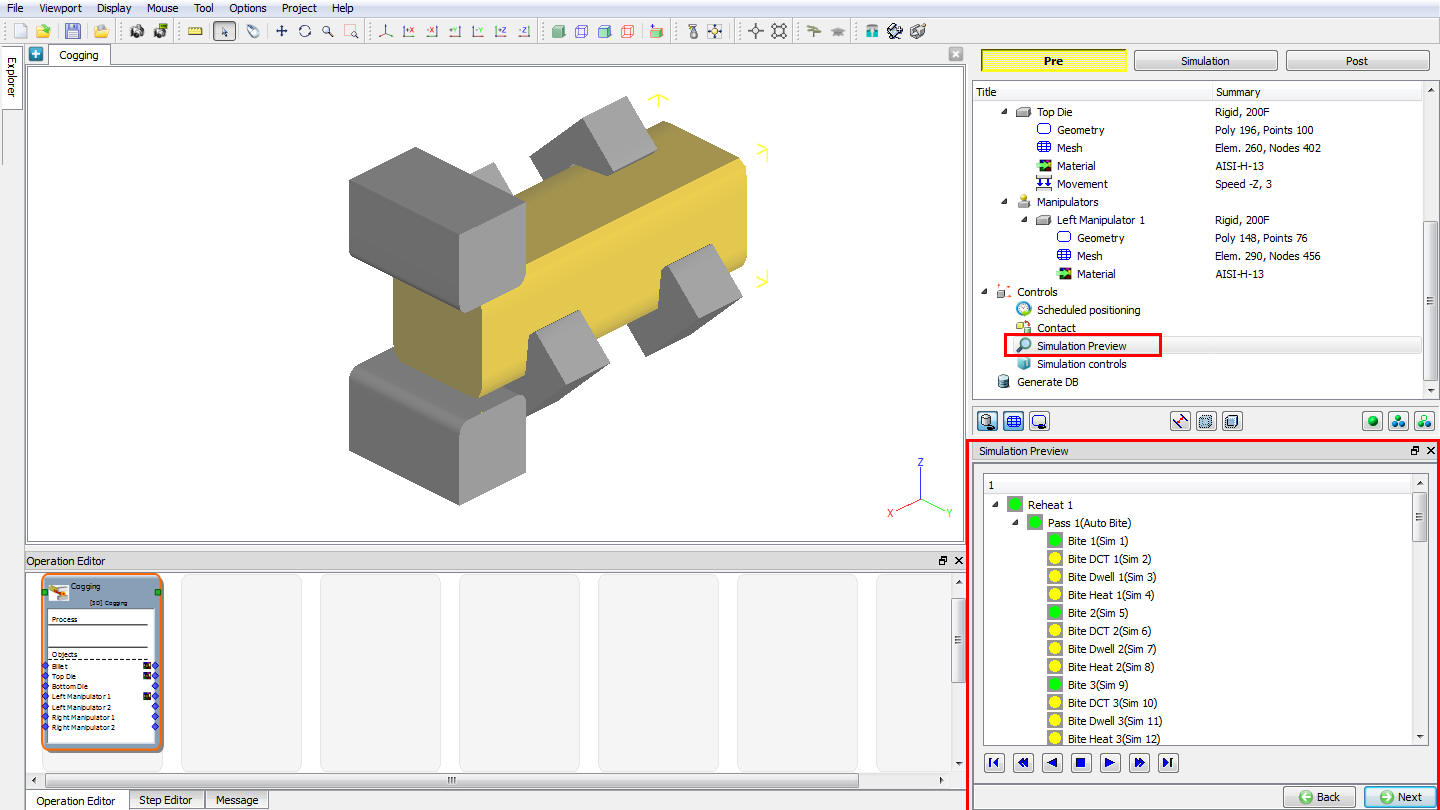
Okno náhľadu simulácie
Ovládacie prvky simulácie
Systém DEFORM rieši časovo závislé nelineárne úlohy generovaním série riešení metódou konečných prvkov (FEM) v diskrétnych časových krokoch. V každom časovom kroku sa na základe okrajových podmienok a termomechanických vlastností materiálu určujú rýchlosti, teploty a ďalšie kľúčové premenné každého uzla v sieti konečných prvkov.
materiály dielov a prípadne riešenia z predchádzajúcich krokov. Z týchto kľúčových hodnôt sa odvodzujú ďalšie stavové premenné, ktoré sa aktualizujú pri každom časovom kroku. Dĺžka tohto časového kroku a počet simulovaných krokov sa určujú na základe informácií zadaných v ponuke nastavení krokov. Obr. 29.1.57. Ukazuje možnosti ovládania simulácie v režime Guided pri operácii coggingu; tu sú k dispozícii základné možnosti potrebné pre operáciu tvárnenia, zatiaľ čo režim Expert ponúka podrobnejšie možnosti.
V režime s návodom môže používateľ nezávisle definovať parametre simulácie pre operácie deformácie a prenosu tepla. Systém na základe týchto informácií vygeneruje súbor .MST a príslušné parametre simulácie uplatní na všetky operácie, ktoré sa majú vykonať. Tu je možné definovať aj koeficienty trenia a prenosu tepla.
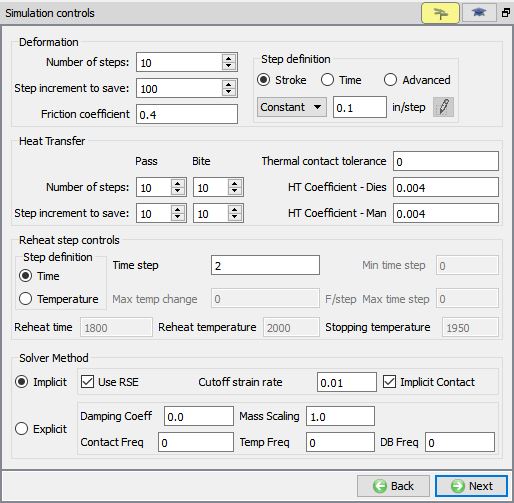
Okno ovládacích prvkov simulácie v režime s návodom
Deformácia
Počet simulačných krokov** (NSTEP)
Parameter „Počet simulačných krokov“ určuje počet krokov, ktoré sa majú spustiť od počiatočného čísla kroku alebo predchádzajúcej operácie. Simulácia sa zastaví po vykonaní tohto počtu simulačných krokov, pokiaľ sa nespustí príkaz na zastavenie simulácie alebo ak simulácia nenarazí na problém. Toto nastavenie je možné nastaviť samostatne pre operácie deformácie a prenosu tepla.
Krok pri ukladaní
Krok prírastku (STPINC), ktorý sa má uložiť do databázy, určuje počet krokov, ktoré systém uloží do databázy. Pri spustení simulácie sa musí vypočítať každý krok, ale nemusí sa nutne uložiť do databázy. Uloženie väčšieho počtu krokov zachová viac informácií o procese, čo však bude vyžadovať viac úložného priestoru. Keďže operácia Cogging je zdĺhavý proces, používateľ by mal byť pri definovaní tejto hodnoty opatrný, aby bolo možné kontrolovať veľkosť súboru .DB. Toto nastavenie je možné nastaviť nezávisle pre operácie deformácie a prenosu tepla.
Koeficient trenia
Pomocou tejto možnosti sa nastavuje koeficient trenia medzi maticami a polotovarom a medzi manipulátormi a polotovarom.
Definícia kroku (DSMAX/DTMAX)
Veľkosť kroku riešenia je možné riadiť časovým krokom alebo posunom primárnej matrice. Ak je špecifikovaný zdvih na krok, primárna matrica sa v každom časovom kroku posunie o zadanú hodnotu. Celkový pohyb primárnej matrice bude rovný posuvu na krok vynásobenému celkovým počtom krokov. Ak je špecifikovaný čas na krok, použije sa časový interval na krok. Posuv matrice na krok bude rovný časovému kroku vynásobenému rýchlosťou matrice. V predvolenom nastavení v režime Cogging je ako primárna matrica definovaná horná matrica.
Definícia riadenia krokového prírastku bola rozšírená tak, aby zahŕňala krokové funkcie závislé od času aj od zdvihu; tieto možnosti sú k dispozícii v režime Expert. To znamená, že veľkosť kroku (či už ide o čas na krok alebo zdvih na krok) je teraz možné definovať ako funkciu času alebo zdvihu. Táto funkcia umožňuje jemnejšie rozlíšenie uložených informácií o modeli tam, kde je to žiaduce. (typicky na konci zdvihu, kde môže dochádzať k prudkým zmenám zaťaženia matrice)
Prenos tepla
Matrice s koeficientom HT
Tu je uvedený koeficient prenosu tepla medzi lisovacími maticami a sochou, ktorý platí pre všetky operácie.
Manipulátory koeficientu HT
Tu je uvedený koeficient prenosu tepla medzi manipulátormi a sochou, ktorý platí pre všetky operácie.
Ovládacie prvky pre fázu opätovného ohrevu:
Kroky simulácie prevádzky s ohrevom budú riadené na základe definície kroku ohrevu. Môžeme definovať riadenie kroku ohrevu buď na základe času, alebo na základe teploty.
Pri definícii krokov na základe času je potrebné zadať čas pre každý krok.
Pri definícii kroku na základe teploty je potrebné zadať hodnoty „Počiatočný časový krok“, „Maximálna zmena teploty“, „Minimálny časový krok“ a „Maximálny časový krok“.
Nastavené hodnoty parametrov „Teplota opätovného ohrevu“, „Doba opätovného ohrevu“ a „Teplota zastavenia“ na stránke „Proces“ sa zobrazia v príslušných poliach.
Metóda riešenia
Používateľ má možnosť zvoliť si, či sa má použiť implicitný alebo explicitný riešiteľ.
Implicitné:
Použitie RSE: Funkciu RSE je možné aktivovať zaškrtnutím tohto políčka. Ďalšie informácie o RSE nájdete v časti RSE[MO] v dokumente 16.Object properties..
Medzná rýchlosť deformácie: Medzná rýchlosť deformácie (LMTSTR) definuje medznú hodnotu efektívnej rýchlosti deformácie, pod ktorou sa plastický alebo porézny materiál považuje za tuhý a správa sa ako materiál s newtonovskými vlastnosťami.
Implicitný kontakt: Zaškrtnutím tohto políčka je možné aktivovať metódu implicitného kontaktu medzi objektmi.
Ovládacie prvky simulácie v režime Expert
Na obr. 29.1.58 sú zobrazené ovládacie prvky simulácie v režime Expert. Ďalšie informácie a popis možností v ovládacích prvkoch simulácie nájdete v 9. Simulation Controls..
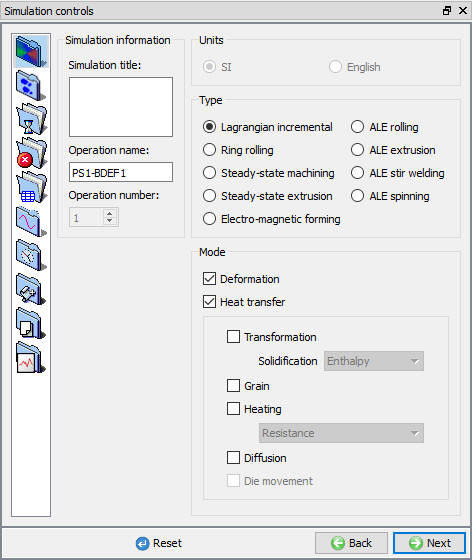
Ovládacie prvky simulácie v režime pre pokročilých
Vytvoriť databázu
Skontrolujte Data
Systém skontroluje údaje. Ak sú údaje správne, môžeme vytvoriť databázu. Ak sa však pri kontrole údajov vyskytnú chyby alebo varovania, je potrebné ich opraviť pred vytvorením databázy. Chyby zabránia vytvoreniu databázy, zatiaľ čo varovania vytvorenie databázy neumožnia.
Vytvoriť databázu 
Kliknutím na toto tlačidlo sa vygeneruje databáza nastavení potrebná na spustenie simulácie. (Pozri obr. 29.1.59.)
Pridať súbor s kľúčmi
Akékoľvek informácie, ktoré nie sú definované v sprievodcovi, ale napriek tomu sa vzťahujú na daný proces, je možné načítať ako súbor s príponou .key. Táto možnosť je užitočná aj v prípadoch, keď je potrebné zmeniť len niekoľko hodnôt – tieto hodnoty je možné definovať v súbore s príponou .key, následne stačí zmeniť len tento súbor a simuláciu je možné odoslať znovu.
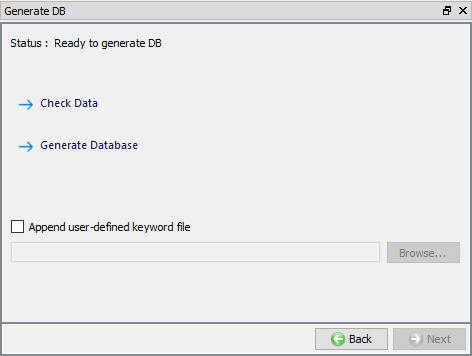
Okno „Vytvoriť databázu“
Spustenie simulácie
Po vytvorení databázy prejdite do režimu simulácie kliknutím na tlačidlo  nad stromom operácií. Simuláciu spustite kliknutím na popisok akcie
  a výberom možnosti „spustiť od posledného záporného kroku“ v rozbaľovacom okne „Spustiť simuláciu“.
Priebeh simulácie sledujte v okne „Simulation graphics“ a na kartách „Simulation Message“ a „Simulation Log“, pričom sa uistite, že je zaškrtnutá voľba  (pozri obr. 29.1.60.), aby sa súbory správ a protokolov automaticky aktualizovali a umožnili tak sledovanie priebehu simulácie. Pomocou možností na paneli nástrojov „Simulačná grafika“ je možné počas simulácie problému vykresľovať základné stavové premenné objektov, ako sú teplota, deformácia a kontakt.
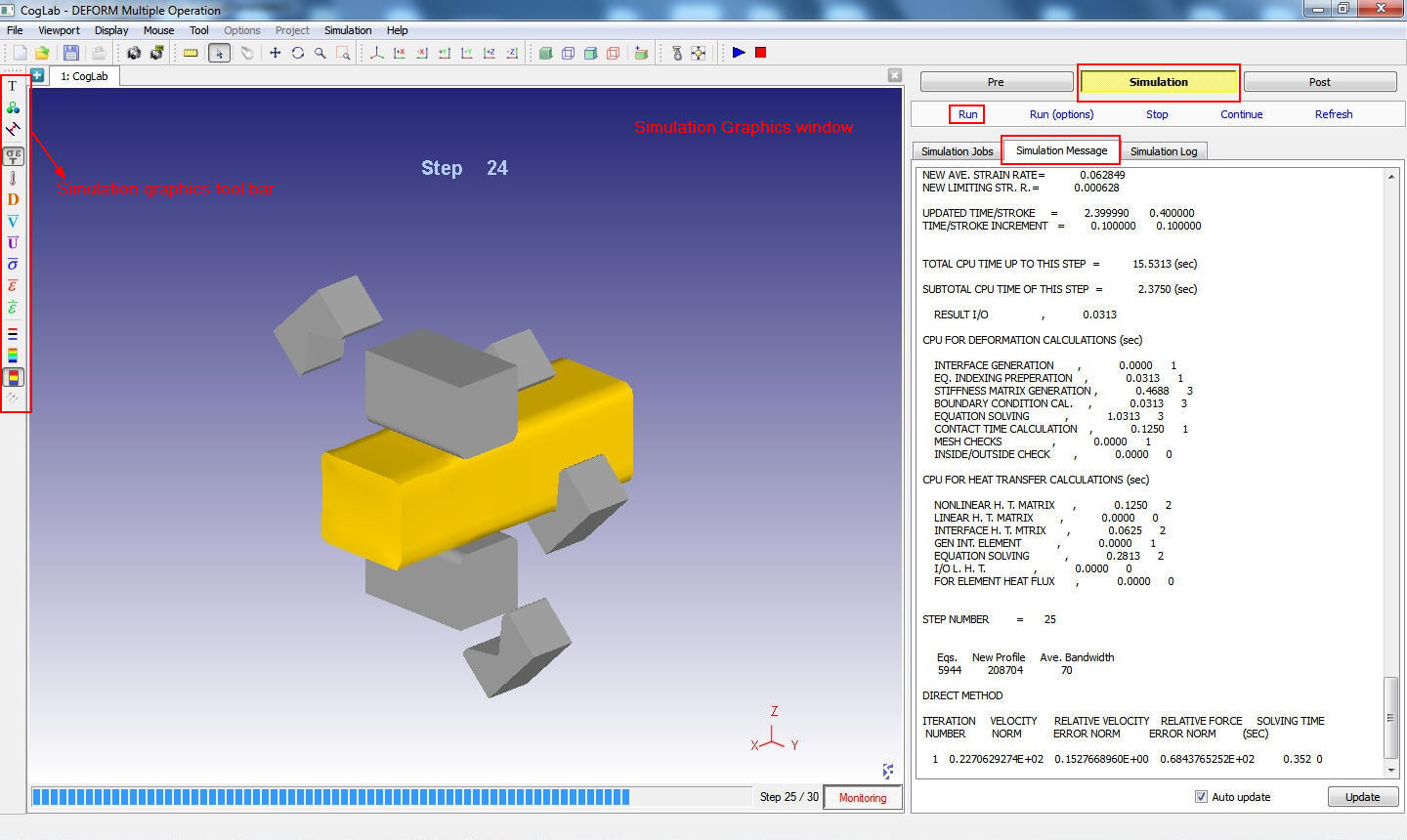
Simulačný režim
Pri simulácii coggingu sa všetky simulačné údaje o coggingu počas behu zapíšu do súboru ProblemID.MST. Súbor ProblemID.MST slúži na postupné spúšťanie simulácie coggingu, pričom každá operácia deformácie zubov a prenosu tepla prebieha ako samostatná operácia na základe nastavení v okne procesu a v tabuľke priechodov. Súbor ProblemID.MST riadi spustenie a zastavenie každej operácie. Pre všetky operácie sa správy o spustení a zastavení zobrazujú v súbore správ. Po dokončení všetkých operácií sa v súbore protokolu simulácie zobrazí správa „MULTIPLE OPERATION COMPLETED“ (Viacnásobná operácia dokončená).
Následné spracovanie
Po dokončení simulácie si môže používateľ prezrieť výsledky tak, že pomocou tlačidla  nad panelom nástrojov Simulácia prepne do režimu Post. (Pozri obr. 29.1.61.)
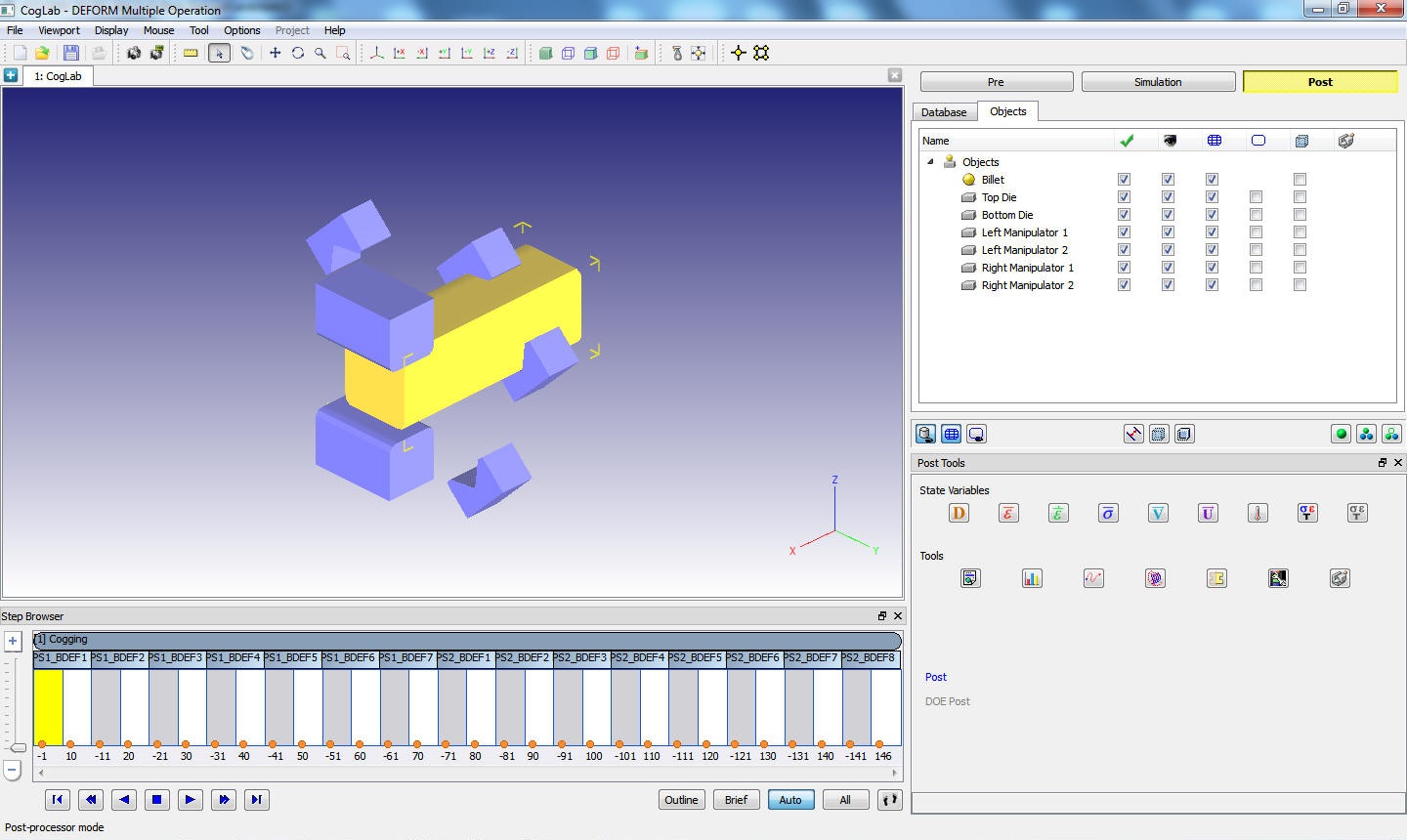
Režim postprocesora
Prejdite jednotlivými krokmi a pozrite si rozloženie teploty a rozloženie deformácie pomocou grafického znázornenia stavových premenných teploty a efektívnej deformácie. (Pozri obr. 29.1.62.) Zmenu teploty v maticiach je možné pozorovať aj na obr. 29.1.63.
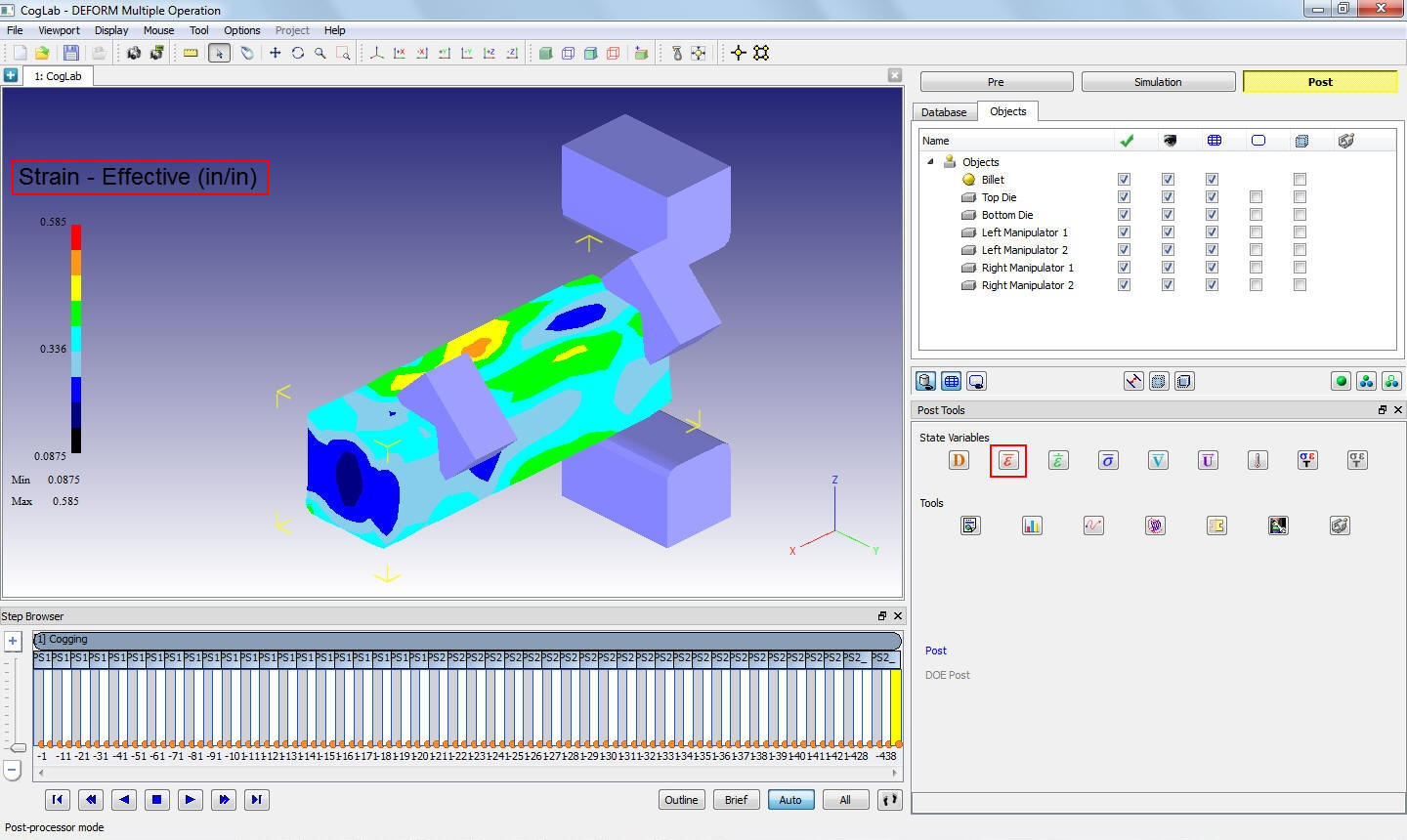
Rozloženie napätia v sochore
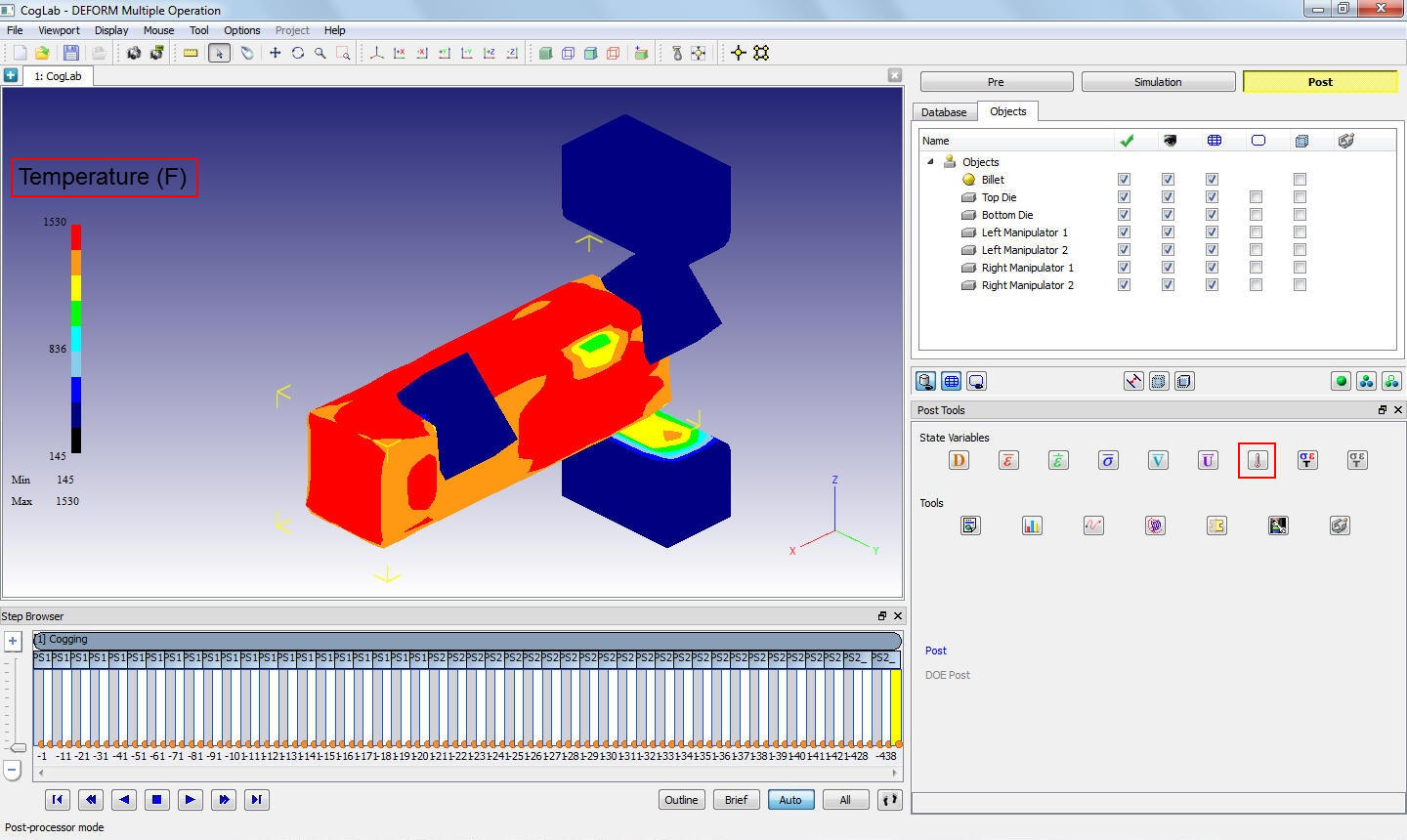
Rozloženie teploty v sochách a maticiach
Súvisiace témy:
6.1. Integrated Manufacturing Process Pre- Processor Layout
6.2. Integrated Manufacturing Process.Simulation layout
6.3. Integrated Manufacturing Proces Post - Processor layout