39.2. 3D sústruženie
39.2.1. Ako pridať 3D rezací úkon
39.2.2. Prehľad systému
39.2.3. Pridanie sústružnej operácie
39.2.4. Postup
39.2.5. Zoznam materiálov
39.2.6. Nástroj
39.2.6.1. Vložiť geometriu
39.2.6.2. Držiak nástroja
39.2.6.3. Materiál povlaku
39.2.6.4. Materiál nástroja
39.2.6.5. Sieť nástroja
39.2.6.6. Nástroj BCC
39.2.7. Obrobok
39.2.7.1. Geometria obrobku
39.2.7.2. Výber materiálu obrobku
39.2.7.3. Vytvorenie siete obrobku
39.2.7.4. Objemová štruktúra obrobku
39.2.8. Kontrola
39.2.9. Opotrebenie nástrojov
39.2.10. Kontakt
39.2.11. Krokové riadenie
39.2.12. Vytvorenie databázy
Ako pridať 3D rezací úkon
Operáciu 3D rezania je možné nastaviť v prostredí integrovaného výrobného procesu, do ktorého sa dostanete z hlavného okna grafického používateľského rozhrania. Novú úlohu vytvoríte buď výberom položky „Súbor  Nová úloha“, alebo kliknutím na ikonu „Nová úloha“
  . V časti typu úlohy a jednotkového systému vyberte prepínač „3D rezanie“. Kliknite na tlačidlo
  , ako je znázornené na obr. 39.2.1. Otvorí sa sprievodca integrovaným výrobným procesom a v editore operácií uvidíte, že bola pridaná operácia 3D rezania.
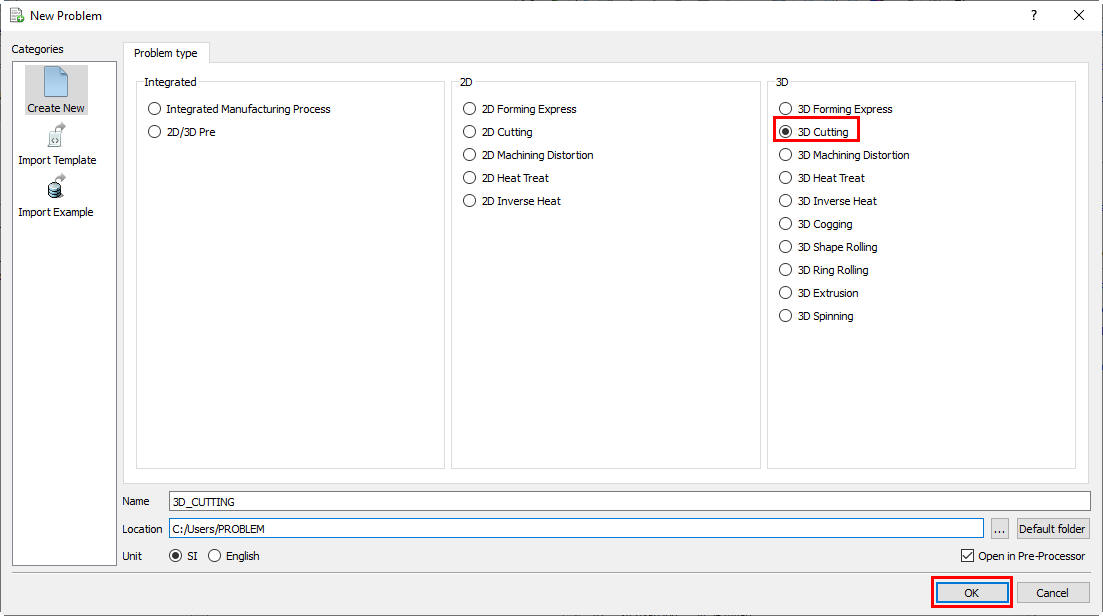
Pridanie 3D rezacej operácie z hlavného okna grafického používateľského rozhrania
Operáciu „3D rezanie“ môžeme pridať aj kliknutím na ikonu „Nový problém“ . Vyberte možnosť „Integrovaný výrobný proces“ a systém jednotiek. Otvorí sa okno Integrovaný výrobný proces s vyskakovacím oknom „Nový projekt“. Vo vyskakovacom okne „Nový projekt“ môžeme pridať operáciu „3D rezanie“ zaškrtnutím políčka „Prvá operácia“ a výberom „3D rezanie“ ako prvej operácie z roletového zoznamu, ako je znázornené na obr. 39.2.2. Potom kliknite na v okne Nový projekt. Otvorí sa sprievodca Integrovaným výrobným procesom a v „Editori operácií“ môžete vidieť, že operácia „3D rezanie“ bola pridaná do editora operácií. Pomocou možnosti Kopírovať existujúci projekt môžete importovať predtým uložené projekty ako nový projekt.
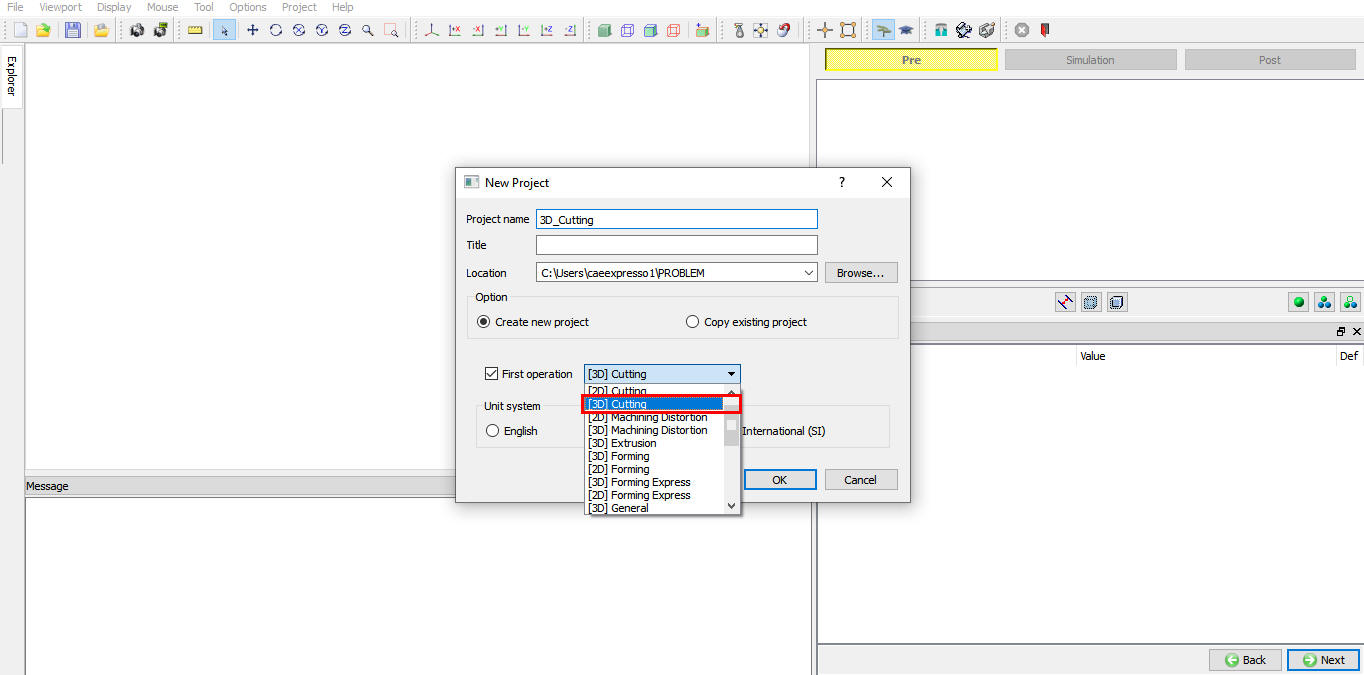
V okne „Nový projekt“ zadajte názov projektu a vyberte prvú operáciu
Môžeme tiež pridať operáciu „3D rezanie“ do „Editoru operácií“ z karty prehliadača kliknutím na tlačidlo  vedľa položky 3D rezanie, ako je znázornené na obr. 39.2.3, alebo pretiahnutím položky 3D rezanie do okna Editoru operácií, čím sa v oblasti úpravy nastavení vlastností otvorí stránka výberu procesu.
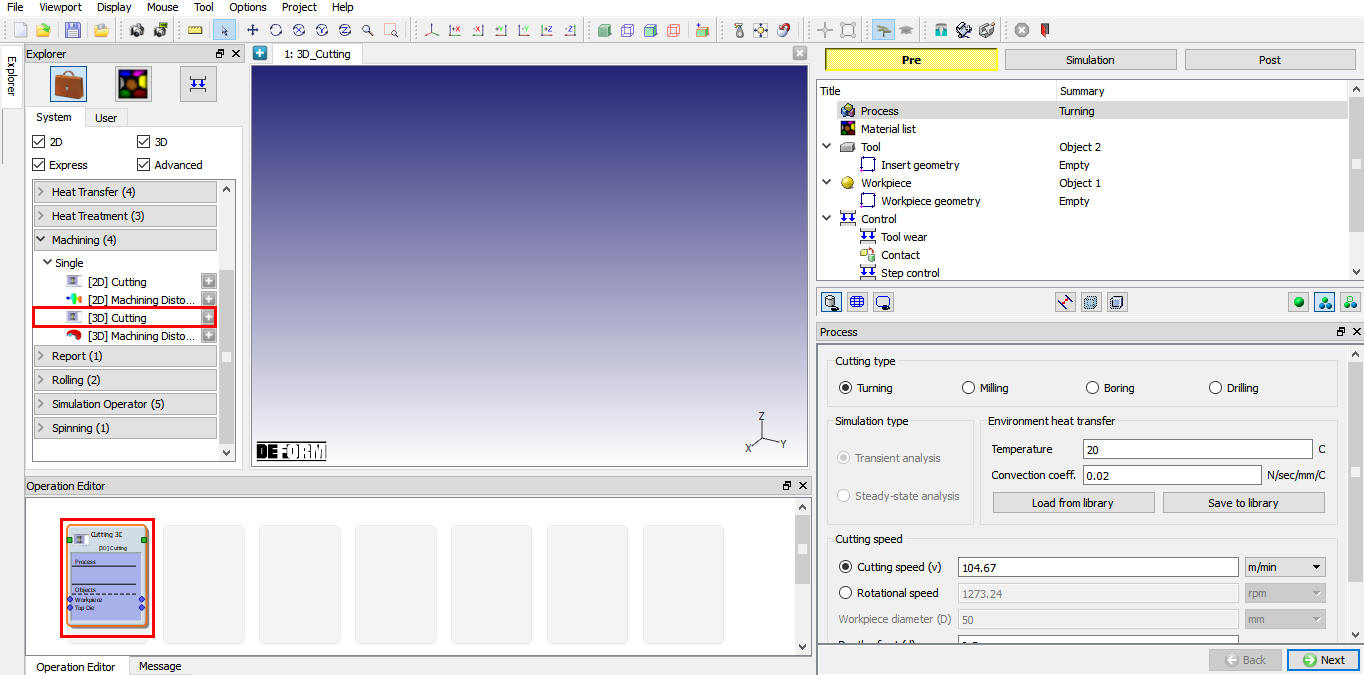
Pridanie operácie zo zoznamu operácií v Průzkumníku
Druhy 3D rezania:
V rámci tejto operácie máme k dispozícii 4 rôzne typy rezacích modelov, a to:
-
Sústruženie
-
Frézovanie
-
Nudné
-
Vŕtanie
Prehľad systému
Šablónu 3D rezania je možné použiť na modelovanie priemyselného procesu sústruženia bez akýchkoľvek predpokladov spojených s ortogonálnymi podmienkami rezania. Tieto postupy modelovania umožňujú inžinierovi skúmať reakciu procesu na akúkoľvek zmenu procesných podmienok. Pomocou tohto systému je možné vypočítať rezné sily, rezné teploty, tvar triesok, opotrebenie nástroja a životnosť nástroja. Inžinier môže skúmať vplyv procesných parametrov, ako sú rýchlosť rezu, posuv a hĺbka rezu, na reakciu procesu. Šablóna zjednodušuje definíciu modelu a používa rovnaký technický jazyk ako procesný inžinier. V prípade sústruženia sú rotujúci obrobok, doštička a ich vzťah k oblasti analýzy znázornené na obr. 39.2.4. Typický analytický model vygenerovaný pomocou súčasného systému je znázornený na obr. 39.2.5. Hlavnými požiadavkami na údaje potrebné na modelovanie procesu obrábania sú údaje o napätí v toku materiálu pre materiál obrobku a geometrické údaje o doštičke. Údaje o napätí v toku materiálu by mali pokrývať rýchlosť deformácie, deformáciu a teplotný rozsah pre proces rezania kovov. Pre väčšinu materiálov je typický rozsah rýchlosti deformácie 0 – ~10⁶/s, rozsah deformácie je 0 – 5 a rozsah teplôt je 20 – 1 200 °C. Na zvládnutie tohto rozsahu zaťažovacích podmienok sú potrebné špeciálne techniky charakterizácie materiálu. Geometria doštičky môže byť poskytnutá vo formáte STL, vygenerovaná z ľubovoľného CAD systému.
Tento dokument popisuje procesné údaje, načítanie materiálov, vložiek a držiakov nástrojov z knižnice. Zadávaním údajov špecifických pre daný model môže používateľ vygenerovať kompletné údaje potrebné na analýzu. Táto fáza analýzy predstavuje počiatočnú prechodovú analýzu. Po vykonaní simulácie a vytvorení dostatočného množstva triesok môže používateľ vypočítať ustálenú odozvu procesu, ktorá zahŕňa predikciu ustálenej tepelnej odozvy a geometrie triesok. Z hľadiska tepelnej odozvy doštičky táto fáza výrazne skráti výpočtový čas, ktorý je zvyčajne spojený s prechodnou analýzou. Výsledky získané v tejto fáze tvoria dôležitý vstup pre výpočty opotrebenia a životnosti nástroja. Šablóna obrábania obsahuje súbor knižničných súborov pre geometriu vložky. Používateľ môže použiť aj akúkoľvek inú geometriu vložky a uložiť ju spolu so systémovou knižnicou pre akékoľvek neskoršie použitie.
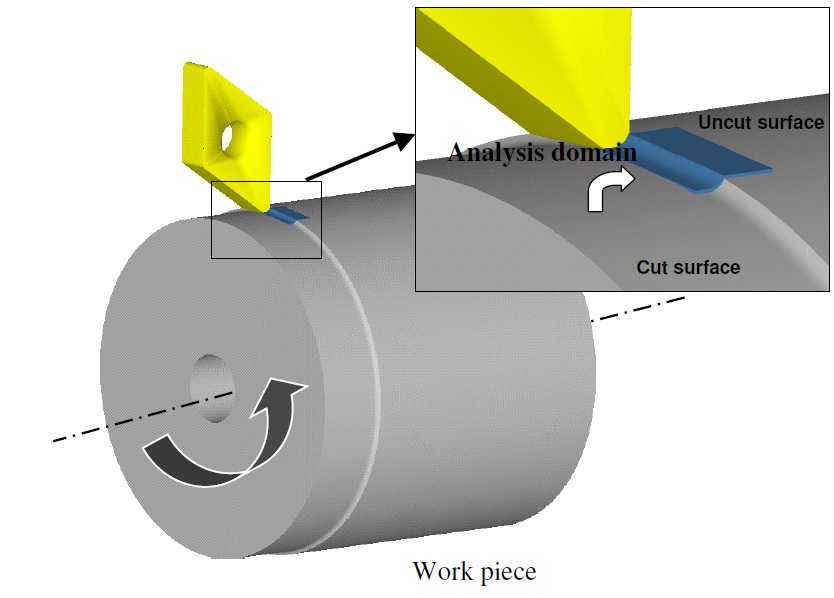
Základné zložky otáčania a ich vzťah k oblasti analýzy
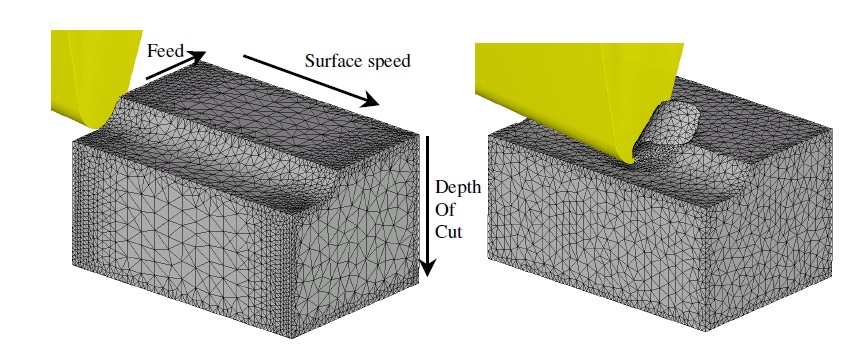
Simulačný model a definícia základných parametrov rezania
Pridanie sústružnej operácie
Na nastavenie procesu sústruženia musí používateľ pridať 3D šablónu rezu a na stránke „Proces“ vybrať možnosť „Sústruženie“, ako je znázornené na obr. 39.2.6.
Postup
Parametre procesu potrebné na modelovanie procesu sústruženia sa nastavia na stránke procesu, pozri obr. 39.2.6.
Rýchlosť rezania: Užívateľ môže na definovanie týchto parametrov procesu využiť prehľad systému.
-
Rýchlosť rezania (v): Je definovaná ako rýchlosť, ktorou sa nástroj pohybuje. Rýchlosť rezania sa môže uvádzať v jednotkách mm/s alebo m/min v systéme SI a v jednotkách in/s alebo ft/min v anglických jednotkách.
-
Rýchlosť otáčania: Určuje rýchlosť otáčania nástroja. Rýchlosť otáčania možno uvádzať v otáčkach za minútu (rpm) alebo v radiánoch za sekundu.
-
Priemer obrobku (D): Určuje priemer obrobku. Táto hodnota priemeru sa aktualizuje na stránke s geometrickými primitívami obrobku.
-
Hĺbka rezu (d): Ide o hrúbku kovu, ktorá sa odstraňuje počas obrábania. Je to kolmá vzdialenosť meraná medzi obrábanou plochou a neobrábanou plochou obrobku.
-
Rýchlosť posuvu (f): Je definovaná ako vzdialenosť, ktorú nástroj prejde po obrobku počas jednej otáčky obrobku. Poloha nástroja je určená rýchlosťou posuvu. Túto veličinu možno vyjadriť v jednotkách mm/ot alebo mm/s v sústave SI a v jednotkách in/ot alebo in/s v anglických jednotkách.
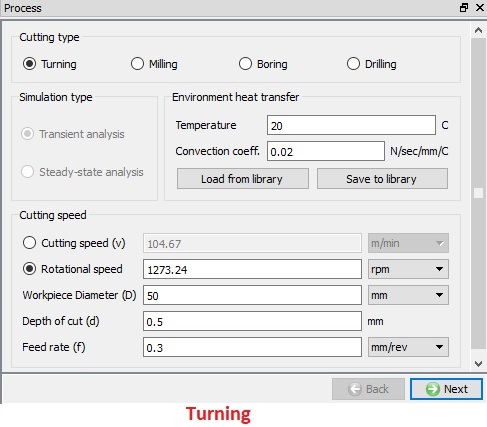
Stránka procesu typu „otočenie“
Prenos tepla v prostredí: Používateľ môže nastaviť údaje o teplote a koeficiente konvekcie, ako je znázornené na obr. 39.2.6. Koeficient konvekcie je možné uložiť a načítať z knižnice.
- Uložiť do knižnice
 : Používateľ môže koeficient konvekcie uložiť do knižnice a neskôr ho použiť v iných simuláciách. Môžeme tiež vytvoriť novú kategóriu na uloženie koeficientu konvekcie, ako je znázornené na obr. 39.2.7.
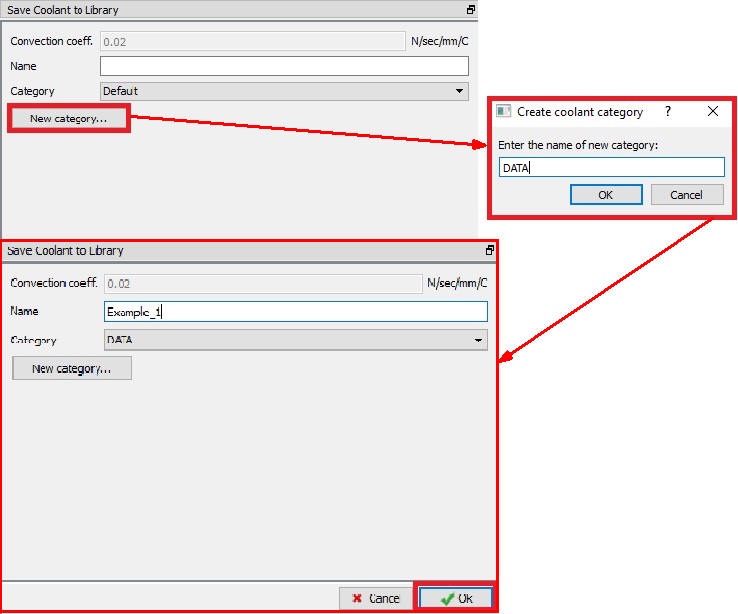
Uloženie koeficientu chladiva do knižnice
- Načítať z knižnice
 : Používateľ môže načítať už uložený koeficient konvekcie z vybranej kategórie, ako je znázornené na obr. 39.2.8. Pomocou funkcie „Odstrániť kategóriu“ môže používateľ odstrániť príslušnú kategóriu a údaje o chladivách, ktoré sa v nej nachádzajú. Ak chce používateľ odstrániť iba údaje o chladivách, pomocou funkcie „Odstrániť chladivo“ môže odstrániť koeficient konvekcie z akejkoľvek kategórie.
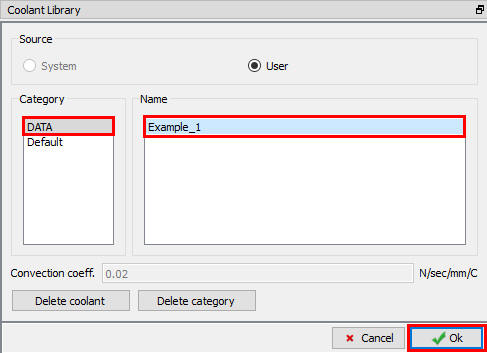
Načítanie koeficientu chladiva z knižnice
Zoznam materiálov
Na tejto stránke „Zoznam materiálov“ môže používateľ načítať materiál z knižnice, pomocou kľúčového slova alebo z databázového súboru pomocou volieb  a
a  , ako je znázornené na obr. 39.2.9. Materiály načítané na tejto stránke je možné priradiť k objektom na príslušnej stránke materiálov. Používateľ môže tiež pridať nový materiál pomocou tlačidla
  a definovať jeho vlastnosti. Pomocou tlačidla
  môže používateľ odstrániť načítaný materiál. Materiál môže tiež uložiť pomocou možností
  a
a  .
.
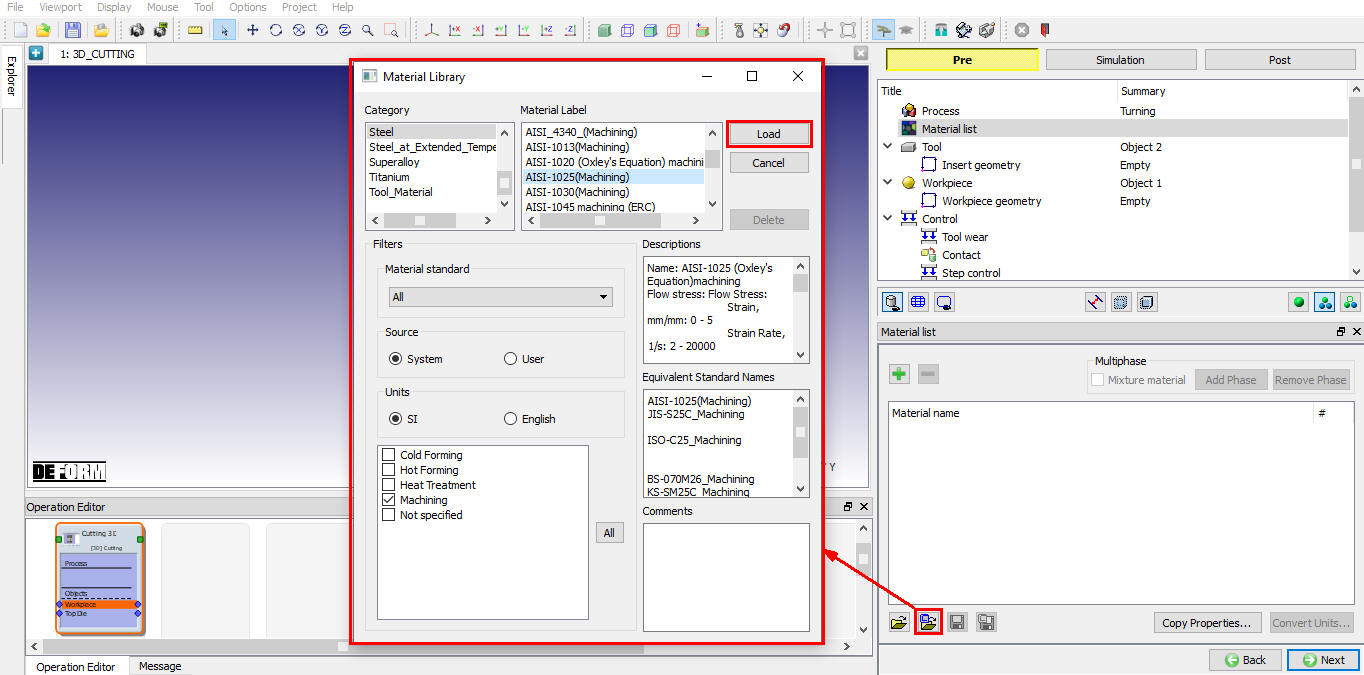
Priradenie materiálu do zoznamu materiálov
Nástroj
Na tejto stránke „Nástroj“ môže používateľ definovať teplotu objektu nástroja. Objekt nástroja môžeme načítať pomocou tlačidla  (pozri obr. 39.2.10.). Ak chce používateľ vypočítať tepelné údaje pre objekt nástroja, zaškrtne políčko „Vypočítať teplotu nástroja“ a zistí, že sa aktivujú možnosti vytvorenia siete pre nástroj, vďaka čomu je možné vytvoriť sieť nástroja na výpočet rozloženia teploty.
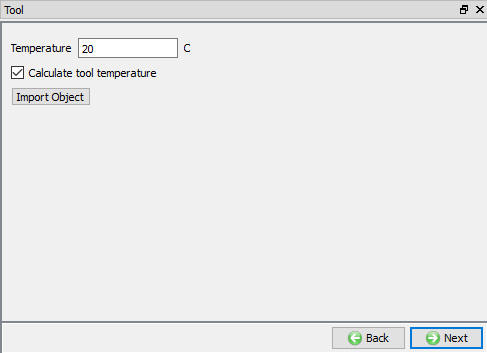
Stránka s nástrojmi
Vložiť geometriu
Na tejto stránke „Vložiť geometriu“ môže používateľ definovať geometriu nástroja pomocou  alebo importovať geometriu pomocou možností „Importovať geometriu“. (Pozri obr. 39.2.11). Ďalšie informácie nájdete v 12.3. 3D Geometry Data Defining.
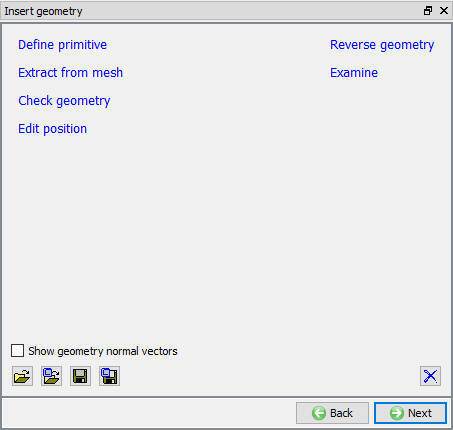
Stránka „Vložiť geometriu“
Definovanie geometrie nástroja pomocou možnosti „Definovať primitív“
Keď používateľ klikne na odkaz na stránke „Vložiť geometriu“, otvorí sa okno „Vložiť primitív“, v ktorom sú zobrazené základné geometrie nástrojových vložiek, ako je znázornené na obr. 39.2.12. Po identifikácii vložky môže používateľ skontrolovať jej základné parametre, základný materiál a prípadný materiál povlaku ešte pred jej načítaním.
Karta „Parametre“: Obsahuje údaje o geometrických parametroch vybraného nástroja. Používateľ môže tieto parametre aj upravovať.
Karta „Základný materiál“: Zobrazujú sa tu údaje o základnom materiáli nástroja vybraného zo zoznamu.
Karta „Povlaky“: Zobrazí údaje o povlakových materiáloch nástroja vybraného zo zoznamu.
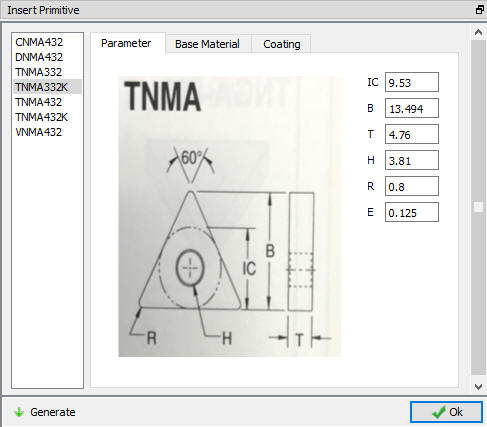
Vložiť stránku s primitívmi
Definovanie geometrie nástroja pomocou možnosti „Importovať geometriu“
Kliknite na a naimportujte geometriu nástroja. Zvoľte smer rezných plôch – predvolene je zvolená os „Y“, ako je znázornené na obr. 39.2.13., a kliknite na  . Teraz vyberte referenčný bod, ako je znázornené na obr. 39.2.14, a kliknite na
  . Túto šablónu výberu rezných plôch budeme používať na polohovanie doštičky iba pri nastavení sústruženia.
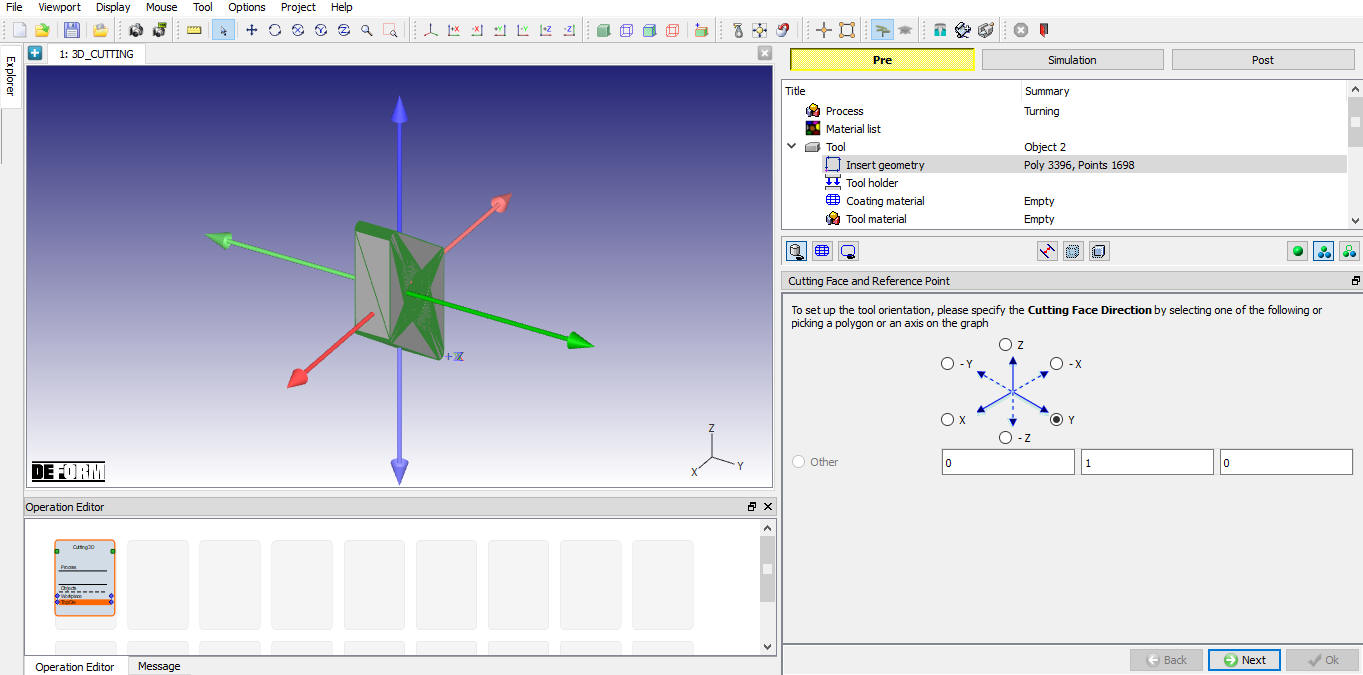
Výber osi rezných plôch pre importovanú geometriu
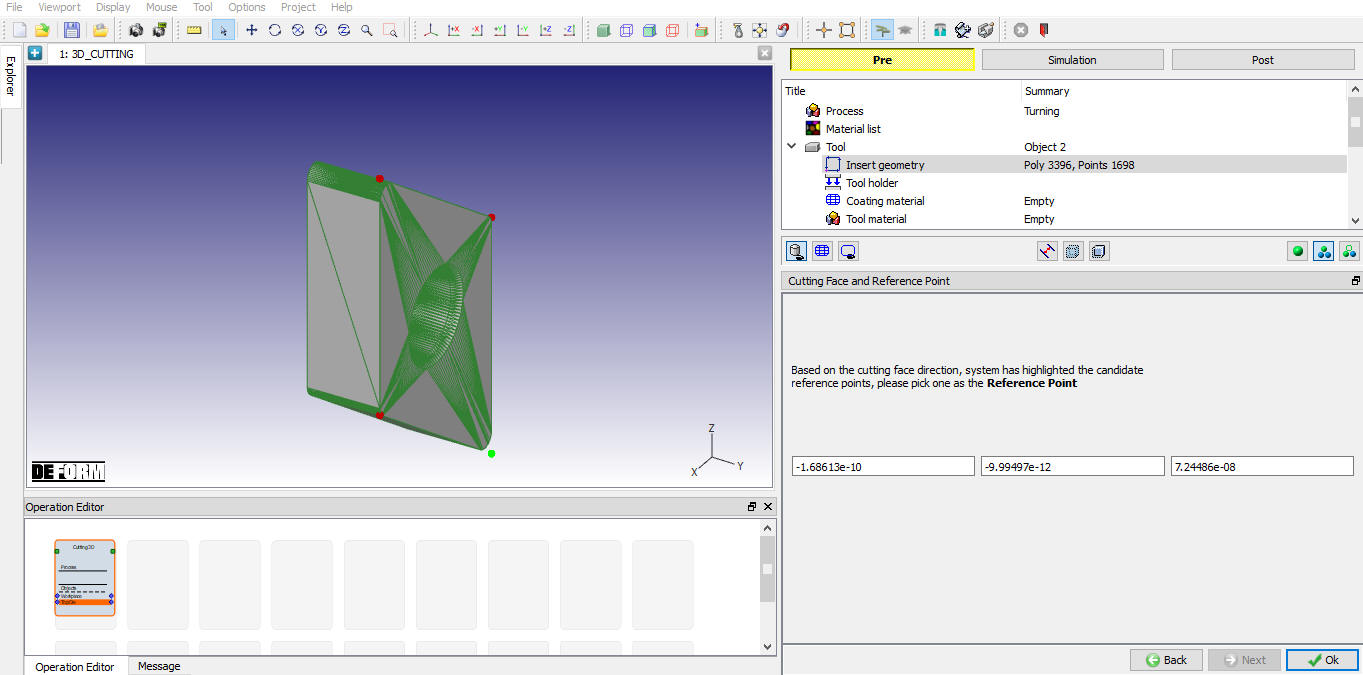
Výber referenčného bodu pre importovanú geometriu
Držiak nástroja
Pre vybranú výmennú dosku je možné načítať príslušné držiaky nástrojov z knižnice držiakov nástrojov, alebo si môže používateľ držiak nástroja definovať sám zadávaním základných rezných uhlov, ako je znázornené na obr. 39.2.15. Základné rezných uhly, ktoré sa preberajú z údajov držiaka nástroja, sú SCEA (uhol bočnej reznú hrany alebo uhol sklonu), BR (uhol zadného sklonu) a SR (uhol bočného sklonu). Tieto základné uhly a údaje o procese (posuv a hĺbka rezu) riadia správnu polohu doštičky vo vzťahu k obrobku.
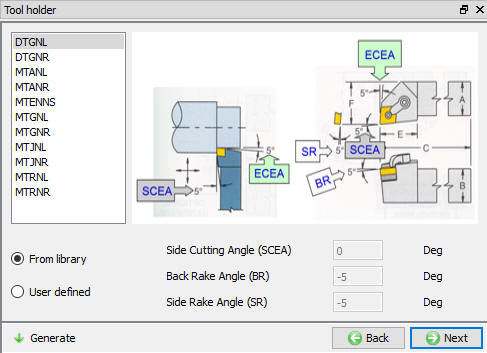
Stránka s držiakmi nástrojov
Materiál povlaku
Používateľ môže na výmennú čepeľ naniesť povlak tak, že na stránke „Materiál povlaku“ definuje povlakovú vrstvu a jej hrúbku. Materiál vrstvy povlaku a jej hrúbku môže používateľ definovať kliknutím na tlačidlo  , ako je znázornené na obr. 39.2.16. Ak chce používateľ odstrániť akúkoľvek vrstvu, musí vybrať príslušnú vrstvu a kliknúť na tlačidlo
  .
.
Extrahovanie informácií o povlaku: Po vytvorení povlaku môžeme pomocou tohto tlačidla extrahovať informácie o povlaku.
Odstrániť vrstvu: Pomocou tohto tlačidla môžeme tiež odstrániť vrstvy s nákladmi.
Zaškrtnutím políčka „Zachovať stavové premenné a okrajové podmienky“ môže používateľ vytvoriť povlakovú vrstvu bez straty údajov o stavových premenných a okrajových podmienkach nástroja.
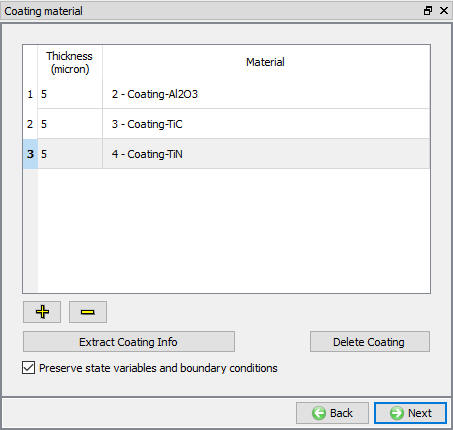
Stránka o materiáloch na povrchovú úpravu
Materiál nástroja
Na stránke materiálov sa zobrazujú všetky materiály pridané do zoznamu materiálov, ako je znázornené na obr. 39.2.17. Používateľ môže vybrať požadovaný materiál a priradiť ho k príslušnému objektu. Ak požadovaný materiál nie je k dispozícii v zozname, môže ho na stránke materiálov objektu načítať pomocou funkcie „Importovať materiál“ z súboru alebo pomocou možnosti „Načítať z knižnice“ . Ak materiál nie je k dispozícii v knižnici DEFORM, môže ho používateľ vytvoriť pomocou . Používateľ môže materiál zo zoznamu odstrániť pomocou alebo upraviť údaje o materiáli pomocou  . Upravený alebo novo definovaný materiál je možné uložiť pomocou a .
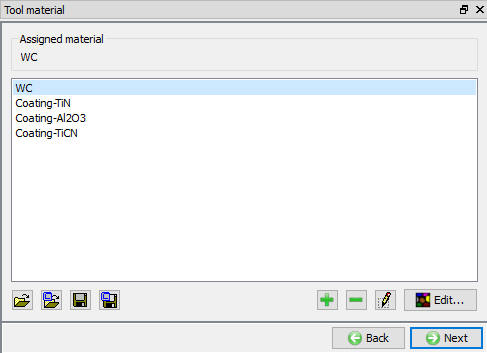
Priradenie materiálu nástroja
Sieť nástrojov
Používateľ môže vytvoriť sieť pre nástroj definovaním údajov o relatívnej alebo absolútnej veľkosti ôk, ako je znázornené na obr. 39.2.18 a obr. 39.2.19. Po kliknutí na možnosť  sa tiež zobrazí náhľad siete. Keďže informácie o reznom hrane sú súčasťou údajov o doštičke, sprievodca automaticky použije jemnejšiu sieť v blízkosti reznej zóny.
####
Metóda relatívnej siete
-
Cieľový počet prvkov: Počet prvkov, ktoré sa majú pre daný objekt vygenerovať, je možné určiť jednoduchým posunutím posuvníka a výberom vhodnej hodnoty pre aktuálnu simuláciu.
-
Pomer veľkostí: Ide o pomer dĺžky hrany najväčšieho prvku k dĺžke hrany najmenšieho prvku.
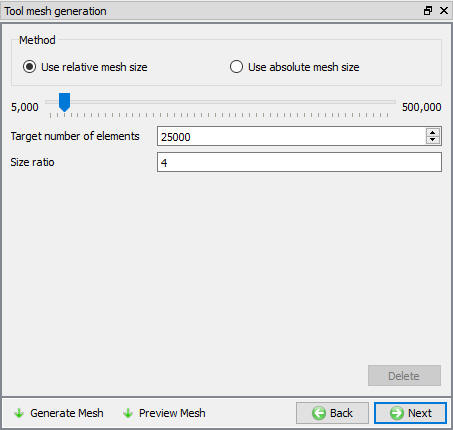
Vytvorenie siete pomocou relatívnej veľkosti ôk
####
Metóda absolútnej siete
- Minimálna veľkosť prvku: Parameter „Rýchlosť generovania“ automaticky vypočíta minimálnu veľkosť prvku siete, ktorá sa má vygenerovať, čím sa automaticky vypočíta hodnota „Cieľový počet prvkov“, ako je znázornené na obr. 39.2.19.
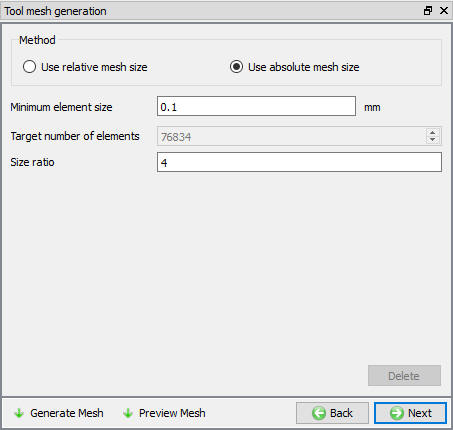
Vytvorenie siete pomocou absolútnej veľkosti ok
Nástroj BCC
Na tejto stránke BCC môže používateľ definovať tepelné BCC, ako napríklad „Výmena tepla s okolím“ a „Teplota“. Predvolené BCC sa priradia automaticky po vytvorení siete, ako je znázornené na obr. 39.2.20.
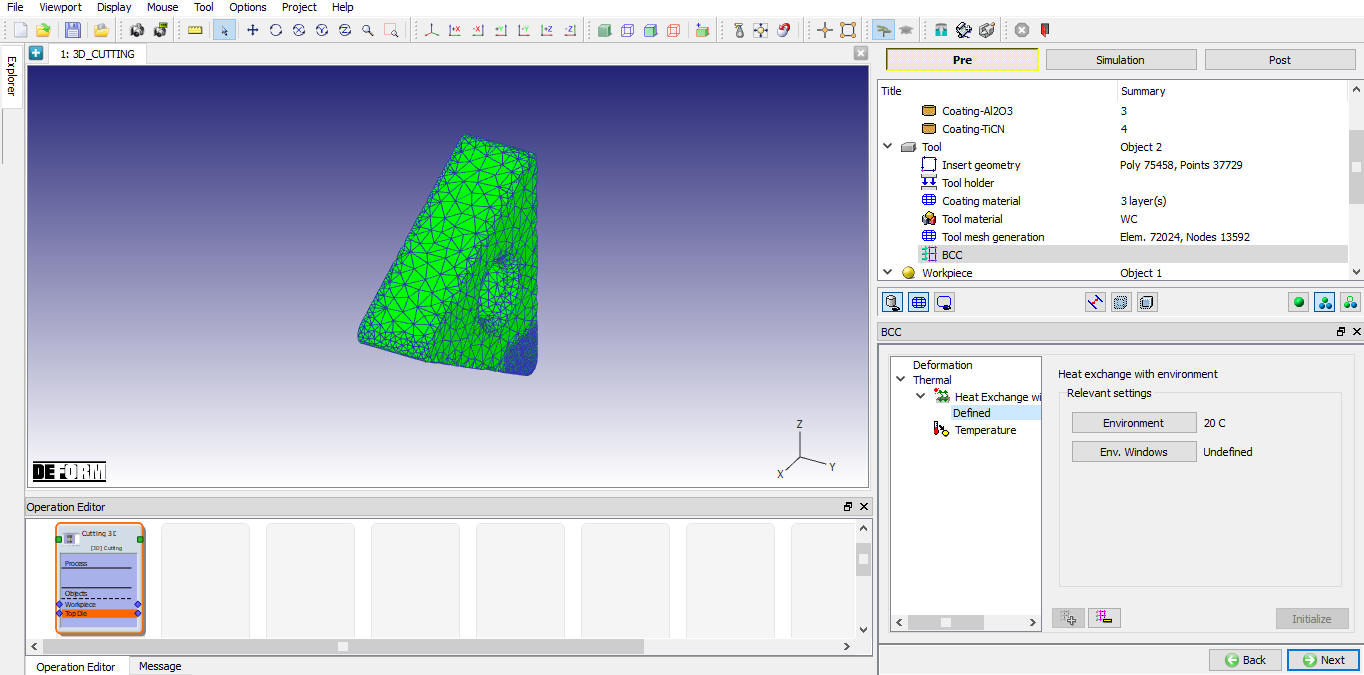
Predvolená hodnota BCC pre výmenu tepla
Obrobok
Na tejto stránke „Obrobok“ môže používateľ definovať typ objektu a nastaviť jeho počiatočnú teplotu. Predvolene je vybraný typ objektu „Plastický“; ak chce používateľ zohľadniť vplyv elastických vlastností, môže použiť typ objektu „Elastoplastický“. Údaje o objekte je možné importovať aj pomocou tlačidla .
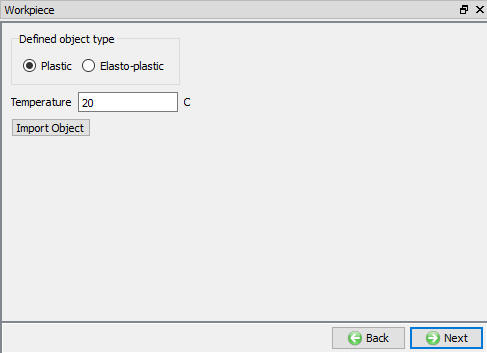
Stránka obrobku
Geometria obrobku
Na tejto stránke „Geometria obrobku“ môže používateľ definovať geometriu obrobku pomocou . Používateľ môže tiež importovať geometriu pomocou možností importu geometrie a .
####
Definovanie geometrie obrobku pomocou možnosti „Definovať primitív“
Klávesová skratka otvorí ponuku „Workpiece Geo Primitive“. V tejto ponuke sú k dispozícii rôzne geometrické parametre pre zjednodušený aj zakrivený režim, ako je znázornené na obr. 39.2.22 a obr. 39.2.23.
-
Priemer (D): V režime krivky určuje priemer obrobku.
-
Uhol oblúka: V režime zakrivenia určuje uhol oblúka, ktorý sa má vytvoriť na obrobku.
-
Dĺžka (L): V zjednodušenom režime určuje dĺžku obrobku.
-
Veľkosť posuvu: Je definovaná ako vzdialenosť, ktorú nástroj prejde počas jednej otáčky obrobku, a slúži na vytvorenie základného tvaru obrobku. Hodnota rýchlosti posuvu, ktorá je definovaná na stránke procesu, sa automaticky aktualizuje na stránke základného tvaru a je možné ju upravovať iba na stránke procesu.
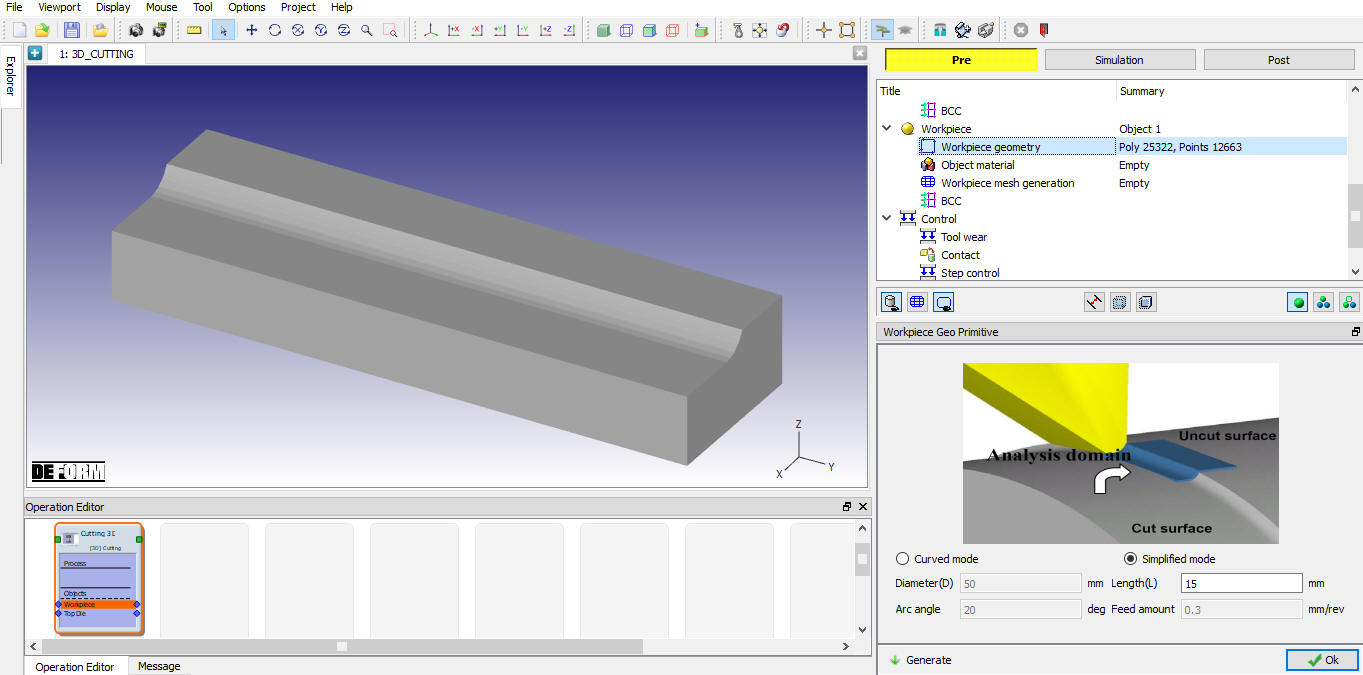
Geometria obrobku v zjednodušenom režime
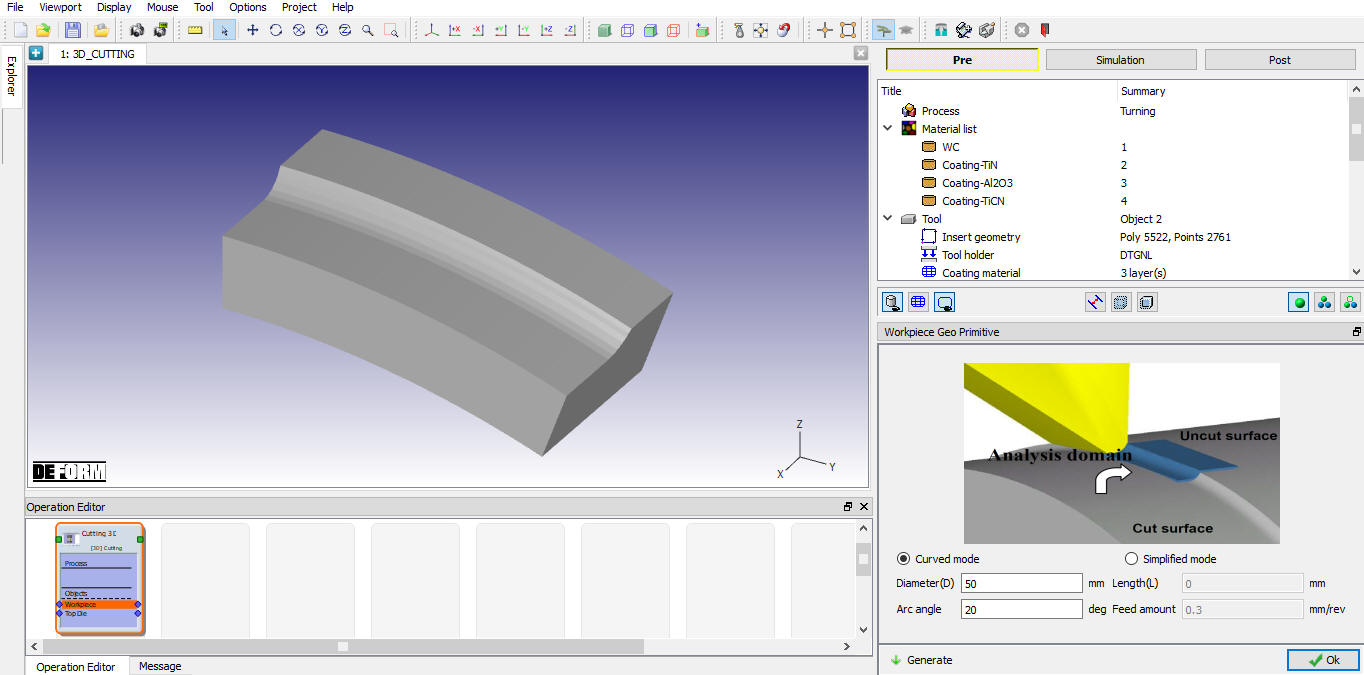
Geometria obrobku v režime zakrivenia
Výber materiálu obrobku
Na stránke materiálov sa zobrazujú všetky materiály pridané do zoznamu materiálov, ako je znázornené na obr. 39.2.24. Používateľ môže vybrať požadovaný materiál a priradiť ho k príslušnému objektu. Ak požadovaný materiál nie je k dispozícii v zozname, môže ho na stránke materiálov objektu načítať pomocou funkcie „Importovať materiál“ z súboru alebo pomocou možnosti „Načítať z knižnice“ . Ak materiál nie je k dispozícii v knižnici DEFORM, môže ho používateľ vytvoriť pomocou . Používateľ môže materiál zo zoznamu odstrániť pomocou alebo upraviť údaje o materiáli pomocou . Upravený alebo novo definovaný materiál je možné uložiť pomocou , .
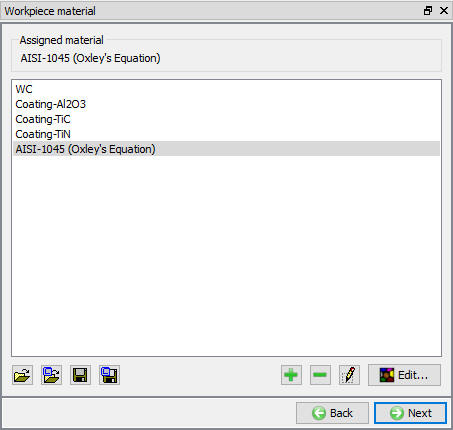
Priradenie materiálu k obrobku
Vytvorenie siete obrobku
Používateľ môže vytvoriť sieť definovaním údajov o relatívnej alebo absolútnej veľkosti ôk, ako je znázornené na obr. 39.2.25 a obr. 39.2.26. Po kliknutí na možnosť sa tiež zobrazí náhľad siete. Ďalšie informácie týkajúce sa možnosti „Mesh“ v režime Expert nájdete v časti 13.2. 3D Tet Mesh Generation.
Metóda relatívnej siete
-
Cieľový počet prvkov: Počet prvkov, ktoré sa majú pre daný objekt vygenerovať, je možné určiť jednoduchým posunutím posuvníka a výberom vhodnej hodnoty pre aktuálnu simuláciu.
-
Pomer veľkostí: Ide o pomer dĺžky hrany najväčšieho prvku k dĺžke hrany najmenšieho prvku.
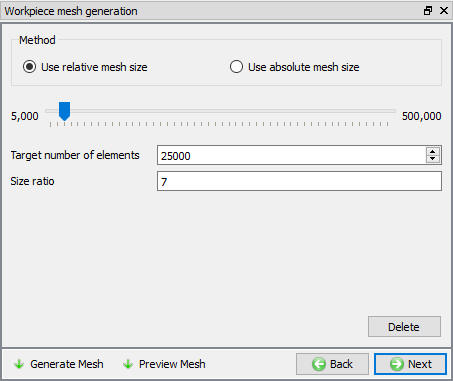
Vytvorenie siete obrobku s použitím relatívnej veľkosti ôk
Metóda absolútnej siete
-
Určenie veľkosti na základe percentuálneho podielu krmiva: Na základe percentuálneho podielu krmiva sa automaticky vypočíta minimálna veľkosť ok siete.
-
Minimálna veľkosť prvku: Nastavuje minimálnu veľkosť prvku generovanej siete, ktorá sa vypočíta na základe percentuálnej hodnoty zadaného údaja.
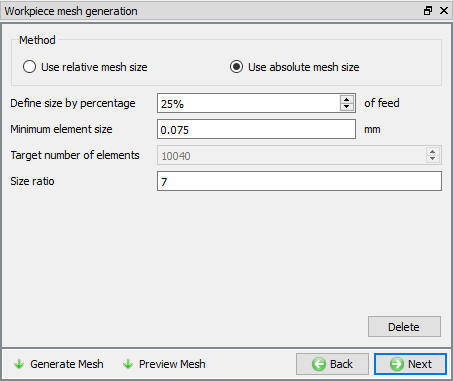
Vytvorenie siete obrobku s použitím absolútnej veľkosti ôk
Obrobok BCC
Na tejto stránke BCC môže používateľ definovať deformačné a tepelné parametre BCC (napríklad rýchlosť, výmenu tepla s okolím a teplotu). Predvolené údaje BCC sa automaticky priradia po vygenerovaní siete, ako je znázornené na obr. 39.2.27, obr. 39.2.28 a obr. 39.2.29. Predvolené údaje BCC budú rovnaké pre zakrivené aj zjednodušené geometrie.
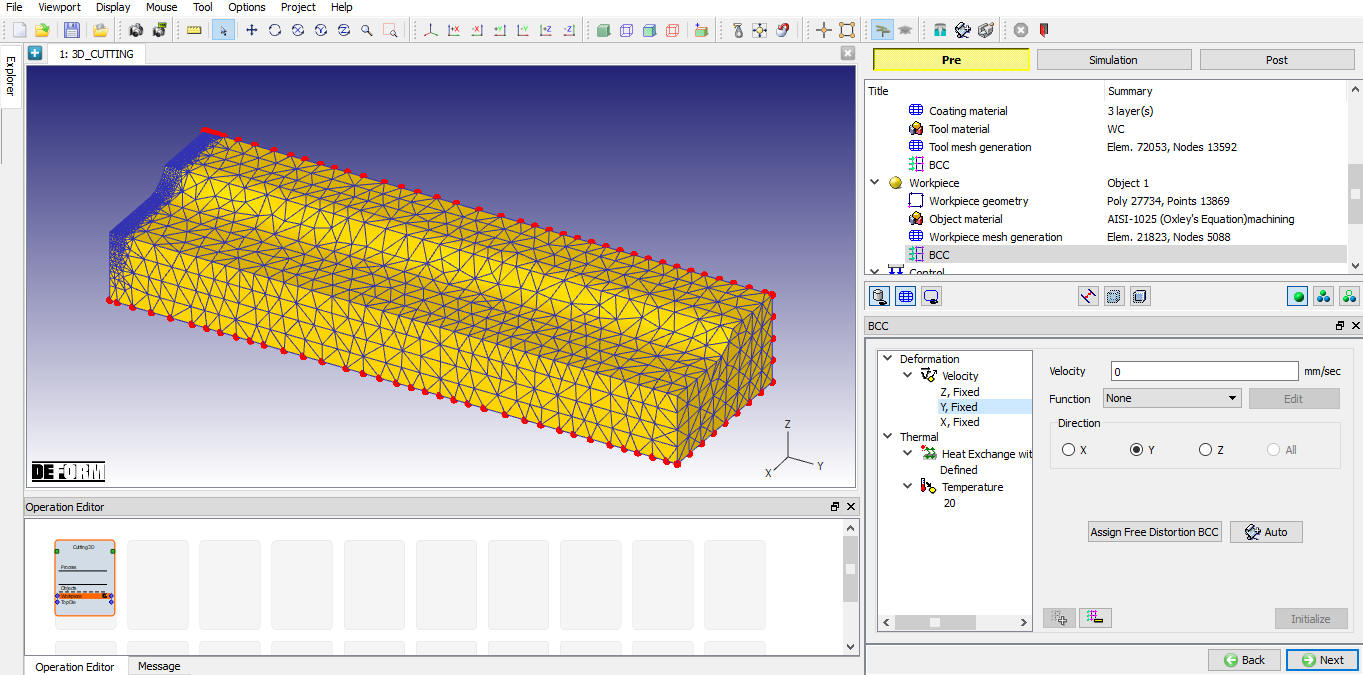
Údaje o rýchlosti BCC pre zjednodušenú geometriu

BCC s výmenou tepla pre zakrivenú geometriu
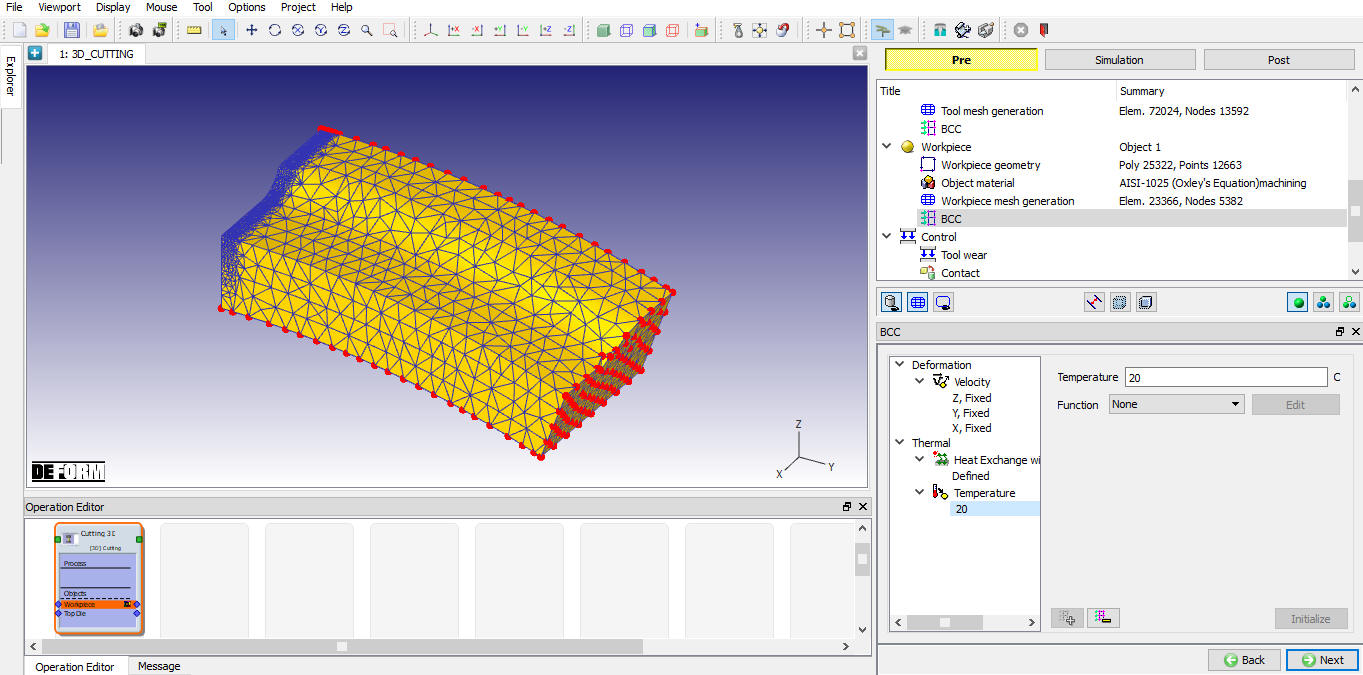
Teplotná BCC pre zakrivenú geometriu
Ovládanie
Pomocou funkcie „Umiestnenie objektov“ je možné nástroj umiestniť na základe rýchlosti posuvu a polohy obrobku. K dispozícii sú rôzne možnosti umiestnenia objektov, ako je znázornené na obr. 39.2.30. Ďalšie informácie o týchto možnostiach nájdete v dokumente 19. Object positioning.
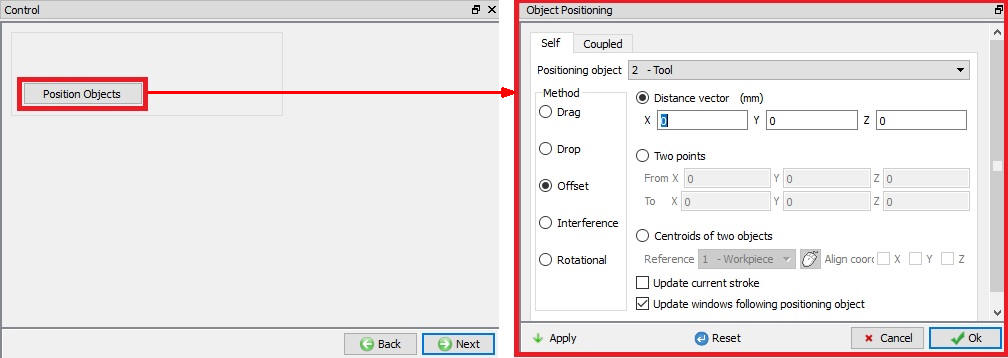
Možnosti umiestnenia objektov
Opotrebenie nástrojov
Používateľ môže aktivovať výpočet opotrebenia nástroja pomocou zaškrtávacieho políčka „Definovať model na výpočet opotrebenia nástroja“. Po zaškrtnutí tohto políčka môže používateľ vybrať model opotrebenia nástroja a definovať jeho parametre, ako je znázornené na obr. 39.2.31. Ďalšie informácie o týchto možnostiach nájdete v 20.4.Tool Wear.
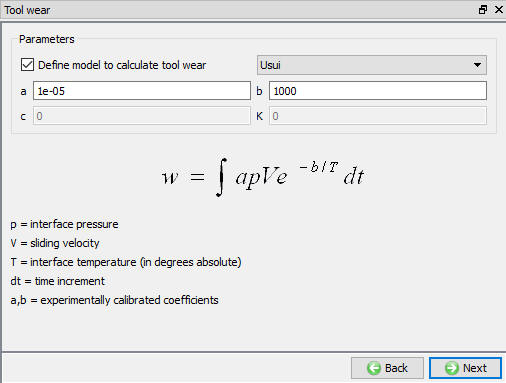
Stránka „Opotrebenie nástrojov“
Kontakt
V predvolenom nastavení bude zaškrtnuté políčko „užívateľ“ a pre operáciu 3D rezania budú tiež definované predvolené vzťahy, ako je znázornené na obr. 39.2.32. Užívateľ môže zmeniť hodnotu každého vzťahu tak, že ho vyberie a klikne na tlačidlo . Kliknutím na tlačidlo  môže používateľ vypočítať toleranciu kontaktu. Kliknutím na tlačidlo
  môže používateľ vygenerovať vzťah kontaktu. Zaškrtnutím políčka vedľa vzťahu kontaktu môže používateľ definovať prilnavý kontakt.
Ďalšie informácie nájdete v dokumente 20. Inter-Object Relations.
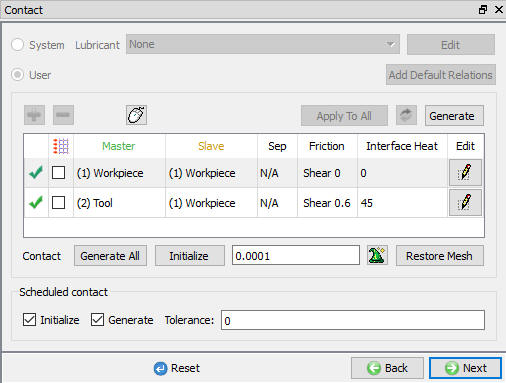
Stránka s kontaktnými údajmi
Krokové riadenie
Používateľ môže definovať údaje pre ovládacie prvky krokov pomocou režimu s návodom ( ), ako je znázornené na obr. 39.2.33. Ak chce používateľ využiť pokročilé nastavenia simulácie, môže prejsť do režimu Expert (
 ), ako je znázornené na obr. 39.2.34. Ďalšie informácie a popis možností v nastaveniach simulácie nájdete v 9.Simulation Controls.
Počiatočné číslo kroku: Ak sa zapisuje do novej databázy, uvedené číslo kroku bude prvým krokom v tejto databáze. Ak sa údaje zapisujú do existujúcej databázy, údaje z predspracovateľa sa do tejto databázy pripojia v správnom číselnom poradí a všetky kroky nasledujúce po uvedenom kroku budú prepísané.
Počet krokov (NSTEP): Tu je možné zadať počet krokov, ktoré sa majú simulovať. Ak sa simulácia ukončí skôr na základe kritérií ukončenia, nasledujúci krok, ktorým začína ďalšia operácia, bude nadväzovať na predchádzajúcu operáciu.
Krok: Hodnota kroku, ktorá sa má uložiť do databázy, určuje počet krokov, ktoré systém uloží do databázy. Pri spustení simulácie sa musí vypočítať každý krok, ale nemusí sa nutne uložiť do databázy. Uložením väčšieho počtu krokov sa zachová viac informácií o procese, čo však bude vyžadovať viac úložného priestoru.
Kritériá ukončenia :
-
V prípade geometrie v zjednodušenom režime: Musíme definovať dĺžku rezu, aby sa simulácia automaticky zastavila po vyrezaní definovanej dĺžky.
-
V prípade geometrie v režime „Curved“: Musíme definovať uhol oblúka, ktorý sa má vyrezať, aby sa simulácia automaticky zastavila po vyrezaní definovaného uhla.
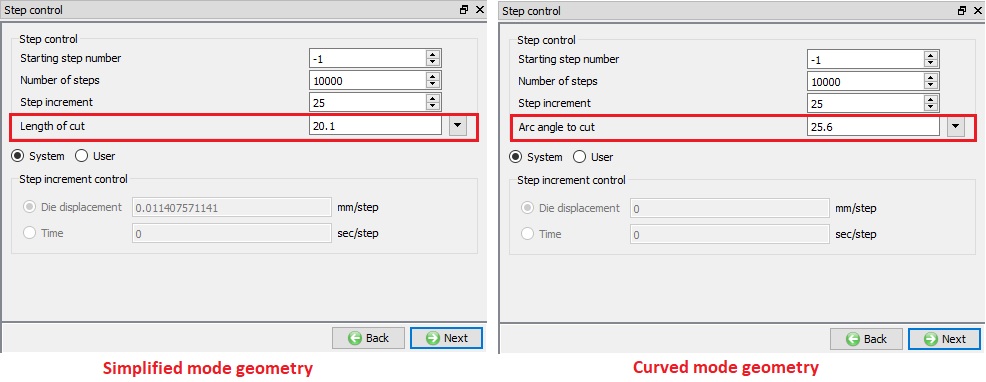
Stránka s ovládacími prvkami krokov v režime s návodom
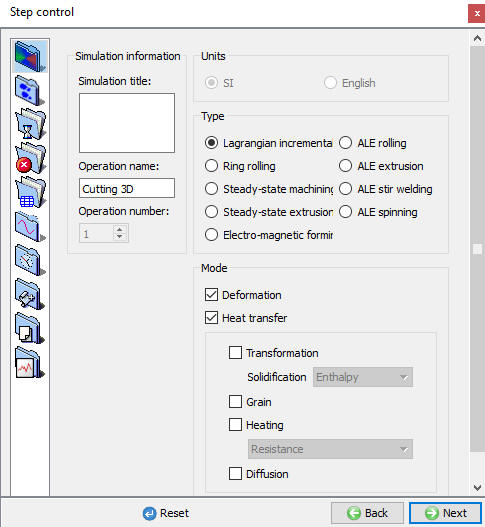
Stránka s ovládacími prvkami krokov v režime Expert
Vytvoriť databázu
Kontrola údajov  : Týmto sa vykoná kontrola údajov. Ak sú údaje správne, môžeme vytvoriť databázu. Ak sa však počas kontroly údajov vyskytnú chyby alebo varovania, je potrebné ich opraviť pred vytvorením databázy. Chyby zabránia vytvoreniu databázy, zatiaľ čo varovania vytvorenie databázy neumožnia.
Vytvoriť databázu : Kliknutím na toto tlačidlo sa vygeneruje databáza pre inštaláciu (pozri obr. 39.2.35).
Pridať súbor .key: Akékoľvek informácie, ktoré nie sú definované v sprievodcovi, ale stále sa vzťahujú na daný proces, je možné načítať ako súbor .key. Táto možnosť je užitočná aj v prípadoch, keď je potrebné zmeniť len niekoľko hodnôt – tieto hodnoty je možné definovať v súbore .key, následne stačí zmeniť len tento súbor a simuláciu je možné odoslať znovu.
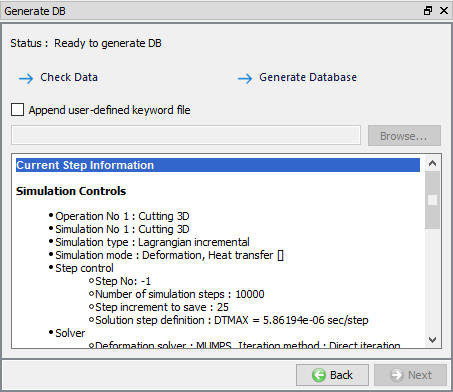
Vytvoriť stránku databázy
Súvisiace témy: