39.4. Vŕtanie
39.4.1. Prehľad systému
39.4.2. Pridanie vŕtacej operácie
39.4.3. Postup
39.4.4. Zoznam materiálov
39.4.5. Nástroj
39.4.5.1. Vložiť geometriu
39.4.5.2. Materiál povlaku
39.4.5.3. Materiál nástroja
39.4.5.4. Sieť nástroja
39.4.5.5. Nástroj BCC
39.4.6. Obrobok
39.4.6.1. Geometria obrobku
39.4.6.2. Výber materiálu obrobku
39.4.6.3. Vytvorenie siete obrobku
39.4.6.4. Objemová štruktúra obrobku (BCC)
39.4.7. Kontrola
39.4.8. Opotrebenie nástrojov
39.4.9. Kontakt
39.4.10. Ovládanie krokov
39.4.11. Vytvorenie databázy
Prehľad systému
Vzhľadom na počet otáčok vrtáka potrebných na stanovenie charakteristického správania sú simulácie vŕtania v programe DEFORM časovo náročné. Preto by sa malo vynaložiť všetko úsilie na optimalizáciu veľkosti úlohy. Používateľ môže optimalizovať nastavenie simulácie vŕtania tak, aby sa obrobok zachoval čo najmenší pri zachovaní geometrie (priemeru aj hrúbky), s použitím najväčšieho prvku, ktorý dokáže adekvátne zachytiť geometriu triesky, a prípadne predtvarovaním obrobku, čím sa eliminuje potreba simulovať prechodný bod vniknutia skôr, ako vrták dosiahne plnú hĺbku. Systém ponúka možnosti modelovania predtvarovaného obrobku s ohľadom na geometriu špičky vrtáka.
Pridanie vŕtacieho úkonu
Na nastavenie procesu vŕtania musí používateľ pridať 3D šablónu rezania a na stránke „Proces“ vybrať možnosť „Vŕtanie“, ako je znázornené na obr. 39.4.1. Ďalšie informácie o tom, ako pridať úlohu, nájdete v 39.2.1. How to add 3D Cutting Operation.
Stránka procesu
Parametre procesu potrebné na nastavenie procesu vŕtania sú uvedené na obr. 39.4.1.
Prenos tepla v prostredí: Na tejto karte sa nastavujú teplota prostredia a koeficient konvekcie. Ďalšie informácie o nastavení týchto parametrov nájdete v dokumente 39.2.4. Turning Process.
Rýchlosť rezania (v): Je definovaná ako rýchlosť, ktorou sa nástroj pohybuje. Rýchlosť rezania sa môže uvádzať v jednotkách mm/s alebo m/min v systéme SI a v jednotkách in/s alebo ft/min v anglických jednotkách.
Rýchlosť otáčania: Určuje rýchlosť otáčania nástroja. Rýchlosť otáčania možno uvádzať v otáčkach za minútu (rpm) alebo v radiánoch za sekundu.
Posuv (f): Je definovaný ako vzdialenosť, ktorú nástroj prejde počas jednej otáčky obrobku. V systéme SI sa uvádza v jednotkách mm/ot alebo mm/s, v anglických jednotkách v jednotkách in/ot alebo in/s.
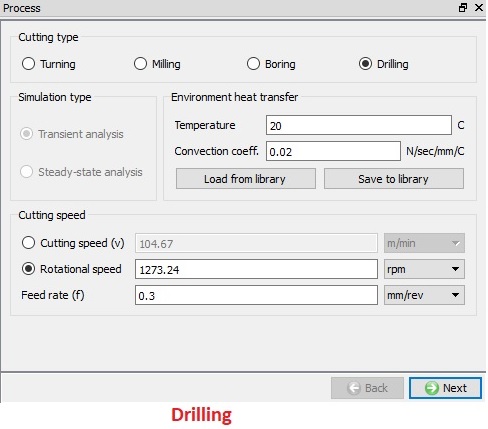
Stránka o procese vŕtania
Zoznam materiálov
Na tejto stránke „Zoznam materiálov“ môže používateľ načítať materiál z knižnice, pomocou kľúčového slova alebo z databázového súboru pomocou volieb  a
a  , ako je znázornené na obr. 39.4.2. Materiály načítané na tejto stránke je možné priradiť k objektom na príslušnej stránke materiálov. Používateľ môže tiež pridať nový materiál pomocou tlačidla
  a definovať jeho vlastnosti. Pomocou tlačidla
  môže používateľ odstrániť načítaný materiál. Používateľ môže materiál uložiť aj pomocou možností
  a
a  .
.
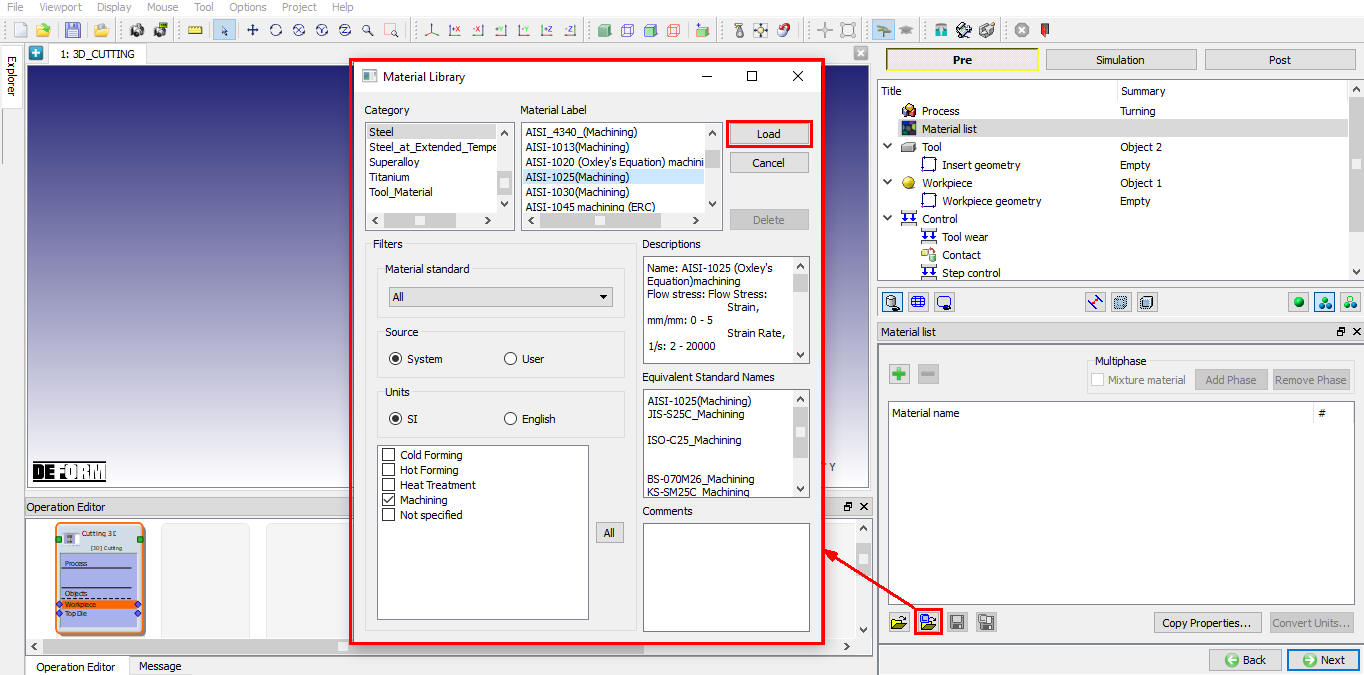
Priradenie materiálu do zoznamu materiálov
Nástroj
Na tejto stránke „Nástroj“ môže používateľ nastaviť teplotu objektu nástroja. Objekt nástroja môžeme načítať pomocou tlačidla  . Ak chce používateľ vypočítať tepelné údaje pre objekt nástroja, zaškrtne políčko „Vypočítať teplotu nástroja“ a zistí, že sa aktivujú možnosti vytvorenia siete pre nástroj, vďaka čomu je možné vytvoriť sieť nástroja na výpočet rozloženia teploty. (Pozri obr. 39.4.3.)
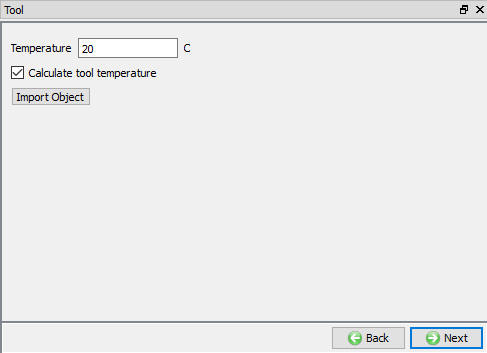
Stránka s nástrojmi
Vložiť geometriu
Na tejto stránke „Vložiť geometriu“ (pozri obr. 39.4.4.) môže používateľ definovať geometriu nástroja pomocou možnosti  . Používateľ môže tiež importovať geometriu pomocou možností „Importovať geometriu“ a . Pomocou možnosti „Pokročilé“ môže používateľ definovať počet rezacích hrán na vrtáku (pozri obr. 39.4.6.), čo sa využíva pri výpočtoch posuvu.
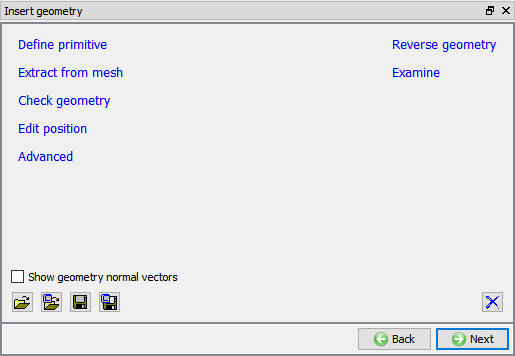
Stránka „Vložiť geometriu“
Definovanie geometrie nástroja pomocou možnosti „Definovať primitív“:
Voľba „Definovať primitív“ otvorí „Ponuku primitív vrtáka“, ako je znázornené na obr. 39.4.5. Po definovaní geometrických parametrov vrtáka môže používateľ kliknúť na tlačidlo  a vytvoriť geometriu vrtáka.
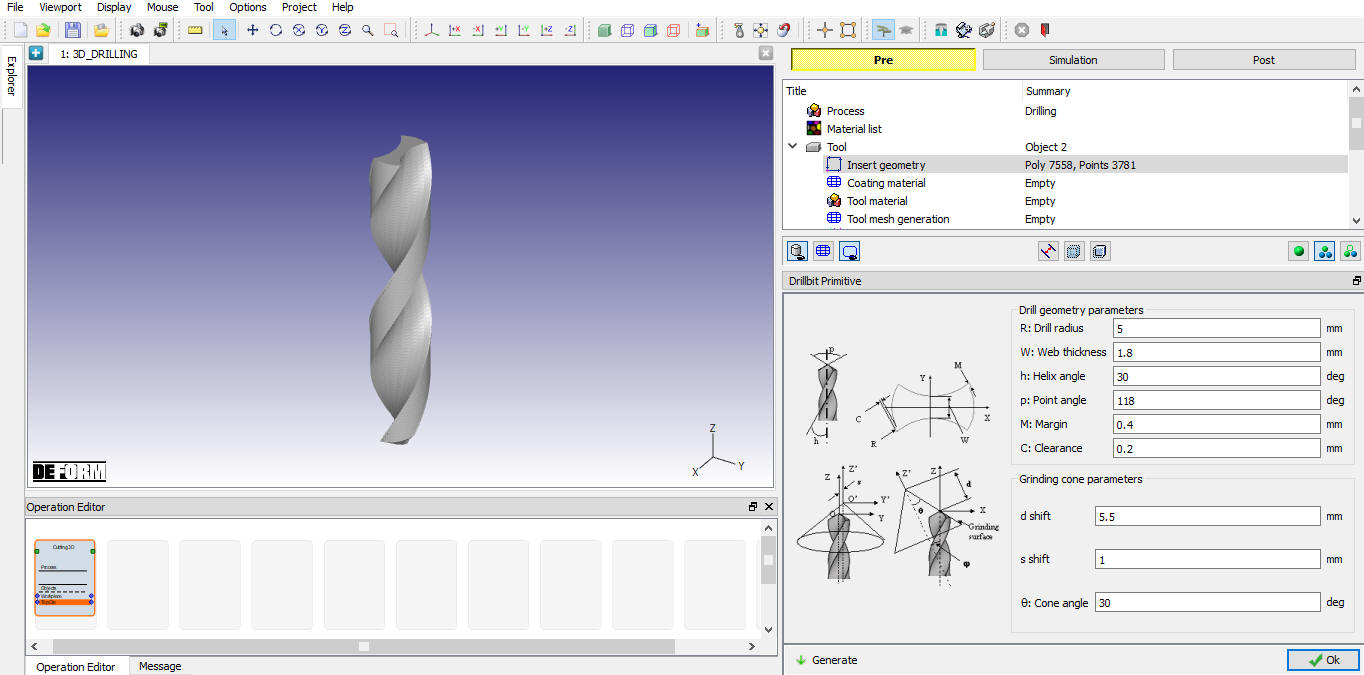
Stránka s primitívmi vrtákov
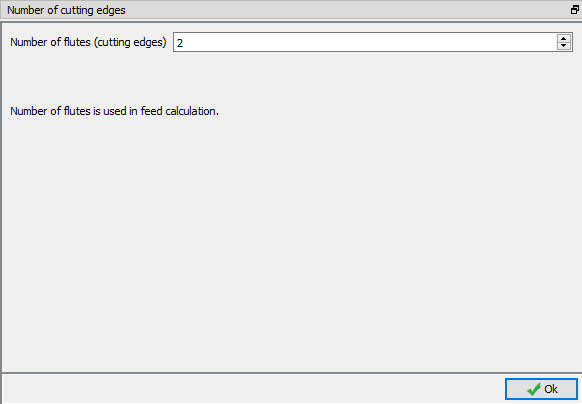
Pokročilé nastavenia geometrie vrtáka
Materiál povlaku
Používateľ môže na výmennú čepeľ naniesť povlak tak, že na stránke „Materiál povlaku“ definuje povlakovú vrstvu a jej hrúbku. Materiál vrstvy povlaku a jej hrúbku môže používateľ definovať kliknutím na tlačidlo  , ako je znázornené na obr. 39.4.7. Ak chce používateľ odstrániť akúkoľvek vrstvu, musí vybrať príslušnú vrstvu a kliknúť na tlačidlo
  .
.
Extrahovať informácie o povlaku: Po vytvorení povlaku môžeme pomocou tohto tlačidla extrahovať informácie o povlaku.
Odstrániť vrstvu: Pomocou tohto tlačidla môžeme odstrániť aj vrstvy s nákladmi.
Zaškrtnutím políčka „Zachovať stavové premenné a okrajové podmienky“ môže používateľ vytvoriť povlakovú vrstvu bez straty údajov o stavových premenných a okrajových podmienkach nástroja.
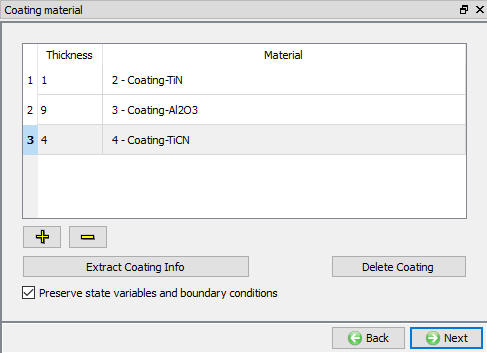
Stránka o povlakových materiáloch
Materiál nástroja
Na stránke materiálov sa zobrazia všetky materiály pridané do zoznamu materiálov, ako je znázornené na obr. 39.4.8. Používateľ môže vybrať požadovaný materiál a priradiť ho k príslušnému objektu. Ak požadovaný materiál nie je k dispozícii v zozname, môže ho na stránke materiálov objektu načítať pomocou funkcie „Importovať materiál“ z súboru alebo pomocou možnosti „Načítať z knižnice“ . Ak materiál nie je k dispozícii v knižnici DEFORM, môže ho používateľ vytvoriť pomocou . Používateľ môže materiál zo zoznamu odstrániť pomocou alebo údaje o materiáli upraviť pomocou  . Upravený alebo novo definovaný materiál je možné uložiť pomocou a .
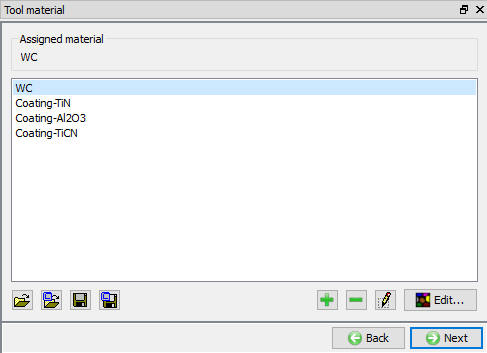
Priradenie materiálu nástroja
Sieť nástrojov
Používateľ môže vytvoriť sieť pre nástroj definovaním údajov o relatívnej alebo absolútnej veľkosti ôk, ako je znázornené na obr. 39.4.9 a obr. 39.4.10. Po kliknutí na možnosť „Preview Mesh“ (Náhľad siete) sa tiež zobrazí náhľad siete. Keďže informácie o reznom hrane sú súčasťou údajov o vložke, sprievodca automaticky použije jemnejšiu sieť v blízkosti reznej zóny. Pozrite si obr. 39.4.9., kde je zobrazené vŕtalo so sieťou.
Metóda relatívnej siete:
-
Cieľový počet prvkov: Počet prvkov, ktoré sa majú pre daný objekt vygenerovať, je možné určiť jednoduchým posunutím posuvníka a výberom vhodnej hodnoty pre aktuálnu simuláciu.
-
Pomer veľkostí: Ide o pomer dĺžky hrany najväčšieho prvku k dĺžke hrany najmenšieho prvku.
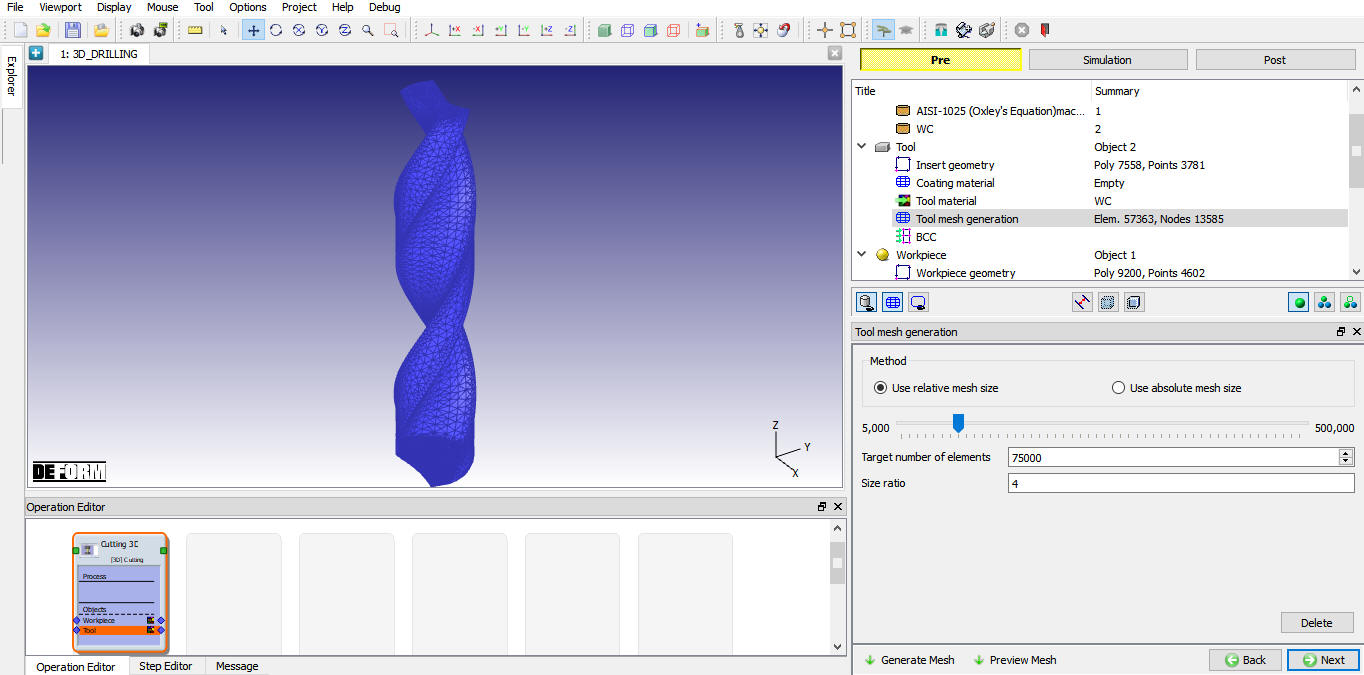
Vytvorenie siete pomocou relatívnej veľkosti ôk
Metóda absolútnej siete:
- Minimálna veľkosť prvku: Parameter „Rýchlosť výpočtu“ automaticky vypočíta minimálnu veľkosť prvku generovanej siete, na základe čoho sa automaticky vypočíta hodnota „Počet prvkov“, ako je znázornené na obr. 39.4.10.
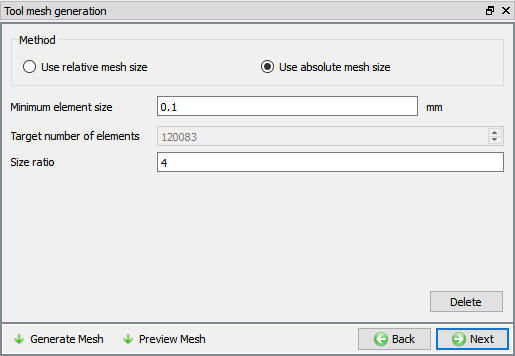
Vytvorenie siete pomocou absolútnej veľkosti ok
Nástroj BCC
Na tejto stránke BCC môže používateľ definovať tepelné BCC, ako napríklad „Výmena tepla s okolím“ a „Teplota“. Predvolené BCC sa priradia automaticky po vytvorení siete, ako je znázornené na obr. 39.4.11.
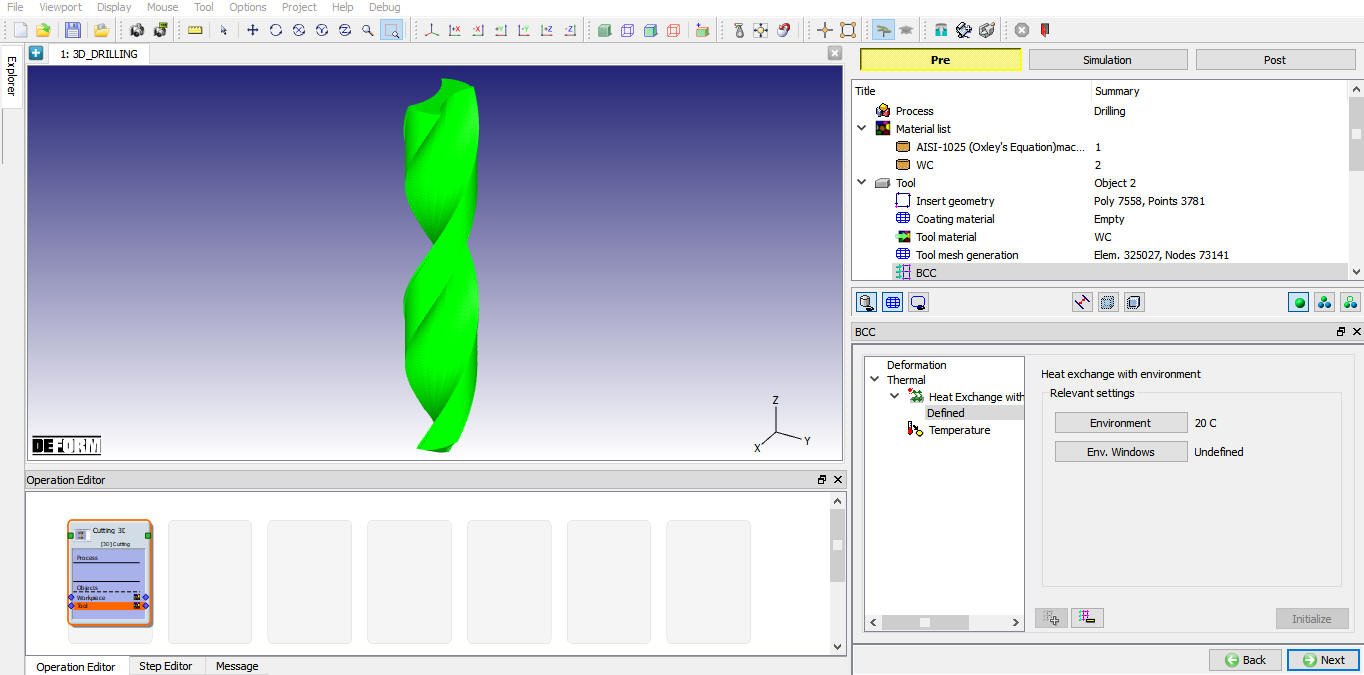
Predvolená hodnota výmeny tepla BCC
Obrobok
Na tejto stránke „Obrobok“ môže používateľ definovať typ objektu a nastaviť jeho počiatočnú teplotu. Predvolene je vybraný typ objektu „Plast“, ako je znázornené na obr. 39.4.12. Ak má používateľ záujem zohľadniť vplyv elastických vlastností, môže použiť typ objektu „Elastoplast“. Údaje o objekte môžeme tiež importovať pomocou tlačidla .
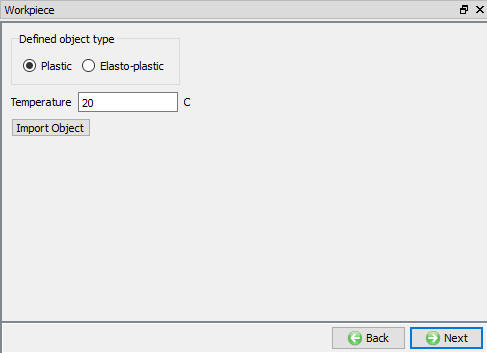
Stránka obrobku
Geometria obrobku
Na tejto stránke „Geometria obrobku“ môže používateľ definovať geometriu obrobku pomocou funkcie . Používateľ môže tiež importovať geometriu pomocou možnosti „Importovať geometriu“ , .
####
Definovanie geometrie obrobku pomocou možnosti „Definovať primitív“
Funkcia „Definovať primitív“ otvorí ponuku „Geometrické primitívy obrobku“, ako je znázornené na obr. 39.4.13. Šablóna ponúka možnosti na vytvorenie valcového obrobku alebo predtvarovaného obrobku na základe geometrie hrotu vrtáka. Obr. 39.4.13 a obr. 39.4.14 znázorňujú geometrické parametre na vytvorenie obrobku na základe tvaru hrotu vrtáka a valcového obrobku.
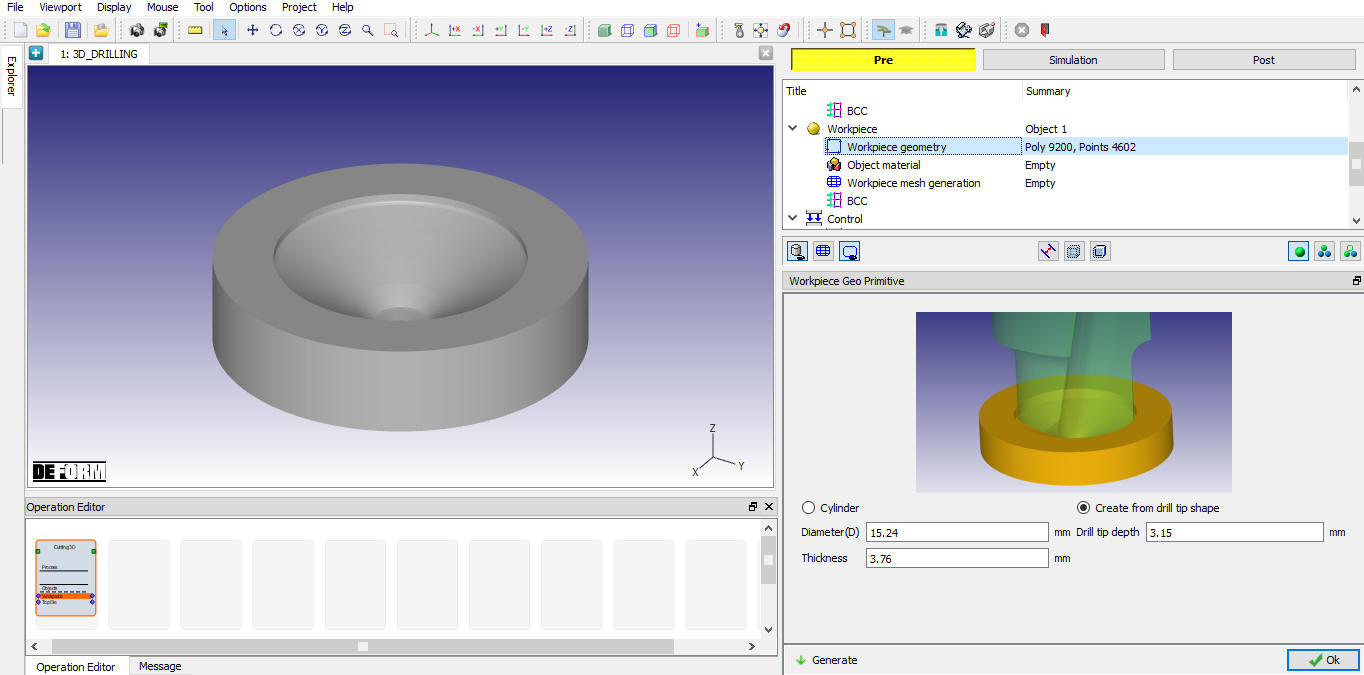
Vytvoriť geometriu obrobku na základe tvaru hrotu vrtáka
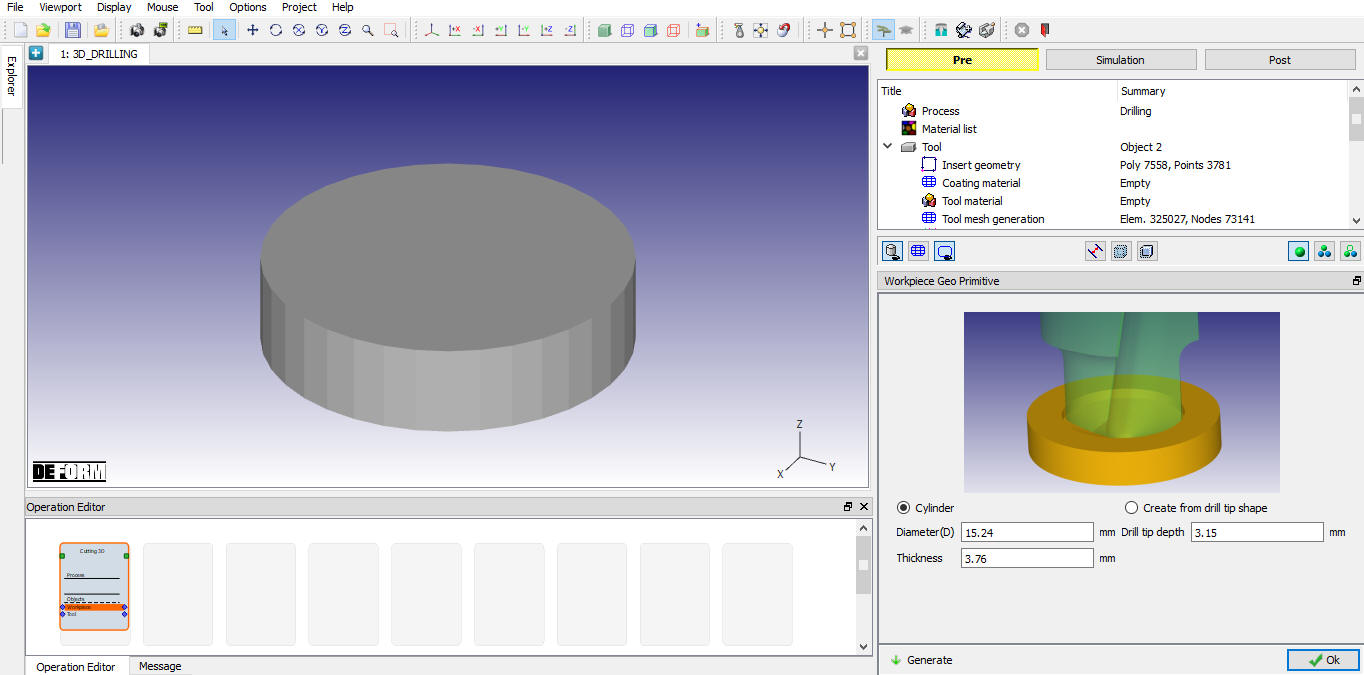
Geometria valcového obrobku
Výber materiálu obrobku
Na stránke materiálov sa zobrazujú všetky materiály pridané do zoznamu materiálov, ako je znázornené na obr. 39.4.15. Používateľ môže vybrať požadovaný materiál a priradiť ho k príslušnému objektu. Ak požadovaný materiál nie je k dispozícii v zozname, môže ho na stránke materiálov objektu načítať pomocou funkcie „Importovať materiál“ z súboru alebo pomocou možnosti „Načítať z knižnice“ . Ak materiál nie je k dispozícii v knižnici DEFORM, môže ho používateľ vytvoriť pomocou . Používateľ môže materiál zo zoznamu odstrániť pomocou alebo údaje o materiáli upraviť pomocou . Upravený alebo novo definovaný materiál je možné uložiť pomocou , .
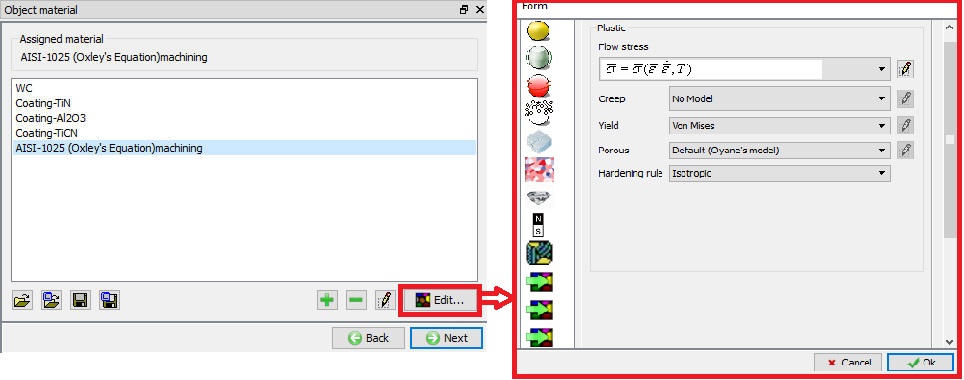
Priradenie materiálu k obrobku
Vytvorenie siete obrobku
Používateľ môže vytvoriť sieť definovaním údajov o relatívnej alebo absolútnej veľkosti ôk, ako je znázornené na obr. 39.4.16 a obr. 39.4.17. Po kliknutí na možnosť  sa tiež zobrazí náhľad siete.
Metóda relatívnej siete:
-
Cieľový počet prvkov: Počet prvkov, ktoré sa majú pre daný objekt vygenerovať, je možné určiť jednoduchým posunutím posuvníka a výberom vhodnej hodnoty pre aktuálnu simuláciu.
-
Pomer veľkostí: Ide o pomer dĺžky hrany najväčšieho prvku k dĺžke hrany najmenšieho prvku. Predtvarovaný obrobok so sieťovou štruktúrou na základe hrotu vrtáka vyzerá tak, ako je znázornené na obr. 39.4.16.
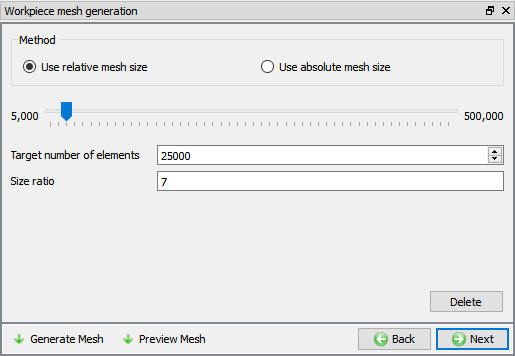
Vytvorenie siete obrobku s použitím relatívnej veľkosti ôk
Metóda absolútnej siete:
-
Určenie veľkosti na základe percentuálneho podielu krmiva: Na základe percentuálneho podielu krmiva sa automaticky vypočíta minimálna veľkosť ok siete.
-
Minimálna veľkosť prvku: Určuje minimálnu veľkosť prvku generovanej siete, ktorá sa vypočíta na základe percentuálnej hodnoty zadaného údaja.
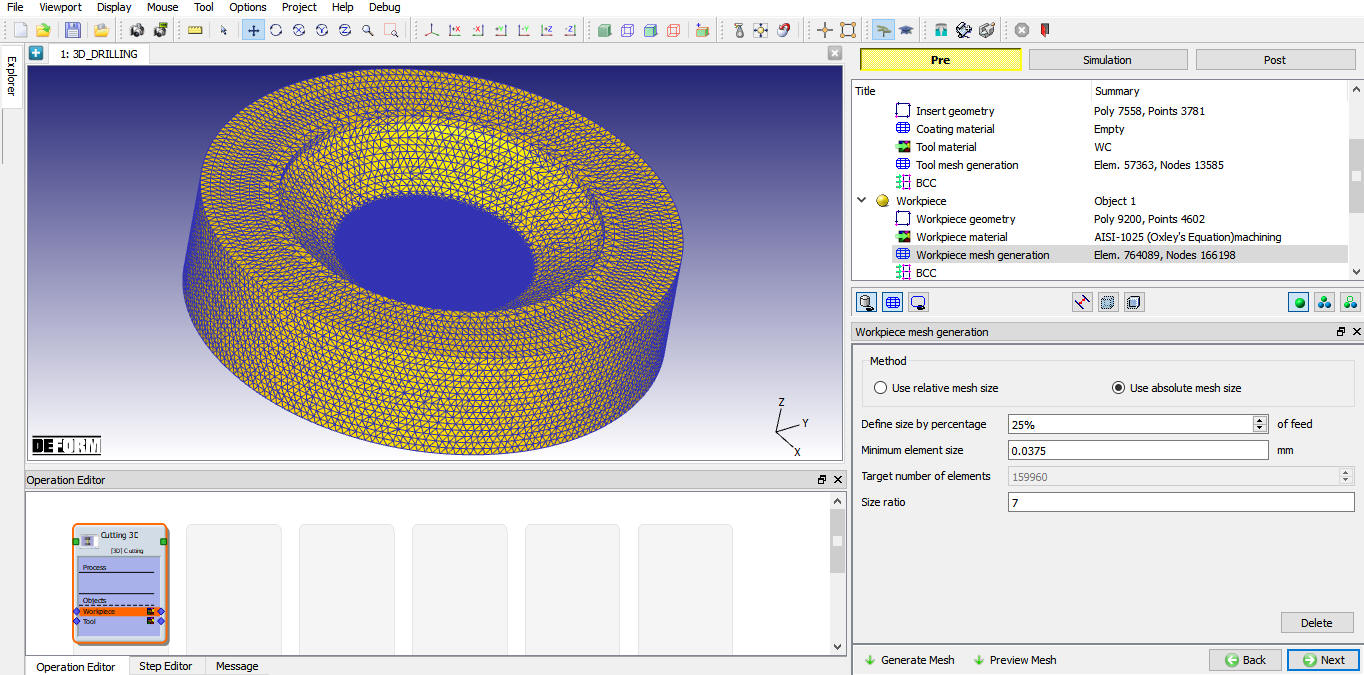
Vytvorenie siete obrobku s použitím absolútnej veľkosti ôk
Obrobok BCC
Na tejto stránke BCC môže používateľ definovať deformačné a tepelné parametre BCC (napr. rýchlosť, výmenu tepla s okolím a teplotu). Údaje BCC sa po vytvorení siete automaticky priradia podľa predvoleného nastavenia, ako je znázornené na obr. 39.4.18 a obr. 39.4.19.
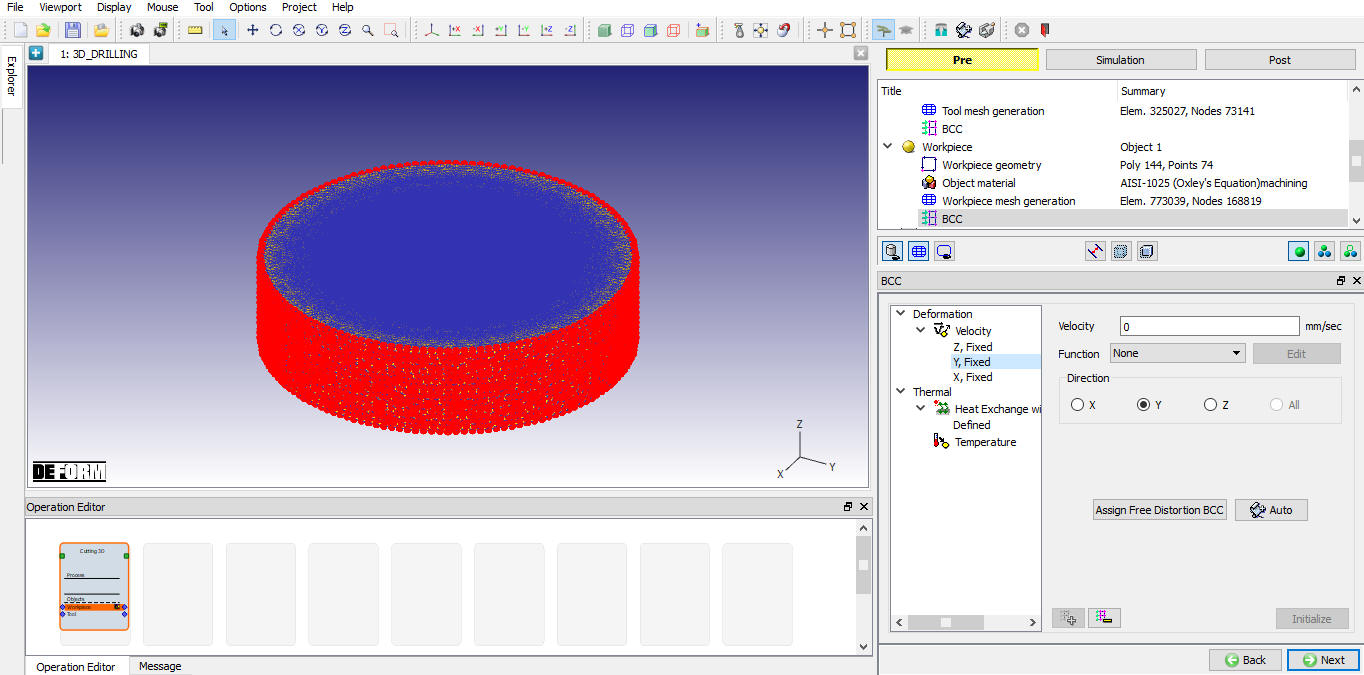
Údaje o rýchlosti BCC pre geometriu valca
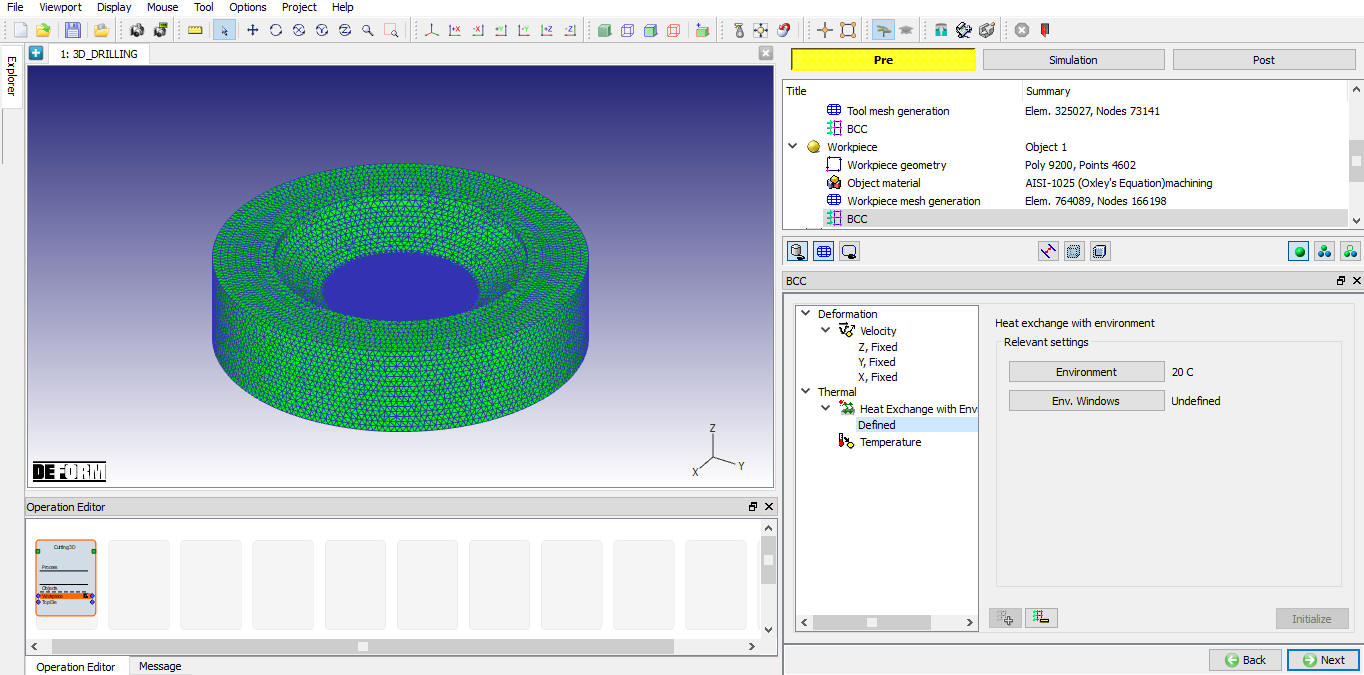
Výměna tepla BCC pre vytvorenie na základe geometrie tvaru vrtáka
Ovládanie
Pomocou funkcie „Umiestnenie objektov“ je možné nástroj umiestniť na základe rýchlosti posuvu a polohy obrobku. K dispozícii sú rôzne možnosti umiestnenia objektov, ako je znázornené na obr. 39.4.20. Ďalšie informácie o týchto možnostiach nájdete v dokumente 19. Object Positioning.
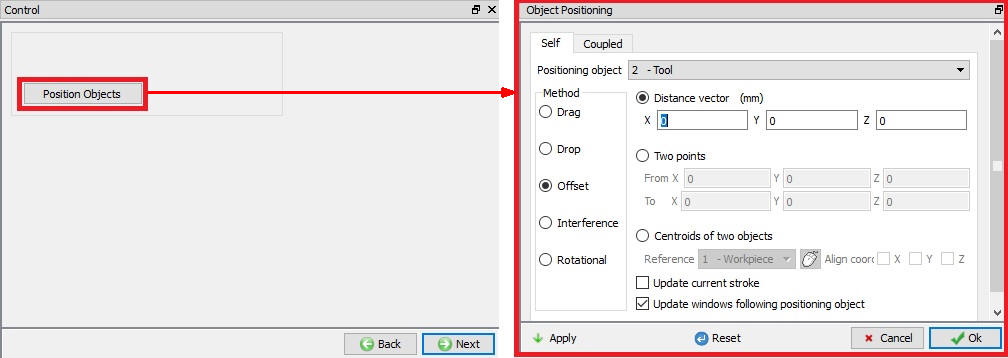
Možnosti umiestnenia objektov
Opotrebenie nástrojov
Používateľ môže zapnúť výpočet opotrebenia nástroja pomocou zaškrtávacieho políčka „Definovať model na výpočet opotrebenia nástroja“. Po zaškrtnutí tohto políčka môže používateľ vybrať model opotrebenia nástroja a definovať jeho parametre, ako je znázornené na obr. 39.4.21. Ďalšie informácie o týchto možnostiach nájdete v 20.4. Tool Wear..
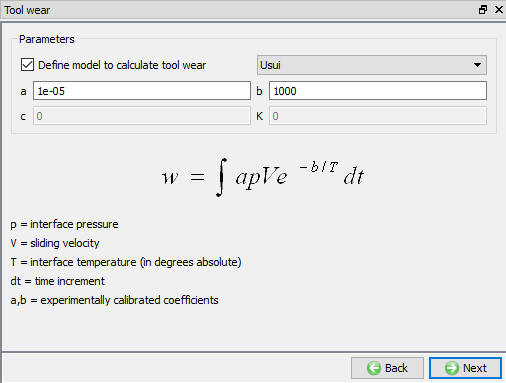
Stránka „Opotrebenie nástrojov“
Kontakt
Pre operáciu 3D rezania bude predvolene vybrané rádio tlačidlo „User“ a budú tiež predvolene definované vzťahy, ako je znázornené na obr. 39.4.22. Používateľ môže zmeniť hodnotu každého vzťahu tak, že ho vyberie a klikne na tlačidlo . Používateľ môže kliknúť na tlačidlo  na výpočet tolerancie kontaktu. Používateľ môže kliknúť na tlačidlo
  na vytvorenie vzťahu kontaktu. Používateľ môže zaškrtnúť políčko vedľa vzťahu kontaktu, aby definoval priliehavý kontakt.
Ďalšie informácie nájdete v dokumente 20. Inter-Object Relations.
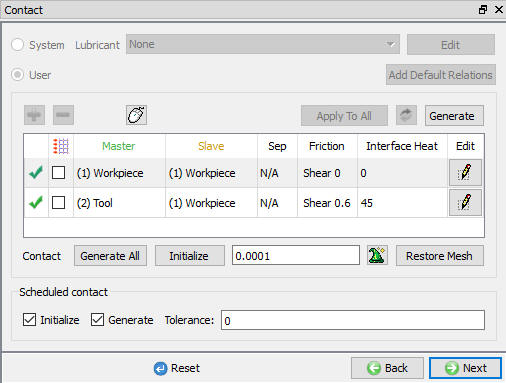
Stránka s kontaktnými údajmi
Ovládanie krokov
Používateľ môže nastaviť parametre krokov pomocou režimu s návodom ( ), ako je znázornené na obr. 39.4.23. Používateľ môže určiť počet krokov, veľkosť kroku a spôsob riadenia veľkosti kroku. K dispozícii je parameter „Hĺbka vŕtania“, vďaka čomu sa simulácia zastaví po dosiahnutí nastavenej hĺbky.Ak chce používateľ využiť pokročilé nastavenia simulácie, môže prejsť do režimu Expert (
 ), ako je znázornené na obr. 39.4.24. Ďalšie informácie a popis možností v nastaveniach simulácie nájdete v 9.Simulation Controls.
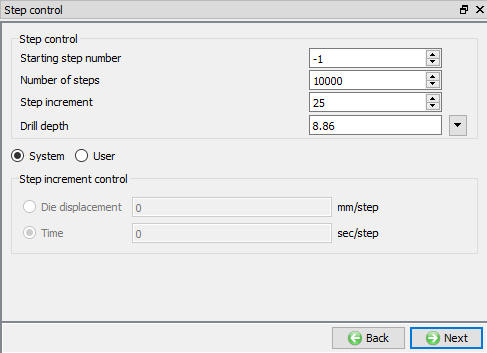
Stránka s ovládacími prvkami krokov v režime s návodom
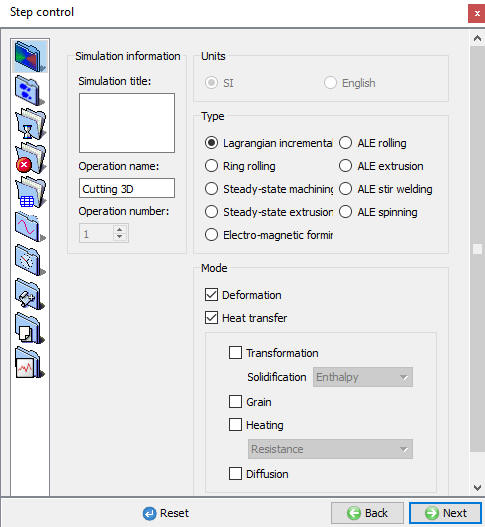
Stránka s ovládacími prvkami krokov v režime Expert
Vytvoriť databázu
Kontrola údajov  : Týmto sa vykoná kontrola údajov. Ak sú údaje správne, môžeme vygenerovať databázu. Ak sa však počas kontroly údajov vyskytnú chyby alebo varovania, je potrebné ich opraviť pred vygenerovaním databázy. Chyby zabránia vygenerovaniu databázy, zatiaľ čo varovania vygenerovanie databázy neumožnia.
Vytvoriť databázu : Kliknutím na toto tlačidlo sa vygeneruje databáza pre inštaláciu (pozri obr. 39.4.25.).
Pridať súbor .key: Akékoľvek informácie, ktoré nie sú definované v sprievodcovi, ale stále sa vzťahujú na daný proces, je možné načítať ako súbor .key. Táto možnosť je užitočná aj v prípadoch, keď je potrebné zmeniť len niekoľko hodnôt – tieto hodnoty je možné definovať v súbore .key, následne stačí zmeniť len tento súbor a simuláciu je možné odoslať znovu.
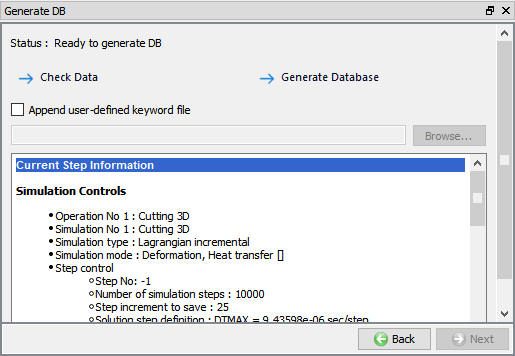
Vytvoriť stránku databázy
Súvisiace témy: